
What Are iPhone color filters and How to Use them?
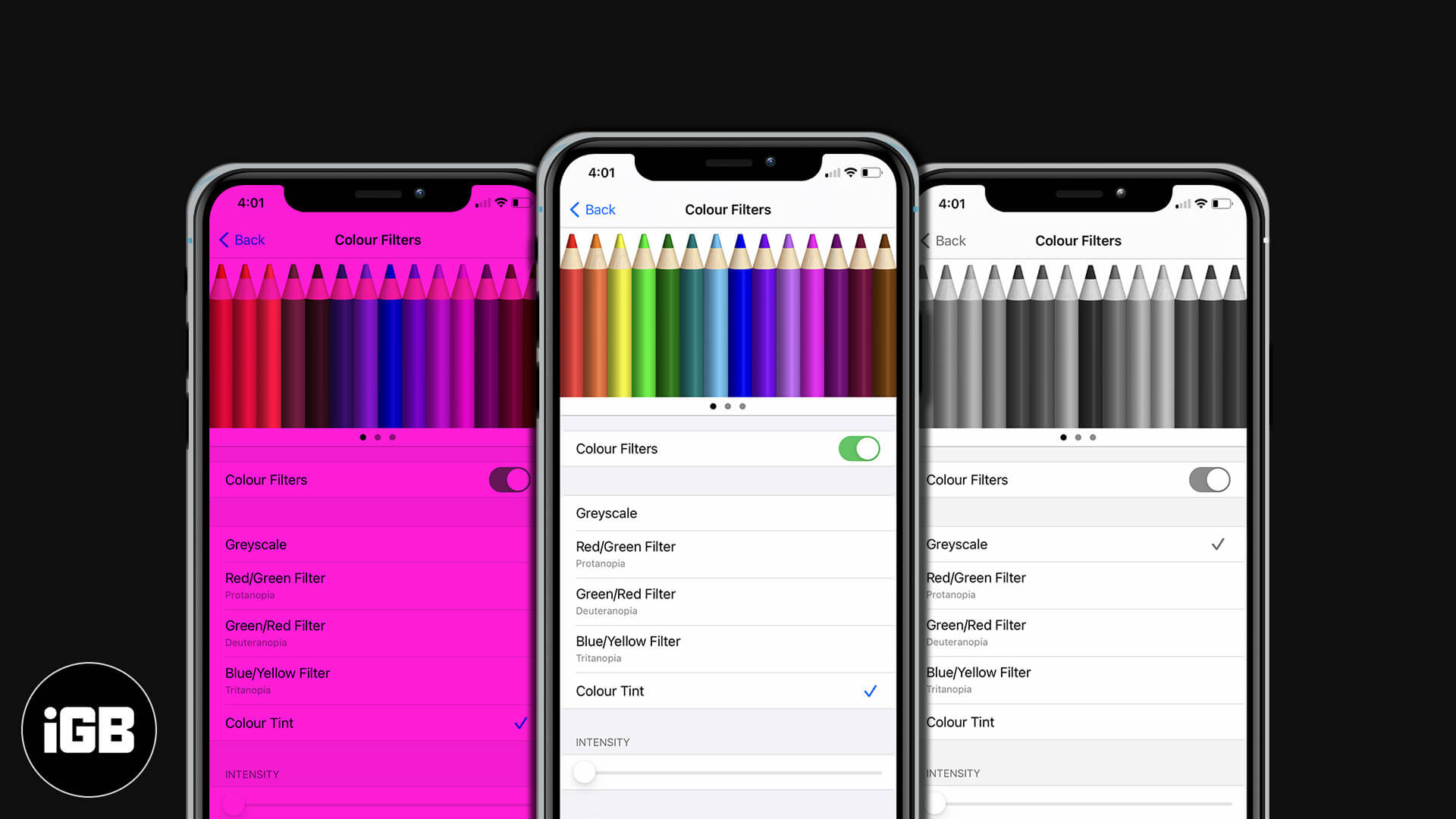
Color Filters are perfect for the ones with color blindness to help them comprehend between the different colors. These filters provide a way to adjust the tints and hue of the screen. So, through this color filter option, you can adjust the shade as per your requirements. Now, let’s go ahead and understand the usage of color filters on your iPhone and iPad!
How to Turn ON and Use Color Filters on iPhone and iPad
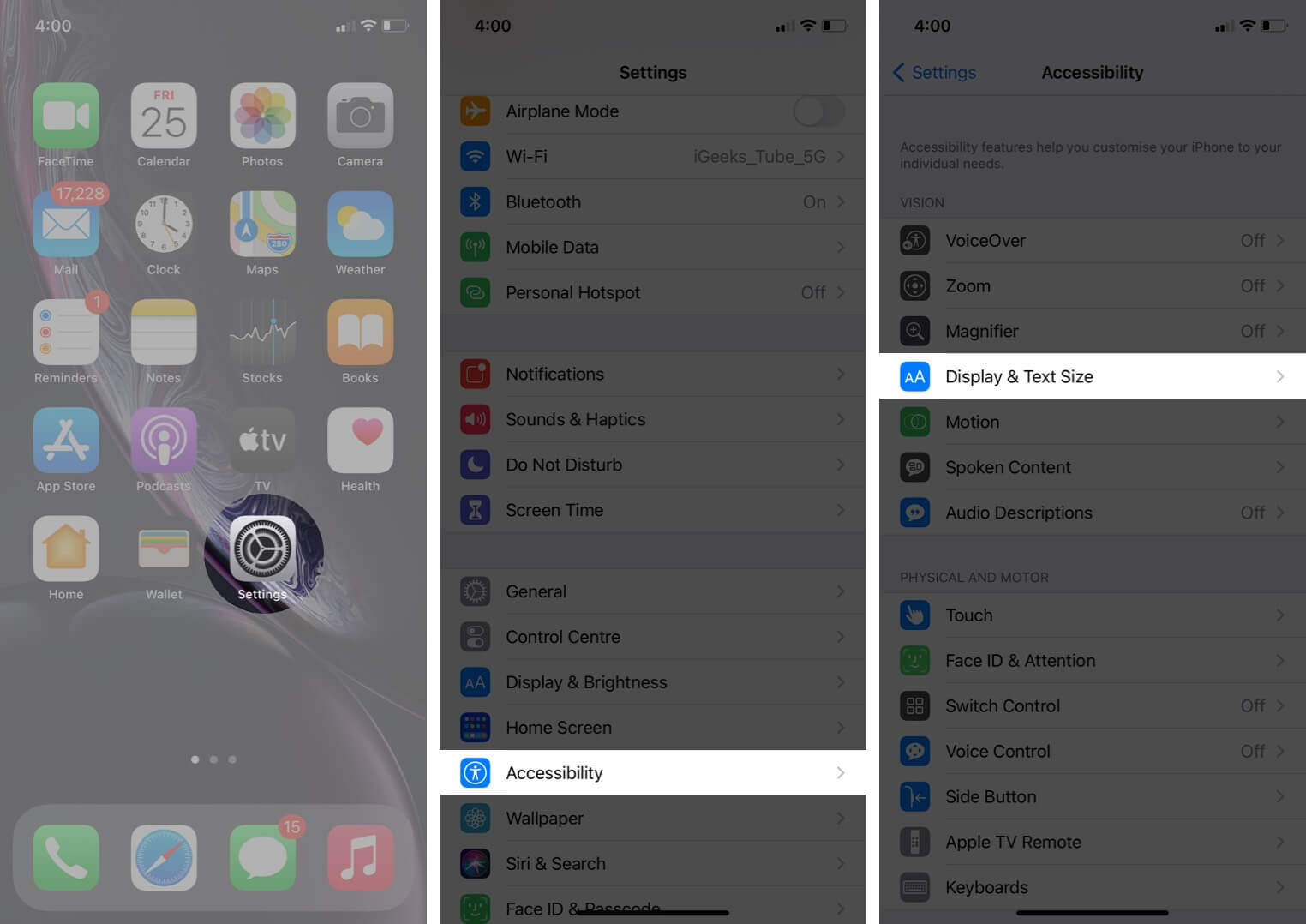
- Open the Settings app and tap on Accessibility.
- Find and tap on Display & Text Size.
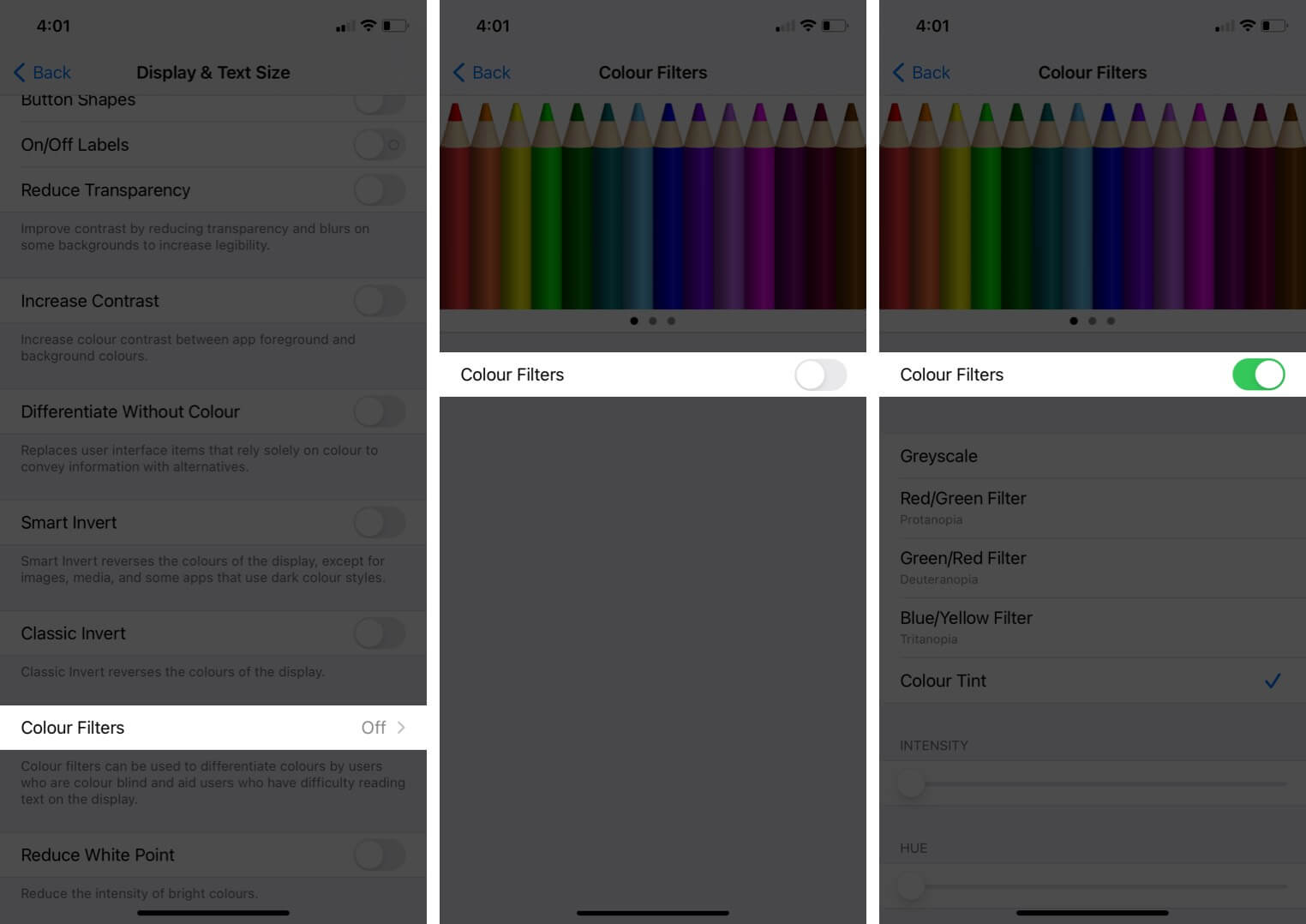
- Scroll down to find Color Filters and tap on it.
- Turn the toggle On and you will find options to choose from the color filters.
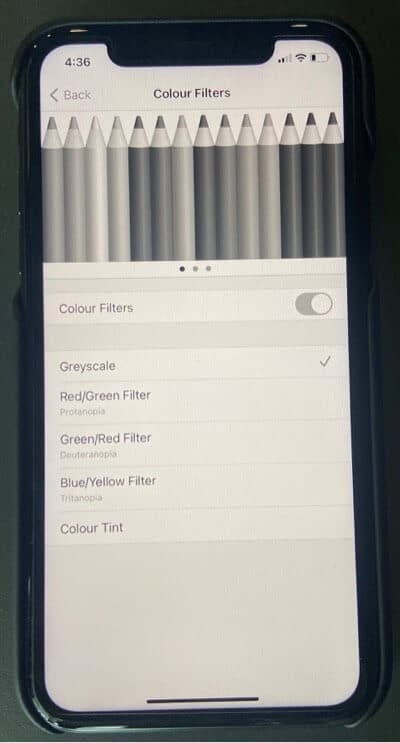
- Greyscale: Choosing this will remove all the colors from your device screen which will make everything on your phone look in Black & White or Grey.
- Red/Green Filter: Usage of this feature is feasible for the ones suffering from Protanopia (Insensitivity to red shade).
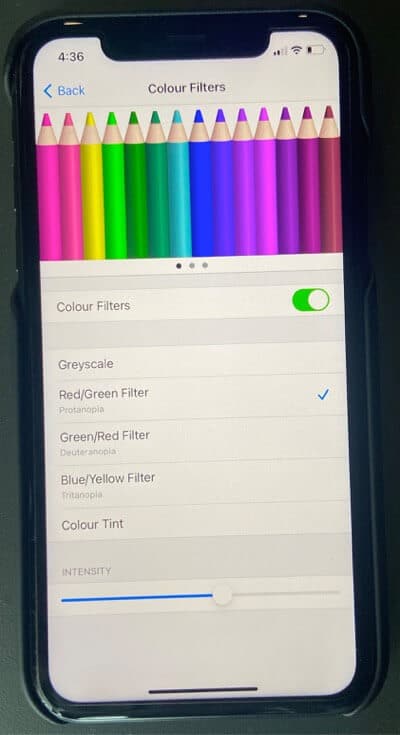
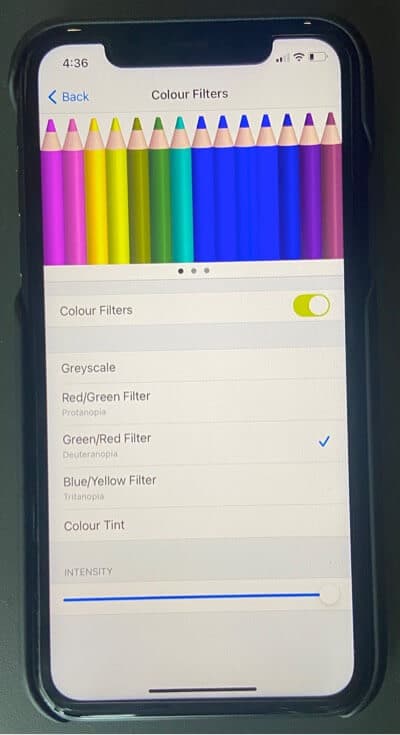
- Green/Red Filter: Better for the ones not able to grasp green color and particularly for the ones who cannot differentiate red from green (Deuteranopia).
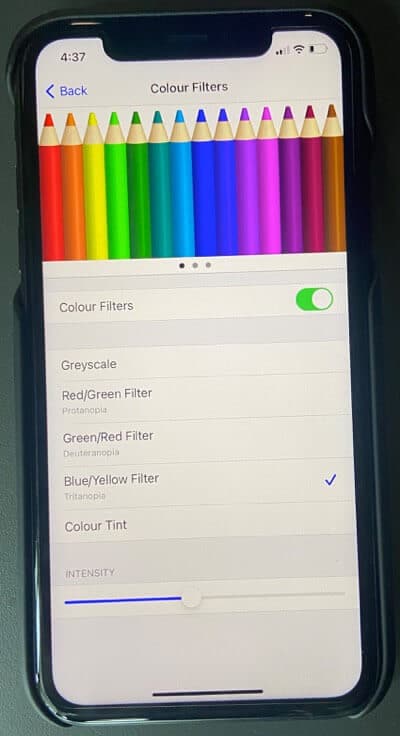
- Blue/Yellow Filter: Good for people who have Tritanopia, ones who cannot particularly distinguish between blue and yellow color.
- Color Tint: Will allow you to customize the hue and intensity and you can change the screen color as per your wish.
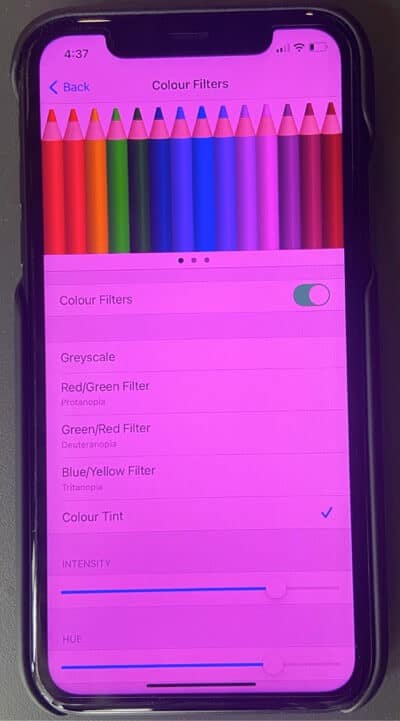
How to Adjust Color Tint and Intensity
When you tap on Color Tint, you will get two options mentioning: Intensity and Hue which can be adjusted as per the user’s choice by adjusting the slider.
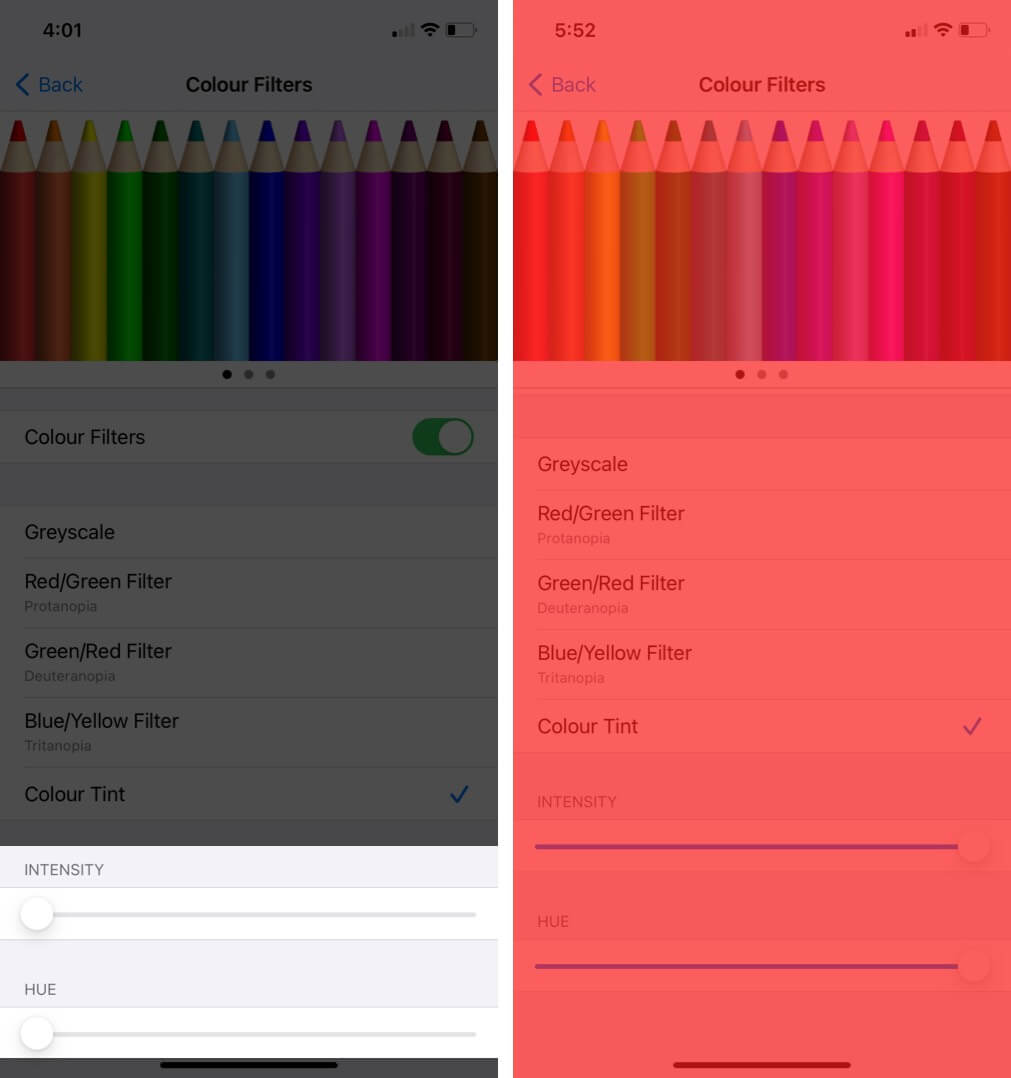
Just in case you want to see how these settings look on your phone screen. You can go to the gallery and open up a picture, now; you can again go back to the settings where you left and check again by adjusting the slider.
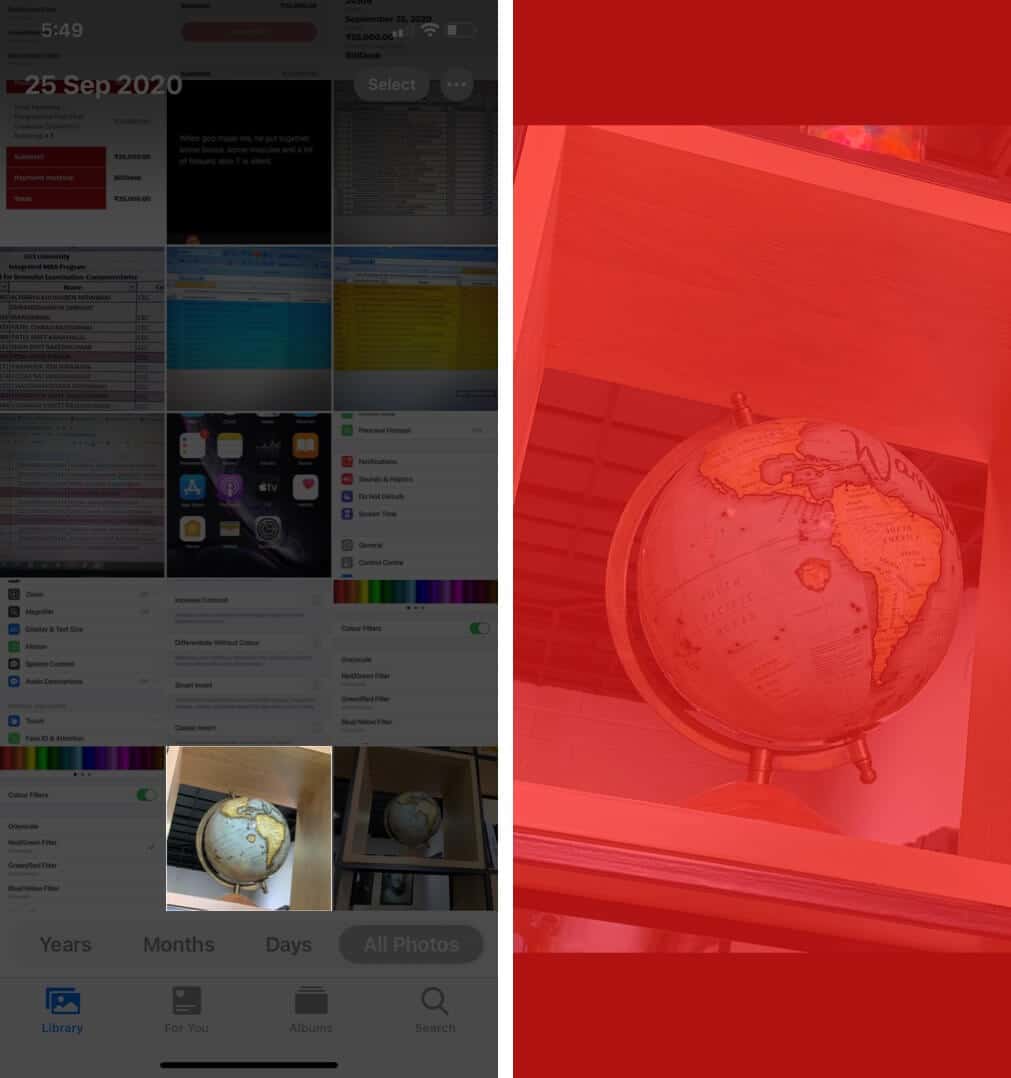
This will help you to understand the intensity and hue adjustment on your iPhone and you can go with the one that suits you best.
In case, you want to turn off color filters on your iOS device: Settings → Accessibility → Display & Text Size → Color Filters → Turn OFF.
Wrapping Up!!
These color filters are pretty important as it changes the ultimate look of anything including pictures or movies, in case you are looking to enable these color filters on your macOS. Check out our blog post for the same.
Which color fascinates you the most? Do mention it below in the comments section.
You would like to read these posts as well:

Written by
Dhvanesh AdhiyaThe founder of iGeeksBlog, Dhvanesh, is an Apple aficionado, who cannot stand even a slight innuendo about Apple products. He dons the cap of editor-in-chief to make sure that articles match the quality standard before they are published.
View all posts →More from How-to

How to Turn Off Location on Snapchat (Step-by-Step Guide)
Want to stop sharing your location on Snapchat? This guide explains how Snapchat location sharing works and shows simple ways to turn off your location using Ghost Mode or phone settings. Stay in control of your privacy in just a few steps.
 VikhyatMarch 5, 2026
Snapchat Parental Controls: How to Set Up Family Center and Keep Your Teen Safe
Snapchat’s Family Center lets parents monitor their teen’s friend activity and screen time without reading private messages. Here’s how to set it up and what to expect.
VikhyatMarch 3, 2026
How to Block and Unblock Someone on Instagram
Instagram lets you block or unblock someone in seconds. Follow these simple steps to take full control of your privacy and online peace.
 Ava BiswasMarch 2, 2026