
How to type the Apple logo on iPhone, iPad, and Mac
Add a touch of Apple magic to your texts!
Do you know you can use the Apple logo as an emoji? Yes, Apple lets you type its iconic logo on your iPhone, iPad, and Mac, so you can add a unique touch to your texts and showcase your Apple fandom. However, unlike standard emojis, the Apple logo isn’t directly available on most keyboards. Keep reading, and I will show you how to type the Apple logo on your iPhone, iPad, and Mac.
How to type the Apple logo on iPhone and iPad
The Apple logo isn’t available in the default emoji keyboard on an iPhone or iPad. As such, you need to rely on a workaround.
If you don’t require to type the Apple logo frequently, simply copy the Apple logo () and paste it on any Apple device.
On the other hand, if you want to use it repeatedly, it’s better to create a keyboard shortcut to make your life easier. Simply copy the logo () and follow the steps below:
- Launch Settings on your iPhone or iPad.
- Tap General and select Keyboard.
- Select Text Replacement.
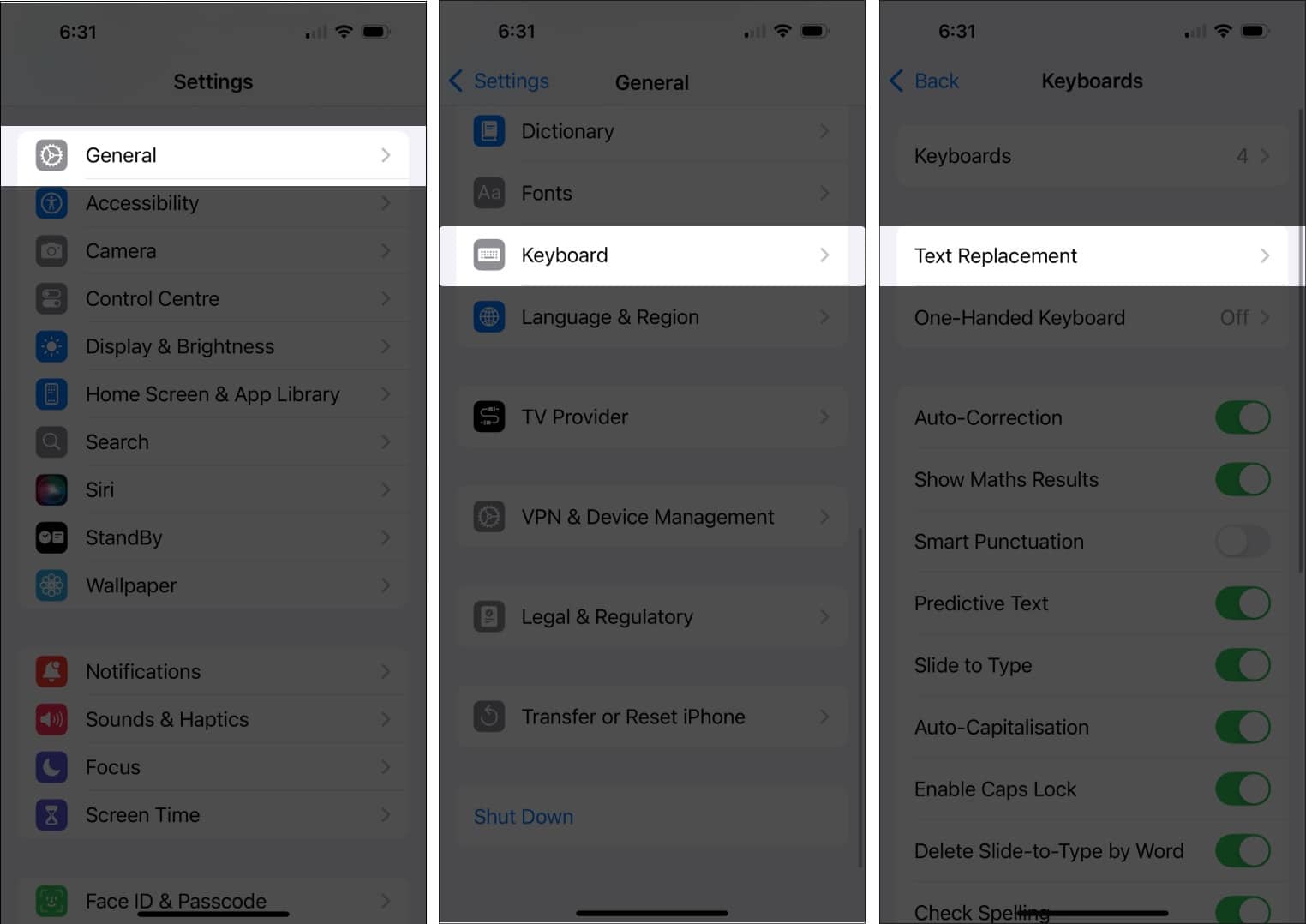
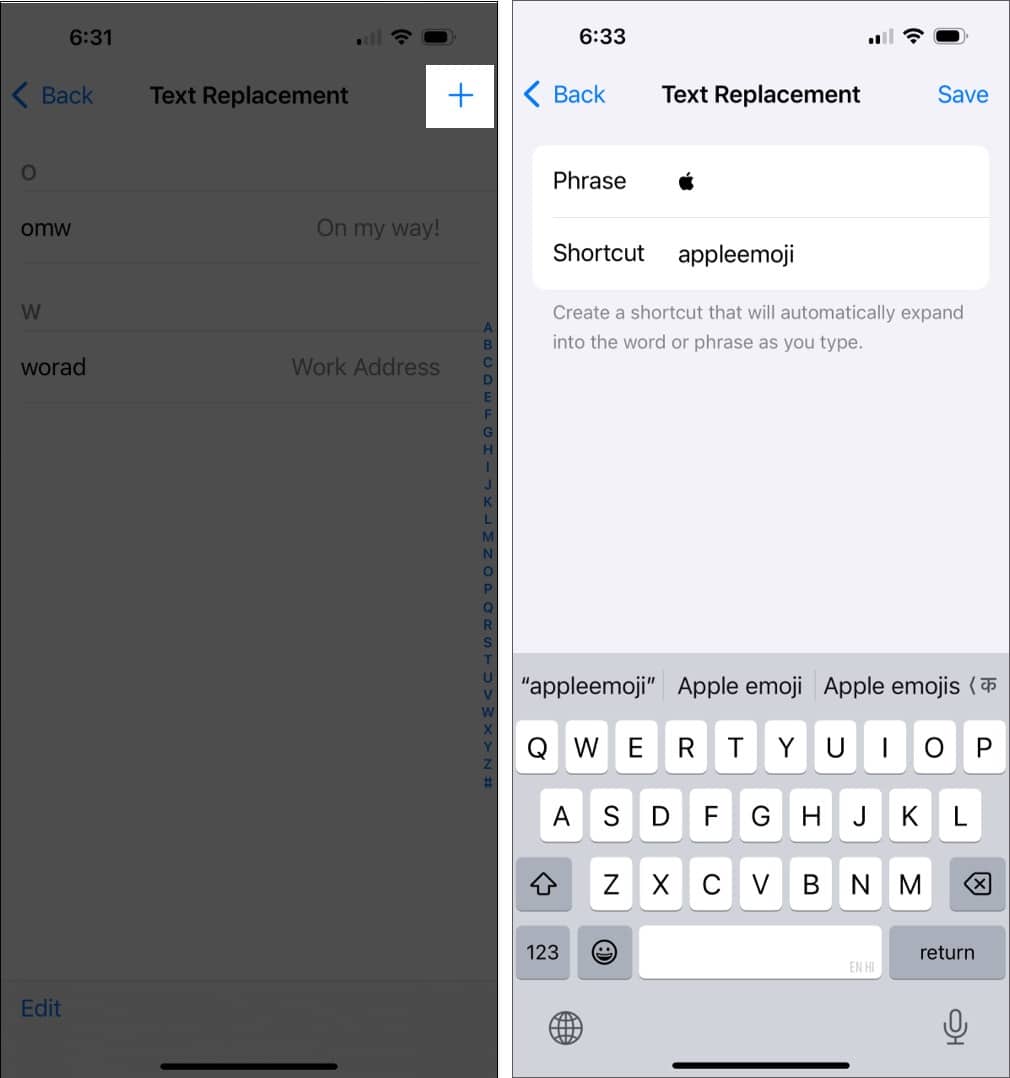
- Now tap the + in the upper-right corner.
- Paste the copied Apple logo in the Phrase field
- In the Shortcut field, type a keyword. I have used appleemoji. Do not leave space between words in your shortcut.
- Finally, tap the Save button to save the text replacement.
Once done, every time you type the Text Replacement shortcut, you will see the logo on the top of your keyboard. Tap on the Apple logo to automatically insert it into the text field. Or hit the Space key.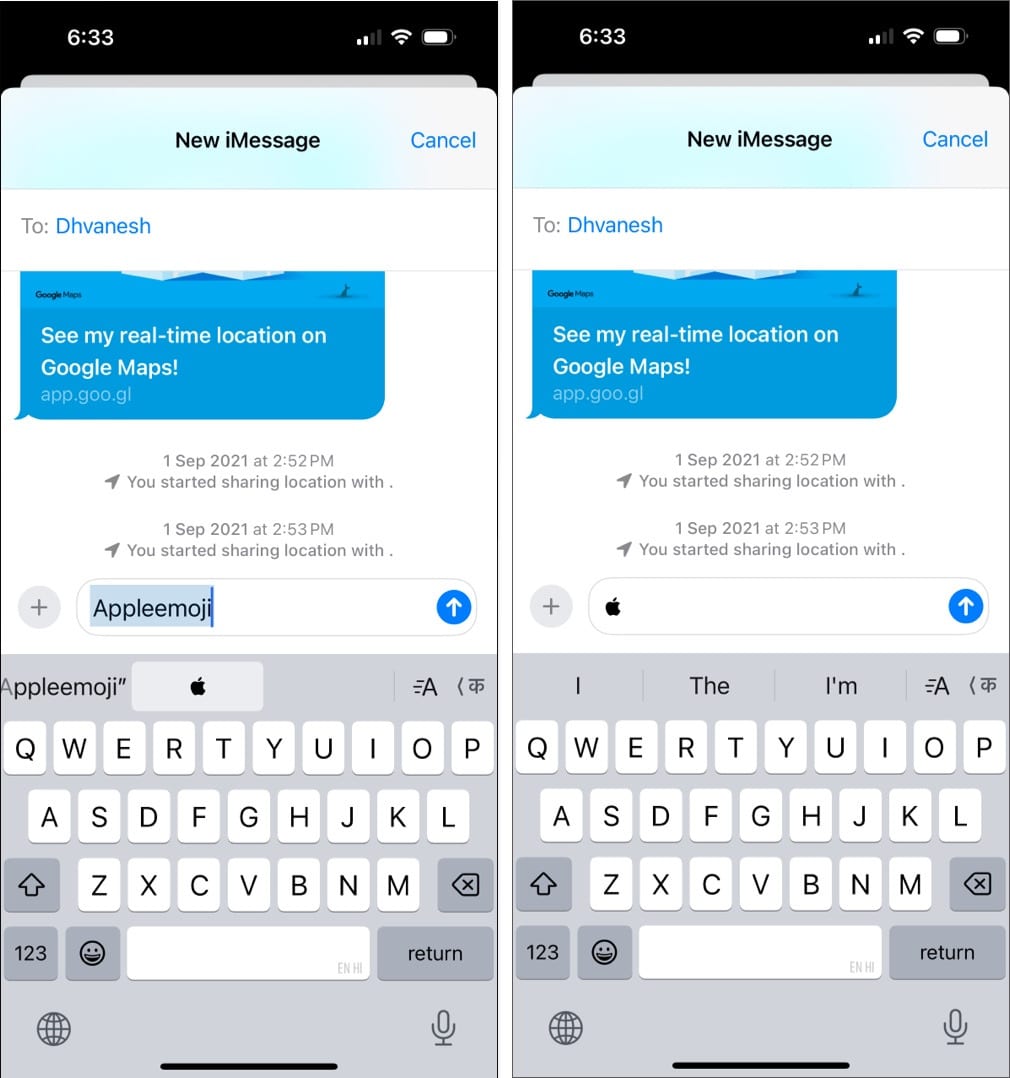
How to type the Apple logo on Mac
Typing the Apple logo on a Mac is easier than typing it on an iPhone or iPad. You can do it with a keyboard shortcut, like this:
- Move the cursor where you want to insert the Apple logo.
- Press Option+Shift+ K, and it will add the logo.
If you don’t see the Apple symbol, ensure you are using the U.S. English keyboard. Go to System Settings → Keyboard. Click Edit beside Input Sources. Now, click + at the bottom, select English → US and click Add.
Want to get the Apple symbol on other language keyboard? You can use the Text Replacement feature on Mac as well.
- Open System Settings and select Keyboard from the left pane.
- Click Text Replacements under Text Input.
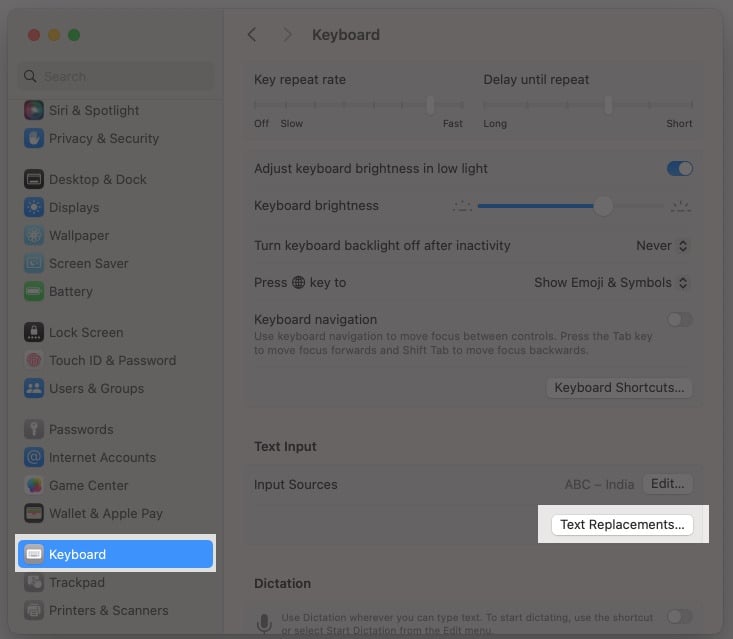
- Now, click the + icon to add the logo.
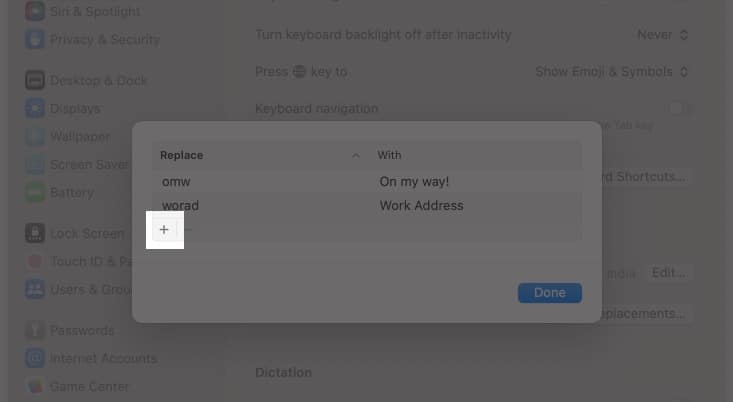
- Write the keyword in the Replace field and paste the copied in the With field.
- Finally, hit Add.
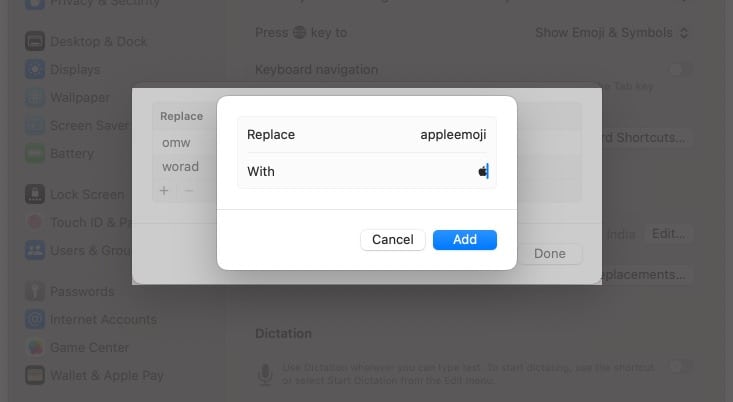
Now, when you type the keyword in any text field, you will see the replacement suggestion below. Hit the Space key, and the Apple logo will be inserted automatically.
Tip:
What is the cheat code for the Apple logo?
Here’s a quick reference for typing the Apple logo on any keyboard:
| Device | Cheat Code | Alternate Method |
| Mac | Option+Shift+K | Text Replacement and copy & paste |
| iPhone/iPad | Text Replacement | Copy and paste |
| Windows PC | Type F000 and press Alt+X | Press and hold Alt and type 61440 |
Mind you, you need to have Baskerville Old Face font on your Windows PC to get the Apple symbol. Copy-pasting the logo, on the other hand, is an easier approach.
Not all devices can render the Apple logo correctly
Now that you know how to type the Apple logo on your devices, you can add a touch of Apple flair to your messages, documents, or social media posts. Keep in mind that the logo may not appear correctly on non-Apple devices or apps, so use it carefully.
Frequently Asked Questions

Written by
Dhvanesh AdhiyaThe founder of iGeeksBlog, Dhvanesh, is an Apple aficionado, who cannot stand even a slight innuendo about Apple products. He dons the cap of editor-in-chief to make sure that articles match the quality standard before they are published.
View all posts →More from How-to

How to Turn Off Location on Snapchat (Step-by-Step Guide)
Want to stop sharing your location on Snapchat? This guide explains how Snapchat location sharing works and shows simple ways to turn off your location using Ghost Mode or phone settings. Stay in control of your privacy in just a few steps.
 VikhyatMarch 5, 2026
Snapchat Parental Controls: How to Set Up Family Center and Keep Your Teen Safe
Snapchat’s Family Center lets parents monitor their teen’s friend activity and screen time without reading private messages. Here’s how to set it up and what to expect.
VikhyatMarch 3, 2026
How to Block and Unblock Someone on Instagram
Instagram lets you block or unblock someone in seconds. Follow these simple steps to take full control of your privacy and online peace.
 Ava BiswasMarch 2, 2026