
How to turn on/off RTT or TTY on iPhone
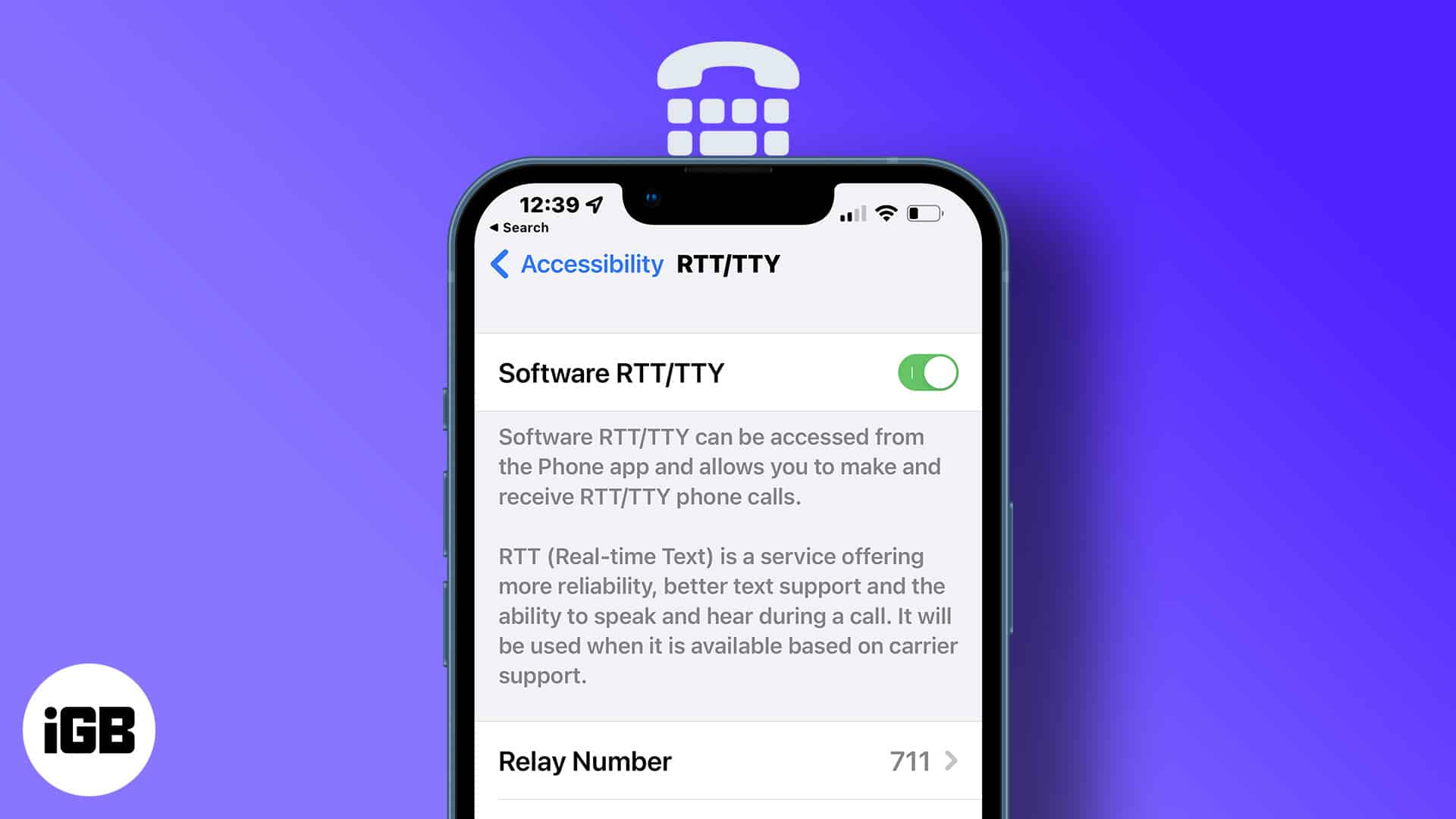
Apple incorporates a great accessibility feature to help people with speaking or hearing difficulties. It enables users to text the receiver on-call using a built-in teletypewriter (TTY) or real-time text (RTT) on their iPhone without any extra hardware.
The recipients can read the message immediately, as RTT (a more advanced protocol) instantly transmits your text into a voice message. Notably, you can only use RTT on iPhone using iOS 10 and later, provided your carrier supports the feature. So, let’s know the steps to take to turn on/off RTT or TTY on an iPhone.
What is RTT and TTY on iPhone?
RTT is a built-in accessibility feature on iPhone that provides a message box to send texts while making or receiving calls. It also uses automated transcription to convert audio to text and vice-versa.
On iPhones, RTT/TTY doesn’t need any extra hardware. But if you have a real teletypewriter device, you may connect it through an iPhone TTY adapter. Interestingly, the feature also maintains the text records, so you can go through the conversation at a later date as well.
Notably, software and hardware-based RTT/TTY calls are subject to regular voice call tariffs and rely on your network configuration. Different operators carry different variants of TTY/ RTT iPhone calls.
How to set up and use RTT on iPhone
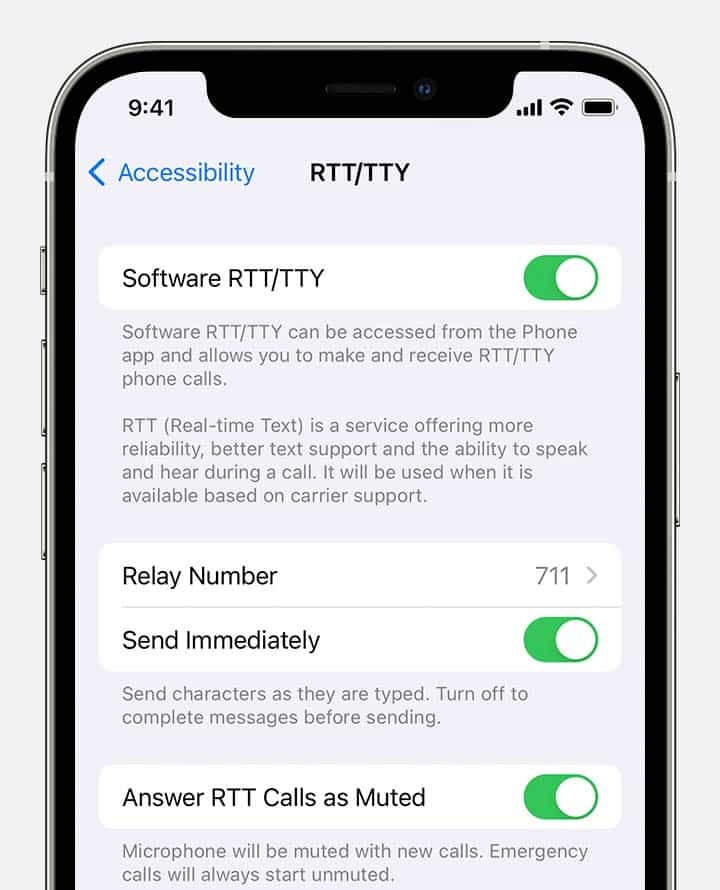
- Open Settings on your iPhone.
- Then go to General→Accessibility.
- Tap RTT/TTY or TTY from the Hearing section.
If you use a dual SIM, select the SIM. - Toggle on Software RTT/TTY or Software TTY.
- Add Relay Number of communication assistants.
- In the Send immediately option:
- Turn on – To send the message as you type.
- Turn off – To complete the message before it is sent.
- Toggle on Answer All Calls as RTT/TTY.
- Lastly, activate Hardware TTY to use an external teletypewriter device to receive and make RTT/TTY calls.
Notably, when the RTT or TTY is turned on, you’ll see a special icon in the status bar.
How to turn off RTT on your iPhone
- Launch Settings → Accessibility → RTT/TTY.
- Toggle off the Software RTT/TTY switch.
Make or answer RTT/TTY calls
- Open your Phone app.
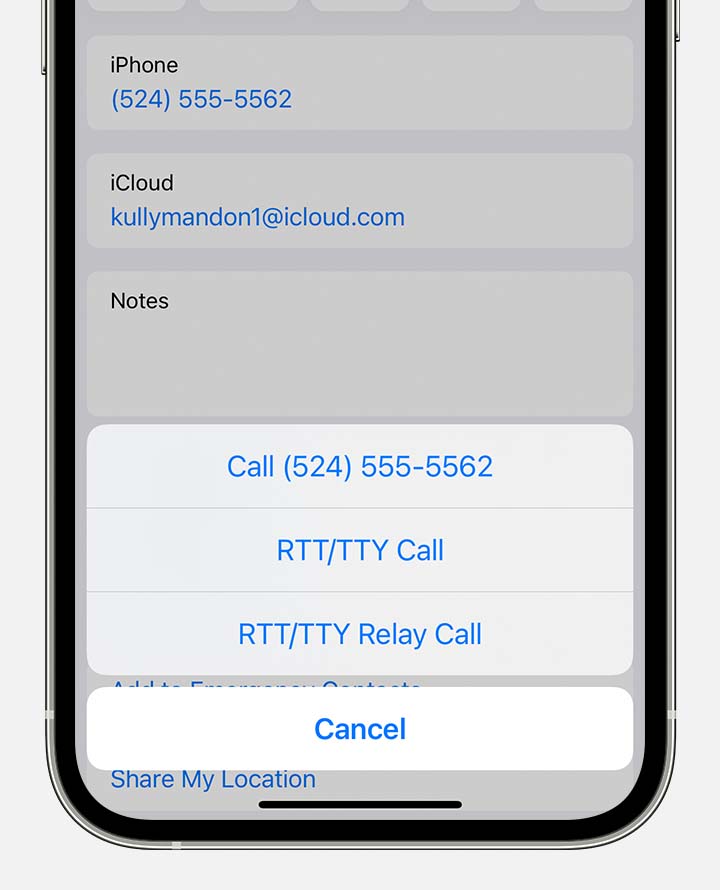
- Tap the contact’s phone number.
- Choose between RTT/TTY Call and RTT/TTY Relay Call options from the popup.
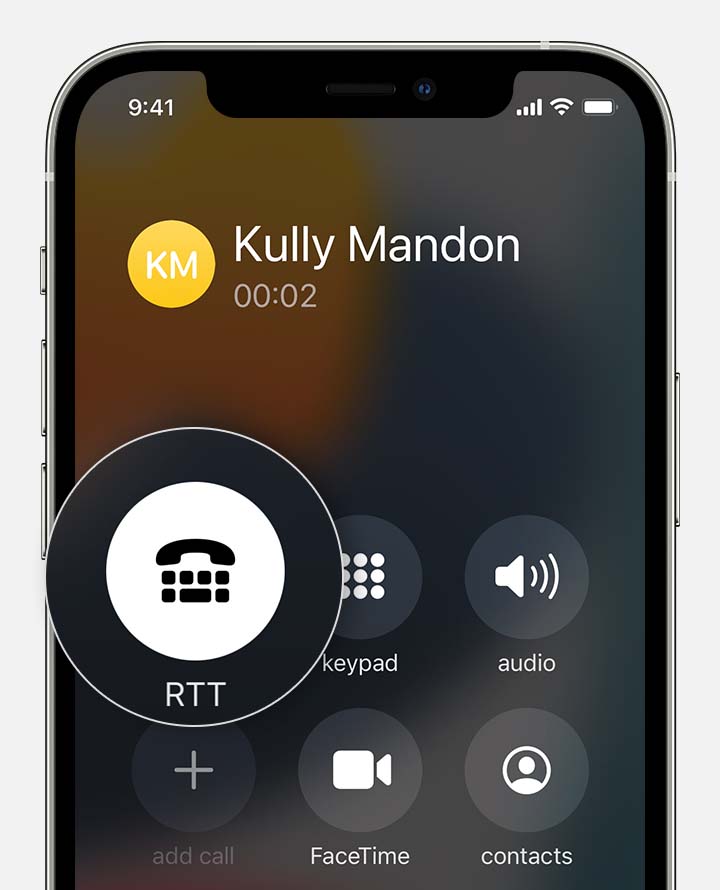
- When the call connects, select RTT/TTY button.
Whenever available, the iPhone defaults to the RTT protocol. - A chatbox will open. Enter your text there, same as SMS.
Your receiver will see your message as you enter it if you choose to Send Immediately in Settings. If it’s disabled, complete your text and press the Send symbol. To transmit audio simultaneously, tap the mic icon.
Furthermore, if you’re receiving an incoming RTT call (even if you haven’t turned it on), tap the RTT button to answer the call with RTT.
The best part of RTT on iPhone is some built-in shortcuts like SK for “Ready to hang up” and GA for “Go ahead.”
Frequently Asked Questions
So, that’s all, folks!
The built-in RTT/TTY feature of the iPhone is super helpful for people who face trouble in conversational calls and have to rely on communication assistance. If you have any queries, let me know in the comment section below.
Read more:

Written by
Ava BiswasAva is a die-hard Apple aficionado and seasoned writer with a knack for breaking down complex tech concepts into easily digestible content. Having honed her writing and editing skills over 4 years at renowned media houses like TechBurner, Ava crafts informative and engaging articles including troubleshooting guides, product reviews, editorials at iGeeksBlog. When not typing, you can find her exploring the latest Apple releases or pondering the future of tech innovation.
View all posts →More from How-to

How to Turn Off Location on Snapchat (Step-by-Step Guide)
Want to stop sharing your location on Snapchat? This guide explains how Snapchat location sharing works and shows simple ways to turn off your location using Ghost Mode or phone settings. Stay in control of your privacy in just a few steps.
 VikhyatMarch 5, 2026
Snapchat Parental Controls: How to Set Up Family Center and Keep Your Teen Safe
Snapchat’s Family Center lets parents monitor their teen’s friend activity and screen time without reading private messages. Here’s how to set it up and what to expect.
VikhyatMarch 3, 2026
How to Block and Unblock Someone on Instagram
Instagram lets you block or unblock someone in seconds. Follow these simple steps to take full control of your privacy and online peace.
Ava BiswasMarch 2, 2026