Whether you’re traveling, exploring a new city, or just trying to stay organized, turning on Location Services on your Mac can be a useful tool to have at your disposal. Enabling this feature can greatly enhance the functionality of apps and make it easier to personalize your experience on Mac. So, without further ado, let’s learn how to turn on Location Services on your Mac.
How to enable or disable Location Services on Mac
Depending on the version of macOS you have installed, the placement of the feature might change. So, I’ve listed the procedures for enabling Location Services on both macOS Monterey and Ventura.
Before proceeding, it is important to know that if you turned off Location Services on your Mac, then Location Services won’t work anymore on your device, and it will also affect other apps such as Google Maps.
In macOS Ventura and later
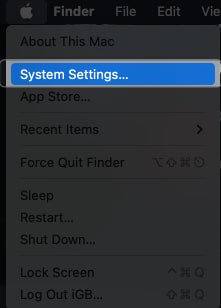
- Click on the Apple logo () → select System Settings.
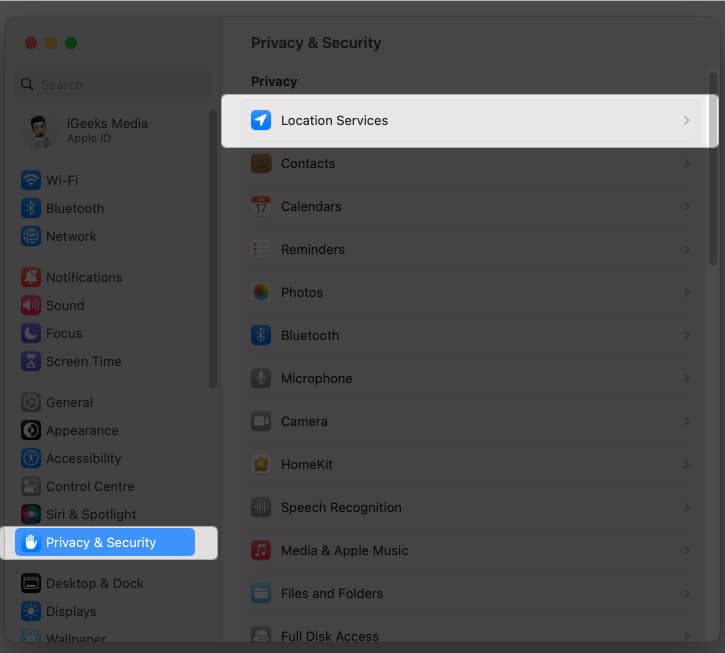
- Head to Privacy and Security → choose Location Services.
- Toggle on Location Services.
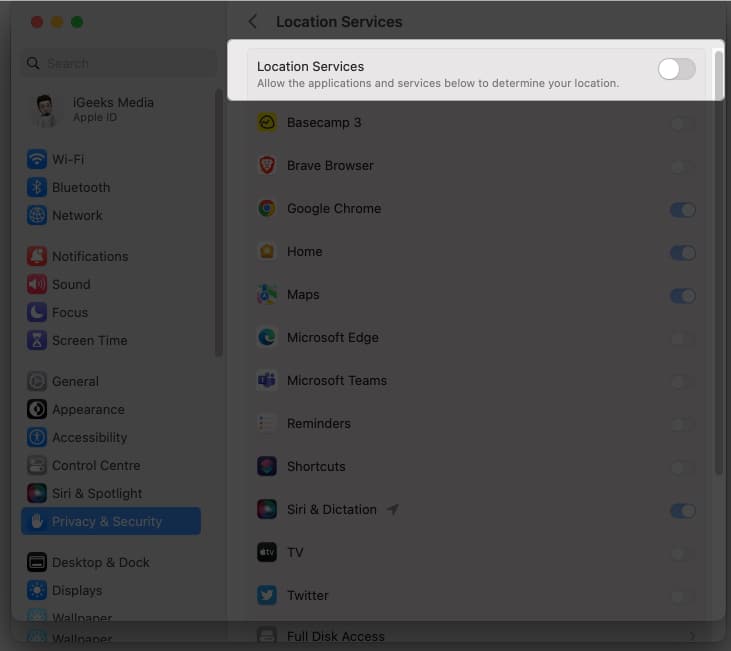
If you are using the toggle for the first time, you might be prompted to allow permissions for Location Services. You can do so by providing your fingerprint or entering your password.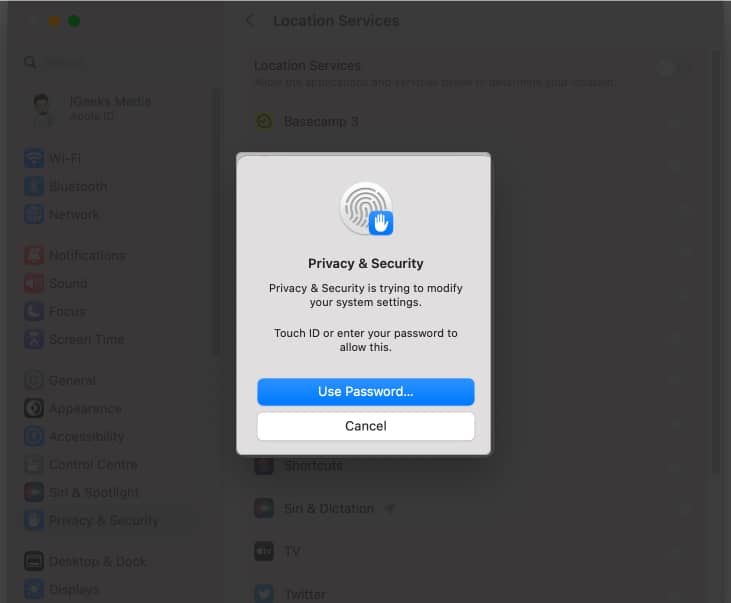
Find out which apps use location services on Mac
Furthermore, you can also enable Location Services for specific apps on your Mac by toggling the button next to that particular app.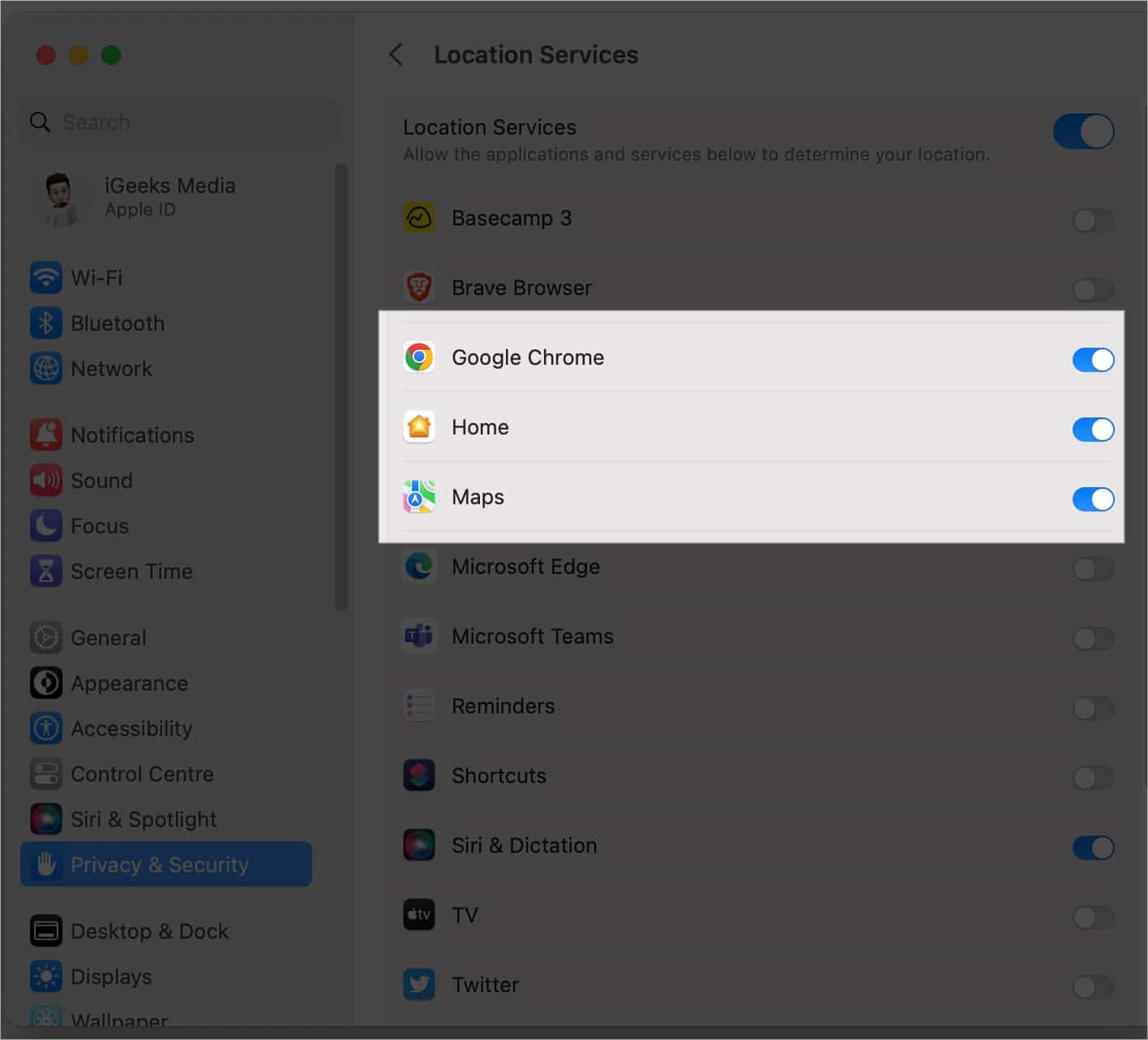
In macOS Monterey or earlier
- Navigate to the Apple logo () → select System Preferences.
- Select Security and Privacy.
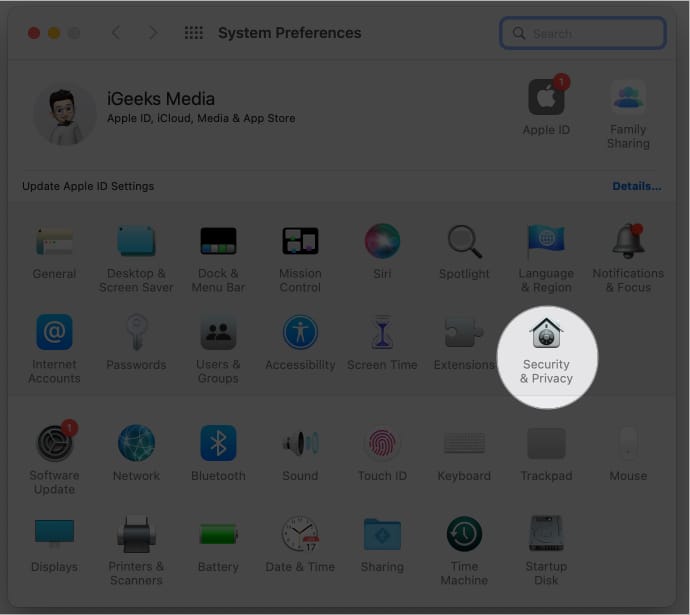
- Go to Privacy → click on the lock icon at the bottom left of the screen.
Grant access to modify settings by either inputting the password or utilizing your fingerprint.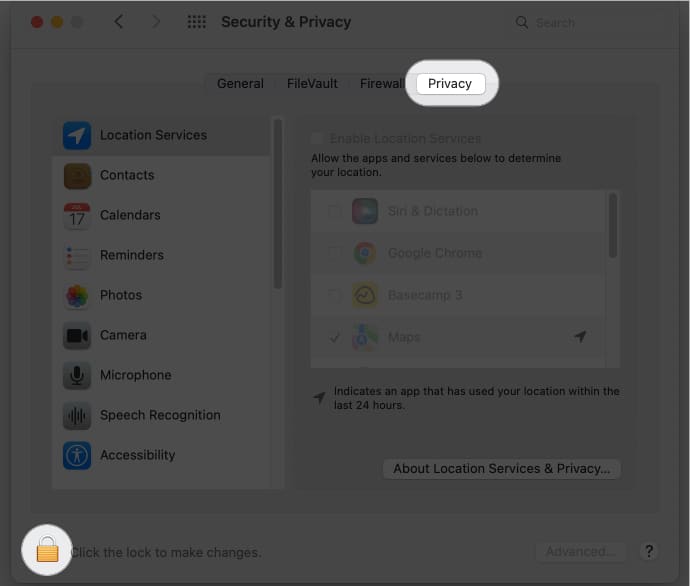
- Check the box next to Enable Location Services.
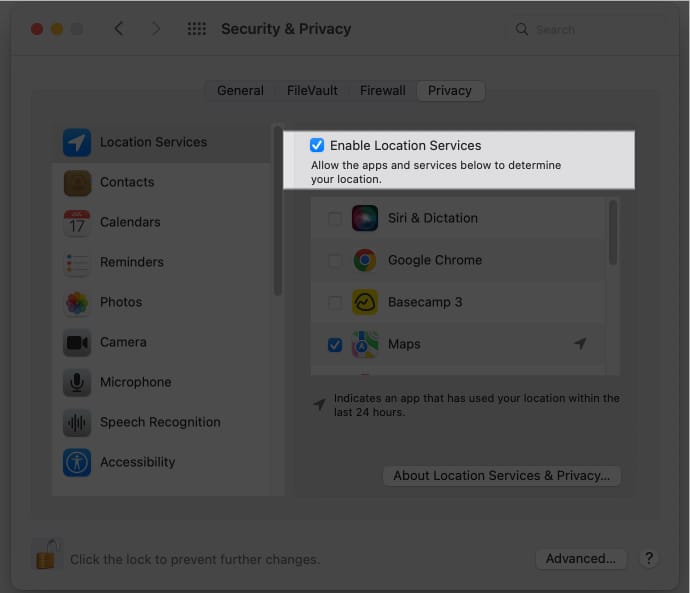


Once you’ve enabled the Location Services on your Mac, it also allows you to activate the Location Services feature for a specific application, such as Safari, by selecting the corresponding checkbox next to it.
What are the benefits of location services on Mac?
- It can aid users in navigating through unfamiliar areas by providing them with real-time traffic and weather updates.
- In case of emergency, it may enable emergency services to locate the user more precisely and get help to them more quickly.
- Numerous services and apps use location data to provide recommendations and content that are specifically tailored to the location and preferences of the user.
- For safety and security reasons, it can be used to track the whereabouts of family members or other close relatives.
- Businesses can target customers with particular offers and promotions based on their location and interests.