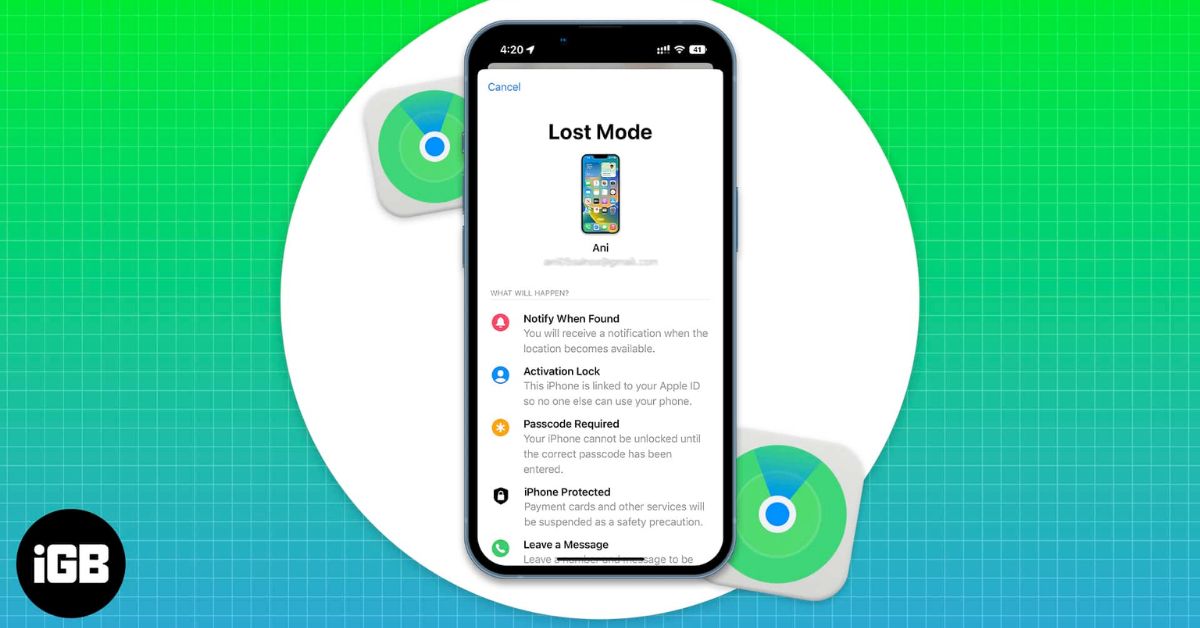
If your iPhone or iPad is lost or stolen, your first goal is simple: lock it before anyone else accesses your data. Photos, banking apps, messages, email, and saved passwords are all inside that device. Lost Mode exists for this exact situation. This guide explains what it does, how to turn it on using either method, what happens next, and what to do if the device was stolen.
What Is Lost Mode on iPhone and What Does It Do?
Lost Mode is part of Apple’s Find My system. When you enable it, your device is immediately secured and access is restricted. Here is exactly what changes once it is turned on:
- Your device locks with your existing passcode.
- If you did not have a passcode, you can create one.
- Apple Pay cards and passes are suspended.
- Notifications and alarms are silenced, but calls and FaceTime still come through.
- A custom message and contact number appear on the Lock Screen.
- The device’s location is tracked when it is online.
- You receive a confirmation email from Apple.
- It does not remove your Apple Account from the device, and you can still check its location through Find My.
Lost Mode does not erase your data. It simply protects it. If Stolen Device Protection is enabled, Face ID or Touch ID is required to turn Lost Mode off, even if someone knows your passcode.
When Lost Mode Works and When It Won’t
Lost Mode depends on certain settings being enabled before the device was lost. Make sure these conditions were already in place:
- Find My was turned on before the device was lost
- The device is signed in to your Apple Account
- The device has power and connects to Wi-Fi or cellular
If Find My was never enabled, you cannot remotely lock, track, or erase the device. In that case, immediately change your Apple Account password and review your account security. If the device is offline, Lost Mode will activate the next time it connects to the internet.
How to Enable Lost Mode Using iCloud or the Find My App
You can enable Lost Mode in two ways. You can use iCloud.com in a browser, or you can use the Find My app on another Apple device. After you select your missing device, both methods follow the same three security steps.
Option 1: Using iCloud.com
If you have access to any browser, follow these steps:
- Go to icloud.com/find.
- Sign in with your Apple Account. A verification code is not required.
- Click All Devices.
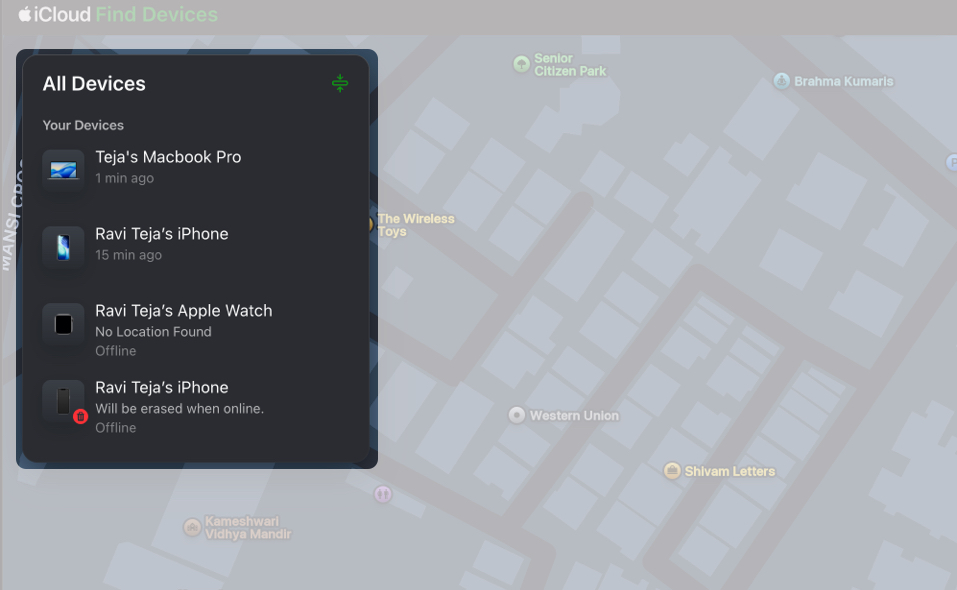
- Select the missing iPhone or iPad.
- Click Lost iPhone, iPad, or Mac, depending on your device.
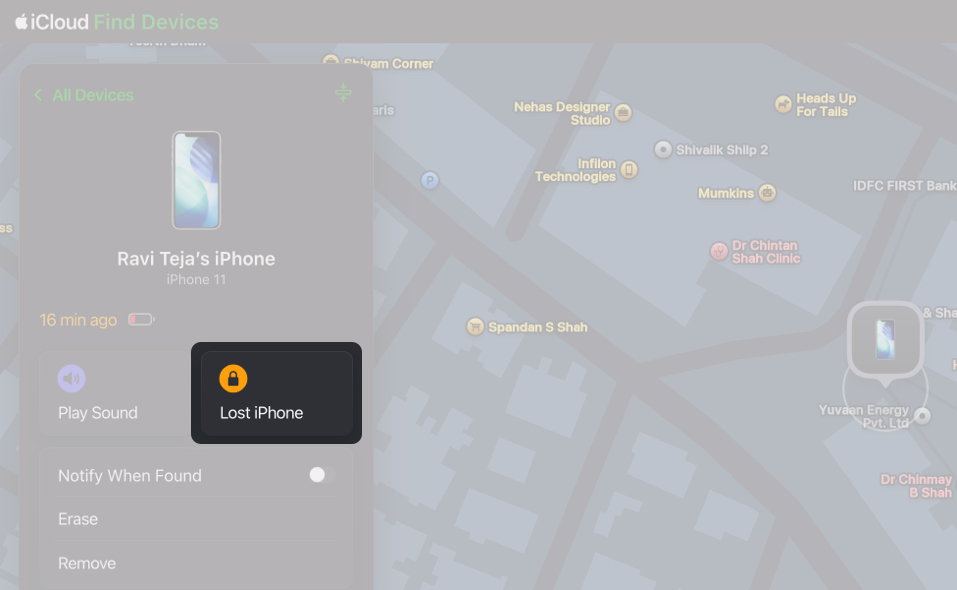
- Click Next.
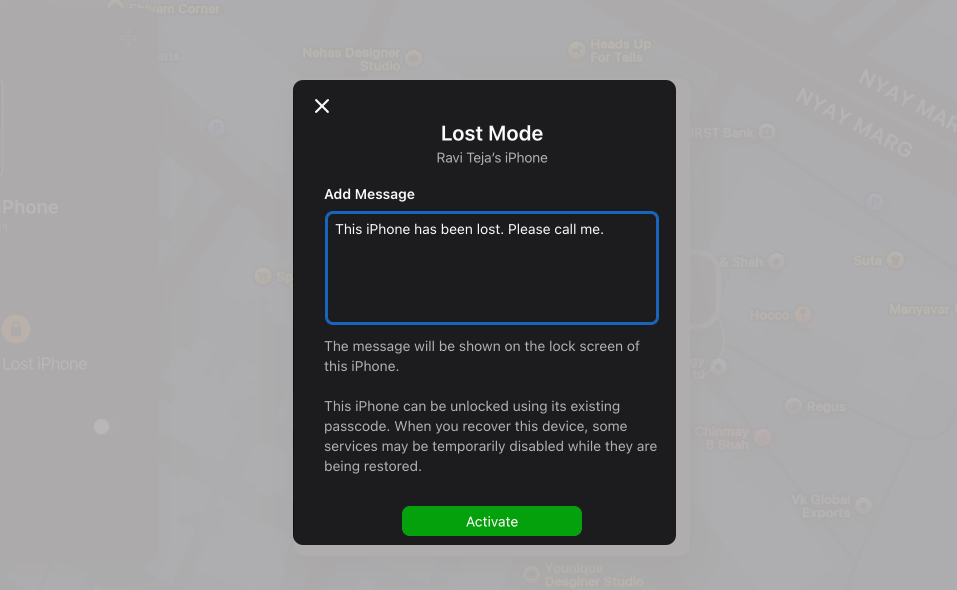
- Add a phone number and a message such as “This device is lost. Please call the number below.” You can use a number you have access to, such as a family member’s or friend’s number.
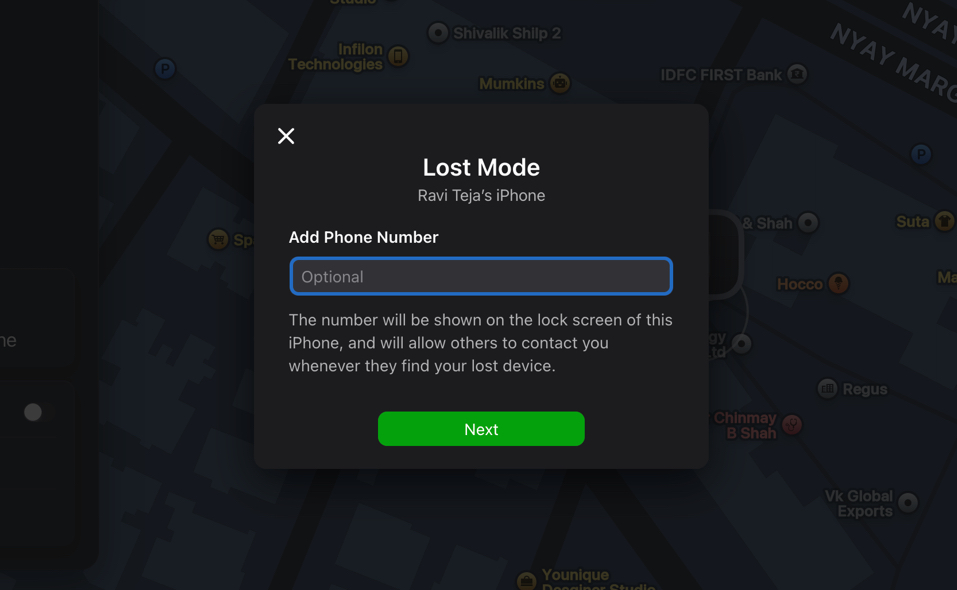
- Click Activate.

Option 2: Using the Find My App
If you have another Apple device signed in to your Apple Account, you can use the app instead:
- Open the Find My app.
- Tap the Devices tab.
- Select the missing device.
- Tap the Lost Mode option.
- Tap Continue.
- Add a phone number and a message that will be visible on the device.
- Tap Activate.
That’s it. You have enabled Lost Mode and added your phone number and message. If someone finds your device, they can contact you, increasing your chances of getting it back. The device locks automatically with your passcode. If you have not set one, the process will prompt you to create one so you can protect your data.
What Happens After You Turn On Lost Mode
Once Lost Mode is active, the device immediately shifts into a protected state. Here is what you can expect:
- The device locks immediately
- Apple Pay cards are suspended
- Your message appears on the screen
- Location updates appear on the map when the device is online
- You receive confirmation by email
If the device moves, its location updates whenever it connects to the internet. If the battery dies, the last known location is saved.
What to Do If Your iPhone or iPad Was Stolen
If the map shows your device in an unfamiliar place, your safety comes first. Do not attempt to recover it yourself. Contact local law enforcement.
You should also take these additional protective steps:
- Report the theft to your wireless carrier and ask them to suspend your line.
- File a claim if you have AppleCare+ or Apple One with Theft and Loss coverage.
- Keep the device listed in Find My until any insurance claim is approved.
- Ignore calls, emails, or texts claiming to be Apple asking for your passcode or verification code.
Apple will never contact you to say your device was found. If someone attempts to change your Apple Account password from an unfamiliar location, the device may temporarily stop appearing on the map. It will still remain in Lost Mode.
When and How to Remotely Erase Your iPhone or iPad
Remote erase is a final step and should only be used if recovery is not possible. Erasing the device permanently removes your data and cannot be undone.
You can erase it on iCloud or in the Find My app by following the same process shown above and selecting the Erase option.

You may still be able to see its location after erasing. Do not remove the device from Find My after erasing it. Removing it disables Activation Lock and makes it easier for someone to unlock and resell the device.
How to Turn Off Lost Mode on iPhone or iPad
Once you recover your device, turn Lost Mode off so normal functions resume.
Option 1: Using iCloud
- Go to icloud.com/find.
- Select the device.
- Click Lost Mode.
- Click Stop Lost Mode.
- Confirm.
Option 2: Using the Device Itself
If you unlock an iPhone that is in Lost Mode with the correct passcode, Lost Mode automatically turns off. Enter your passcode on the Lock Screen. If Stolen Device Protection is enabled, Face ID or Touch ID may also be required.
After turning it off, your suspended Apple Pay cards become usable again once you sign back in.
Related: How to Disable Apple Pay on a Lost or Stolen iPhone
After Everything Is Secure
If your device was stolen or permanently lost, take a few minutes to secure your account fully. Log in to account.apple.com and review your trusted devices, phone numbers, and recovery methods. Remove anything you do not recognize and change your Apple Account password if needed.
Speed matters in situations like this. Lost Mode is designed to give you control quickly and reduce risk. If Find My is already enabled, you can secure your device in minutes. If it is not enabled, turn it on now so you are protected before you need it.
Read more: