
How to take pictures while recording video on iPhone
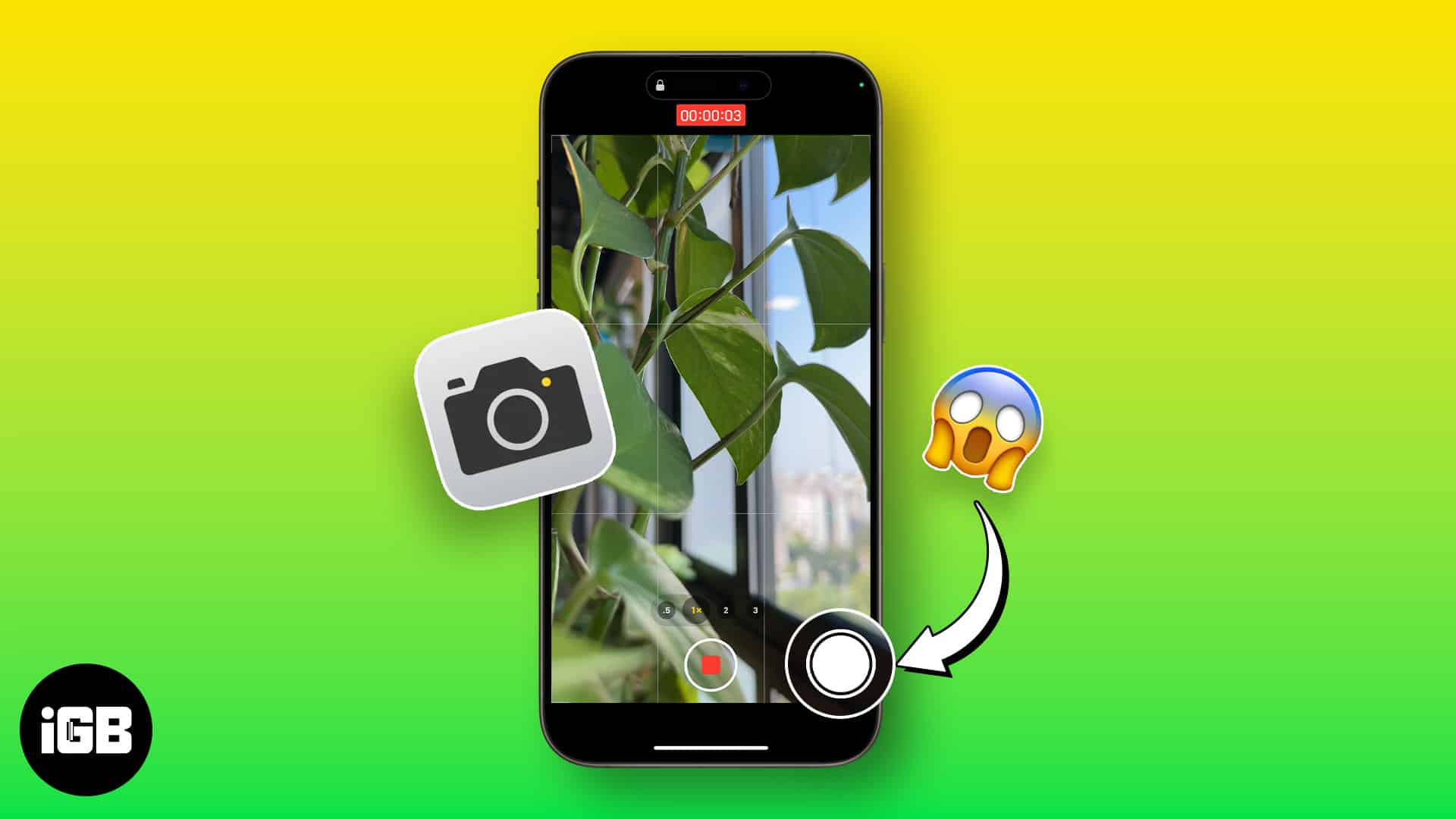
Witnessed an unforgettable moment while recording a video on your iPhone, but how to capture it? You don’t need an extra camera; it’s all built into your iPhone. This guide will show you how to take pictures while recording a video on your iPhone and even teach you to leverage QuickTake, a feature available on iOS 13 and later.
- How to take photos while recording video on the iPhone
- Should you take photos while recording video on your iPhone?
How to take photos while recording video on the iPhone
- Open Camera → Go to video mode.
- Tap the red video shutter to start recording a video.
- Once recording starts, tap the white shutter to take pictures.
- To zoom in or out, pinch the screen with two fingertips. Then tap the white shutter to capture a zoomed-in object.
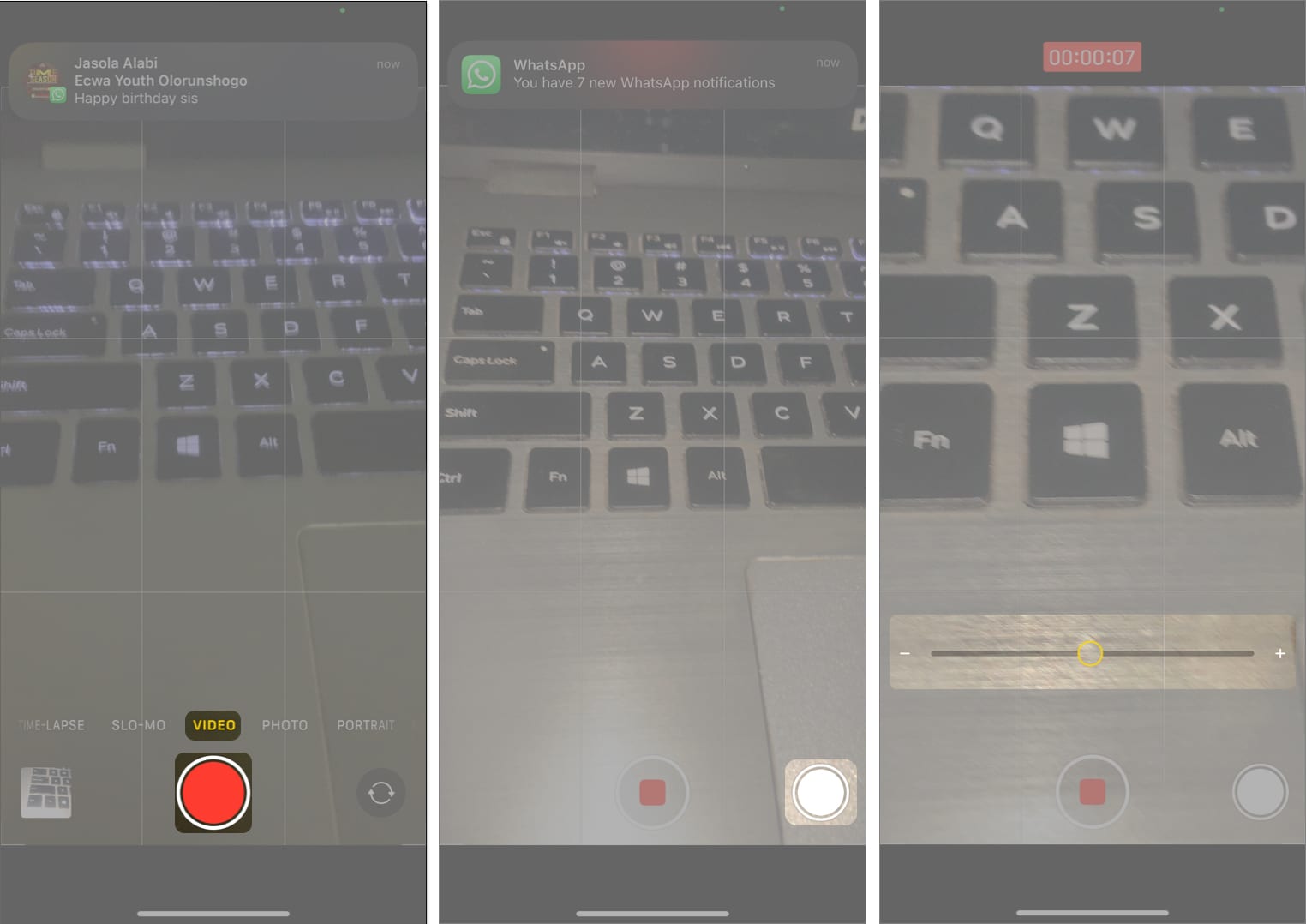
You can use this feature while taking a slo-mo video. However, Time-lapse mode doesn’t support the feature. Alternatively, you can use your camera in the QuickTake mode, which lets you record a video from the photo mode.
- Long-press the photo shutter.
You’ll see a line leading to a lock icon on the right. - Slide the photo shutter to the lock position.
Your recording will start, and a smaller white shutter will appear next to the stop button. - Tap the white shutter to capture photos from the video.
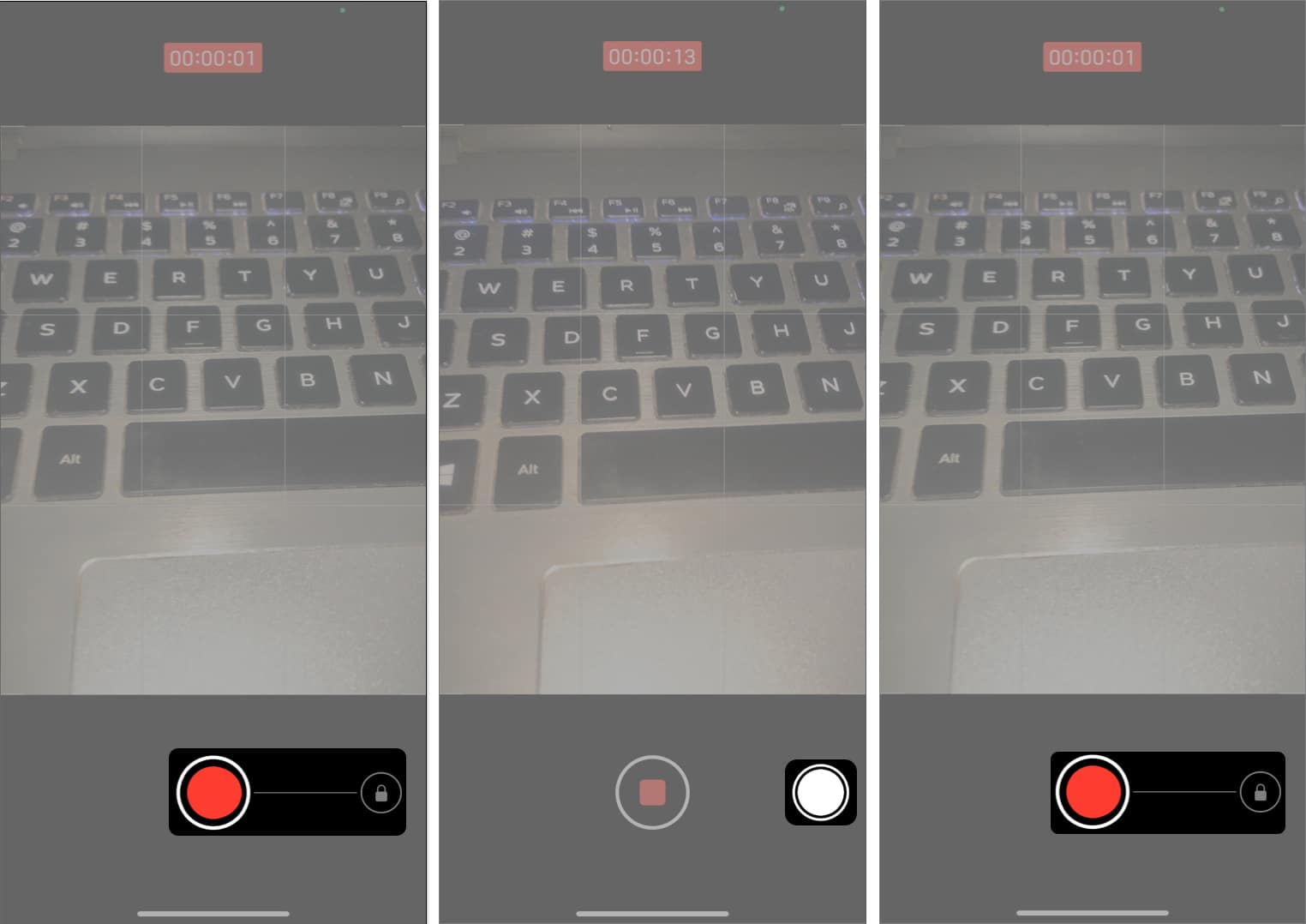
Once you are done recording your video, open your camera roll to see the pictures you’ve taken.
Should you take photos while recording video on your iPhone?
The only drawback with recording a video and taking pictures simultaneously on your iPhone is that it produces lower-quality output, unlike photos you usually take. Even if you record your video with a 4K resolution camera and take a picture, this won’t beat the quality of a standard iPhone 8’s 12MP-resolution lens.
However, the output quality still depends on the iPhone’s overall camera specifications. For instance, the latest iPhones with improved cameras will produce better-quality video photos than earlier models. What I do is, after capturing pictures from video, I edit them to elevate their quality. So, feel free to capture the moments away regardless of your iPhone camera specification.
That’s it!
Now that you know how to take photos while video recording on the iPhone, you will never miss capturing a beautiful floating moment. Although we may not compare it to dedicated standard cameras, the iPhone lens can give you most of what you want in regular videography. Please drop your thoughts about this cool feature below!
Read more:
Topics

Written by
Idowu OmisolaIdowu is an avid tech writer and a software surfer who loves covering knowledge gaps in consumer software, including anything related to iPhones. Well, when he's not reading and learning new things, you'll find Idowu losing gallantly on a solid chessboard or virtually on Lichess.
View all posts →More from How-to

How to Turn Off Location on Snapchat (Step-by-Step Guide)
Want to stop sharing your location on Snapchat? This guide explains how Snapchat location sharing works and shows simple ways to turn off your location using Ghost Mode or phone settings. Stay in control of your privacy in just a few steps.
 VikhyatMarch 5, 2026
Snapchat Parental Controls: How to Set Up Family Center and Keep Your Teen Safe
Snapchat’s Family Center lets parents monitor their teen’s friend activity and screen time without reading private messages. Here’s how to set it up and what to expect.
VikhyatMarch 3, 2026
How to Block and Unblock Someone on Instagram
Instagram lets you block or unblock someone in seconds. Follow these simple steps to take full control of your privacy and online peace.
 Ava BiswasMarch 2, 2026