
How to Sync Google and Outlook Calendars on iPhone
Sync Google and Outlook calendars on your iPhone to manage all your events in one place and fix common sync issues easily.

Managing appointments across multiple platforms can get messy quickly. One meeting lives in Google Calendar, another shows up in Microsoft Outlook, and suddenly your iPhone feels out of sync with real life. Luckily, you can pull everything into one place using the built-in Calendar app on your iPhone.
Once set up, your work meetings and personal plans sync automatically across all your Apple devices that are signed in with the same Apple Account. Keep reading to learn how to sync Google and Outlook calendars with your iPhone
Why Sync Google and Outlook Calendars on Your iPhone
It is quite common for many of us to juggle at least two calendars. Google usually handles personal schedules while Outlook manages office meetings. Therefore, syncing both with your iPhone gives you benefits such as:
- One unified daily view
- Real-time updates across platforms
- Fewer missed reminders
- Easier planning on the go
After setup, any event you add or edit on your iPhone reflects back to Google or Outlook automatically.
How to Sync Google Calendar with iPhone
Syncing your Google Calendar brings all its events into the built-in Calendar app on your iPhone. Here’s how:
- Open Settings, scroll to the bottom, and tap Apps.
- Here, locate and tap Calendar.
- Tap Calendar Accounts.
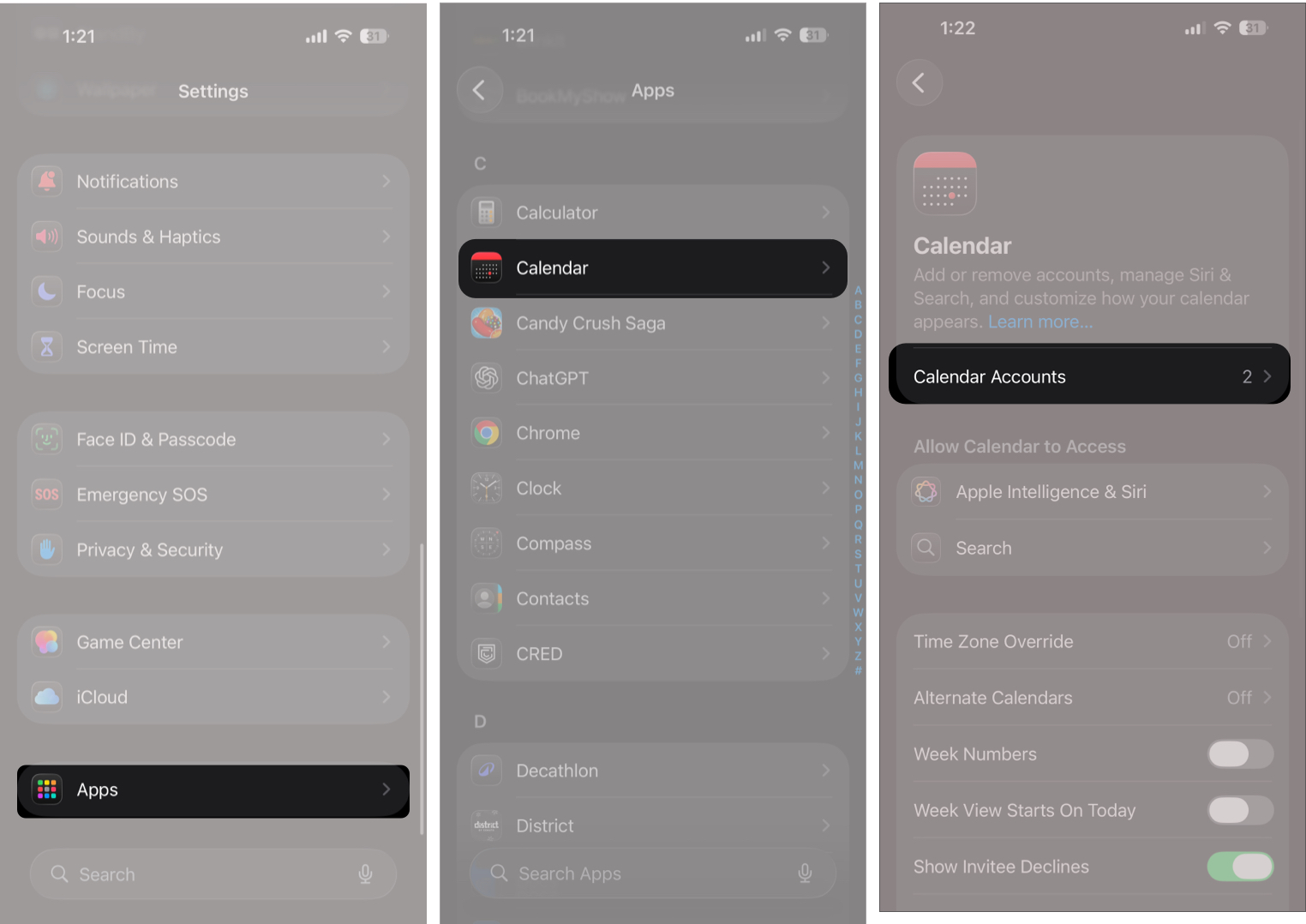
- Now, tap Add Account.
- Select Google under “Choose your provider.”
- Tap the Open Browser button on the pop-up prompt that appears.
- Next, sign in to your Google account.
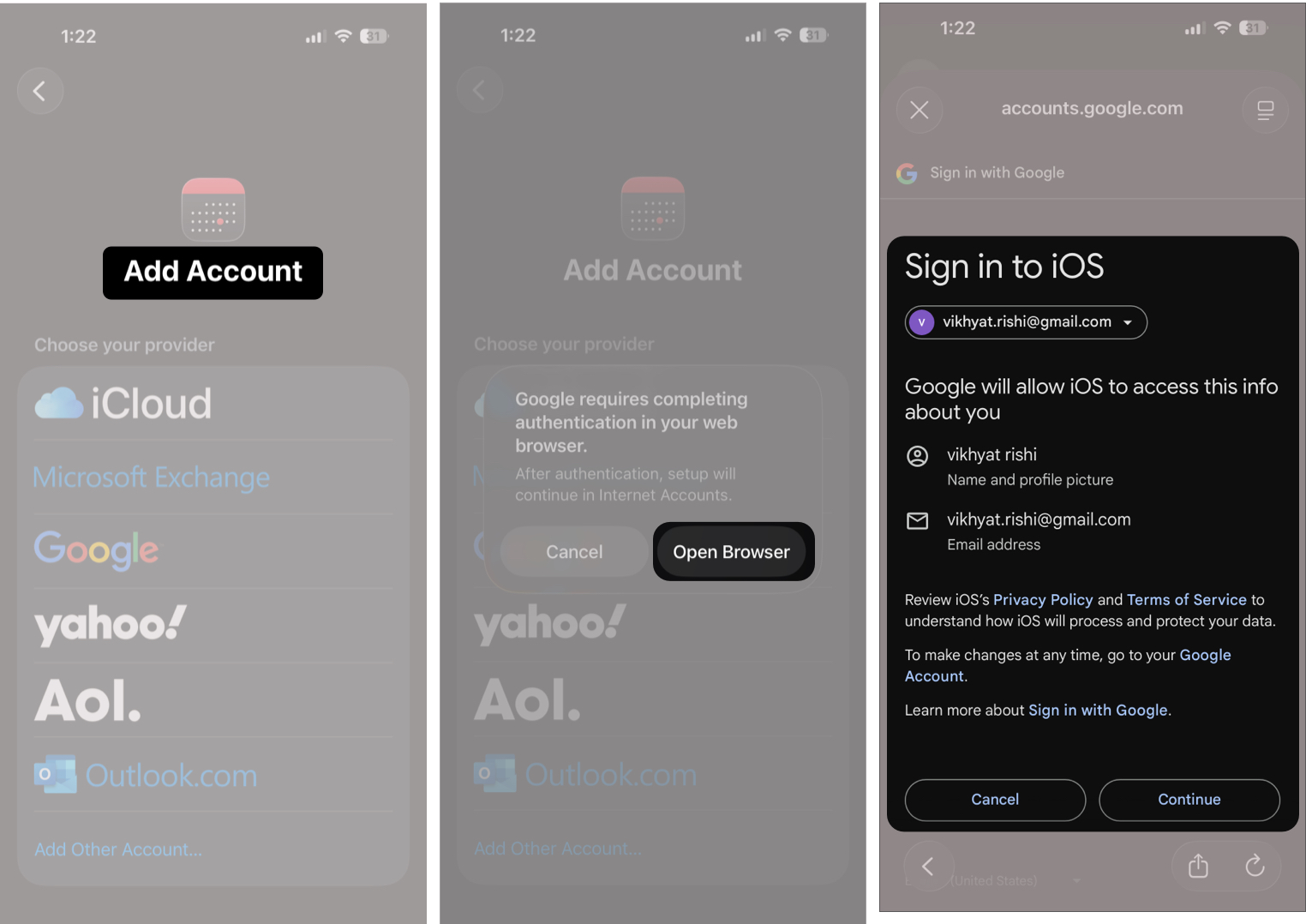
- Follow the onscreen instructions.
- Tap Save.
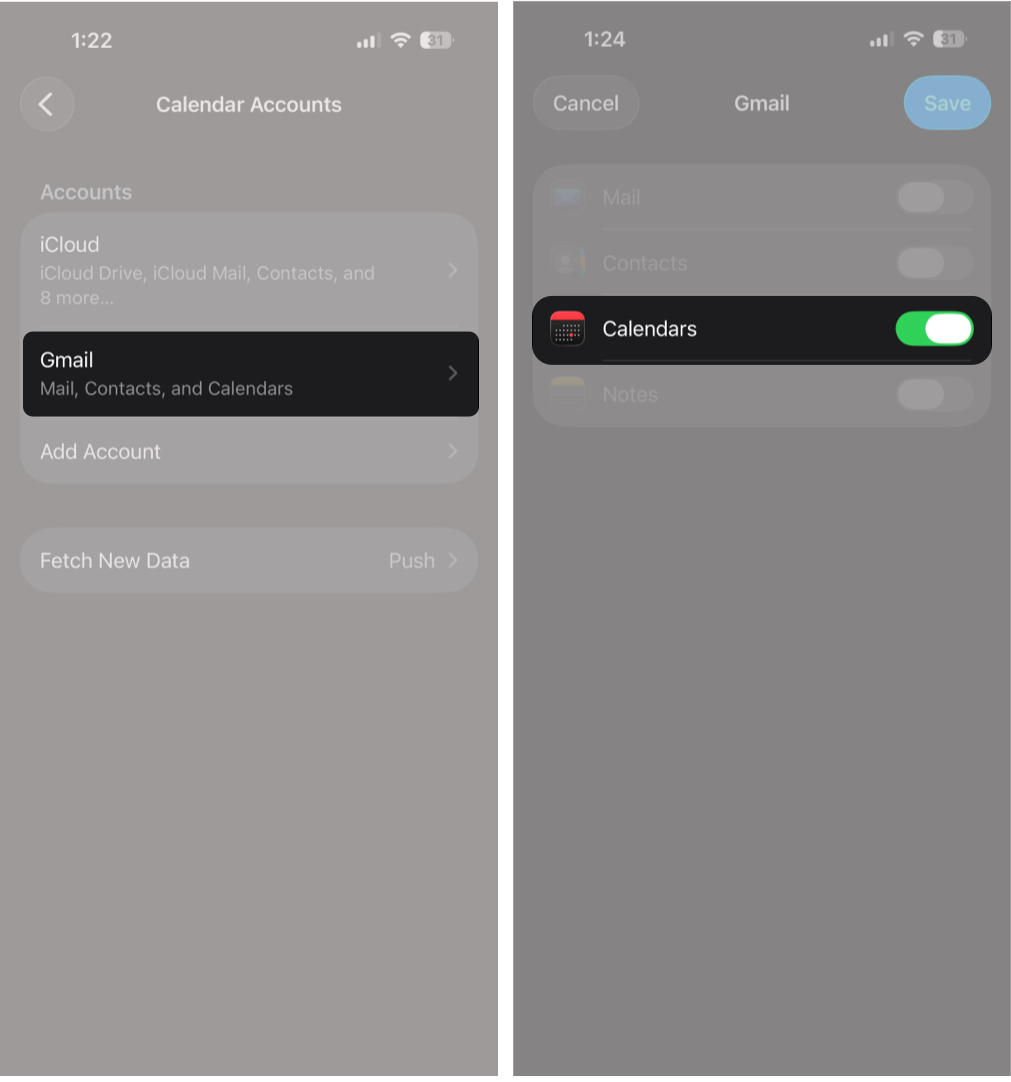


Google Calendar Not Syncing on iPhone? Fixes to Try
There are usually two reasons your events from Google Calendar are not showing up in the Calendar app on your iPhone.
Either the Calendar app does not have permission to access your calendar data, or Google calendars are turned off for your account on the device. Once both permissions are enabled, your events should sync normally across your Apple devices.
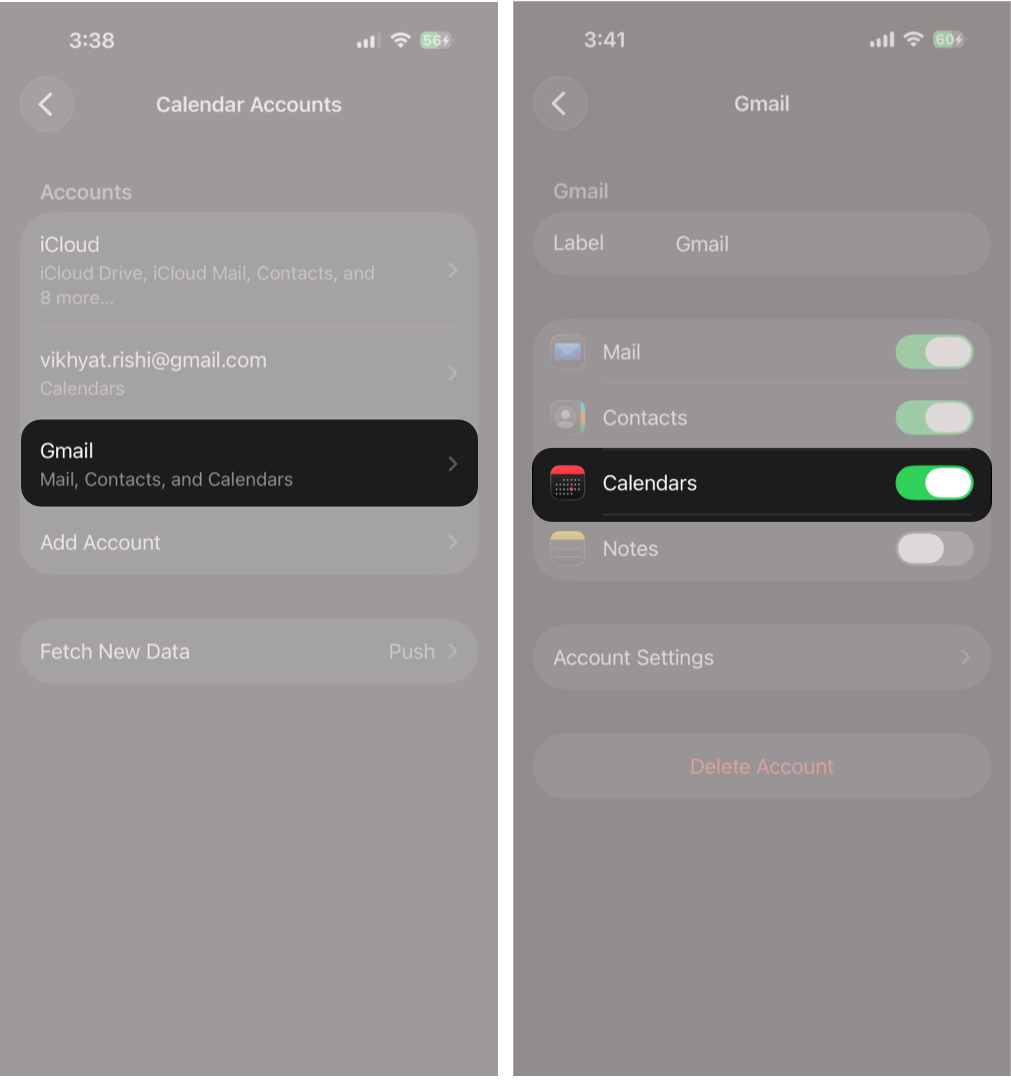
To check whether the Calendar app has permission to access your Google Calendar data:
- Go to Settings → Apps → Calendar.
Tap Calendar Accounts.
- Tap Calendar Accounts → Google Account.
- Make sure the toggle next to Calendars is green.

To ensure Google Calendar isn’t turned off for your account on the device:
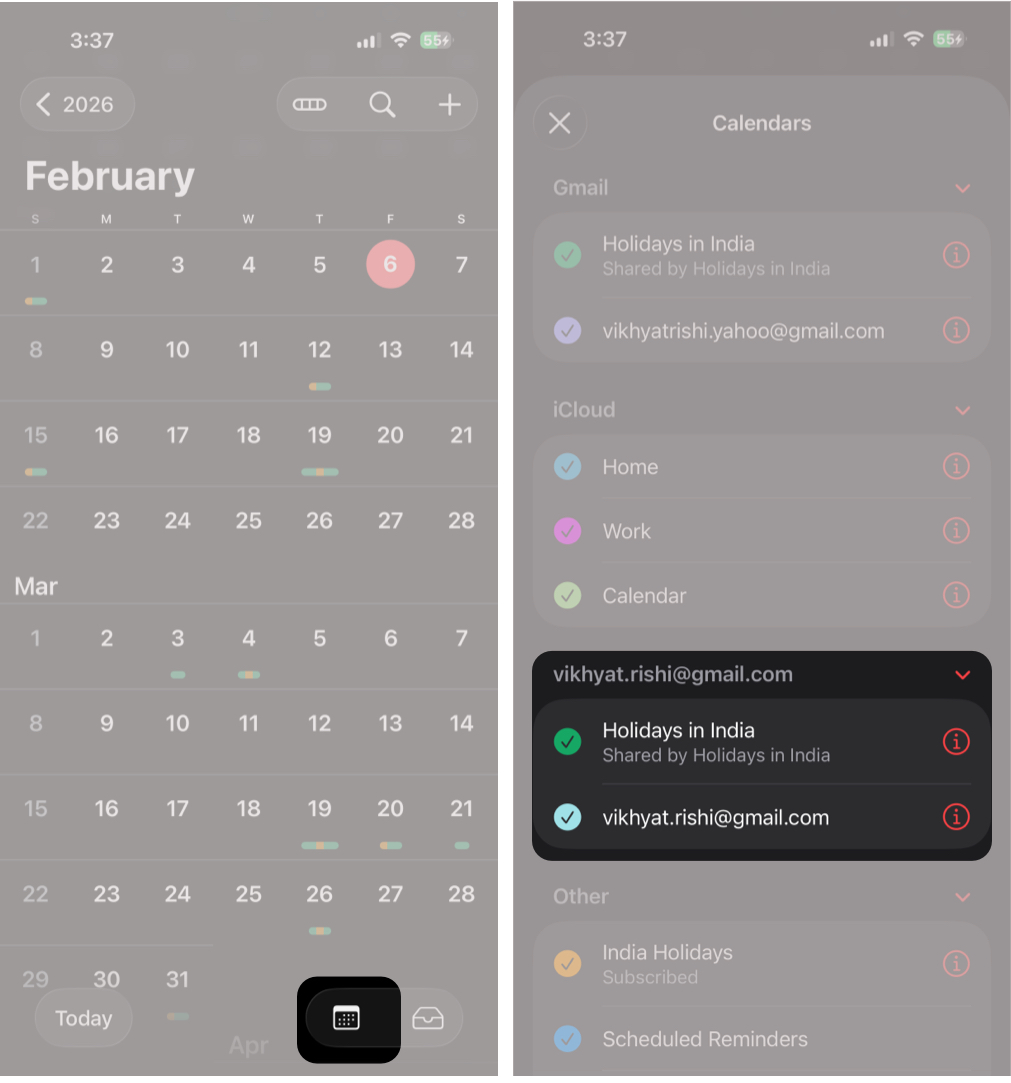
- Tap the Calendar icon in the Calendar app.
- Make sure all the boxes under your Google account are checked.

How to Sync Outlook Calendar with iPhone
Like the Google Calendar, syncing your Microsoft Outlook calendar to your iPhone brings all your work meetings and reminders into the built-in Calendar app. Here’s how:
- Go to Settings → Apps → Calendar.
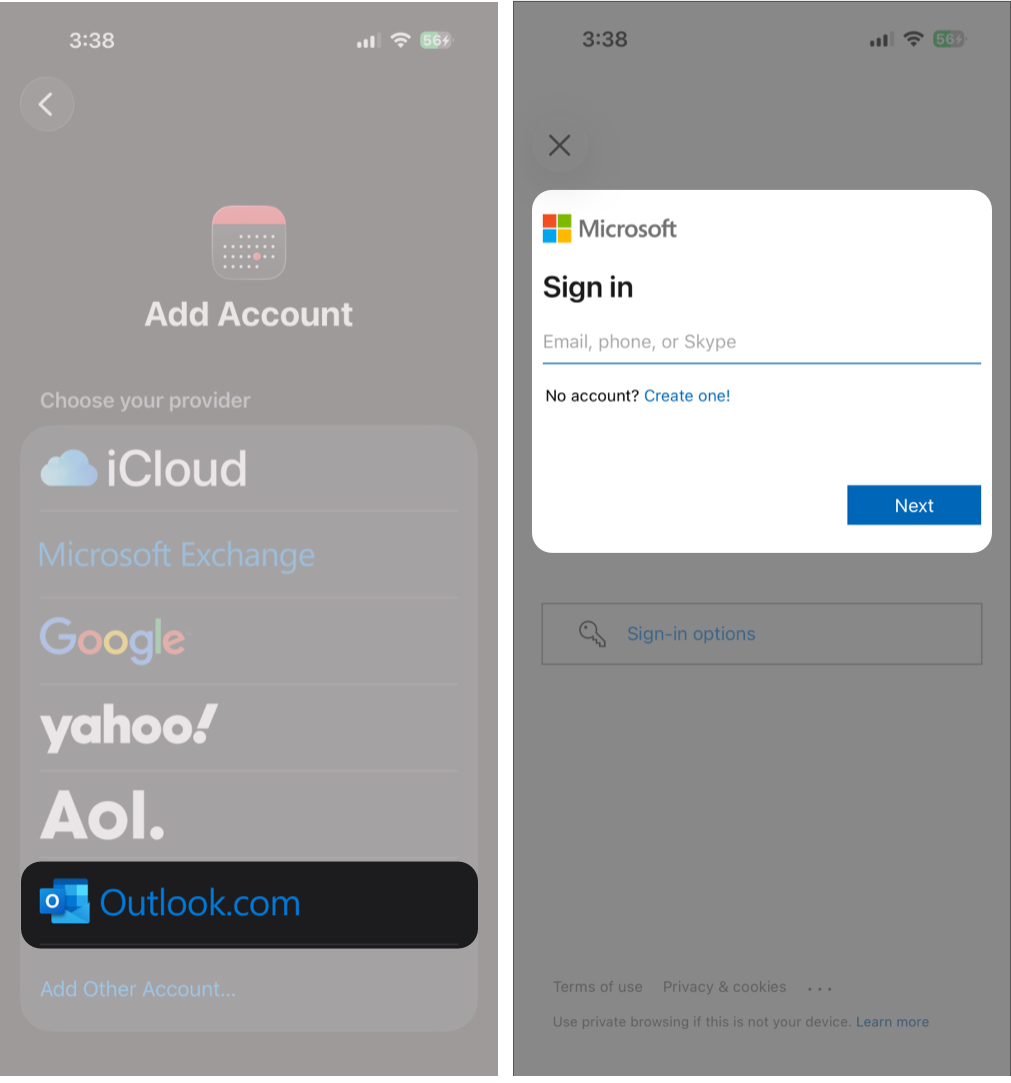
- Tap Calendar Accounts → Add Account.
- Select Outlook.com under “Choose your provider.”
- Tap the Open Browser button.
- Next, sign in to your Outlook account and follow the onscreen instructions.
- Tap Save.

Outlook Calendar Not Showing on iPhone? How to Fix It
If events from Microsoft Outlook aren’t showing on your iPhone, the Calendar app may not have permission to access your data, or Outlook calendars might be turned off for your account. If you’re using an Exchange account, your admin may also need to enable mobile calendar sync.
Re-enable Calendars in iPhone Settings, then open the Calendar app and confirm all Outlook calendars are checked.
How to View Google and Outlook Calendars Together on iPhone
Once you have added both your Google and Outlook calendars to your iPhone, here’s how you can ensure events from both accounts appear in the Calendar app:
- Open the Calendar app and tap the Calendar icon at the bottom right corner.
- Here, make sure all the boxes under your Google and Outlook accounts are checked.
- Once done, tap the X button at the top left corner.
How to Set a Default Calendar on iPhone for New Events
To avoid new appointments landing in the wrong account, do this:
- Go to Settings → Apps → Calendar.
- Locate and tap Default Calendar.
- Choose Google or Outlook.
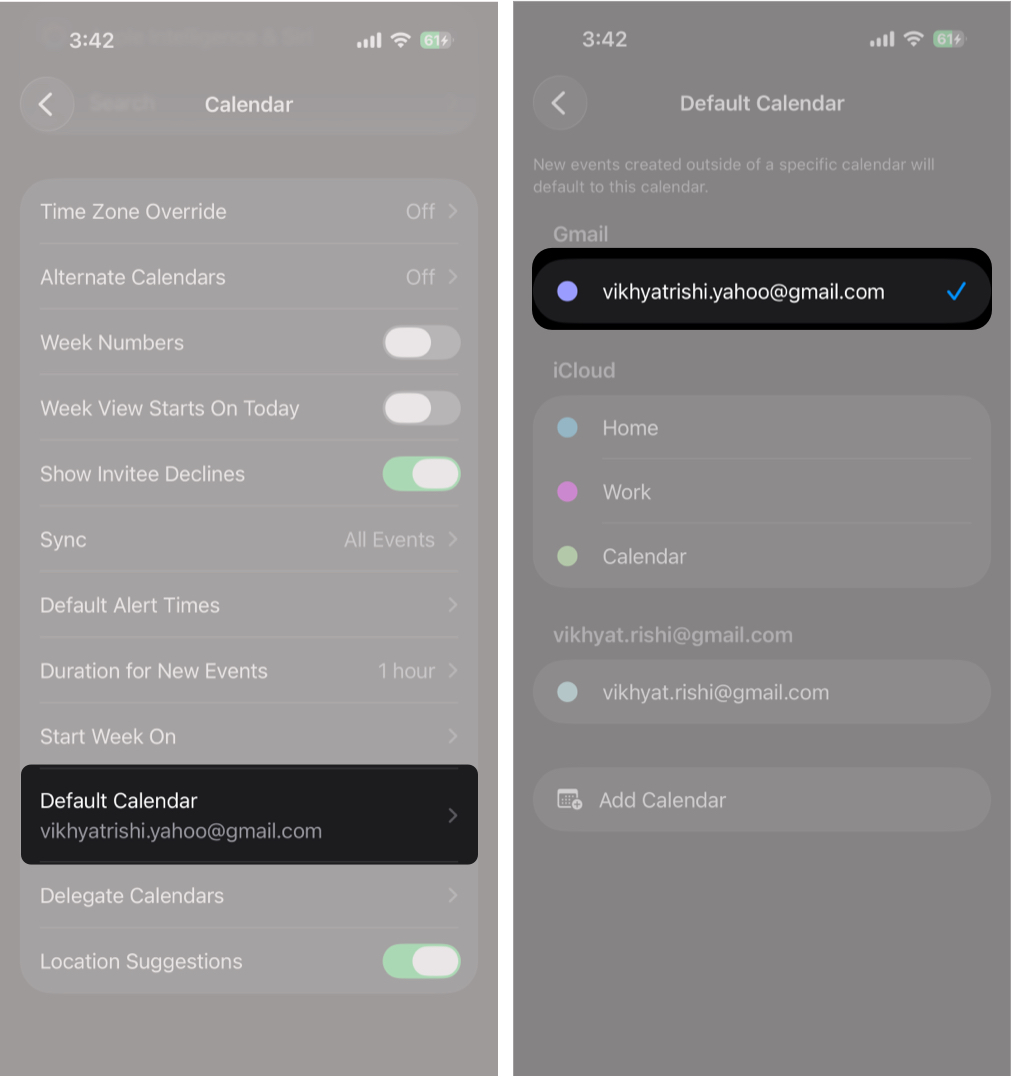

From now on, anything you create on your iPhone saves to the chosen calendar automatically.
Tips to Manage Multiple Calendars on iPhone More Efficiently
Now that you’ve synced your Google and Outlook calendars with your iPhone, these simple habits help keep everything organized across your Apple devices:
- Use different colors for calendars from Google Calendar and Microsoft Outlook for quick visual sorting.
- Set a default calendar on your iPhone so new events save to the right account.
- Turn on notifications for all linked calendars to avoid missed reminders.
- Review your upcoming week regularly to catch overlaps early.
- Hide unused shared calendars to reduce clutter.
- Create events directly on your iPhone so changes sync instantly across your Apple devices.
Bringing It All Together…
Syncing Google and Outlook calendars with your iPhone dramatically improves day-to-day planning. Once set up, your meetings, reminders, and personal events stay aligned without manual effort. It only takes a few minutes to set up, but it saves hours of back-and-forth later. With all your schedules in one place, you can focus more on your day and less on juggling apps.
Have a tip or run into an issue while setting this up on your iPhone? Let us know in the comments.
Read Next:

Written by
VikhyatVikhyat has a bachelor's degree in Electronic and Communication Engineering and over five years of writing experience. His passion for technology and Apple products led him to the tech writing space, where he specializes in writing App features, How-to guides, and troubleshooting guides for fellow Apple users. When not typing away on his MacBook Pro, he loves exploring the real world.
View all posts →More from How-to

Apple Watch Not Responding? 8 Fixes That Actually Work
Is your Apple Watch unresponsive or stuck on a black screen? Here are 8 proven fixes to help you unfreeze it and get it working again quickly.

How to Block or Unblock Someone on WhatsApp
Want to stop someone from messaging you on WhatsApp? Here’s a simple guide to block or unblock contacts on iPhone, Android, and Web.
 Bhaskar
How to Mirror Your Apple Watch on Your iPhone: A Simple Guide
Want to control your Apple Watch using your iPhone? This guide explains how to turn on Apple Watch Mirroring, use it easily, and fix common issues.
 Arshmeet