
How to Share Location in Google Maps on iPhone
Google Maps lets iPhone users share their live location in real time, making meetups, travel, and safety updates easier and more accurate.
Coordinating plans over text is often messier than it needs to be. In situations like meeting someone in a crowded place, traveling late at night, or keeping family informed during a long commute, static location sharing simply is not enough. This is where live location sharing becomes essential. Instead of constant updates and follow-up messages, Google Maps lets you share your real-time location from your iPhone so others can see exactly where you are and how fast you are moving.
This post details how to share your location in Google Maps on an iPhone, manage sharing duration, and stop location sharing instantly.
Requirements Before You Share Your Location
- The sender and recipient must have a Google account.
- Turn on Location Services on your iPhone.
- Permit Google Maps to access your location. Go to Settings → Apps → Google Maps → Location → Select Always.
- Don’t live in a country or region where Google’s location-sharing service is unavailable.
Besides, sharing location using Google Maps can reveal your personal information. After you share your live location with someone, they can see the following:
- Your name and photo.
- Your device’s recent location.
- Your device’s battery level and charging status.
- Your arrival and departure time if Location Sharing notification is enabled.
Moreover, the recipient can view other information based on your location-sharing method.
Now that you know the prerequisites to share your current location on Google Maps let’s see how!
How to Share your Real-Time Location in Google Maps on iPhone
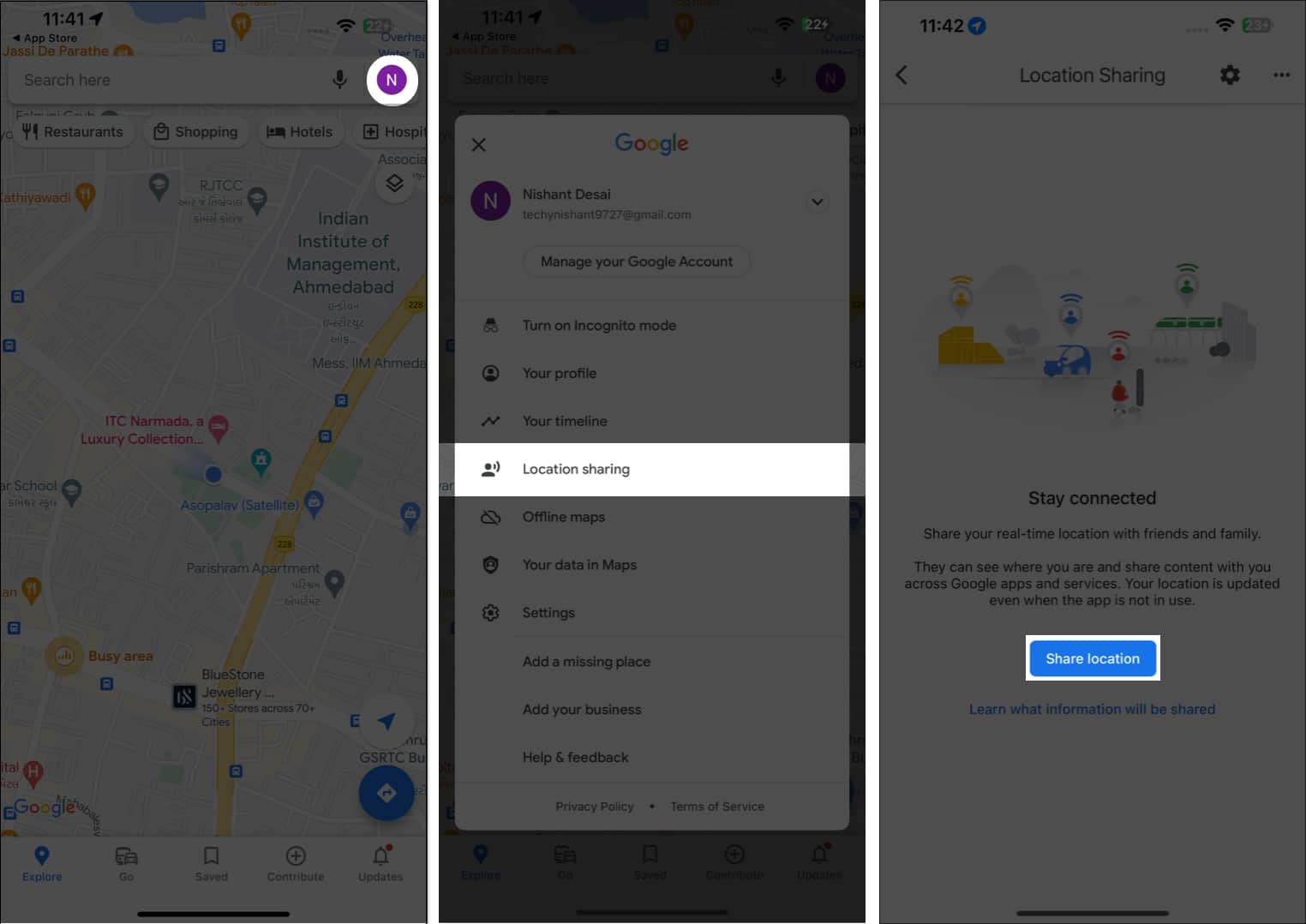
- Launch Google Maps.
- Tap your profile → Select Location Sharing.
- Tap Share Location.
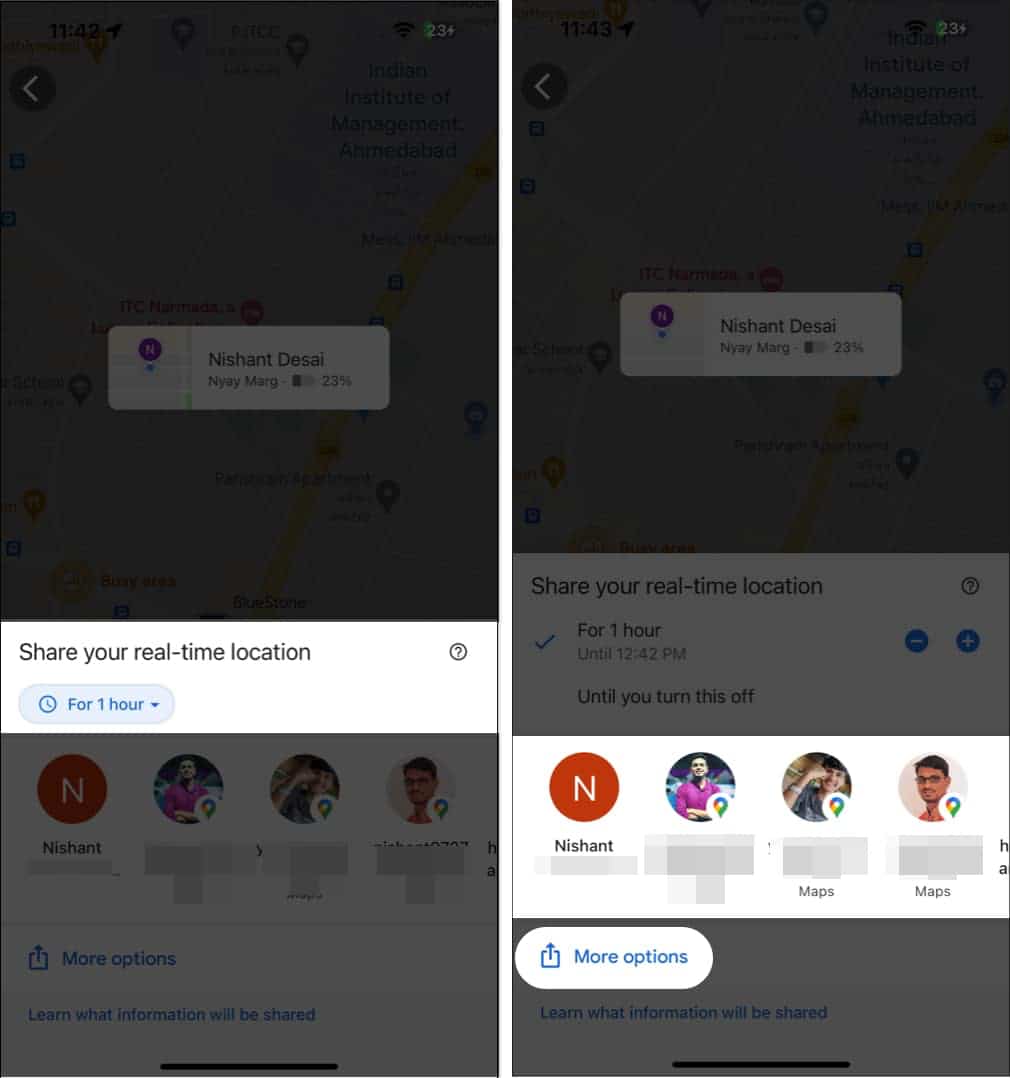
- Tap For 1 hour → Use the plus (+) and minus (–) icons to set the duration for sharing your location.
Select Until you turn this off to disable location sharing manually. - Select the user profile from the share sheet.
- To send the location-sharing link via other apps, tap More options.
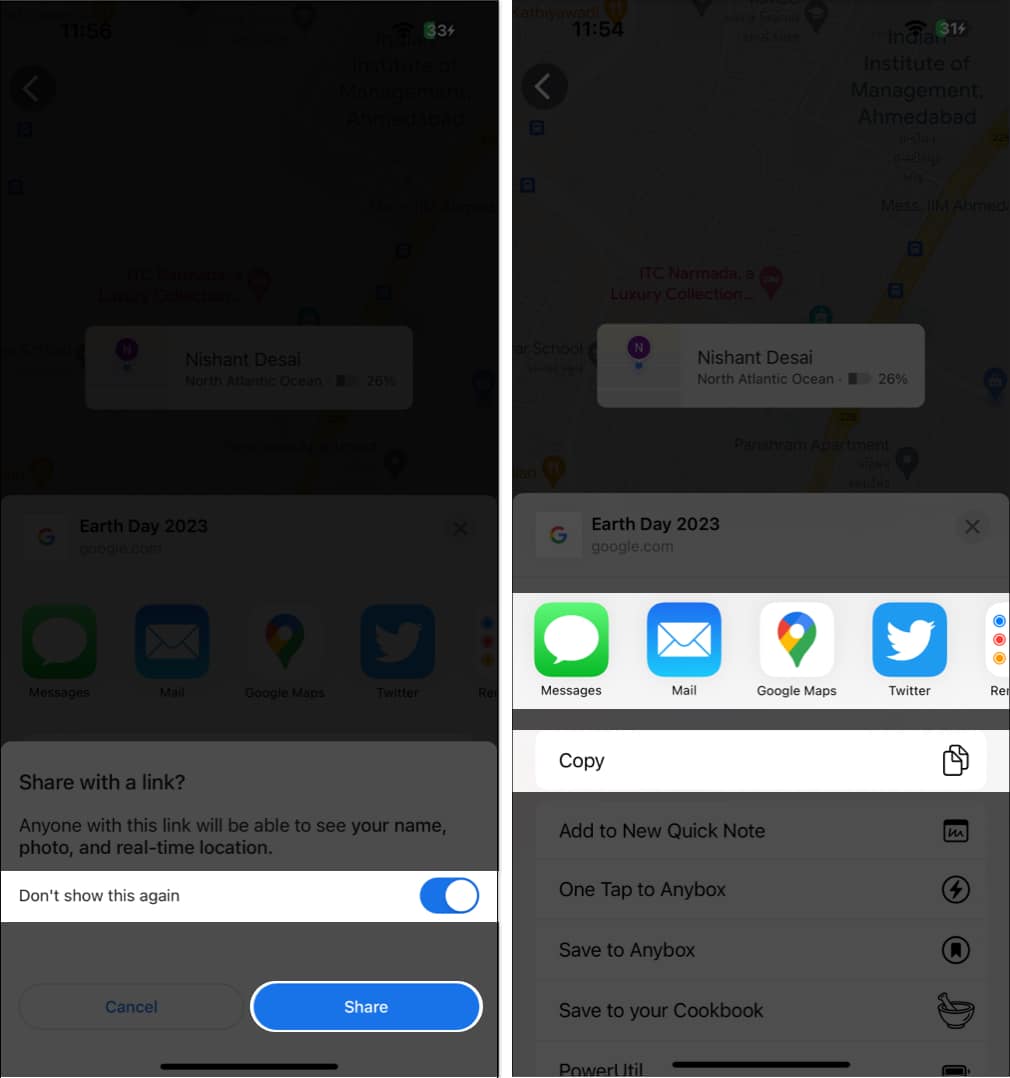
- Hit the Share to generate a link for your location.
Toggle on Don’t show this again if you prefer to share your location directly. - Now, choose an app to send your live location link or copy the link.
In any instance, if you wish to stop sharing your location in Google Maps, tap Sharing via the link and press Stop. This step will get you back to the standard interface.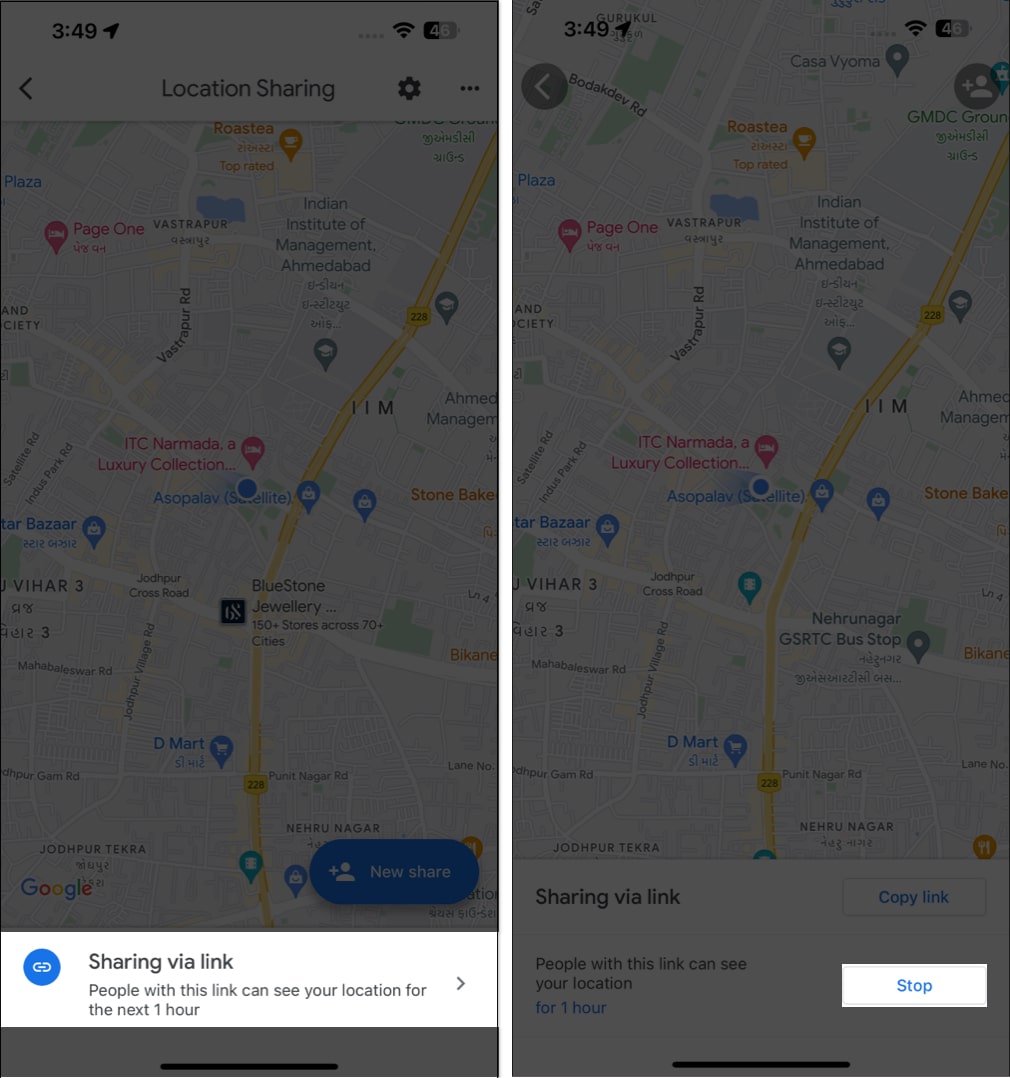
How to Share Your Estimated Time of Arrival in Google Maps on iPhone
Apart from sharing your live location, Google Maps also enables you to share your estimated arrival time on Google Maps with others. Sounds fun, right? Follow the steps outlined below!
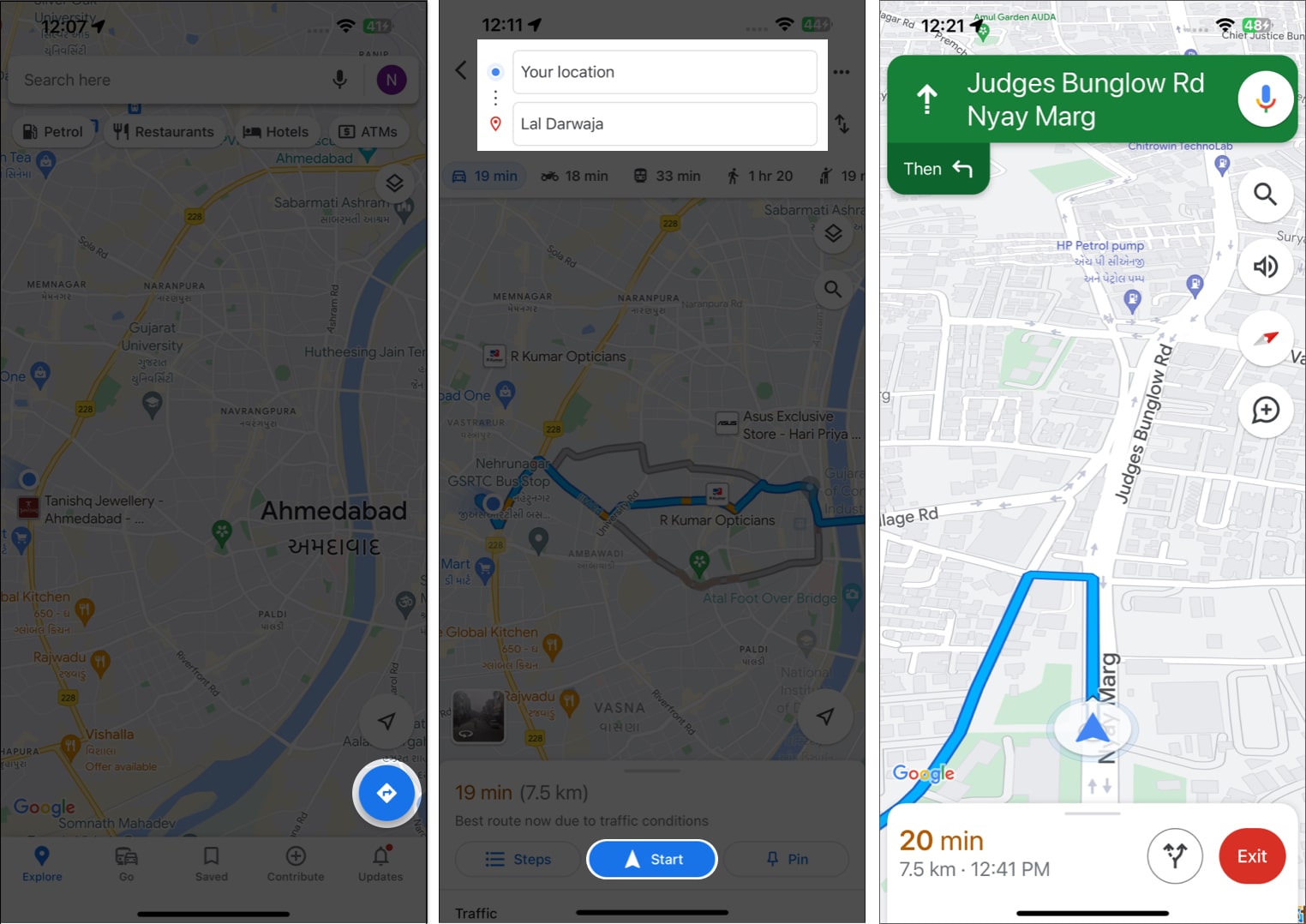
- Launch Google Maps → Tap the Direction icon.
- Choose starting point and destination applicable to you.
- Start your journey and swipe up the interface.
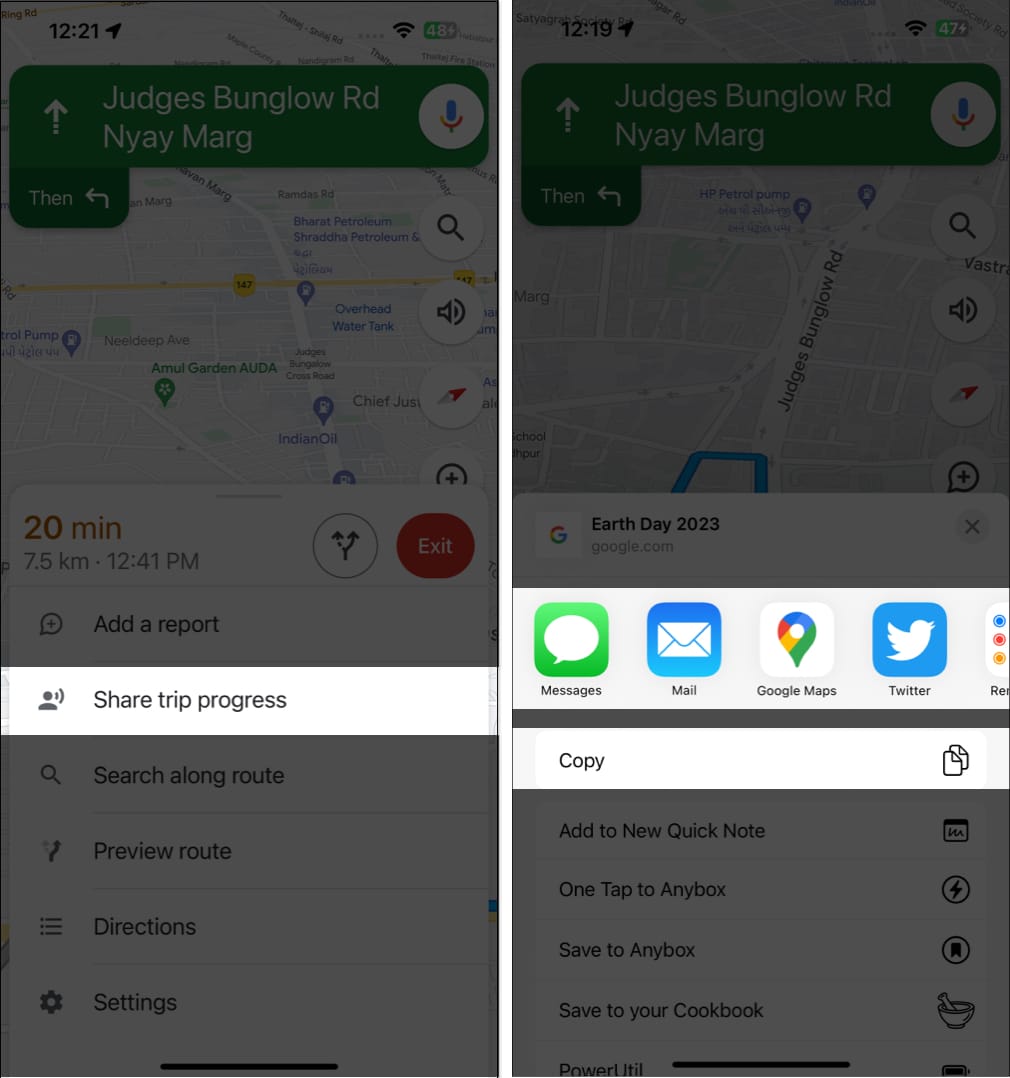
- Now press Share trip progress → Select the users with whom you wish to share your ETA.
- Tap More options → Copy to get your live ETA link.
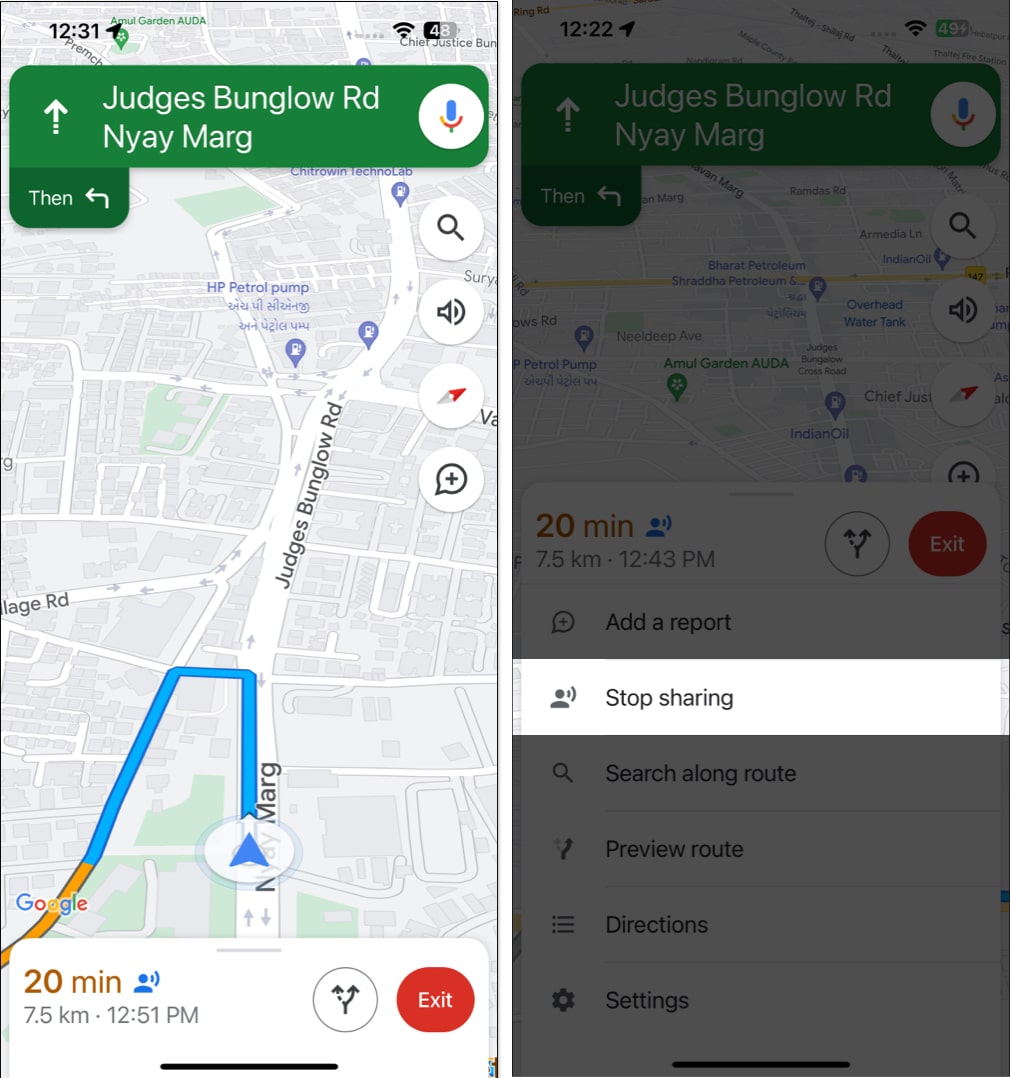
- To stop your ETA from being shared, swipe up the shared interface → Tap Stop Sharing.
How Accurate Is Google Maps Location Sharing on iPhone
Google Maps uses a combination of GPS, Wi Fi, mobile networks, and motion sensors. With Precise Location enabled, accuracy is usually within a few meters. Accuracy may drop indoors, in low signal areas, or when battery saver mode is active.
Common Issues and Fixes
If location sharing does not work as expected, check the following:
- Google Maps location permission is set to Always or While Using
- Precise Location is turned on
- Background app refresh is enabled
- Low Power Mode is turned off
- The internet connection is stable
Restarting the app or signing out and back into your Google account also resolves most issues.
Let’s get going!
Google’s location-sharing ability is nothing less than bliss. Whether you’re exploring a new area or checking in with a friend, it helps to stay connected and safe. So, try using this fantastic feature of Google Maps whenever you’re unfamiliar with your destination, and rest assured. If you face any issues, don’t hesitate to drop them below.
Frequently Asked Questions

Written by
Jignesh PadhiyarJignesh Padhiyar is the co-founder of iGeeksBlog.com, who has a keen eye for news, rumors, and all the unusual stuff around Apple products. During his tight schedule, Jignesh finds some moments of respite to share side-splitting content on social media.
View all posts →More from How-to

Snapchat Parental Controls: How to Set Up Family Center and Keep Your Teen Safe
Snapchat’s Family Center lets parents monitor their teen’s friend activity and screen time without reading private messages. Here’s how to set it up and what to expect.
 VikhyatMarch 3, 2026
How to Block and Unblock Someone on Instagram
Instagram lets you block or unblock someone in seconds. Follow these simple steps to take full control of your privacy and online peace.
 Ava BiswasMarch 2, 2026
Apple Watch Not Responding? 8 Fixes That Actually Work
Is your Apple Watch unresponsive or stuck on a black screen? Here are 8 proven fixes to help you unfreeze it and get it working again quickly.
VikhyatMarch 3, 2026