
How to send photos as documents in WhatsApp on iPhone without losing quality
WhatsApp is one of the most popular messaging apps globally — and for good reason. Its rich features make it a powerful tool for communication. However, one major drawback is its tendency to compress images, especially when the HD photo option isn’t selected, resulting in noticeably lower quality.
But don’t worry — there’s a simple trick! You can send photos as documents in WhatsApp on iPhone to avoid compression and retain original quality. Want to know how? Let’s dive in.
Things to know before sending photos as documents on WhatsApp
- File size limit: WhatsApp supports files up to 2GB, so anything beyond that won’t send.
- Data usage: Sending or receiving high-resolution images consumes more mobile data and storage space.
- Preview limitation: Images sent as documents don’t show a preview in the chat. You need to tap the document to view the photo.
Want a preview and high quality? Try using WhatsApp’s HD photo feature instead.
How to send images as documents in WhatsApp on iPhone
- Open WhatsApp → Go to the chat where you want to send the images.
- Tap the plus (+) icon beside the text box.
- Select Document → Choose Photo or Video.
If your photos are saved on iCloud Drive or another location, tap Choose from Files.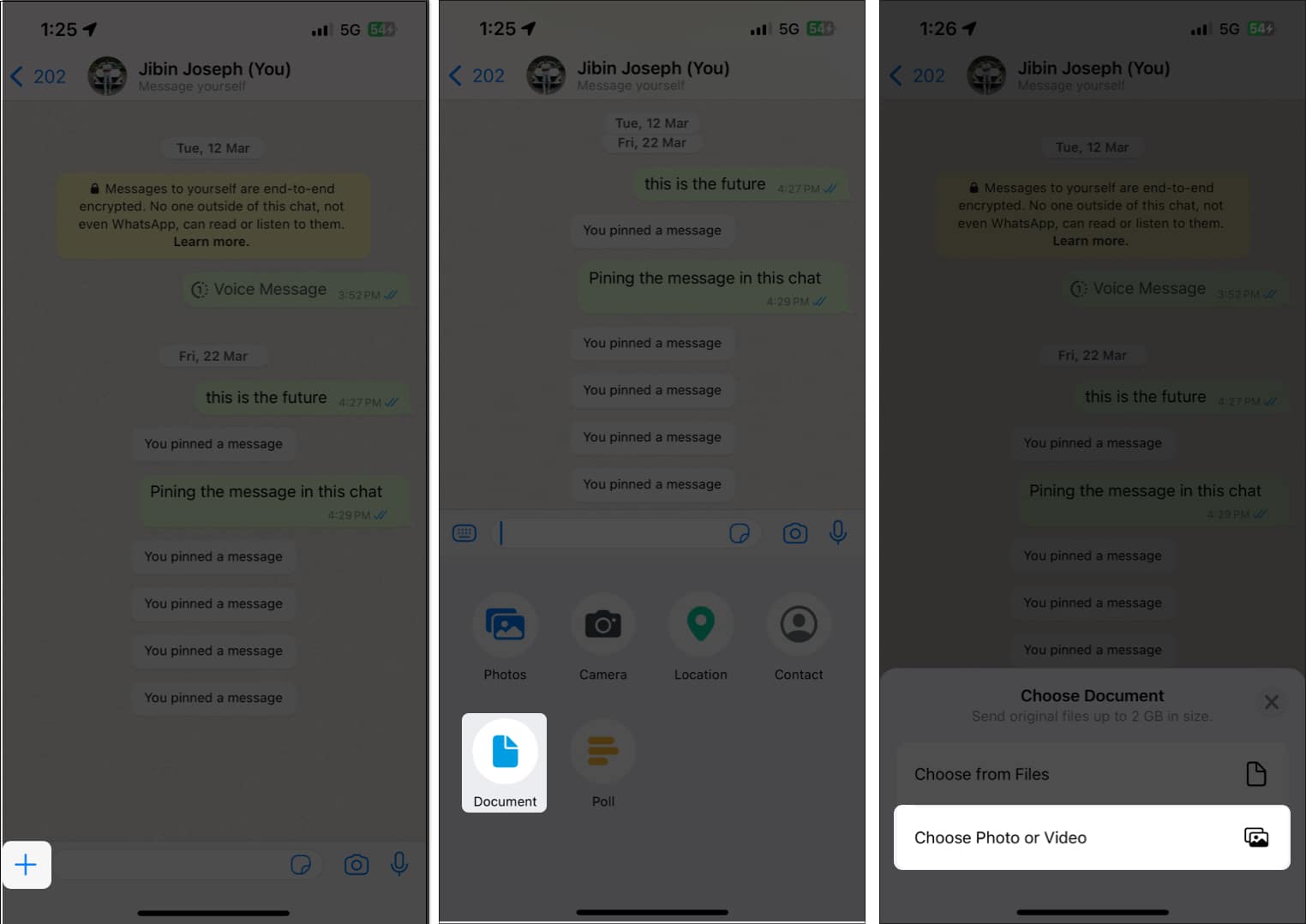
- If it’s your first time using this feature, grant access to the Photos app when prompted.
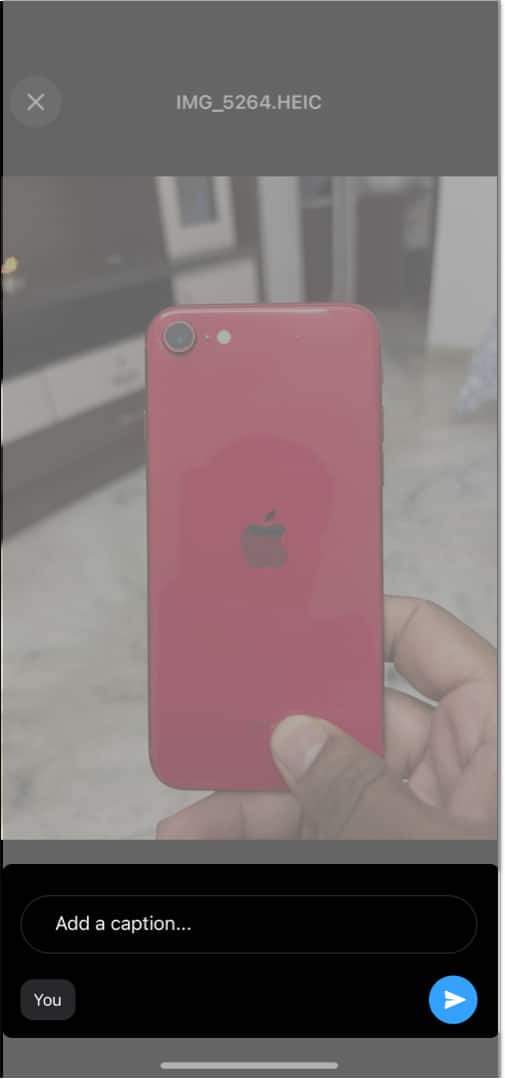
- Select an image. To send multiple photos: Tap and hold a photo → Tap Select → Choose additional images → Tap Next.
- If you’re sending just one image, you can add a caption.
- Finally, tap the blue send icon. Tap Send again if you’re sending multiple images.
If you don’t see the “Photo or Video” option under “Document,” make sure WhatsApp is updated to the latest version.
What happens when you send photos as documents on WhatsApp?
When you use this method, WhatsApp sends your image in its original format without compressing it. That means full resolution and file quality are preserved.
If you select multiple images, you can even add markups or annotations before sending. Still, there are a few important things to keep in mind.
Other ways to send photos from iPhone without losing quality
If using WhatsApp seems tedious or limiting, there are other reliable methods for sharing high-quality photos from your iPhone:
1. AirDrop
For iPhone-to-iPhone transfers, AirDrop is the easiest way to share original quality images without any compression.
2. Google Drive
Upload your images to Google Drive and send the download link via WhatsApp, iMessage, or email.
3. Email Attachments
Use the Mail app on your iPhone → Attach your image → Choose Actual Size before sending.
Wrapping up…
Now you know exactly how to send uncompressed photos on WhatsApp from iPhone — whether through the document trick, the HD photo feature, or alternative tools like AirDrop and Google Drive.
By using these methods, you ensure your photos look as crisp and clear as when you took them. So go ahead, share your moments in the best quality possible!
You might also like:
Topics

Written by
Rachel Ann Tee-MelegritoRachel, an experienced Apple technology writer since 2021 and a long-time user since 2003, began her journey with a silver iPod Classic. Currently, she owns an array of modern Apple gadgets. At iGeeksBlog, her expertise shines through in the crafting of comprehensive how-to articles, informative guides, and well-curated roundups.
View all posts →More from How-to

How to Turn Off Location on Snapchat (Step-by-Step Guide)
Want to stop sharing your location on Snapchat? This guide explains how Snapchat location sharing works and shows simple ways to turn off your location using Ghost Mode or phone settings. Stay in control of your privacy in just a few steps.
 VikhyatMarch 5, 2026
Snapchat Parental Controls: How to Set Up Family Center and Keep Your Teen Safe
Snapchat’s Family Center lets parents monitor their teen’s friend activity and screen time without reading private messages. Here’s how to set it up and what to expect.
VikhyatMarch 3, 2026
How to Block and Unblock Someone on Instagram
Instagram lets you block or unblock someone in seconds. Follow these simple steps to take full control of your privacy and online peace.
 Ava BiswasMarch 2, 2026