
I Thought My WhatsApp Was Secure Until I Checked These Settings
WhatsApp is secure, but only with the right settings. Here are the changes that made my account safer.
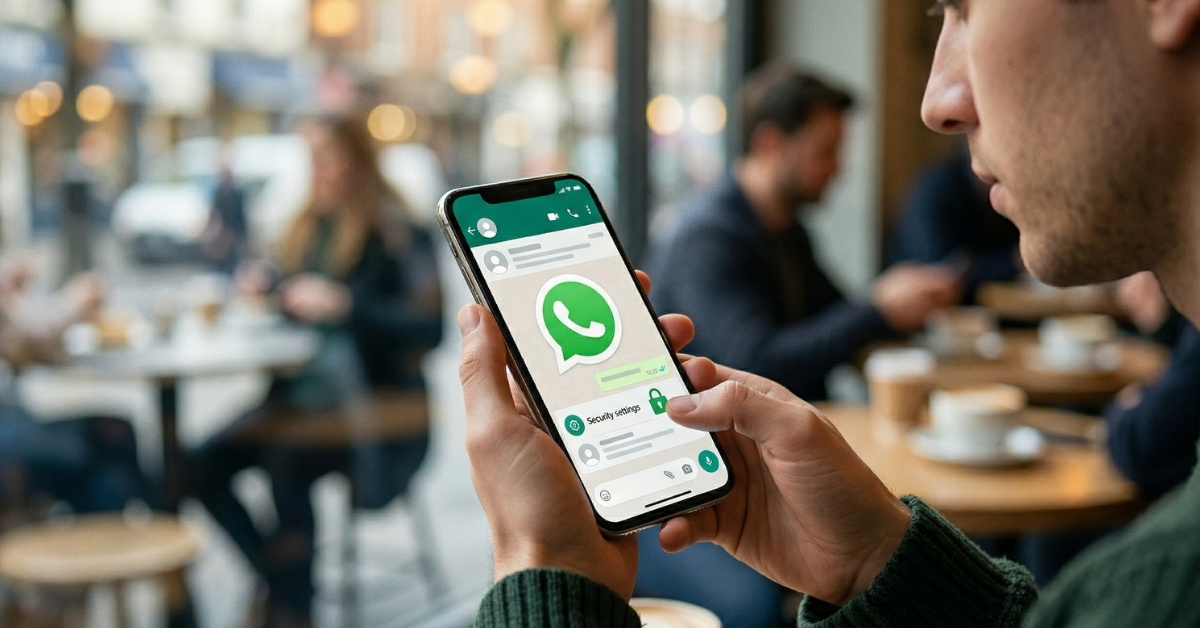
If you think your WhatsApp is “secure by default,” you’re only half right. Yes, end-to-end encryption protects your messages in transit. However, in 2026, hackers don’t need to break encryption; they just need to trick you. From sneaky scams to hidden settings you’ve probably ignored, your account could be more exposed than you realize.
The good news? You don’t need to be a cybersecurity expert to protect yourself. Here’s my complete setup to protect my WhatsApp account from hackers and unauthorized access. I have shown the privacy settings for both iOS and Android versions so you can follow along.
1. Turn On Two-Step Verification First (This Matters Most)
If there’s one feature that instantly makes your WhatsApp more secure, it’s two-step verification. Without it, anyone who obtains access to your SIM card or verification SMS can log in to your account in seconds. However, two-factor authentication adds another layer. Until the right PIN is entered, no one can access your WhatsApp on their device.
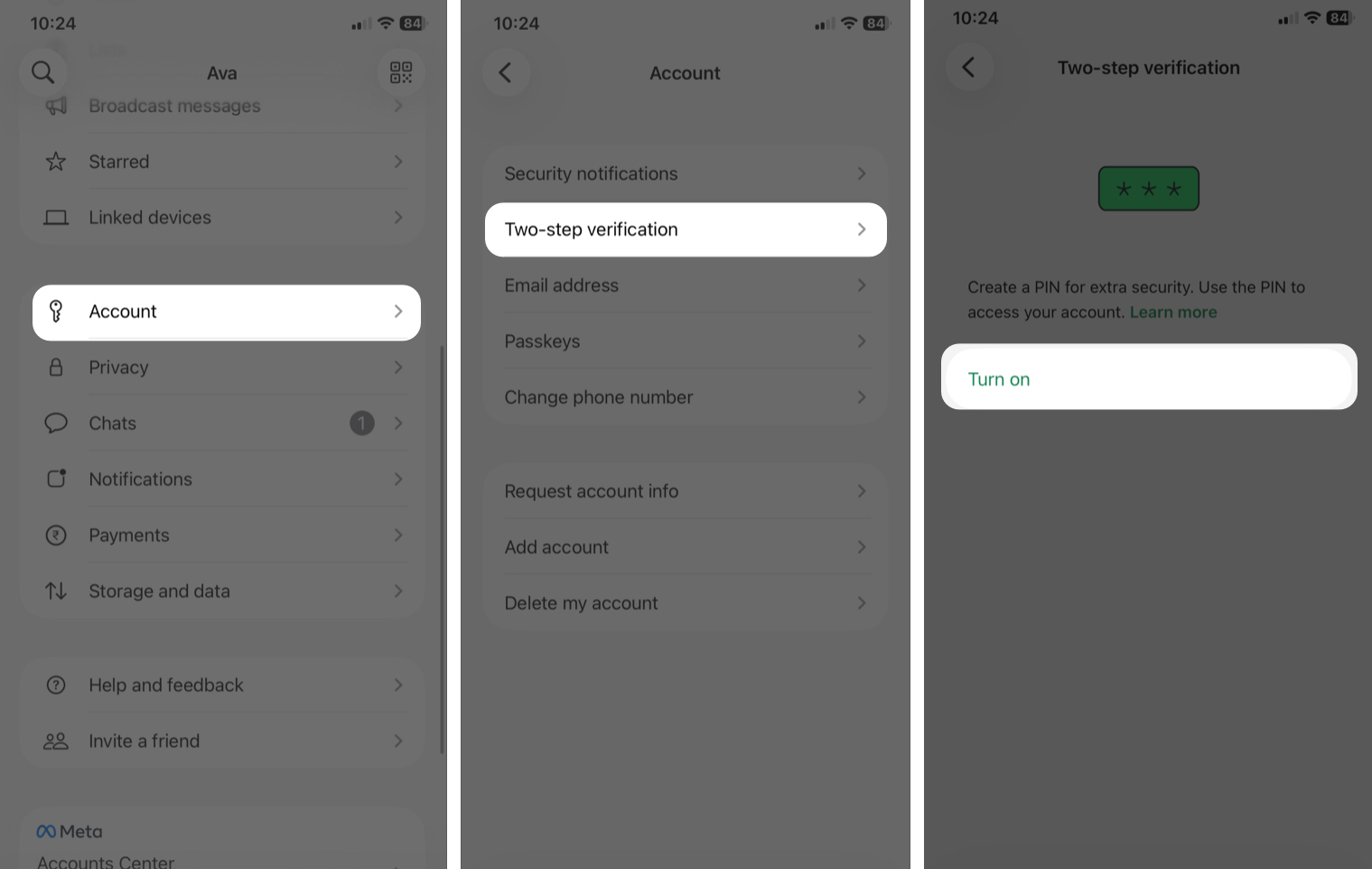
- Open WhatsApp and tap the You profile tab to go to settings.
- Tap Account from the settings list and select Two-step verification.
- Tap Turn on.
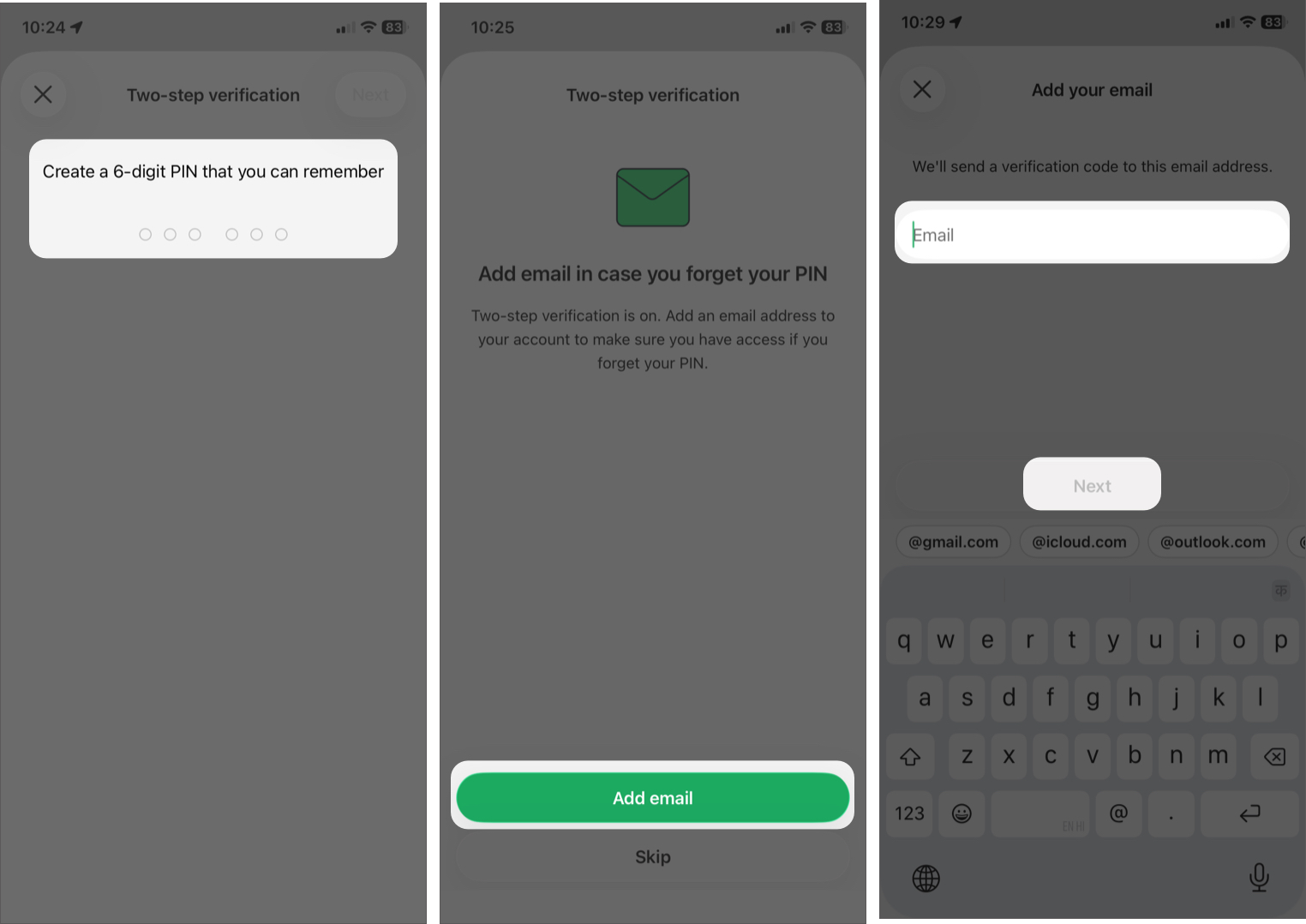
- Create a strong 6-digit PIN and enter it again for confirmation.
- Select Add email and type your email address for recovery. Tap Next.
- Now WhatsApp will send a code to that email address. Follow the onscreen instructions.
This is a quick process that will only take a minute of your time, and it will save you from losing your entire account.
Quick expert tips:
- Do not use obvious PINs like 123456 or your birth year.
- Do not store your PIN in your notes app without proper protection.
- If you forget your PIN, you will be locked out of your entire account for days or even lose it forever. Always link a recovery email.
2. Never Share This WhatsApp Code. Seriously
Your WhatsApp verification code (OTP) is your master key. If someone else has access to your WhatsApp verification code and your PIN, they can use your account.
Here’s how the scam usually works:
You receive a message or call from someone pretending to be a friend, support agent, or even a company. They say something like: “I accidentally sent a code to your number—can you share it?” That “code” is actually your WhatsApp login OTP. The moment you share it, your account is gone.
Therefore, never share your verification code with anyone—under any circumstances.
What you should do instead:
- Ignore the message completely
- Block and report the sender
- Never type or forward the code to anyone
Even if the message looks like it’s from someone you know, always verify it first by calling or using another app. Also, remember: WhatsApp will never ask for your verification code via chat, call, or email. If someone does, it’s a scam!
3. Check Your Linked Devices. I Found This Risk
WhatsApp’s multi-device feature lets you use your account on a laptop, tablet, or browser. But here’s the catch: if someone else links their device to your account, they can read your messages without you even knowing. That’s why regularly checking your linked devices is a must for WhatsApp account protection.
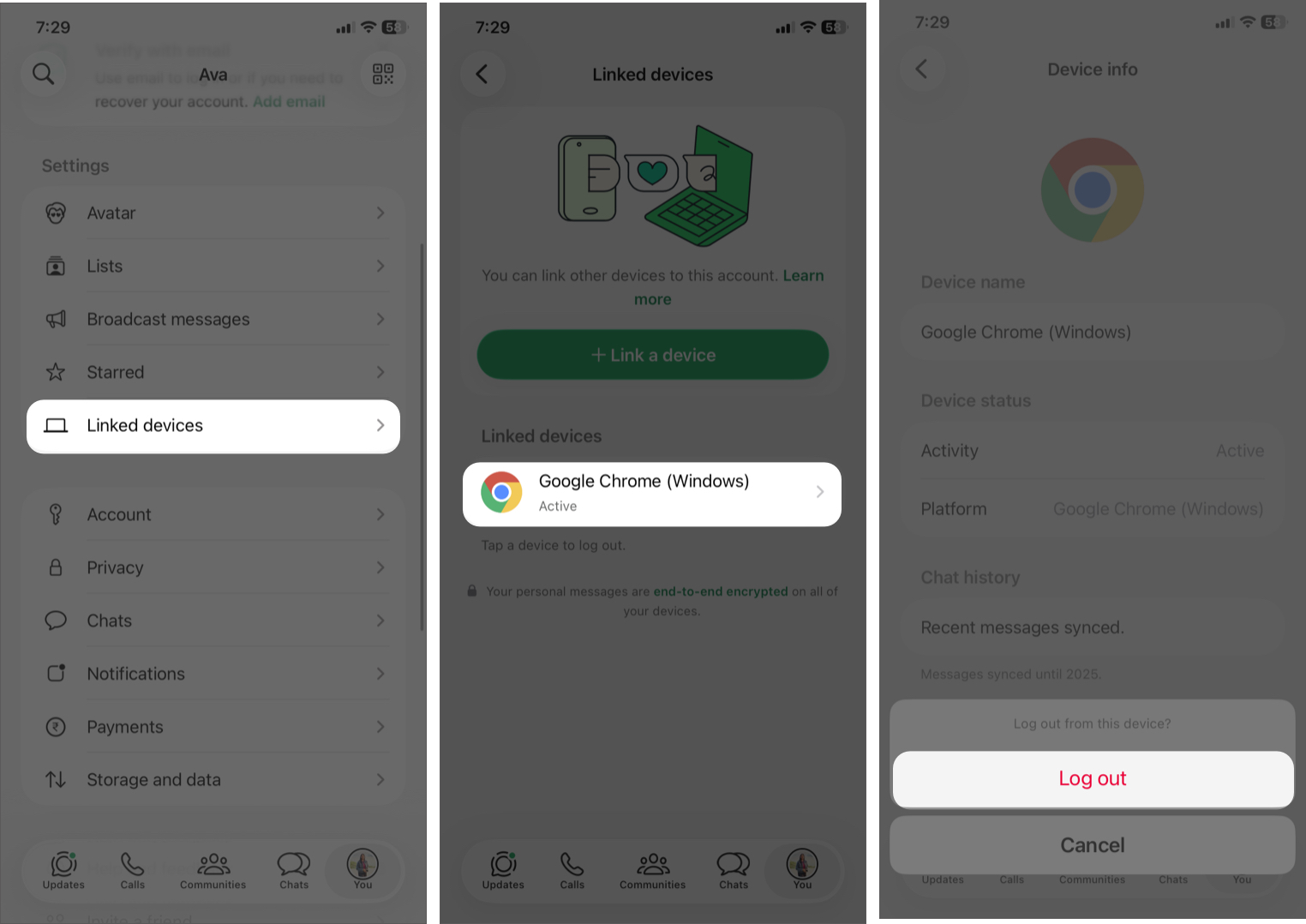
- Go to Settings in WhatsApp by tapping your profile photo.
- Tap Linked Devices.
- Review the list of active sessions. Tap the one you don’t recognize.
- Scroll down, tap Log Out, and confirm.
Also, avoid logging in on public or shared systems in the future and always log out of all devices you don’t actively use.
4. Lock Your WhatsApp with Face ID or Chat Lock
Even if your WhatsApp account is secure online, what happens if someone gets physical access to your phone? That’s where biometric locks come in. They add a powerful layer of protection by requiring your fingerprint or Face ID to open WhatsApp or specific chats.
Enable App Lock
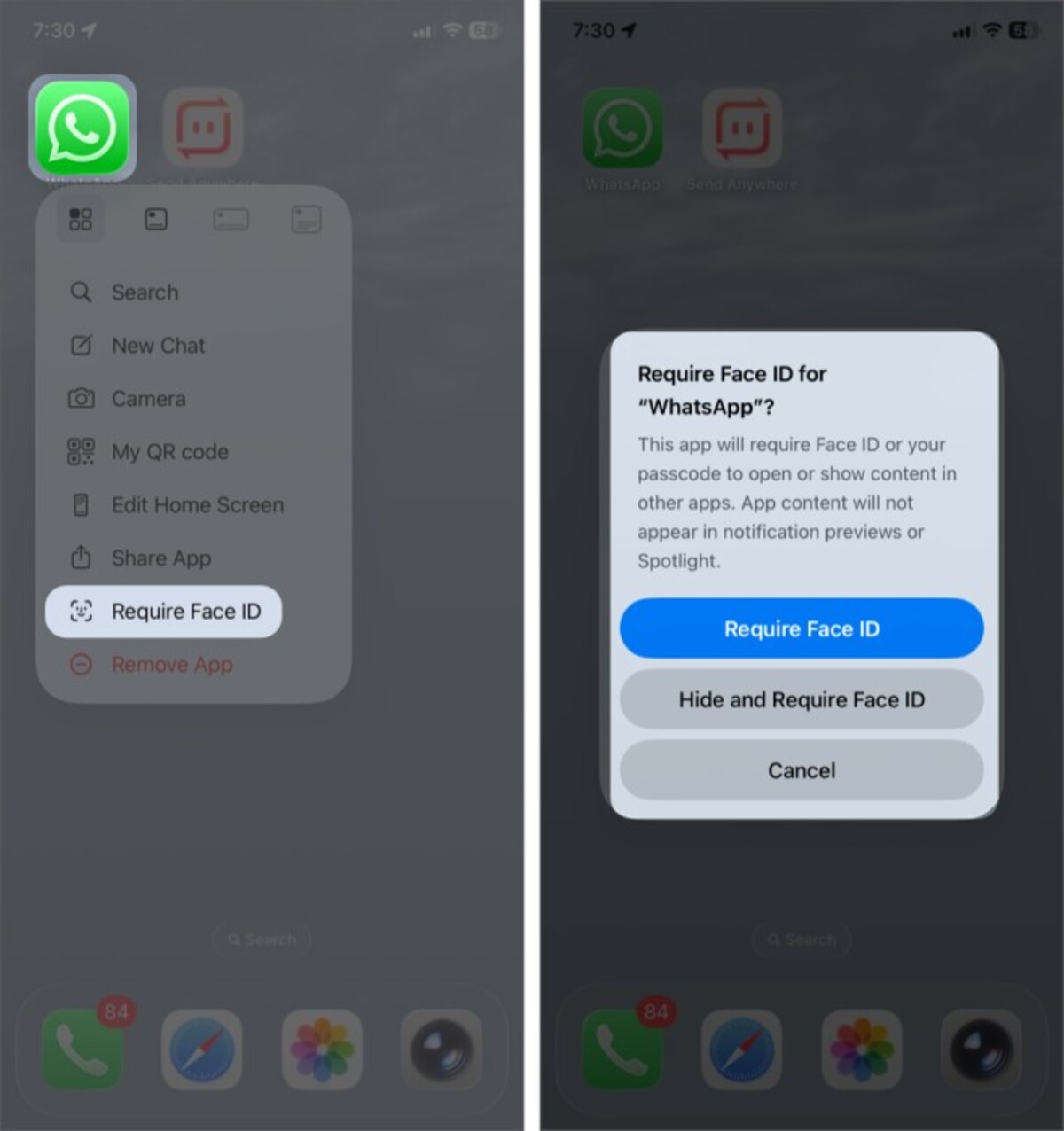
First, lock the app to secure all the chats and hide message previews from notifications.
On iPhone:
- Tap and hold the WhatsApp app.
- Select Require Face ID from the dropdown.
- Finally, tap Require Face ID and authenticate your identity.
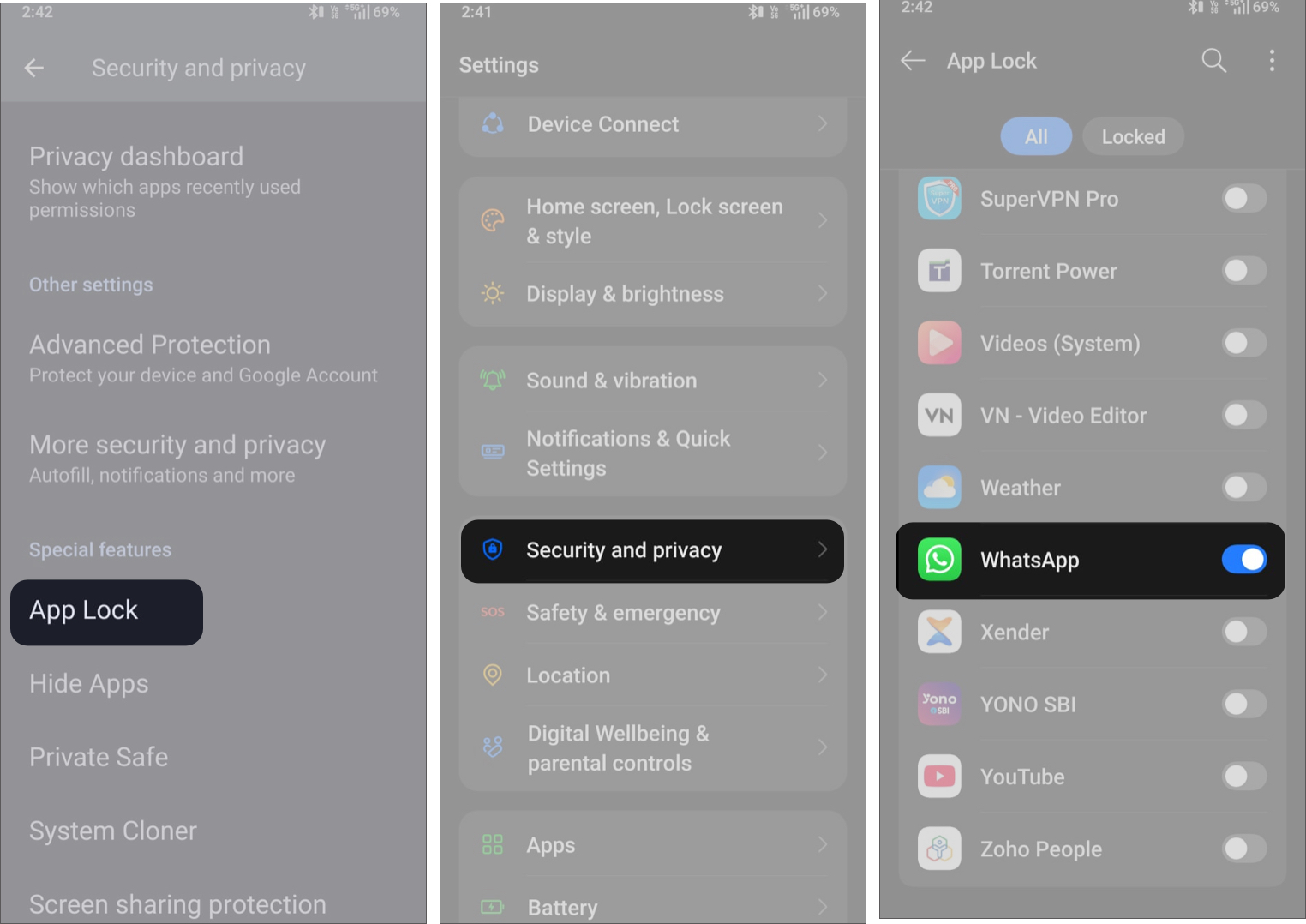
On Android:
- Launch the Settings app.
- Tap Security and privacy > App Lock.
- Authenticate your fingerprint or Face ID.
- Now, toggle on WhatsApp.
Lock Individual Chats
WhatsApp offers a built-in Chat Lock feature.
- Open a chat.
- Tap the contact name at the top.
- Toggle on Lock chat and tap Continue.
- Authenticate your biometrics.
5. Turn On Security Alerts Most People Ignore
WhatsApp uses end-to-end encryption to keep your messages private, but what if something changes behind the scenes? That’s exactly what security notifications are designed to alert you about.
When enabled, WhatsApp will notify you whenever a contact’s security code changes. This usually happens when they reinstall WhatsApp or switch devices. But in rare cases, it could signal something suspicious.
To turn it on:
- Go to your WhatsApp’s You profile and select Account.
- Tap Security notifications.
- Toggle on Show security notifications on this phone.
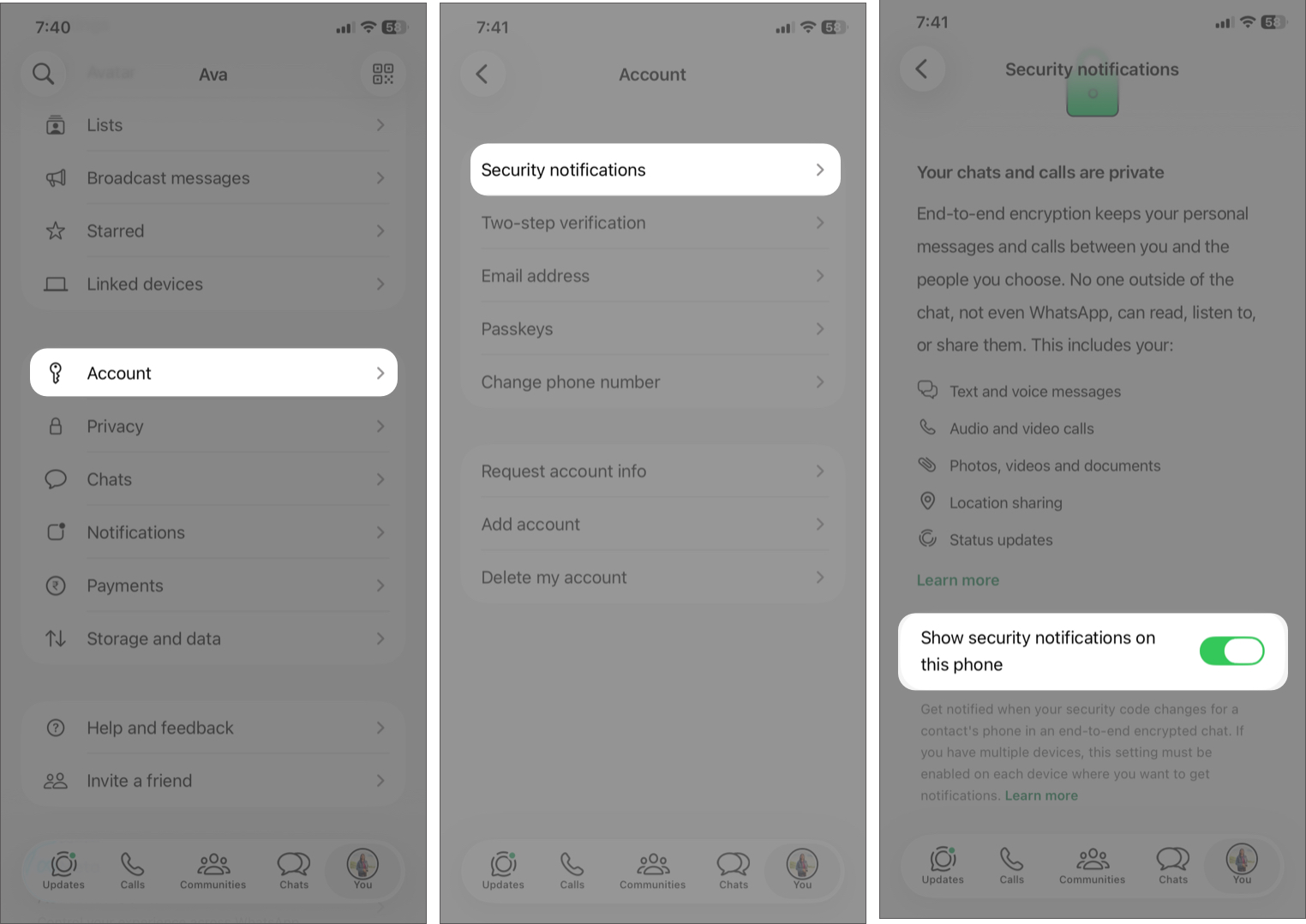
Now, if someone re-installs WhatsApp or changes their phone, you’ll be notified.
6. Secure Your WhatsApp Backup Before It’s Too Late
Even though your WhatsApp chats are encrypted, your chat backup is not. That means your entire chat history, photos, and documents could be exposed through cloud storage if not properly secured.
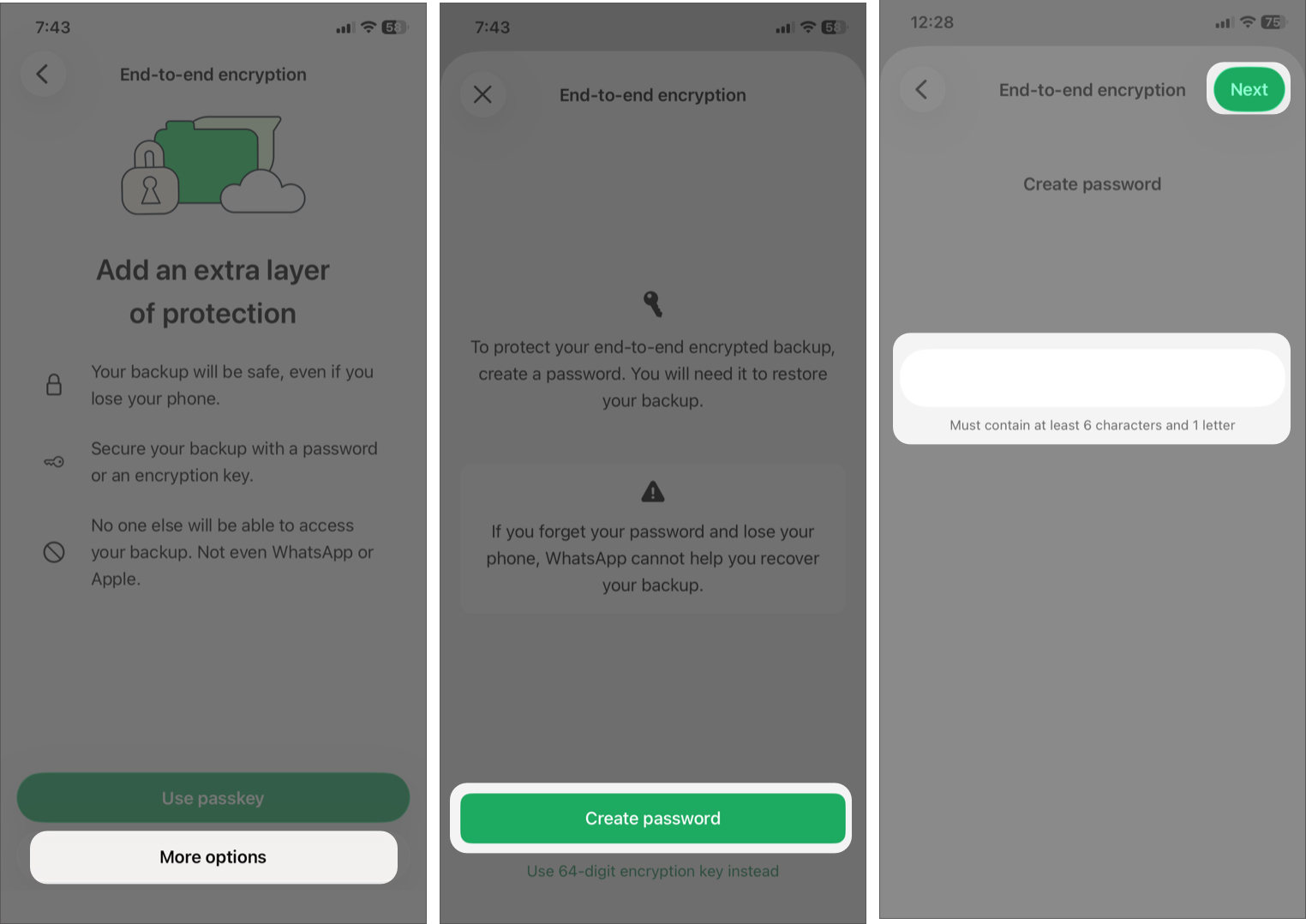
To enable end-to-end encrypted chat backups:
- Open your WhatsApp Settings by tapping the You tab.
- Tap Chats > Chat backup.
- Now tap End-to-end encryption, then select More options > Create password.
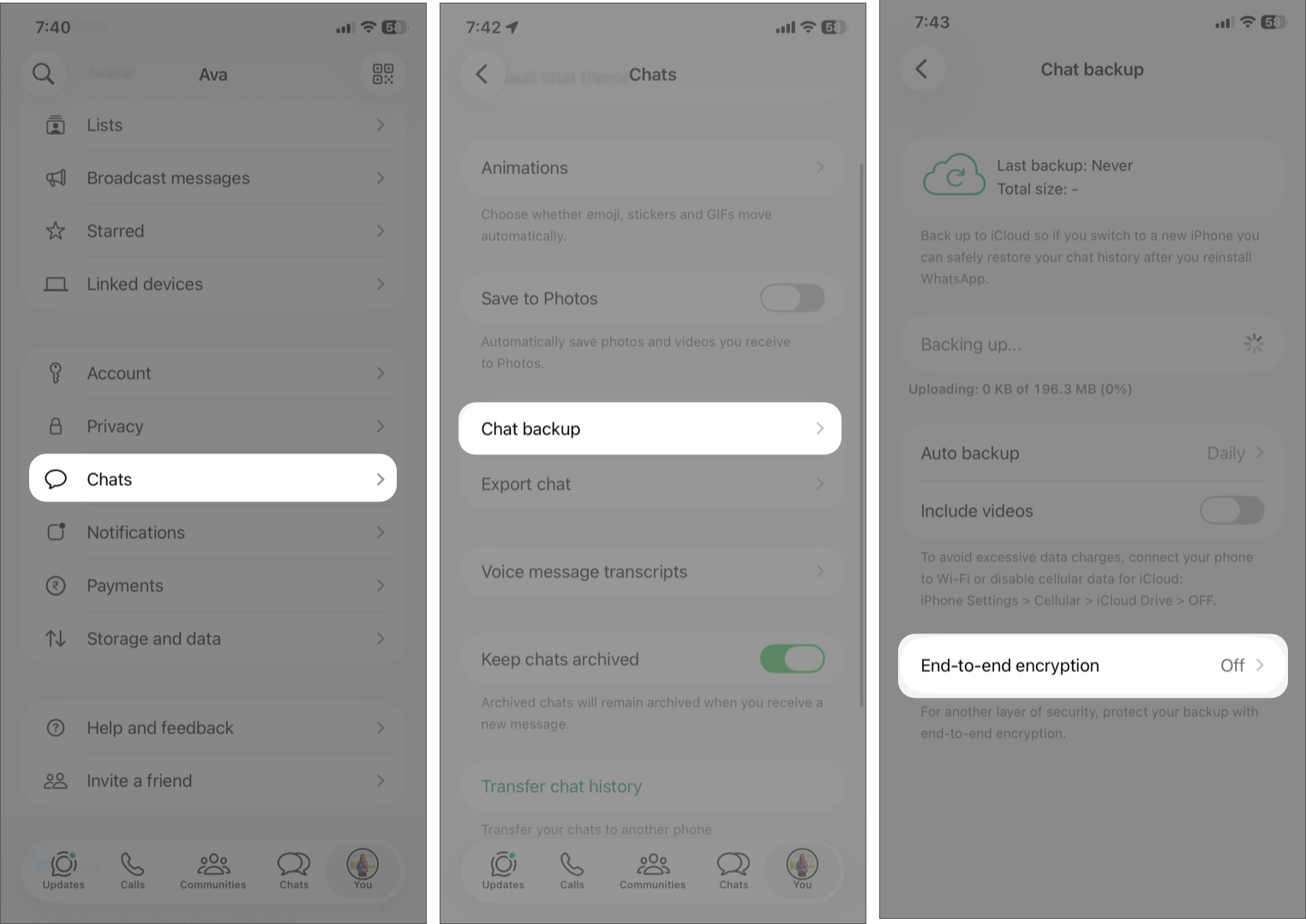
- Set a strong password and tap Next. Retype the password and hit Next.
- Tap Create.
Important:
7. Stop Random People from Adding You to Groups
Getting added to random WhatsApp groups isn’t just annoying; it can also expose you to spam, scams, and malicious links. In many cases, attackers use group chats to target multiple users at once.
The good news? WhatsApp gives you full control over who can add you to groups. You just need to turn on the setting.
- Go to the You Tab.
- Tap Privacy and select Groups.
- Choose one of these options:
- Everyone
- My Contacts
- My Contacts except…
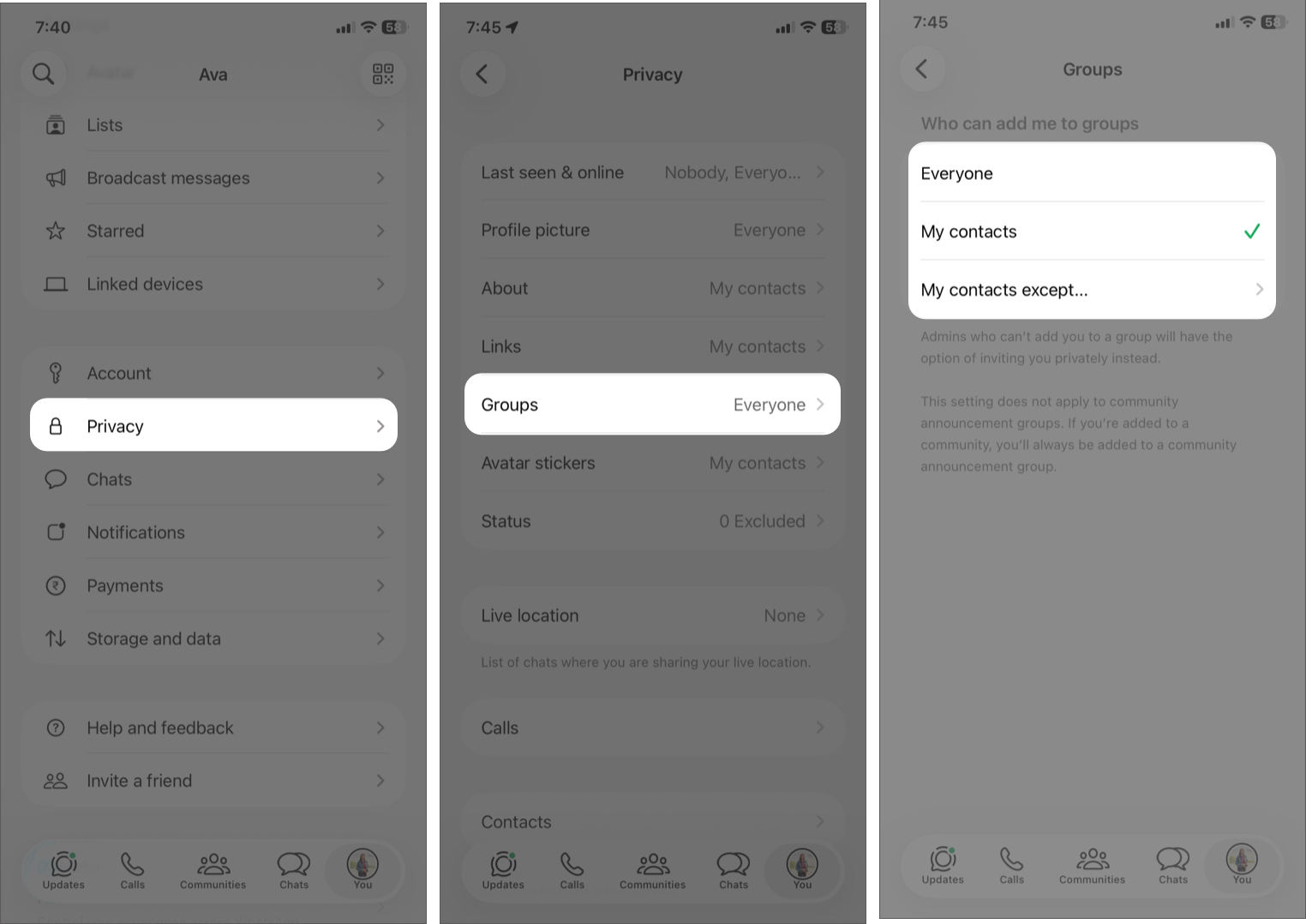
Now, if someone can’t add you, they’ll have to send you a private invite. You can accept or ignore it.
8. Change These Privacy Settings to Stay Hidden
Most people leave WhatsApp’s privacy settings on default, and that’s exactly what scammers rely on. By tweaking a few options, you can control who sees your personal information and reduce your chances of being targeted.
- Open WhatsApp settings and access Privacy.
- From here, you can set key options like Last Seen & online, Profile picture, About, and Links to My Contacts.
- Toggle off Read receipts.
Bonus:
In the Privacy Settings, scroll down and select Privacy Checkup. Here, you can review all the important settings to protect your personal information.
9. Secure Your SIM Card to Prevent Account Takeover
Your WhatsApp account is tied directly to your phone number, which means that if someone takes control of your SIM, they can access your WhatsApp, too. So, you must secure them to protect you Whatsapp account from hackers.
In this type of attack, someone tricks your mobile carrier into transferring your number to a new SIM card. Once they have it, they can use your verification codes to log in to your account.
To secure your SIM and number:
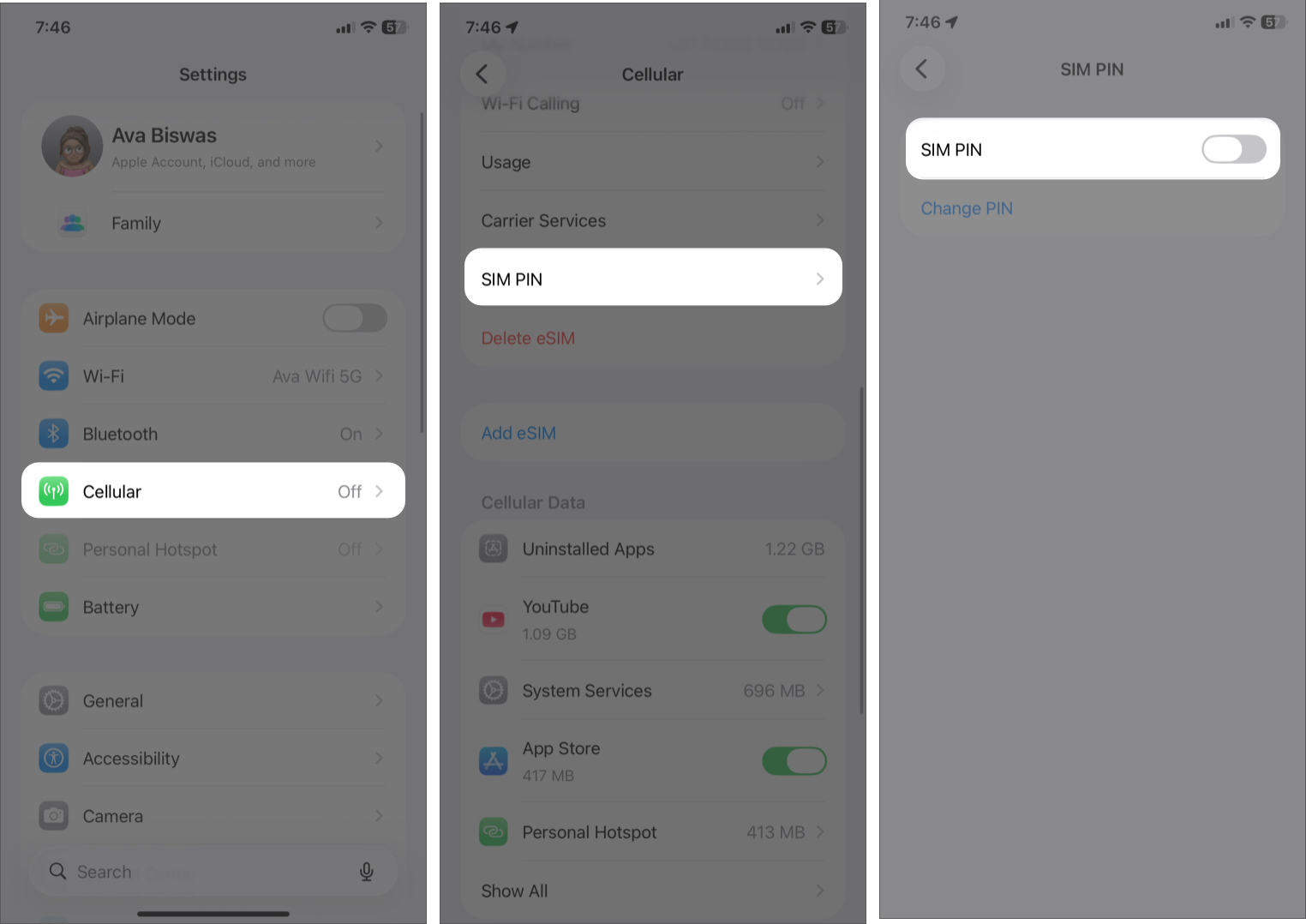
- Set a SIM PIN on your phone. On iPhone, go to Settings > Cellular > SIM PIN, toggle it on, and set a PIN. Similarly, lock your SIM on Android.
- Contact your carrier and enable SIM lock / port-out protection.
- Avoid sharing your phone number publicly on social media and never tell OTPs ot personal details over calls.
10. Block and Report Suspicious Messages Instantly
Suspicious messages are not only frustrating but also the starting point for a scam or phishing attack. So, WhatsApp allows you to block and report suspicious accounts in an instant.
- Open the suspicious chat. Don’t reply or click links.
- Under the contact name, select Block.
- On iPhone, select Block and report. For Android, checkmark Report to WhatsApp.
Now, WhatsApp reviews five recent messages and can take action, like banning the account. This helps prevent others from becoming victims.
11. Keep WhatsApp and Your Phone Updated
If you ignore updates, you’re leaving the door open for attackers. Most security breaches don’t happen because apps are weak, but because users are running outdated versions with known vulnerabilities. So, avoid using outdated or unsupported devices.
- Open App Store on iPhone or Google Play Store on Android.
- Search for WhatsApp and check for any updates. Tap Update to install the new version.
- Next, navigate to Settings on your device.
- On iPhone, select General > Software Update. For Android, go to System & update > Software update.
- Download and install any new OS version. Restart your phone after major updates for the best performance.
12. Turn Off Auto-Download to Avoid Hidden Malware
Auto-downloading media might feel convenient, but it can quietly expose your phone to malicious files, scams, and unnecessary data clutter. Attackers often disguise malware or phishing links in PDFs, APK files, or images, hoping it gets downloaded without you even noticing.
By turning off auto-download, you take back control over what enters your device.
- Navigate to your WhatsApp’s You profile tab.
- Tap Storage and Data.
- Under Media Auto-Download, set Never for Photos, Audio, Video, and Documents.
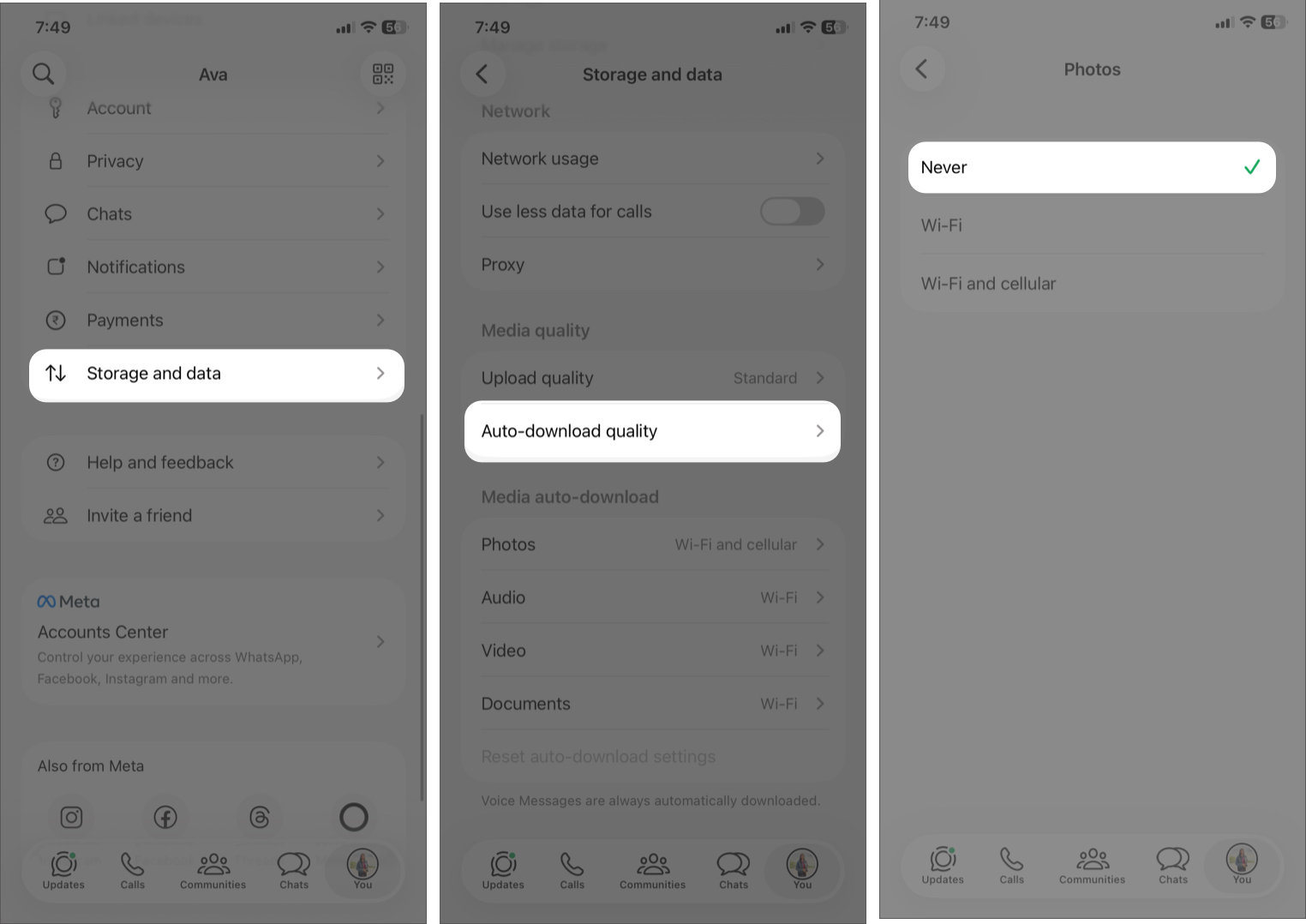
Now, manually download files only from trusted contacts. Also, avoid opening unknown documents or compressed files.
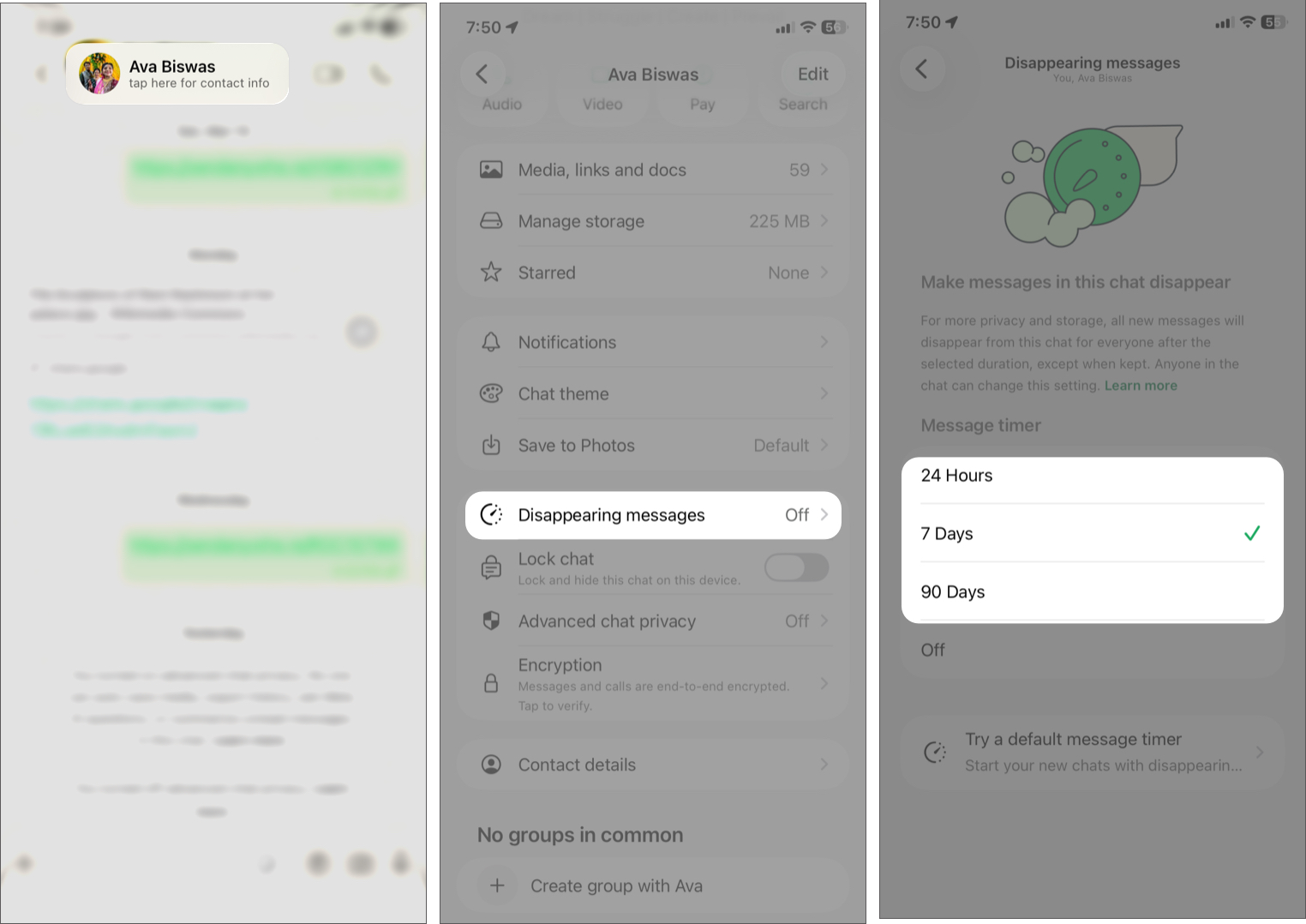
13. Use Disappearing Messages for Sensitive Chats
When you share sensitive photos or confidential info on WhatsApp, use this feature to reduce the risk of your data being stored or misused.
- Open a chat.
- Tap the contact’s name.
- Select Disappearing Messages.
- Choose a duration (24 hours, 7 days, or 90 days).
- In a chat, tap the plus icon next to the text box and select Photos,
- Now, choose an image or video.
- Tap the “1” icon before sending.
- Now, when the recipient opens the media, it will disappear.
What to Do If Your Account Is Hacked
If your WhatsApp gets hacked, don’t panic! Act immediately. The faster you respond, the higher your chances of recovering your account and limiting damage.
- Try logging back in immediately. Use your phone number and request a new verification code.
- Confirm the hack: Check if you got OTPs you didn’t initiate, messages sent without your knowledge, or unknown devices linked to your account.
- Email WhatsApp support: Report the issue as soon as possible.
- Notify your contacts: Tell them to ignore any strange messages from your account.
- Secure your SIM and email: Check if your number or email has been compromised. Also, scan your phone for malware.
After recovering your WhatsApp account, review all your security settings and apply all the protection tips in this guide. Hackers often try again!
After These Changes, My WhatsApp Feels Much Safer
WhatsApp is secure, but only if you use it securely. Most attacks today rely on human mistakes, not technical flaws. That means small actions, like enabling two-step verification or being cautious with messages, can make a huge difference.
If you apply even half of these tips, you’ll already be ahead of most users and far less likely to become a target. Also, if you found this helpful, consider sharing it with friends and family.

Written by
Ava BiswasAva is a die-hard Apple aficionado and seasoned writer with a knack for breaking down complex tech concepts into easily digestible content. Having honed her writing and editing skills over 4 years at renowned media houses like TechBurner, Ava crafts informative and engaging articles including troubleshooting guides, product reviews, editorials at iGeeksBlog. When not typing, you can find her exploring the latest Apple releases or pondering the future of tech innovation.
View all posts →