
How to copy Mac screenshot to clipboard
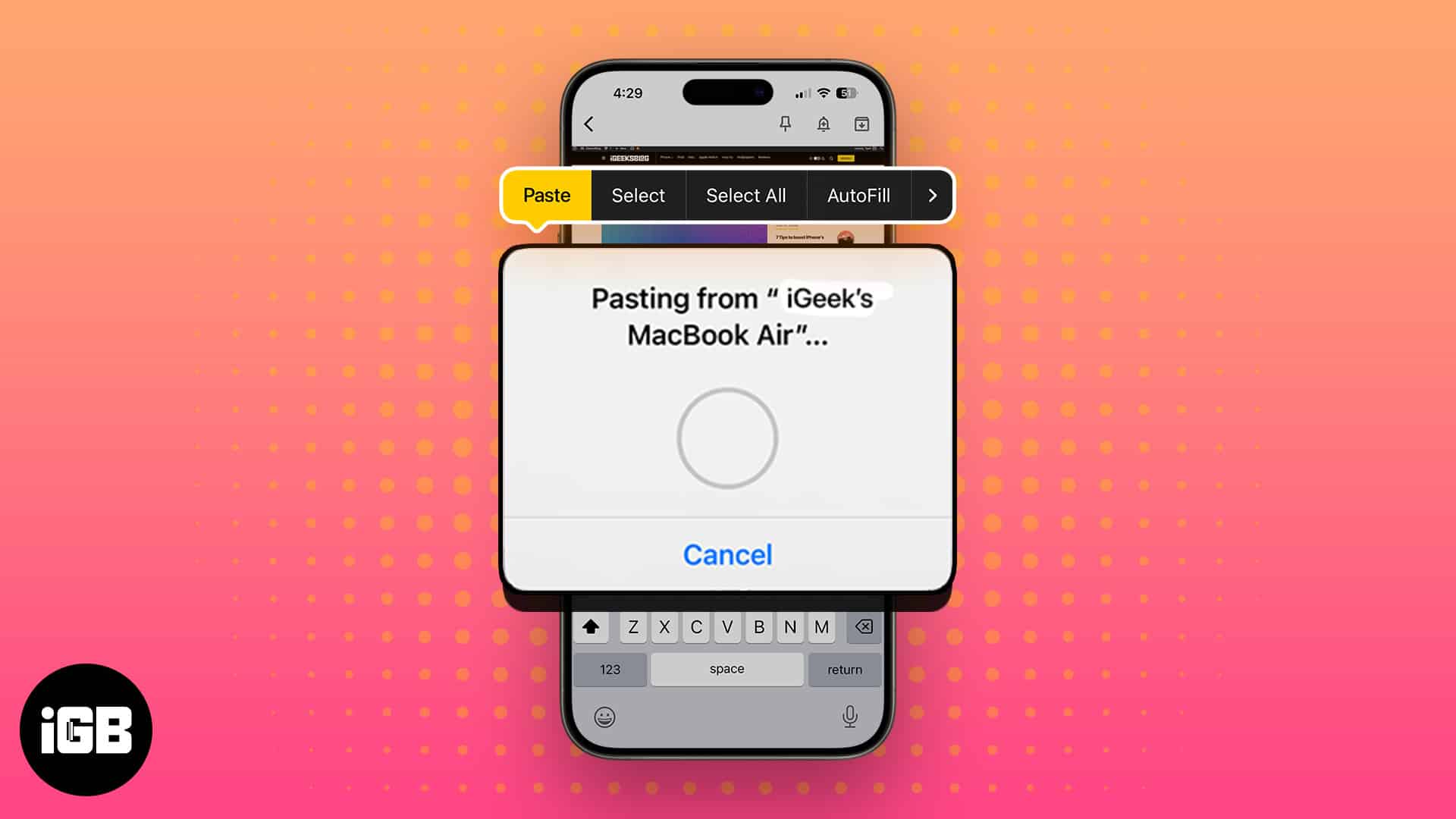
Do you know you can use your Mac screenshots without saving them? Say goodbye to cluttered desktops and simplify your workflow by learning to copy Mac screenshots to the clipboard.
So, you can directly paste the screenshots from the Mac clipboard and don’t need to save them.
How to copy screenshots to the clipboard on Mac
Before we get down to the steps, familiarize yourself with the Universal Clipboard feature on your Mac. Once you successfully enabled Handoff for your devices, consider the steps below to take screenshots and copy them to the clipboard on your MacBook.
Method 1: Via Keyboard shortcuts
First off, go to the screen you want to capture.
Next, you need to press the Control (⌃) key on the keyboard. Now, you need to hold Shift (⇧)+Command (⌘)+ 4 shortcut to send an image of part of the screen to the clipboard.
Simply hold the Control (⌃)+Shift (⇧)+Command (⌘)+ 3 to take the screenshot of the entire screen.
Press Command + V to paste the screenshot.
It works flawlessly for every device running with the same Apple ID. For instance, I directly paste screenshots from the Mac clipboard on my iPhone.
Method 2: Using the Screenshot app
- Access your desired screen on Mac.
- Press Command + Shift + 5 altogether.
- Click Options → Select Clipboard from the Save to menu.
- Set the screenshot parameters as you desire → Click Capture.
Alternatively, you can press Return to copy the screenshot to your clipboard. - Now, simply paste the screenshot on your Mac.
You may also paste the screenshot on your iPhone with the same Apple ID.
How to customize your Mac screenshot shortcuts
We’re not done here. You can customize keyboard shortcuts for your convenience to copy and save screenshots to a clipboard in a jiffy. Here’s how:
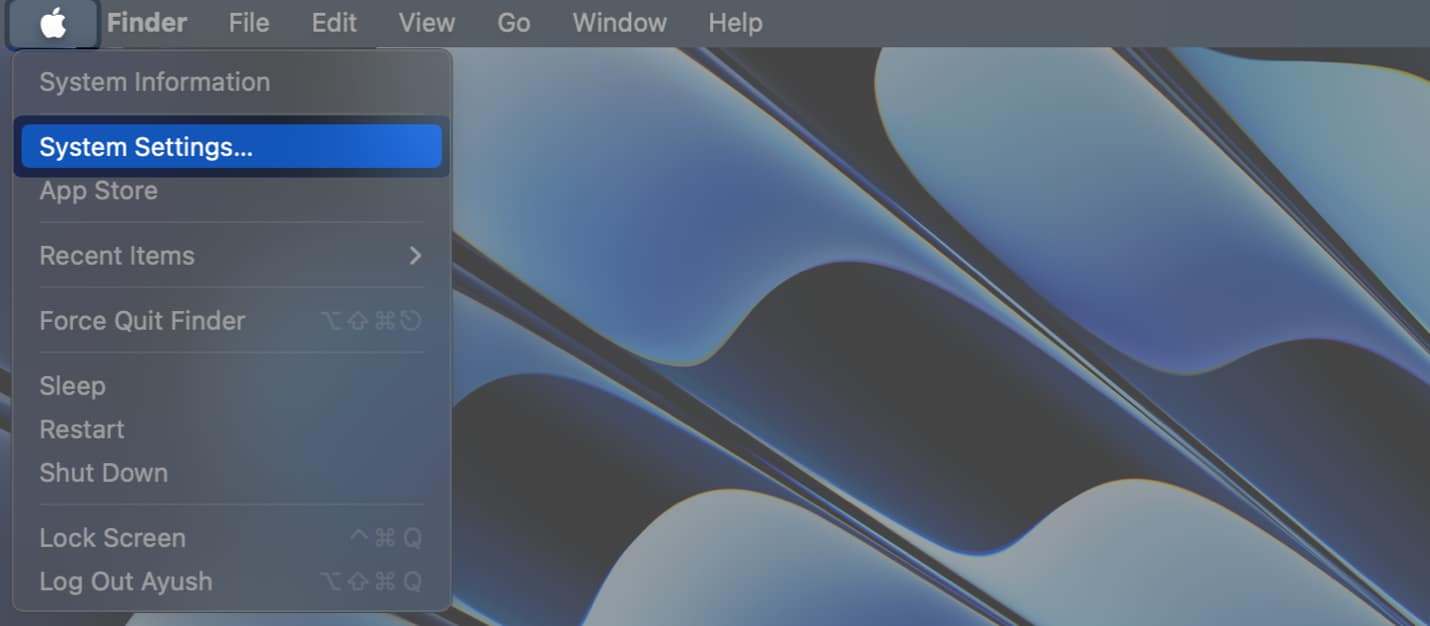
- Click the Apple logo () → System Settings.
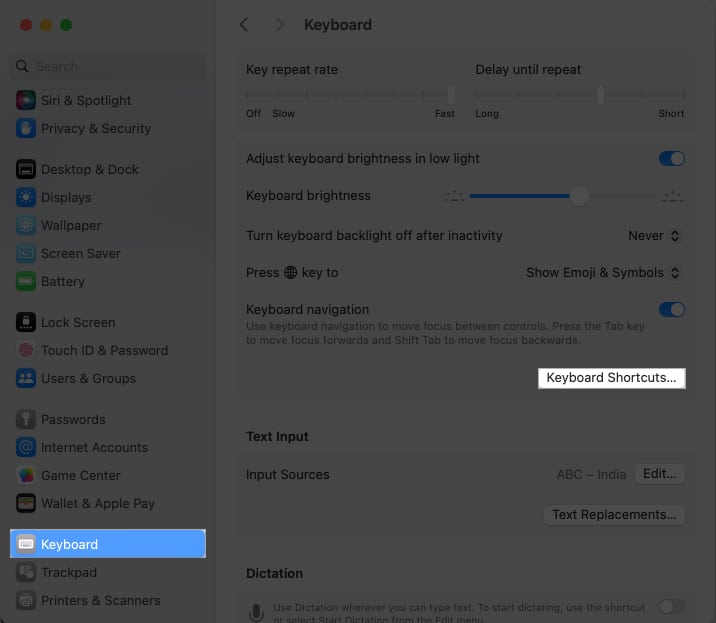
- Select Keyboard from the left pane → Click Keyboard Shortcuts.
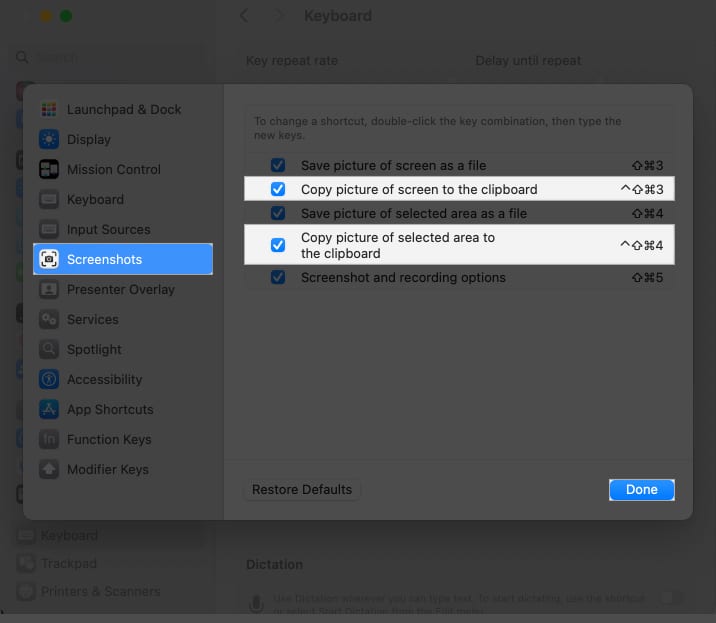
- Choose Screenshots → Select the clipboard options.
- Double-click the key combinations → Enter the new keys.
You can use a maximum of four keys for a shortcut. - Hit Done to save your preferences.
 Elevate your screenshot game!
The idea of copying anything on iPhone and pasting it in a document on Mac or vice-versa is really super handy and productive. I’ve always found it neat and therefore would recommend you to take advantage of it to enhance your experience.
Read more:

Written by
Jignesh PadhiyarJignesh Padhiyar is the co-founder of iGeeksBlog.com, who has a keen eye for news, rumors, and all the unusual stuff around Apple products. During his tight schedule, Jignesh finds some moments of respite to share side-splitting content on social media.
View all posts →More from How-to

How to Turn Off Location on Snapchat (Step-by-Step Guide)
Want to stop sharing your location on Snapchat? This guide explains how Snapchat location sharing works and shows simple ways to turn off your location using Ghost Mode or phone settings. Stay in control of your privacy in just a few steps.
 VikhyatMarch 5, 2026
Snapchat Parental Controls: How to Set Up Family Center and Keep Your Teen Safe
Snapchat’s Family Center lets parents monitor their teen’s friend activity and screen time without reading private messages. Here’s how to set it up and what to expect.
VikhyatMarch 3, 2026
How to Block and Unblock Someone on Instagram
Instagram lets you block or unblock someone in seconds. Follow these simple steps to take full control of your privacy and online peace.
 Ava BiswasMarch 2, 2026