Being a live-service game, Fortnite gets an endless cascade of updates, big and small. And, with each update, new changes and occasionally new issues are also introduced in the game. In such a scenario, a quick restart can resolve general bugs and similar problems until a patch is rolled out by the devs.
While on PC, restarting Fortnite is as simple as clicking on the profile icon and selecting Quit Game; each console handles the process a little differently. To know how to restart the game on PS5, Xbox Series X/S, and Nintendo Switch 2 consoles, check out the steps below.
Steps to restart Fortnite on Consoles
Restart Fortnite on PS5
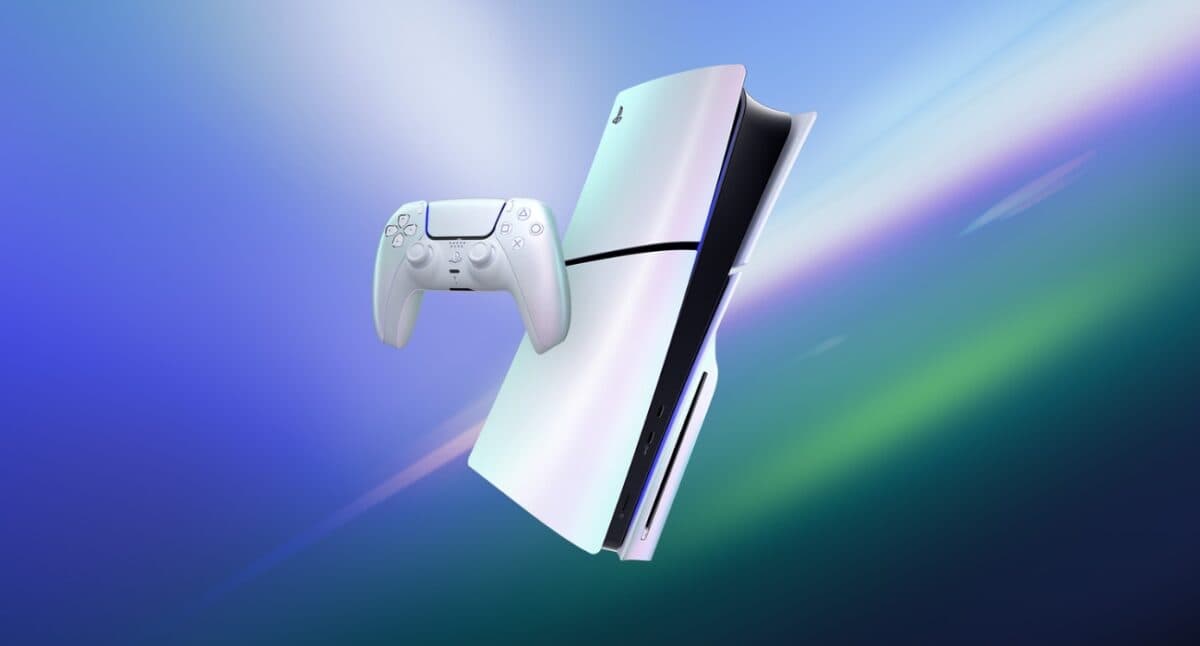
- In Fortnite, press and hold the PS button to open the quick menu.
- Highlight Fortnite and press the Options button.
- Close the game by pressing the X button.
- Go to the home screen, go to Fortnite and press the X button to start it again.
Restart Fortnite on Xbox Series X/S
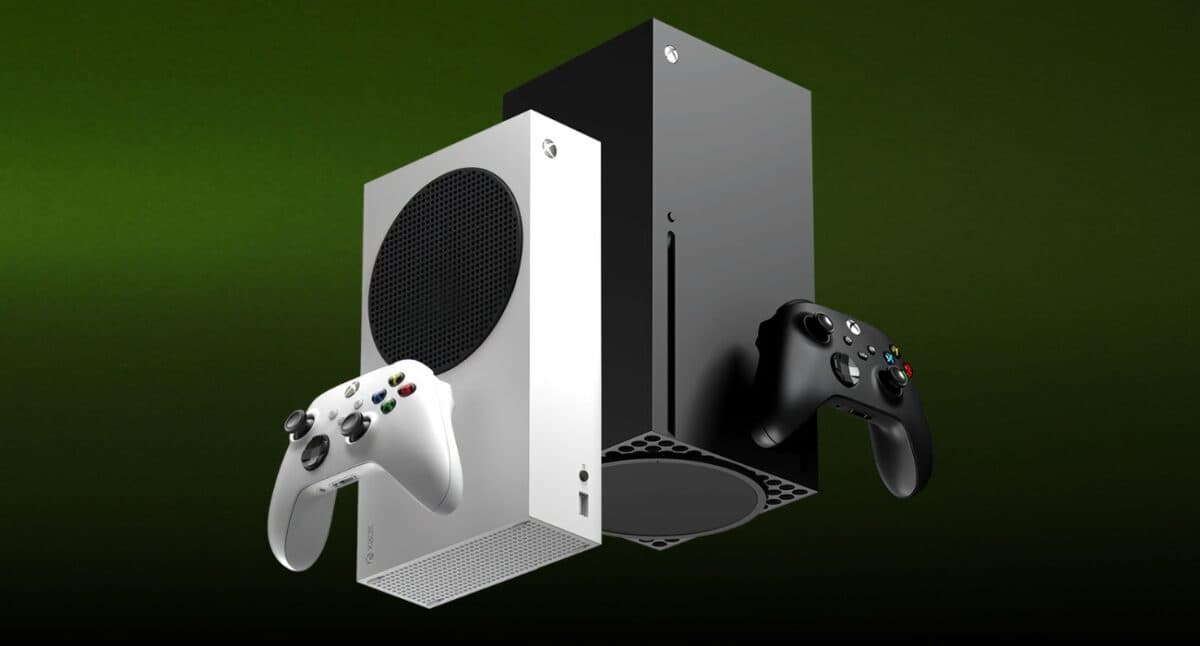
- In Fortnite, press the Xbox button to open the guide.
- Highlight Fortnite from the list on the left side of the screen and press the menu button.
- Select “Quit” by pressing the A button.
- From the home screen or library, go to Fortnite and press the A button to launch it again.
Restart Fortnite on Nintendo Switch and Switch 2
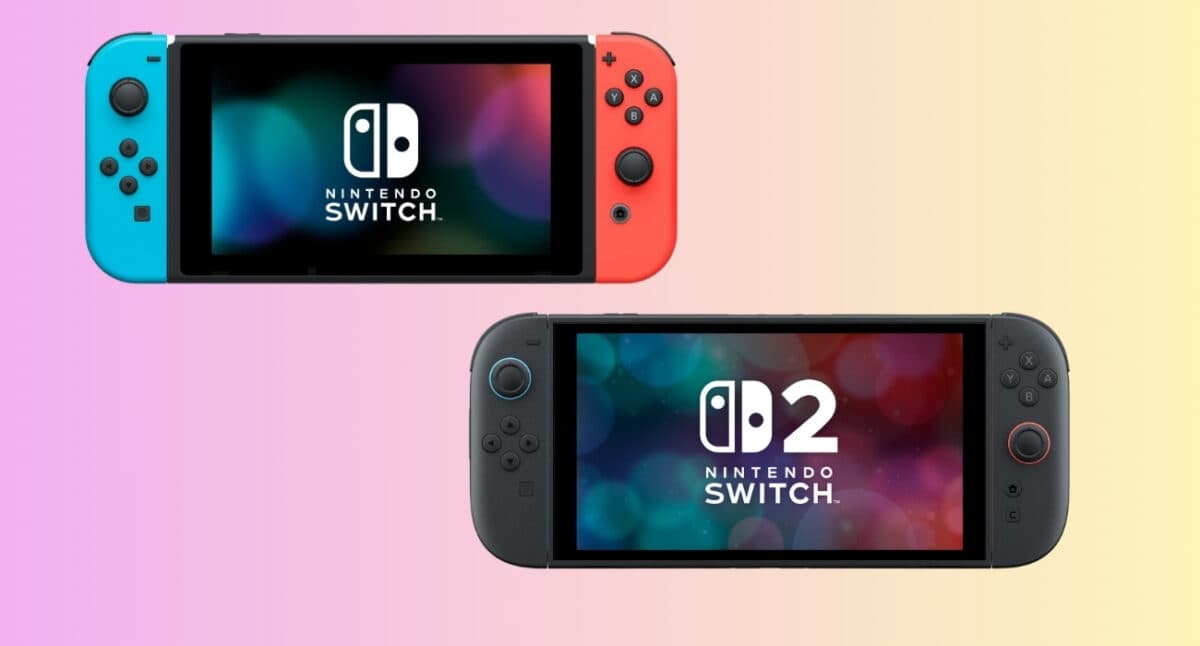
- With Fortnite running, press the Home button on the right Joy-Con.
- Navigate to the Fortnite icon on the home screen and press the X button on the right Joy-Con.
- Select “Close“.
- After it closes, highlight Fortnite again and press the A button to restart it.
Wrapping up
From in-game network hiccups to graphical bugs, doing a quick restart generally fixes a lot of such common issues in Fortnite. As a result, it is the first thing that you should try upon encountering any error or bug in the popular online game.
However, certain other issues in Fortnite, such as the invalid Pak error, may require more digging before they get fixed. If you’re facing that exact problem, be sure to check out our guide on how to fix the “Pak is invalid” error.
Missed This? Check It Out: