
How to Rename Photos, Videos, and Files on iPhone and iPad
Renaming photos, videos, and documents on iPhone and iPad can be confusing. This guide shows which apps support file name changes, how to use the Files app, and how captions in Photos can help.

Giving your photos, videos, and files meaningful names on your iPhone or iPad makes them easier to organize, quicker to find, and more professional when shared. However, renaming files in iOS and iPadOS does not always work the same way it does on a Mac or Windows PC. Some apps allow you to change the actual file name, while others only let you label or organize items within the app.
Keep reading to learn which iPhone apps support true file renaming and the correct ways to rename photos, videos, and documents on iPhone and iPad.
Why Renaming Photos, Videos, and Files Works Differently on iPhone and iPad
If you have tried renaming a photo inside the Photos app and found no rename option, your iPhone is working exactly as intended.
Unlike the Files app, photos and videos stored in the Photos app are not treated as regular documents that you can freely edit or rename. Instead, Apple designed the Photos app to function as a media library. Images are organized using metadata such as date, location, people, and visual recognition rather than traditional file names.
Because of this design:
- The Photos app does not provide direct control over file names
- Renaming options are intentionally unavailable
- File-level actions are handled outside the Photos library
If you need to change the actual file name, you must first save the photo to the Files app, which provides access to the file system.
That said, Apple does offer a workaround inside Photos through captions. Captions act as searchable labels and help you find images quickly without changing the original file name.
How to Rename Photos and Videos on iPhone and iPad
Since the Photos app does not allow direct file name changes, you need to move the photo or video to the Files app first and then rename it. Here’s how:
- Open the Photos app and select the photo or video you want to rename.
- Tap the Share button in the bottom left corner.
- Scroll down and tap Save to Files.
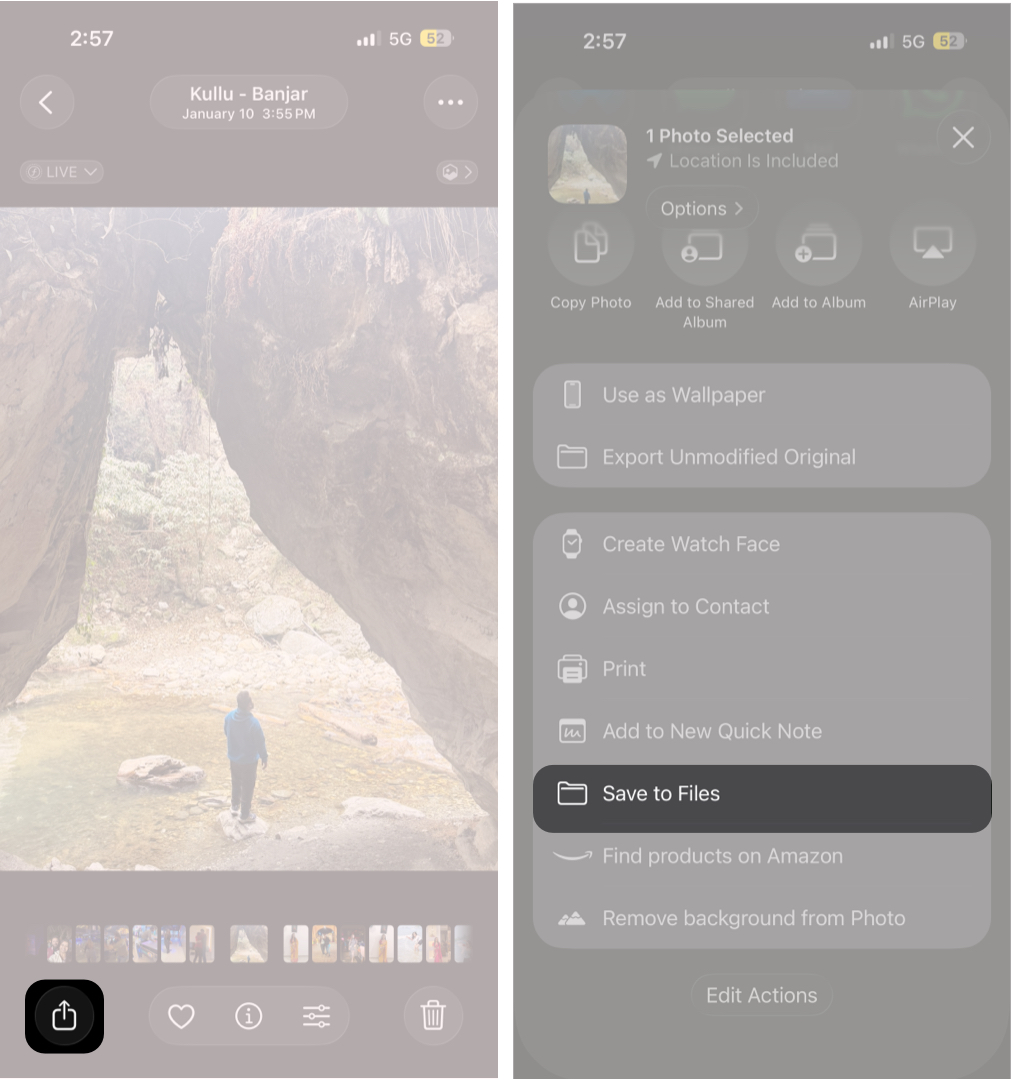
- Choose a folder under On My iPhone or iCloud Drive.
- Before saving, tap the file name field at the bottom of the screen.
- Enter the new file name and tap Save.

The media will now be saved in the Files app with the new file name.
If you forget to rename the file while saving it, you can rename it later directly inside the Files app. You can also rename attachments received in the Mail app by saving them to the Files app and renaming them there.
How to Rename Files on iPhone and iPad
You can rename documents, PDFs, images, downloads, and other files directly using the Files app. Apple’s Files app works as the central file manager in iOS and iPadOS, giving you full control over file names and folders.
Rename Files Using the Files App
- Open the Files app and navigate to the folder containing the file.
- Locate the document or file.
- Press and hold the file thumbnail.
- Tap Rename in the menu that appears.
- Enter the new name, then tap the right tick (Done) button to save the changes.
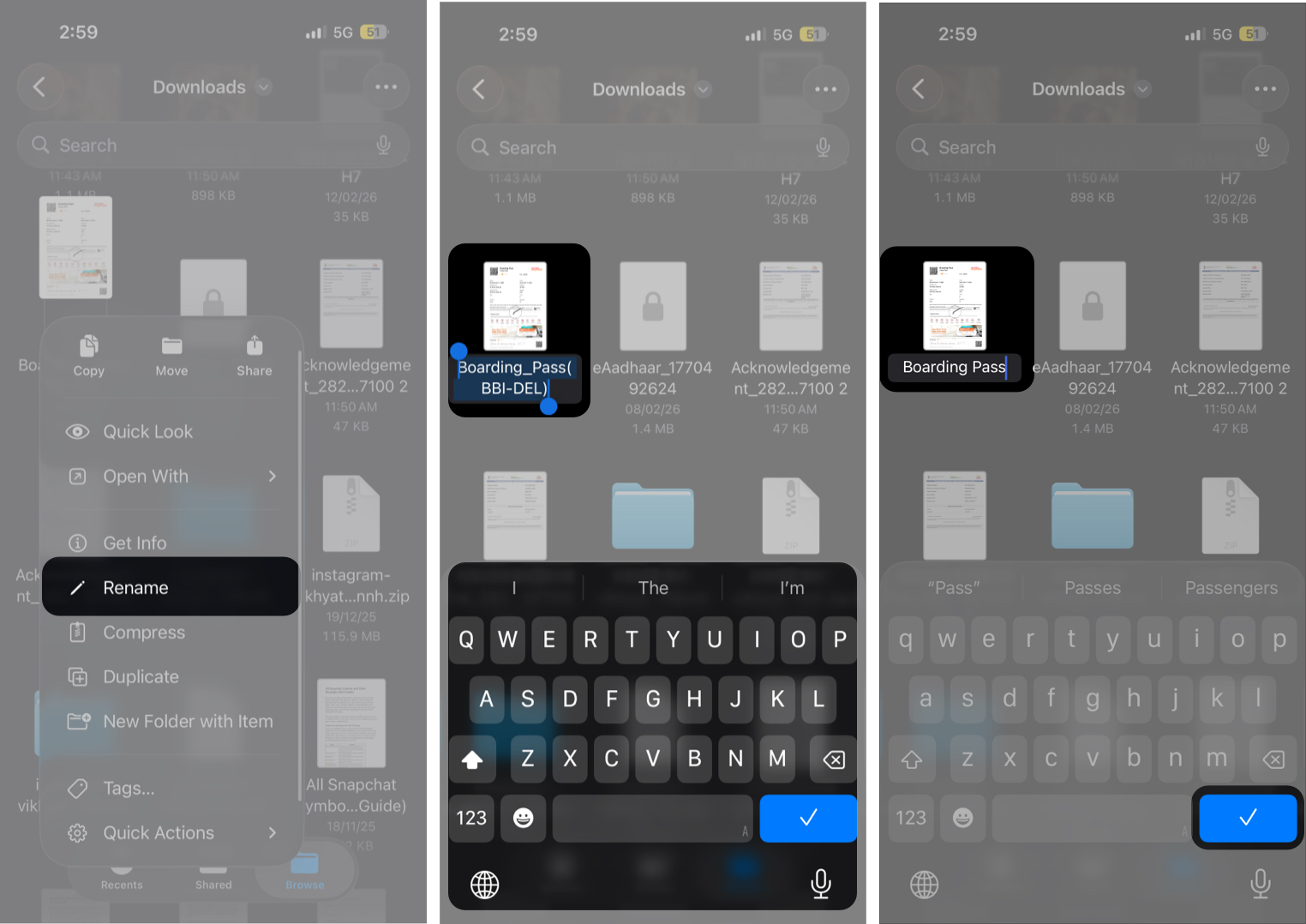
If the file is stored in iCloud Drive, the updated file name syncs automatically across your devices.
Rename Documents Using the Pages App
If you are working with documents created in the Pages app, you can rename them directly within the app:
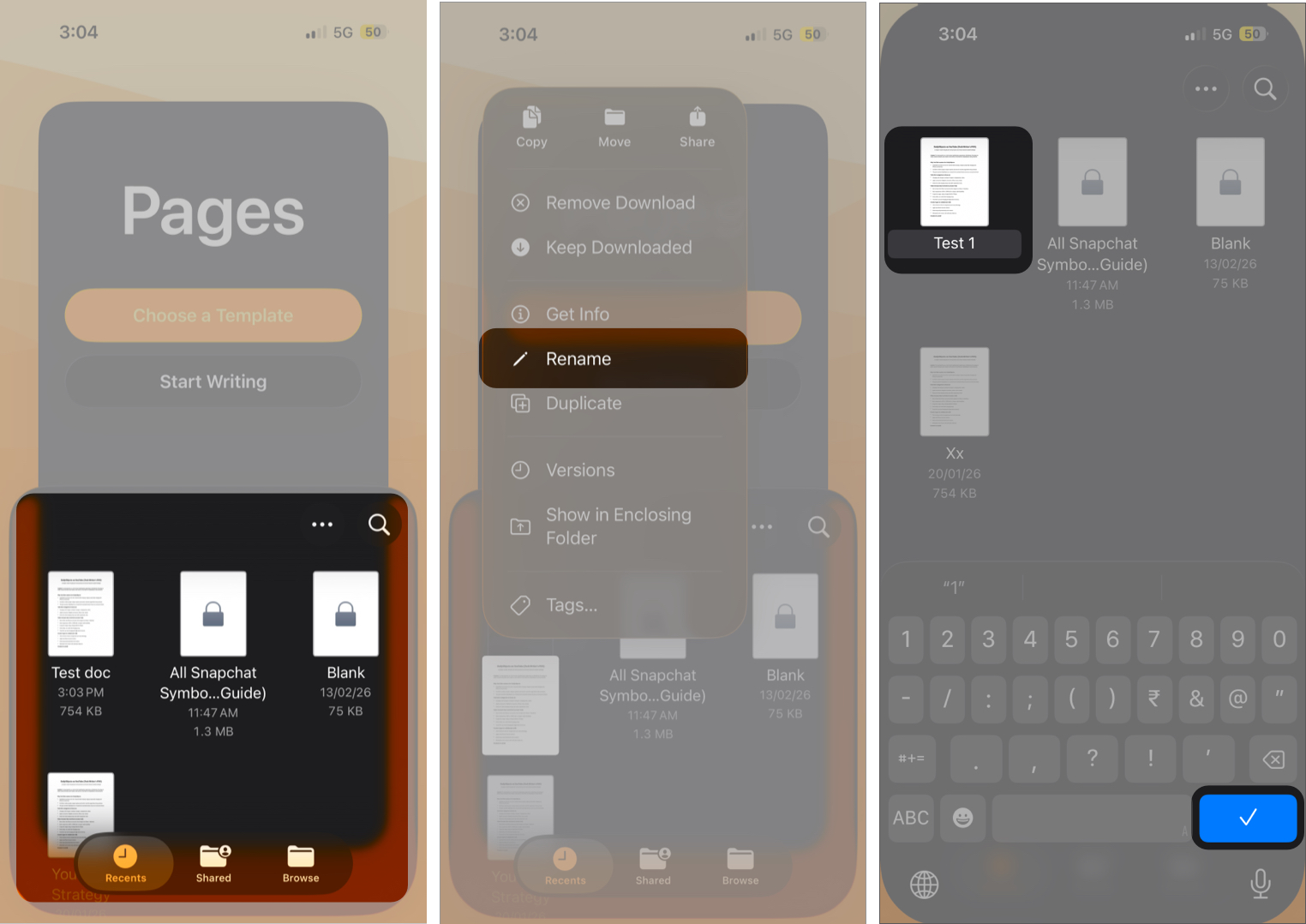
- Open the Pages app on your iPhone or iPad.
- Find the document in the document browser.
- Press and hold the document thumbnail.
- Tap Rename.
- Enter the new name and tap Done.
Can You Rename Files in the Photos App?
No, you cannot truly rename files directly inside the Photos app on iPhone or iPad. The Photos app functions as a media library rather than a file system.
Within Photos, you can:
- Edit images and videos
- Add captions for easier searching
- Organize items into albums and folders
- Mark favorites or adjust metadata such as location
Can You Rename Files in the Preview App?
The Preview feature on iPhone and iPad allows you to open and edit supported files, but it primarily works as a viewer and markup tool rather than a file manager. You cannot rename media or documents directly in Preview. Its functionality is limited to viewing, annotating, signing, and editing content.
Bonus Tip: Add Captions in the Photos App for Easier Searching
While you cannot rename photos directly in the Photos app, you can add captions to make them easier to find later. Captions act as searchable labels and are indexed by both the Photos app and Spotlight search.
Here’s how to add a caption:
- Open the Photos app and select the photo or video.
- Tap the i (Information) button at the bottom of the screen.
- Tap the Add a Caption field.
- Enter a name, keyword, or short description.
- Tap Done to save your changes.
Renaming Files Made Simple
That’s how you rename photos, videos, and files on your iPhone and iPad. The Files app remains the central place for full file name control, while apps like Pages provide limited document management. Apps such as Photos and Preview are designed primarily for viewing and editing rather than file management.
If you have questions about renaming files on your iPhone or have discovered another useful tip, feel free to share your experience in the comments.
Read More:

Written by
VikhyatVikhyat has a bachelor's degree in Electronic and Communication Engineering and over five years of writing experience. His passion for technology and Apple products led him to the tech writing space, where he specializes in writing App features, How-to guides, and troubleshooting guides for fellow Apple users. When not typing away on his MacBook Pro, he loves exploring the real world.
View all posts →More from How-to

How to Turn Off Location on Snapchat (Step-by-Step Guide)
Want to stop sharing your location on Snapchat? This guide explains how Snapchat location sharing works and shows simple ways to turn off your location using Ghost Mode or phone settings. Stay in control of your privacy in just a few steps.
VikhyatMarch 5, 2026
Snapchat Parental Controls: How to Set Up Family Center and Keep Your Teen Safe
Snapchat’s Family Center lets parents monitor their teen’s friend activity and screen time without reading private messages. Here’s how to set it up and what to expect.
VikhyatMarch 3, 2026
How to Block and Unblock Someone on Instagram
Instagram lets you block or unblock someone in seconds. Follow these simple steps to take full control of your privacy and online peace.
 Ava BiswasMarch 2, 2026