
How to Remove Microphone Icon from Keyboard on iPhone and iPad
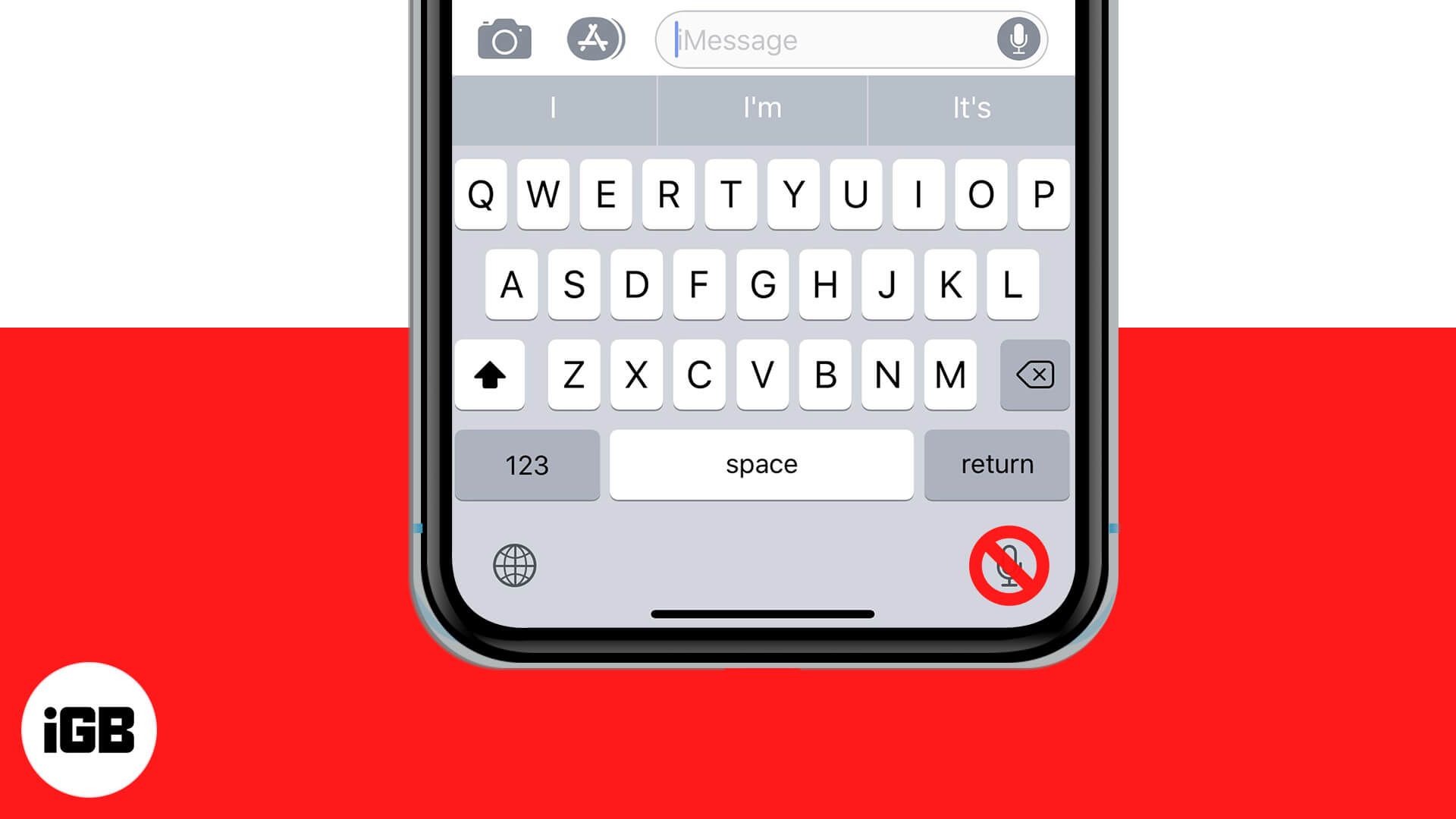
The microphone icon on the iPhone and iPad keyboard is for dictation. After tapping on it, you speak, and it effortlessly types what you dictate. Despite being a handy feature, many users prefer typing, swiping, and seldom use dictation. Additionally, some people also accidentally hit this button and hence want to get rid of it. Thankfully it is super easy to do that. Let me show you how to remove the microphone icon from the keyboard on your iPhone or iPad.
How to Get Rid of the Microphone Icon on iPhone or iPad Keyboard
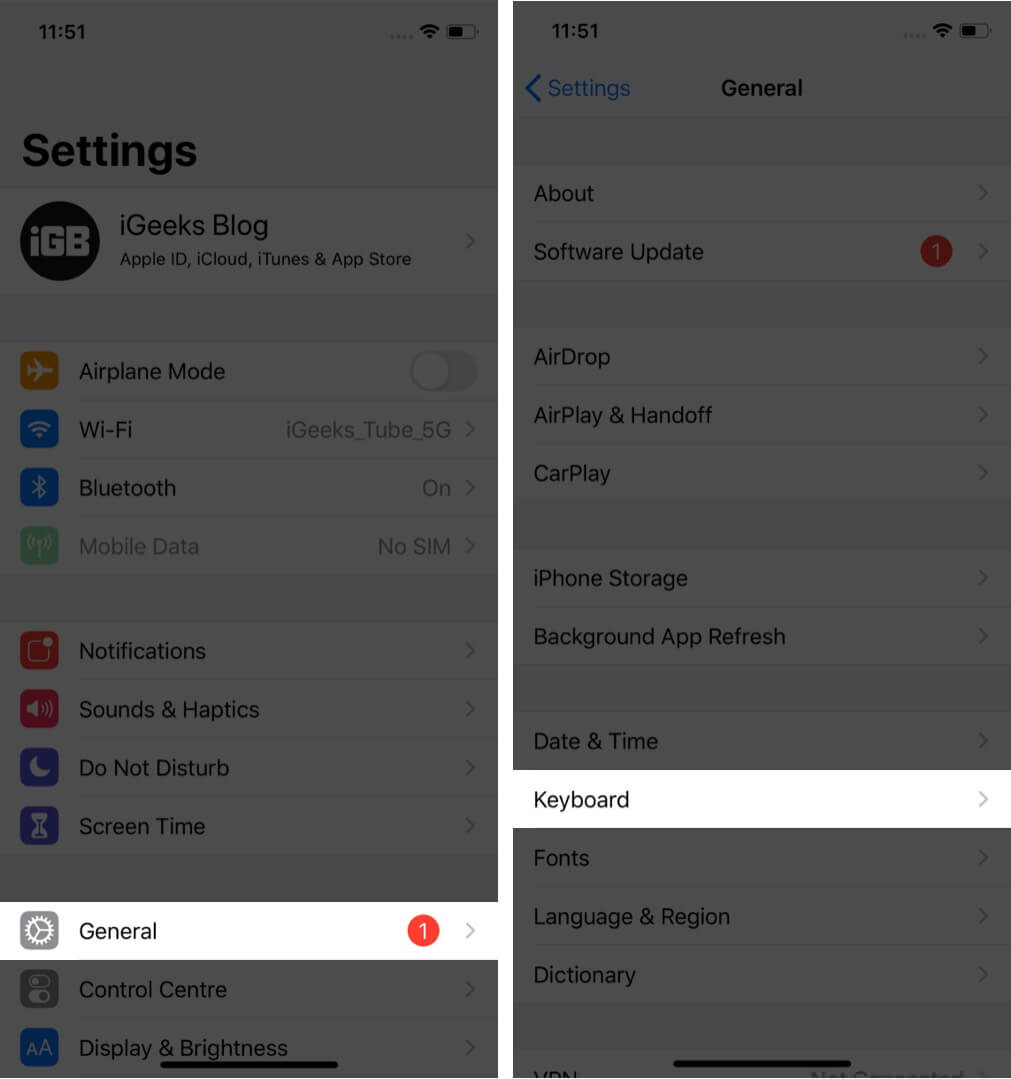
- Open the Settings app and tap on General.
- Tap on Keyboard.
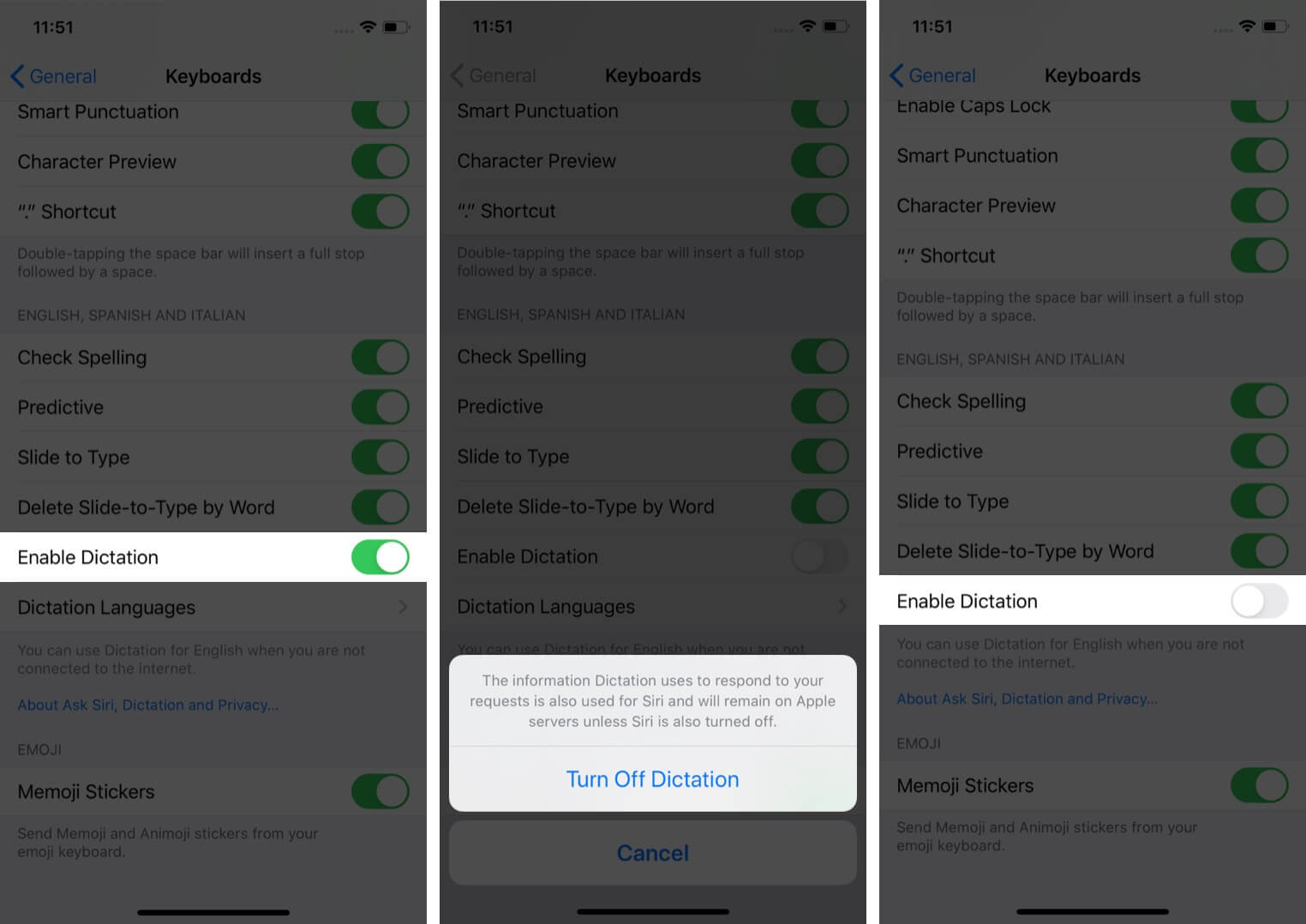
- Turn off the toggle for ‘Enable Dictation‘ and confirm.
Now open the Notes or any other app that involves the keyboard. You will see that the mic icon in the keyboard’s bottom right on iPhones with Face ID is no longer there. On iPhones with the Home button, the spacebar becomes a bit larger as it occupies the area initially taken by the mic button.
If you want to add the Microphone icon to the iPhone keyboard, follow the above steps and turn on the toggle for ‘Enable Dictation.’
Signing Off
That’s pretty much to this topic on removing and adding the microphone icon.
What are your thoughts on the default iPhone keyboard? Do you love it or have some ideas that can improve it? Please share it with us in the comments down below.
Alternatively, you can switch to a third-party keyboard like the fantastic SwiftKey! However, some of these (including SwiftKey) might have its version of voice typing. But you can effortlessly turn them off in their app settings.
You may also check out related posts:

Written by
Ankur ThakurI have been an Apple user for over seven years now. At iGeeksBlog, I love creating how-tos and troubleshooting guides that help people do more with their iPhone, iPad, Mac, AirPods, and Apple Watch. In my free time, I like to watch stand up comedy videos, tech documentaries, news debates, and political speeches.
View all posts →More from How-to

How to Turn Off Location on Snapchat (Step-by-Step Guide)
Want to stop sharing your location on Snapchat? This guide explains how Snapchat location sharing works and shows simple ways to turn off your location using Ghost Mode or phone settings. Stay in control of your privacy in just a few steps.
 VikhyatMarch 5, 2026
Snapchat Parental Controls: How to Set Up Family Center and Keep Your Teen Safe
Snapchat’s Family Center lets parents monitor their teen’s friend activity and screen time without reading private messages. Here’s how to set it up and what to expect.
VikhyatMarch 3, 2026
How to Block and Unblock Someone on Instagram
Instagram lets you block or unblock someone in seconds. Follow these simple steps to take full control of your privacy and online peace.
 Ava BiswasMarch 2, 2026