
How to Play iPhone or iPad Games on Mac
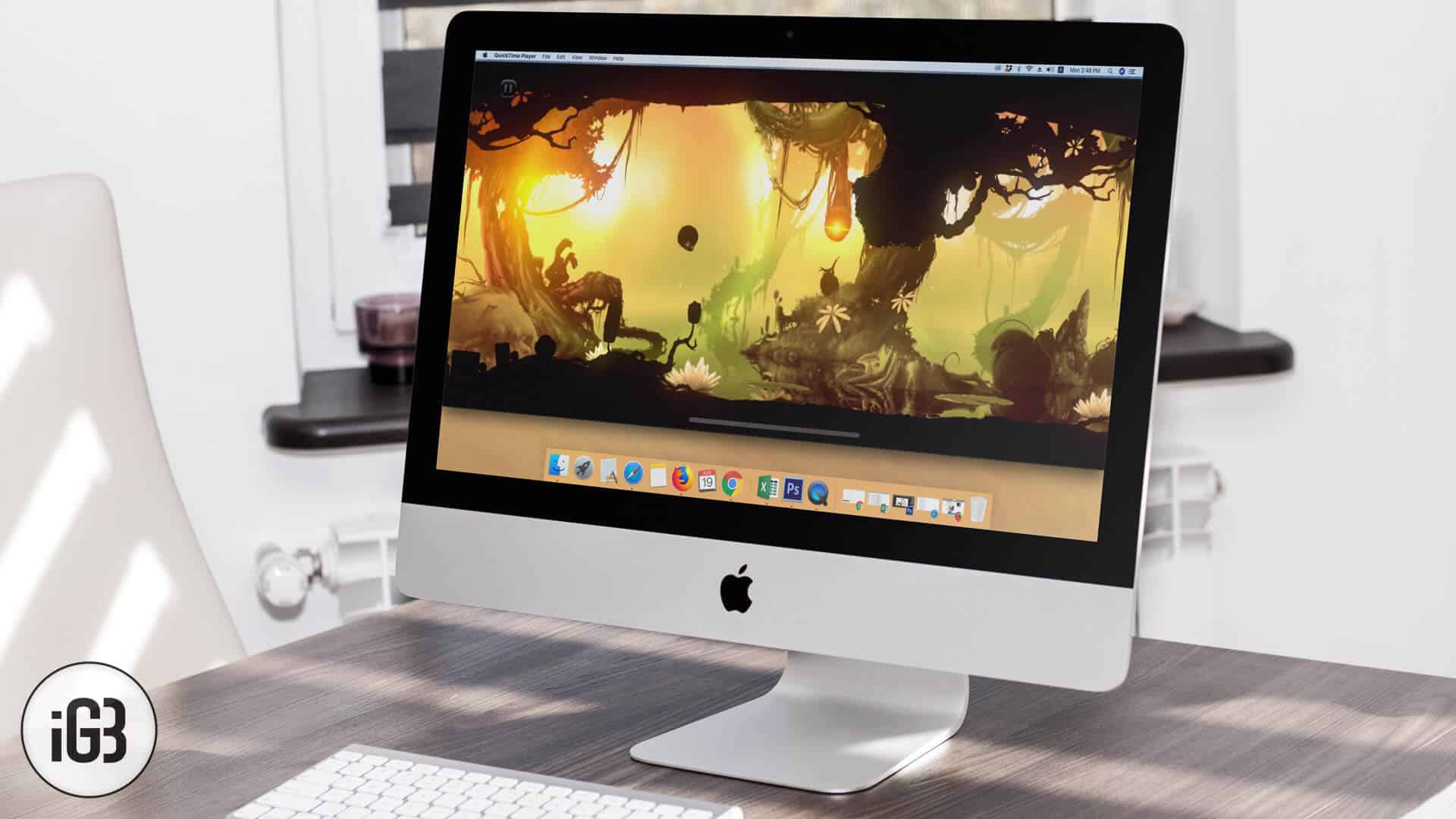
Apart from health, finance, entertainment, and calling, there is one more exciting way you can use your iPad and iPhone; it’s gaming. iPhone and iPad are fully equipped to play high-quality games. One of my favorites is Need for Speed No Limits by Electronic Arts.
But what haunts me is the desire to play it on a big screen in order to get the best out of it. There is one way by which we can enjoy such high-quality games: play them on Mac using QuickTime player. It is the safest and best way because there are no third-party apps involved.
How to Play iPhone or iPad Game on Your Mac Using QuickTime Player
Step #1. Connect your iPhone or iPad with your Mac using lightning cable.
Step #2. Open QuickTime player once your device is connected to your Mac.
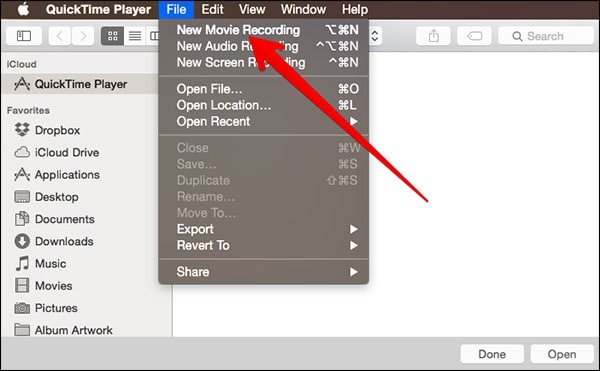
Step #3. Click “File” from the menu bar in QuickTime player.
Step #4. Now click on “New Movie Recording.”
Step #5. “FaceTime HD Camera” would be selected by default; just change it to your iPhone or iPad located just below this option.
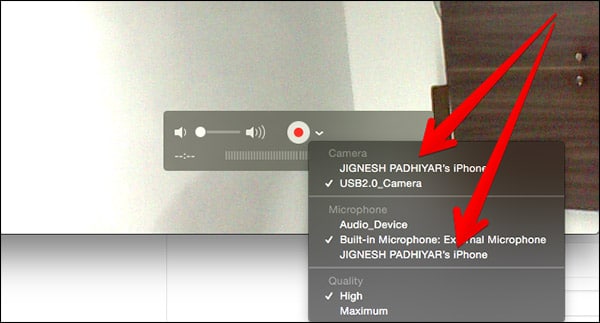
QuickTime will now start mirroring your device display on your Mac. To have a full-screen display, simply click on the green full-screen icon.
The best part is that your iOS device will work as a controller while your Mac will be used as a display.
In addition, QuickTime will automatically move from landscape to portrait mode depending on your device movement. So you will enjoy the same excitement of gaming on Mac as you do on your iPhone or iPad.
So? Which is the first iPhone game you played on your Mac? Share with us in the comment.

Written by
Dhvanesh AdhiyaThe founder of iGeeksBlog, Dhvanesh, is an Apple aficionado, who cannot stand even a slight innuendo about Apple products. He dons the cap of editor-in-chief to make sure that articles match the quality standard before they are published.
View all posts →More from How-to

How to Turn Off Location on Snapchat (Step-by-Step Guide)
Want to stop sharing your location on Snapchat? This guide explains how Snapchat location sharing works and shows simple ways to turn off your location using Ghost Mode or phone settings. Stay in control of your privacy in just a few steps.
 VikhyatMarch 5, 2026
Snapchat Parental Controls: How to Set Up Family Center and Keep Your Teen Safe
Snapchat’s Family Center lets parents monitor their teen’s friend activity and screen time without reading private messages. Here’s how to set it up and what to expect.
VikhyatMarch 3, 2026
How to Block and Unblock Someone on Instagram
Instagram lets you block or unblock someone in seconds. Follow these simple steps to take full control of your privacy and online peace.
 Ava BiswasMarch 2, 2026