
How to create collaborative playlists in Apple Music on iPhone
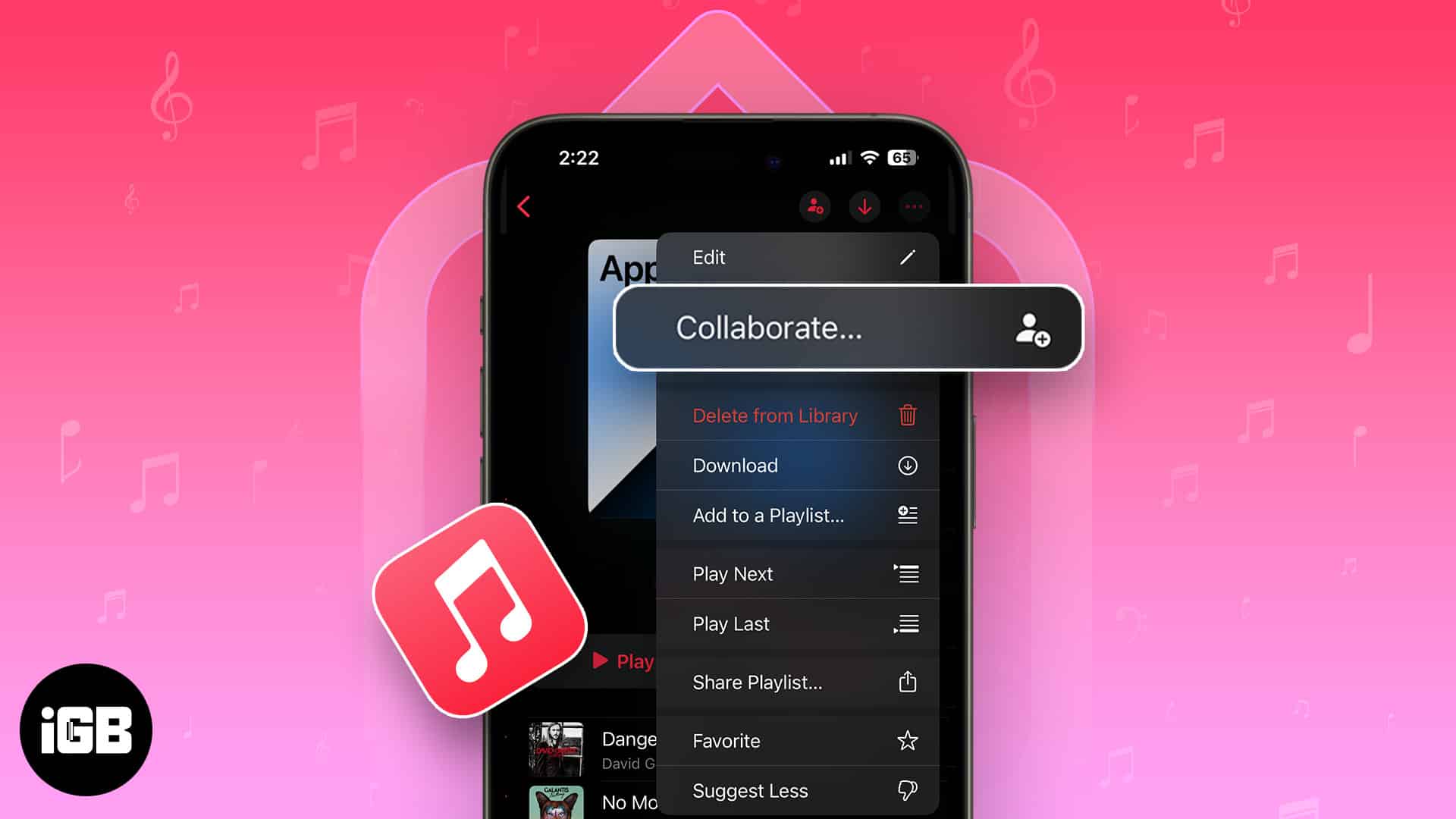
iOS 17 adds a plethora of new and exciting features to Apple Music, such as the ability to crossfade between tracks, view song credits, better SharePlay integration, and more. But the one feature that excites us is the ability to make collaborative playlists. If you find this feature interesting, here’s how to create a collaborative playlist in Apple Music on your iPhone.
What are collaborative playlists in Apple Music?
Collaborative playlists in Apple Music allow you to add, remove, or reorder songs with others who have access to the playlist. This can be an enjoyable and effortless way to explore new music, create themed playlists for your house parties, or simply listen to music with your friends and family.
You can easily Invite other Apple Music users to join a collaborative playlist. Once they’re in, everyone can add, reorder, or remove songs. In Now Playing, everyone can use emojis to express how the music makes them feel.
If you’re using an older version of iOS, you’ll have to share a copy of the playlist manually. To create a collaborative playlist, follow the steps detailed below.
How to make a collaborative playlist in Apple Music on iPhone
- Open the Music App on your iPhone.
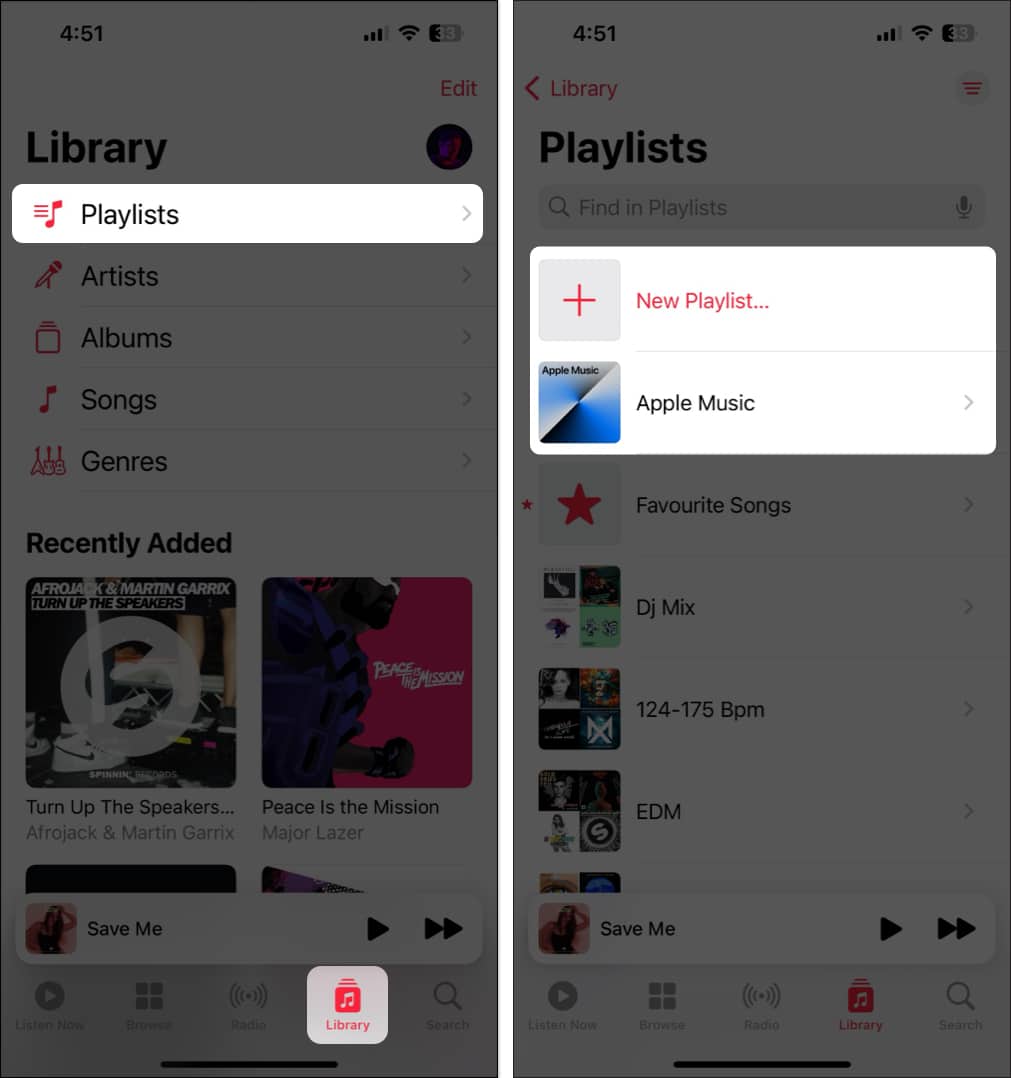
- Navigate to the Library tab → Tap Playlists.
If you don’t see this option, tap Edit → Select Playlists. - Create a new playlist or open an existing playlist.
- Open the three-dot menu from the top-right → Select Collaborate.
Alternatively, you can directly tap the Collaborate button up top. - Toggle on Approve Collaborators → Tap Start Collaboration.
If Approve Collaborators is Off, anyone can join without approval. - Select an option from the share sheet to share the link to collaborate.
You may tap the Collaborate button to add people down the line.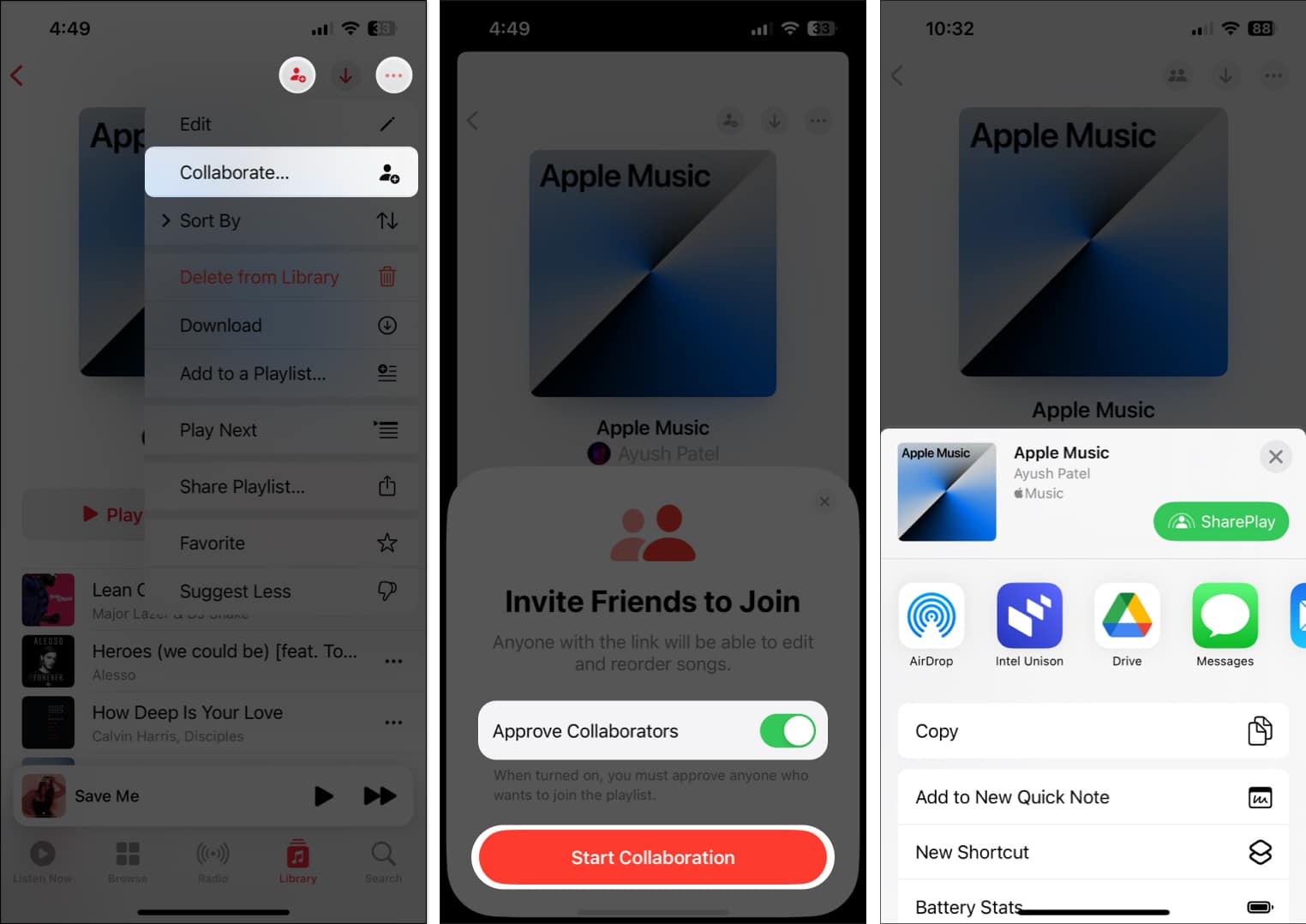
Once you create a collaborative playlist in Apple Music, you can easily add someone to the playlist, remove existing collaborators, or stop sharing the playlist entirely. Here’s how you can do this in Apple Music on your iPhone.
Add or remove songs in a collaborative playlist on Apple Music
- Open the Music app on your iPhone → Then open an existing Collaborative Playlist.
- Tap the three-dot icon → Select Edit.
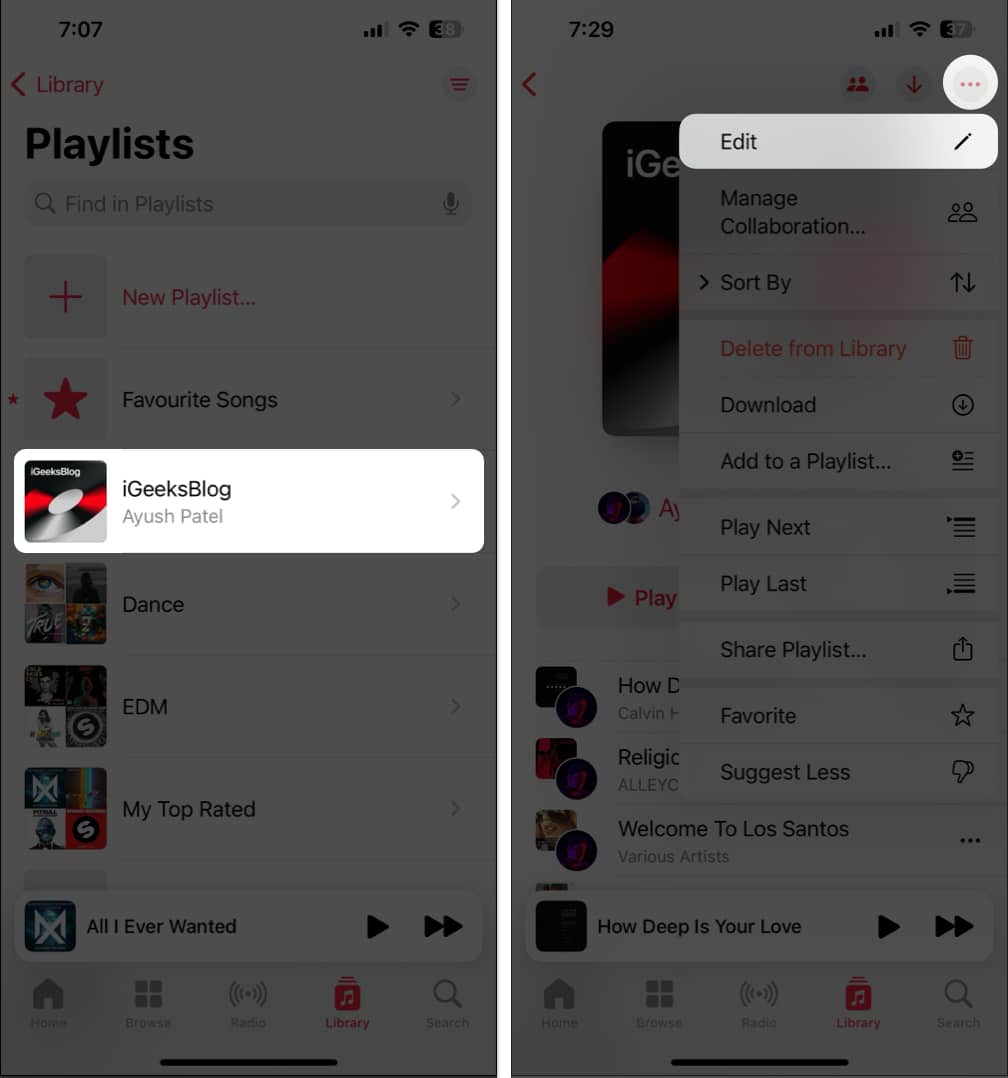
- Once you tap on Edit, you can do one of these things:
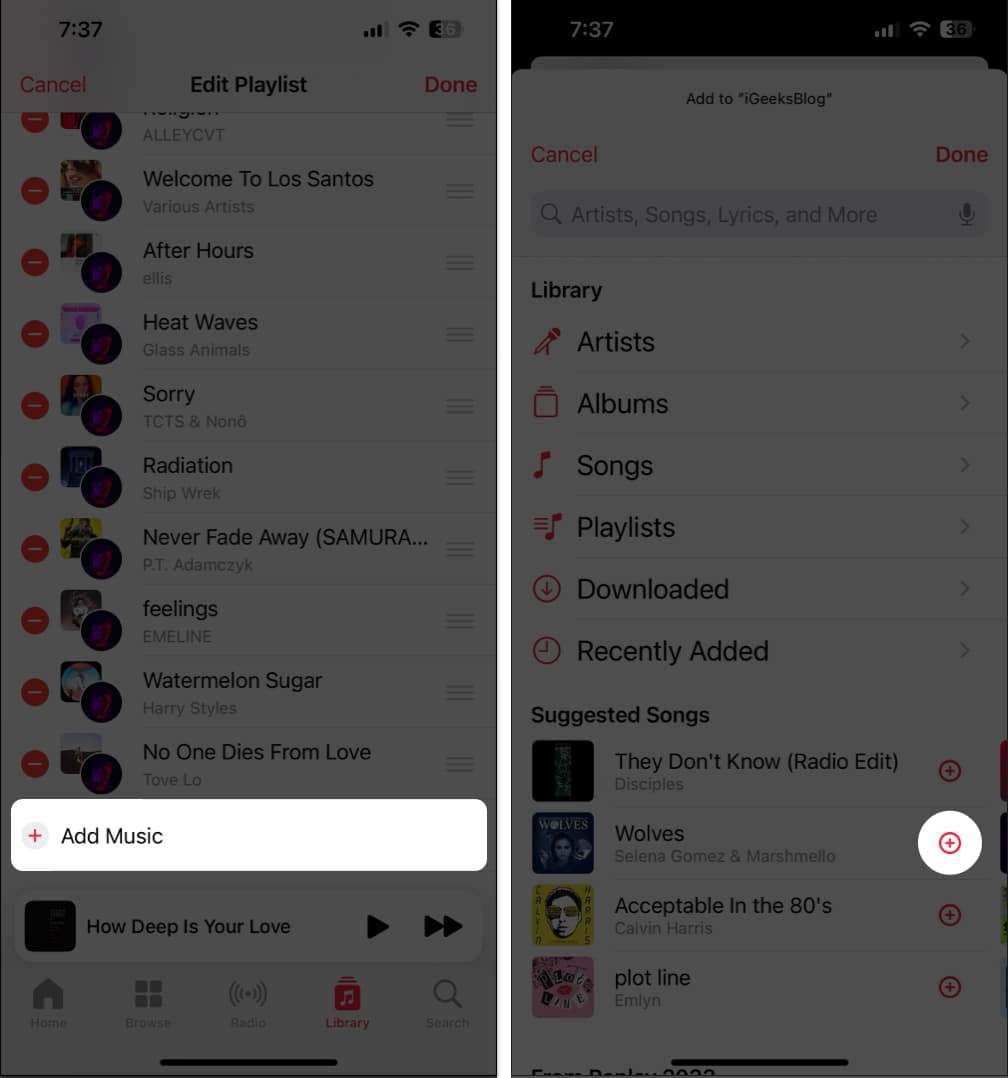
- To add songs: Tap Add Music → Find songs → Tap the plus icon.
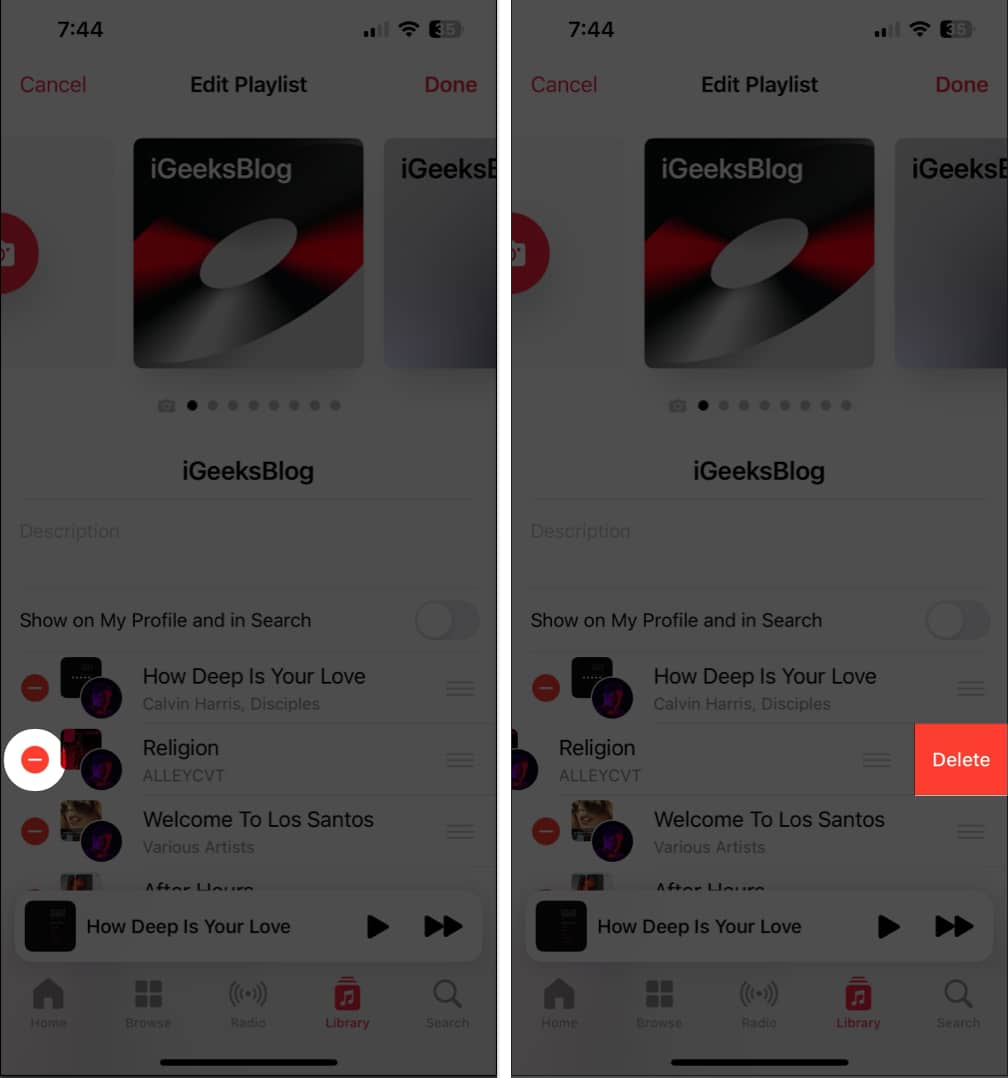
- To remove songs: Tap the red minus icon (-) → Then tap Delete.
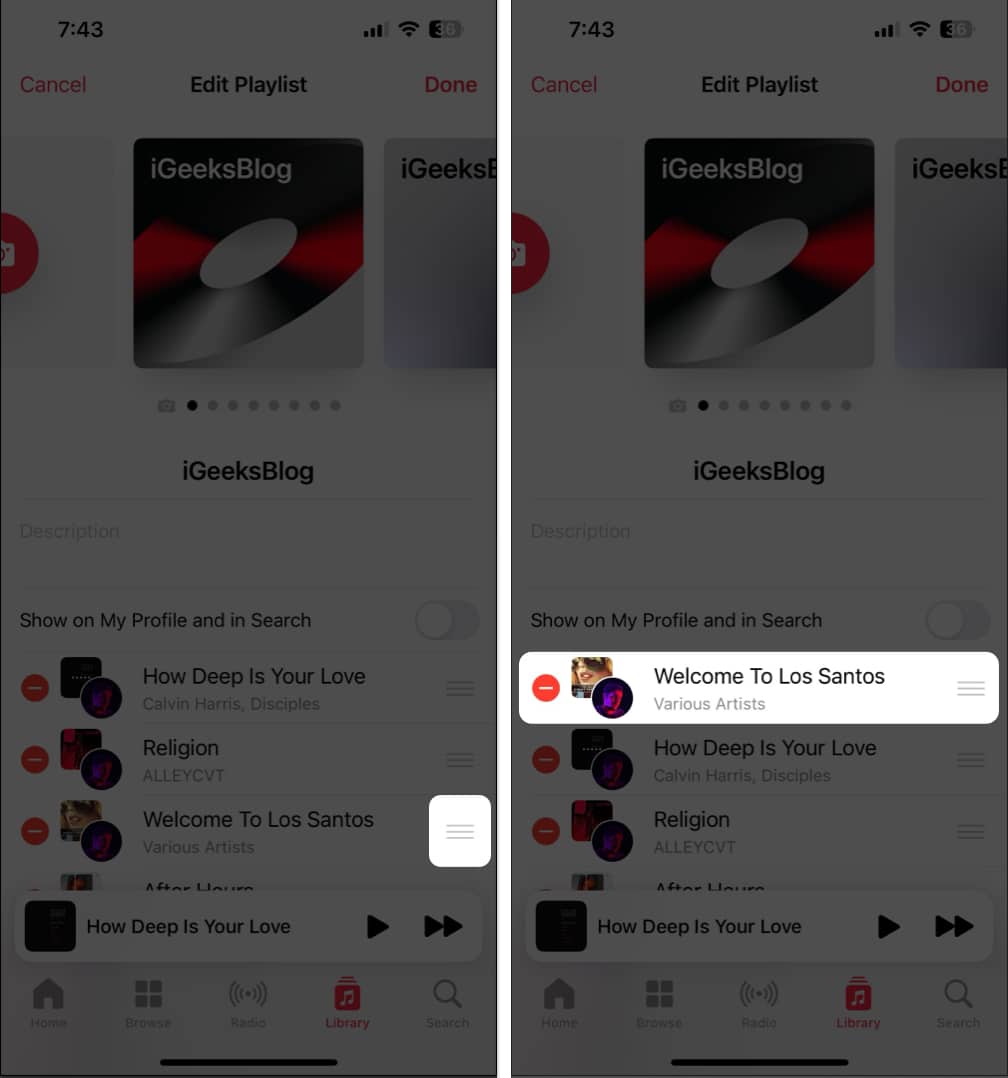
- To reorder songs: Drag the three lines next to a song up or down.
- To add songs: Tap Add Music → Find songs → Tap the plus icon.
React to songs in a collaborative playlist on Apple Music
Apple Music’s collaborative playlists let you and your friends give thumbs up or down (among other emojis) to specific songs, adding a layer of shared music appreciation.
- Open the Music app on your iPhone → Then, open an existing collaborative playlist.
- Play any song from the collaborative playlist → Tap Now Playing.
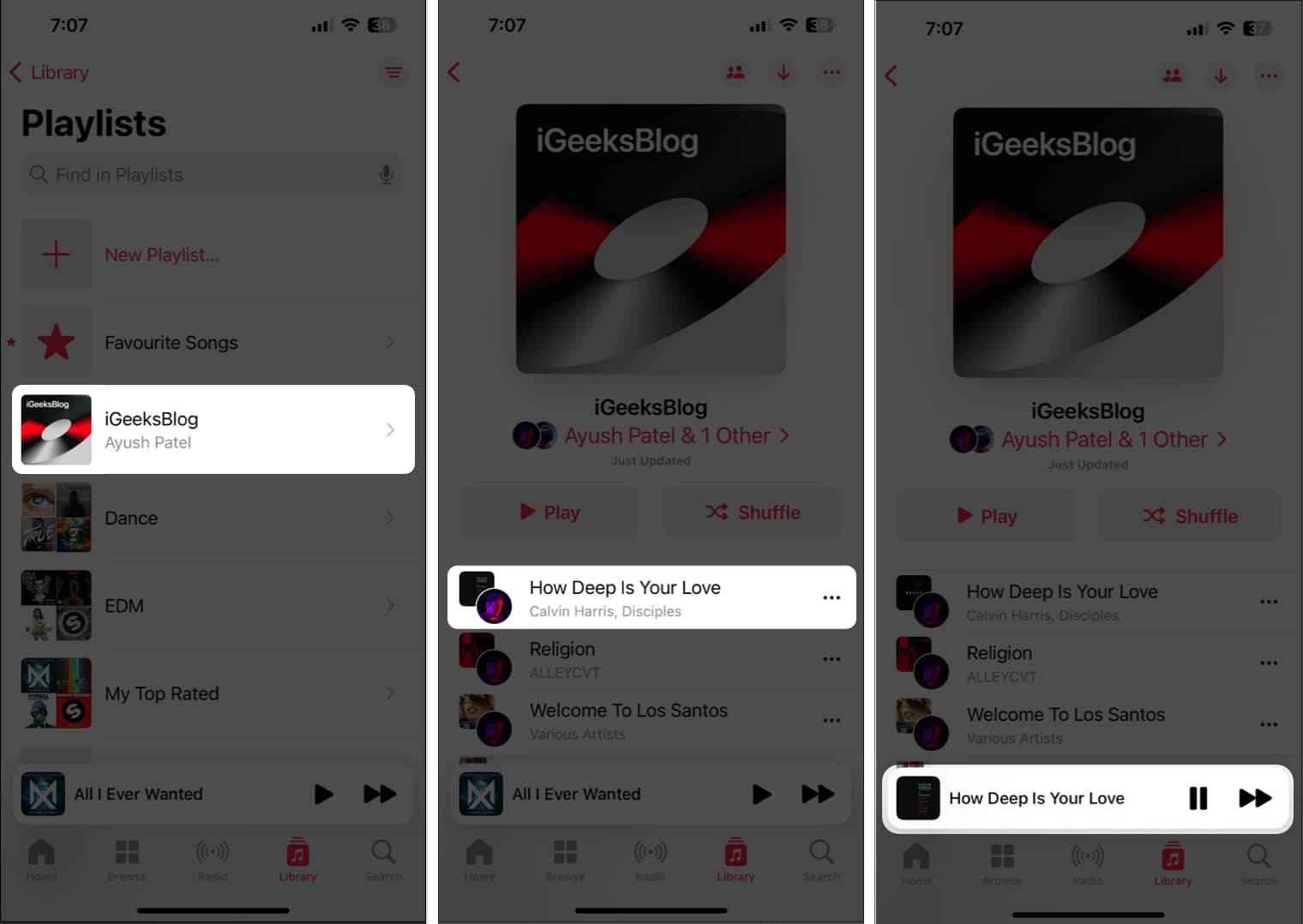
- Tap the emoji button next to the song’s name → Select an emoji.
You may tap the plus button to access more emojis for reactions.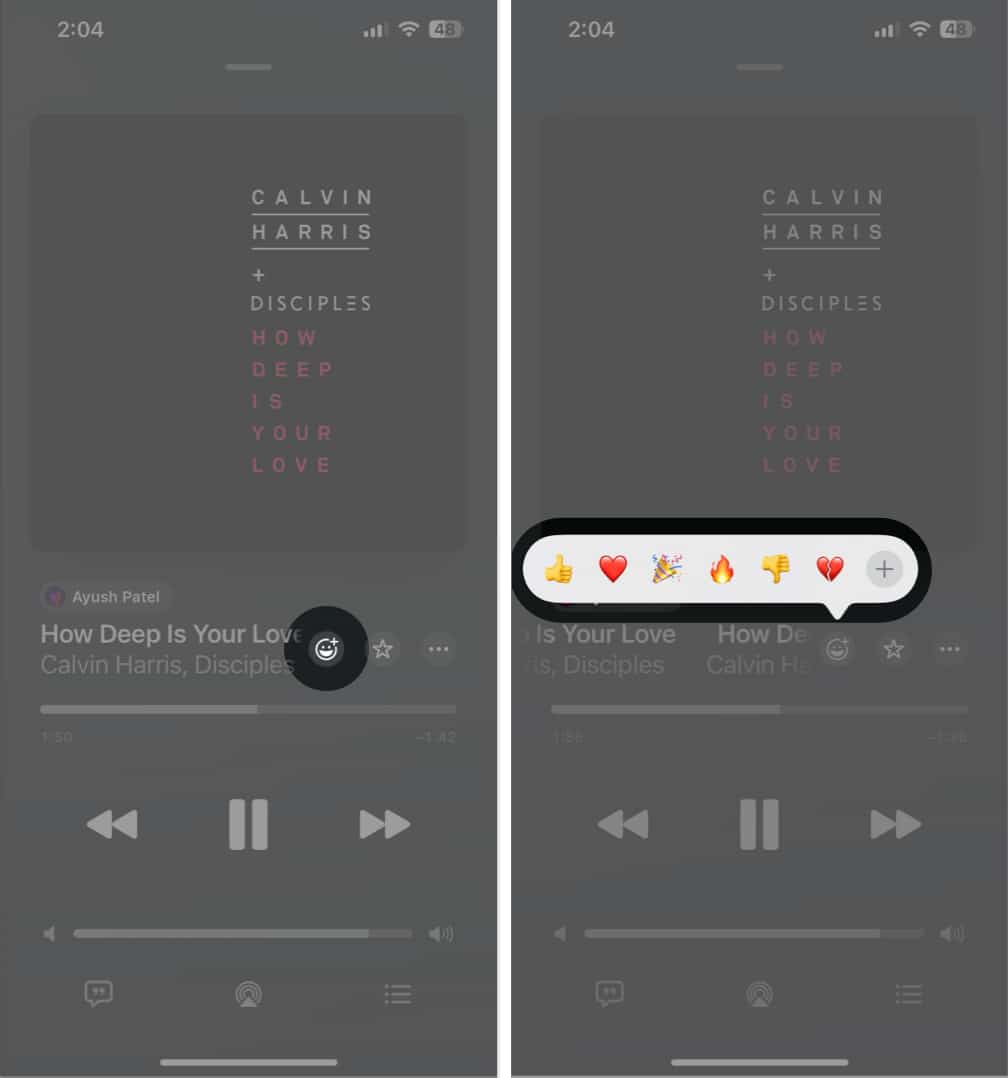
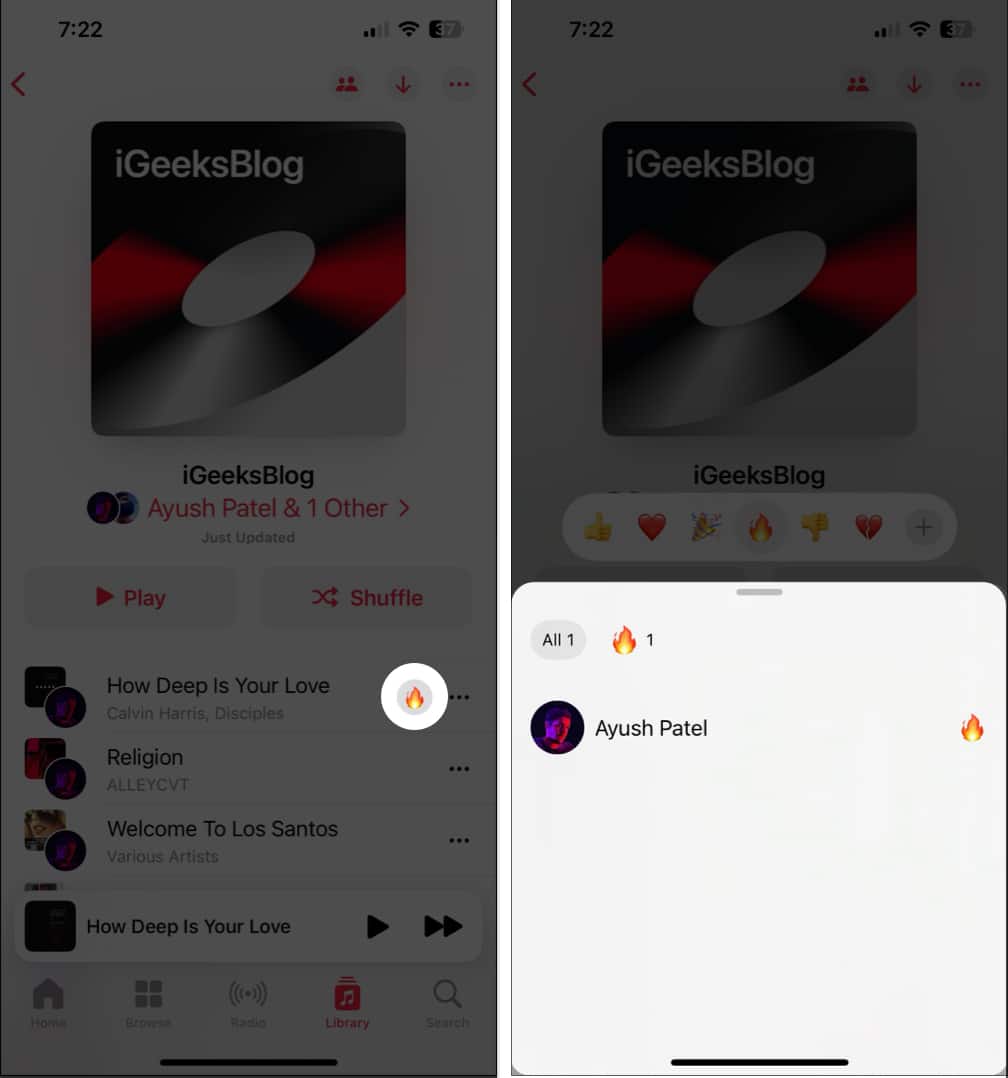
- To see reactions from other collaborators, tap the emoji beside songs.
How to add or remove collaborators in Apple Music on iPhone
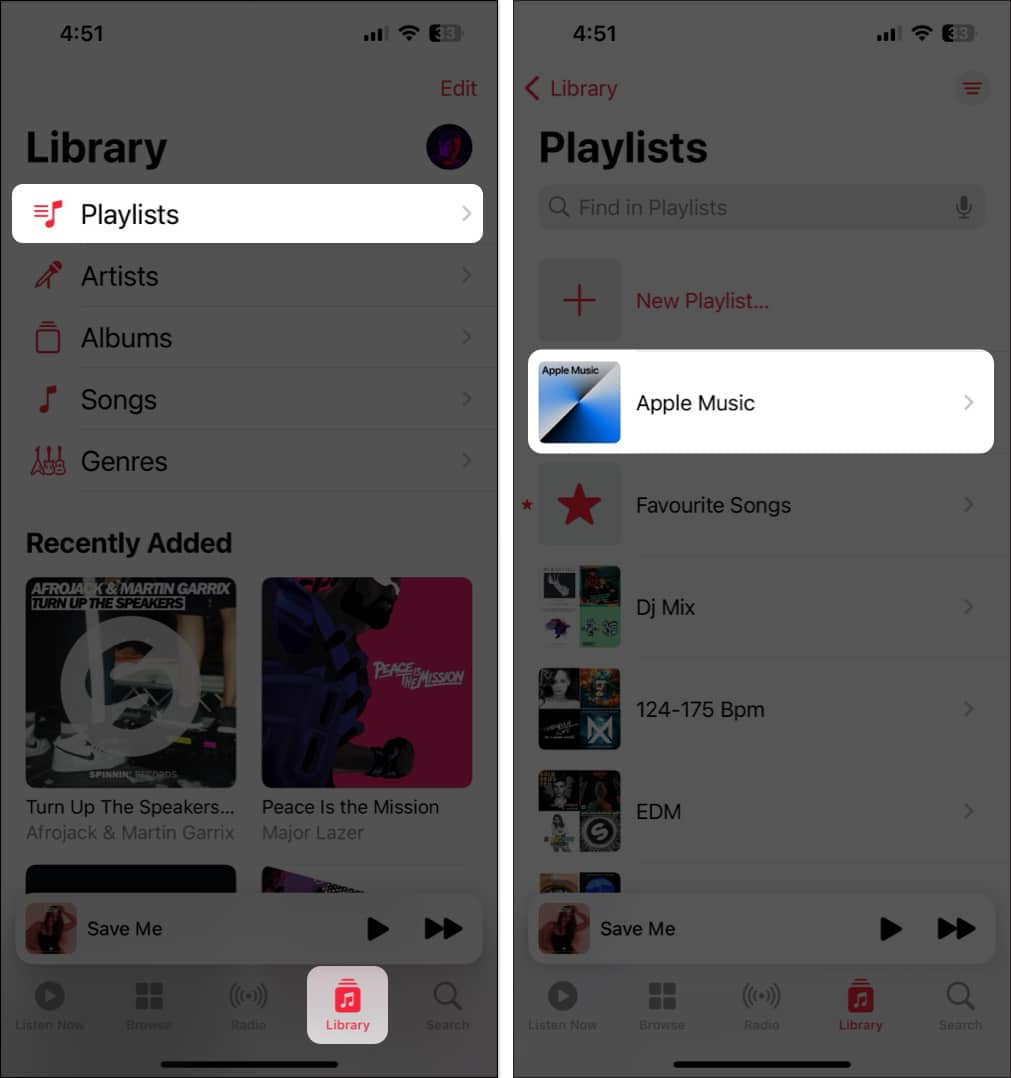
- Open the Music App → Navigate to the Library tab → Tap Playlists.
If you don’t see the option for Playlists, tap Edit → Select Playlists. - Open an existing Collaborative Playlist.
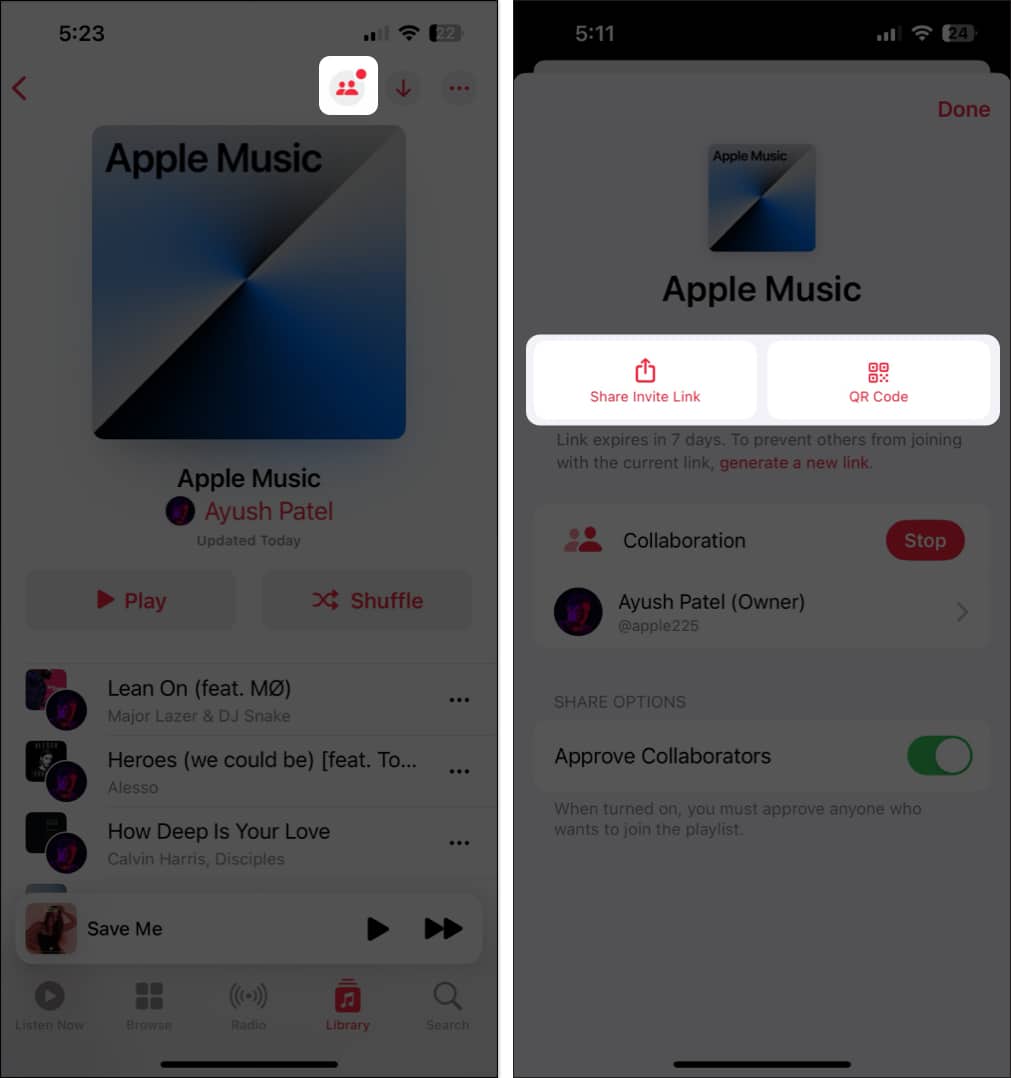
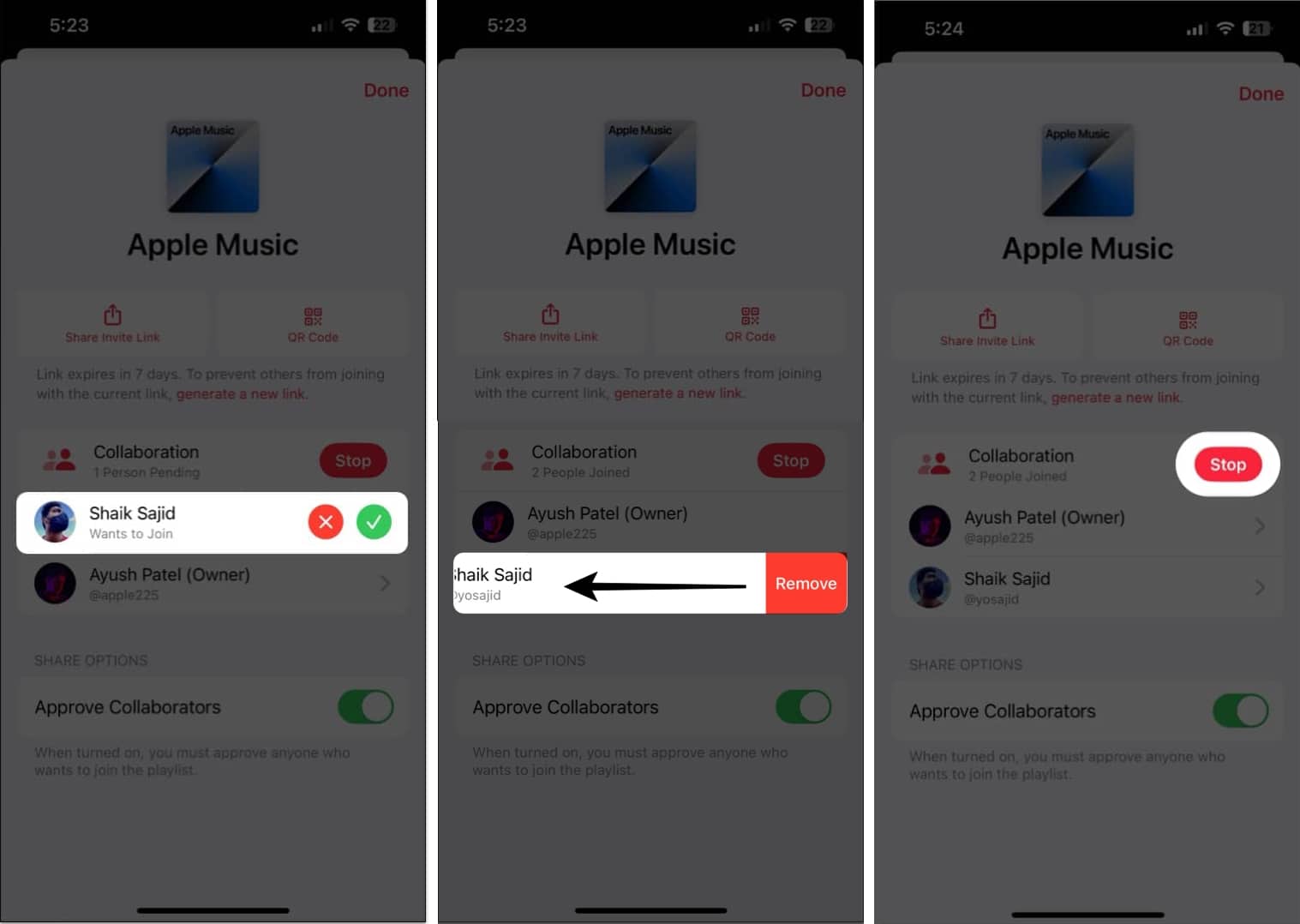
- Tap the Collaborate button on the top-right corner.
- Share an invite for the playlist as a link, or use the QR code.
- When you receive a request for new collaborators, you can either:
- Tap the green button to accept a request and add collaborators.
- Tap the red button to reject a request and remove collaborators.
- If you want to remove a collaborator, slide right to left → Tap Remove.
- If you want to stop sharing the playlist altogether, you may tap Stop.
Wrapping up…
Collaborative playlists in Apple Music offer several benefits over traditional playlists. Thanks to Collaborative playlists, you can now easily share your favorite music with your friends and family, discover new songs, or create shared playlists for events or house parties while collaborating in real-time.
Try a collaborative playlist on Apple Music, and let us know what you think about this new feature in the comments section below.
Frequently Asked Questions
Topics

Written by
Ayush PatelAyush is a writer with a keen interest in consumer technology and the Apple ecosystem. He has over three years of working experience at several big-name publications, including Guiding Tech, TechPP, and MobiGyaan. Here at iGeeksBlog, he specializes in crafting how-to guides, buying guides, and editorials related to all things Apple.
View all posts →More from How-to

Snapchat Parental Controls: How to Set Up Family Center and Keep Your Teen Safe
Snapchat’s Family Center lets parents monitor their teen’s friend activity and screen time without reading private messages. Here’s how to set it up and what to expect.
 VikhyatMarch 3, 2026
How to Block and Unblock Someone on Instagram
Instagram lets you block or unblock someone in seconds. Follow these simple steps to take full control of your privacy and online peace.
 Ava BiswasMarch 2, 2026
Apple Watch Not Responding? 8 Fixes That Actually Work
Is your Apple Watch unresponsive or stuck on a black screen? Here are 8 proven fixes to help you unfreeze it and get it working again quickly.
VikhyatMarch 3, 2026