
How to find your router’s IP address on iPhone or iPad
Easy ways to find your router’s IP address using iPhone or iPad.
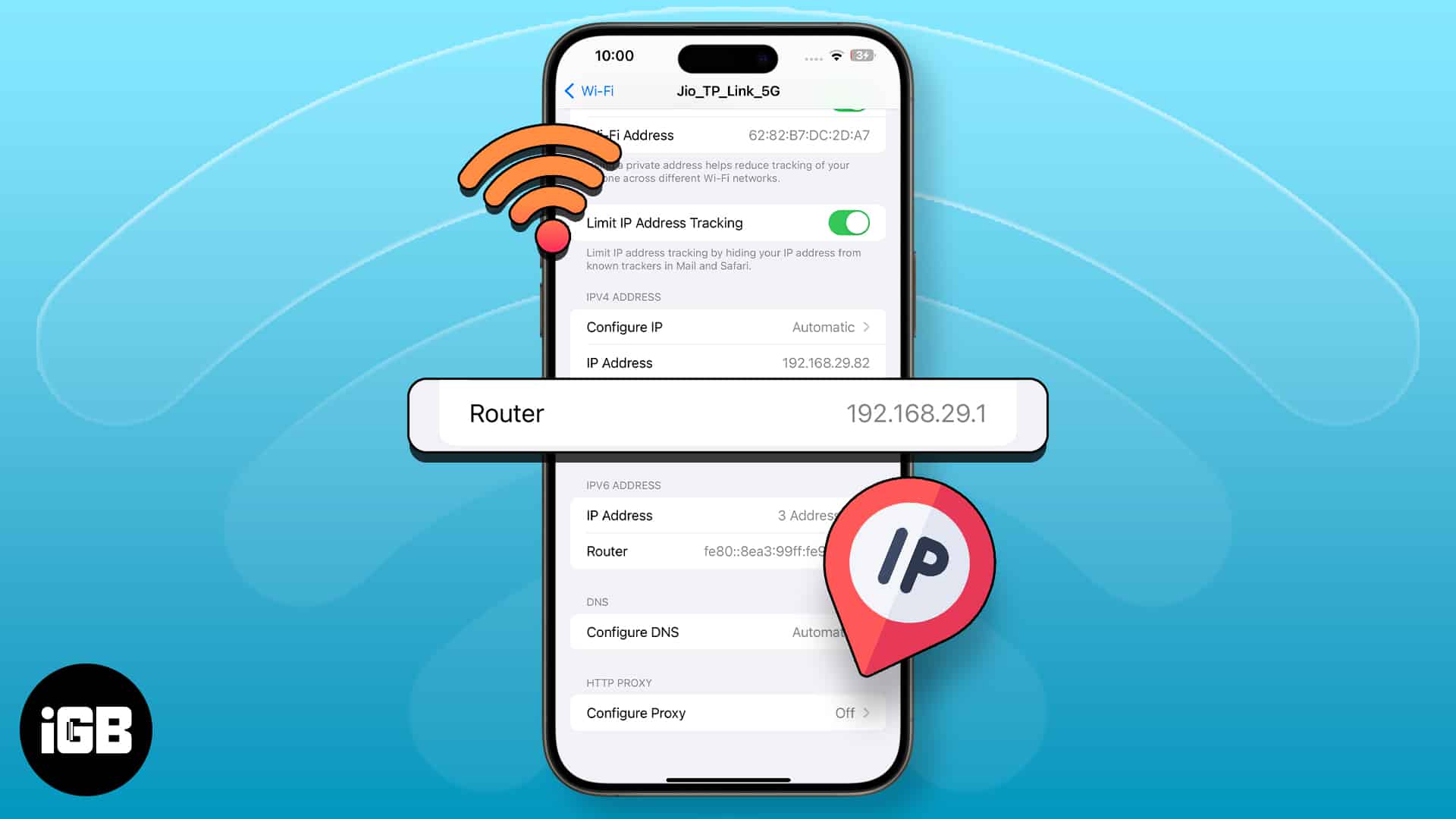
Finding your router’s IP address can be essential, especially if you need to access and modify its settings. To make these changes, you’ll need to visit the router’s configuration page, which requires knowing its IP address. Fortunately, you can easily find this information using your iPhone or iPad. Here’s everything you need to know.
What is an IP address, and why do you need to know your router’s IP?
An IP (Internet Protocol) address is essentially a digital address, a unique string of numbers assigned to each device connected to the Internet. It functions under the Internet Protocol, a broader set of communication rules that govern data transmission over the Internet.
Every internet-capable device, including tablets, smartphones, routers, and laptops, is assigned a distinct IP address. This assignment is managed by your Internet Service Provider (ISP).
Further, the IP address plays a crucial role in how websites and computer networks recognize and interact with an iPhone, iPad, or network on the internet.
Think of an IP address as a way to identify and locate devices online. It also indicates your geolocation, enabling content providers to deliver region-specific content. For instance, the Google search results you’ll get after searching for a keyword could differ from those of someone living on the other side of the world.
If your device is connected to a Wi-Fi network produced by the router, you should be able to find your router’s IP address right on your iPhone or iPad.
How to find the router IP address using Wi-Fi settings
- Open Settings → Wi-Fi.
- Tap the Info (i) button beside your Wi-Fi network.
- Scroll down to the IPV4 Address section. You’ll find your router’s IP address beside the Router.
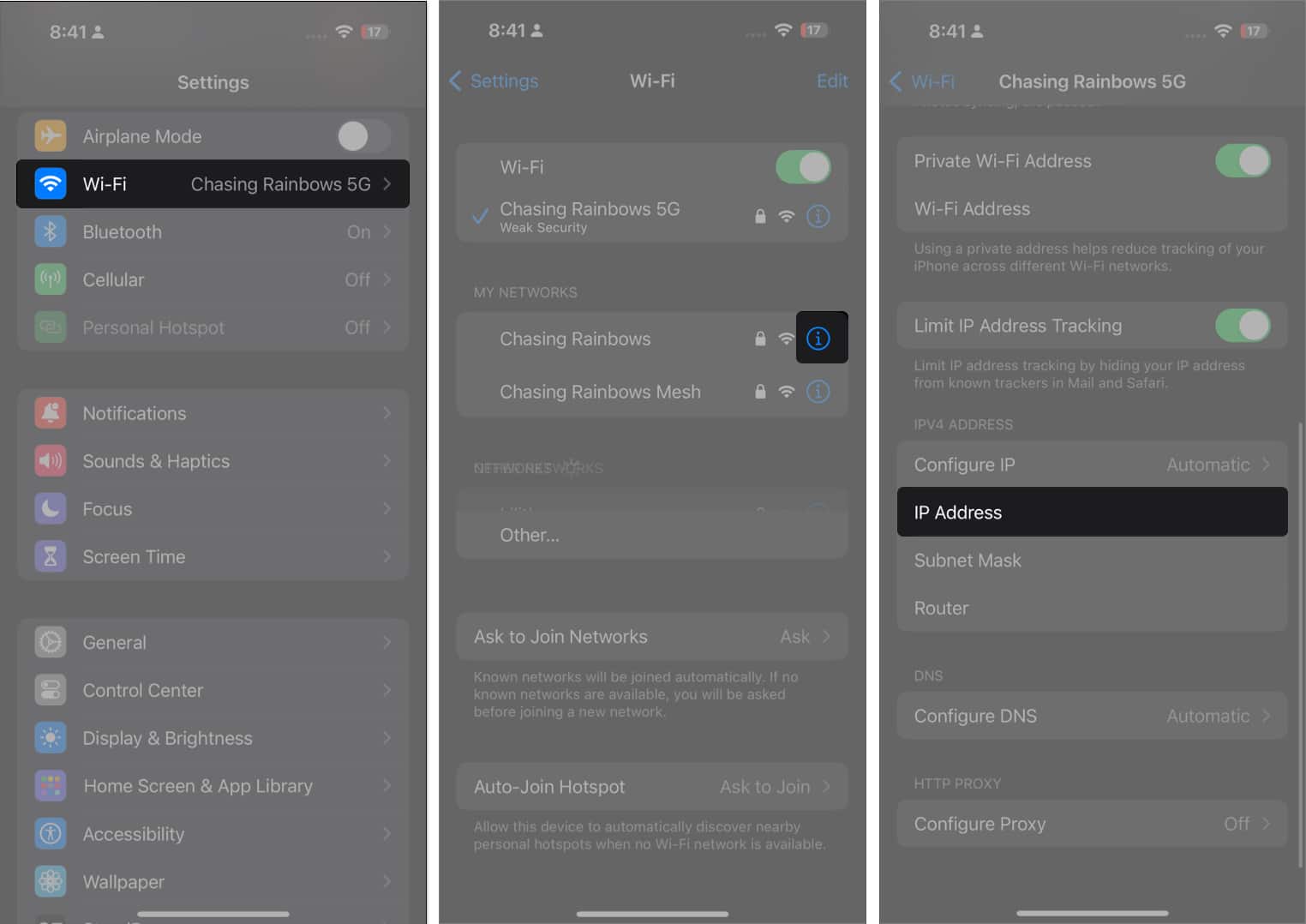
That’s it!
As mentioned earlier, you generally don’t need to know your router’s IP address, but it pays to know how to get your router’s IP address from your iPhone if you need to access the router’s settings. This could be for tasks like changing your Wi-Fi password or adjusting other network configurations.
What will you use your router’s IP address for? Share it below!
Frequently Asked Questions

Written by
Rachel Ann Tee-MelegritoRachel, an experienced Apple technology writer since 2021 and a long-time user since 2003, began her journey with a silver iPod Classic. Currently, she owns an array of modern Apple gadgets. At iGeeksBlog, her expertise shines through in the crafting of comprehensive how-to articles, informative guides, and well-curated roundups.
View all posts →More from How-to

Snapchat Parental Controls: How to Set Up Family Center and Keep Your Teen Safe
Snapchat’s Family Center lets parents monitor their teen’s friend activity and screen time without reading private messages. Here’s how to set it up and what to expect.
 VikhyatMarch 3, 2026
How to Block and Unblock Someone on Instagram
Instagram lets you block or unblock someone in seconds. Follow these simple steps to take full control of your privacy and online peace.
 Ava BiswasMarch 2, 2026
Apple Watch Not Responding? 8 Fixes That Actually Work
Is your Apple Watch unresponsive or stuck on a black screen? Here are 8 proven fixes to help you unfreeze it and get it working again quickly.
VikhyatMarch 3, 2026