
How to Turn On Voice Isolation on iPhone and Improve Call Quality
Voice Isolation on iPhone helps reduce background noise during calls and recordings so your voice sounds clearer. In this guide, learn what Voice Isolation is, which devices support it, and how to enable it in just a few steps.
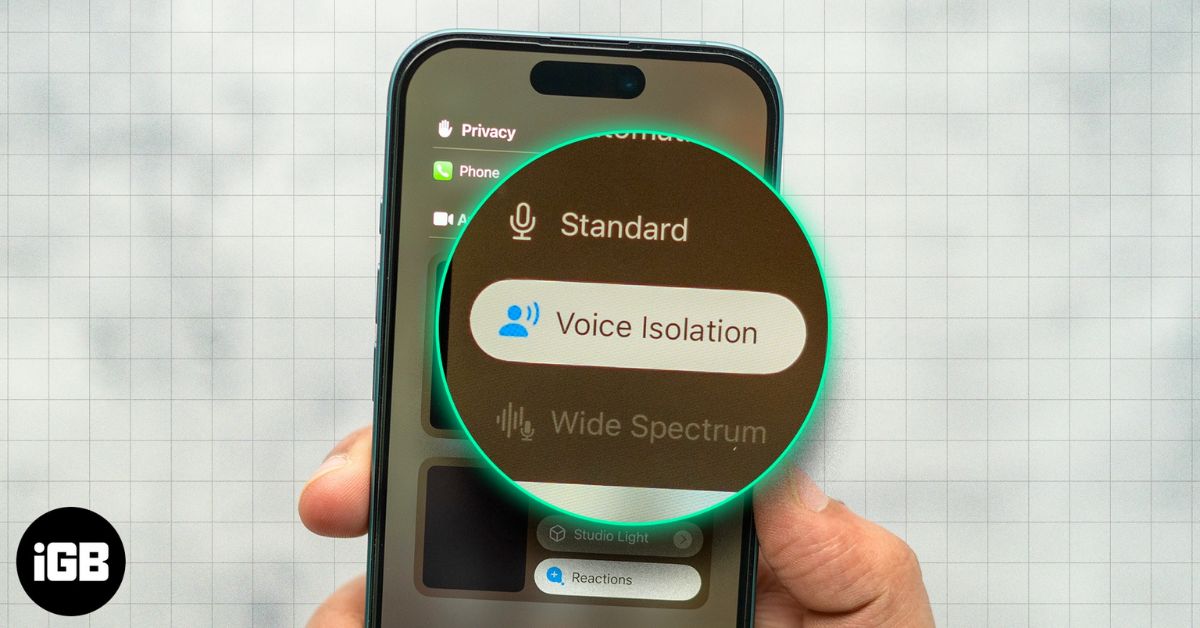
Clear audio is not always guaranteed during calls or recordings. Background sounds like traffic, nearby conversations, or even a running fan can quickly make your voice harder to hear, leading to repeated sentences and disrupted conversations. To solve this, Apple introduced Voice Isolation on iPhone, a feature designed to reduce surrounding noise and keep your voice clear during calls and recordings.
Here’s everything you need to know about Voice Isolation on iPhone and how to enable it.
What Is Voice Isolation on iPhone?
Voice Isolation is an iPhone audio feature that makes your voice clearer during calls and recordings by reducing background noise. It works by prioritizing speech and filtering out ambient sounds such as wind, traffic, or nearby conversations.
The option appears only when an app is actively using your iPhone’s microphone, such as during phone calls, FaceTime, supported third-party calling apps, or voice recording apps. Once enabled, Voice Isolation keeps your voice in focus so the person on the other end hears you more clearly, even in noisy environments.
Which iPhones and iPads Support Voice Isolation?
Voice Isolation is supported on the following devices:
- iPhone XR, iPhone XS models and later
- iPad (8th generation) and later
- iPad Pro 13-inch (M4)
- All iPad Pro 11-inch models
- iPad Pro 12.9-inch (3rd generation) and later
- iPad Air (3rd generation) and later
- iPad mini (5th generation) and later
Which Apps Support Voice Isolation on iPhone?
Voice Isolation works on iPhones running recent versions of iOS and is supported in:
- Phone calls
- FaceTime audio and video calls
- WhatsApp, Zoom, and other VoIP apps (app support may vary)
- Voice Memos and third-party recording apps that access the microphone
The feature activates per app session, meaning you can enable it separately depending on where you are making the call.
Voice Isolation Requirements: iOS Version and Device Compatibility
Before using Voice Isolation, make sure your iPhone is running a compatible iOS version. Feature availability varies depending on how you are using the microphone.
- FaceTime calls and supported third-party apps: Requires iOS 15 or later
- Audio or video recording apps (such as Voice Memos): Requires iOS 26 or later
- Phone calls: Requires iOS 16.4 or later
How to Enable and Use Voice Isolation on iPhone and iPad
Voice Isolation can only be turned on while an app is actively using your iPhone’s microphone. The option appears in Control Center during a call or recording session, which is why you will not see it in Settings beforehand.
Here’s how to enable it on an iPhone or iPad:
- Start a call or recording, then swipe down from the top right corner of your screen to open Control Center.
- Tap [App] Controls at the top center.
- Select Voice Isolation under Audio & Video.
- Close Control Center and continue your call or recording.
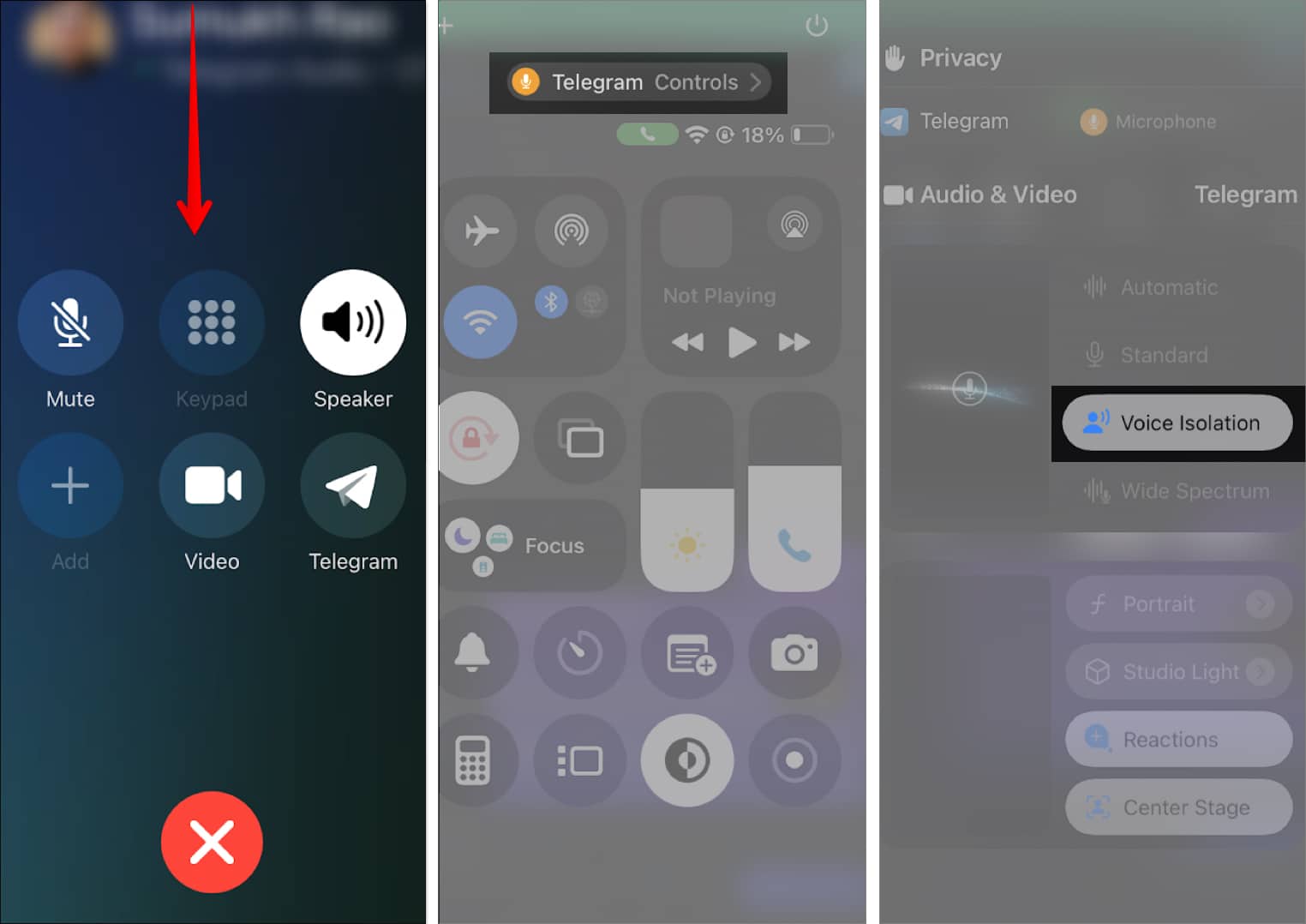
Once enabled, background noise will decrease, and the person on the other end of the call will hear you more clearly.
If Voice Isolation feels too aggressive in certain situations, you can choose from other microphone modes.
- Automatic: Requires iOS 18 or later. This mode selects the best microphone setting for your situation. For example, it may use Voice Isolation for receiver calls and Standard for speakerphone. If your environment has high background noise, your iPhone may automatically prioritize your voice.
- Standard: Standard mode does not alter audio processing. It transmits your voice as it is.
- Wide Spectrum: Wide Spectrum captures a broader range of audio during your call. This can be useful if you want background sounds, such as live music during a video call, to be heard clearly.
Voice Isolation works independently for each app. Enabling it during a Phone or FaceTime call does not automatically apply the setting to other calling apps.
When Should You Use Voice Isolation on iPhone?
Voice Isolation is especially useful when background noise could interfere with communication, such as:
- Taking calls in crowded places
- Working from cafés or public spaces
- Outdoor conversations with traffic noise
- Online meetings and professional calls
- Recording voice notes in noisy environments
Does Voice Isolation Turn On Automatically on iPhone?
No. Voice Isolation does not turn on by itself. You must enable it manually from Control Center during a call or recording.
If your iPhone is set to Automatic Mic Mode, the system manages microphone processing automatically, but this is different from Voice Isolation. Automatic mode dynamically adjusts audio, while Voice Isolation specifically reduces background noise and prioritizes your voice.
Once enabled, Voice Isolation remains active for that app until you change the microphone mode again.
Summing Up
Voice Isolation is one of the most useful yet underrated iPhone features for improving call quality. By filtering background noise and prioritizing your voice, it makes conversations clearer without requiring additional apps or accessories. Once you know where to find it in Control Center, enabling it takes only a few seconds and can noticeably improve how others hear you.
Did Voice Isolation improve your call quality? Share your experience in the comments below.
Frequently Asked Questions

Written by
Rachel Ann Tee-MelegritoRachel, an experienced Apple technology writer since 2021 and a long-time user since 2003, began her journey with a silver iPod Classic. Currently, she owns an array of modern Apple gadgets. At iGeeksBlog, her expertise shines through in the crafting of comprehensive how-to articles, informative guides, and well-curated roundups.
View all posts →More from How-to

Snapchat Parental Controls: How to Set Up Family Center and Keep Your Teen Safe
Snapchat’s Family Center lets parents monitor their teen’s friend activity and screen time without reading private messages. Here’s how to set it up and what to expect.
 VikhyatMarch 3, 2026
How to Block and Unblock Someone on Instagram
Instagram lets you block or unblock someone in seconds. Follow these simple steps to take full control of your privacy and online peace.
 Ava BiswasMarch 2, 2026
Apple Watch Not Responding? 8 Fixes That Actually Work
Is your Apple Watch unresponsive or stuck on a black screen? Here are 8 proven fixes to help you unfreeze it and get it working again quickly.
VikhyatMarch 3, 2026