
What is Apple Rapid Security Response, and how to enable it?
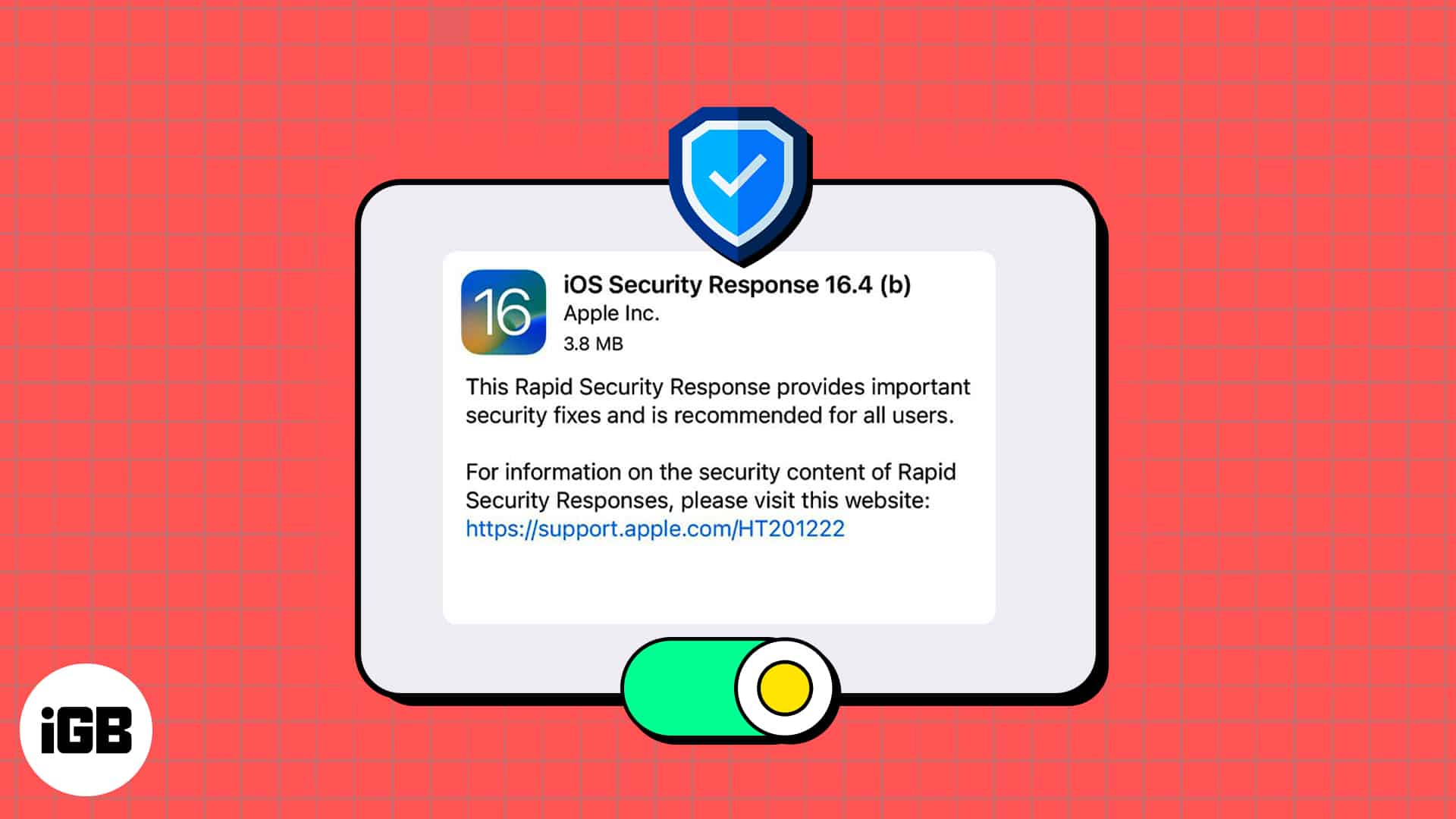
Have you heard rumblings about a new Apple feature for security updates on iPhone, iPad, and Mac? Called Rapid Security Response, this feature can keep your devices up to date when a defect is found in a recent system upgrade.
Let’s take a look at what Apple’s Rapid Security Response feature is and how to enable it to keep your devices more secure.
What is Apple Rapid Security Response update?
Rapid Security Response is a system that Apple uses to send frequent security fixes to device users. The feature was introduced with iOS 16.2, iPadOS 16.2, and macOS 13.2.
In some cases, you may not have to restart your device after these updates. However, if the fixes from the Rapid Security Response involve the operating system, your device may require a restart.
These security updates apply to the most recent operating system version. So, if the operating system upgrade is delayed, the security update will be as well.
Rapid Response Security versioning includes lowercase letters starting with “a”. For instance, you may see “iOS 16.4 (a)” as a version number. If there is more than one update, it’ll include more letters such as “a,” “b,” “c,” and so on.
Although this update feature may be enabled by default on your Apple device, here’s how to check and manually turn it on.
How to turn on or off Rapid Security Response updates
You can turn on the Rapid Security Response feature easily in iOS 16.2 or later and macOS 13.2 or later by following the steps below.
On iPhone or iPad
- Open the Settings app → tap General.
- Select Software Update → choose Automatic Updates.
- Toggle on Security Responses & System Files.
Note: You can have this feature enabled without the two options above it.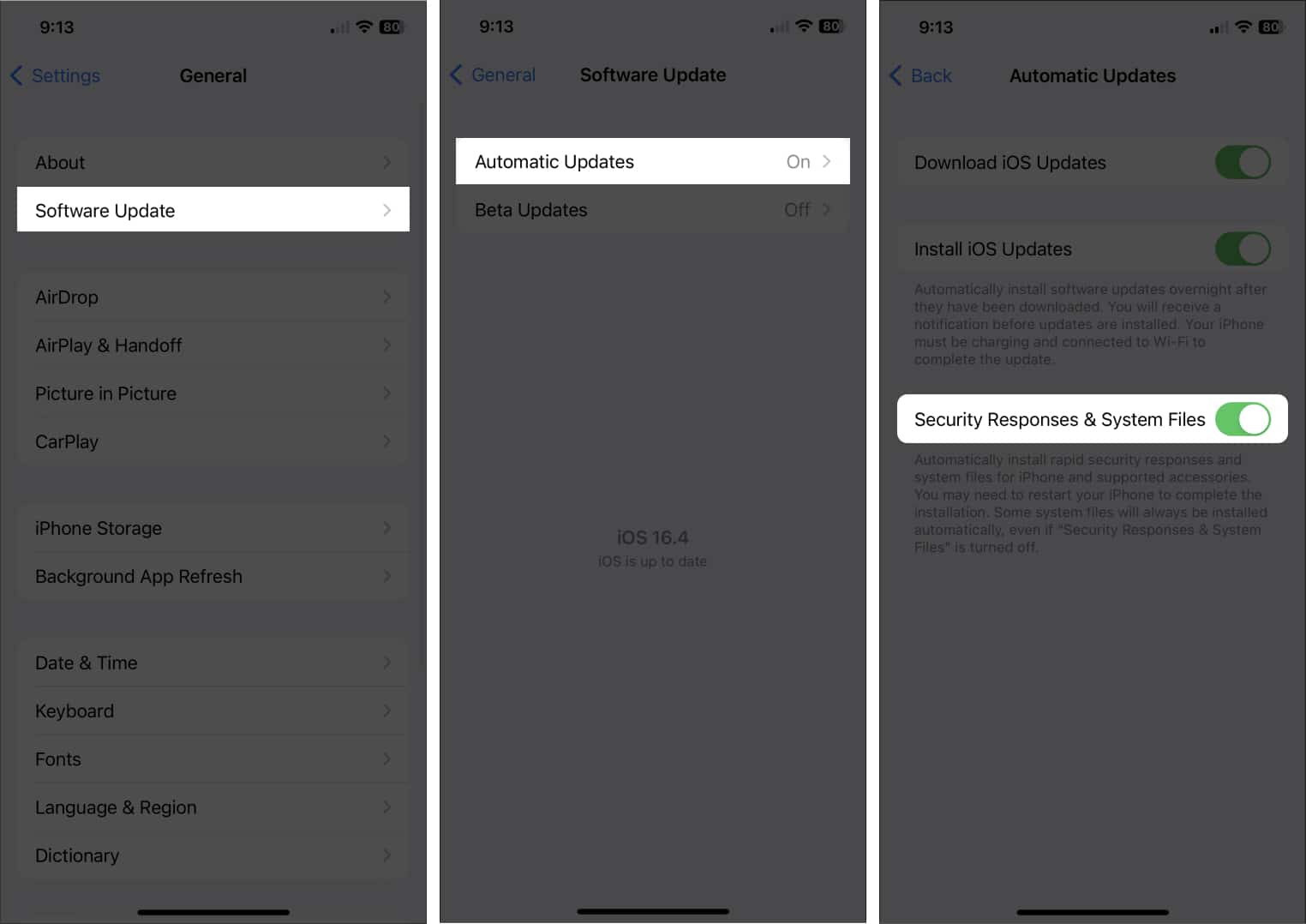
On Mac
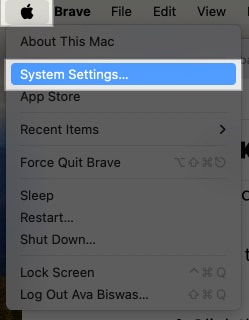
- Click the Apple logo on the menu bar → select System Settings.
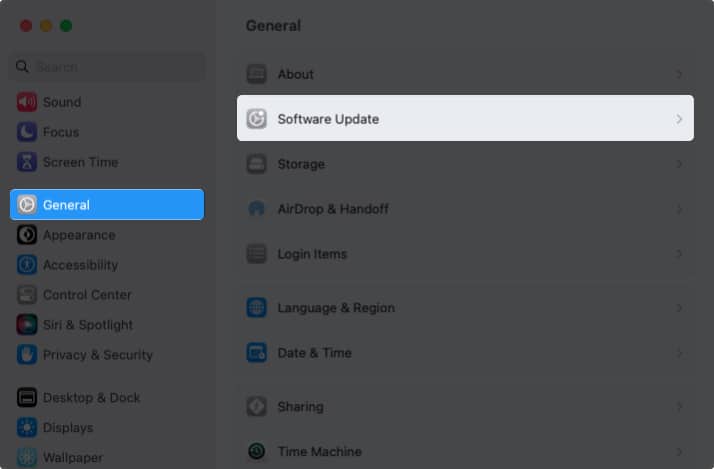
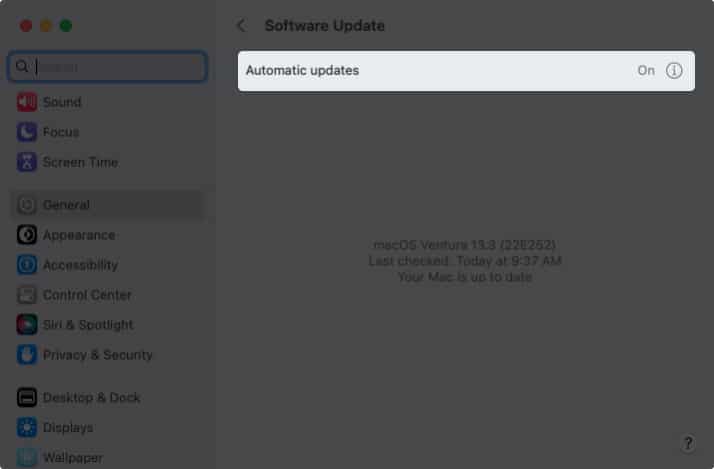
- Select General on the left side → choose Software Update on the right.
- Click the info icon (i) to the right of Automatic updates.
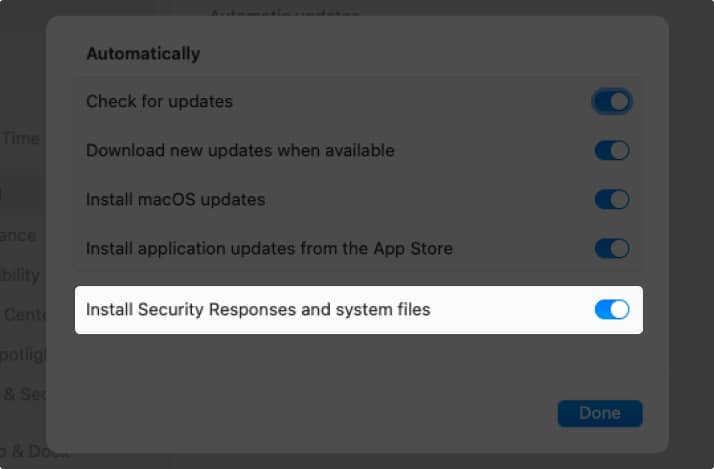
- Toggle on Install Security Responses and system files.
Note: You must enable the top toggle for Check for updates to use this feature on macOS. - Click Done to save the change.
How to remove Rapid Security Response updates
Although not recommended, if you have issues as a result of a Rapid Security Response update, you can remove it from your device.
On iPhone and iPad
- Open the Settings app → tap General.
- Select About.
- Tap the iOS Version or iPadOS Version near the top.
- You’ll see the update with an option to remove it. Remember to look for the Rapid Security Response indicator, as explained earlier.
- Select Remove Security Response to delete the update.
Tip:
s: You might also look at how to delete a problematic software update on your iPhone or iPad.
On Mac
- Open System Settings on your Mac.
- Select General on the left side and About on the right.
- Click the Info icon to the right of your macOS version.
- Select Remove to delete the update.
Why you should use Apple’s Rapid Security Response feature!
Security updates are crucial to keeping your devices safe as well as the data stored on them. If a flaw is discovered in a recent system upgrade and Apple provides a Rapid Security Response update to fix it, you can now install it by enabling this automatic feature. And because you can remove an update if a problem arises, it’s worth it, wouldn’t you agree?
For more, look at these ways to secure your Apple ID on iPhone, iPad, and Mac.
Read more:
Topics

Written by
SandySandy relishes crafting how-tos, listicles, and explainers, empowering others to unlock the full potential of their Apple devices. She joined iGeeksBlog in 2023, and her decade-long experience in tech writing shines through, starting with Apple products in 2015 and further enriched by collaborations with prestigious publications like Lifewire, How-To Geek, Digital Trends, iDownloadBlog, MakeUseOf, groovyPost, and AppleToolbox.
View all posts →More from How-to

Snapchat Parental Controls: How to Set Up Family Center and Keep Your Teen Safe
Snapchat’s Family Center lets parents monitor their teen’s friend activity and screen time without reading private messages. Here’s how to set it up and what to expect.
 VikhyatMarch 3, 2026
How to Block and Unblock Someone on Instagram
Instagram lets you block or unblock someone in seconds. Follow these simple steps to take full control of your privacy and online peace.
 Ava BiswasMarch 2, 2026
Apple Watch Not Responding? 8 Fixes That Actually Work
Is your Apple Watch unresponsive or stuck on a black screen? Here are 8 proven fixes to help you unfreeze it and get it working again quickly.
VikhyatMarch 3, 2026