
How to Download Free Apps from Mac App Store without Apple ID Password
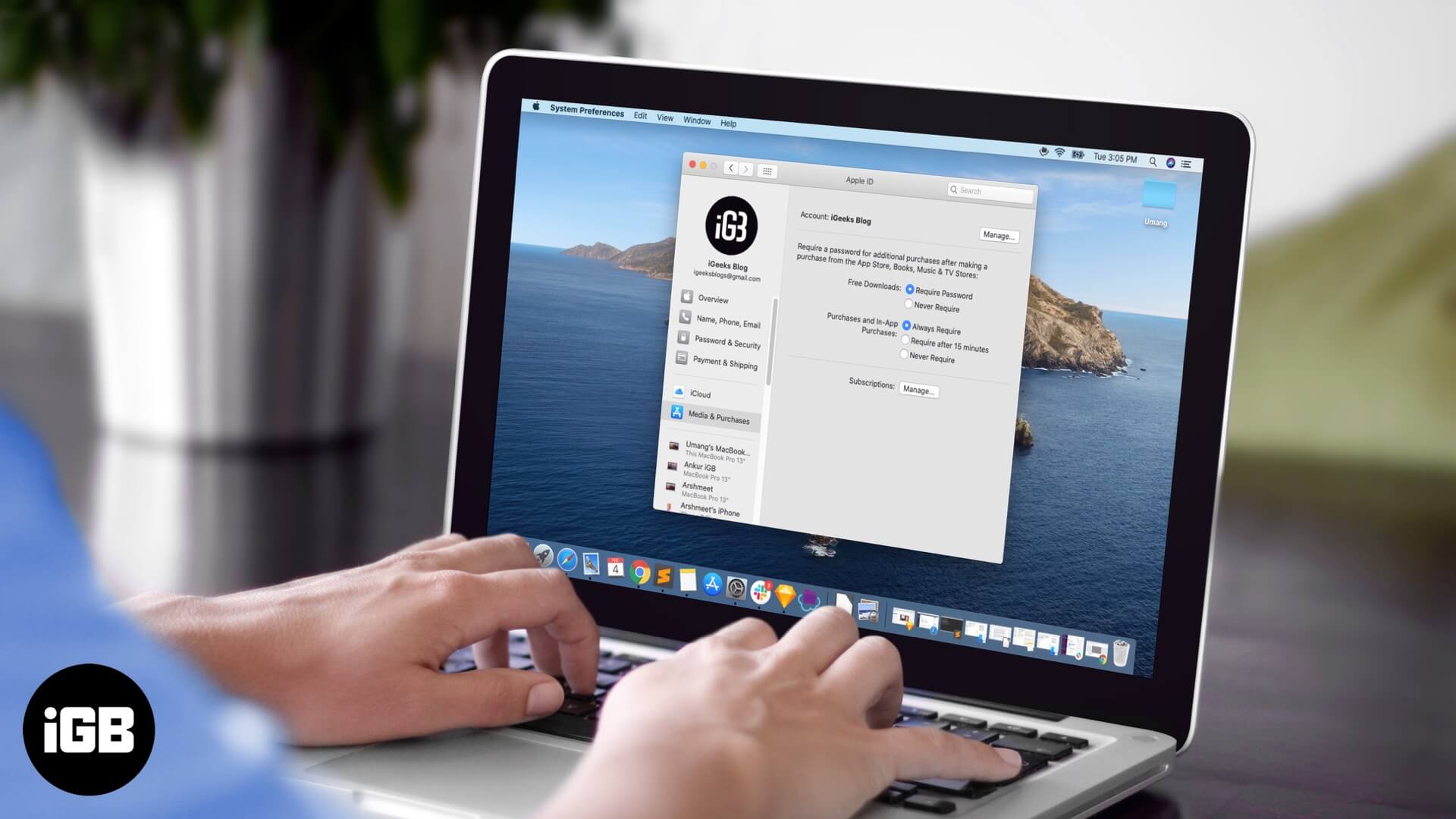
It is a good idea to input your Apple ID password every time you buy something from the Mac App Store. However, when you download free apps, it doesn’t seem very pleasant. So, here is how to quickly download free apps from the Mac App Store without entering your Apple ID password.
The steps shown below are easy and straightforward. Before you begin, you need to know your Apple ID password to change the settings and save the password for future free app downloads. So grab your Apple ID password and follow the steps below to download free apps from the Mac App Store swiftly.
How to Download Free Apps Without Apple ID Password on Mac
Step #1. Launch System Preferences on your Mac. You may do so from the dock or click on the Apple() logo from top left and select System Preferences.
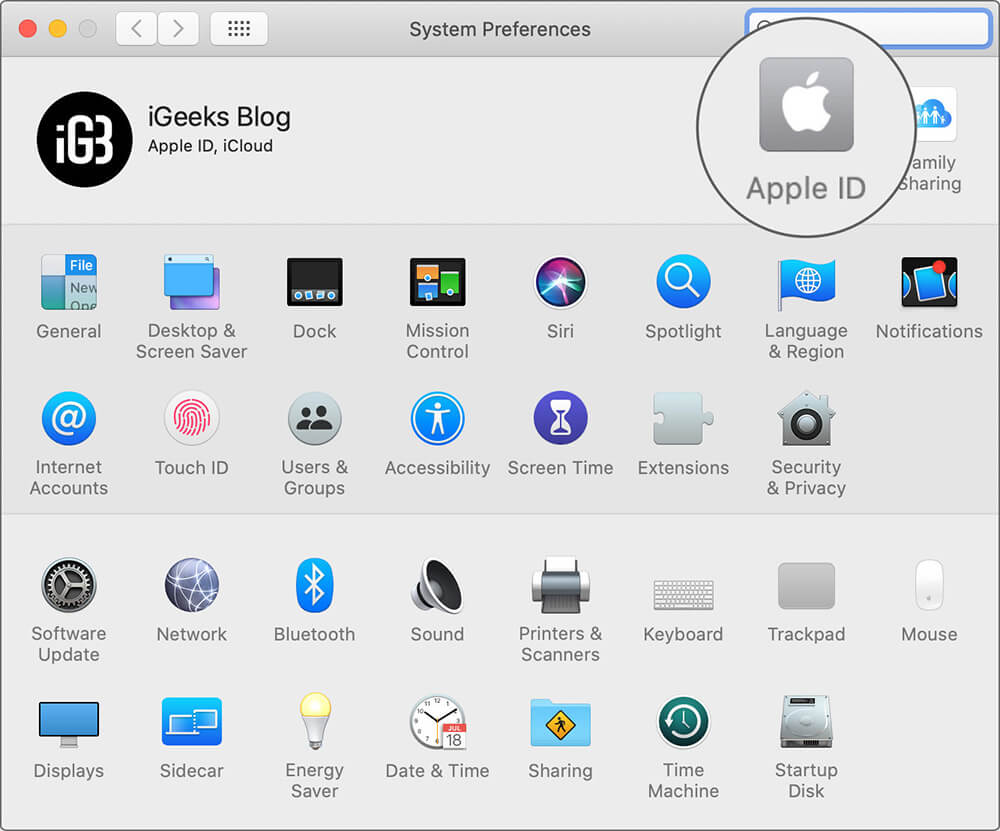
Step #2. Click on Apple ID.
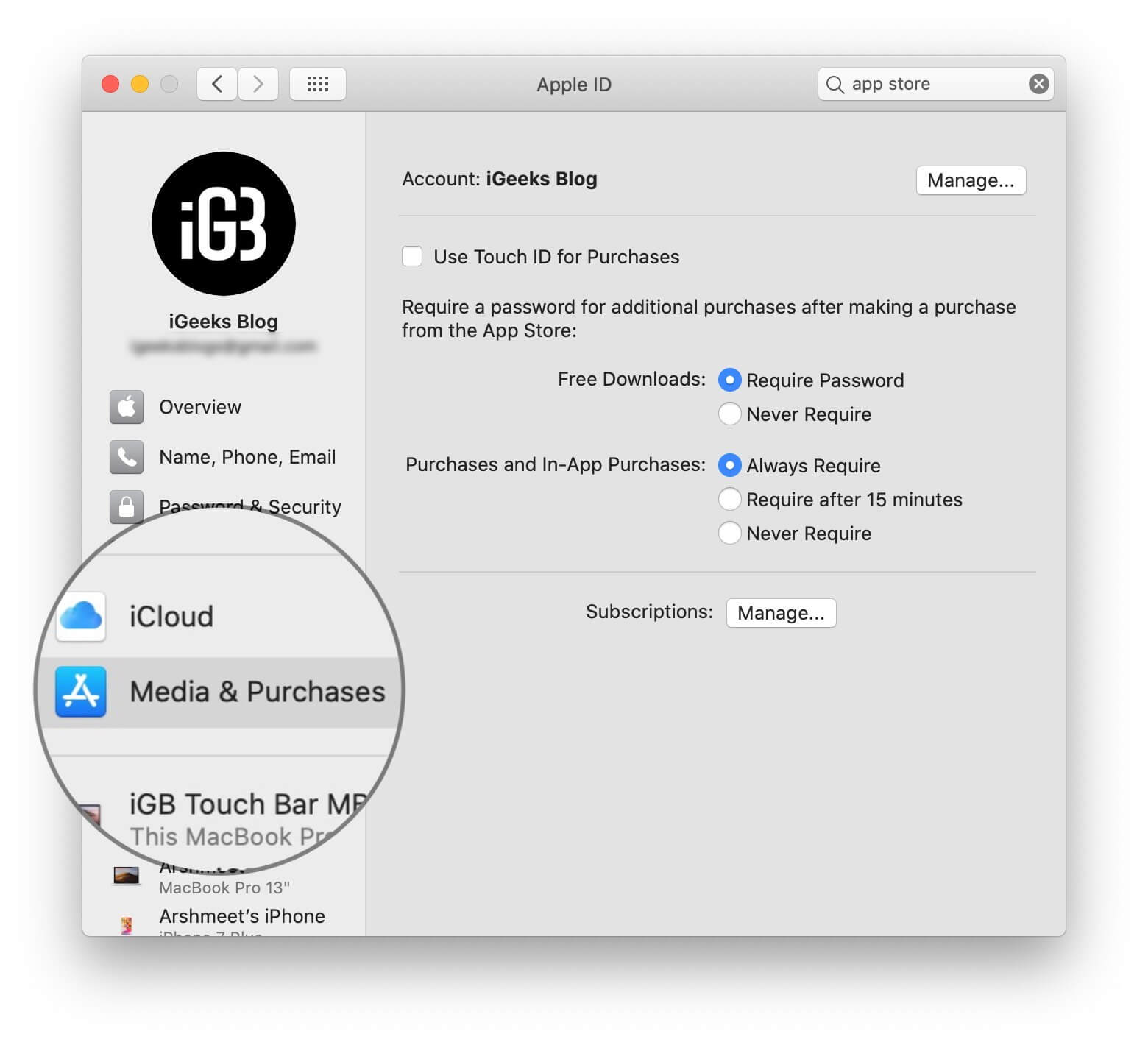
Step #3. Click on Media & Purchases.
Step #4. Here for Free Downloads, select Never Require. Input your Apple ID password if asked.
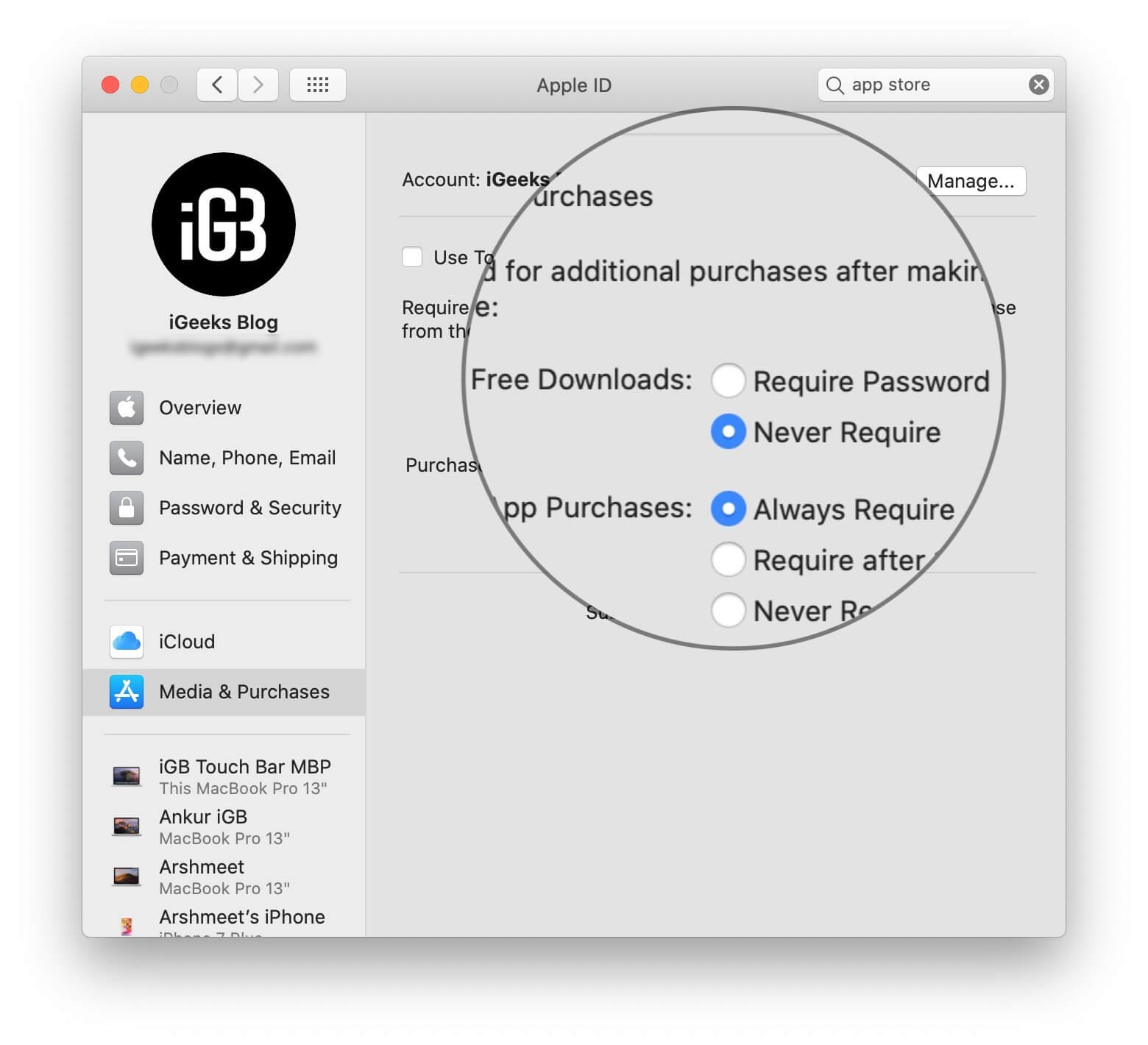
That’s it! This is how you can download free apps on Mac from the App Store without entering your password.
If You Have a Mac with Touch ID
If your MacBook has Touch ID, you may tick the box for Use Touch ID for Purchases. You will be asked to enter your Apple ID password.
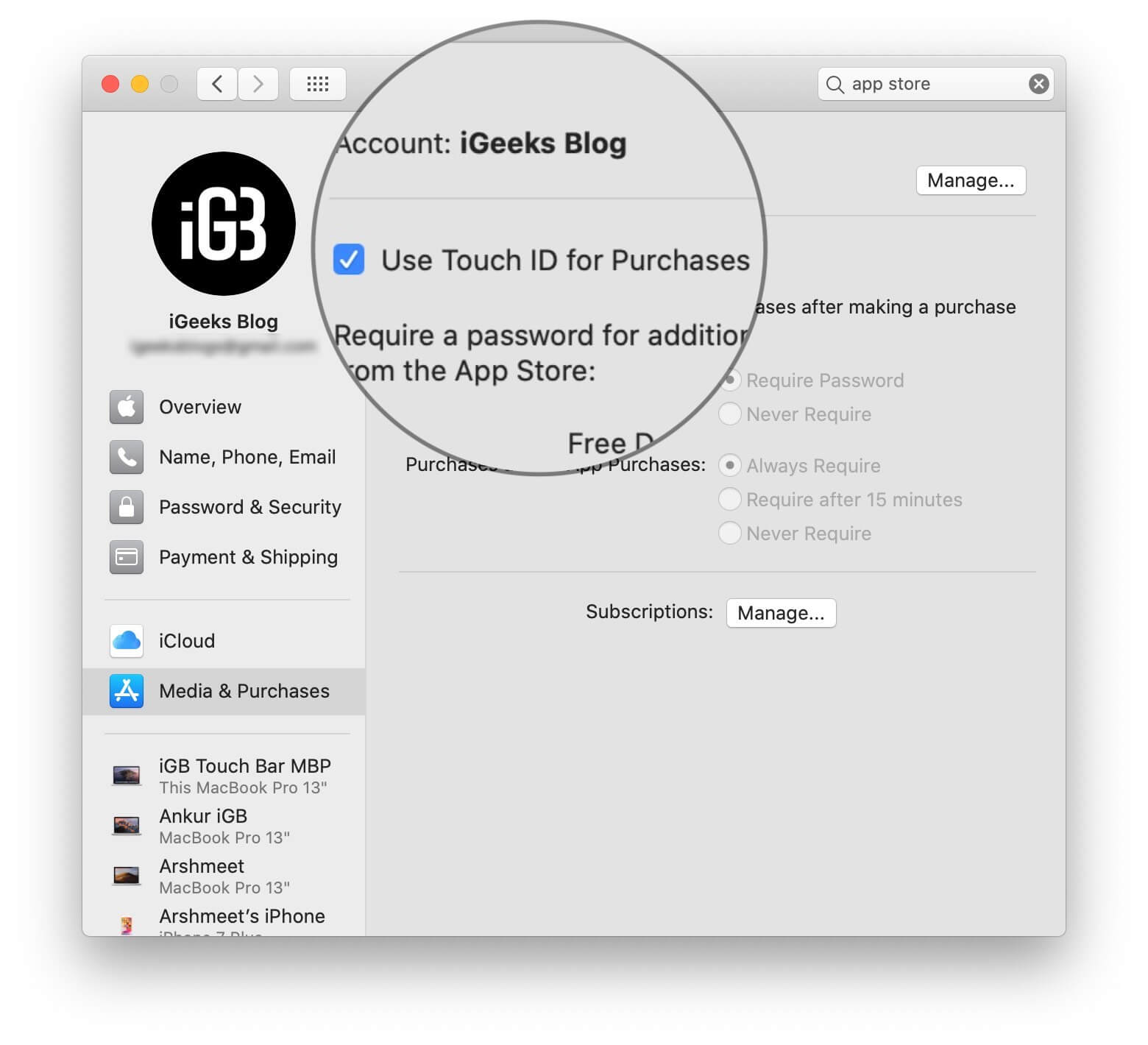
Once you have Touch ID set for purchases, you will have to authenticate even when you download free apps. It can not be changed as long as you have Touch ID enabled.
Note:
In rare instances, after you change the settings using the above steps and subsequently use App Store for the first time to download a free app, it may ask for your password again, but after that, it won’t.
A Word of Caution
You also see settings for Purchases and In-App Purchases. Make sure it is set to Always Require. This would ensure that you do not accidentally buy an app you do not need. It would also remove the hassle of requesting a refund.
Signing off…
So this is how you can download free apps without having to fill in your Apple ID password every time.
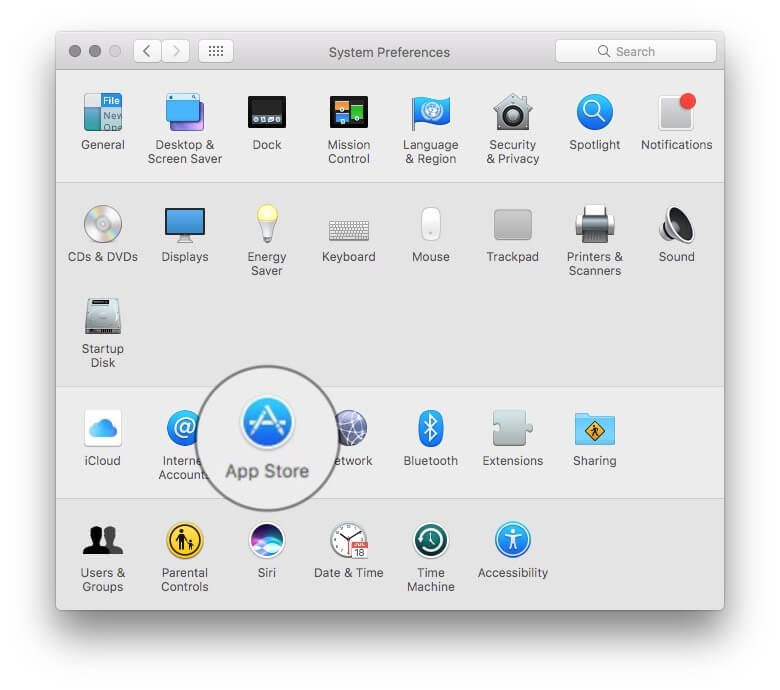
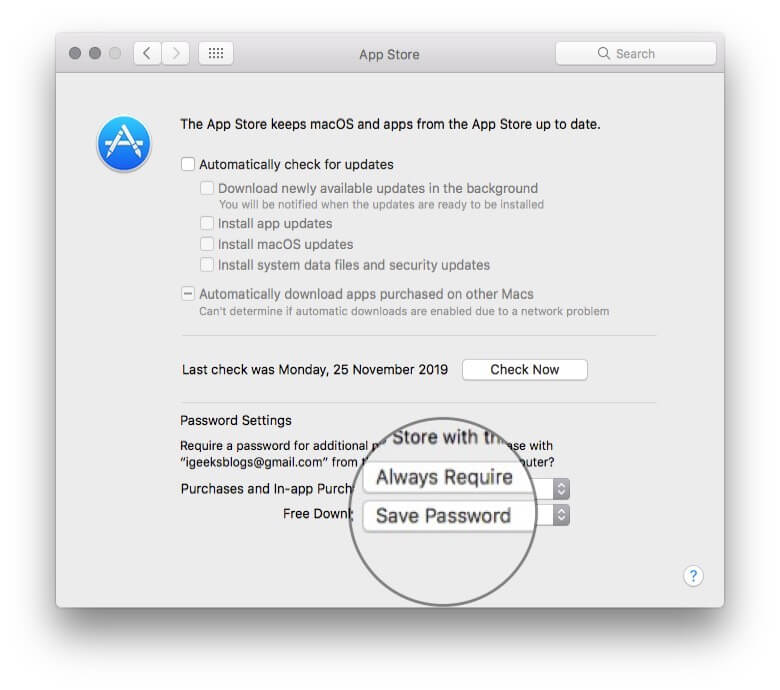
If you are running a version of macOS released before Catalina, you will find this setting under System Preferences → App Store → For Free Downloads, select Save Password.
You may like to read…
What are your thoughts regarding this? Also, have you ever purchased an app by mistake (one of my colleagues did) and later had trouble getting the refund? Please share your experience with us in the comments down below comment box.

Written by
Dhvanesh AdhiyaThe founder of iGeeksBlog, Dhvanesh, is an Apple aficionado, who cannot stand even a slight innuendo about Apple products. He dons the cap of editor-in-chief to make sure that articles match the quality standard before they are published.
View all posts →More from How-to

How to Turn Off Location on Snapchat (Step-by-Step Guide)
Want to stop sharing your location on Snapchat? This guide explains how Snapchat location sharing works and shows simple ways to turn off your location using Ghost Mode or phone settings. Stay in control of your privacy in just a few steps.
 VikhyatMarch 5, 2026
Snapchat Parental Controls: How to Set Up Family Center and Keep Your Teen Safe
Snapchat’s Family Center lets parents monitor their teen’s friend activity and screen time without reading private messages. Here’s how to set it up and what to expect.
VikhyatMarch 3, 2026
How to Block and Unblock Someone on Instagram
Instagram lets you block or unblock someone in seconds. Follow these simple steps to take full control of your privacy and online peace.
 Ava BiswasMarch 2, 2026