
How to Delete Threads Account Without Deleting Your Instagram Account

Threads is Meta’s text‑based social media app rival to X. Since it is linked to Instagram, signing in and setting up your profile becomes quick and easy. Many users signed up out of curiosity and later decided they didn’t need another social app
Initially, there was one big limitation: deleting a Threads profile also deleted the connected Instagram account. That frustrated many users who simply wanted to leave Threads while keeping Instagram. Meta later fixed this issue, and you can now delete or deactivate your Threads account without affecting your Instagram account. This guide explains both options and shows the steps to remove your Threads account from mobile or web.
Things to Know Before Deleting Your Threads Account
Before deleting your Threads account, keep these points in mind:
- Deleting Threads does not delete Instagram. Your Instagram account stays intact.
- Deletion is not immediate. Threads schedules your account for removal after 30 days. During that window, your profile is hidden but recoverable if you log back in.
- After 30 days, your posts, replies, likes, and followers are permanently deleted and can’t be recovered.
- Meta may keep limited information in backup for legal or recovery purposes, but this data is not visible on the platform.
- If needed, you can download your data through Instagram’s data export tool before deleting the account.
- You may need to wait before creating a new Threads account with the same Instagram login.
Delete vs. Deactivate Threads Account: Key Differences
Threads offers two ways to stop using the platform: delete your account or temporarily deactivate it. While they may seem similar, they serve different purposes. Here’s a quick summary to understand.
| Feature | Deleting Threads Account | Deactivating Threads Account |
|---|---|---|
| Account Status | Permanently removes your Threads profile | Temporarily hides your profile |
| User Data (Profile, Likes, Followers) | Permanently deleted after 30 days | Hidden but stored. |
| Profile Visibility | Immediately hidden, then removed after 30 days | Profile becomes invisible but still exists |
| Instagram account | Does not delete or affect your Instagram account | Instagram account remains unchanged |
| Account Recovery | Cancel within 30 days by logging back in | Reactivate anytime by logging in |
| Best for | Users who want to permanently leave Threads | Users who just want a break |
How to Delete a Threads Account on iPhone or Android
Follow these steps to delete your Threads account from the mobile app:
- Open the Threads app on your iPhone or Android.
- Tap the Profile icon in the bottom‑right corner.
- Tap the menu icon in the top‑right corner.
- Select Account.
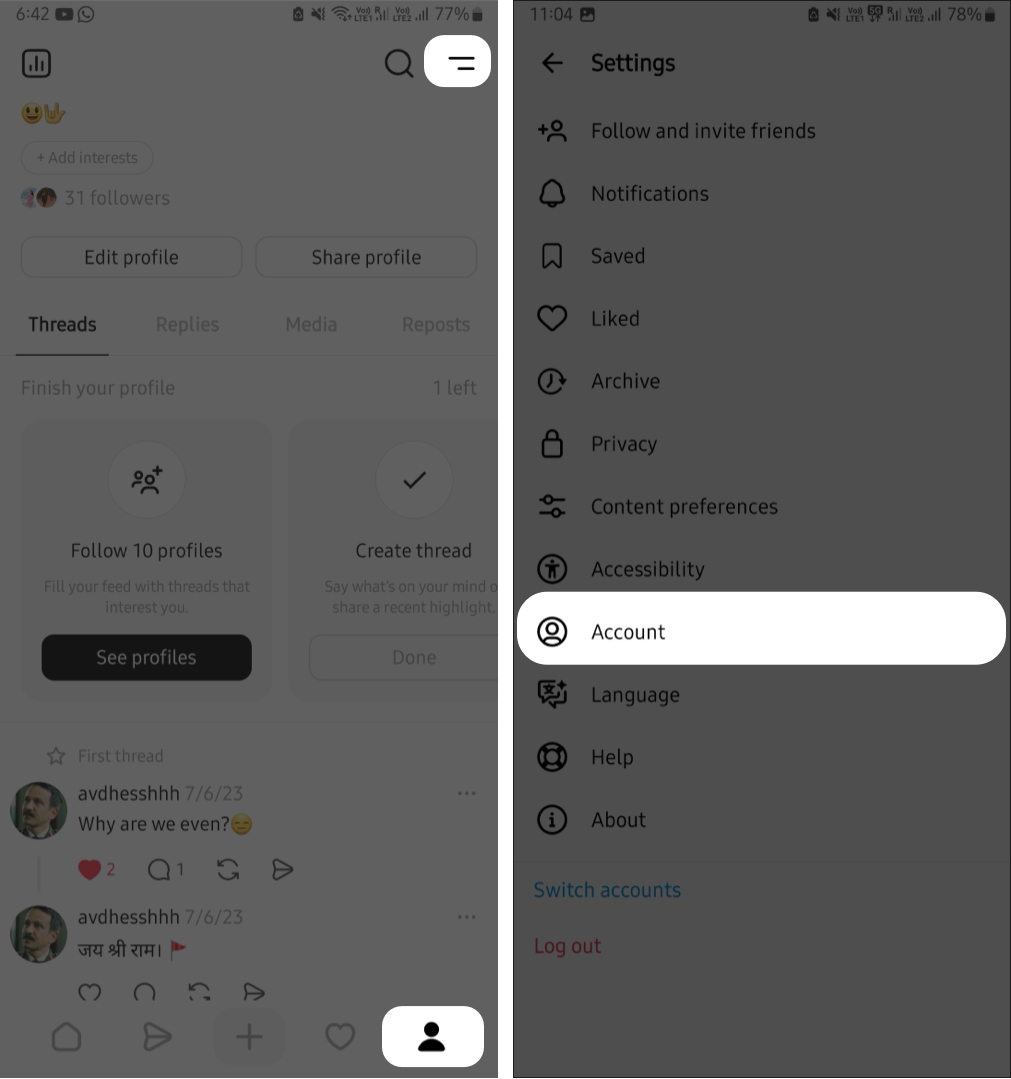
- Tap Deactivate or Delete Profile.
- Choose Delete Profile.
- Enter your Instagram password to verify your identity.
- Tap Delete Threads Profile to confirm the deletion request.
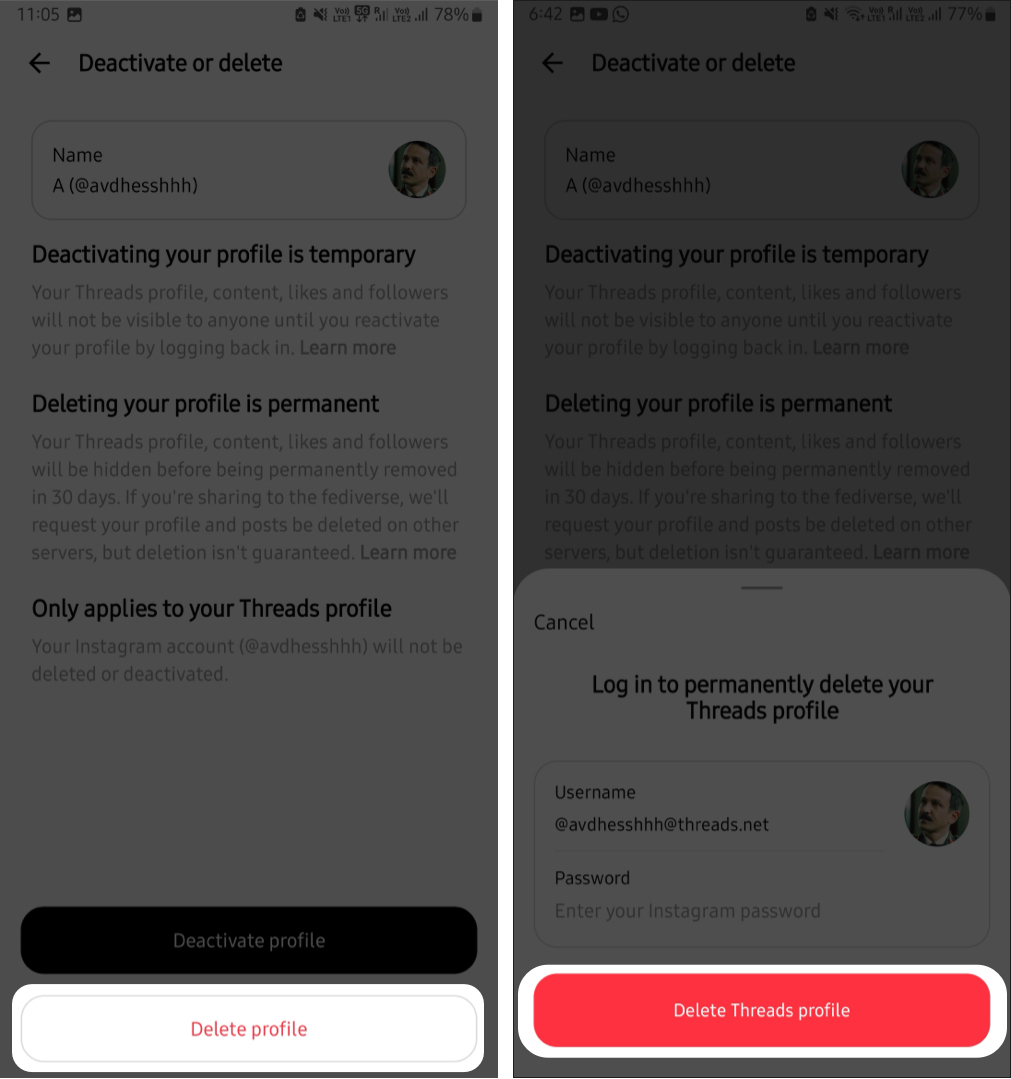


Once confirmed, Threads schedules your account for deletion. Your profile becomes invisible immediately while the platform processes the removal.
How to Delete a Threads Account from a Web Browser
You can also delete your Threads account from a desktop or mobile browser. Here’s how:
- Visit the Threads website and sign in to your account.
- Open Settings from the menu at the left-bottom.
- Select Account and click Deactivate or delete profile.
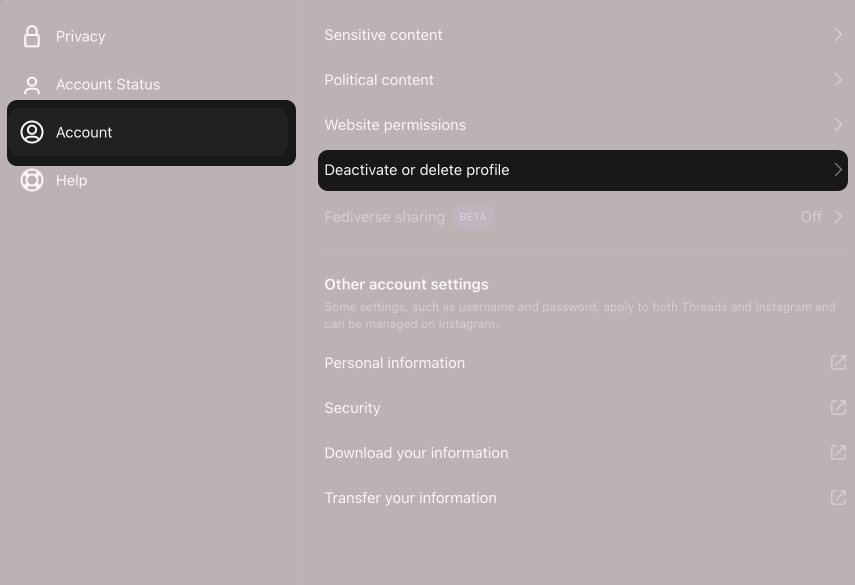
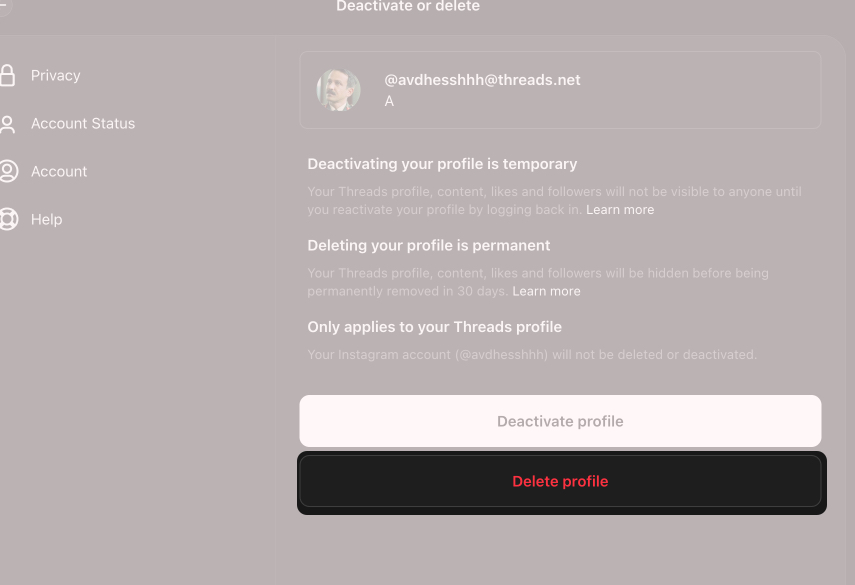
- Choose Delete profile.
- Enter your password to verify, then click Delete Threads Profile to confirm the request.


What Happens After You Delete Your Threads Account
- Once the deletion request is submitted, your account is immediately hidden from other users. Your posts, comments, and profile information are no longer visible on the platform.
- Threads then wait 30 days before permanently removing your account data. During this time, you can cancel the deletion simply by logging back into your account.
- If you do not log back in during this period, your profile, posts, followers, and interactions will be permanently deleted.
- Meta may still retain certain information in backup storage for legal or system recovery purposes. However, this data is not publicly visible or accessible on the platform.
How to Temporarily Deactivate Your Threads Account
If you’re unsure about permanently leaving Threads, deactivating your account may be the better option. The steps are the same on the mobile and web.
To deactivate your Threads account:
- Open the Threads app and tap Profile.
- Tap the menu icon.
- Select Account and tap Deactivate or Delete Profile.
Select Account.
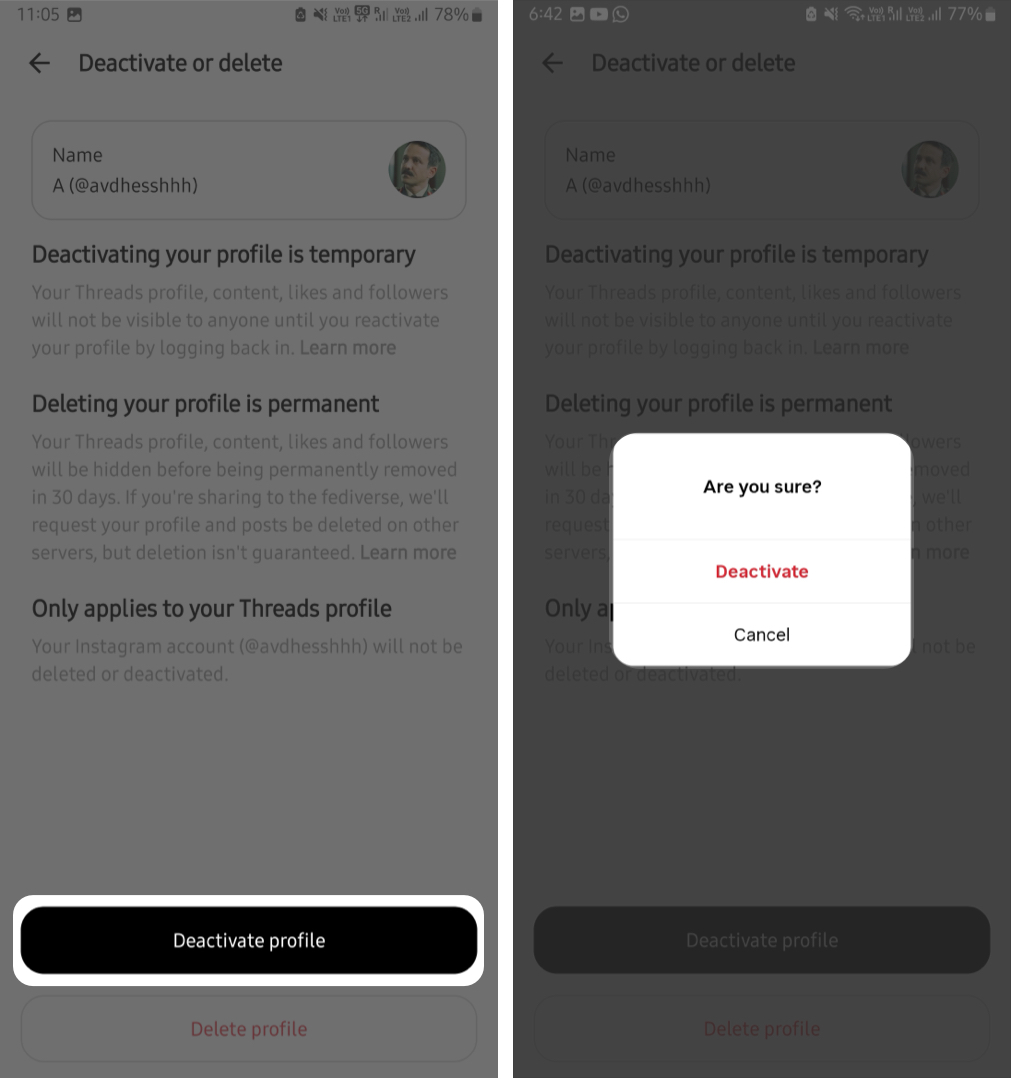
- Choose Deactivate Profile.
- Tap Deactivate to confirm your choice.

Reactivate a Deactivated Threads Account
If you feel like using the app again, reactivating a Threads account is simple. All you need to do is sign back into Threads using your Instagram credentials. Your profile, posts, and followers will become visible again.
Note:
Threads allows account deactivation only once per week.
Wrapping Up
Threads gives users full control over their presence on the platform. Whether you want a short break or a permanent exit, the app now allows you to deactivate or delete your account without affecting Instagram.
If you’re unsure about leaving completely, deactivation offers a safe middle ground. But if you’re ready to move on, deleting your Threads account removes your profile and activity from the platform after 30 days.
Frequently Asked Questions
Topics

Written by
Avadesh JoshiI’m an engineer who eventually found my way into writing. After writing hundreds of articles and blogs in the IT industry, I now explore the world of Apple at iGeeks Media, breaking down features, updates, how-tos, reviews, and ideas into simple, enjoyable reads. When I’m not writing, you’ll probably find me reading. If you’re someone who always carries a book, we’re already friends!
View all posts →