
How to Clear RAM on Mac: Easy Ways to Free Up Memory
Mac running slow? Learn how to clear RAM safely and free up memory for smoother performance in minutes.
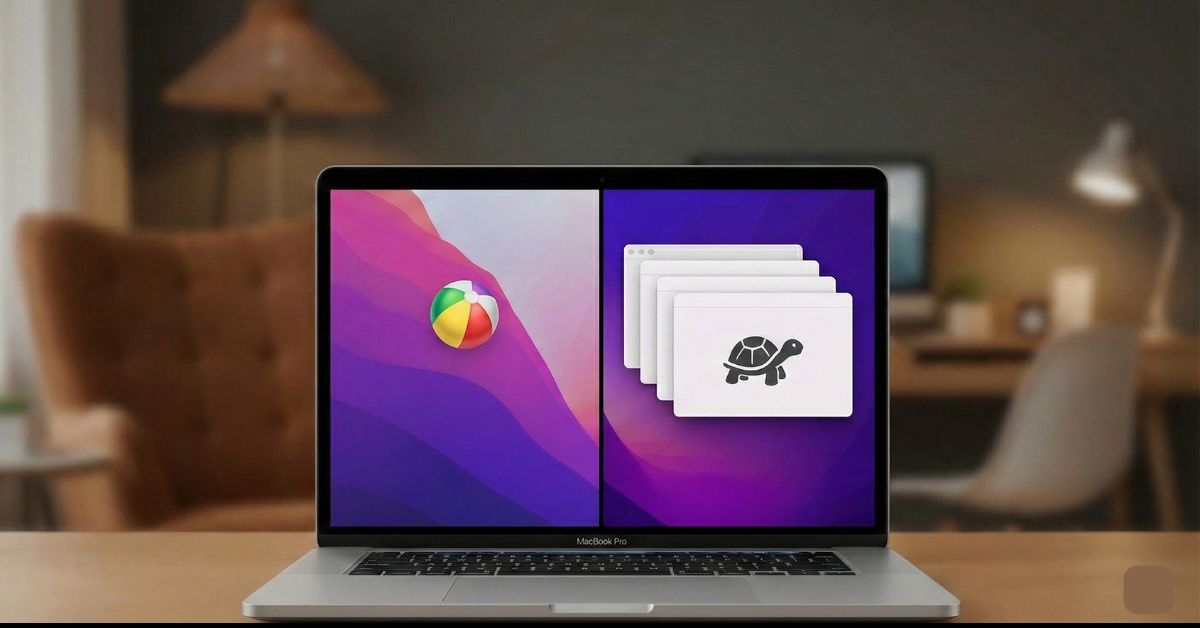
Apple Macs are known for their performance and efficiency, but when a system starts feeling slow or apps take longer to open, high memory usage is often the cause. While macOS manages RAM automatically, long-running sessions, resource-intensive applications, and dozens of browser tabs can still push the system beyond its comfort zone. In such cases, clearing RAM safely can help restore the smooth performance you are accustomed to.
This post explains how to clear RAM on a Mac and monitor memory usage correctly, while avoiding common mistakes that can make things worse.
How RAM Works on a Mac
Unlike other operating systems, macOS considers free RAM as wasted memory. This is why it fills the free memory with cached data so apps open faster and system processes run smoothly. When another app needs memory, macOS automatically reallocates it by compressing memory or moving inactive data to storage.
Because of this memory management, you don’t have to worry about low free RAM, as it’s not a problem on its own. What you actually need to look out for is memory pressure, which shows how hard your Mac is working to keep everything running.
Common Signs You Need to Clear RAM on a Mac
You may need to clear RAM if you notice:
- Apps take longer to open or respond.
- Frequent spinning beach balls.
- Sudden app freezes or crashes.
- System slowdowns during simple tasks.
- Fans running loudly without heavy workloads.
How to Check RAM Usage on a Mac Before Clearing It
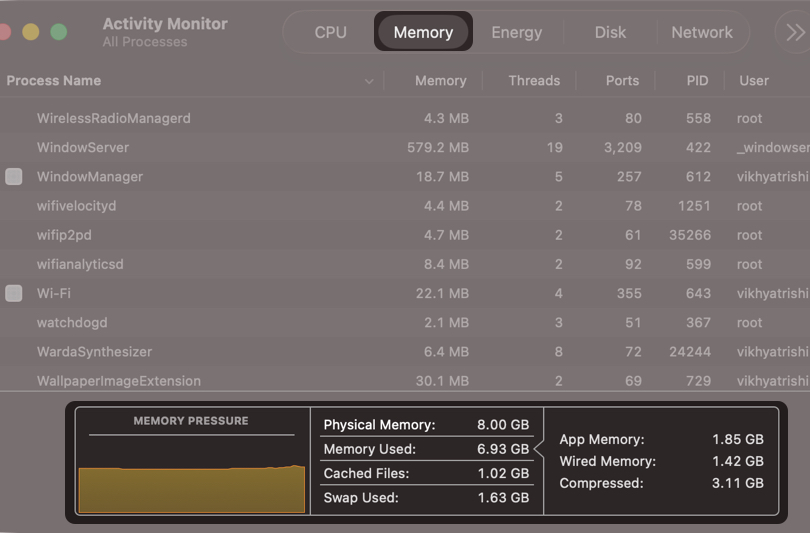
Before you restart your Mac or force quit apps to free up RAM, you must open Activity Monitor to see what’s actually using up memory. Here’s how you can:
- Open the Activity Monitor on your Mac.
- Here, click the Memory tab.
- Now, check out the Memory Pressure graph at the bottom:
- Green means your Mac is handling memory well
- Yellow means memory usage is getting high
- Red means your Mac is struggling, and performance will suffer
- If memory pressure is yellow or red, clearing RAM can help immediately.
Quick Ways to Clear RAM on a Mac Without Extra Tools
If your Mac starts slowing down, these simple built-in methods let you free up RAM quickly.
1. Force-Quit Apps to Instantly Free RAM on a Mac
Now that you know whether you need to clear RAM on your Mac, you can close the apps that are consuming excessive RAM to restore smooth performance. Here’s how:
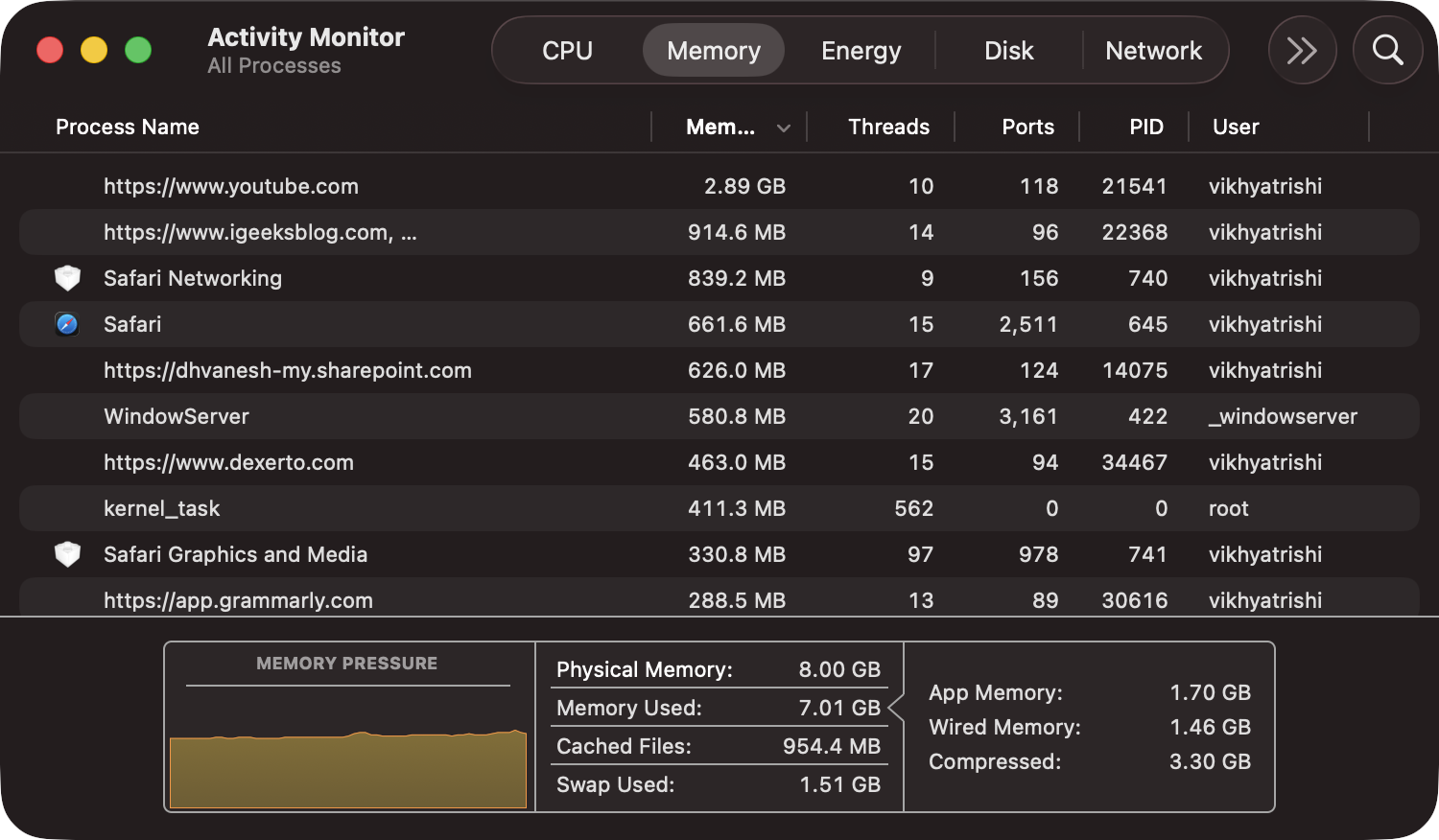
- In the Activity Monitor window, check out which apps are using the most memory.
- Double-click the process name.
- Click the Quit button on the pop-up window.
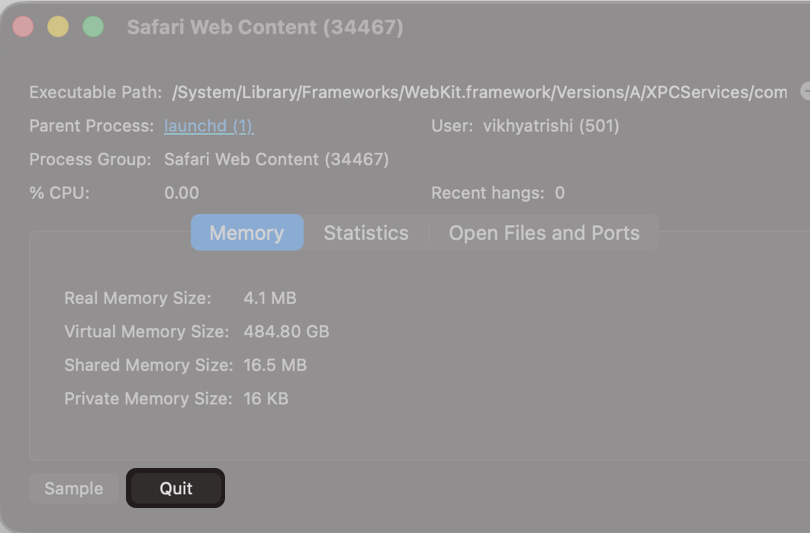
- Click the Force Quit button on the confirmation prompt.

2. Restart Your Mac to Completely Clear RAM
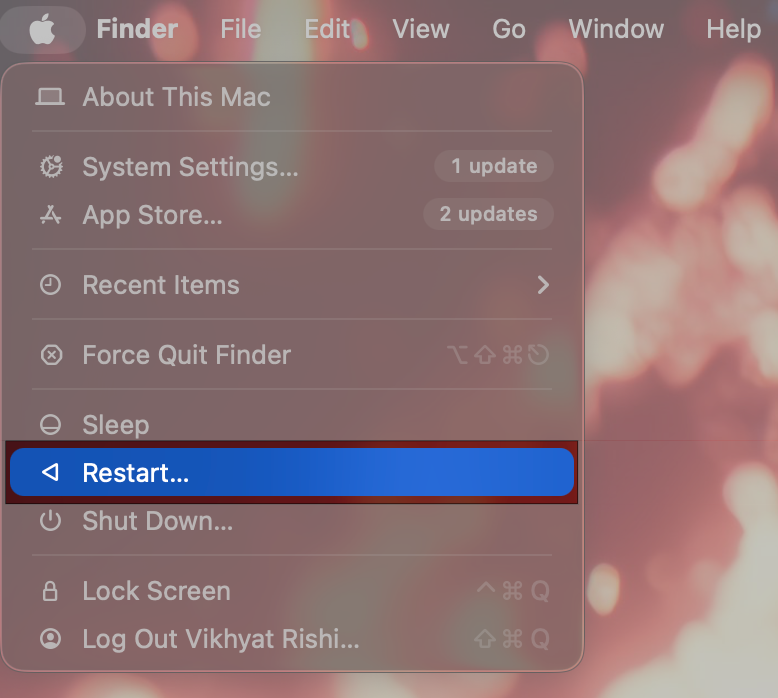
If your Mac’s performance feels sluggish even after clearing RAM in Activity Monitor, you can try restarting it. Restarting clears all active memory and stops background processes that have built up over time.
- Click the Apple icon in the top menu bar.
- Click Restart in the drop-down menu.
3. Reduce Browser Memory Usage to Clear RAM
Web browsers are among the biggest RAM consumers on macOS, especially when many tabs are open. Each tab runs its own process and can quietly consume significant memory. Therefore, you must:
- Close unused tabs.
- Remove unnecessary extensions.
- Restart the browser occasionally.
Advanced Methods to Clear RAM on a Mac for Power Users
These advanced techniques are best suited to experienced users who want greater control over memory behaviour when standard fixes are insufficient.
1. Use Terminal to Purge Inactive Memory on Your Mac
While cached memory helps apps launch faster and improves overall responsiveness, clearing it can temporarily free up RAM in certain situations. Here’s how:
- Open Terminal.
- Enter the macOS Terminal command: sudo purge
- Press Return and enter your administrator password if asked.
This forces the system to rebuild caches as needed. However, remember to use this method only for troubleshooting or performance testing, such as checking how an app behaves under low-memory conditions. It is not recommended as a routine maintenance step, as macOS will naturally replenish this memory as you continue using your Mac.
2. Disable Heavy Login Items and Background Apps
Restarting your Mac won’t help if multiple apps are set to launch automatically and keep running in the background. These apps start consuming RAM the moment you sign in, reducing available memory before you even open your primary work tools.
Common examples include cloud storage clients, messaging apps, menu bar utilities, auto-updaters, and third-party system monitors. While each app may use a small amount of RAM individually, together they can create constant memory pressure throughout the day.
Here’s how you can review and disable unnecessary login items:
- Open the Settings app and select General in the sidebar.
- Here, click Login Items & Extensions on the right.
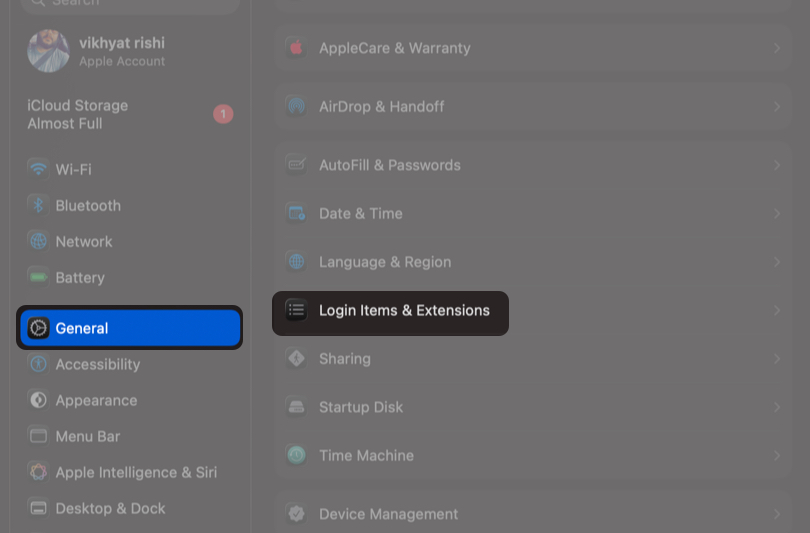
- Now, under the Open at Login section, remove apps you do not need running all the time.
- In the Allow in the Background section, turn off apps that do not require continuous background access.
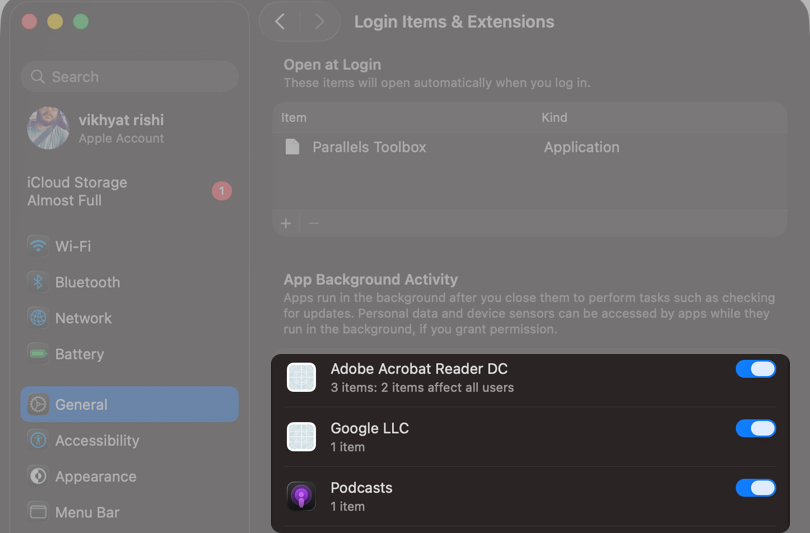
Disabling these items lowers baseline RAM usage, speeds up startup time, and prevents memory from filling up immediately after a restart.
Should You Use Third-Party Apps to Clear RAM on a Mac?
Using a third-party RAM cleaner app forces macOS to clear memory that it intentionally uses for caching. This can slow your Mac down rather than speed it up.
Since macOS memory management is already optimised, manual cleaning tools won’t do much good.
- Quick visual overview of memory usage
- One-click app termination
- Force macOS to clear useful cached memory
- Can experience slow performance after cleaning
- Often unnecessary and sometimes misleading
Best Practices to Avoid RAM Issues on a Mac Long Term
Adopting the following consistent habits can significantly reduce long-term RAM issues and keep your Mac running smoothly during daily use:
- Use native macOS apps where possible.
- Avoid running multiple heavy apps simultaneously.
- Prefer optimised Apple silicon apps on newer Macs.
- Restart your Mac every few days.
- Close apps you are not actively using.
- Limit browser tabs and extensions.
Clearing RAM on a Mac is Not Enough? It May Be Time to Upgrade
If the memory pressure graph stays red even after closing apps and restarting, the issue is likely hardware-related. This usually means your everyday workload exceeds the RAM available on your Mac.
In such cases, upgrading becomes the practical solution. Intel-based Macs may support RAM upgrades, depending on the model. Apple silicon Macs use unified memory, which cannot be upgraded later, making it important to choose a higher memory configuration when purchasing a new Mac.
Summing Up…
And that’s it; this is how you clear RAM on a Mac. Remember, while closing resource-intensive apps, checking memory pressure, and restarting when needed can resolve most performance slowdowns, long-term stability comes from efficient workflows and regular system maintenance.
Have these tips improved your Mac’s performance, or do you still experience RAM-related slowdowns? Share your experience or questions in the comments below.
Frequently Asked Questions

Written by
VikhyatVikhyat has a bachelor's degree in Electronic and Communication Engineering and over five years of writing experience. His passion for technology and Apple products led him to the tech writing space, where he specializes in writing App features, How-to guides, and troubleshooting guides for fellow Apple users. When not typing away on his MacBook Pro, he loves exploring the real world.
View all posts →More from How-to

Snapchat Parental Controls: How to Set Up Family Center and Keep Your Teen Safe
Snapchat’s Family Center lets parents monitor their teen’s friend activity and screen time without reading private messages. Here’s how to set it up and what to expect.
VikhyatMarch 3, 2026
How to Block and Unblock Someone on Instagram
Instagram lets you block or unblock someone in seconds. Follow these simple steps to take full control of your privacy and online peace.
 Ava BiswasMarch 2, 2026
Apple Watch Not Responding? 8 Fixes That Actually Work
Is your Apple Watch unresponsive or stuck on a black screen? Here are 8 proven fixes to help you unfreeze it and get it working again quickly.
VikhyatMarch 3, 2026