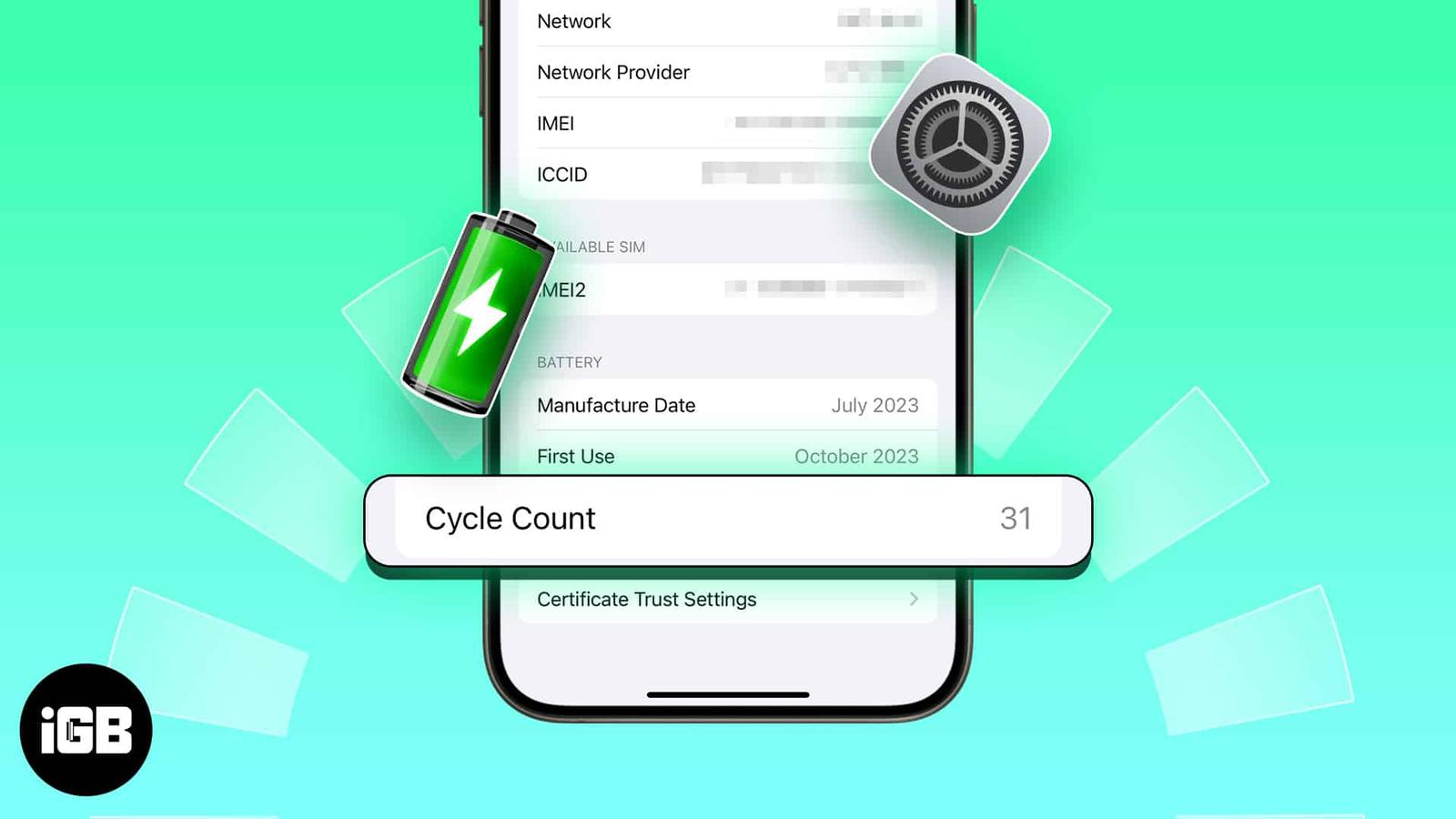
Your iPhone’s cycle count tracks how much of its battery capacity you have used. On iPhone 15 or later, you can find it in Settings. iPhone 14 and earlier show battery health there, but not the cycle count.
The number is one clue about battery wear, not a replacement deadline. Check maximum capacity, service alerts, and how long your iPhone lasts between charges too.
What is the battery cycle count in an iPhone?
A cycle adds up to 100% of the battery’s capacity used, even across several partial charges. Use 50% today, recharge, then use another 50% later, and that adds up to one cycle.
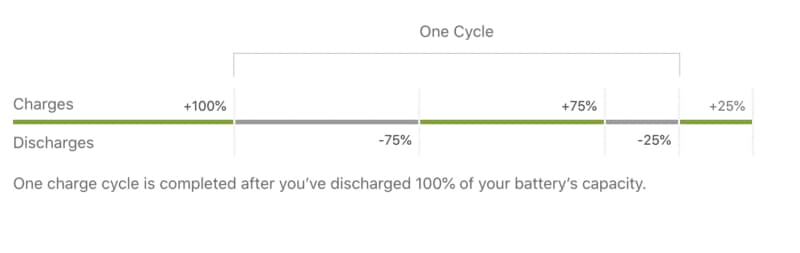
A cycle count rises with use, not each time you plug in your iPhone.
Why check your iPhone’s battery cycle count?
Apple rates iPhone batteries to retain up to 80% of original capacity after a set number of full cycles under ideal conditions. That number differs by model, but it is not a deadline for replacing the battery:
- iPhone 14 and earlier: Designed to retain up to 80% capacity after 500 complete cycles under ideal conditions.
- iPhone 15 and later: Designed to retain up to 80% capacity after 1000 complete cycles under ideal conditions.
Cycle count is most useful when you are comparing a used iPhone or investigating shorter battery life. A high number alone does not tell you whether the battery needs service.
How to check battery cycle count on iPhone 15 and later
On iPhone 15 or later with iOS 17.4 or later, the cycle count is in Battery Health:
- Open Settings.
- Tap Battery.
- Tap Battery Health.
- Read Cycle Count. The same screen also shows maximum capacity, manufacture date, and first use.
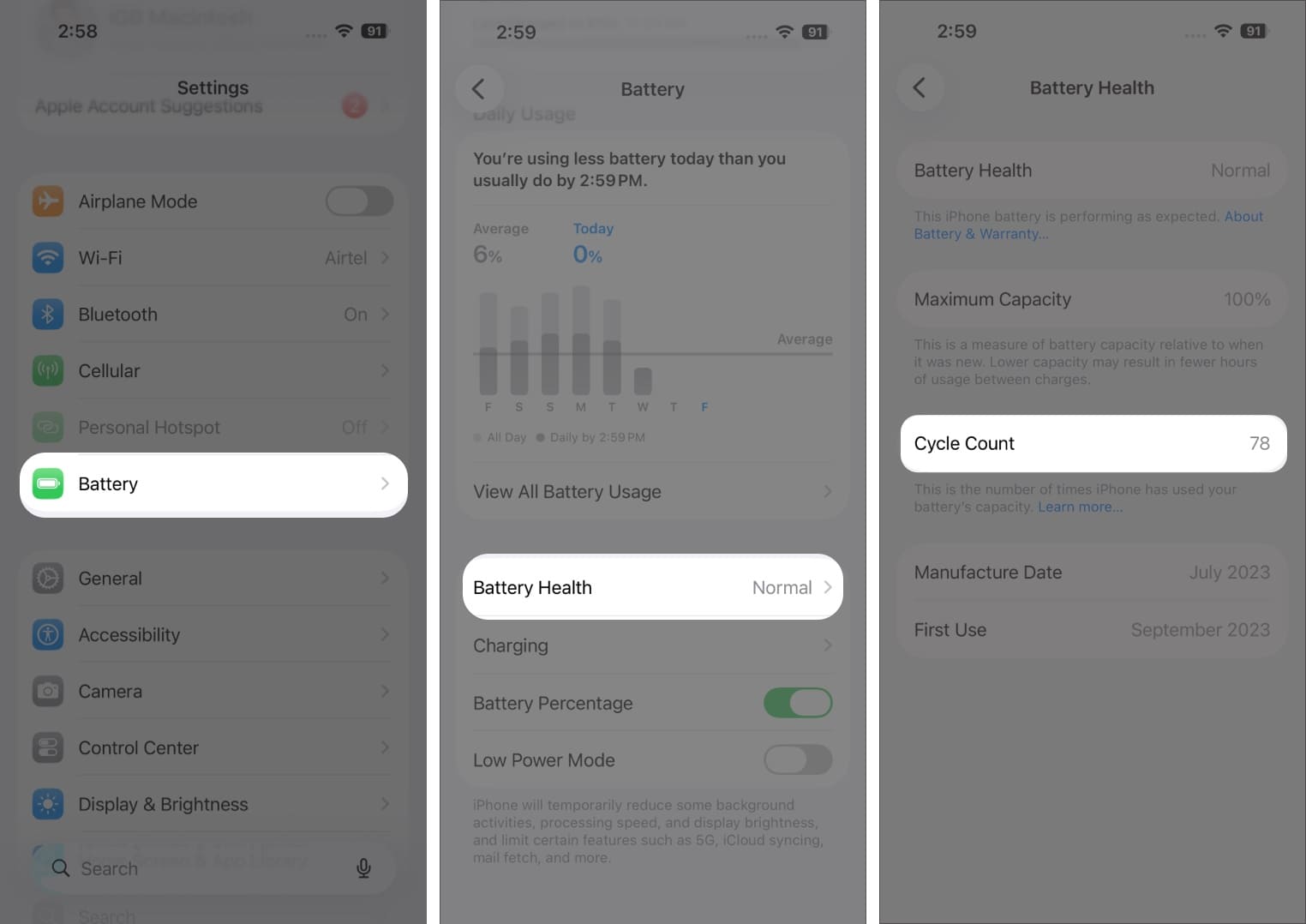
If Cycle Count is missing, check that your iPhone is a 15 or later model and is running iOS 17.4 or later. iPhone 14 and earlier do not show it in Settings.
How to check battery cycle count on iPhone 14 and later
On iPhone 14 and earlier, Settings shows Battery Health & Charging and Maximum Capacity, but not Cycle Count. You can try the analytics methods below; they work only when the log contains the cycle-count field. For a more direct option, connect the phone to a Mac or PC and use iMazing.
Method 1: Using the PowerUtil shortcut
- Download the PowerUtil shortcut and tap Add Shortcut.
- Open Settings > Privacy & Security > Analytics & Improvements.

- Tap Analytics Data and open the latest log.
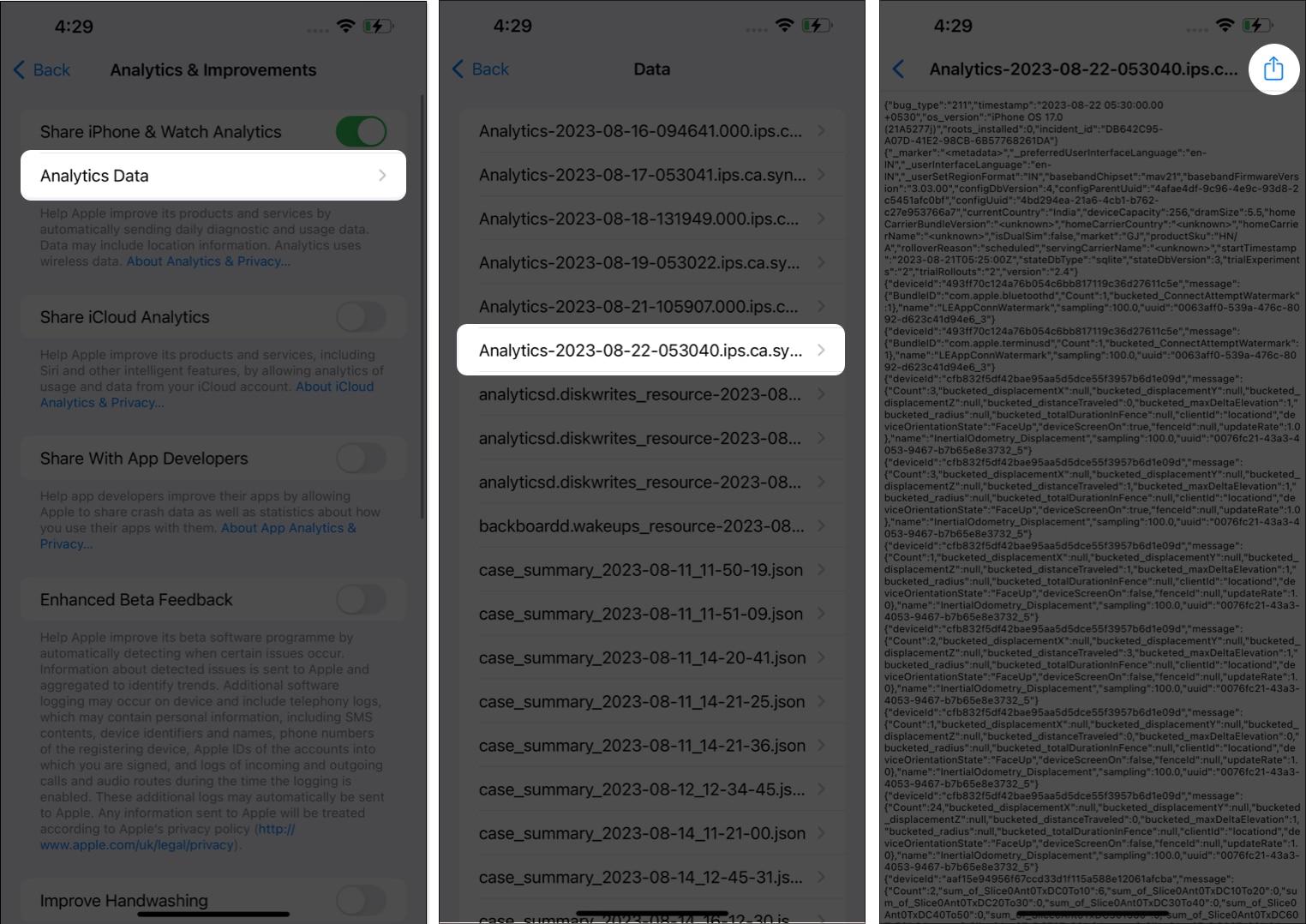
- Tap Share, then choose PowerUtil.
- Review the shortcut’s requested access before allowing it.

- Look for the cycle-count value. If it is missing, try the manual search below or use a computer tool.
Tip:
Only run shortcuts you trust, and review their requested access before continuing.
Method 2: manually checking analytics data
To search the log yourself, copy its text into Notes and look for the cycle-count field:
- Open Settings > Privacy & Security > Analytics & Improvements.
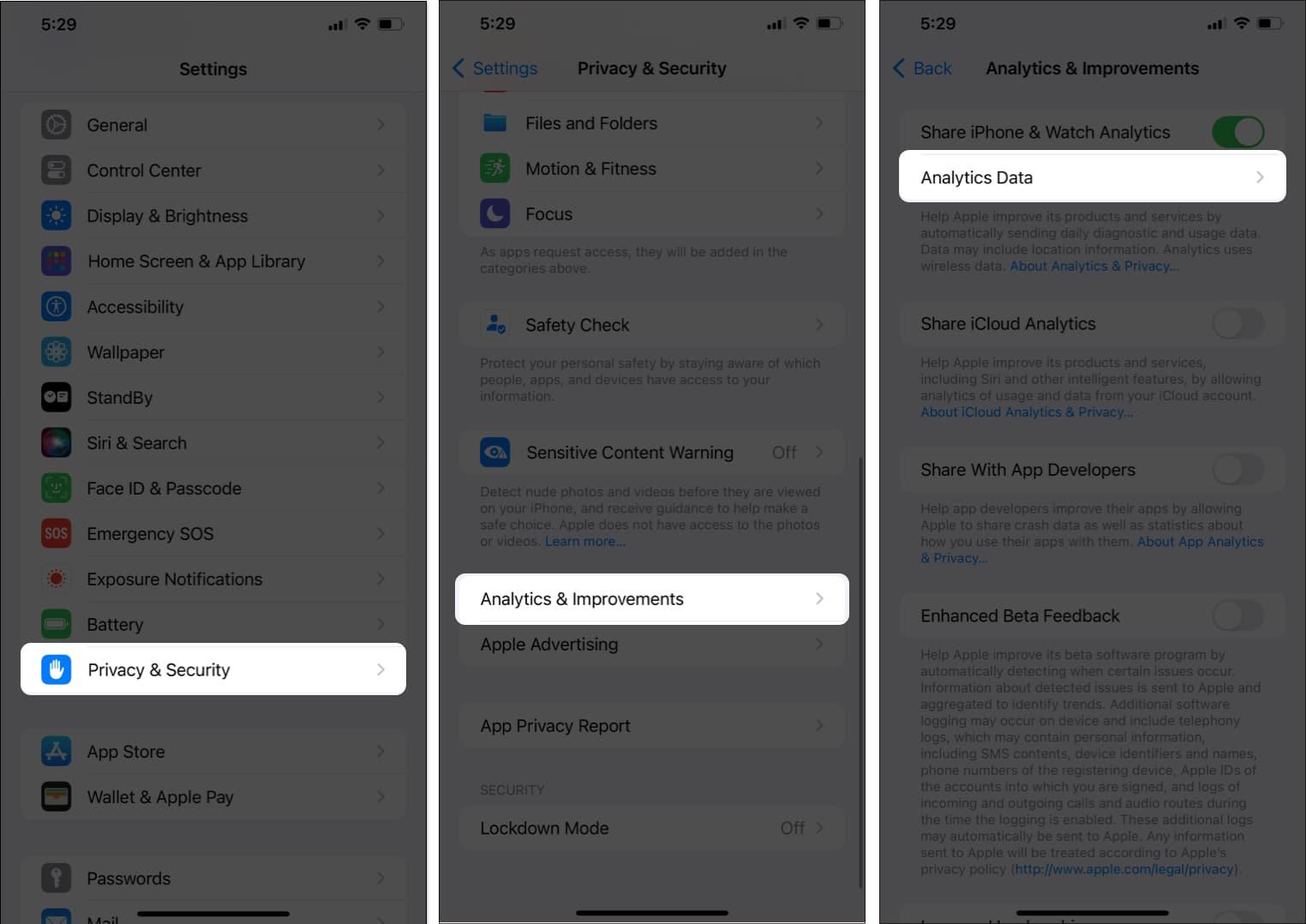
- Tap Analytics Data and open the latest log.
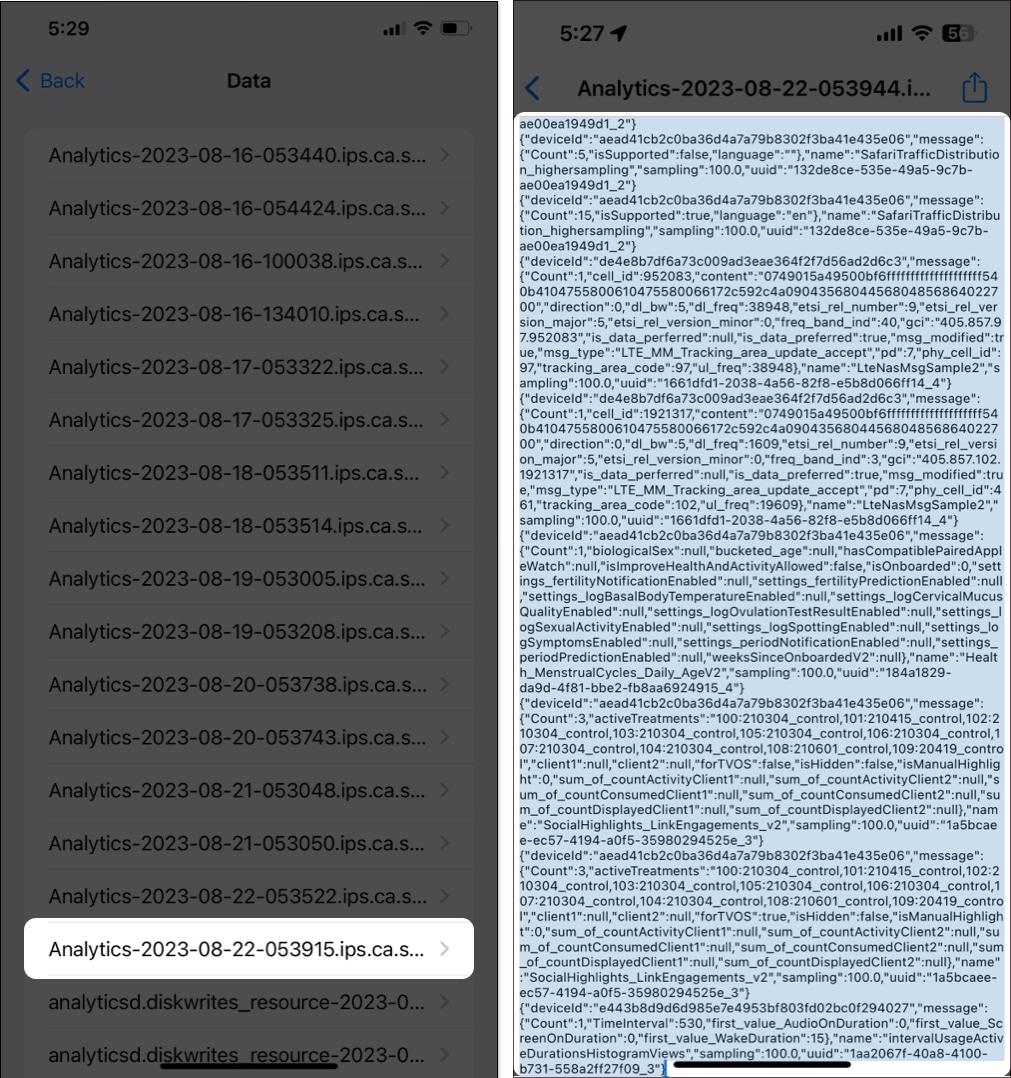
- Tap Share, copy the data, and paste it into Notes.
- In Notes, use Find in Note to search for
last_value_CycleCount.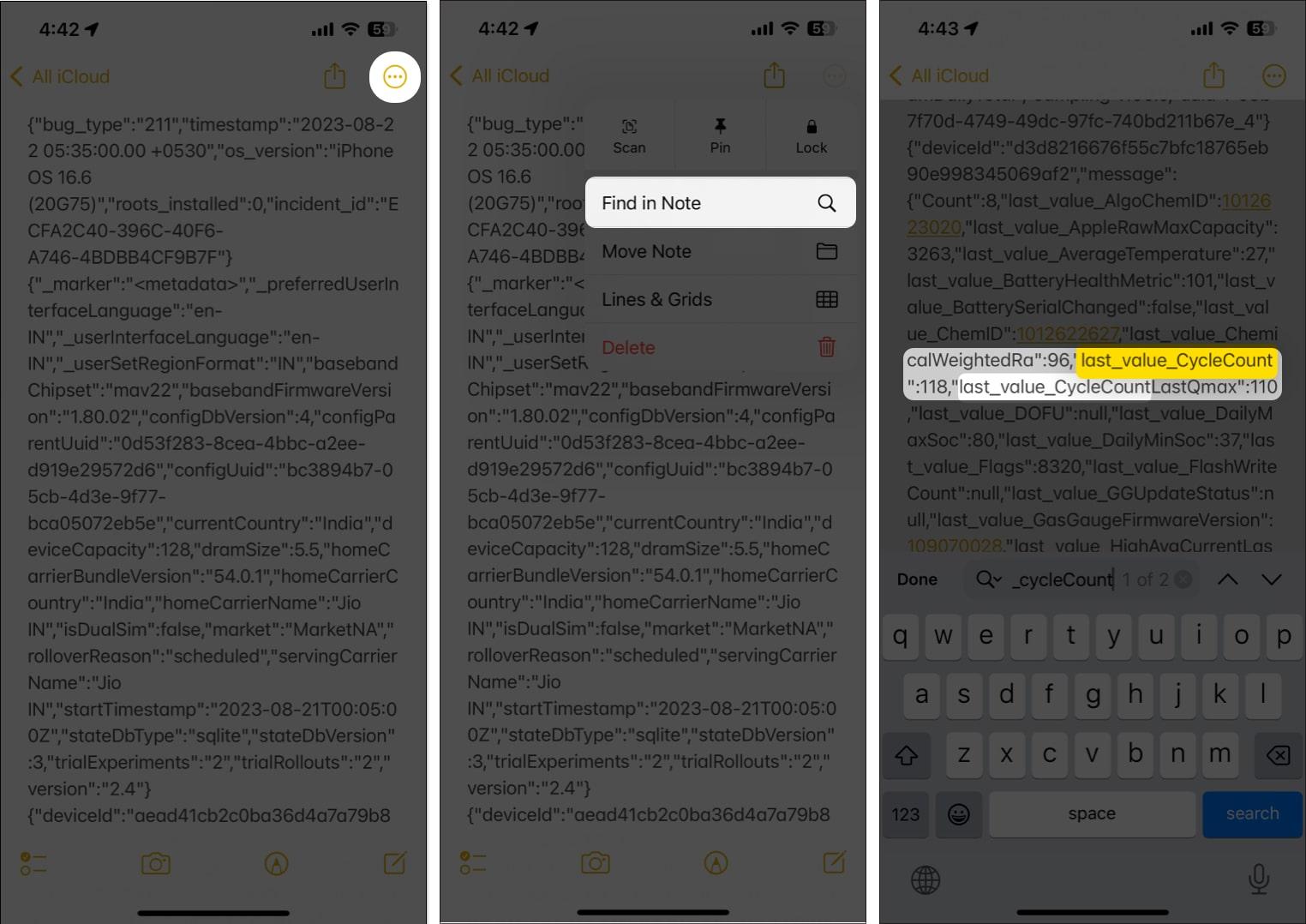
- If the field appears, the number beside it is the cycle count. If it is missing, that log cannot provide the number.
Using third-party apps to check battery cycle count
For an older iPhone, iMazing can show charge cycles from a connected Mac or Windows computer. Connect your iPhone, select it in iMazing, open Overview > Battery Health > Details, then look for Charge Cycles. This is a desktop option; iPhone 15 and later show the count in Settings.
Video: how to check iPhone 15 battery cycle count
When should you replace your iPhone battery?
A high cycle count by itself is not a reason to replace a battery. Look for these signs instead:
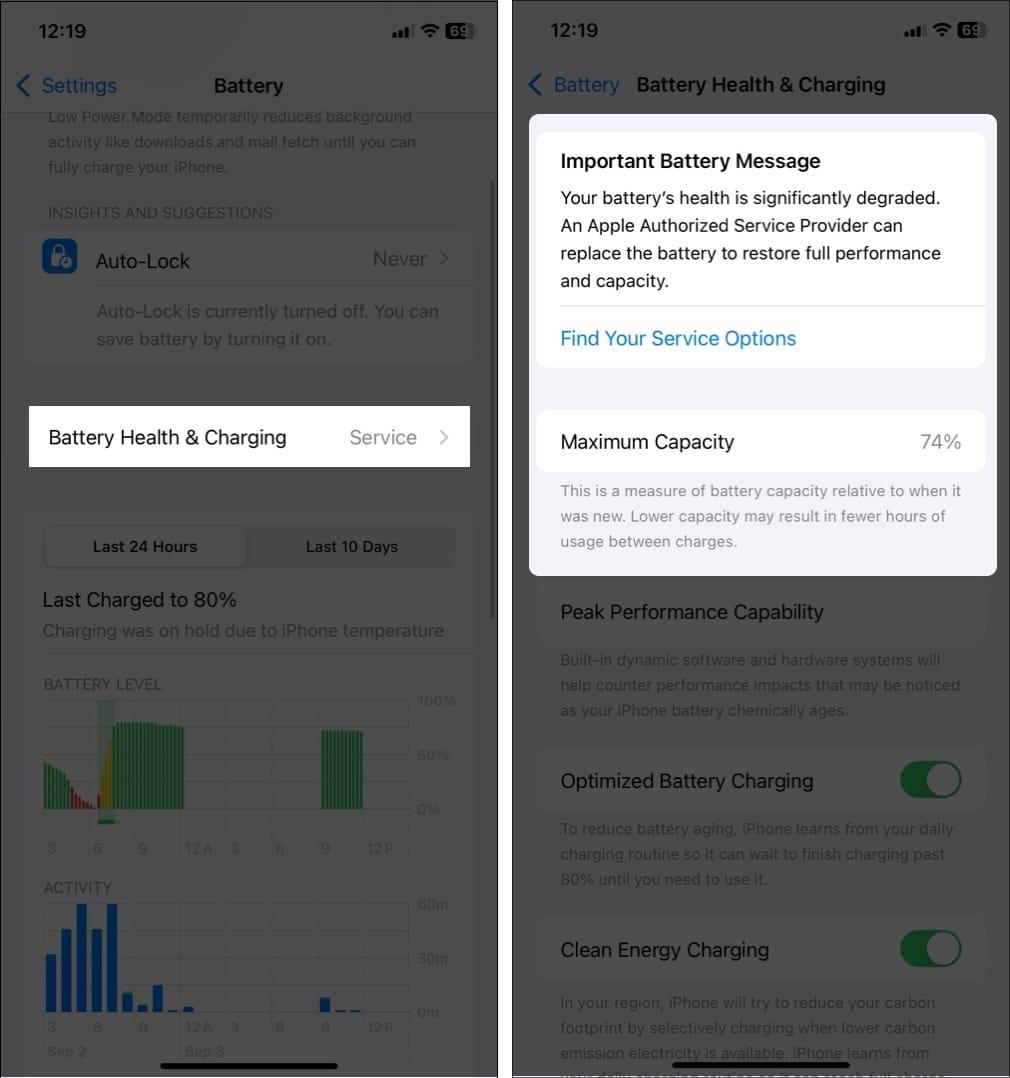
- Service warning: Settings says service is recommended, or maximum capacity has fallen enough to affect your day.
- Short runtime: You need to charge more often even though your routine has not changed.
- Unexpected shutdowns: Your iPhone turns off before the battery reaches zero.
- Slower performance: iOS may limit peak performance if an aged battery cannot deliver enough power.
Tips to help your iPhone’s battery last longer
Heat wears a battery faster, so keep your iPhone out of hot cars and direct sun while charging. On iPhone 15 or later, open Settings > Battery > Charging to set a Charge Limit. On iPhone 14 or earlier, leave Optimised Battery Charging on under Settings > Battery > Battery Health & Charging.
Keep an eye on your iPhone’s battery health
Cycle count is easy to find on iPhone 15 and later. On older models, check Battery Health & Charging first; use the analytics log or a connected computer only if you need the exact count. If Settings shows a service warning or your phone no longer lasts through the day, have the battery checked.
Read more: