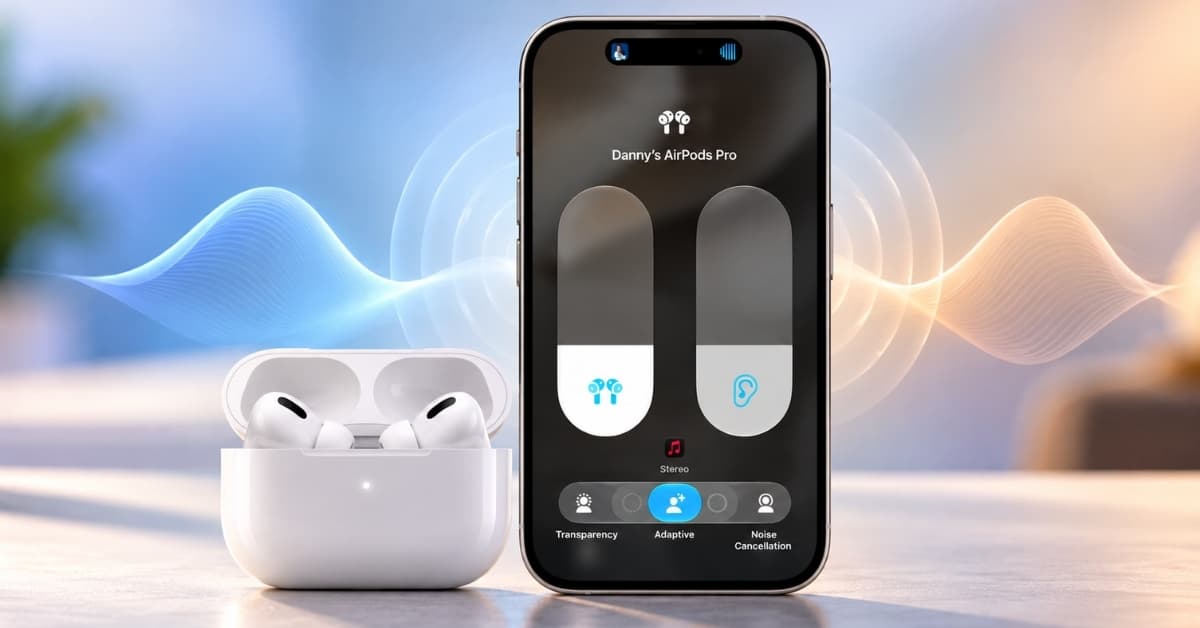
There are hundreds of TWS earbuds out there on the market, but what makes AirPods Pro and AirPods Max stand out from the crowd the most is Active Noise Cancellation. With the snug-fit profile, AirPods provide an excellent shield from outside noise, and you can continue listening to your favorite tracks or indulge in hands-free calling.
In addition, Apple has implemented a super useful feature called Transparency mode. As the name suggests, it allows some external noises to pass through. It helps you pay attention while using your AirPods Pro, AirPods Max, or AirPods 5 and listening to the music you love.
While it was already there, making life super convenient, Apple introduced yet another trailblazing feature to take AirPods Pro 2 to the next level. This feature is named Adaptive Transparency mode. Read on to learn more about Transparency and Adaptive Transparency modes.
How does Transparency mode work on AirPods Pro and Max?
Transparency mode uses the AirPods’ microphones and audio processing to let surrounding sounds through while you listen. The stem control switches modes on AirPods Pro and AirPods 5; it does not create the effect itself.
How to turn on or off Transparency mode
You can switch to Transparency mode from your AirPods Pro, AirPods 5, or AirPods Max or use the connected iPhone, iPad, Apple Watch, or Mac. A chime will confirm that Transparency mode is enabled or disabled on your AirPods.
- On your AirPods Pro or AirPods 5: Press and hold the stem until you hear a chime.
- On your AirPods Max: Press the noise control button.
How to use Transparency mode on iPhone and iPad
You can also switch between listening modes from Control Center on a compatible iPhone or iPad while your AirPods are connected.
- Open Control Center.
- Touch and hold the volume slider.
- Tap Listening Mode and choose Transparency.
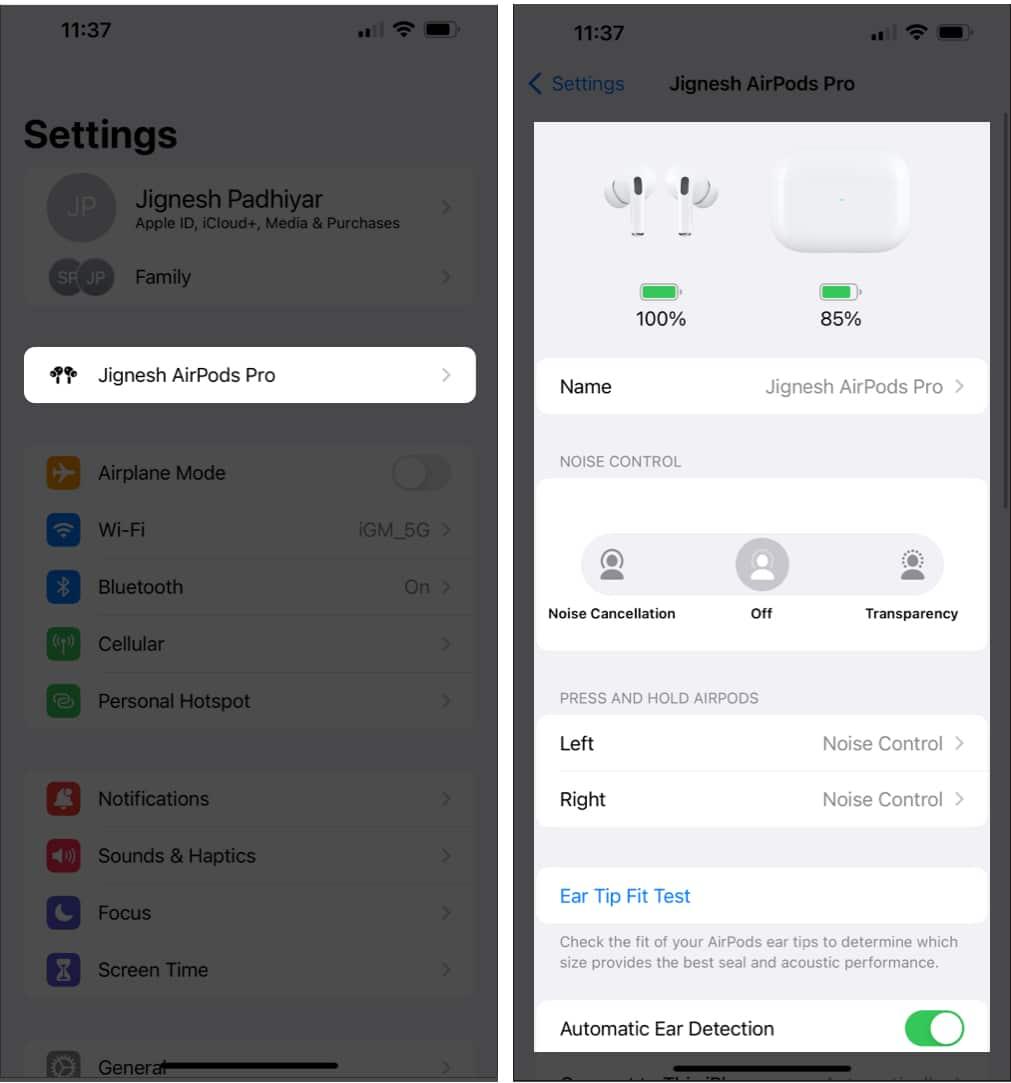
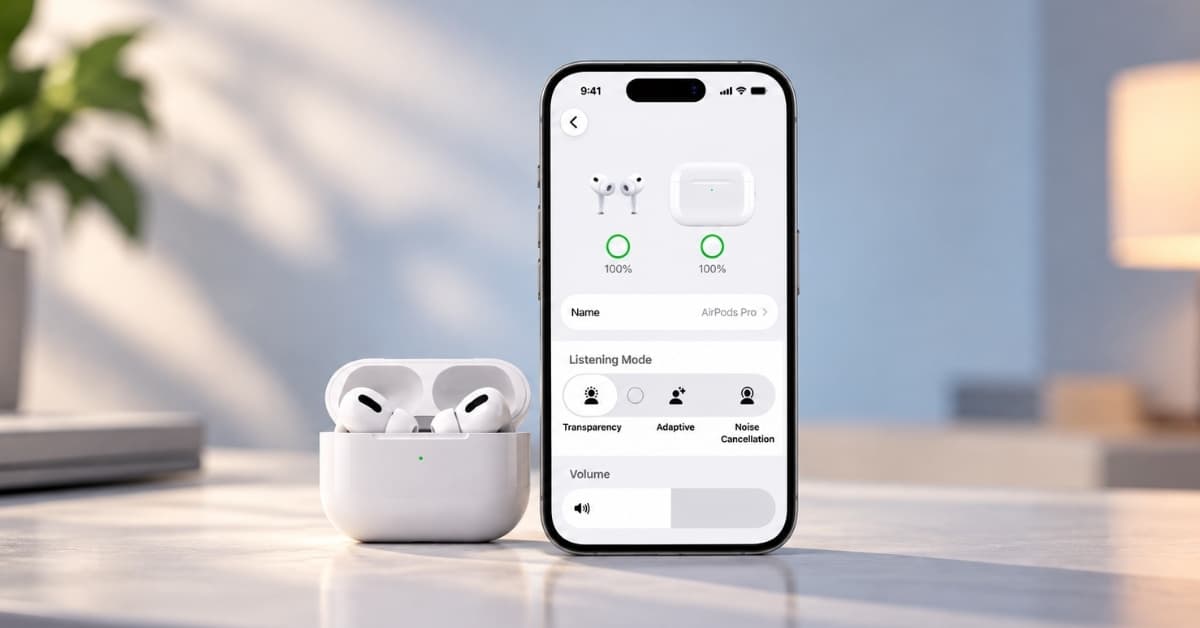
You can also open Settings, tap your connected AirPods near the top, and choose Transparency under Listening Mode.
Also check out: How to change AirPods settings on iPhone or iPad
What is Adaptive Transparency on AirPods Pro 2
AirPods Pro 2 introduced Adaptive Transparency, which reduces the intensity of loud environmental sounds while leaving other sounds audible.
Its H2 chip adjusts Transparency when sudden loud sounds occur, such as traffic noise. Keep using appropriate hearing protection in very loud places.
Adaptive Transparency is separate from Adaptive Audio, which blends noise cancellation and Transparency as your surroundings change. AirPods 5 supports Adaptive Audio.
Fine-tune ANC and Transparency mode from iPhone
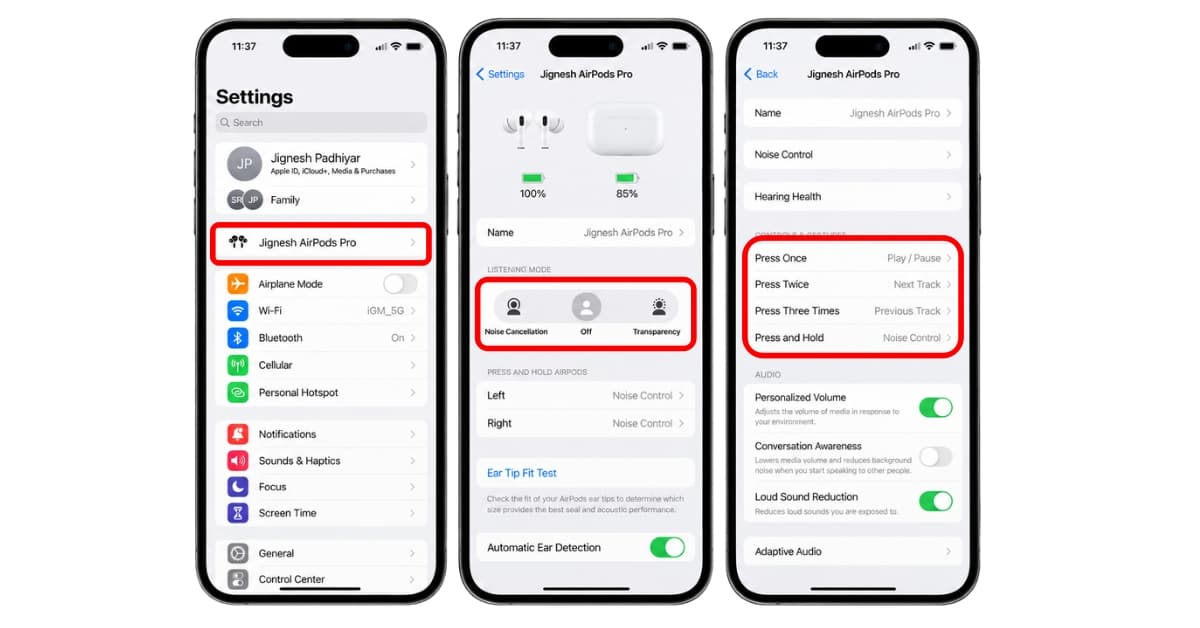
It’s worth reiterating that you will be able to access the options as mentioned above from the Settings app as well.
- Connect your AirPods and open Settings.
- Tap your AirPods name near the top.
- Choose a mode under Listening Mode.
- To change what a stem press does, open Controls & Gestures → Press and Hold.
Tip:
There is a slightly hidden setting through which you can use noise cancellation when using only one AirPods Pro. Besides, you also have the option to fine-tune the press speed and hold duration required to activate the Force Sensors. To get it done, launch Settings → Accessibility → AirPods. Now, turn on the switch next to Noise Cancellation with One AirPod.
How to control ANC and Transparency mode settings from Apple Watch
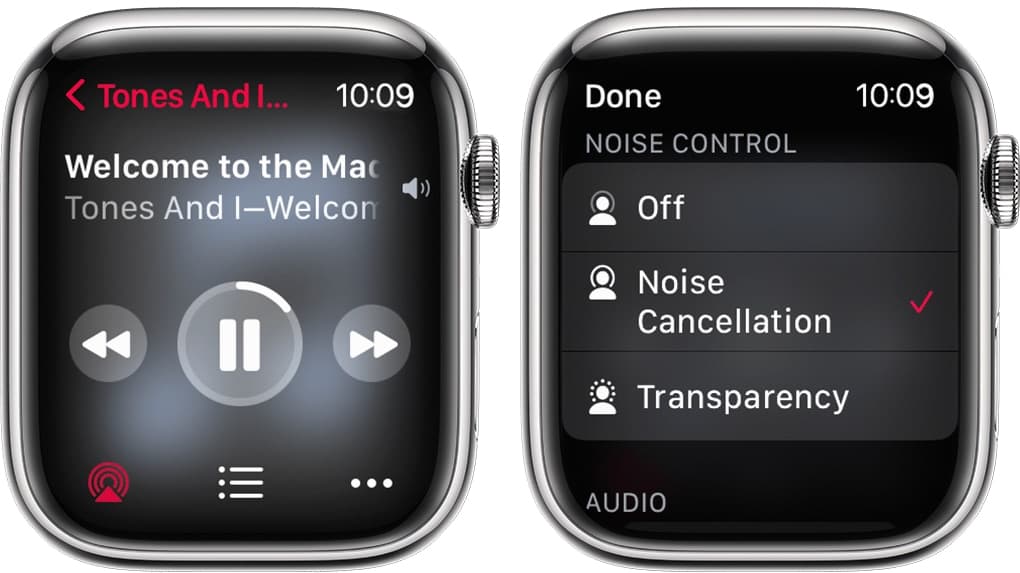
You can also take control of ANC and Transparency mode from your Apple Watch. To do so:
- Tap on the AirPlay icon while the music is playing.
- Then choose the desired option.
- Noise Cancellation,
- Transparency, or
- Off.
That concludes the talk!
Wrapping up…
Transparency is handy when you need to hear someone without removing your AirPods. If you want the sound to adjust as your surroundings change, try Adaptive Audio on a supported model.
You might also like