
How to change Live Photos to still photos on Mac
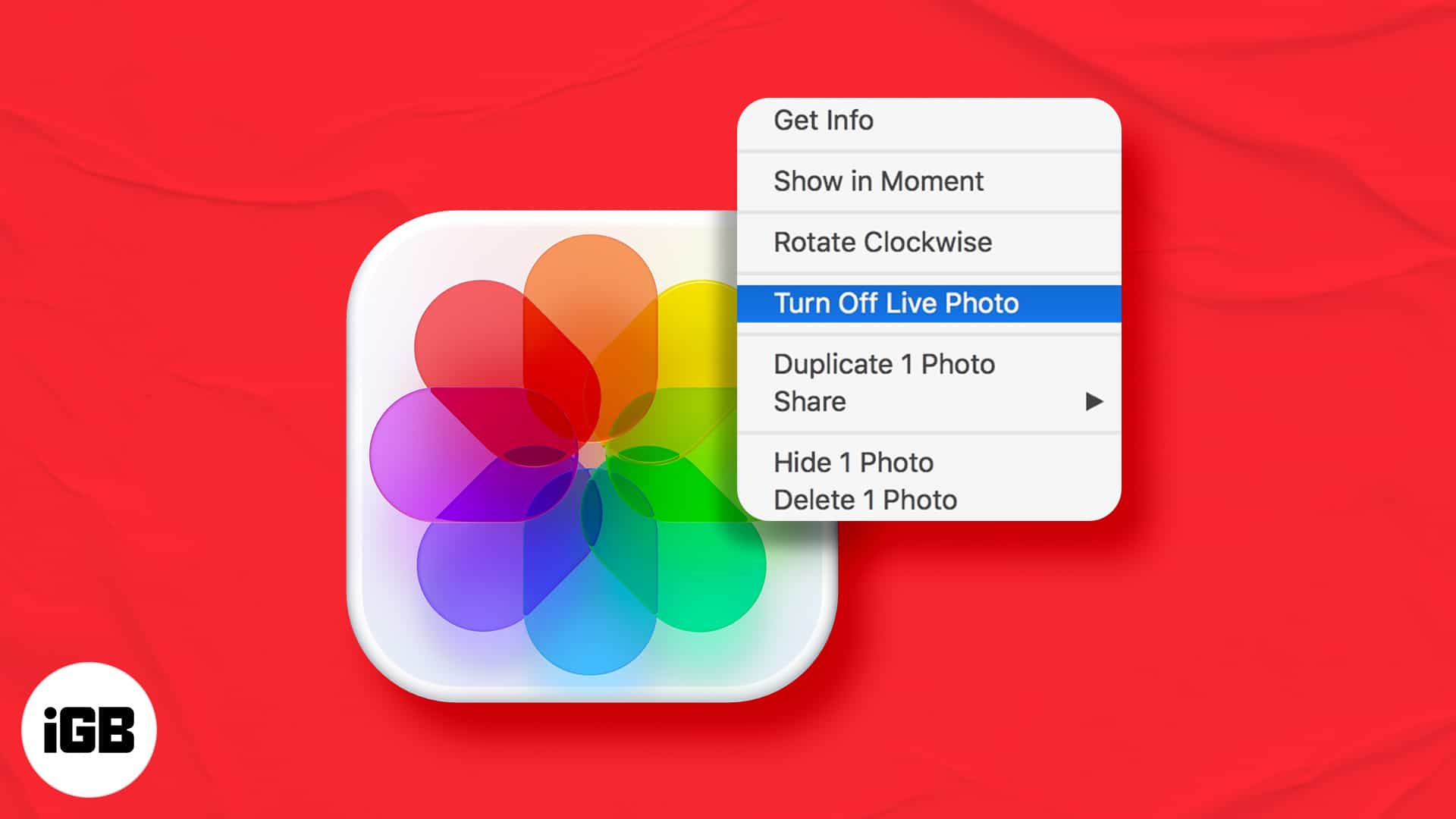
iPhone 6s and later let you shoot Live Photos that are basically 3-second videos or moving images. You can convert a Live Photo to a video or GIF, but what if you want a normal image? Well, it is easy. You may do it on your iPhone, or if you have transferred the photo to Mac, you can do the same on it. In this brief post, I will show you how to change a live photo to still on Mac.
How to convert Live Photo to still photo on Mac
- Open the Photos app on your Mac.
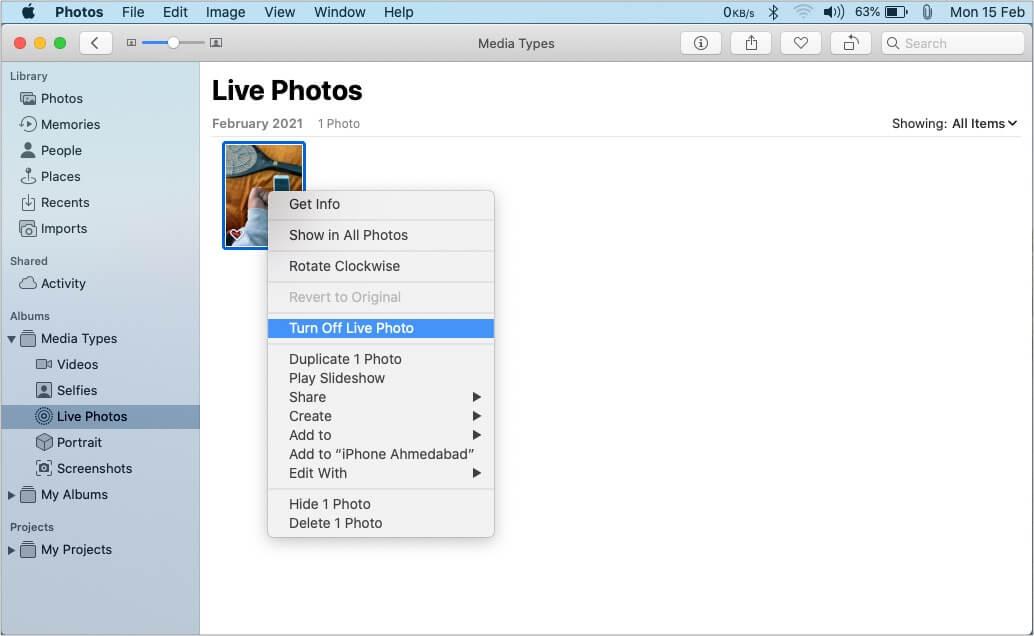
- From the left sidebar, click the arrow for Media Types and choose Live Photos.
- Select a Live Photo. Press the command key to select multiple Live Photos.
- Right-click and choose Turn Off Live Photo.
How to reverse it and turn still photos into Live Photos on Mac
If you change your mind, it is pretty effortless to reconvert the still image into a Live Photo. For this, follow the same steps as above and right-click the image. Finally, choose Turn On Live Photo.
Tip:
If you want both the Live Photo and still version of an image, right-click and choose Duplicate 1 Photo. Now, you can follow the steps mentioned above to convert one copy to a normal image and leave another as it is (that is, Live Photo)
Happy with a still image!
I hope the above guide helped you change a Live Photo into a regular, non-moving image. If you have any further questions, please put them in the comments below.
In case you do not like Live Photos at all, you can effortlessly turn it off in the iPhone Camera app by tapping the tiny three-line circle icon at the top right (on iPhone with Face ID) or middle (on iPhone with Home button).
Final Tip: You can also open the Live Photo on your iPhone. Tap the share icon, tap Duplicate, and choose Duplicate as Still Photo. Now, you may transfer this still image from the iPhone to your Mac.
Some more helpful posts related to Live Photos:

Written by
Ankur ThakurI have been an Apple user for over seven years now. At iGeeksBlog, I love creating how-tos and troubleshooting guides that help people do more with their iPhone, iPad, Mac, AirPods, and Apple Watch. In my free time, I like to watch stand up comedy videos, tech documentaries, news debates, and political speeches.
View all posts →More from How-to

How to Turn Off Location on Snapchat (Step-by-Step Guide)
Want to stop sharing your location on Snapchat? This guide explains how Snapchat location sharing works and shows simple ways to turn off your location using Ghost Mode or phone settings. Stay in control of your privacy in just a few steps.
 VikhyatMarch 5, 2026
Snapchat Parental Controls: How to Set Up Family Center and Keep Your Teen Safe
Snapchat’s Family Center lets parents monitor their teen’s friend activity and screen time without reading private messages. Here’s how to set it up and what to expect.
VikhyatMarch 3, 2026
How to Block and Unblock Someone on Instagram
Instagram lets you block or unblock someone in seconds. Follow these simple steps to take full control of your privacy and online peace.
 Ava BiswasMarch 2, 2026