
Change file download location on Chrome and Firefox on Mac
I have been a Mac user for quite some time. There are three web browsers such as Safari, Google Chrome and Mozilla Firefox which I use the most on my Mac. While Safari is easily the top-notch choice for me, Chrome and Firefox are highly impressive as well.
I download a number of files regularly. By default, all the downloaded files are saved in the Download folders. But, what if you want to save any file to a specific location? You can easily change the download location on Mac.
We have already made a post on how to change Safari’s download location on Mac. And now, we are all set to walk you through the steps to change the download location in Chrome and Firefox. Let’s sail through!
How to change Chrome download location on Mac
- Launch Google Chrome on your Mac.
- On the menu bar, click Chrome → Settings.
This will open Settings on your Google Chrome window.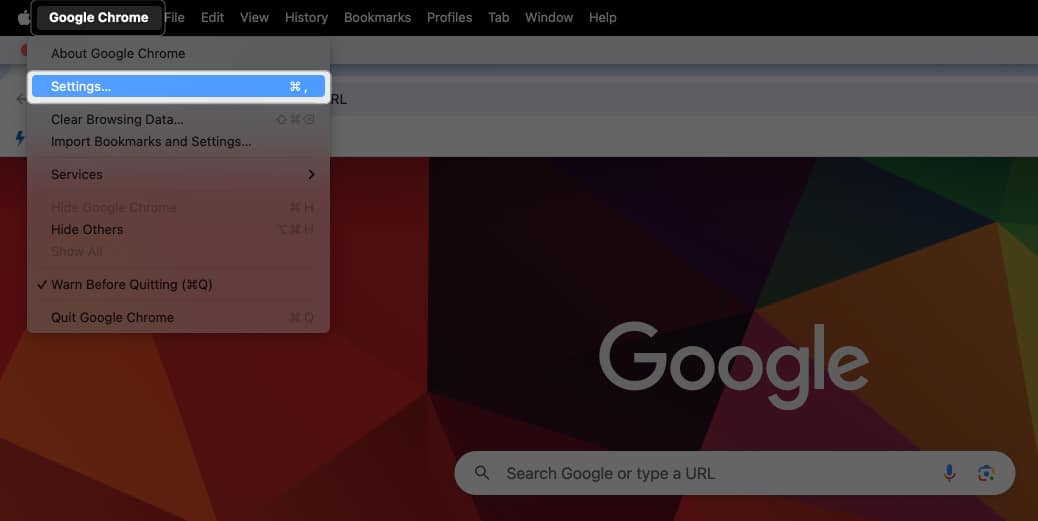
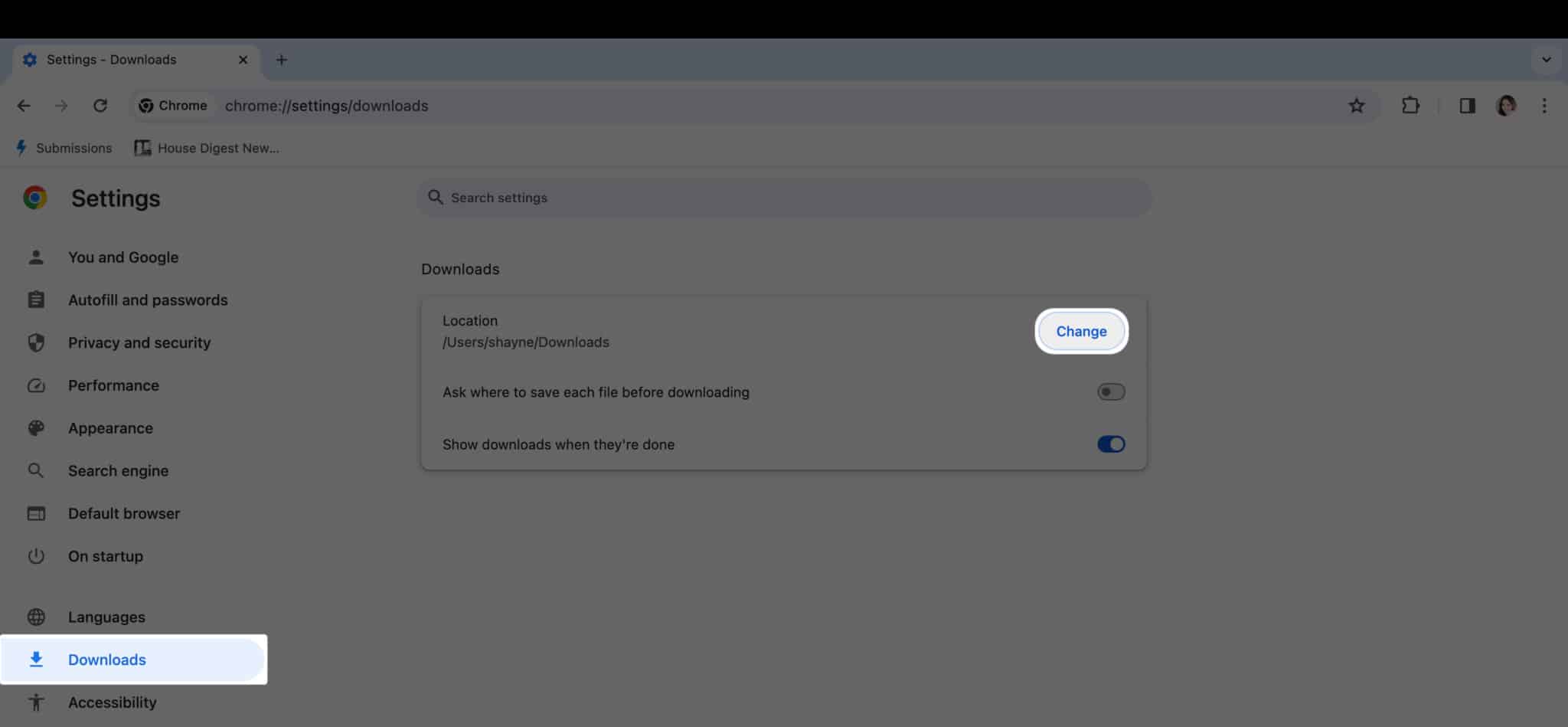
- Select Downloads from the sidebar.
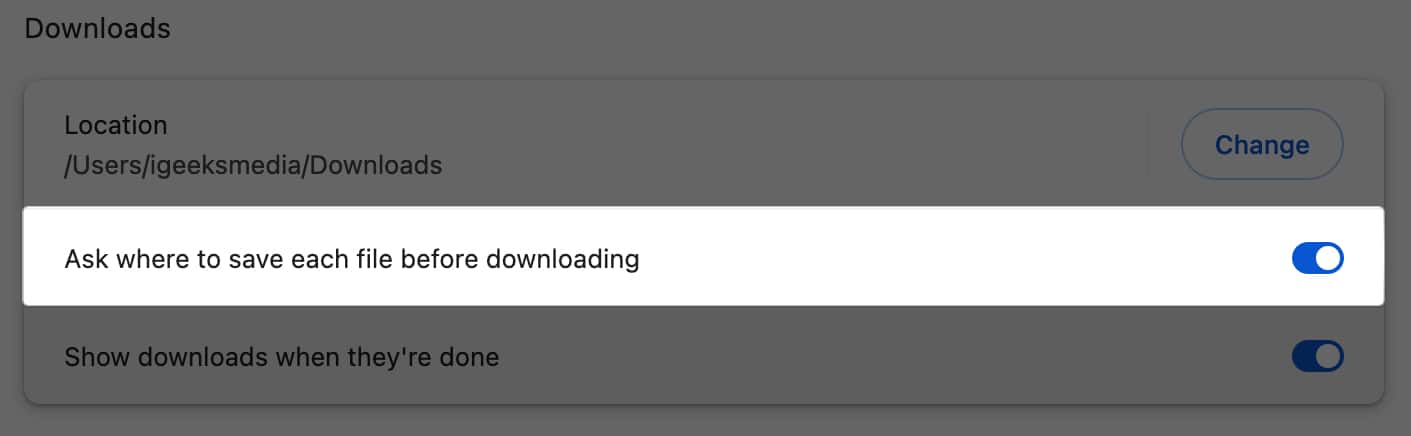
- Click the Change button beside Location.
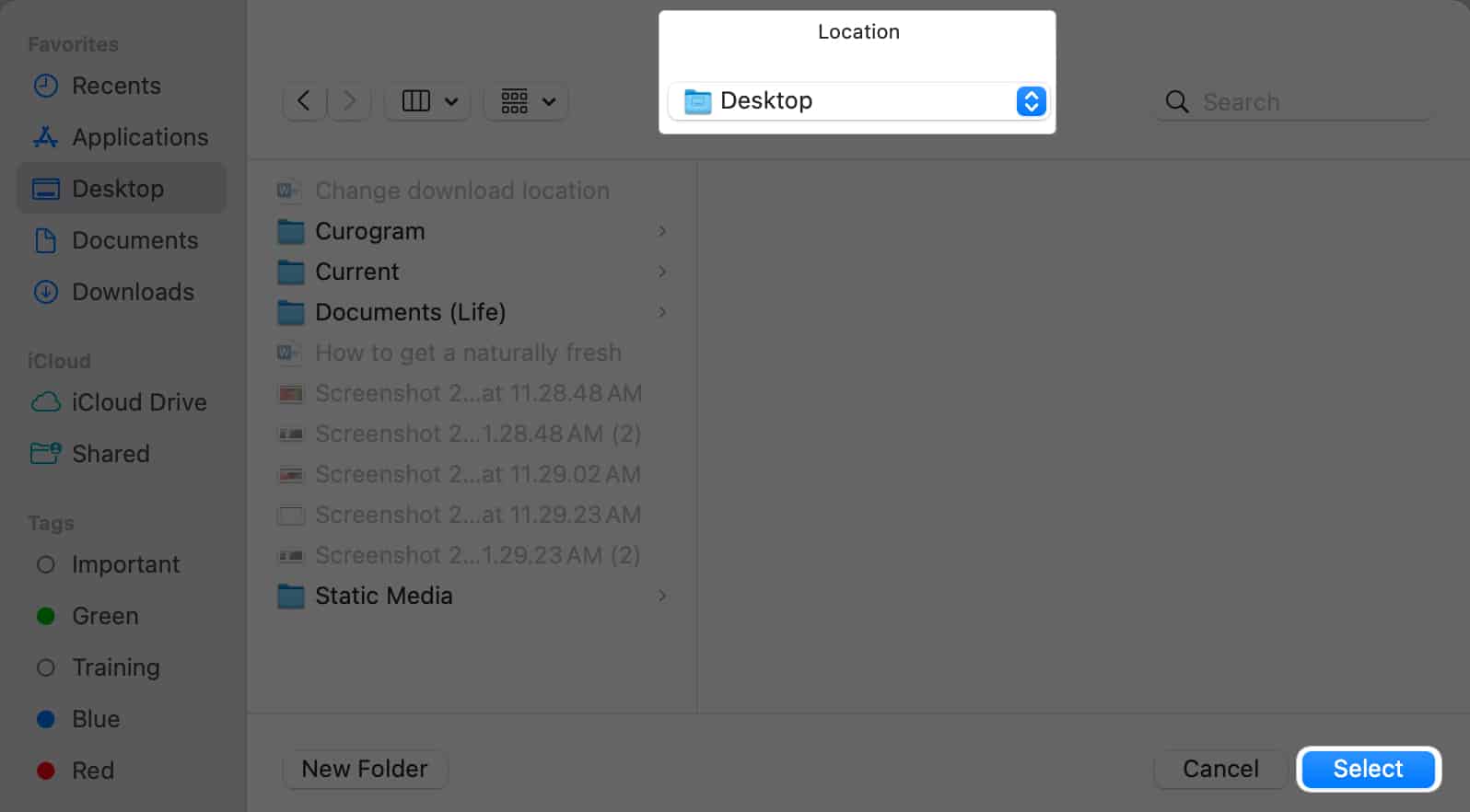
- Browse for the folder to which you want to save your downloaded files and click Select.
- Once you’re back to Chrome settings, you can toggle on the switch beside Ask where to save each file before downloading if you want Google Chrome to ask which folder you want to save a file you plan to download from the internet.
How to change download folder in Firefox on Mac
- Launch Firefox.
- On the menu bar, click Firefox → Settings.
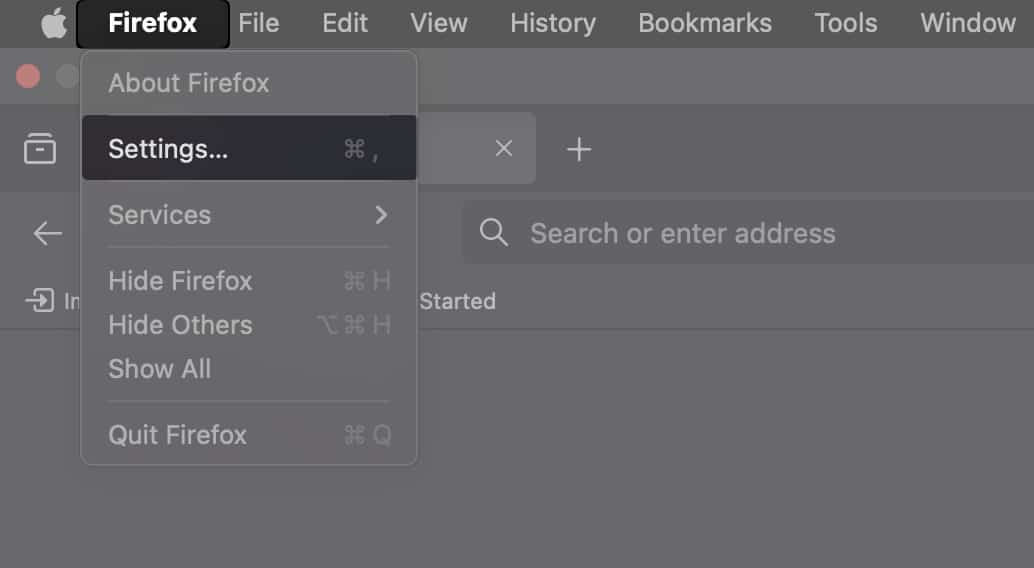
- Select General on the left sidebar.
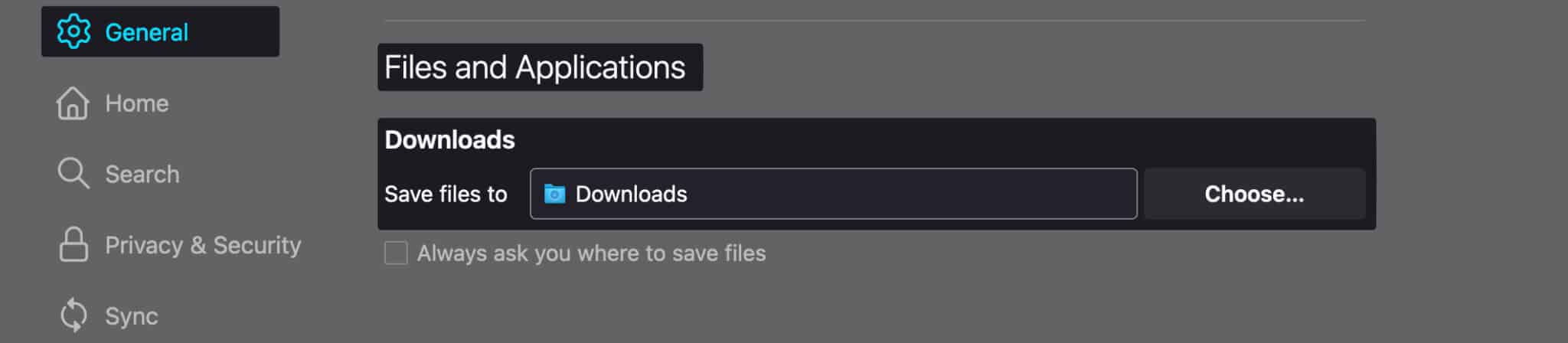
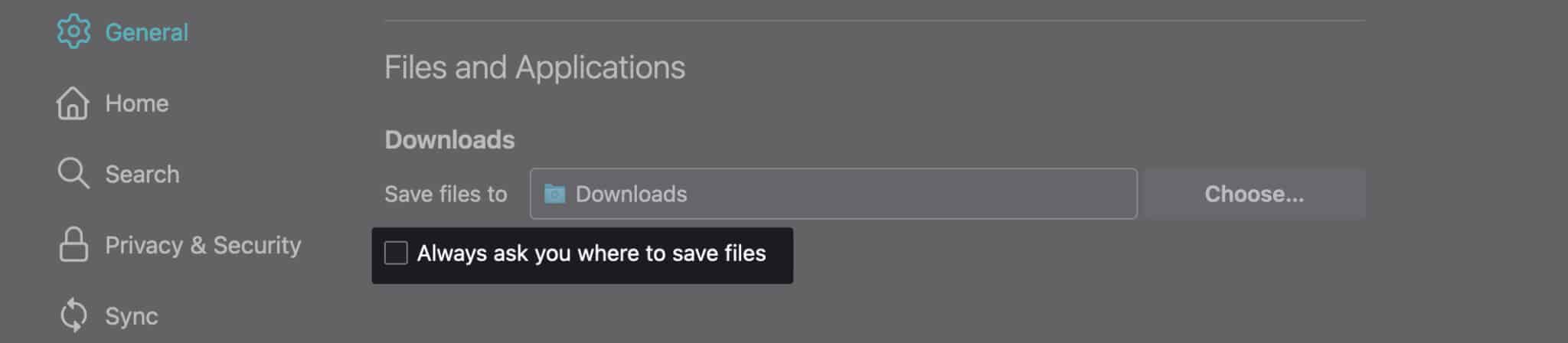
- Scroll down until you reach the Files and Applications section.
- Beside Save Files to, click the Choose button.
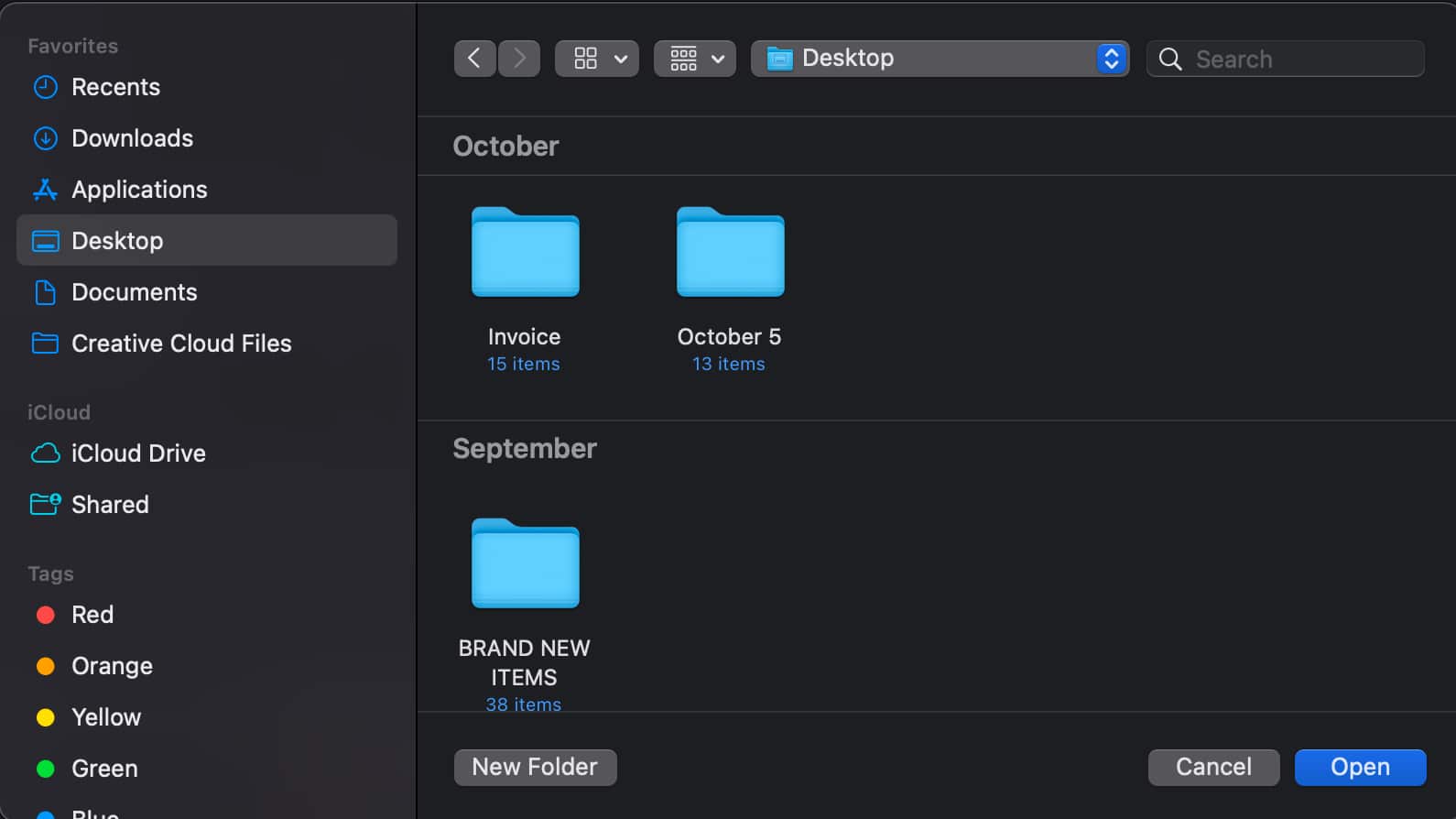
- Browse for the folder where you want your downloaded files to be saved → Open.
- Tick Always ask you where to save files if you want Firefox to ask you where you want to save the files each time.
Wrapping up…
If you’re managing a lot of data, moving files and folders to where you want them saved can be a good idea for keeping things more organized and easy to locate.
Do you prefer saving all downloads in a designated folder, or would you rather have your browser prompt you for a location each time? Let us know your preference in the comments!
Read more:
Topics

Written by
Jignesh PadhiyarJignesh Padhiyar is the co-founder of iGeeksBlog.com, who has a keen eye for news, rumors, and all the unusual stuff around Apple products. During his tight schedule, Jignesh finds some moments of respite to share side-splitting content on social media.
View all posts →More from How-to

How to Turn Off Location on Snapchat (Step-by-Step Guide)
Want to stop sharing your location on Snapchat? This guide explains how Snapchat location sharing works and shows simple ways to turn off your location using Ghost Mode or phone settings. Stay in control of your privacy in just a few steps.
 VikhyatMarch 5, 2026
Snapchat Parental Controls: How to Set Up Family Center and Keep Your Teen Safe
Snapchat’s Family Center lets parents monitor their teen’s friend activity and screen time without reading private messages. Here’s how to set it up and what to expect.
VikhyatMarch 3, 2026
How to Block and Unblock Someone on Instagram
Instagram lets you block or unblock someone in seconds. Follow these simple steps to take full control of your privacy and online peace.
 Ava BiswasMarch 2, 2026