You can use the Dictation feature on your Apple Watch to input text without going through the hassle of typing on its tiny screen. However, by default, you can dictate text only in the language your Apple Watch is set to. If you want to use another language, you must change the Dictation language. Keep reading, and I will show you how to change the Dictation language on an Apple Watch.
How to change your Apple Watch Dictation language
Changing the Dictation language on your Apple Watch is straightforward. This is what you need to do:
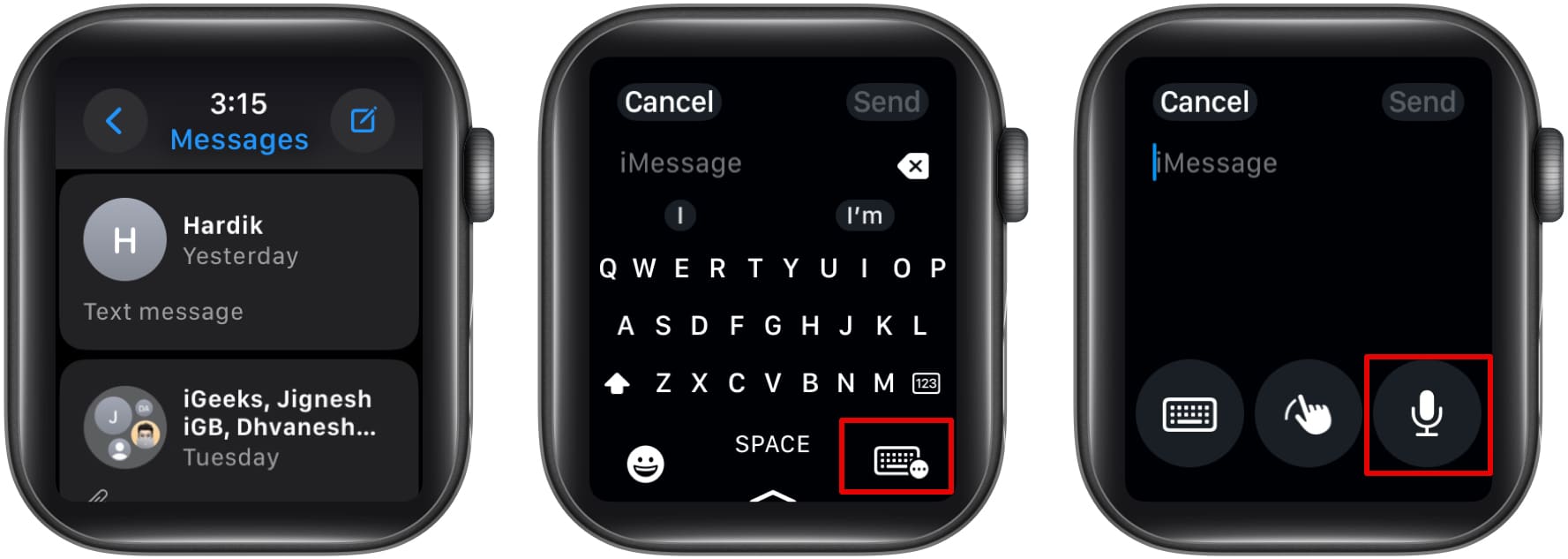
- Open the app you want to dictate text in. I am using the Messages app for demonstration.
- Tap on an empty area on the text field to bring up the keyboard.
- When the keyboard appears, tap the keyboard icon in the bottom-right corner. Then, tap the mic icon to switch to Dictation mode. (In some Apple Watches, you will find the mic icon directly instead of the keyboard icon.)
- You can now swipe up from the bottom to show all the languages you had set on your Apple Watch.
- Finally, tap the language you want to dictate text in.
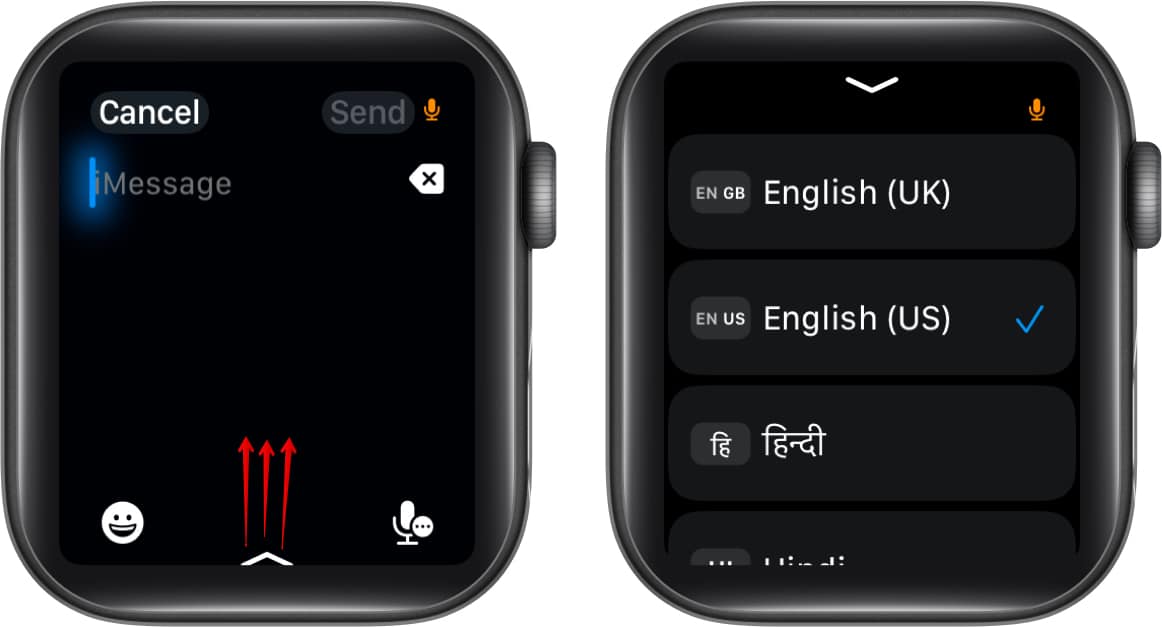
The best part about using Dictation on an Apple Watch is that changing the language is limited to that specific app and will not change your default Dictation language in any other app.
Adjusting language settings on iPhone for Apple Watch
If your preferred language is not available, you can follow the steps below to add a new language for Dictation on your Apple Watch. You can do this through your Apple Watch-connected iPhone using the following steps:
- Open the Settings app on your iPhone.
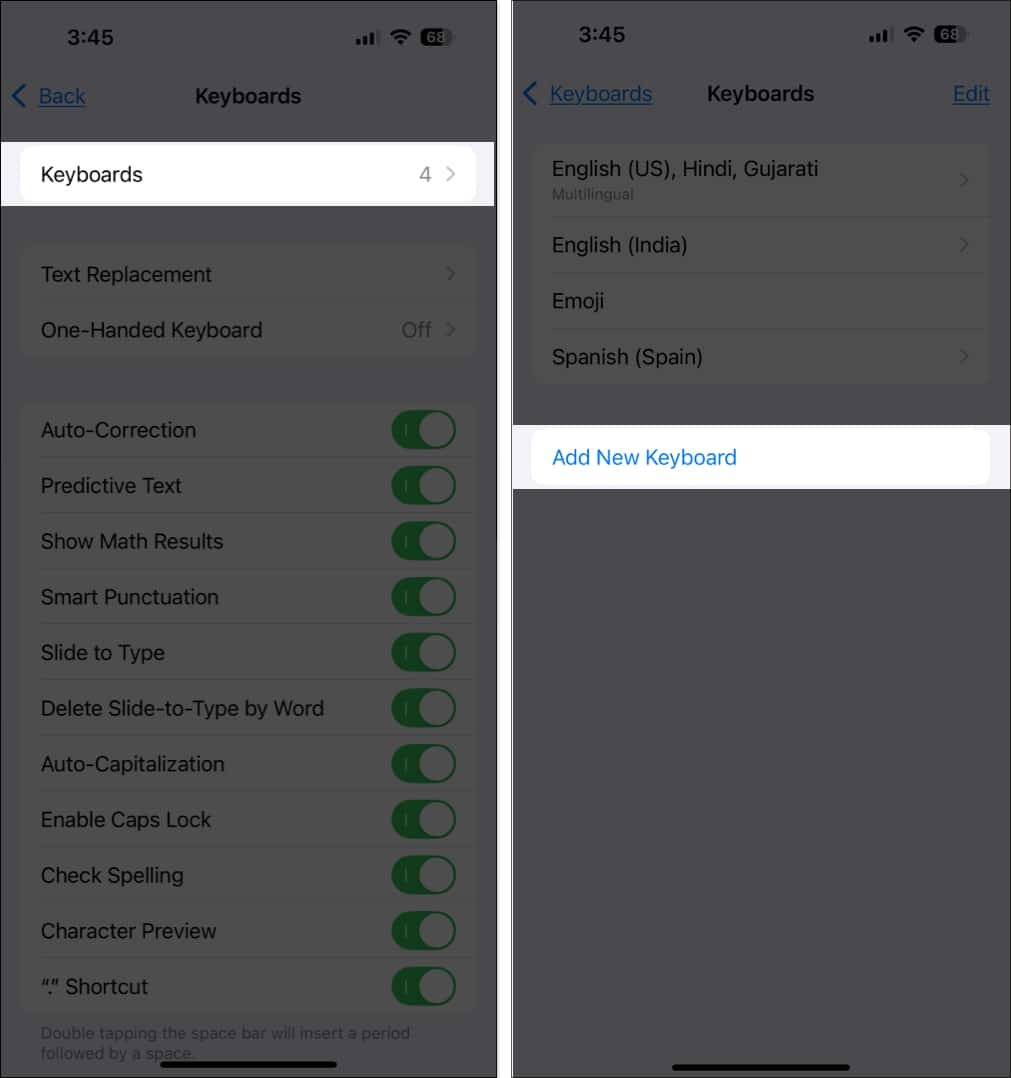
- Tap General, then scroll down and tap Keyboard.
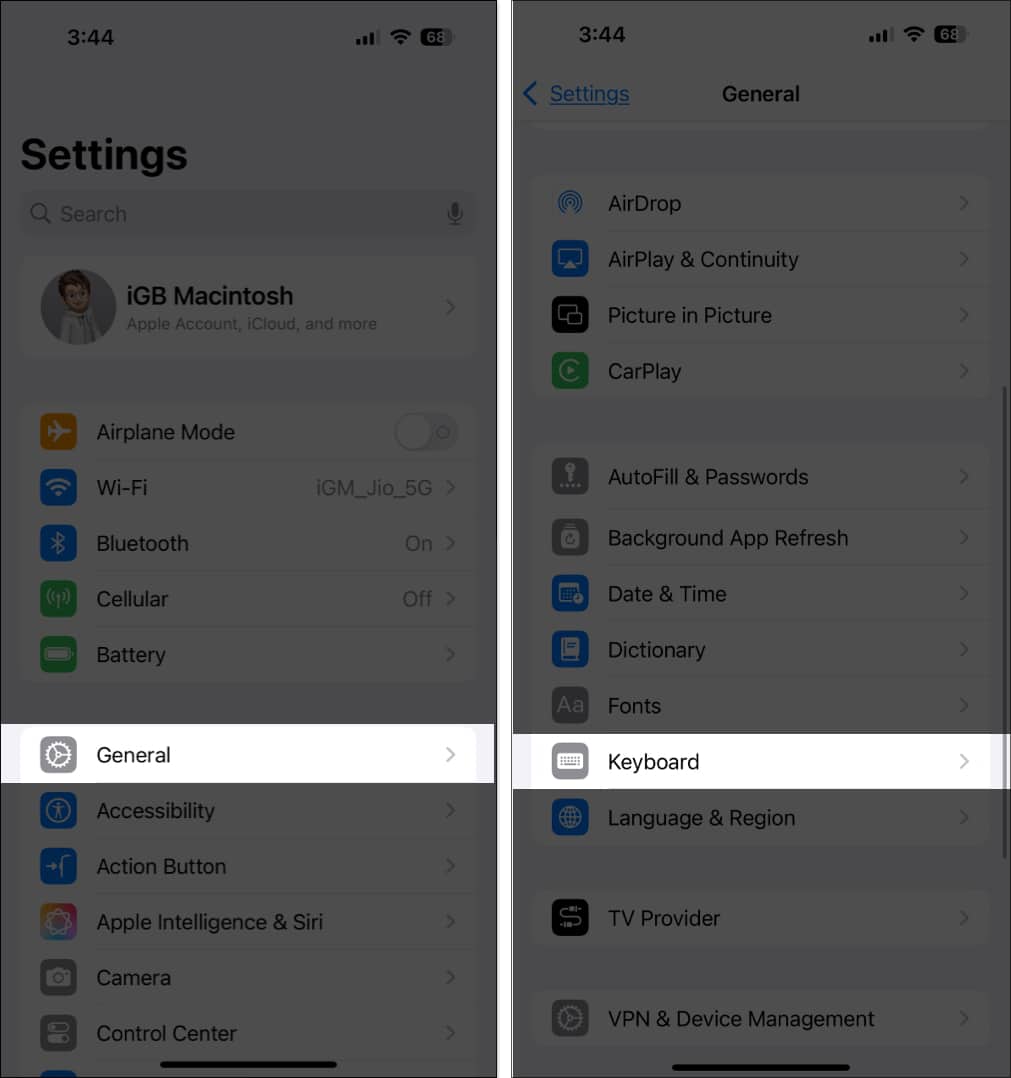
- Tap Keyboards and select Add New Keyboard on the following screen.
- Now, tap the language you want to add.
- Select the type of keyboard and tap Done.
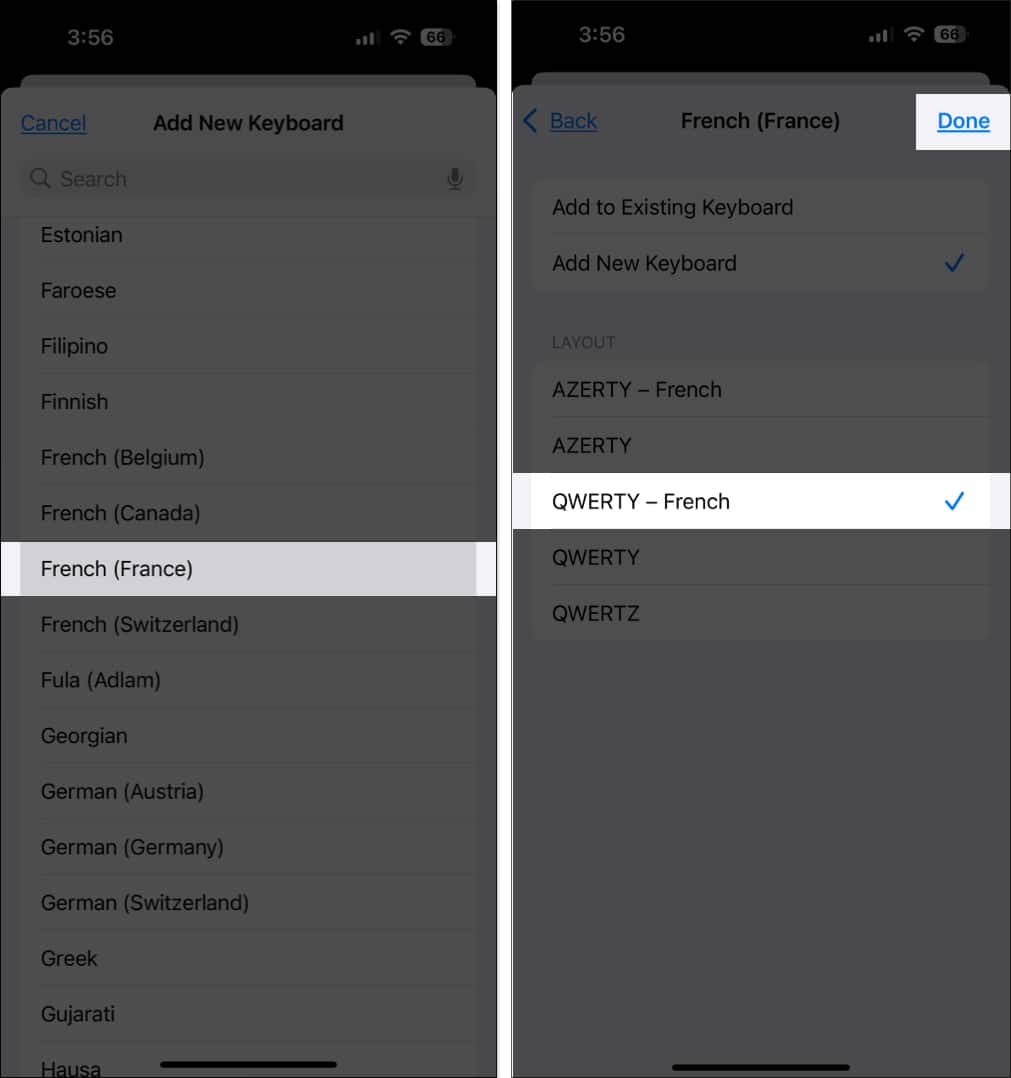
Now, when you return to your Apple Watch, you will see that the new language has been added. You can dictate text in it on your Watch.
What languages does Apple Watch’s Dictation feature support?
Did you not find the language you are looking for? Check if that language is a part of the list of languages supported by Dictation below:
Arabic (Kuwait), Arabic (Qatar), Arabic (Saudi Arabia), Arabic (United Arab Emirates), Cantonese (China mainland), Cantonese (Hong Kong), Catalan , Croatian, Czech Danish, Dutch (Belgium), Dutch (Netherlands), English (Australia), English (Canada), English (India), English (Ireland), English (Malaysia), English (New Zealand), English (Philippines), English (Saudi Arabia), English (Singapore), English (South Africa), English (United Arab Emirates), English (United Kingdom), English (United States), Finnish, French (Belgium), French (Canada), French (France), French (Luxembourg), French (Switzerland), German (Austria), German (Germany), German (Switzerland), Greek, Hebrew, Hindi, Hungarian, Indonesian, Italian (Italy), Italian (Switzerland), Japanese, Korean, Malay, Mandarin Chinese (China mainland), Mandarin Chinese (Taiwan), Norwegian (Bokmål), Polish, Portuguese (Brazil), Portuguese (Portugal), Romanian, Russian, Shanghainese (China Mainland), Slovak, Spanish (Latin America), Spanish (Mexico), Spanish (Spain), Spanish (United States), Swedish, Thai, Turkish, Ukrainian, Vietnamese.
Why is Dictation not working on my Apple Watch?
Sometimes, the Dictation feature may not work on your Apple Watch. This could happen due to various reasons, but you can try the following solutions to fix it.
- Enable Dictation: Firstly, ensure that the Dictation feature is turned on your Apple Watch. To do this, open Settings and go to General → Dictation. Then, toggle on the switch next to Dictation.
- Restart your device: If the feature is enabled but you still can’t use it, try restarting your Apple Watch and iPhone. Sometimes, a simple restart can fix glitches in the UI.
- Update software: If the issue persists, check if your Apple Watch and iPhone are updated to the latest software. If not, update them right away. Software updates often fix bugs and issues.
- Contact Apple Support: When nothing helps, the last resort is to contact Apple Support for help.
Signing off
Dictation can save you a lot of your time, especially if you frequently reply to messages and emails or take notes, directly on your Apple Watch. With Apple supporting a good number of languages for Dictation and seeing how simple it is to switch between them, you can easily use the language of your choice in an app when you need it.