
How to change Apple ID payment method on iPhone, iPad, Mac
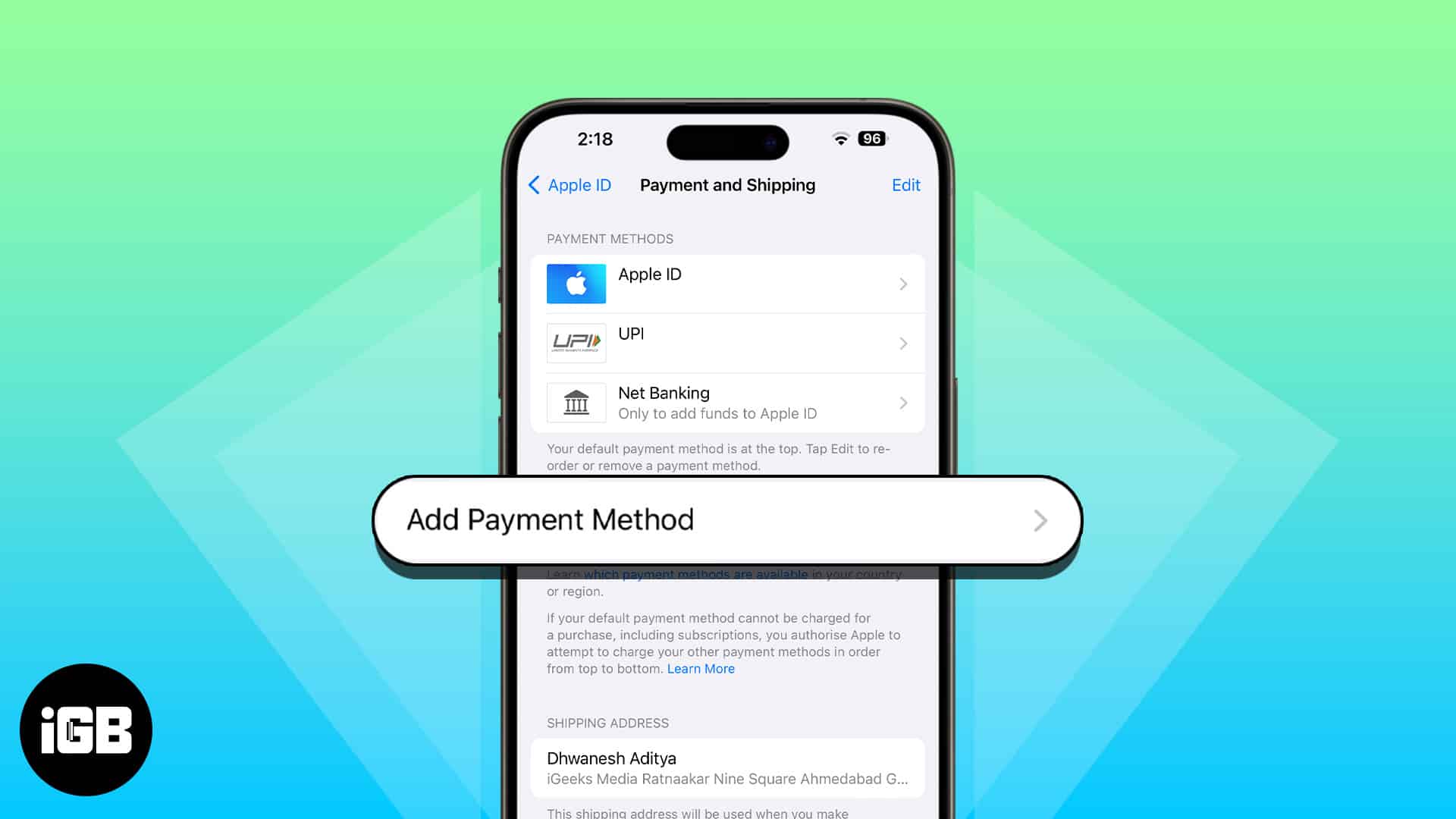
There are all sorts of reasons why you may want to change the Apple ID payment method. Perhaps, your credit/debit card has expired, or you just want to update the existing information so that your incessant shopping of cool games and apps never hits a bumpy ride.
That said, the tech giant offers multiple ways to update the payment method associated with the Apple ID across platforms including iOS, iPadOS, and macOS, so that you can edit the whole info with ease.
How to change Apple ID payment method on iPhone or iPad
Typically, your bank or financial institution automatically updates any changes made to your card details, saving you the hassle of doing it yourself. However, there are times when this automatic update may not happen. If that’s the case, you must manually update your payment method on your iPhone or iPad.
Note:
that if you have an active subscription or are a Family Sharing organizer, you need to add a new card first before you can change the default payment method on your iPhone or iPad. Similarly, you need to pay any pending charges before you can update your payment method.
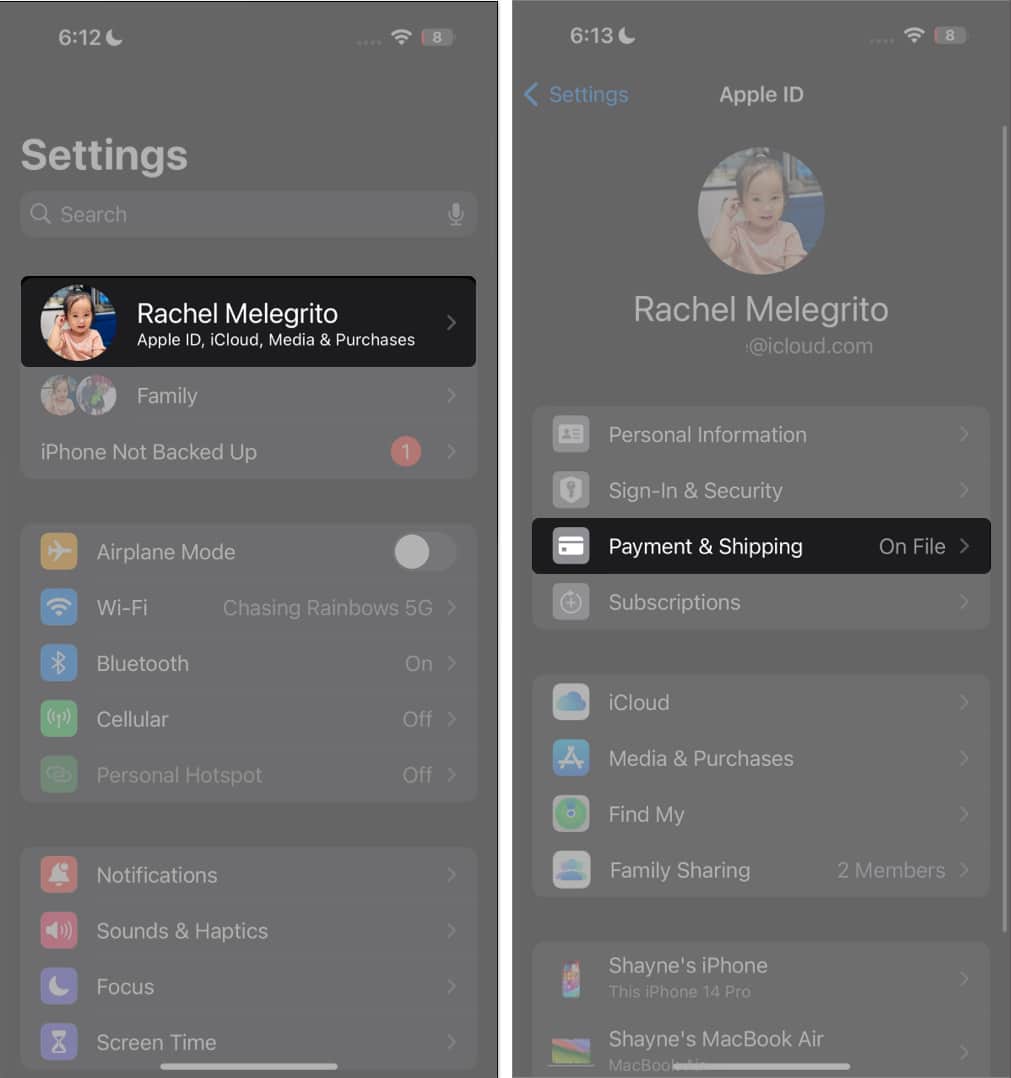
- Open Settings → Tap [your name].
- Select Payment & Shipping.
- Tap Add Payment Method.
Fill in the details for the new payment method. Once finished, select Done.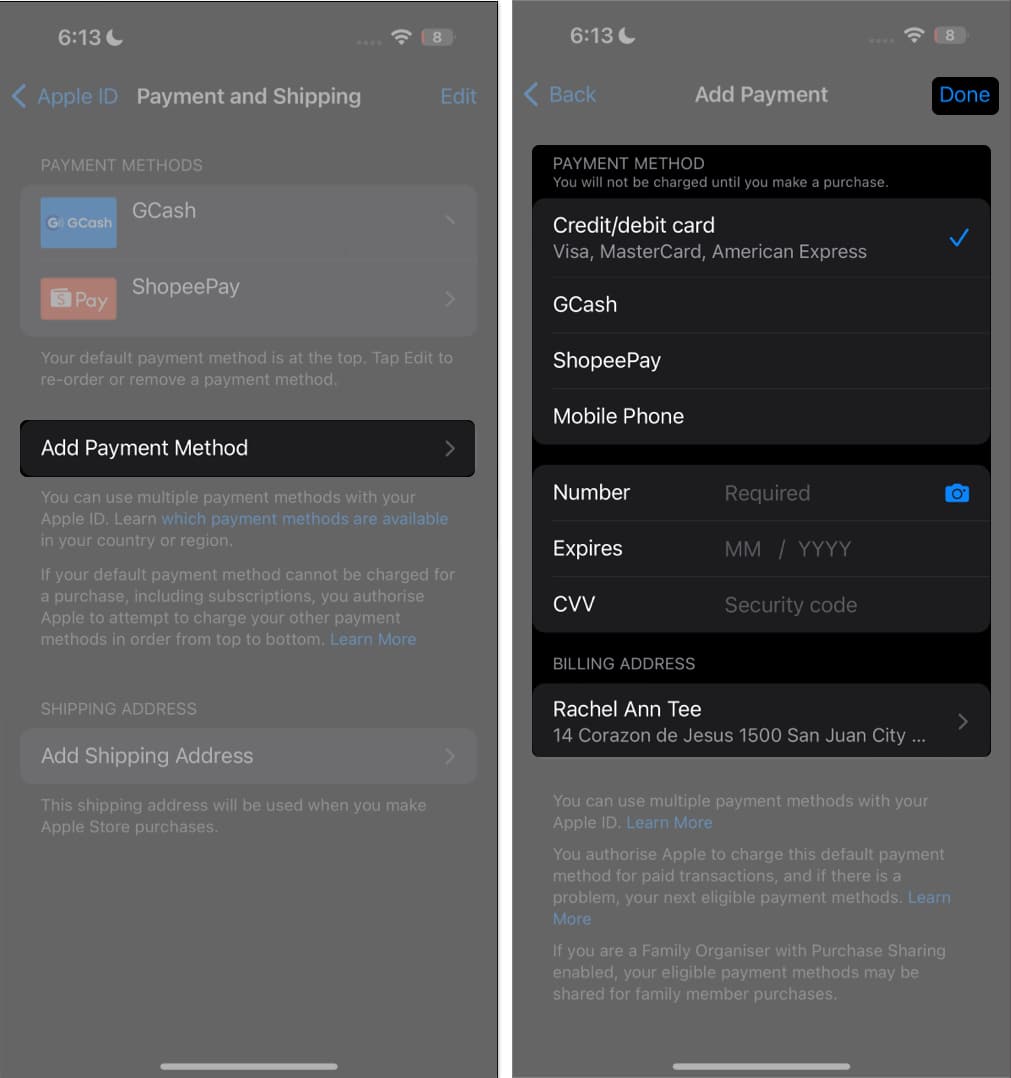
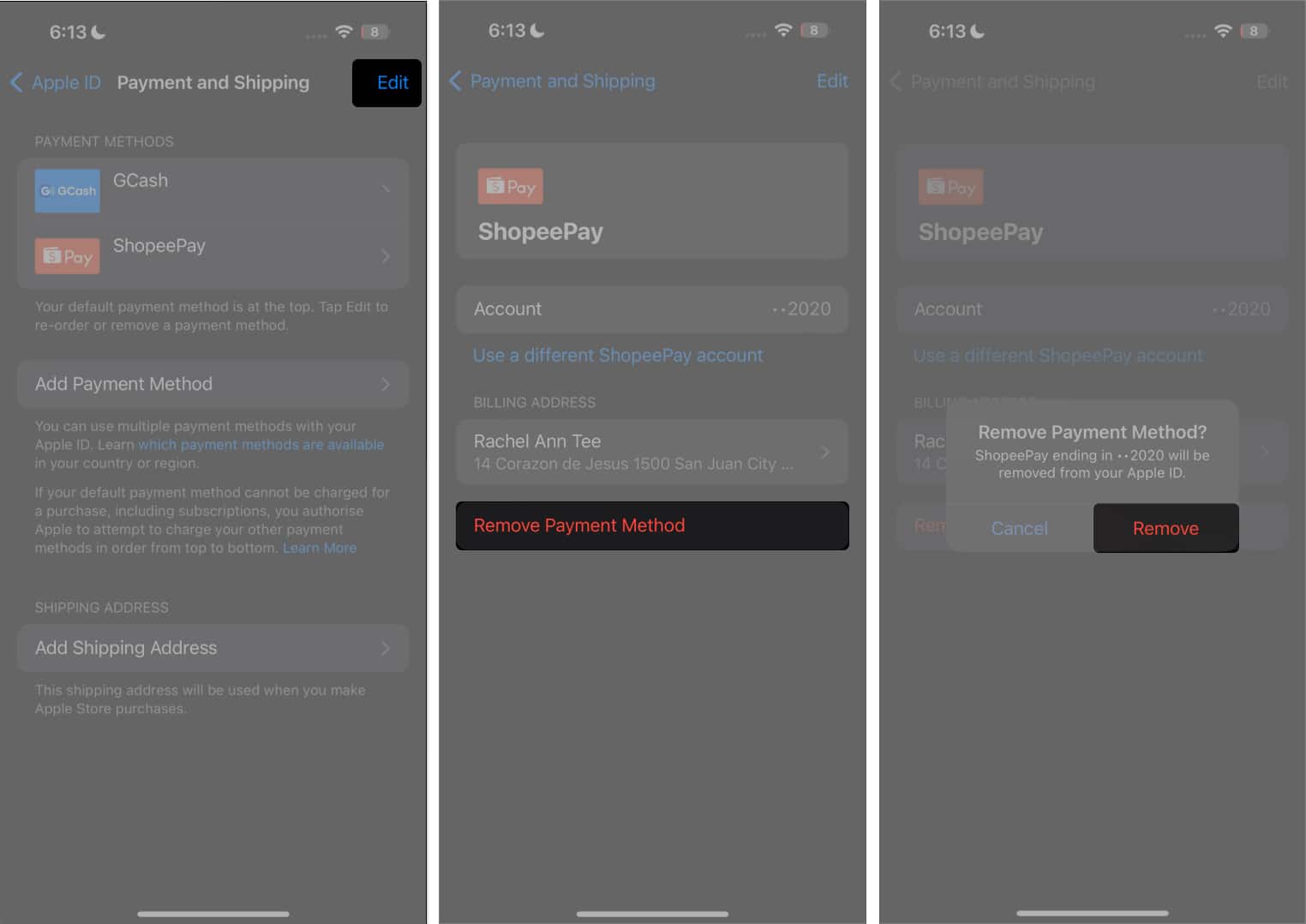
- Tap Edit.
- Tap the red Delete (-) button on the old payment method → Select Delete.
- A popup will appear, confirming your decision to delete the payment method. Select Remove.
How to update Apple ID payment method on Mac
To change your payment method on your Mac, you need to change your payment method on the App Store:
- Open the App Store.
- If you’re already signed in, click your name. If not, click the Sign In button and sign in using your Apple ID.
- Click Account Settings.
- You might be asked to enter your login details again.
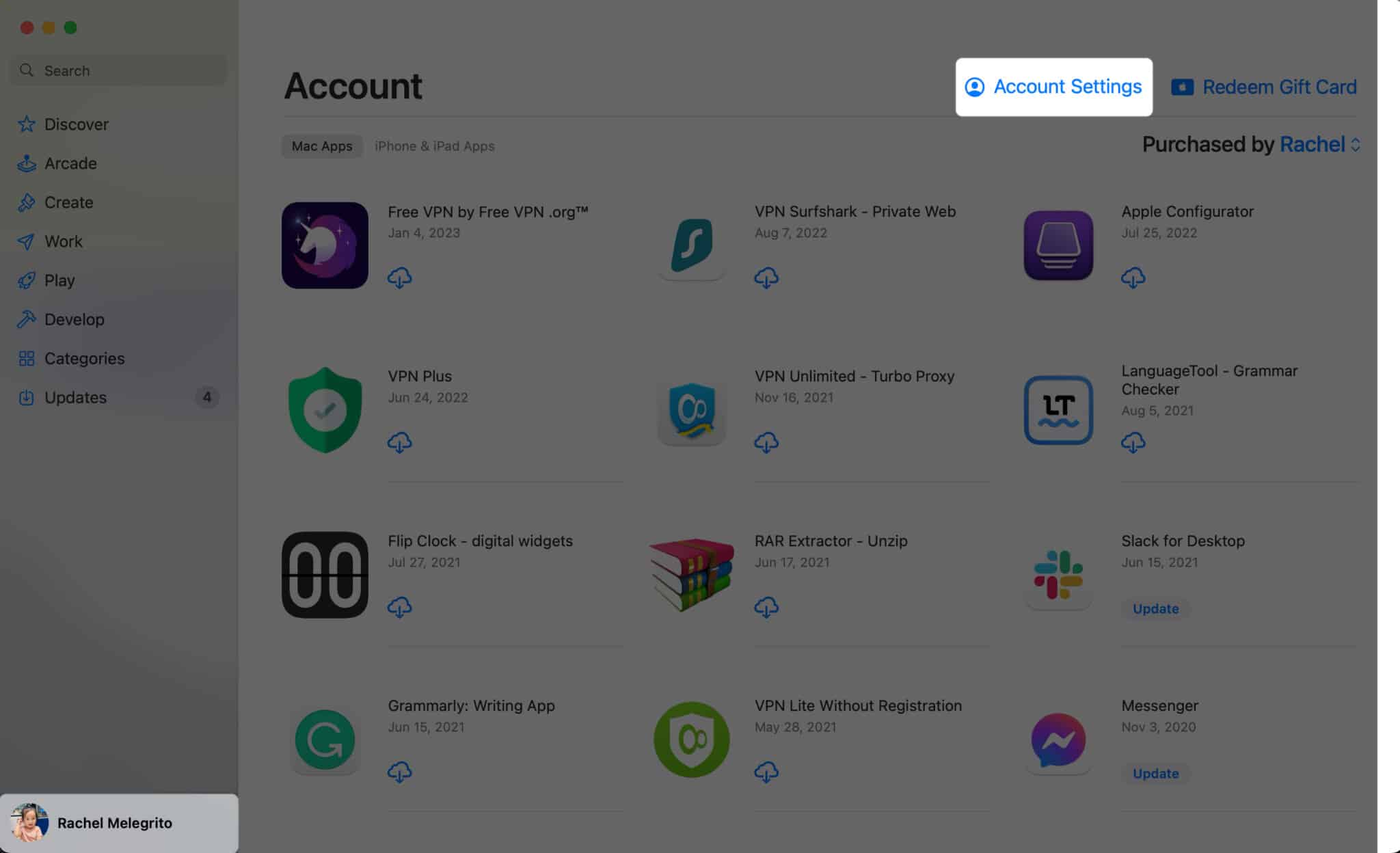
- You might be asked to enter your login details again.
- Click Manage Payments beside Payment Information.
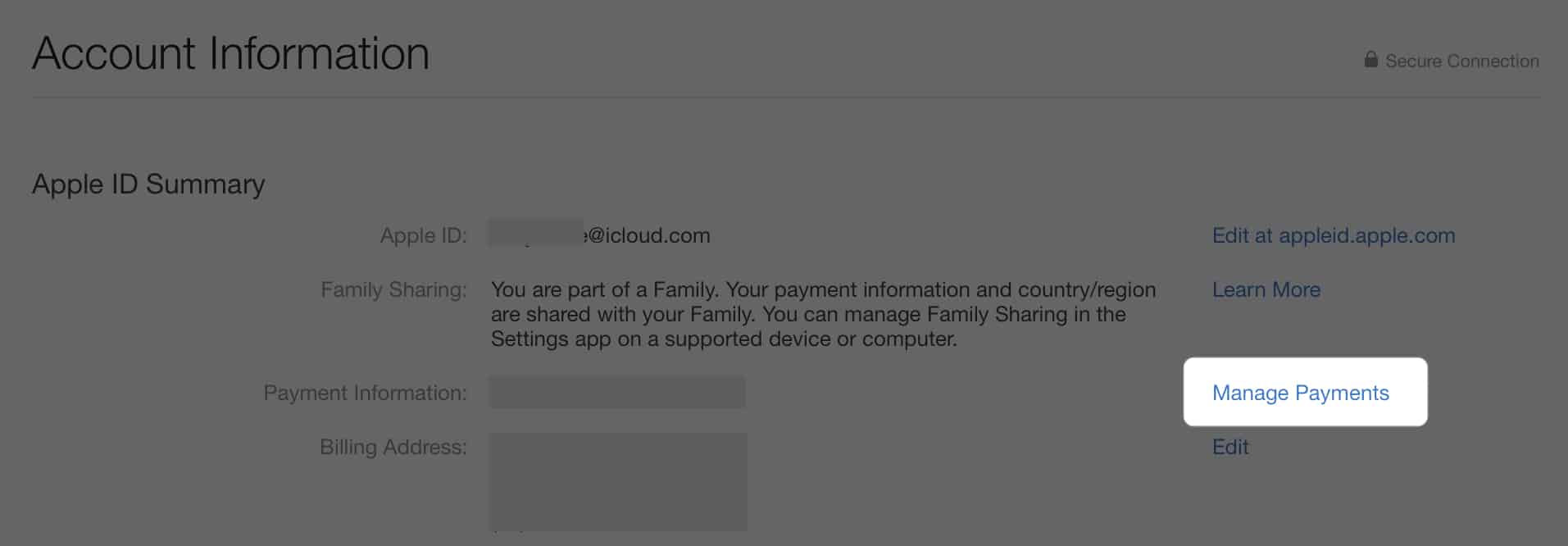
- Select Add Payment → Once you finished adding all details, select Done.
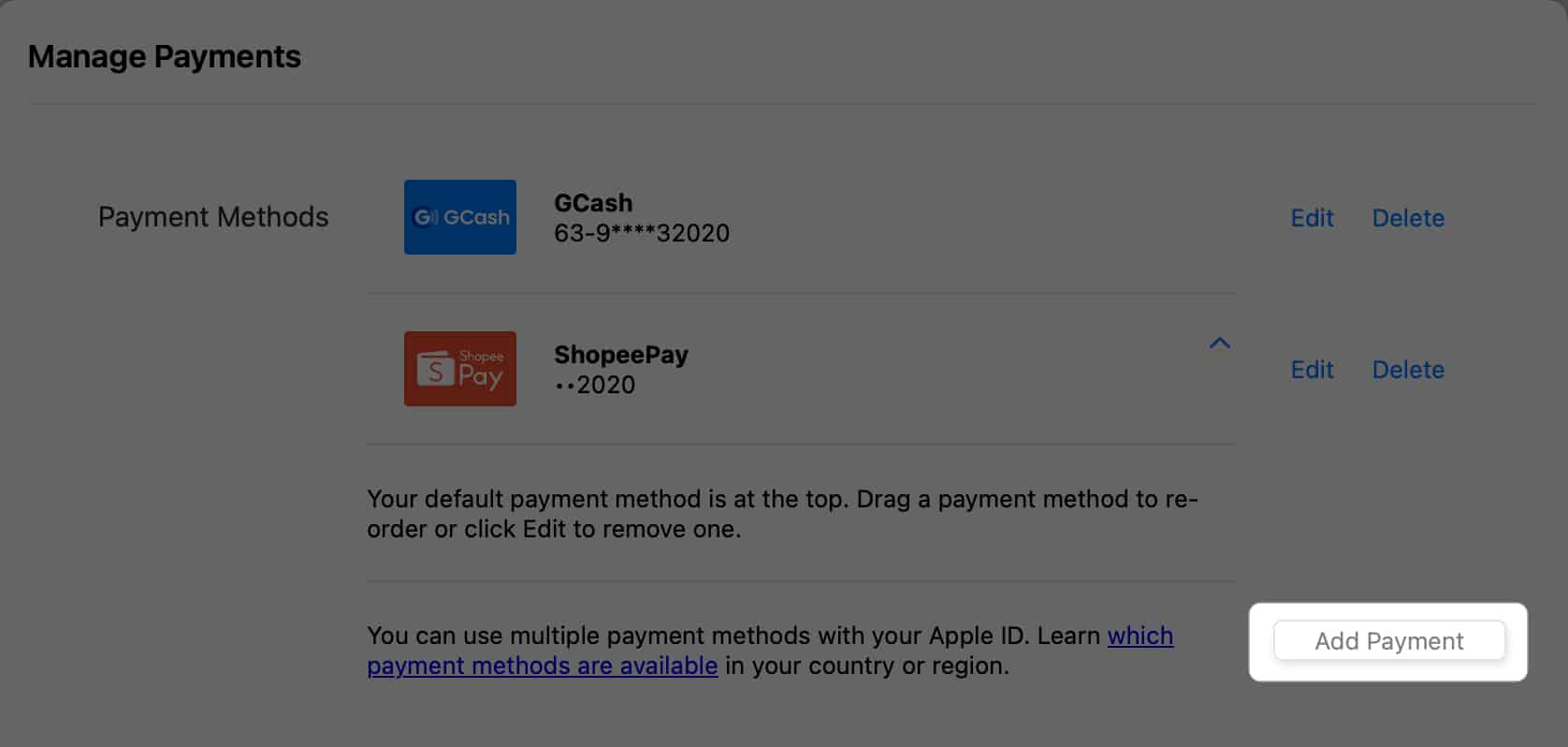
- Delete the old payment method by clicking Delete beside it.
How to change Apple ID payment method on Windows PC
If you’re using a Windows PC or an older Mac from macOS Mojave or earlier, you can update your payment method using iTunes. To do so:
- Open iTunes.
- Choose Account in the menu bar on top of the window.
- Select View My Account → Manage Payments. If you’re using an older iTunes, select Edit found next to Payment Type.
- Click the Add Payment button and enter all its details.
- Select Done.
How to change payment method using Apple ID website
Whereas before, you can change your payment method online by logging in on appleid.apple.com or dedicated sites for Apple services like music.apple.com and tv.apple.com, Apple now only lets you view and edit your payment methods by doing so directly on your Apple devices.
When you sign in on appleid.apple.com, you can click the Continue on Device button to let Apple send a notification to your Apple device/s. Click or tap this notification on your device to be taken directly to your device’s Payment & Shipping settings.
Wrapping up…
So, that’s the way you can keep your payment info linked with your Apple ID updated. As there are multiple ways to get it done, it’s pretty easy to do regardless of whether you are deep into the Apple ecosystem or using other platforms.
Frequently Asked Questions
Topics

Written by
Dhvanesh AdhiyaThe founder of iGeeksBlog, Dhvanesh, is an Apple aficionado, who cannot stand even a slight innuendo about Apple products. He dons the cap of editor-in-chief to make sure that articles match the quality standard before they are published.
View all posts →More from How-to

Snapchat Parental Controls: How to Set Up Family Center and Keep Your Teen Safe
Snapchat’s Family Center lets parents monitor their teen’s friend activity and screen time without reading private messages. Here’s how to set it up and what to expect.
 VikhyatMarch 3, 2026
How to Block and Unblock Someone on Instagram
Instagram lets you block or unblock someone in seconds. Follow these simple steps to take full control of your privacy and online peace.
 Ava BiswasMarch 2, 2026
Apple Watch Not Responding? 8 Fixes That Actually Work
Is your Apple Watch unresponsive or stuck on a black screen? Here are 8 proven fixes to help you unfreeze it and get it working again quickly.
VikhyatMarch 3, 2026