
How to Set Up a Legacy Contact for Your Apple ID
Apple Legacy Contact lets you specify who can access your iCloud after your death. Learn how to add a Legacy Contact on iPhone, iPad, and Mac.
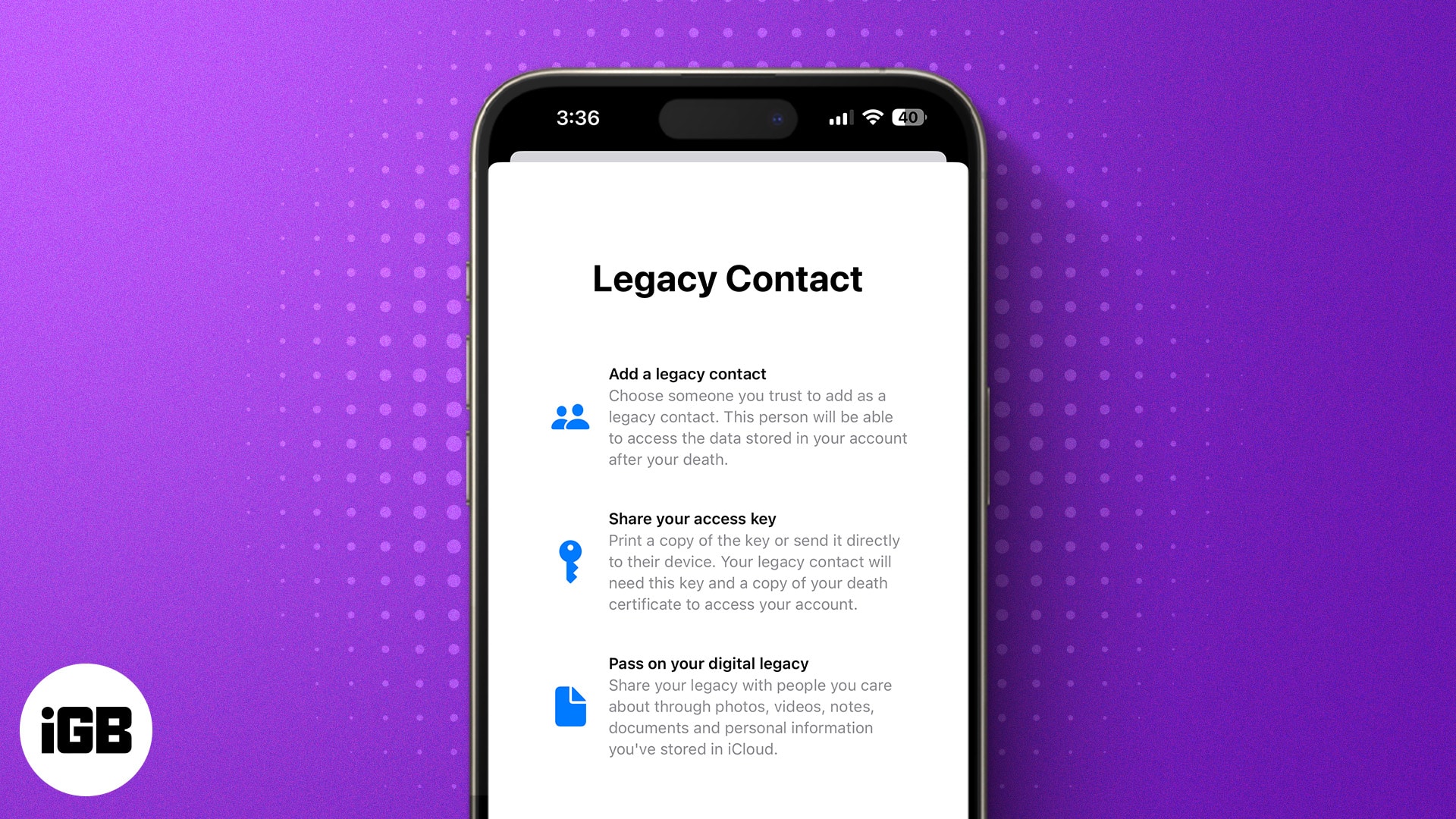
Death is uncertain and is always heartbreaking. While no amount of technology can bring back the lost ones, Apple’s Legacy Contact feature can help you manage your digital afterlife. The Legacy Contact feature lets you designate a contact who can access your iCloud data after your death.
Continue reading to learn more about Apple Legacy Contact.
What is Apple Legacy Contact, and how Does It Work?
Apple Legacy Contact, introduced in iOS 15, lets you choose someone you trust to access your iCloud data after you pass away. This includes photos, videos, notes, and other personal files, giving them a way to preserve your memories.
Some data stays off limits. Purchased media, subscriptions, and anything stored in your iCloud Keychain like passwords, payment details, and passkeys can’t be shared. Apple keeps this protected to respect your privacy, even after death.
Your Legacy Contact doesn’t have to be a family member. You can choose anyone, add more than one person, and they don’t need an Apple device or an Apple ID to be assigned.
To request access to your data from Apple servers, the Legacy Contact needs to provide the following:
- The access key that was generated when you designated them as a Legacy Contact.
- Your government-provided Death Certificate.
Apple Legacy Contact is a feature that lets someone you trust access your iCloud data after you pass away. Once Apple verifies their access request, they receive a special Apple ID to sign in to your account. Your own Apple ID is then disabled, and Activation Lock is removed from any device linked to it.
After access is granted, your Legacy Contact has three years to download your data before Apple deletes it from its servers. If you’ve added multiple Legacy Contacts, each person can act independently, including choosing to delete your data permanently.
What do You Need to Add a Legacy Contact for Your Apple ID?
Like every other advanced Apple feature, there is a basic criterion that you must fulfill to be able to create a Legacy Contact for your Apple ID:
- An iPhone or iPad running on iOS 15.2 or iPadOS 15.2, and a Mac running on macOS Monterey 12.1.
- All your Apple devices must be signed in with the same Apple ID.
- Two-factor authentication enabled on your Apple ID.
- You must be over 13 years of age. (The age may vary depending on the country and region in which you live).
How to Add a Legacy Contact for Your Apple ID on iPhone, iPad, or Mac
When you add a Legacy Contact on your iPhone, it syncs across all devices signed in with the same Apple ID. If your devices use different Apple IDs, check out our guide on changing your Apple ID on iPhone, iPad, and Mac.
How to Add Legacy Contact on iPhone and iPad
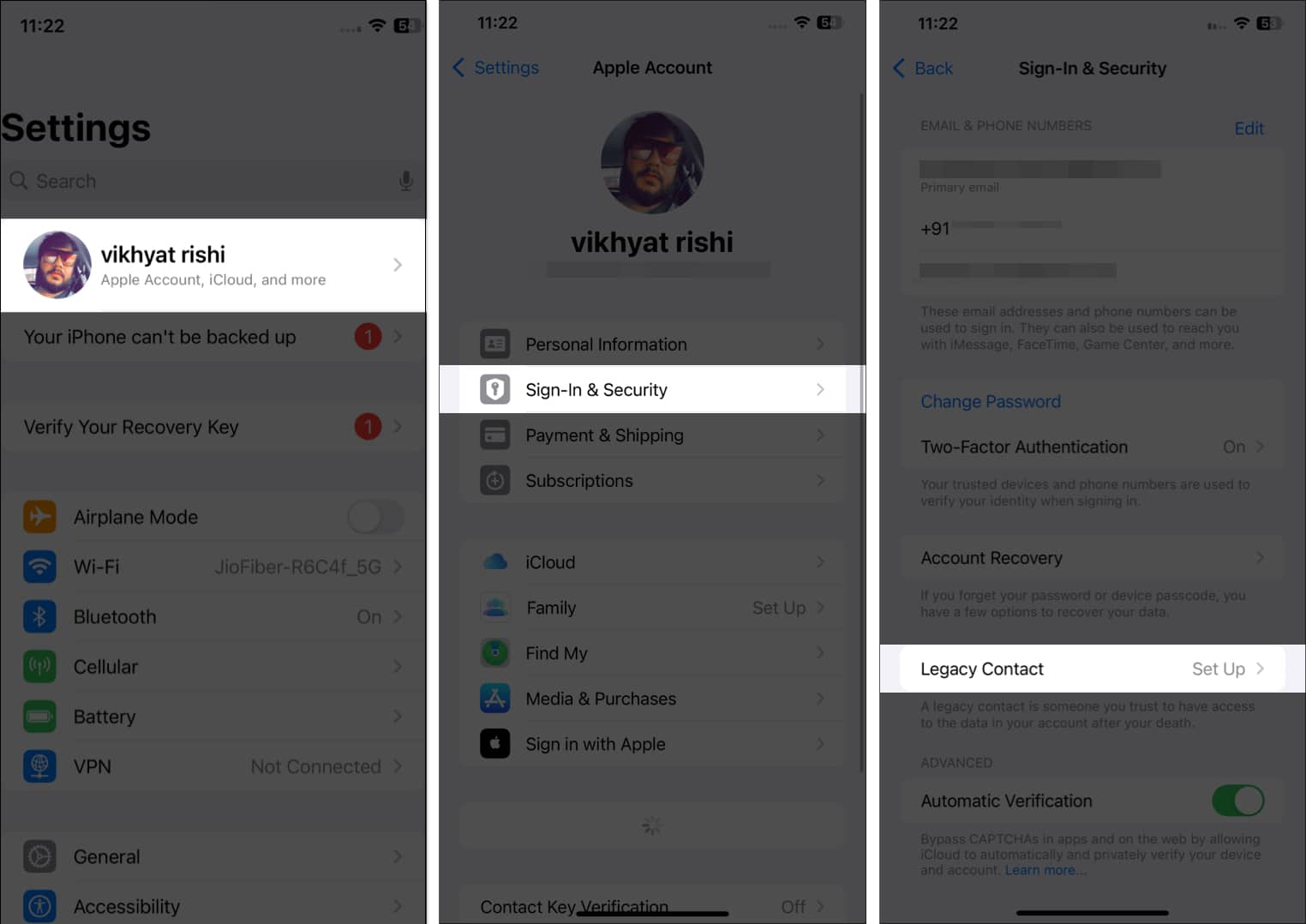
- Open the Settings app.
- Tap on your profile at the top.
- Here, tap on Sign-In and Security.
- Scroll down and tap Legacy Contact, then tap the Add Legacy Contact button on the subsequent menu.
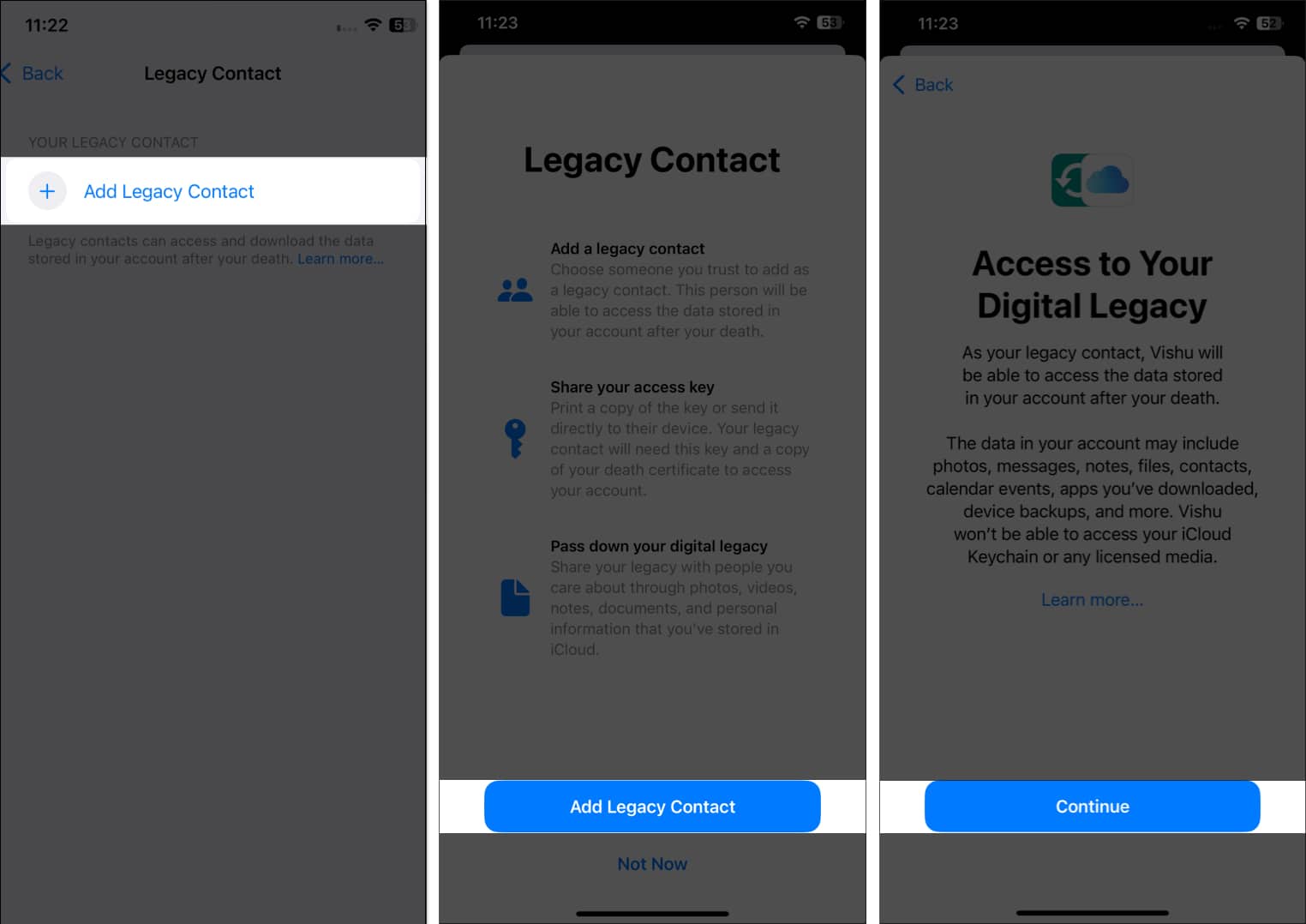
- Again, tap the blue Add Legacy Contact button to confirm and authenticate with your Face ID.
- Then, choose the contact you wish to make your Legacy Contact.
- Once done, hit Continue, and the system will generate an access key for your account.
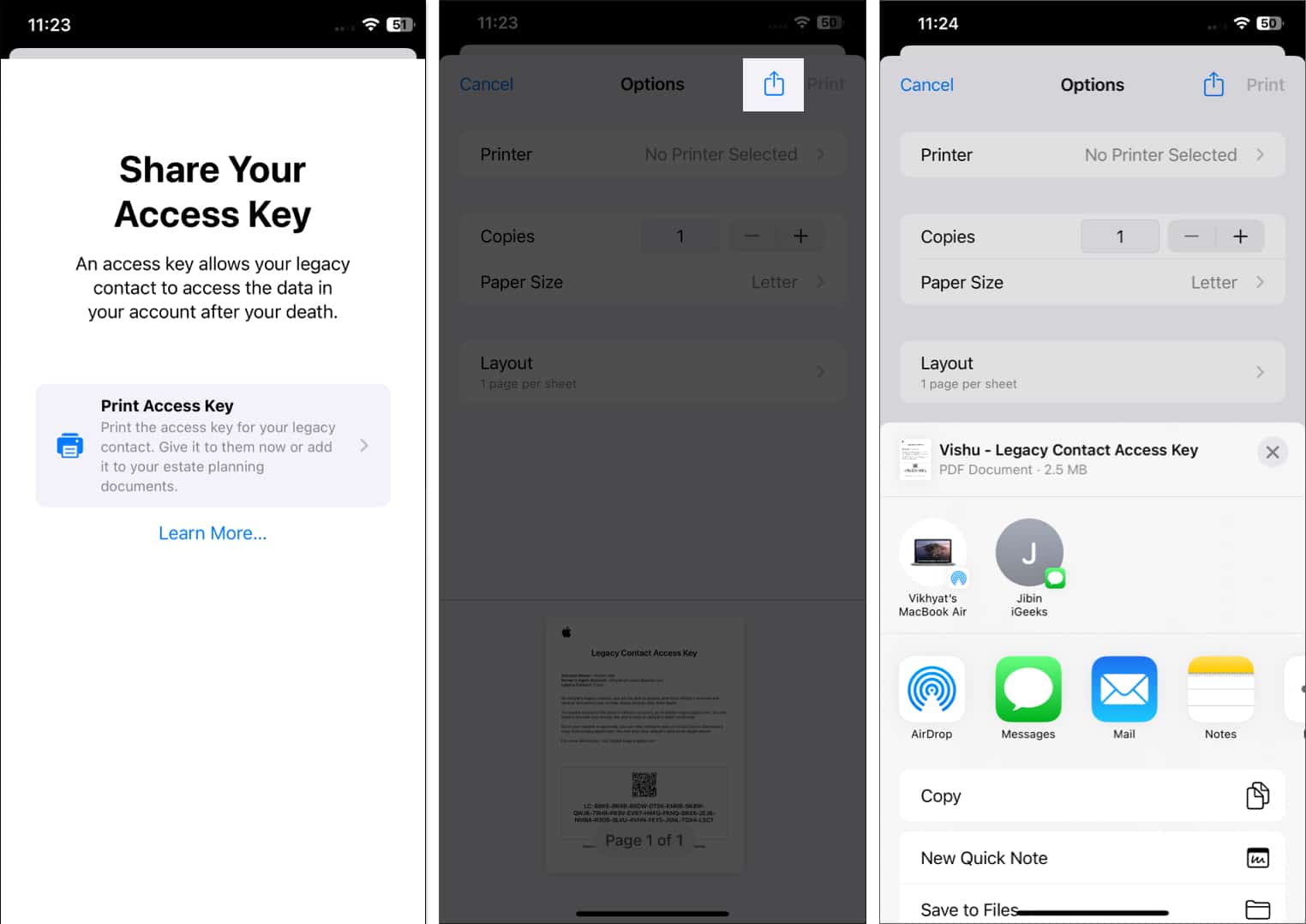
- Tap on the Print Access Key tab.
- Then, tap the Share button to share the access key with the selected contact or save it to the Files app.
How to Add Legacy Contact on Mac
- Open System Settings on your Mac.
- Click on your profile at the top.
- Click on Sign-In & Security.
- Next, select Legacy Contact.
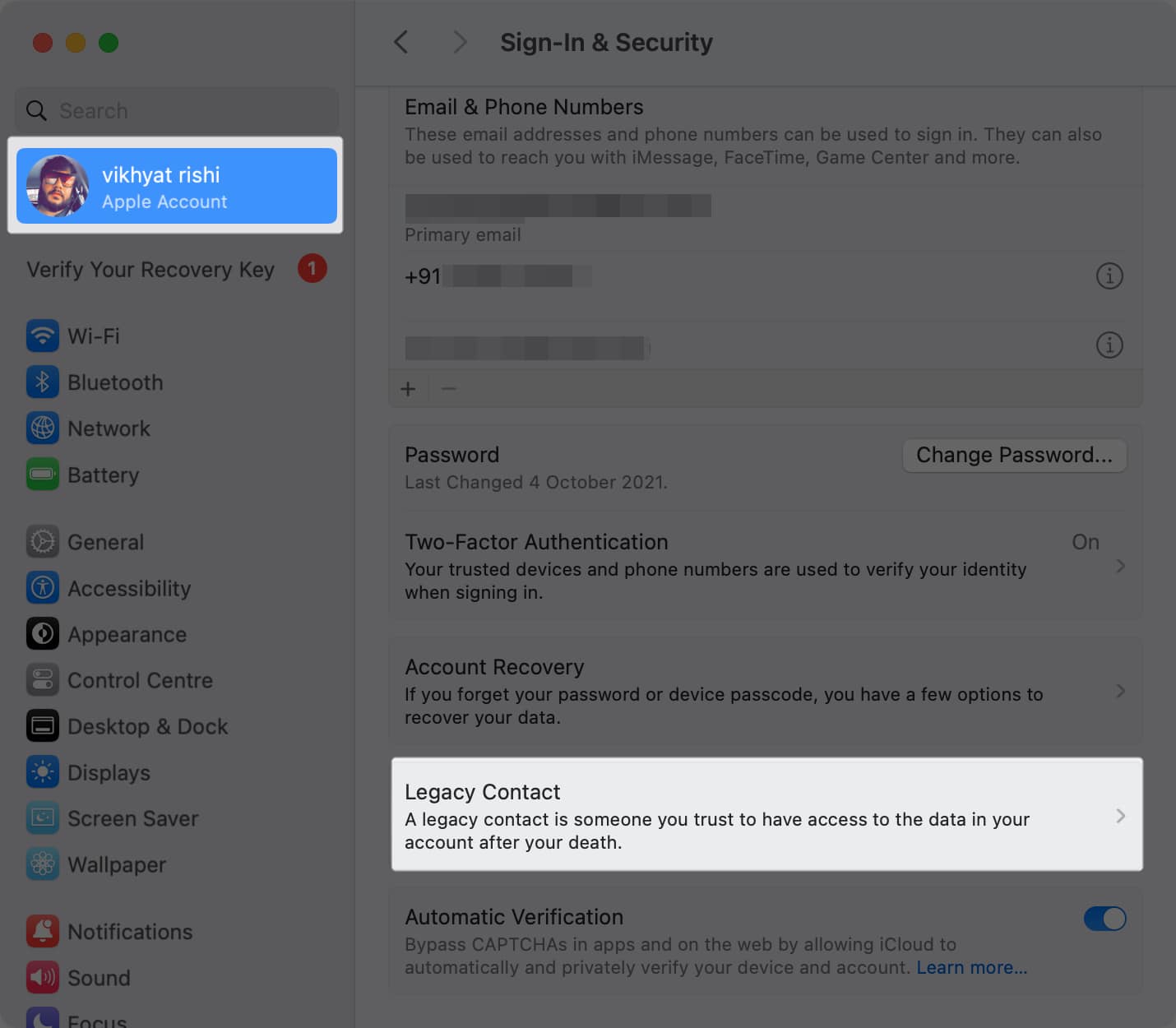
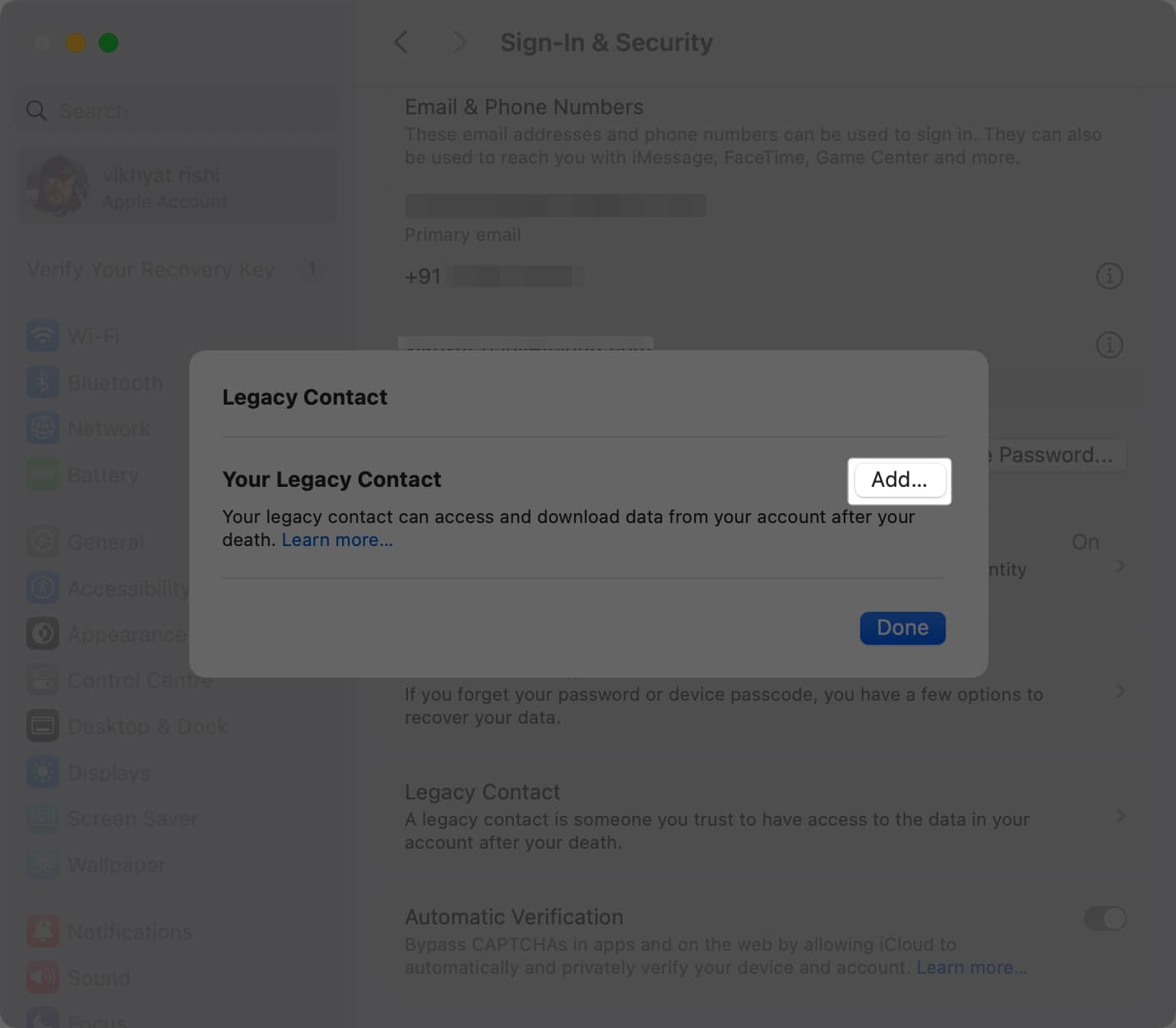
- Click on the Add button.
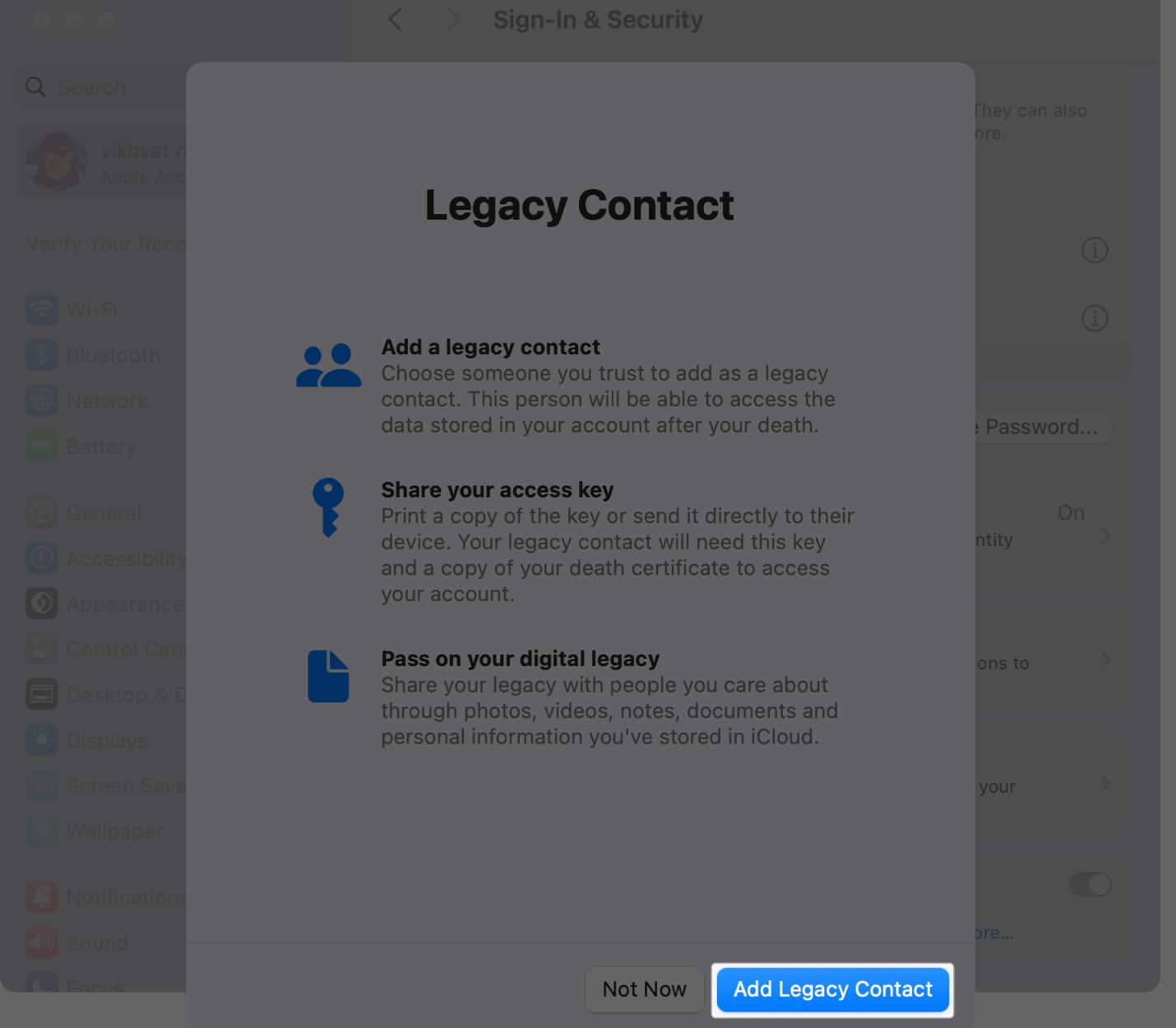
- Then, click the Add Legacy Contact button.
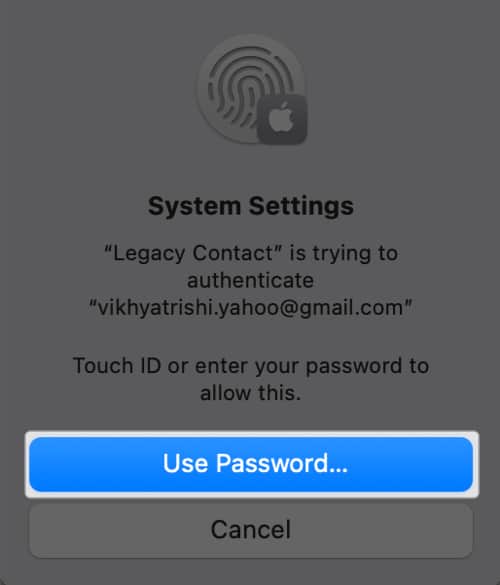
- Authenticate using the Mac’s password or Touch ID.
- Next, click the + button, then choose the contact you wish to make your Legacy Contact.
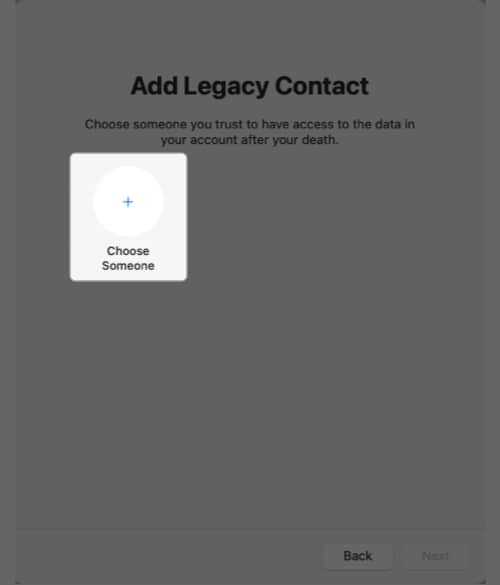
- Once done, click Next.
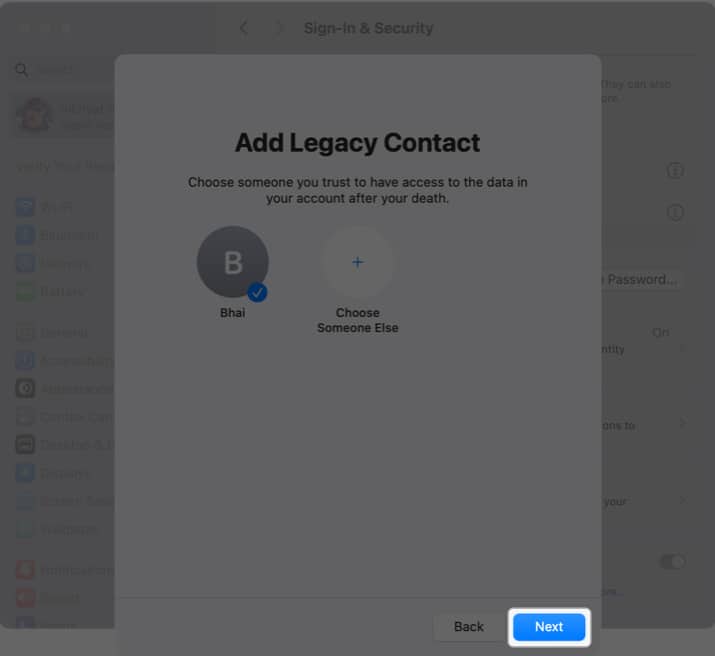
- Then, click Continue on the subsequent prompt.
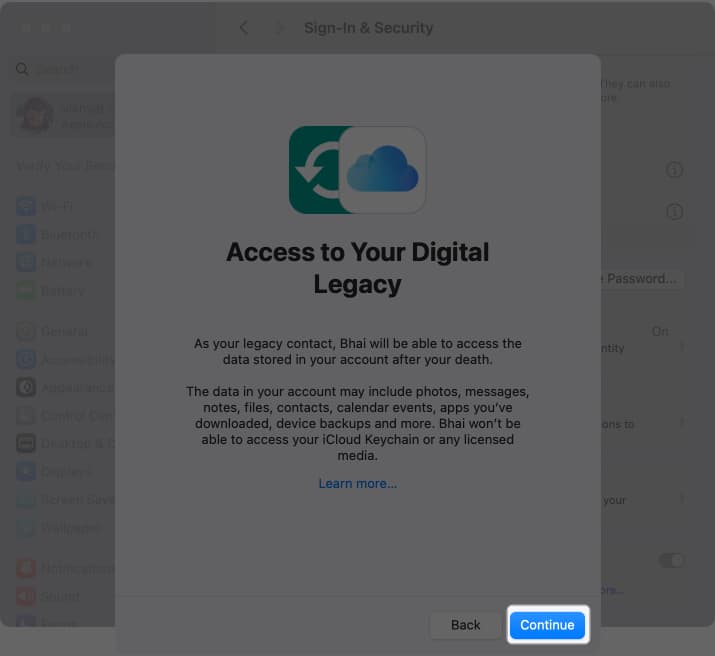
- Again, click Continue on the Share Your Access Key prompt.
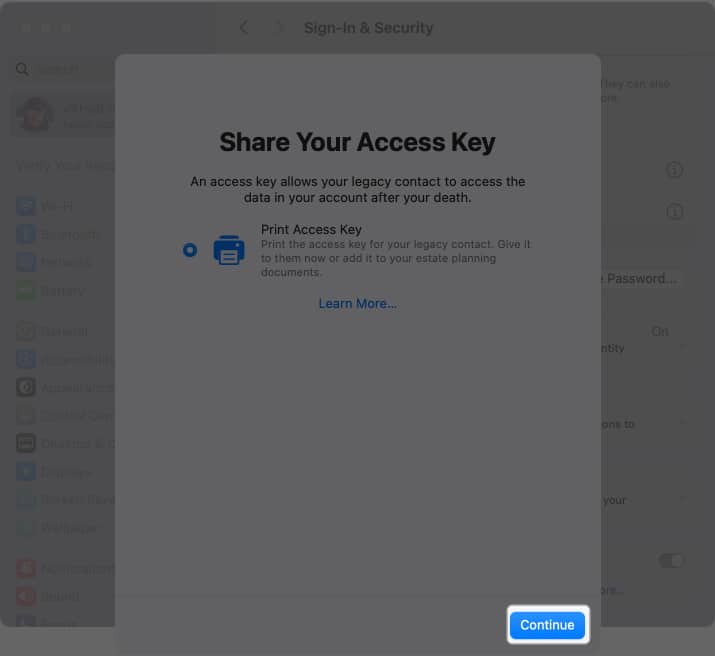
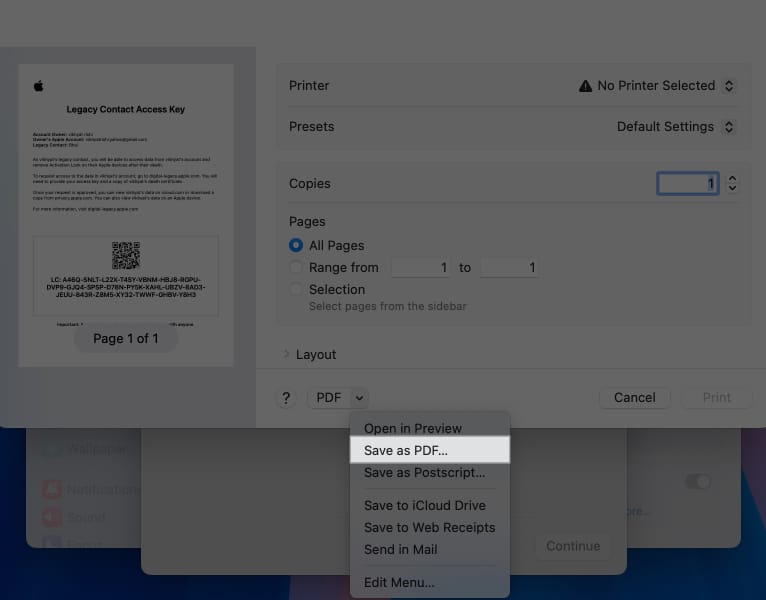
- Finally, select Save as PDF to save the access key as a PDF document on your Mac, so you can share it with the chosen Legacy Contact later.
How to Add Legacy Contact if You’re in a Family Sharing Group
If you are a part of a Family Sharing group, all the members of the group will appear when you enter Legacy Contact settings. You can choose a contact from the group, or select Choose Someone Else to choose a contact outside your Family Sharing group. The rest of the process remains the same.
How to Save or Share Legacy Contact Access Key
If you did not save or share the Legacy Contact access key at the time of creating it, you can save or share it later as well:
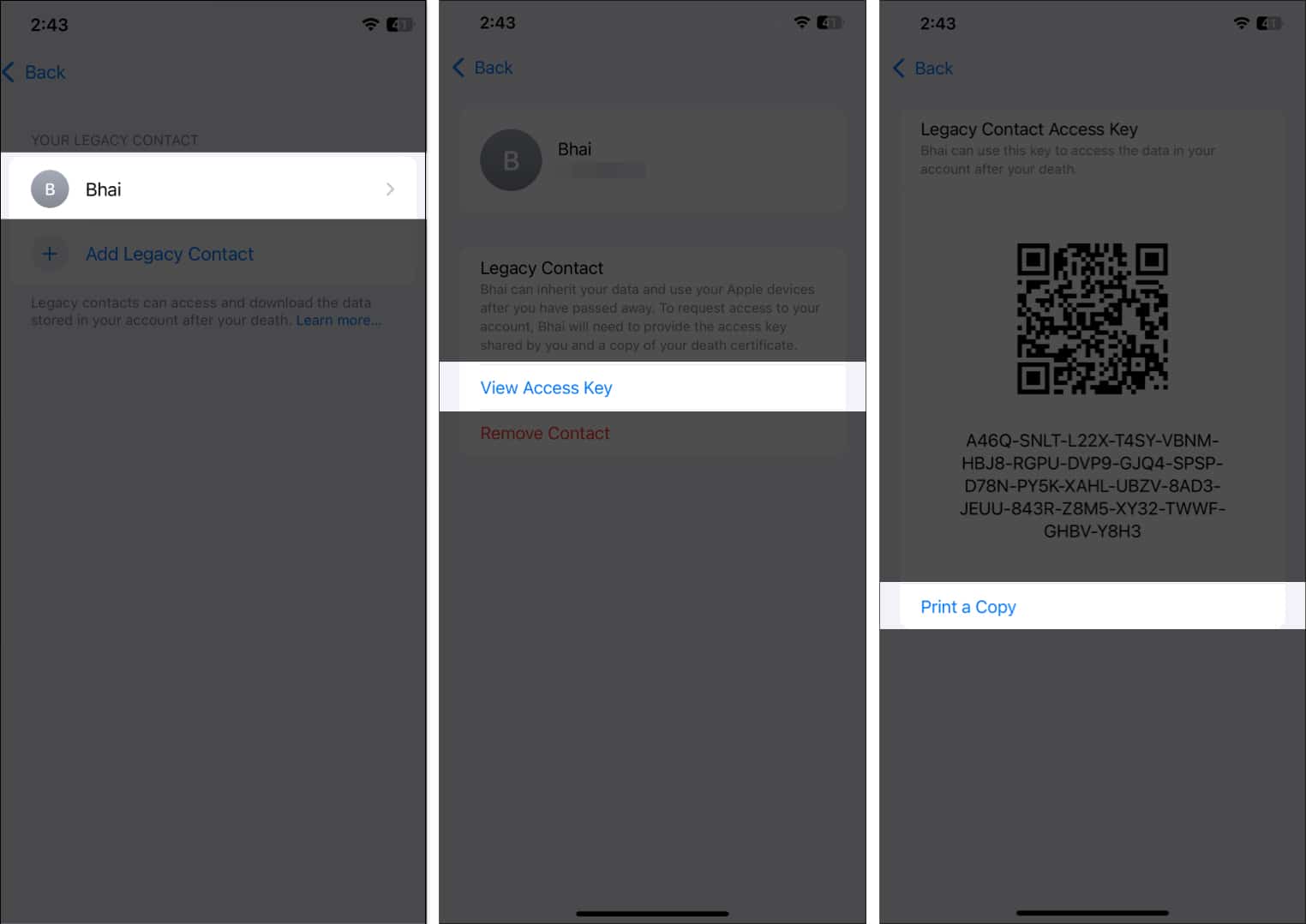
- Go to the Legacy Contact settings and select the available Legacy Contact.
- Here, tap on View Access Key.
- Tap on Print a Copy.
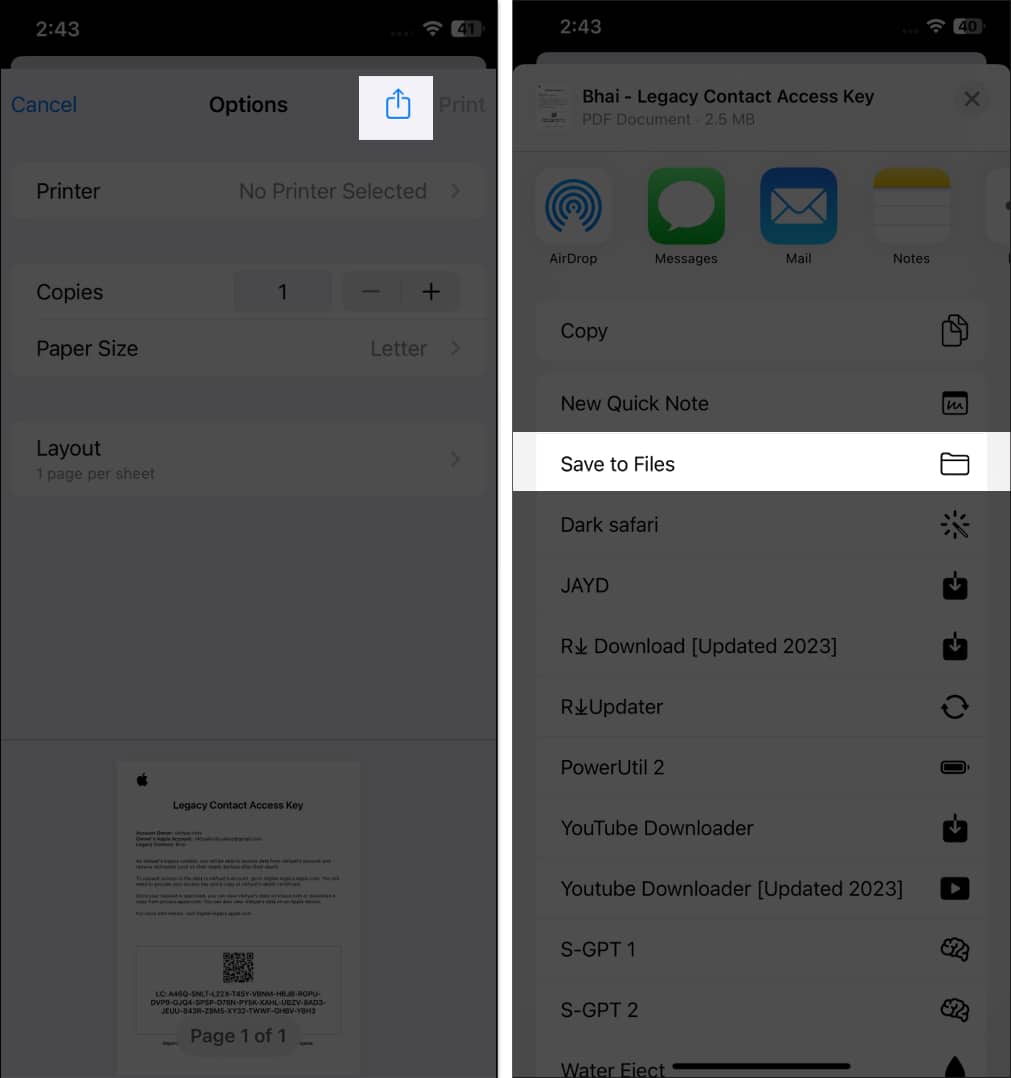
- Hit the Share button.
- Now, you can save the access key to the Files app or share it with the contact using any app that allows file sharing.
How to Remove a Legacy Contact on Your iPhone
Friendships and relationships change over time; the level of trust you currently have in someone may not remain the same. That’s exactly why knowing how to remove a Legacy Contact from your Apple ID is essential.
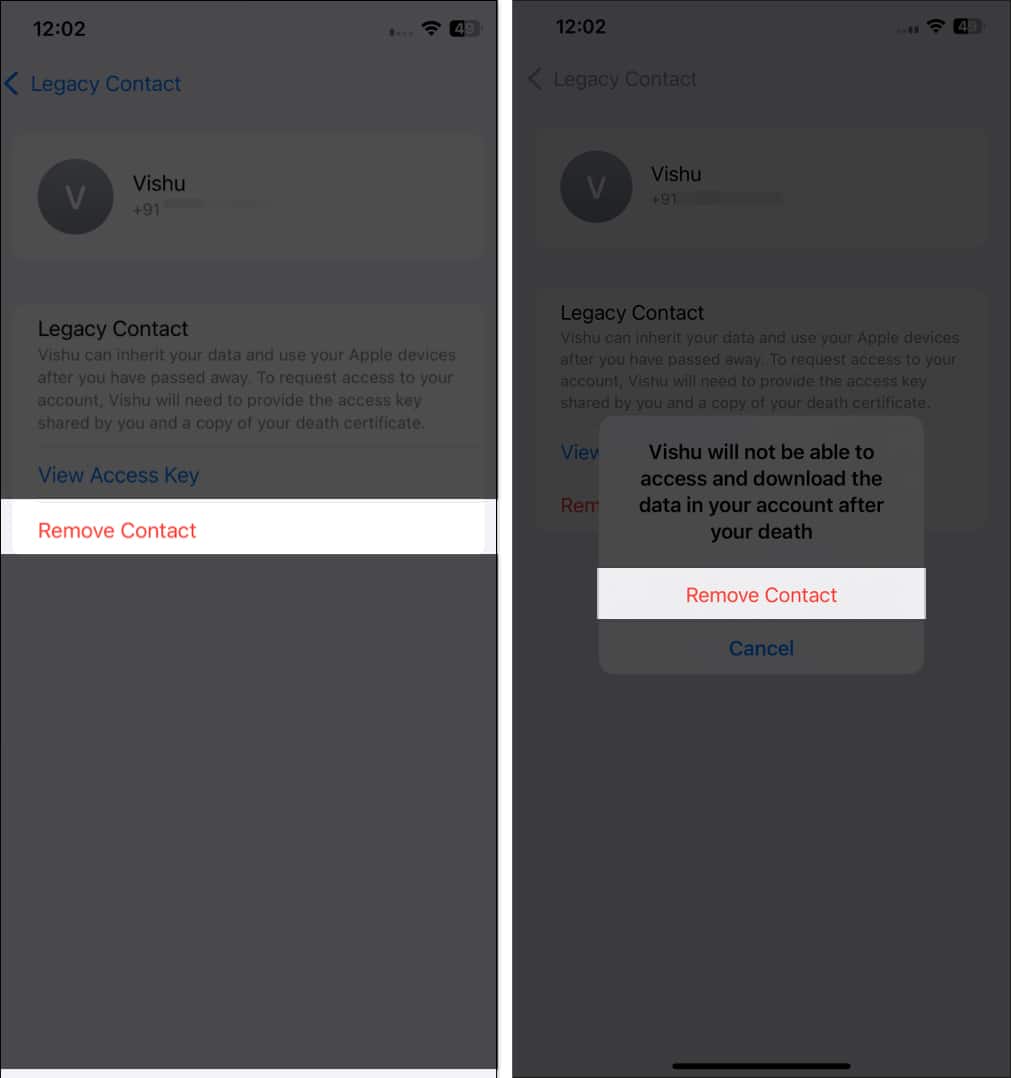
- Head to your Apple account settings on your iPhone and tap Legacy Contact.
- Tap on the Legacy Contact you want to remove.
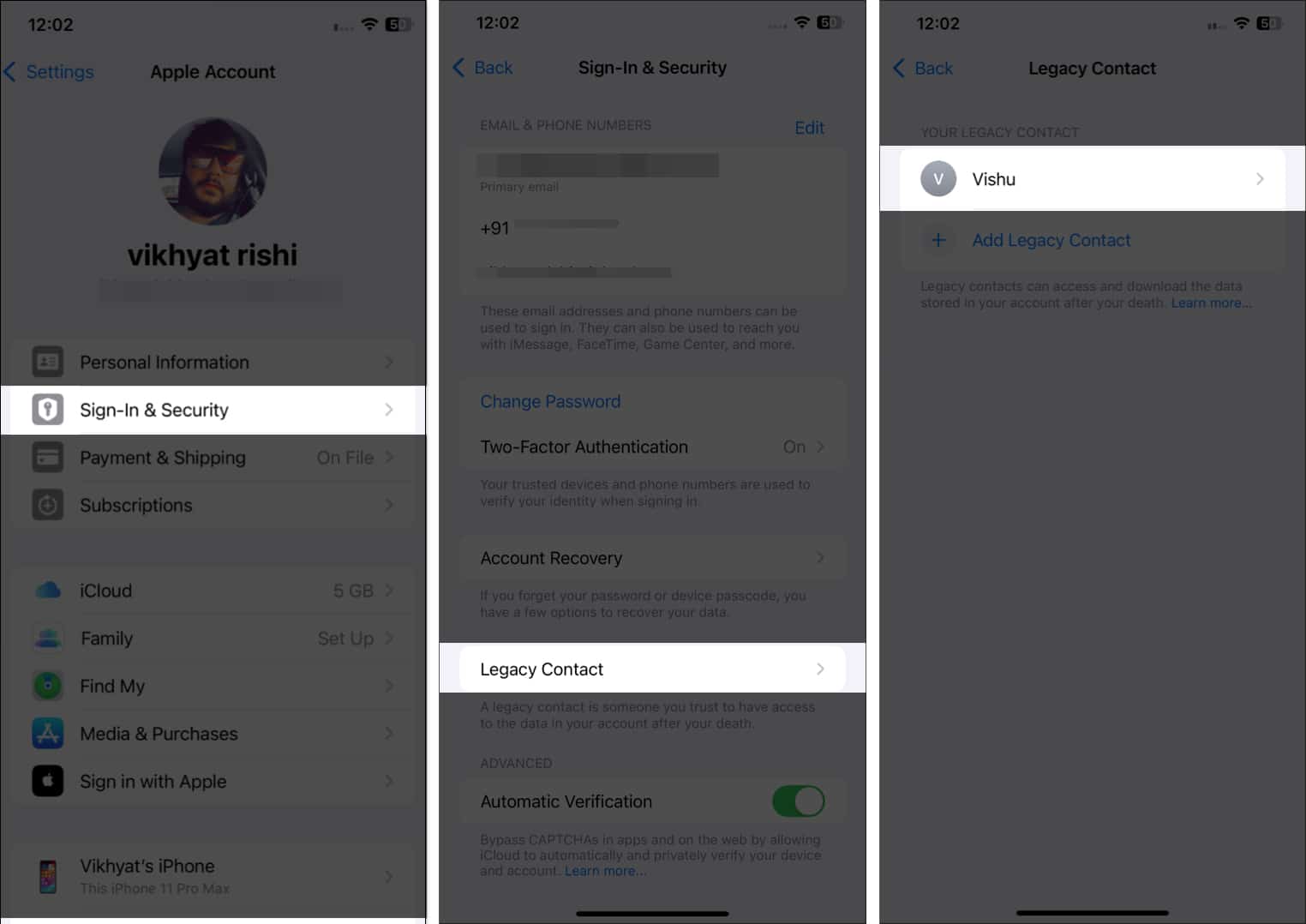
- Next, tap on Remove Contact.
- Now, again tap on Remove Contact on the confirmation prompt that appears.
How Your Legacy Contact Can View the Access Key
Once you assign someone as your Legacy Contact, Apple generates a secure Digital Legacy access key that they must present, along with your date of birth, to request access to your account. Apple stores this key in their Apple ID settings so they can retrieve it whenever needed. Here is how they can view it:
From the Legacy Contact Invitation
Your Legacy Contact receives a notification and an iMessage containing the access key. If they choose to save it to their Apple ID, the key is automatically added to their account and synced across their devices.
From Apple ID Settings on iPhone or iPad
If they need to access the key again, they can find it directly in Settings.
- Go to Settings → Name → Sign-In & Security.
- Tap Legacy Contact.
- Choose your name under Legacy Contact For.
- Tap View Access Key to display, save, or share it.
Your Legacy Contact can store this key digitally or print a copy for safekeeping. Without this key, Apple cannot grant access to your data.
How a Legacy Contact Can Access Your Apple Account Data After You Die
After your death, your Legacy Contact must complete Apple’s verification process to receive access to your iCloud data and device information. Apple only grants access when the contact provides two elements:
- The Digital Legacy access key
- A verified death certificate
Once approved, they can download and manage your data for up to three years.
Here’s how the complete process works:
Step 1: Gather the Required Information
Your Legacy Contact needs:
- The Digital Legacy access key you shared with them.
- A certified death certificate issued by the appropriate authority.
Both must match the information saved in your Apple ID record, including your date of birth.
Step 2: Submit a Legacy Request
They can begin the request from any device by visiting Apple’s Digital Legacy portal:
- Go to the Digital Legacy Request Access page.
- Select Request Access.
- Enter the access key.
- Upload the death certificate when prompted.
Apple verifies the details and informs the Legacy Contact once access is approved.
Step 3: Sign In to the Legacy Data Account
After approval, Apple creates a special Legacy Contact Apple ID that lets them view and download your iCloud data. This account does not allow purchases, payment access, or use of your passwords. It exists solely to manage and export your data.
Your Legacy Contact can:
- Access iCloud Photos, iCloud Drive, Notes, Messages, and other eligible categories.
- Download your data directly or export it as a ZIP archive.
- Remove Activation Lock from your devices so they can be erased and reused.
Access to your data remains available for 3 years from the approval date. Once the three-year window completes, Apple permanently deletes the account and all associated data.
What Data Can a Legacy Contact Access?
The data your Legacy Contact can request using the provided access key depends on the data you have in your iCloud storage. You cannot allow or restrict Legacy Contact access to a particular data type; it is either all or none.
Data that a Legacy Contact might be able to access includes:
- iCloud Photos
- Notes
- Contacts
- Calendars
- Reminders
- Messages in iCloud
- Call history
- Files stored in iCloud Drive
- Health Data
- Voice Memos
- Safari Bookmarks and Reading List
- iCloud Backup
What Data a Legacy Contact Cannot Access
Apple blocks access to certain categories for privacy, financial security, and DRM licensing reasons. A Legacy Contact cannot view or use:
Sensitive or protected data
- Keychain items (passwords, passcodes, website passwords, Wi-Fi passwords, bank credentials).
- Payment information, such as Apple Card, credit or debit cards.
- Apple Pay transactions or stored cards.
- Subscriptions and purchased content license rights.
- In-app purchases.
- Movies, music, books, or apps tied to your Apple ID via licenses.
Other exclusions
- Any data not synced to iCloud.
- Data with third-party end-to-end encryption outside Apple’s ecosystem.
- Screen Time settings and restrictions.
What If Your Family Member Has Died Without Setting Up a Legacy Contact
If a family member dies without assigning a Legacy Contact, you can still request access to their Apple data, but the process is more formal.
To grant you access to the deceased person’s data, Apple requires a court order that authorizes you to obtain the deceased person’s digital information. The order must identify the deceased, confirm your authority, and specify what data Apple should release. Once submitted, Apple provides only the information the court permits.
If you only need to erase or reuse their iPhone, iPad, or Mac, you can request Activation Lock removal by submitting the death certificate, proof of ownership or inheritance, and the device’s serial number. Apple will unlock the device, but no data is shared.
Digital Afterlife Sorted…
Apple’s Legacy Contact lets your loved ones access your iCloud photos and data after you’re gone. It also removes Activation Lock, so your devices stay usable instead of turning into pricey paperweights.
Frequently Asked Questions

Written by
Yash WateYash is a tech journalist and writer based in India. He has five years of experience writing features, how-tos, and reviews for various online publications. As an editor at iGeeksBlog, Yash's job is to ensure the articles are polished and suitable for publication. You can also read his work on How-To Geek, MakeUseOf, and TechPP.
View all posts →More from How-to

How to Turn Off Location on Snapchat (Step-by-Step Guide)
Want to stop sharing your location on Snapchat? This guide explains how Snapchat location sharing works and shows simple ways to turn off your location using Ghost Mode or phone settings. Stay in control of your privacy in just a few steps.
 VikhyatMarch 5, 2026
Snapchat Parental Controls: How to Set Up Family Center and Keep Your Teen Safe
Snapchat’s Family Center lets parents monitor their teen’s friend activity and screen time without reading private messages. Here’s how to set it up and what to expect.
VikhyatMarch 3, 2026
How to Block and Unblock Someone on Instagram
Instagram lets you block or unblock someone in seconds. Follow these simple steps to take full control of your privacy and online peace.
 Ava BiswasMarch 2, 2026