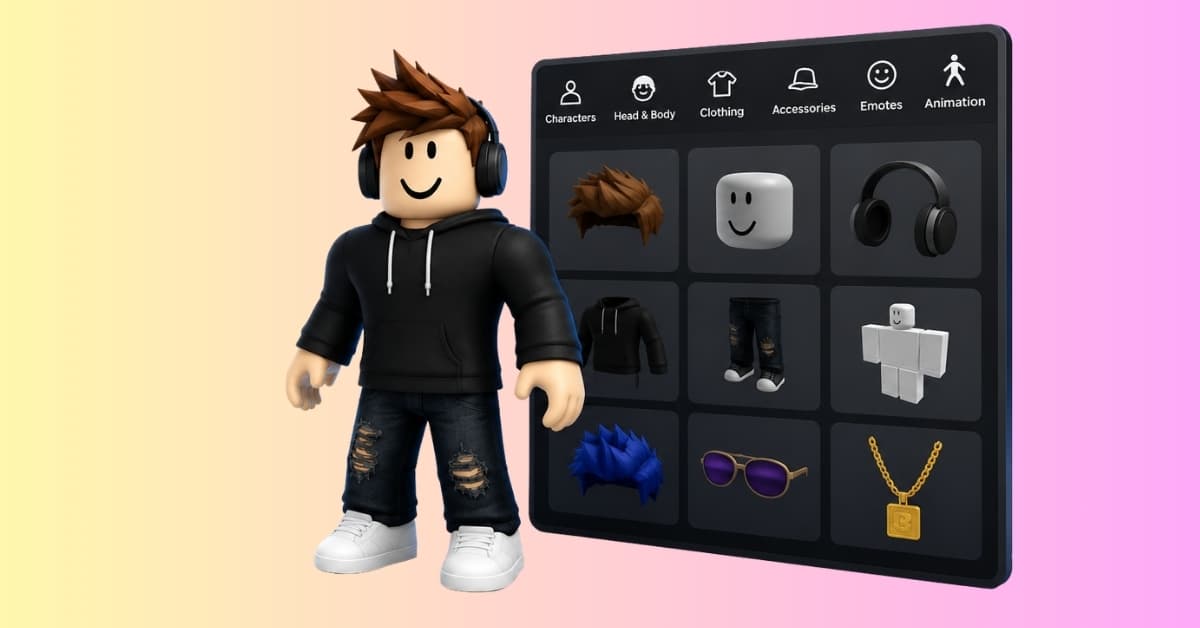
Your Roblox avatar does not have to stay on the default look. The Avatar Editor lets you change clothes, accessories, hair, skin tone, body style, faces, animations, and emotes, while the Roblox Marketplace gives you more free and paid items to add.
You only need a logged-in Roblox account. Some items are free, while others cost Robux, so check the price before you hit Buy or Get.
How to customize your Roblox avatar on the website
Use the web version if you want the clearest layout and easier Marketplace browsing.
- Go to Roblox and log in.
- Select Avatar from the left menu. You can also open the Avatar Editor directly after logging in.
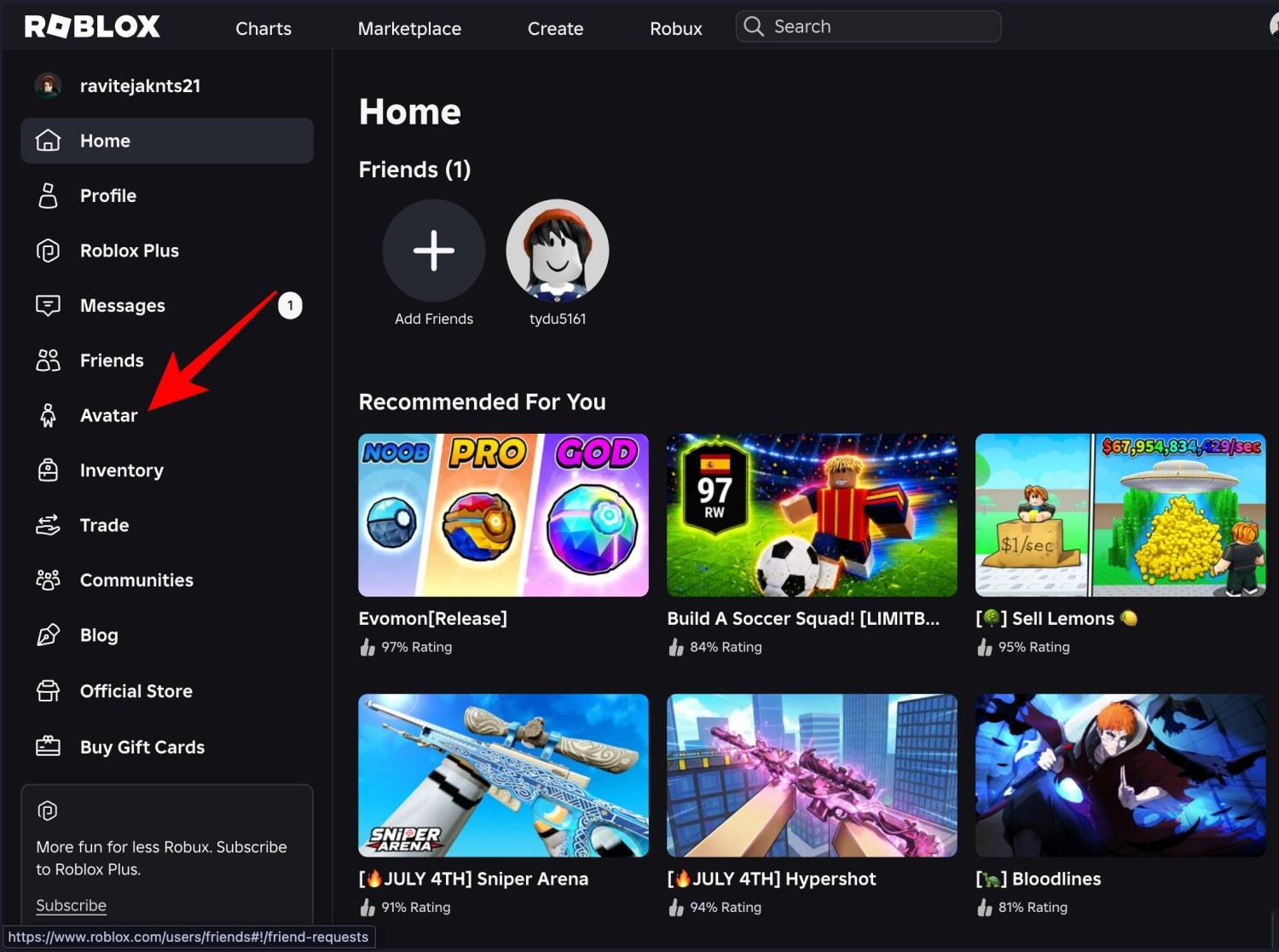
- Open a category such as Clothing, Accessories, Body, or Animations.
- Click an item to equip it. Click it again to remove it.
- Wait for the avatar preview to update.
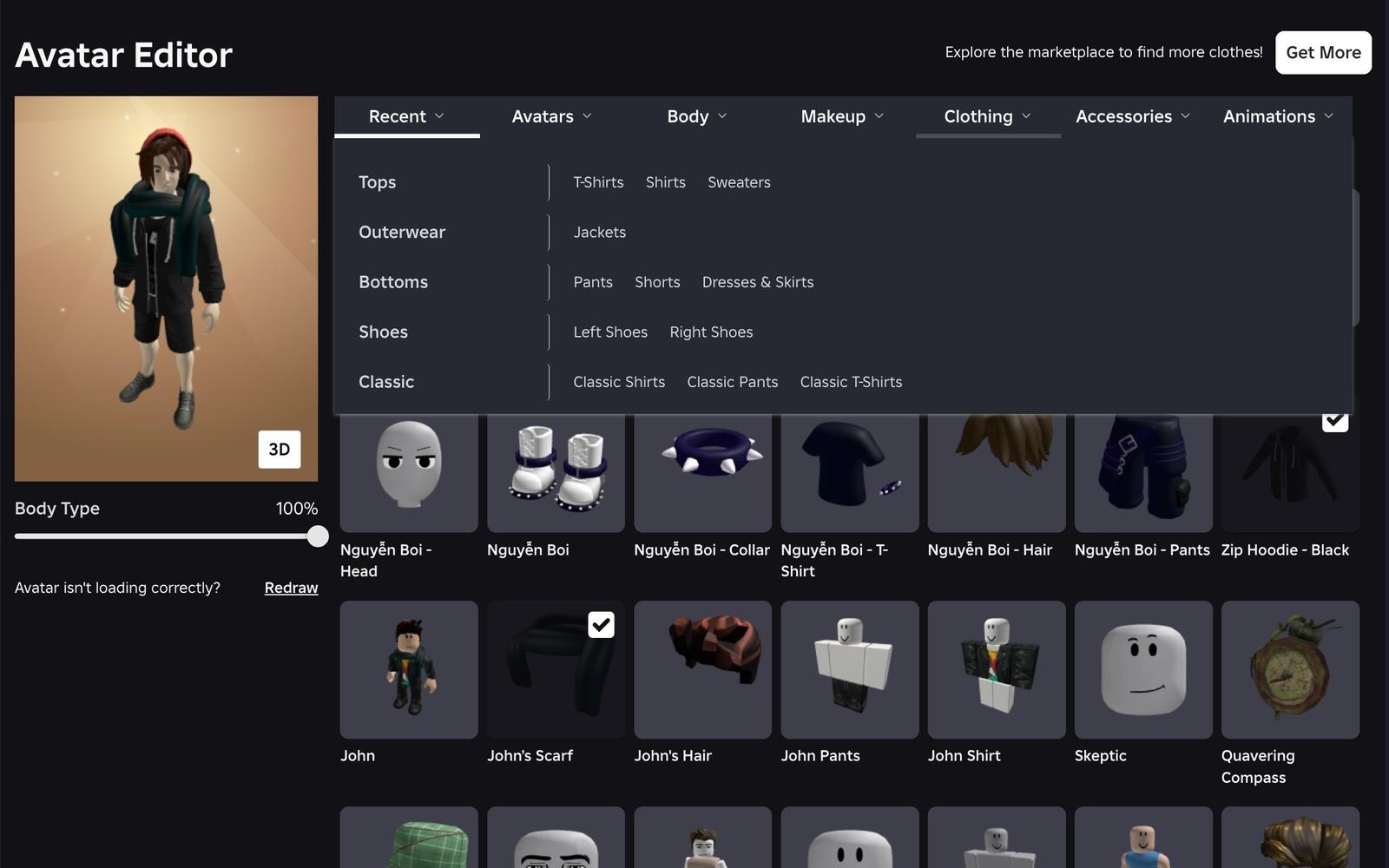
Roblox saves avatar changes automatically. If the preview changes, your avatar has been updated; you do not need a separate Save button for normal item changes.
How to customize your Roblox avatar on mobile
The mobile app uses a tighter layout, but the idea is the same.
- Open the Roblox app.
- Select Avatar.
- Tap Customize.
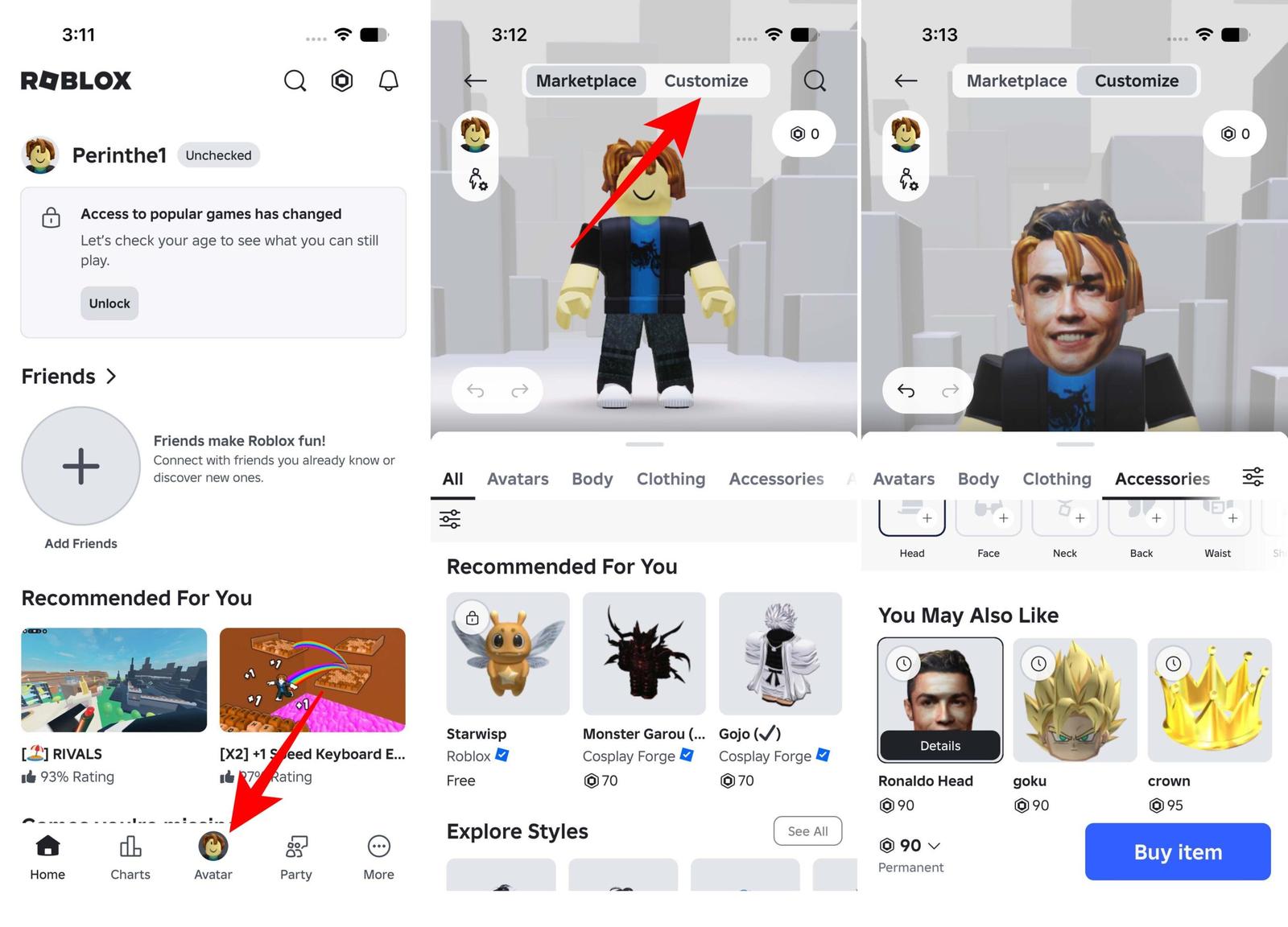
- Choose the item type you want to change.
- Tap an item to equip or remove it.
If you do not see the same labels, update the Roblox app or use the website. Roblox sometimes moves Avatar and Marketplace controls around, but the Avatar section is still the place to edit your character.
How to get new clothes, accessories, and avatar items
If your inventory feels empty, open the Roblox Marketplace from the website or the Shop tab inside the Avatar area.
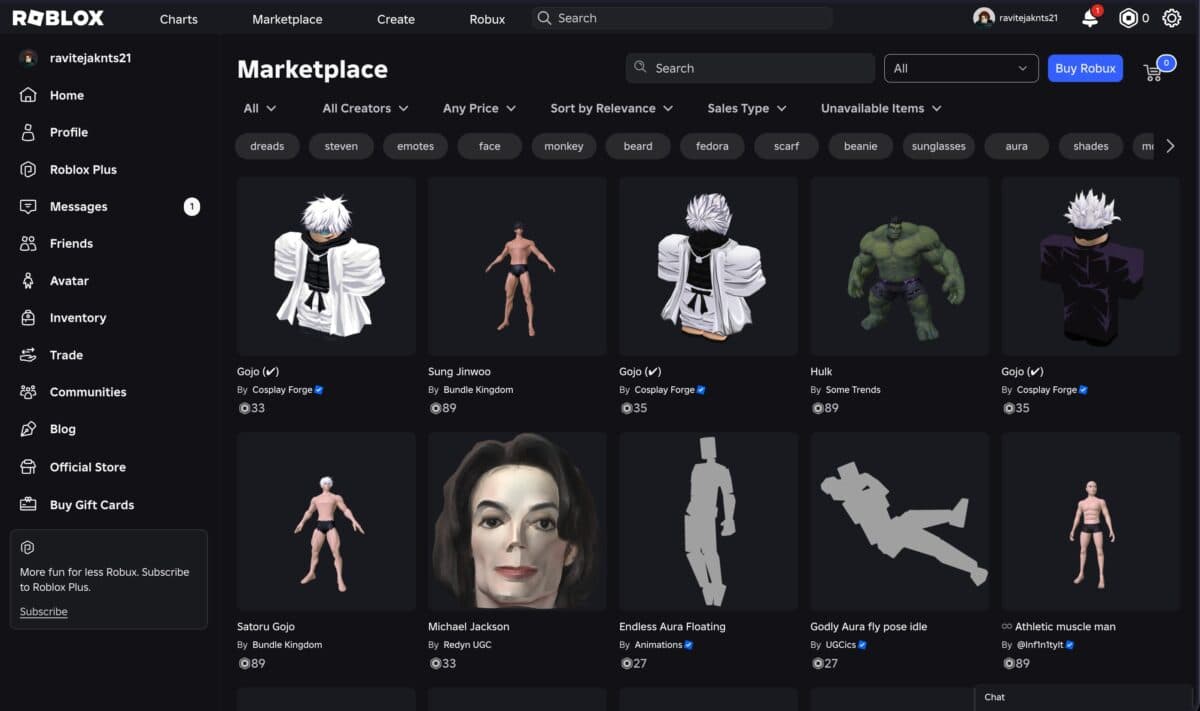
- Search for the item you want, such as a hoodie, hair, hat, face, bundle, or emote.
- Use filters to narrow results by category, creator, price, or availability.
- Choose Free if you do not want to spend Robux.
- Open the item page.
- Select Get for free items or Buy for paid items.
- Return to Avatar > Customize and equip the item from the matching category.
Be careful with off-platform links promising free Robux or rare avatar items. If you plan to spend Robux or use Roblox-related sites, read these Roblox account safety tips first.
How to change skin tone, body, and animations
Clothes change the outfit, but the Body and Animations sections change how your avatar is built and moves.
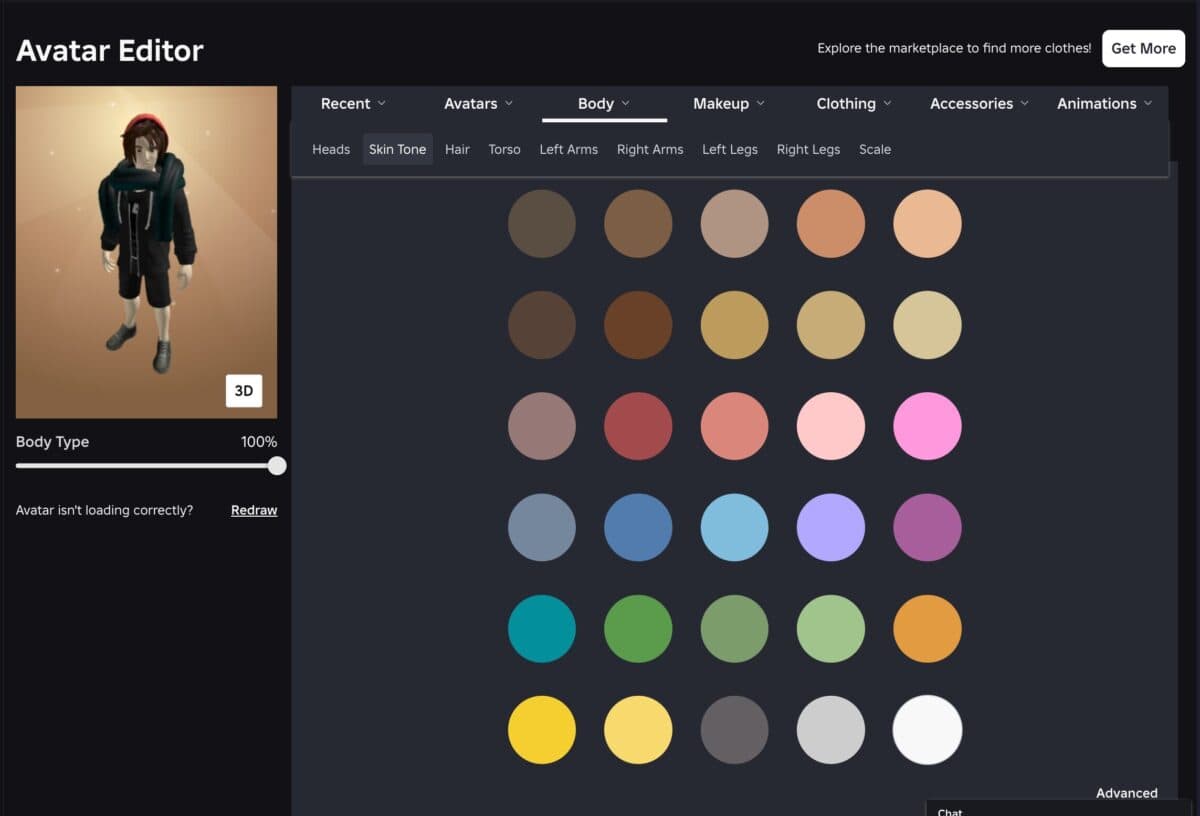
- Skin tone: Open Body and look for Skin or Skin Tone.
- Hair: Open Body or Accessories, depending on where Roblox places your hair items.
- Head or face: Open Body and choose Heads or Faces if available.
- Body shape: Look for Scale, Build, or body/bundle options inside Body.
- Walk and idle style: Open Animations and equip the animation pack or movement style you want.
- Emotes: Open Emotes or Animations and assign the emotes you want to use in supported experiences.
Do not overthink this part on day one. Pick a clean outfit first, then adjust body shape and animations only if the avatar still feels off.
Why your Roblox avatar is not changing
If your new look does not show up, check these common causes before buying the same item again.
- The item is not equipped: Buying or claiming an item adds it to your inventory, but you may still need to equip it.
- The preview has not refreshed: Switch categories, refresh the page, or restart the app.
- The item was removed or moderated: Some items can disappear if Roblox removes them from the platform.
- The experience overrides avatars: Some games use custom characters, force R6/R15 styles, or hide certain accessories.
- You are using the wrong account: Check the username before changing or buying anything.
- You do not have enough Robux: Paid items will not be added unless the purchase completes.
If an item works in the Avatar Editor but not inside one specific game, the game is probably controlling how avatars appear. Try joining a different Roblox experience to confirm.
A few quick avatar style tips
The best Roblox avatars usually have one clear idea instead of ten random accessories fighting for attention.
- Start with one outfit theme: casual, sporty, fantasy, horror, anime, or funny.
- Match hair, face, and accessories before buying more clothes.
- Use free items first if you are still testing a look.
- Avoid bulky accessories if they block your view in games.
- Save Robux for items you will actually wear across multiple experiences.
Once your avatar is ready, you can jump back into games and claim free rewards from our Roblox game codes list if you want boosts, currency, or other in-game extras in supported experiences.
Recommended for you: