
What is Clean Energy Charging on iPhone and how it works?
The Clean Energy Charging feature is a testament to Apple’s relentless efforts to become carbon neutral by 2030. This feature, in essence, juices up your iPhone battery when clean energy is available. To further understand the concept of Clean Energy Charging and how it functions on iPhone, keep reading!
- What is Clean Energy Charging on iPhone?
- Which settings need to be enabled for Clean Energy Charging on iPhone
- How to disable Clean Energy Charging on iPhone
What is Clean Energy Charging on iPhone?
Apple unveiled the Clean Energy Charging function with iOS 16.1. The feature can assist you in lowering your carbon footprint and is activated on your iPhone by default. The function uses your Location to draw information about carbon emissions in your area and enable the charging of your iPhone more effectively only during times of cleaner energy production.
What Apple says about Clean Energy Charging:
“When Clean Energy Charging is enabled and you connect your iPhone to a charger, your iPhone gets a forecast of the carbon emissions in your local energy grid and uses it to charge your iPhone during times of cleaner energy production.
Clean Energy Charging is available only in the United States and is on by default when you set up your iPhone or after you update to iOS 16.1.”
As a result, less energy comes from non-renewable sources during the charging process. The downside is that it only allows charging if the electrical system uses greener energy sources like solar or wind.
Which settings need to be enabled for Clean Energy Charging on iPhone?
There are a few options that must be enabled for Clean Energy Charging to work as expected. Below, I’ve mentioned the steps to determine whether the required settings are active.
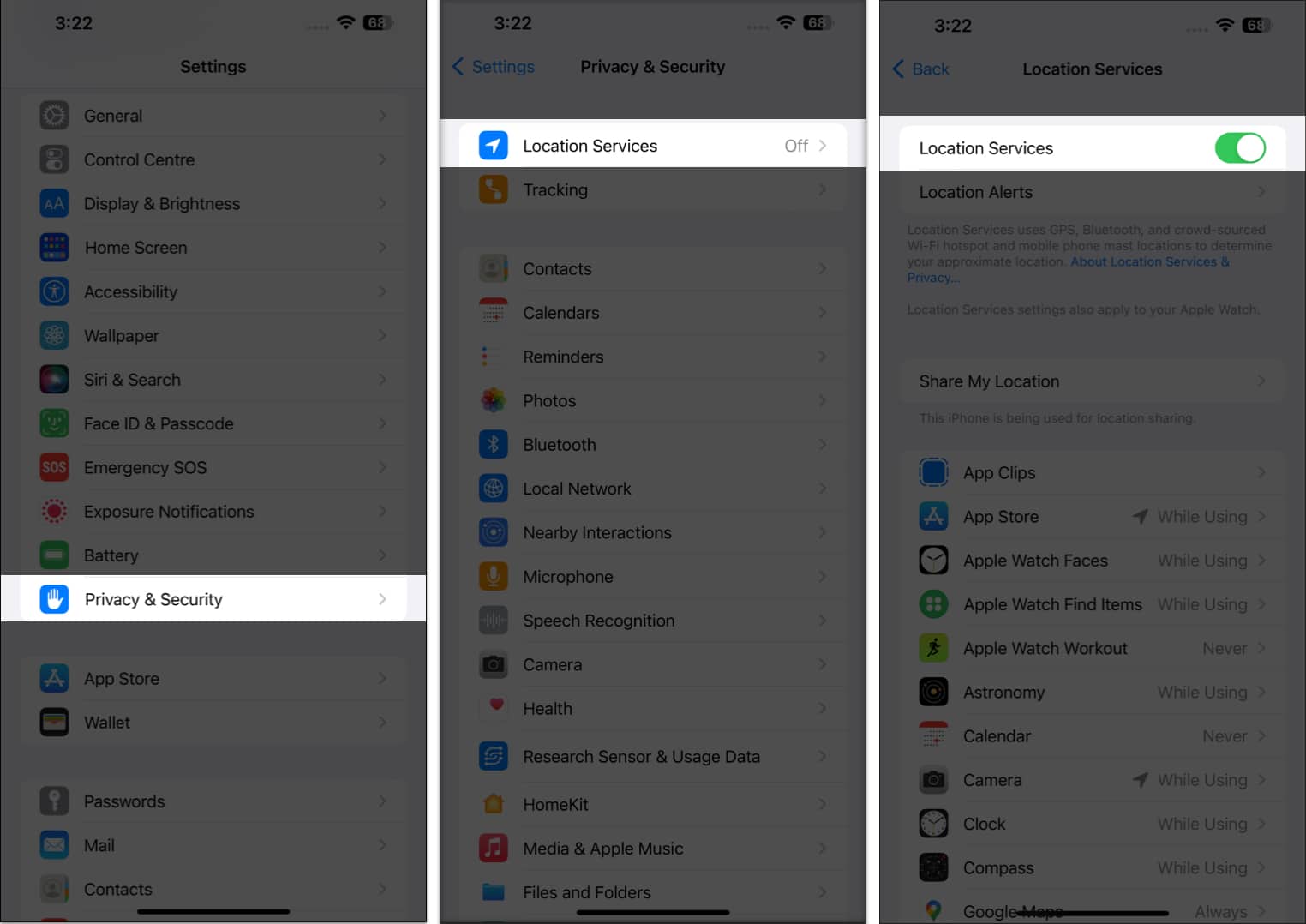
Enable Location Services
- Launch the Settings app → choose Privacy & Security.
- Select Location Services → toggle on Location Services.
Enable Significant Locations
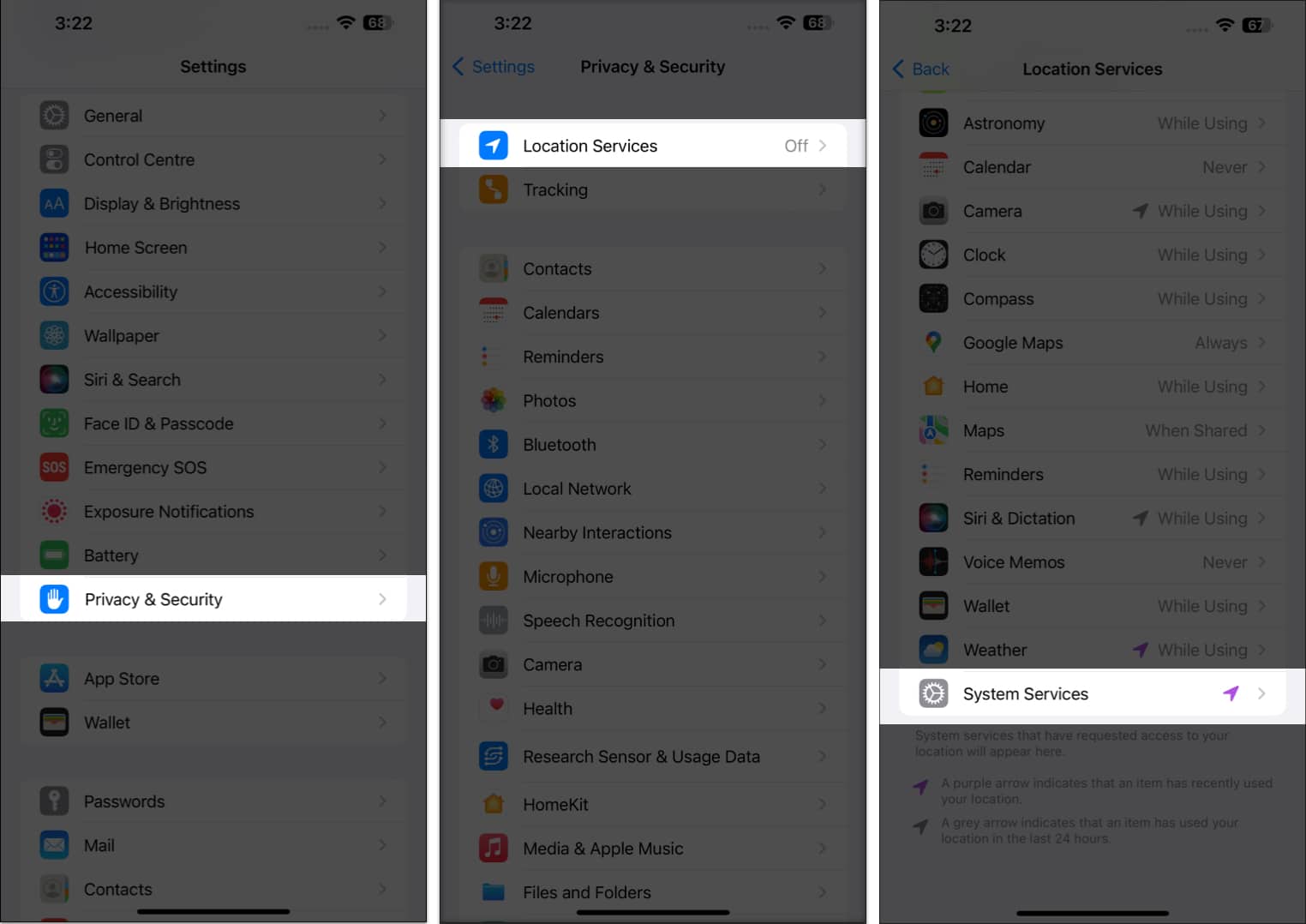
- Launch the Settings app → choose Privacy & Security.
- Select Location Services.
- Scroll to the bottom and tap System Services.
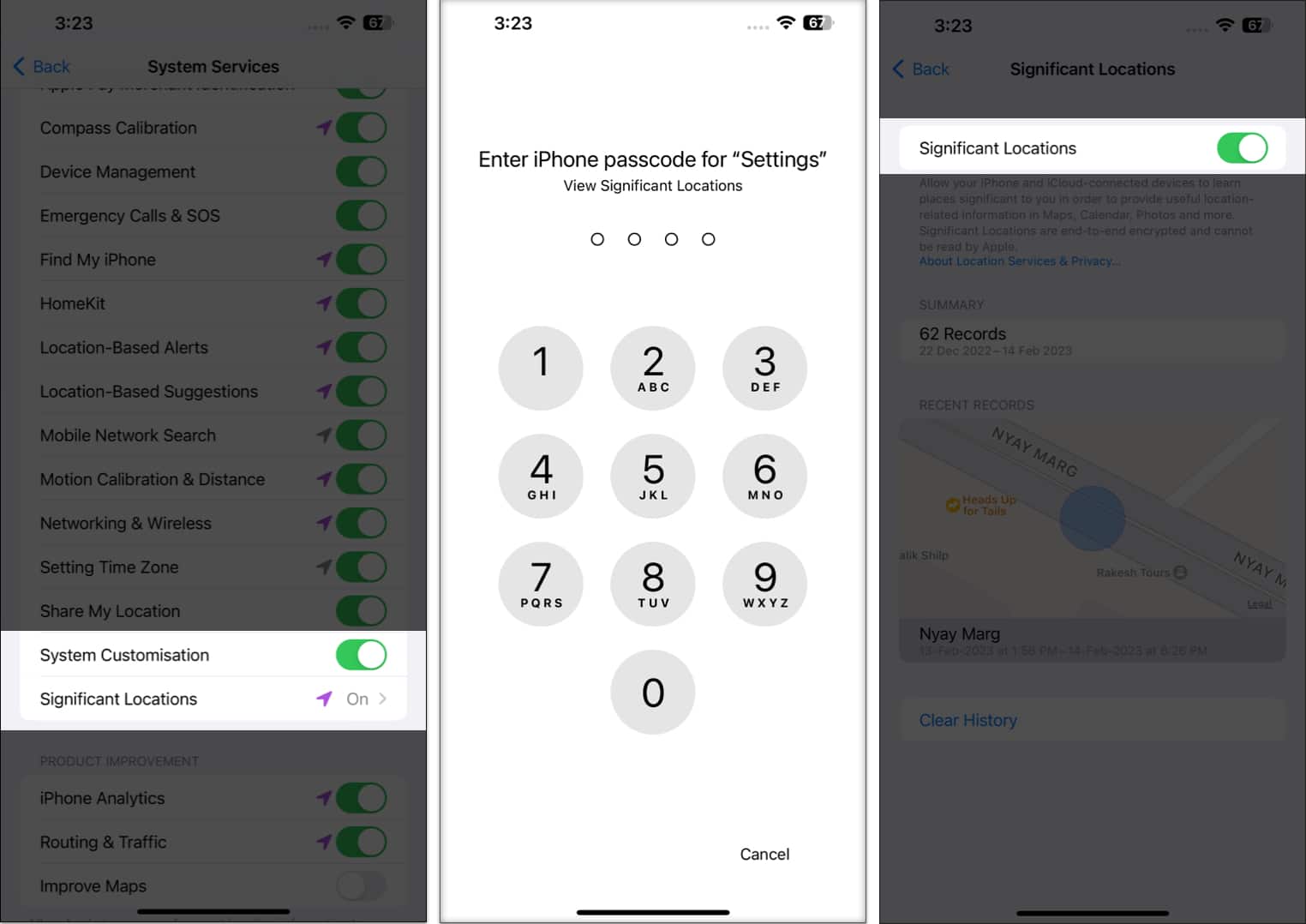
- Toggle on System Customization.
- Then tap Significant Locations below it.
- Enter your iPhone’s password.
- Toggle on Significant Locations.
You may want to turn off this feature when your iPhone’s Lock Screen displays a notification that charging has been temporarily suspended until cleaner energy is available. To achieve this, you can simply follow the steps below.
How to disable Clean Energy Charging on iPhone
- Launch the Settings app.
- Scroll down and tap Battery.
- Select Battery Health & Charging.
- Toggle off Clean Energy Charging.
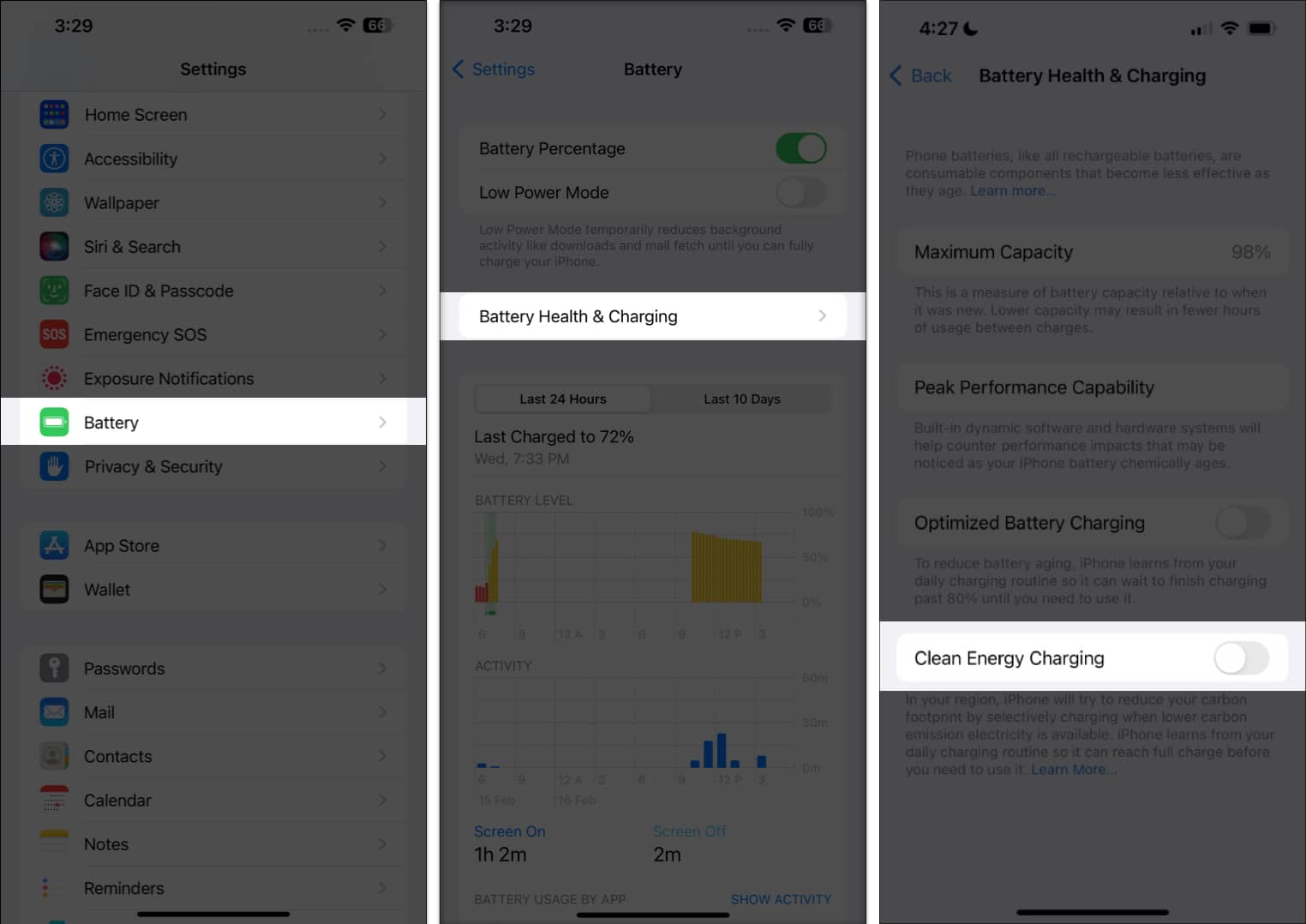
You may continue charging your iPhone using standard power after turning off Clean Energy Charging.
Wrapping up…
At the moment, this functionality is only available in the US. Hence, you may not be able to use the feature if you’re anywhere other than the States. Additionally, if you don’t charge your iPhone regularly or for an extended period of time, it won’t function and won’t be of any use to you.
I hope you now have all the details cleared regarding the Clean Energy Charging feature. In case you still have concerns, feel free to ask any questions in the comments section below. I’d be happy to respond.
Frequently Asked Questions
Topics

Written by
Bhaskar SharmaBhaskar is a tech guru who turned wordsmith. Hiding his B.Tech degree in a closet, he ditched the corporate path to simplify tech for everyone. For the past 5 years, he's been dishing out how-tos, reviews, and sharp insights. But there's more! He's a witty interview champ and has been sharing his wisdom for 3 years. Furthermore, he has honed his editing skills for 1.5 years and is now delving into marketing to assist newcomers. When not jamming his fingers on those mechanical keyboards, you may find him on strings or engaging in sports. And by evening, his quotes will be appearing on your Instagram feeds.
View all posts →More from How-to

How to Turn Off Location on Snapchat (Step-by-Step Guide)
Want to stop sharing your location on Snapchat? This guide explains how Snapchat location sharing works and shows simple ways to turn off your location using Ghost Mode or phone settings. Stay in control of your privacy in just a few steps.
 VikhyatMarch 5, 2026
Snapchat Parental Controls: How to Set Up Family Center and Keep Your Teen Safe
Snapchat’s Family Center lets parents monitor their teen’s friend activity and screen time without reading private messages. Here’s how to set it up and what to expect.
VikhyatMarch 3, 2026
How to Block and Unblock Someone on Instagram
Instagram lets you block or unblock someone in seconds. Follow these simple steps to take full control of your privacy and online peace.
 Ava BiswasMarch 2, 2026