
How to Change Paper Style in Notes App on iPhone and iPad
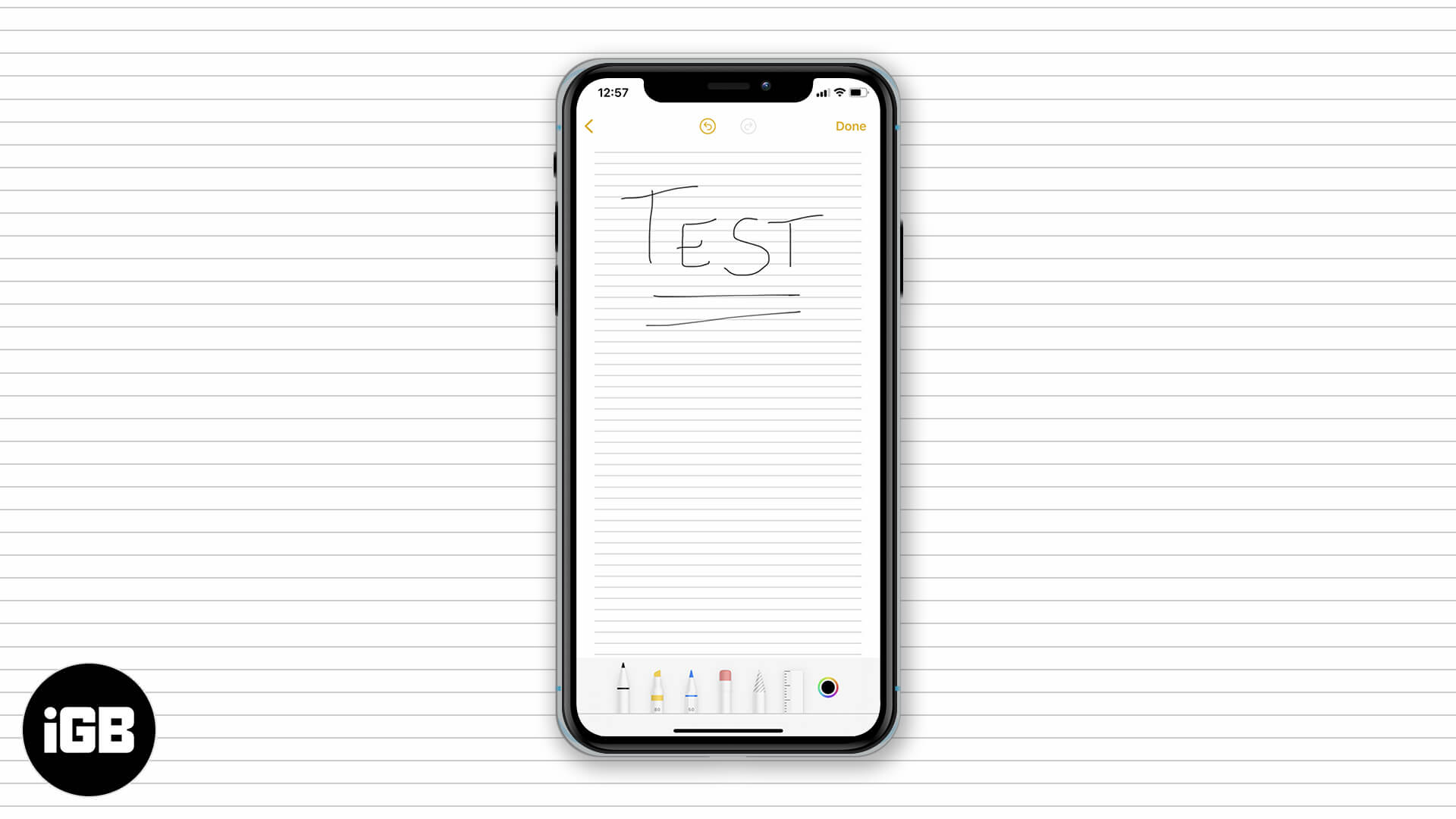
The Notes app is incredibly useful in everyday life and is packed with handy features. Among these is the ability to set the style of digital paper you want, such as a grid or ruled lines. This is especially helpful when you want to handwrite or draw on a note with a stylus like the Apple Pencil. There are six different types of paper you can pick, so let’s learn how to change the paper style in the Notes app on iPhone and iPad.
- How to Change Paper Style with Lines & Grids in Notes App
- How to Remove Lines or Grids from a Note in Notes App
- Set Default Paper Style in Notes App on iPhone and iPad
How to Change Paper Style with Lines & Grids in Notes App
- Launch the Notes App on your iPhone.
- Open a Note and tap on the Ellipsis icon or Share icon at the top right corner.
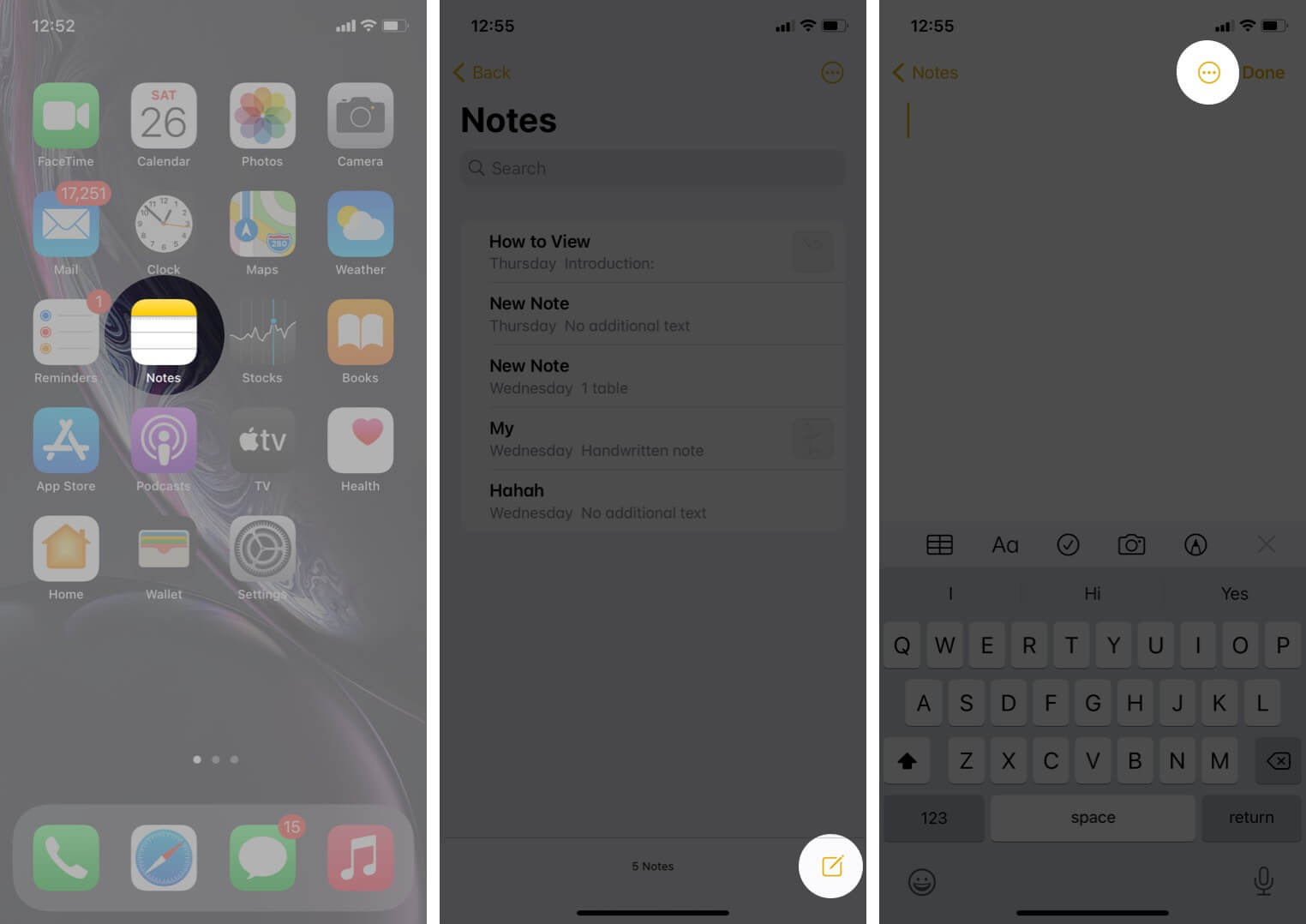
- Now, tap on Lines & Grids.
- You can see Seven different patterns, choose as per your needs.
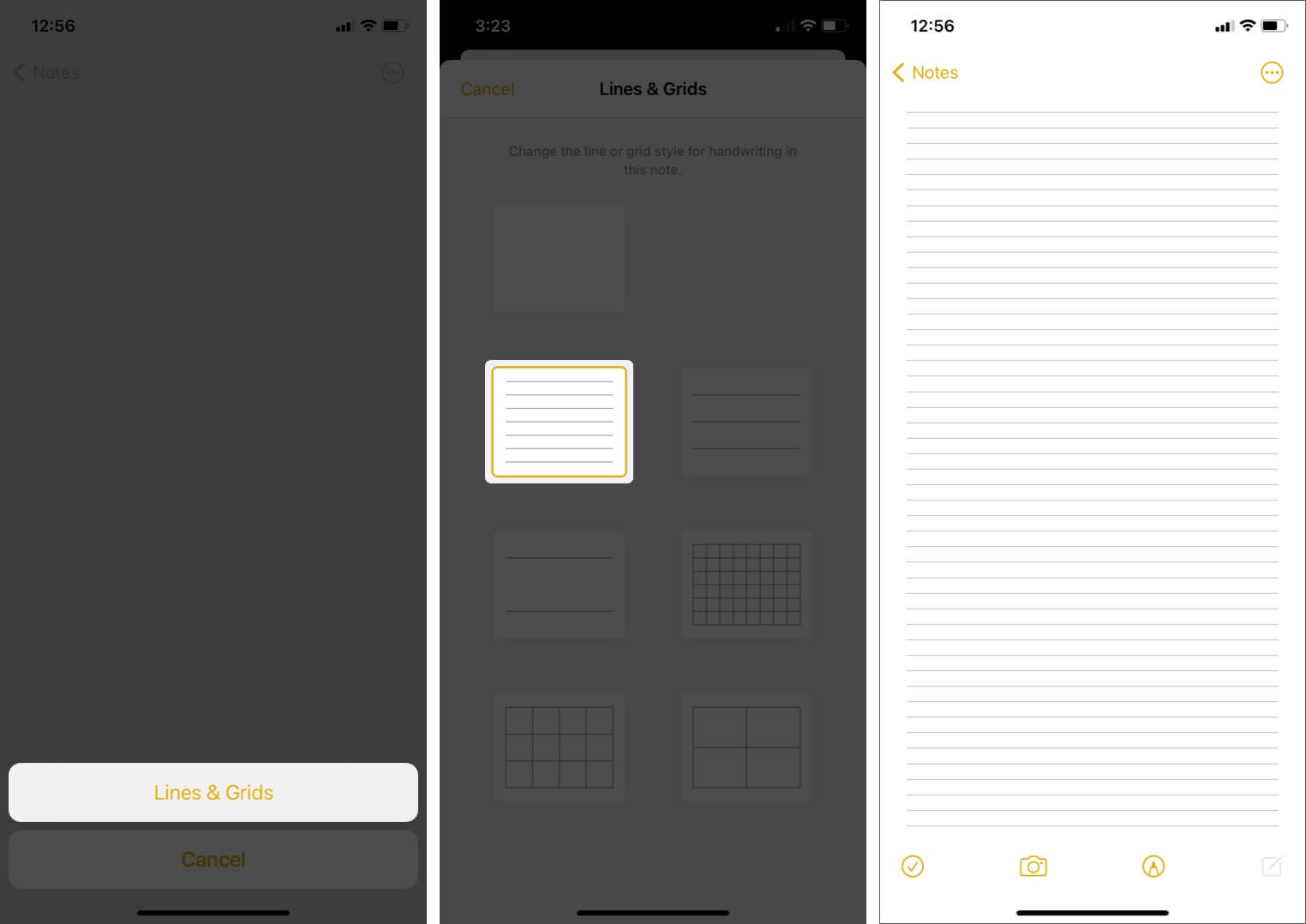
The paper style will be changed once you select, you can tap on Notes, and your memo will be saved.
How to Remove Lines or Grids from a Note in Notes App
- Open Notes app → Choose note from the list. (Having lines or grids)
- Tap on the Ellipsis icon or Share icon and then select Lines & Grids.
- Choose the plain pattern.
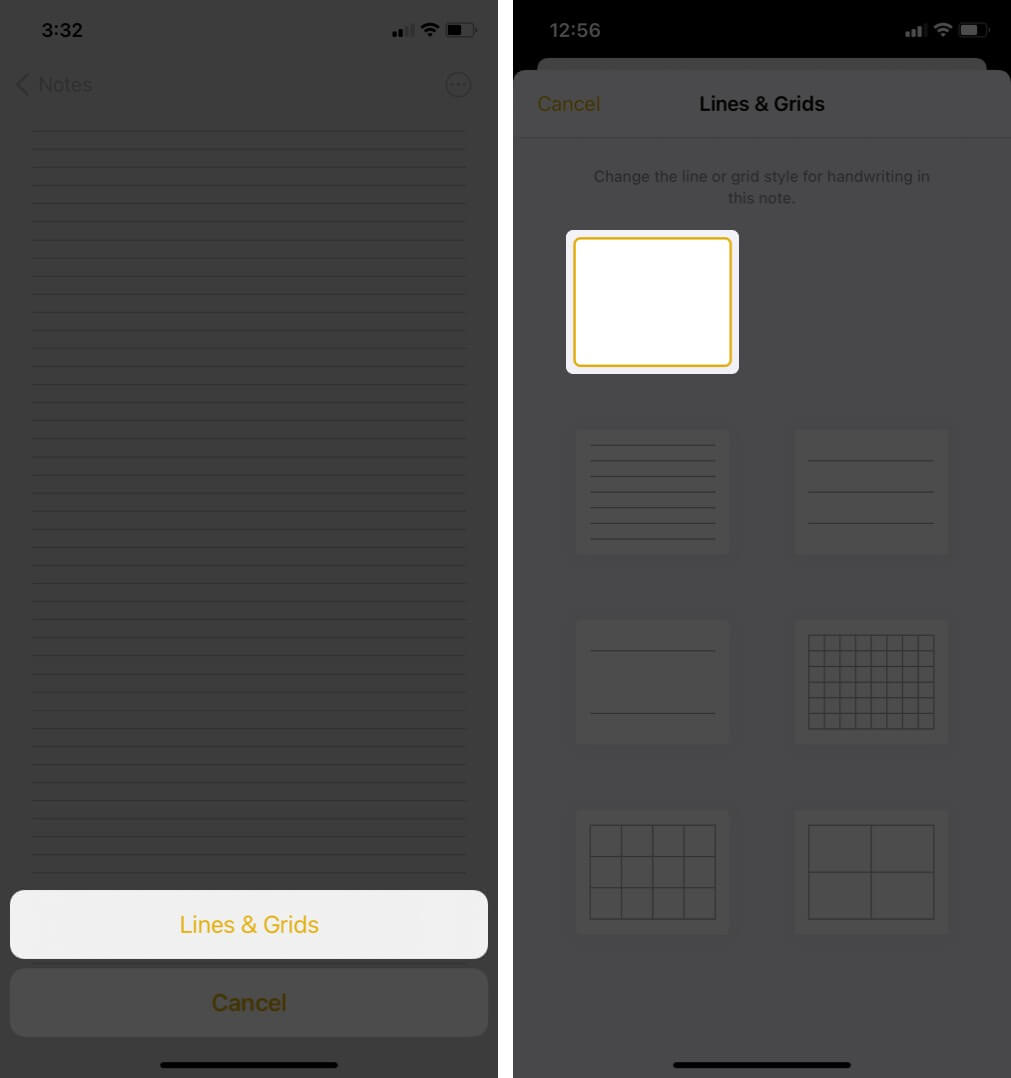
The paper style will be changed and you can see that removed lines and grids from a selected note.
Set Default Paper Style in Notes App on iPhone and iPad
- Launch the Settings app.
- Scroll down and tap on Notes.
- Find the Lines and Grids and tap on it.
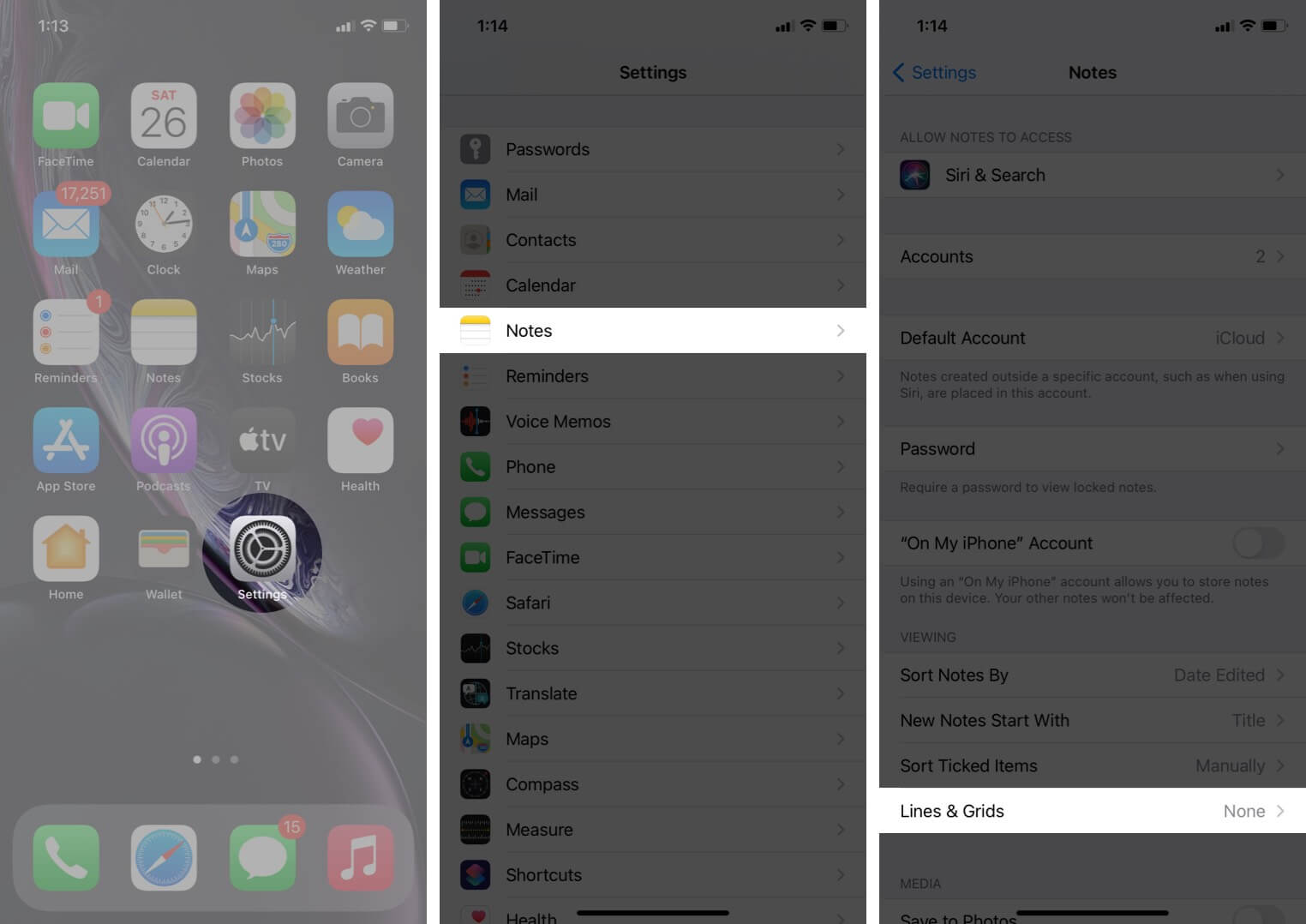
- From the visible patterns, you can choose as per needs.
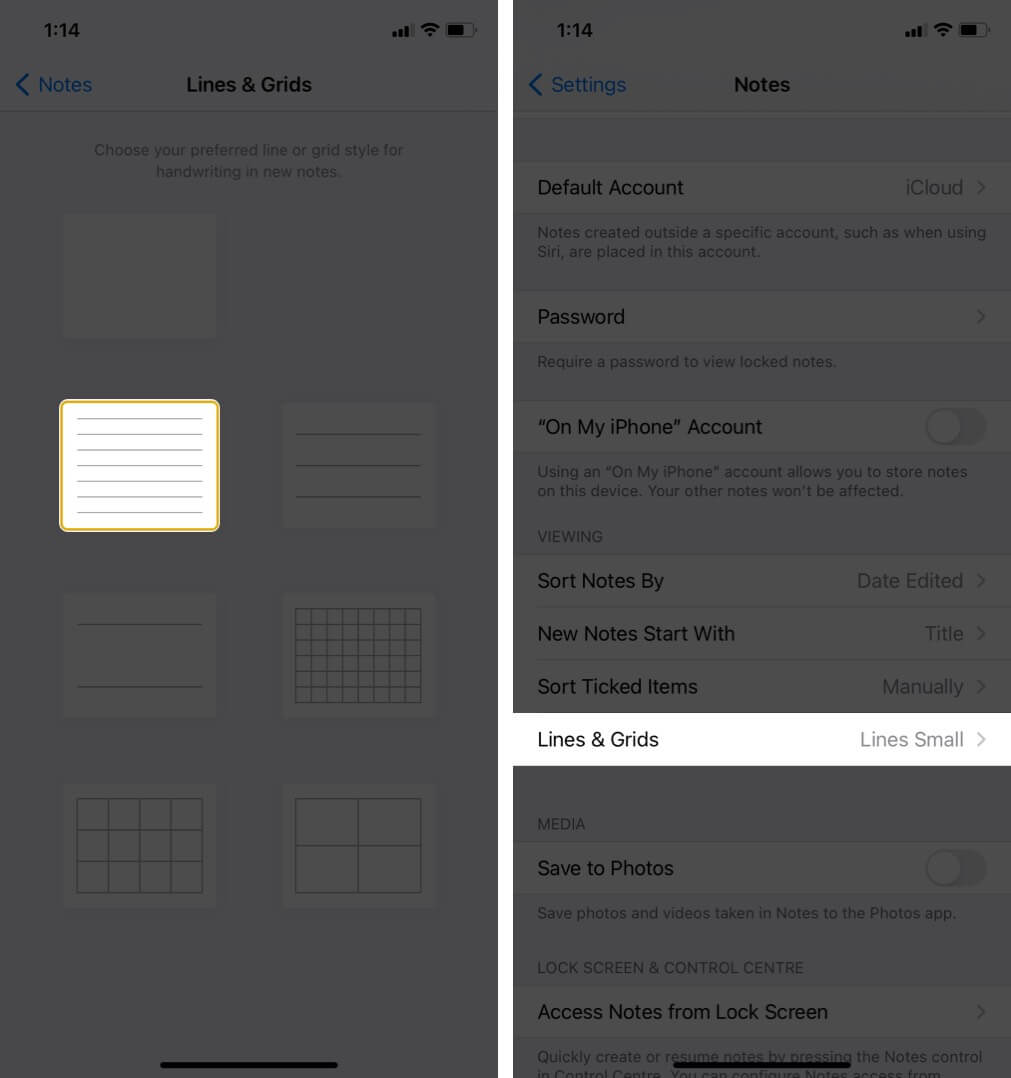
Finally, The chosen pattern will be your default notes paper style.
Summing Up!!
Apple Notes app doesn’t only seem to be a beneficial app; it is! By far, the best Notes taking app for iOS despite such tough competition with the third party apps. With a lot of impressive features that are yet to be explored by most of the iOS users.
In iOS 14, The Notes app has been designed to help you focus on your work and give undivided attention while making these notations.
Share your valuable reviews in the comment section below!! We’ll keep you engrossed with such interesting insights!! Till then, keep reading and exploring!
You would like to read these posts as well:

Written by
Ria SharmaI'm a technical writer who is interested in understanding consumer difficulties and find easy solutions. At iGeeksBlog, I enjoy making how-to and troubleshooting guides that help people do more on their iPhone, iPad. In my spare time, I enjoy listening to music and going to my favorite spots.
View all posts →More from How-to
How to Share Screen on WhatsApp (iPhone, Android, and Desktop)
Sharing your screen on WhatsApp makes it easier to explain things visually. Here’s how to use screen sharing on iPhone, Android, and desktop devices.
 Avadesh JoshiMarch 6, 2026
How to Turn Off Location on Snapchat (Step-by-Step Guide)
Want to stop sharing your location on Snapchat? This guide explains how Snapchat location sharing works and shows simple ways to turn off your location using Ghost Mode or phone settings. Stay in control of your privacy in just a few steps.
 VikhyatMarch 5, 2026
Snapchat Parental Controls: How to Set Up Family Center and Keep Your Teen Safe
Snapchat’s Family Center lets parents monitor their teen’s friend activity and screen time without reading private messages. Here’s how to set it up and what to expect.
VikhyatMarch 6, 2026