
The Notes app is a great tool for organizing ideas and thoughts. If you use multiple accounts, knowing how to change the default account is essential for seamless syncing across devices. This guide will show you exactly how to do it!
Why should you set a default account for Apple Notes?
- Simplified access to your notes: By designating a default notes account, all new notes will automatically be saved in that particular account. Consequently, you can effortlessly access your notes from any device by just logging into the desired account.
- Organize your notes: If you have multiple accounts for Apple Notes, you can categorize them based on your needs. For example, you can assign one account for work-related notes, another for personal notes, and a third for shared notes. This approach facilitates efficient note organization and quick retrieval.
- Data security: By setting a default Notes account, your notes will be duplicated and stored in two separate locations. This duplication becomes invaluable in the event of any mishaps affecting one of your accounts. For instance, if your device is misplaced or stolen, you can still access your Notes from other devices.
How to set a default account for Notes on iPhone or iPad
- Launch the Settings app on your iPhone.
- Scroll down, tap the Apps→ select Notes.
- Select Default Account.
- Choose your desired option from iCloud, Email, or On My iPhone.
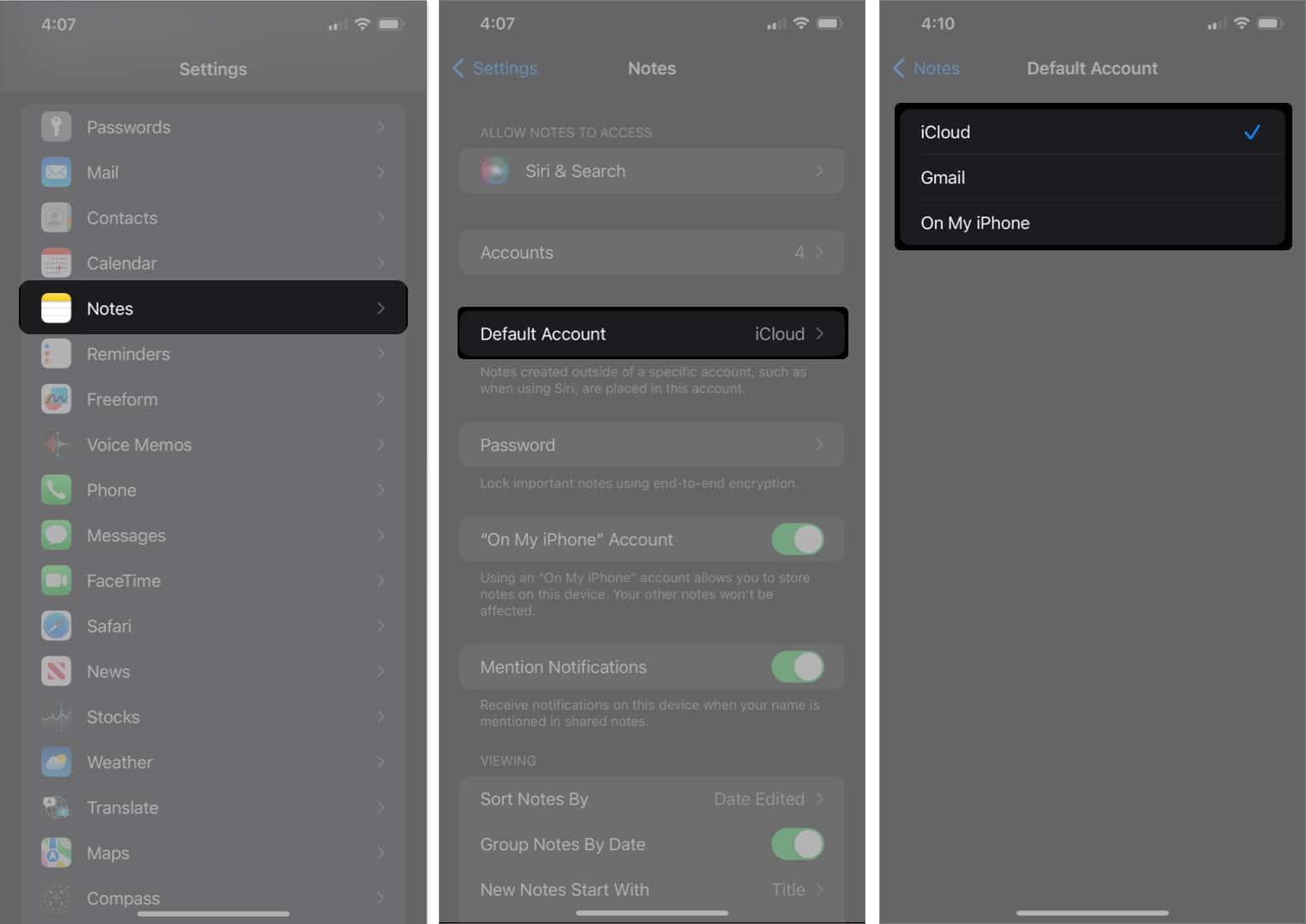
Additionally, if you don’t see the On My iPhone option in the Default Account section, you can turn it on by going to the Settings app → Selecting Notes → Look for the “On My iPhone” Account, and toggle the button next to it to the on position.
How to set default account for Notes on Mac
- Launch the Notes app.
- Click Notes in the menu bar → Choose Settings from the dropdown.
Alternatively, you can press Cmd + (,) together to access the Notes app settings quickly.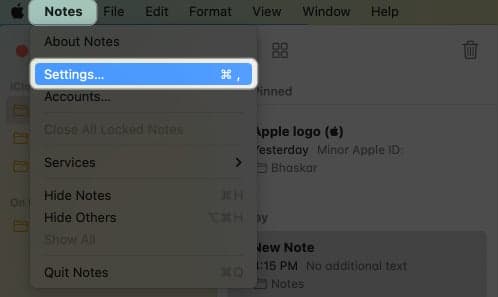
- Click the dropdown button next to the Default account.
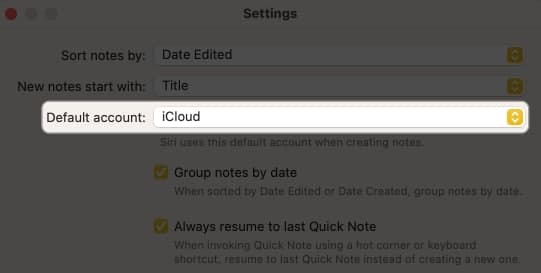
- Choose one of these options: iCloud, Email, or On My Mac.
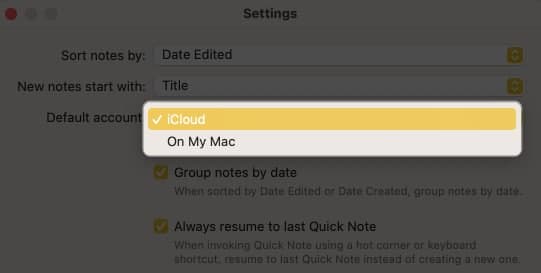
If you don’t see the On My Mac option in the Default account menu, you can enable it by following these steps: Launch the Notes app Settings → Ensure that the checkbox next to Enable the On My Mac account is checked.
Wrapping up…
Congratulations on changing the default account for the Notes App! It’s an easy and practical way to manage your notes. For more tips, refer to our complete guide on Apple Notes on Mac.
Read more: