
How to view full-screen lyrics in Apple Music on iPhone and Mac
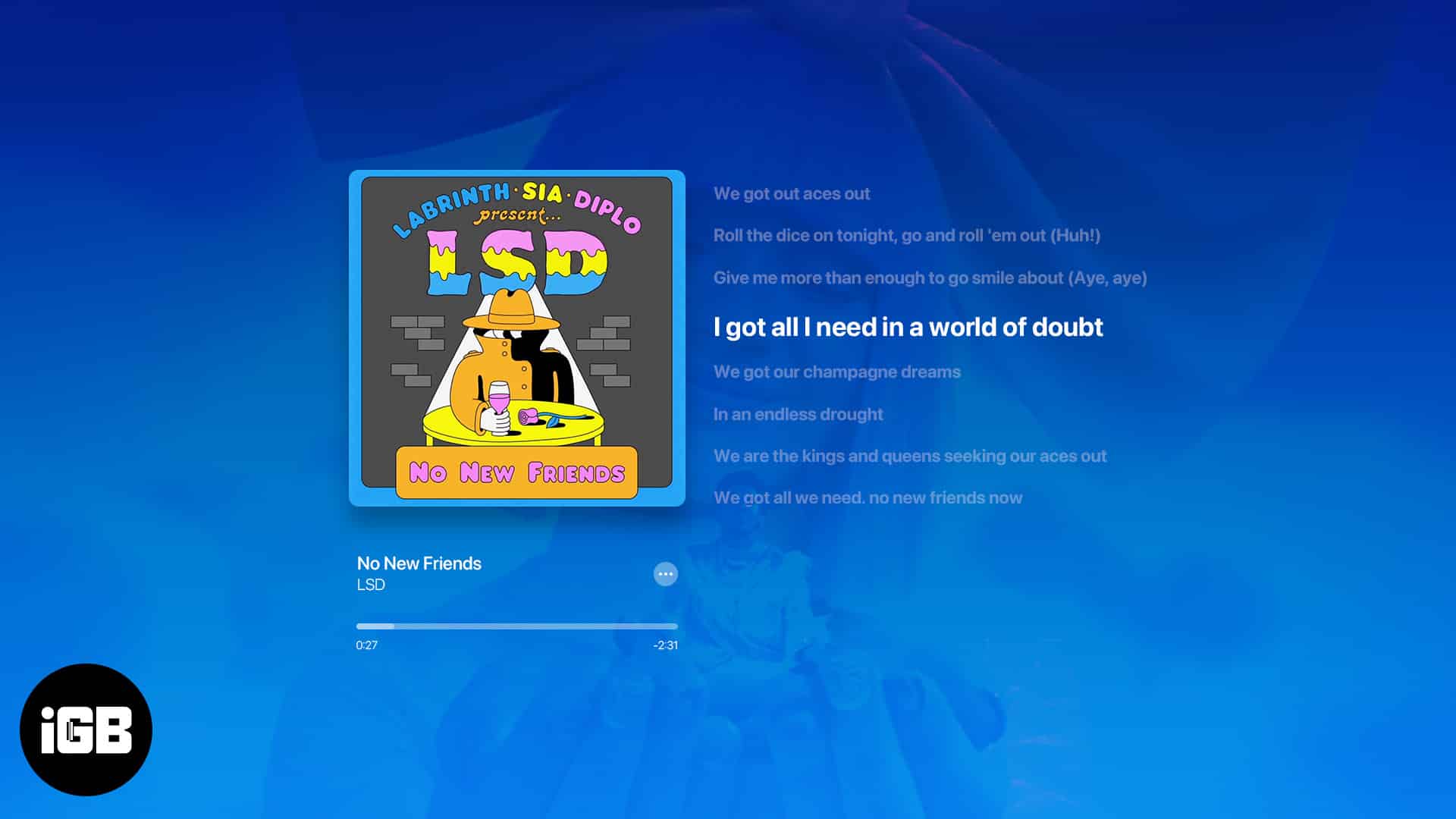
What about jamming with your friends or singing along to your favorite songs with time-synced lyrics? Luckily, Apple Music lets you see the song lyrics on the full screen. Sounds interesting, right? In this guide, I’ll show you how to see full-screen lyrics in Apple Music on iPhone, iPad, or Mac.
- How to view full-screen lyrics in Music app on iPhone
- How to see Apple Music lyrics on fullscreen on iPad
- How to see full-screen lyrics on Apple Music on Mac
How to view full-screen lyrics in Music app on iPhone
The steps to use the fullscreen interface with lyrics on the Apple Music app on iPhone are quite simple. Follow the steps given below to do this:
- Launch Music → Play a song → Go to Now Playing.
- Tap the Lyrics button to reveal the lyrics.
- Wait for five seconds to enter full-screen mode.
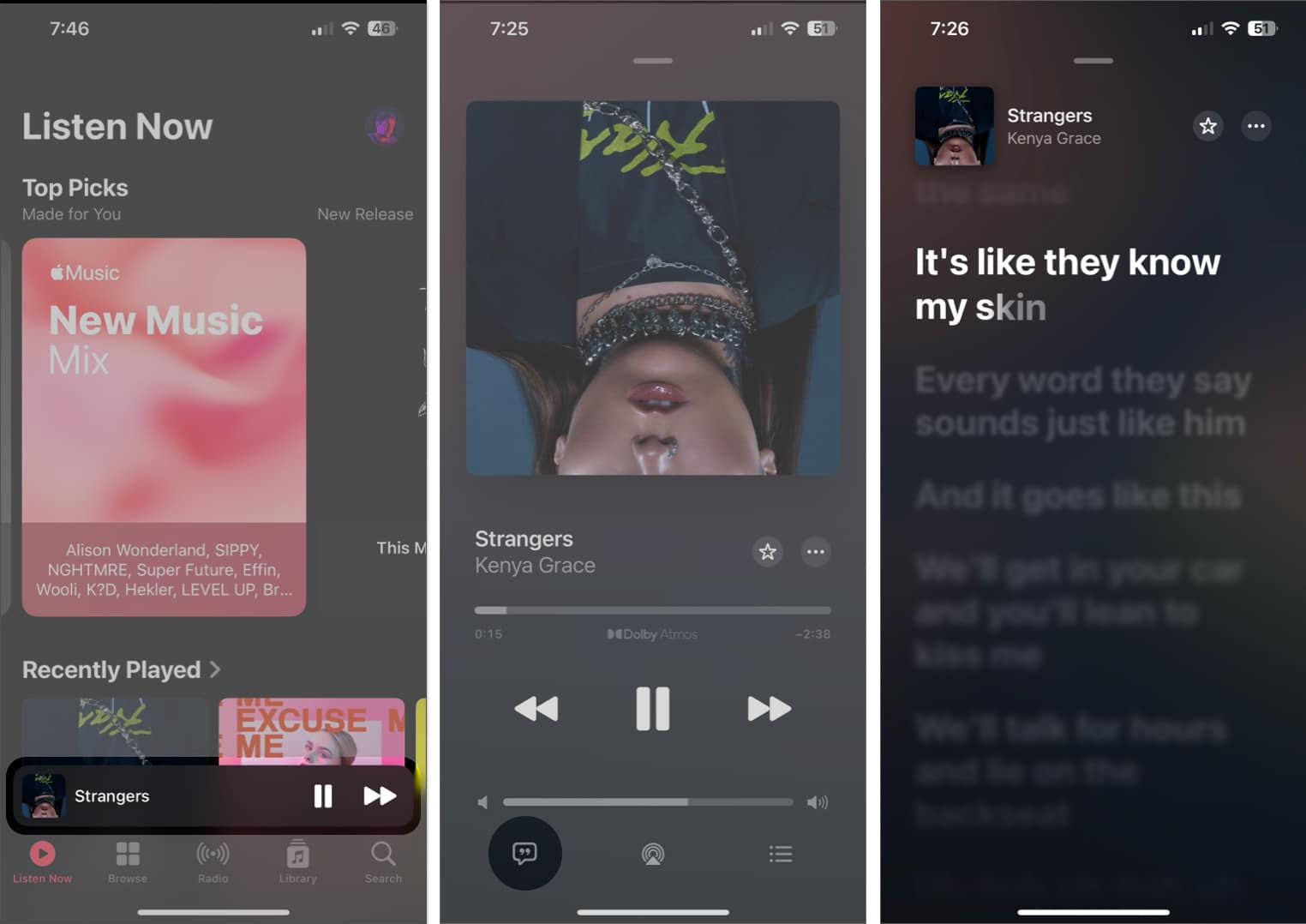
After entering into the full-screen mode, the playback controls will automatically disappear. If you tap the screen, the controls will show up at the bottom.
How to see Apple Music lyrics on fullscreen on iPad
Steps to view full-screen lyrics in the Music app on iPad are similar to those on iPhone. However, you get the added features to view album art, playback controls, and time-synced lyrics on the same page. Here’s how it all works:
- Launch the Music app on your iPad.
- Play a song → Select Now Playing → Tap the Lyrics button.
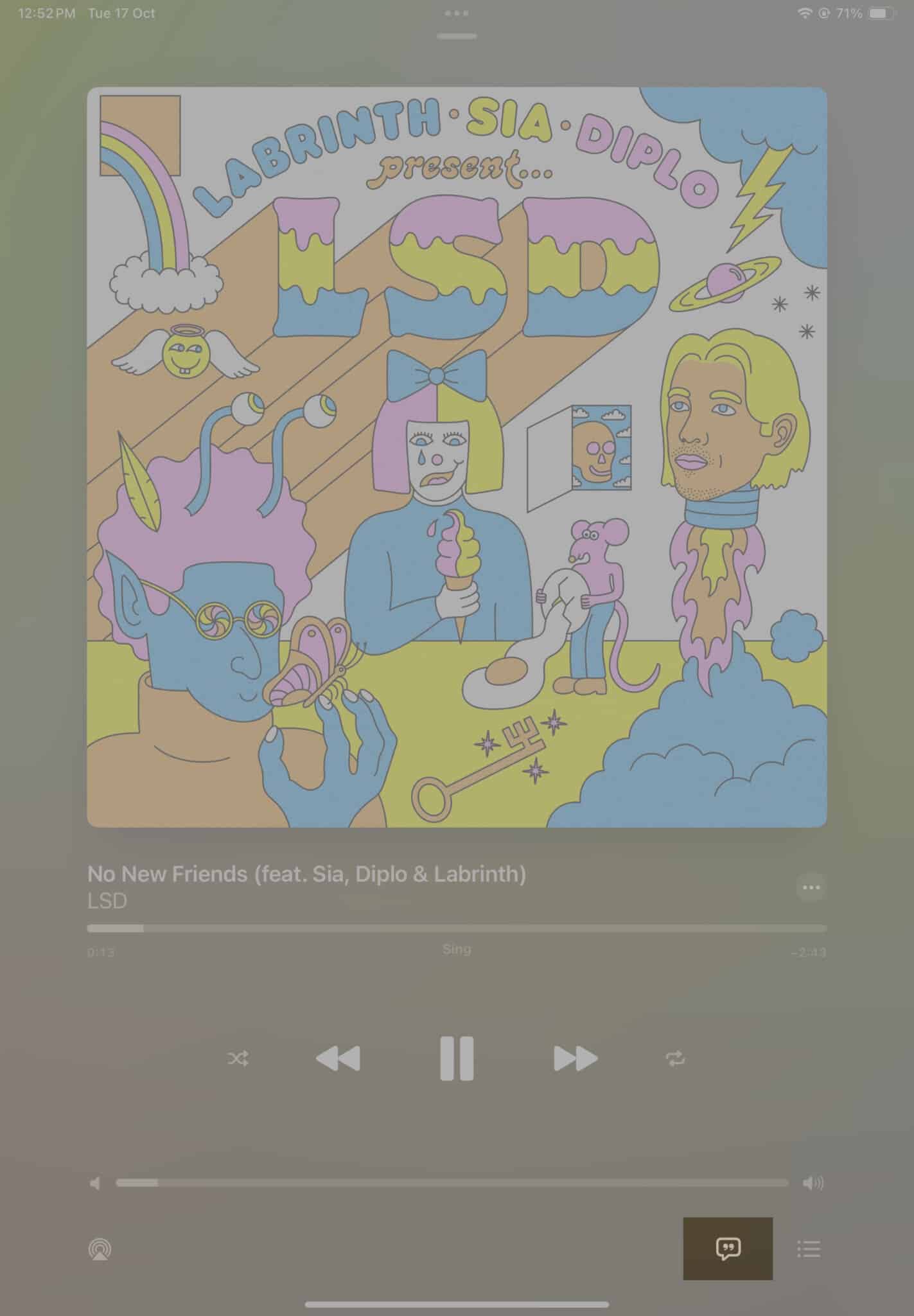
- To view Apple Music lyrics in full-screen mode on iPad, you can either:
- Hold the iPad in landscape mode to see music controls and lyrics.
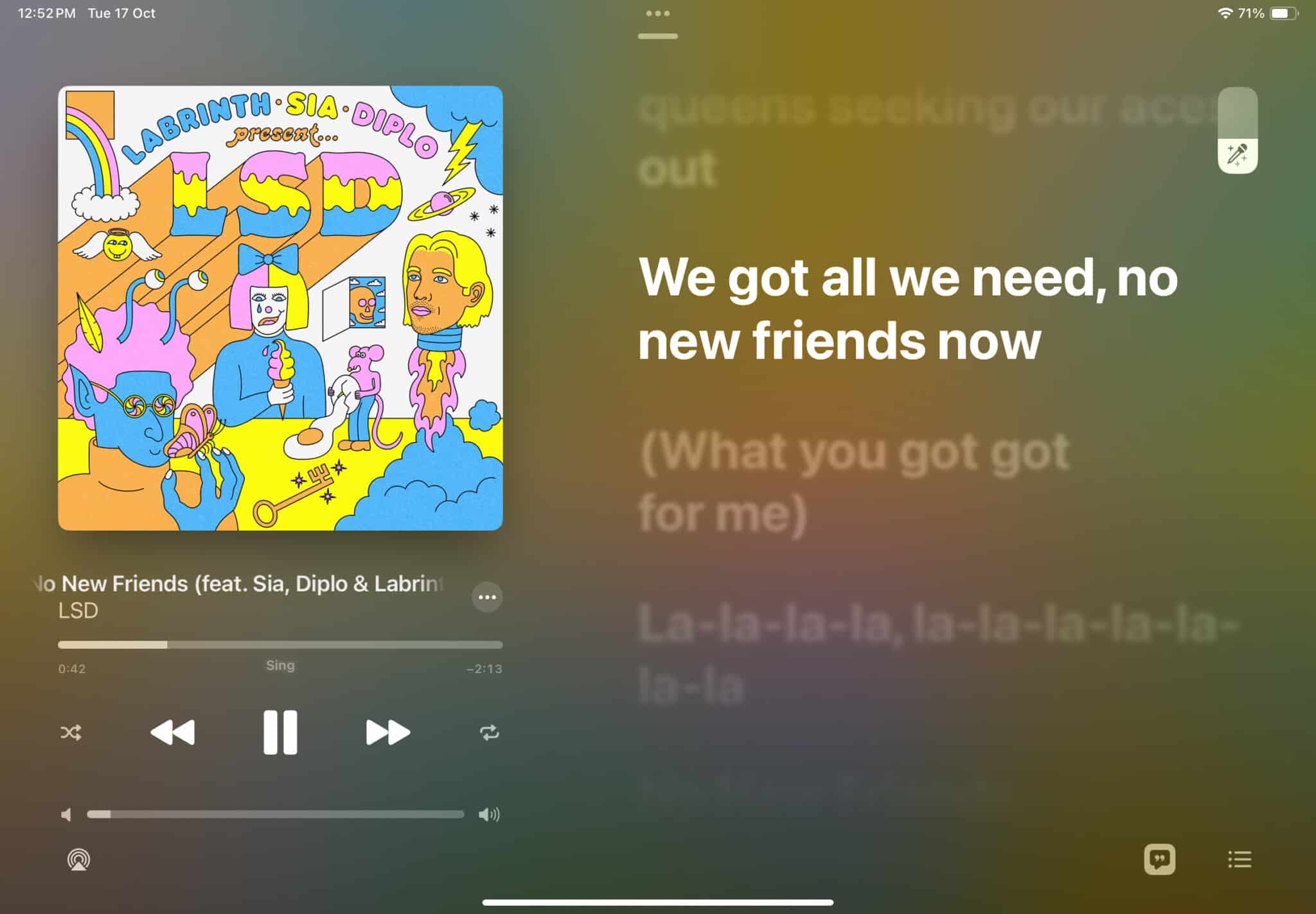
- Hold the iPad in portrait mode to only see the time-synced lyrics.
- Hold the iPad in landscape mode to see music controls and lyrics.
How to see full-screen lyrics on Apple Music on Mac
You can also view time-synced lyrics and control playback together in full-screen If you’re using the Apple Music app on your Mac. However, the steps to enter full-screen mode on Mac are quite different than those for iPhone or iPad. Here’s how you can easily do it:
- Open the Music app on your Mac → Play a song that you like.
- Click the little album cover next to the playback controls.
Alternatively, you can also click on Window → Show Mini Player.
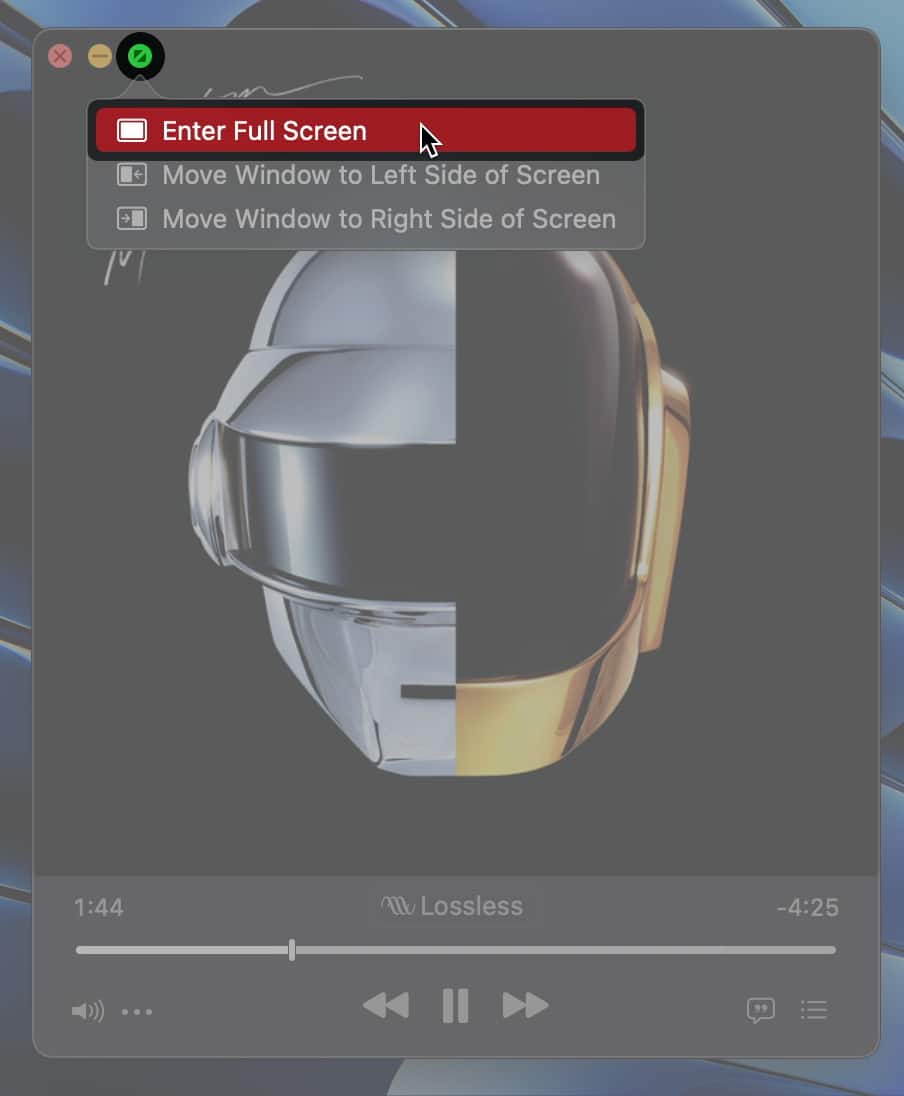
- Hover over the Green button → Click Enter Full Screen.
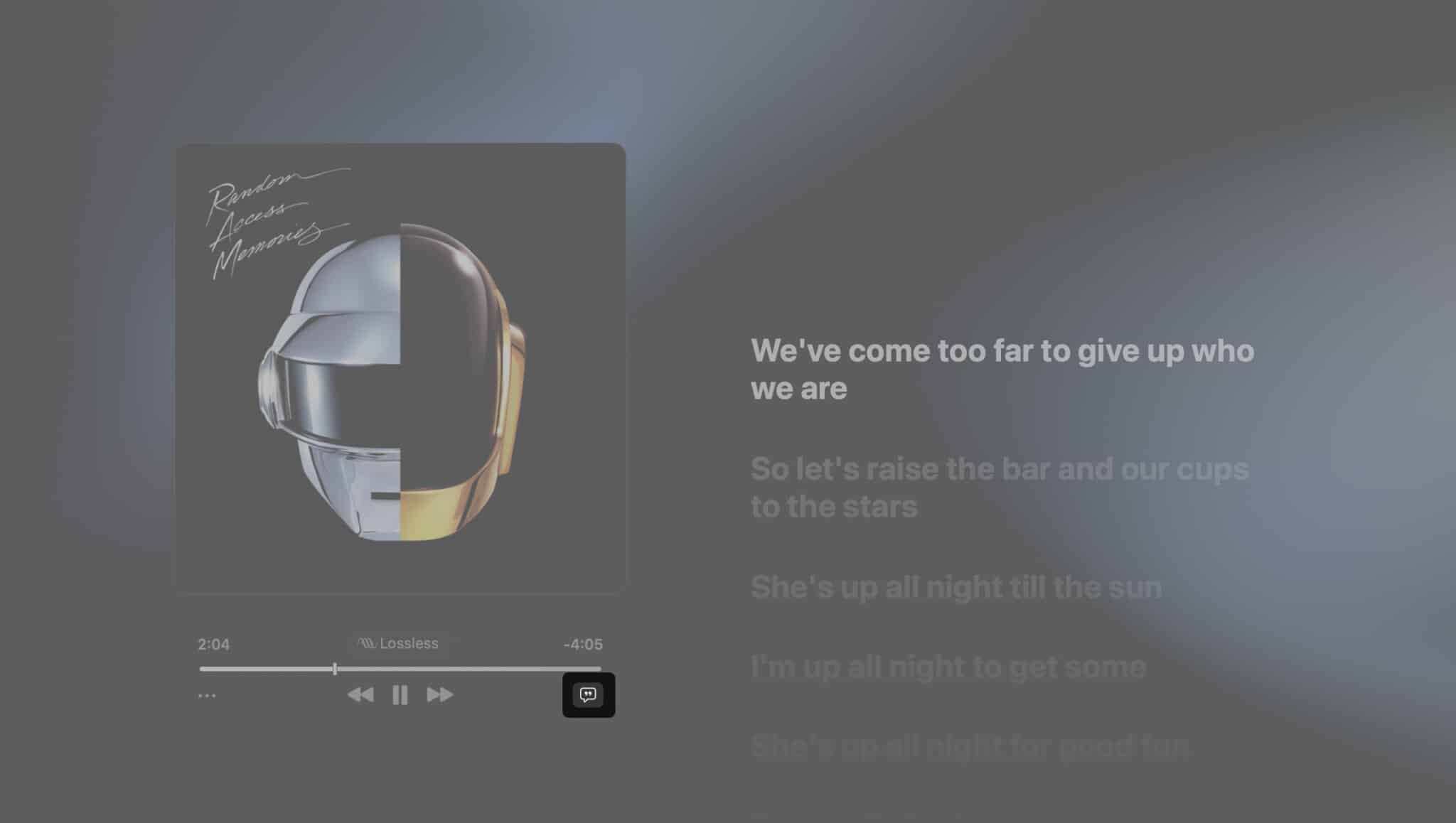
- Click the Lyrics button if you can’t see the lyrics.
Tip:
If you want to enter full-screen mode even more quickly, you can click on Window → Full-Screen Player or use the Command ⌘ + Shift ⇧ + F keyboard shortcut. Then, click the Lyrics button.
Revamp your music listening experience!
Now, you can quickly view full-screen real-time lyrics in Apple Music on your iPhone, iPad, or Mac. This Apple Music feature offers an excellent way to revamp your music-listening experience when you want to sing along to your favorite songs or enjoy karaoke with friends.
Do let us know if you have any questions or need additional assistance!
Also read:
Topics

Written by
Ayush PatelAyush is a writer with a keen interest in consumer technology and the Apple ecosystem. He has over three years of working experience at several big-name publications, including Guiding Tech, TechPP, and MobiGyaan. Here at iGeeksBlog, he specializes in crafting how-to guides, buying guides, and editorials related to all things Apple.
View all posts →More from How-to

How to Turn Off Location on Snapchat (Step-by-Step Guide)
Want to stop sharing your location on Snapchat? This guide explains how Snapchat location sharing works and shows simple ways to turn off your location using Ghost Mode or phone settings. Stay in control of your privacy in just a few steps.
 VikhyatMarch 5, 2026
Snapchat Parental Controls: How to Set Up Family Center and Keep Your Teen Safe
Snapchat’s Family Center lets parents monitor their teen’s friend activity and screen time without reading private messages. Here’s how to set it up and what to expect.
VikhyatMarch 3, 2026
How to Block and Unblock Someone on Instagram
Instagram lets you block or unblock someone in seconds. Follow these simple steps to take full control of your privacy and online peace.
 Ava BiswasMarch 2, 2026