
How to turn on dark mode in Google Maps on iPhone
Dark mode has become increasingly popular over the last few years primarily because it offers increased readability and lower eye strain. Google Maps is one such app where dark mode is in full effect, and many people want to try it out but do not know how to.
If you are one of them, this article is for you. Whether you simply want to test the feature or save battery on your device, here’s how you can enable dark mode in iOS Google Maps.
Note:
Your iPhone must be running iOS 13 or above to use Google Maps in the dark mode.
How do I make Google Maps dark on my iPhone?
The process is pretty simple. After installing Google Maps on your device, follow the below steps:
- Open Google Maps on iPhone.
- Tap your profile picture icon at the top right → Settings → Dark mode.
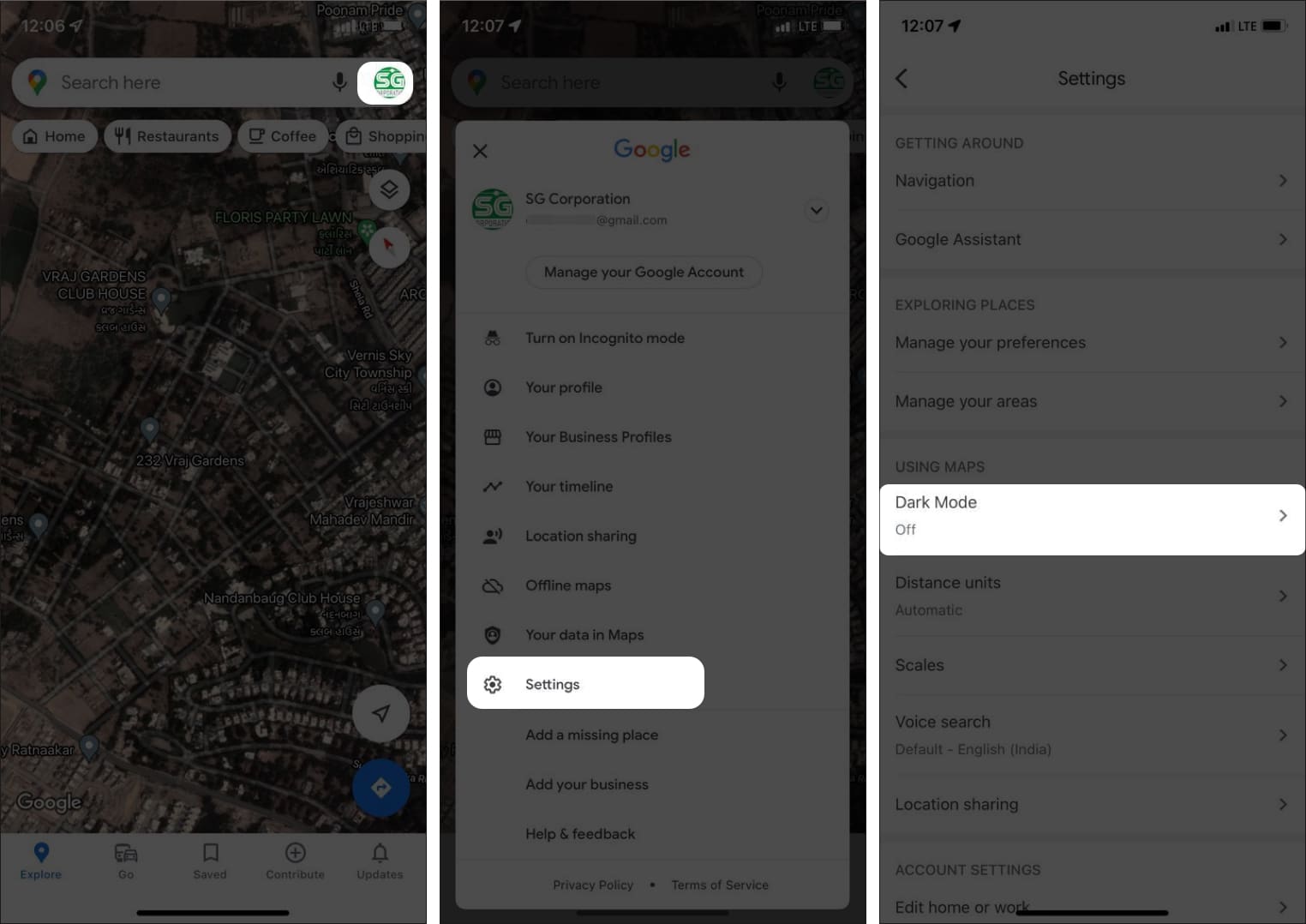
- Select On from three options.
You can select Same as device setting to apply your device’s system-wide settings on Google maps.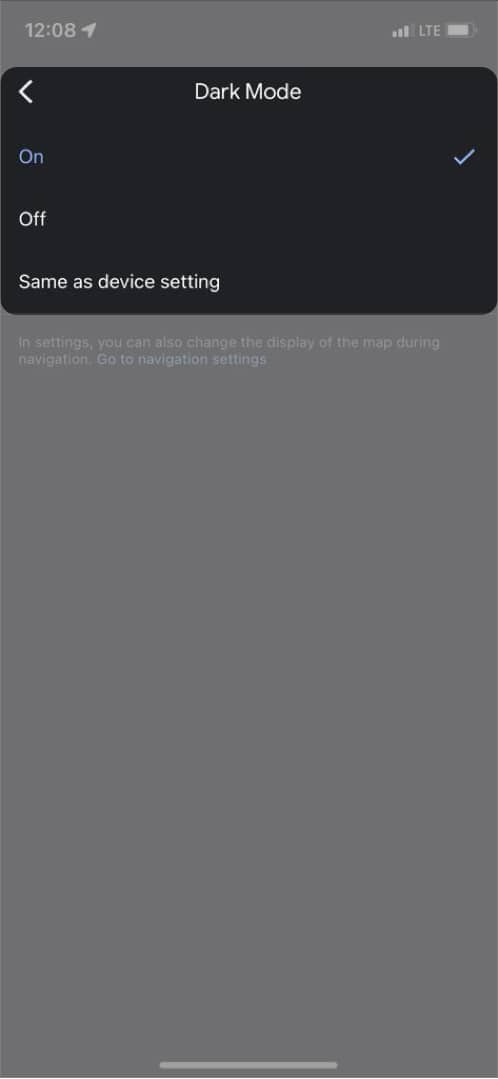
Note:
There are chances that Google Maps will pop up the menu when you open the app allowing you to choose the theme (between light, dark, or same device theme) from its home page itself. You can select dark mode from the menu itself.
Tip:
You can change the theme of your whole iPhone. Simply go to Settings → Display & Brightness → set the desired theme. If you’re confused, check out our explainer on how to turn on dark mode on iPhone for a step-by-step tutorial!
That’s it!
I hope the above steps helped you access Google Maps in dark mode! This brings an all-new aesthetic to the app, along with less eye strain and elongated battery life! If you have more queries or questions, share them in the comments below! I will try my best to answer you.
Here’re some more articles you’ll enjoy:
Topics

Written by
SanchitHi! I am a tech enthusiast and content creator who loves to keep up with the latest and greatest tech. I love using the power of tech to assist me and others in their daily lives! You would find me making videos or studying during my free time! You can follow me @sanchitgarg_ everywhere!
View all posts →More from How-to

How to Turn Off Location on Snapchat (Step-by-Step Guide)
Want to stop sharing your location on Snapchat? This guide explains how Snapchat location sharing works and shows simple ways to turn off your location using Ghost Mode or phone settings. Stay in control of your privacy in just a few steps.
 VikhyatMarch 5, 2026
Snapchat Parental Controls: How to Set Up Family Center and Keep Your Teen Safe
Snapchat’s Family Center lets parents monitor their teen’s friend activity and screen time without reading private messages. Here’s how to set it up and what to expect.
VikhyatMarch 3, 2026
How to Block and Unblock Someone on Instagram
Instagram lets you block or unblock someone in seconds. Follow these simple steps to take full control of your privacy and online peace.
 Ava BiswasMarch 2, 2026