Apple keeps adding new features to the iPhone every year. On paper, they all seem like things worth using daily. But over time, something became clear: most of them quietly faded out of regular use.
Not because they’re bad. In fact, many are thoughtfully designed. They just don’t always fit into everyday usage. A feature can be powerful without being practical.
Instead of forcing every new addition into the routine, it made more sense to notice what naturally gets ignored. And that list turned out to be longer than expected.
iPhone features that sound useful but fall short
Live Photos: A great idea, limited use
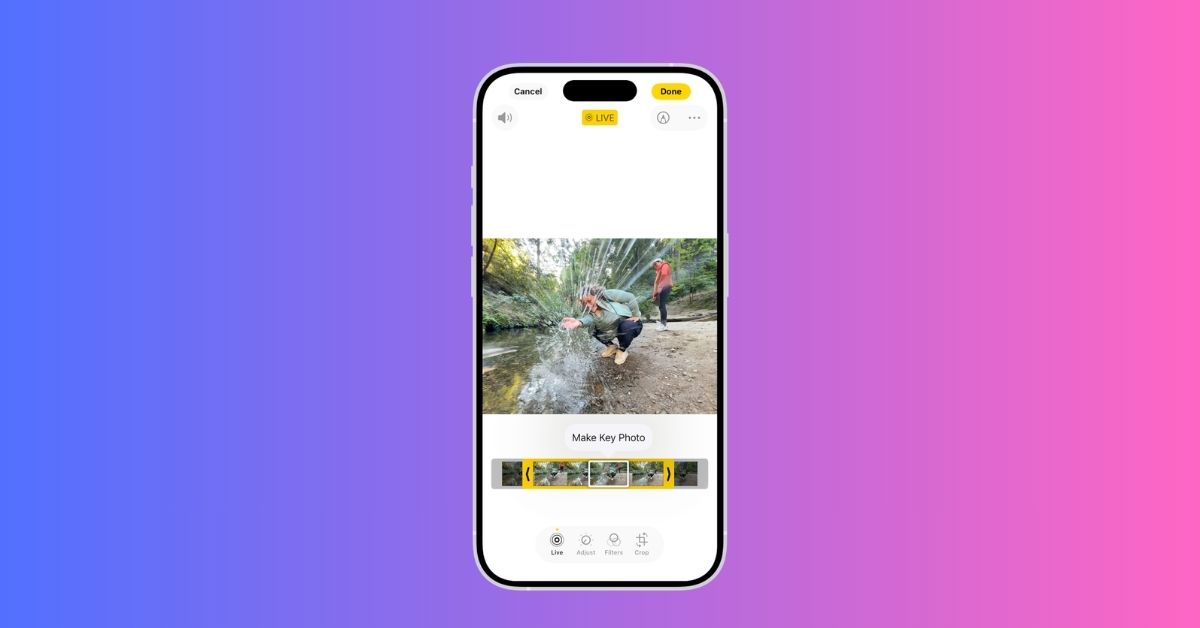
When Live Photos first launched, it felt like a brilliant idea. Capturing moments just before and after a shot added life to photos, and revisiting them can feel surprisingly immersive.
But in daily use, Live Photos rarely get used intentionally.
Most of the time, a clean still photo does the job. Live Photos take up more storage and can make sharing slightly inconvenient, especially across platforms where they don’t translate well. Sometimes, unintended moments get captured before or after the shot.
So, it stays off by default when taking photos and is only enabled when that extra context is actually useful. You only need to tap the camera control icon in the top-right corner of the camera frame, then select the Live Photos button.
Bonus:
If you already have lots of Live Photos, you can simply convert them to static images. Open the picture in Photos, and you will see a Live icon at the top. Tap it and select Live Off.
App Library: Smart but easy to ignore
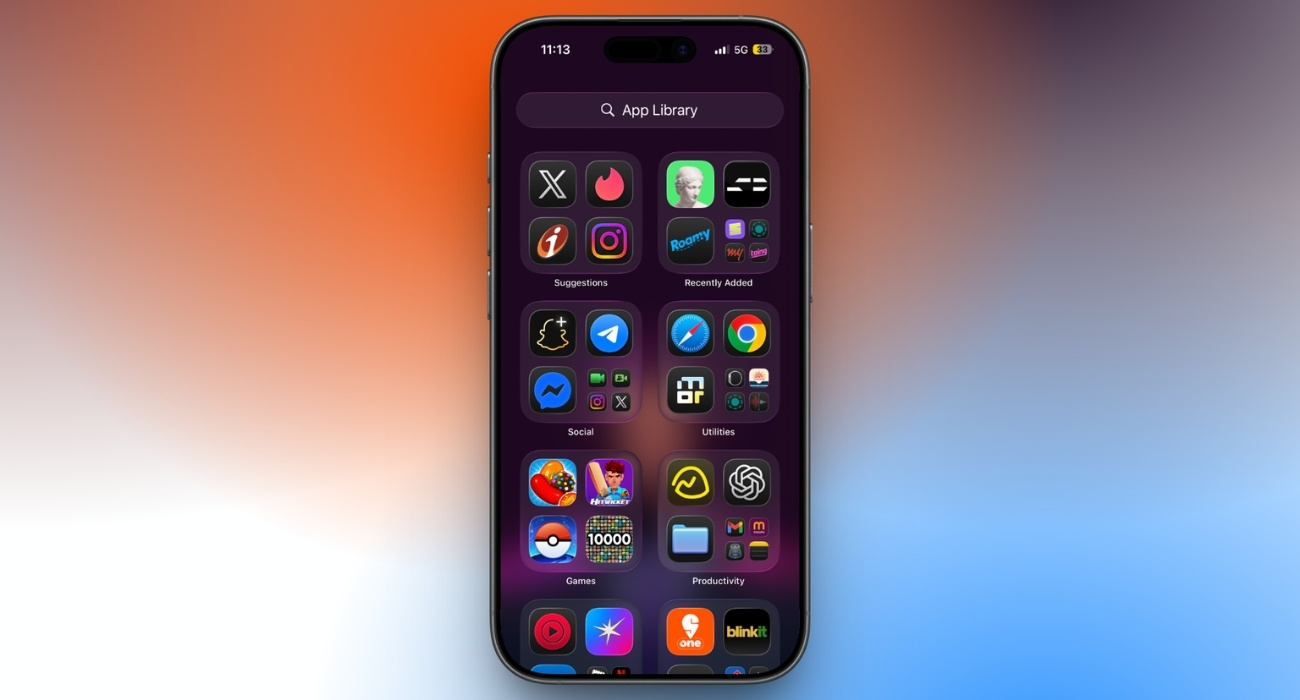
The App Library is one of those features that solves a real problem: home screen clutter. And to be fair, it does it well. Automatic categorization, quick search access, and fewer pages to scroll through. It’s all logical.
Yet it still doesn’t make its way into daily use. Opening an app usually means swiping to the main home screen or searching directly in Spotlight. Most of the time, when I go to the App Library, there’s a pause to figure out where the app is.
So rather than relying on it, you can manually simplify your home screen by removing unnecessary apps and placing the ones you use most for quick access. For setup tips, check out our guide on personalizing the iPhone home screen.
Also, if you still want to master App Library, like hiding apps in a folder or showing notification badges, we’ve got you covered. Learn how to use App Library on iPhone to find and manage apps.
Focus Filters: Too much setup for too little payoff
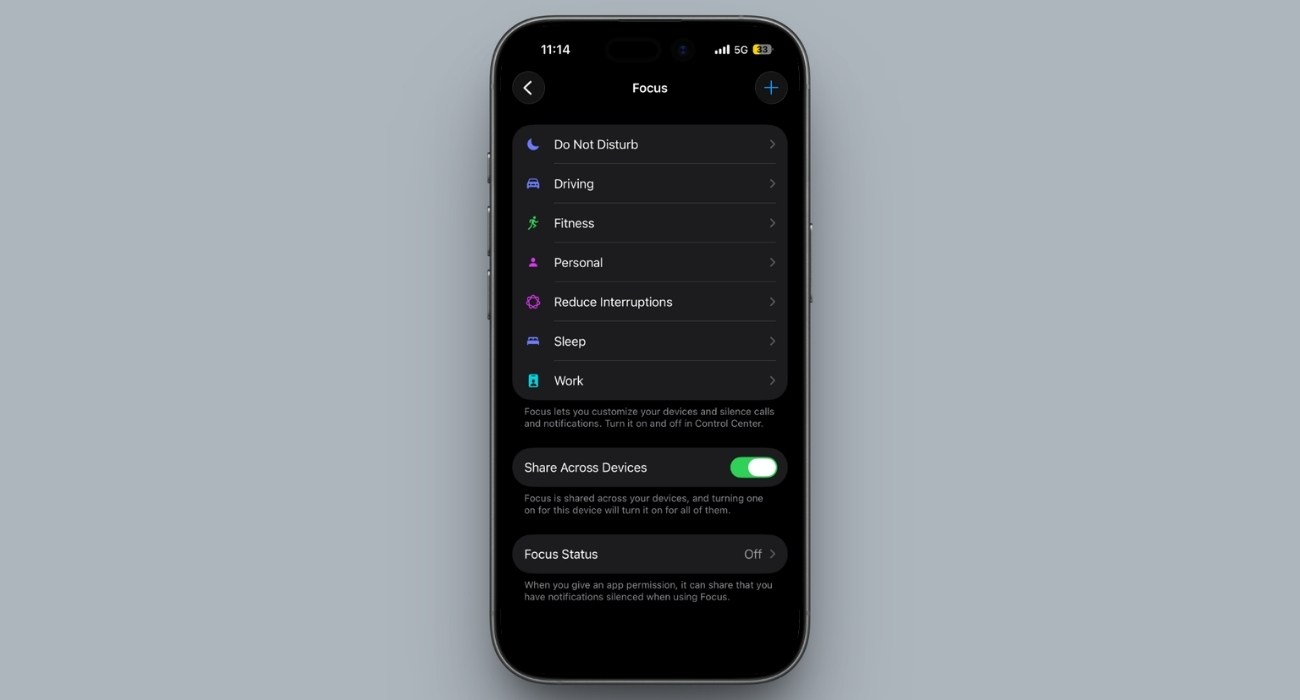
Focus Filters sound incredibly productive. They offer custom filters for apps like Calendar, Messages, Mail, Phone, and Music, tailored for Focus modes like Work or Study.
Setting it up, however, feels like a lot of effort for minimal return. Even small changes in routine can require reworking the entire setup. Eventually, this led to scaling back to a simple Do Not Disturb schedule. No filters, no complex rules, and it works better in practice.
Overall, it’s impressive in theory for an ideal productivity system, but less practical in messy, real-life scenarios. I suggest setting up the Apple Intelligence-powered Reduce Interruptions Focus if you only want to avoid distractions. The steps are shared in my dedicated article on using Focus Mode on iPhone.
StandBy Mode: Looks impressive, rarely practical

Next is the StandBy Mode. It’s one of the most visually impressive features introduced recently. Place an iPhone on charge horizontally, and it transforms into a smart display with a clock, widgets, and photos; all beautifully designed.
At first glance, it feels like something that would become part of a daily setup. But in reality, it doesn’t stick.
The main issue is context. The phone isn’t kept docked in landscape mode long enough for StandBy to matter. During work, it’s either in hand or lying flat. At night, a glowing display isn’t particularly useful. During the day, a laptop or smartwatch already provides information faster.
StandBy Mode shines in demos but depends heavily on lifestyle. With the right setup, it’s fantastic. Without it, the feature fades into the background.
Haven’t tried it yet? Give it a go first, then decide if it’s useful to you. Check out our complete guide on how to enable and customize StandBy Mode on iPhone.
Back Tap: Cool feature, no real habit

Back Tap is one of the coolest hidden iPhone features. Double or triple-tapping the back can trigger actions like screenshots, flashlight, or shortcuts, almost like a secret gesture system. However, most of the time, it gets enabled, tested, even shown off, and then forgotten.
The issue isn’t functionality—it’s habit. When it’s time to take a screenshot, fingers instinctively go to the buttons, thanks to our muscle memory.
There are also moments when Back Tap is accidentally triggered, especially when placing the phone down. That inconsistency makes it harder to rely on.
If you’re curious about which shortcuts are supported in Back Tap, go through this article on how to use Back Tap on iPhone to perform specific actions.
My actual iPhone setup for productivity
After trying (and abandoning) a bunch of features, the setup that works best turns out to be surprisingly simple.
- The home screen stays minimal. Just a few essential apps like Messages, Notes, Calendar, and a browser app. Everything else is either a swipe away or accessed through search.
- Spotlight search does most of the heavy lifting. Instead of navigating folders or libraries, a quick swipe down and a few keystrokes get things done faster and more consistently. Master Spotlight search with our guide.
- Widgets are there, but sparingly. A calendar widget, maybe a battery widget. Anything beyond that starts feeling like visual noise.
Most importantly, habits take priority over features. The best setup isn’t the most advanced; it’s the one that works effortlessly without thinking about it.
Use iPhone features that simplify everyday life
Over time, it becomes clear that great features don’t automatically translate to usefulness. Everything mentioned here is thoughtfully built, and for some, it can be a game-changer. But in day-to-day use, they don’t always fit.
What truly makes a difference is simplification. Fewer features, fewer decisions, and a setup that aligns with existing habits instead of trying to reshape them. In the end, the best iPhone experience isn’t about using everything available. It’s about knowing what to ignore.
Which iPhone feature do you use daily? Let me know in the comments below!