
Best hidden iPhone secret codes to know in 2026
Find the best secret iPhone codes to unlock hidden menus, check signal strength, and access advanced system settings with ease.
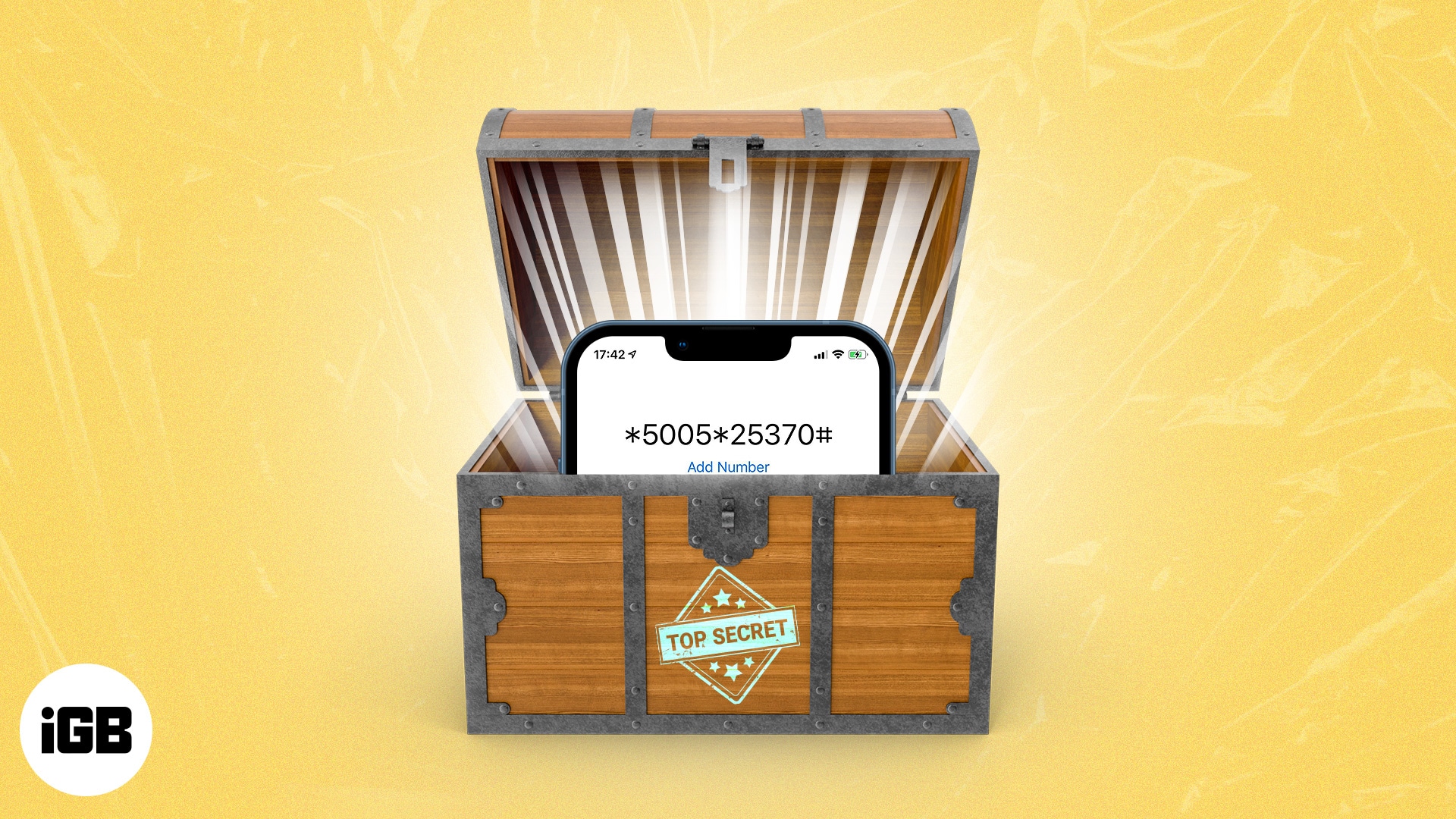
All smartphones, including iPhones, can reveal information or perform some handy action when entering a specific USSD code. Since these secret dialer codes are not mentioned explicitly, you may not be aware of them. To assist, I have listed 15 useful iPhone secret codes that you will find interesting and helpful. Take a look.
What are iPhone secret codes?
Secret codes are just a fancy name for Unstructured Supplementary Service Data (USSD), which are strings of characters basically used by developers and technicians to troubleshoot smartphones.
Every smartphone has a different set of access codes and shortcuts that allow you to modify internal iPhone settings.
If you’re a ’90s kid, these secret codes were more popular back when the device’s settings were less sophisticated and didn’t allow users to modify their functions. Regardless, these codes still let you do certain things faster and access information readily, with fewer taps.
15 most useful iPhone secret codes
Before you begin:
- Please note that several codes mentioned here may not work globally or with all carriers. They are functional only in the United States and their carriers.
- To use all these codes, you have to open the Phone app and be in the Keypad tab. Some codes require you to tap the call button, while a few may not.
Now, let the magic begin!
1. Find out how much signal your iPhone has
To find out, you can Enter Field Test Mode by typing *3001#12345#*
This lets you see all the details about your iPhone’s settings, network, and other technical data about your device.
You can use this to check your signal if you have poor reception. Just look for Rsrp, which stands for Reference Signal Received Power. Rsrp0 is the tower nearest you, while Rsrp1 is the second closest. Beside it are numbers ranging from -40 to -140 decibel-milliwatts. Signals closer to -40 indicate a strong signal, while a number closer to -140 indicates that you have a poor connection.
2. Hide or show your caller ID
If your carrier supports hiding your caller ID, you can use this secret code to hide your caller ID. This means that when you call someone, they’ll see an Unknown or No Caller ID.
- If you’re in the US, enter *67 before the number you want to call.
- If you’re outside the US, enter *31 before the number and hit the Call button.
On the other hand, add *82 before the number to show your Caller ID.
3. Check the SMS center
Whenever you send an SMS, it goes straight to the SMS center or server before being forwarded to the receiver. If you’re facing any issues with SMS, enter the hidden code *#5005*7672# on your iPhone to see more details.
4. Check, enable, or disable Call Waiting status
The Call Waiting feature notifies you of another call when you’re already on a call. To learn if this is enabled on your iPhone, use the code *#43#. Dialing *43# enables it, while using #43# disables it.
5. See iPhone IMEI number
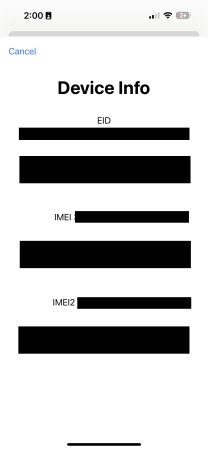
The International Mobile Equipment Identity (IMEI) is a 15 to 17-digit number that serves as a unique ID for your phone’s hardware. Carriers can block stolen or lost phones using their IMEI at a network level. This is important to know when your device gets stolen or lost.
Just type the code *#06# to see your IMEI and other details.
6. See iPhone IMSI
The international mobile subscriber identity (IMSI) can be seen on your SIM card packet the moment you buy it. It is a unique number that identifies every user of a cellular network. Find your IMSI number by dialing 5005# on the keypad.
7. Check Call barring
Call barring lets you block incoming or outgoing calls to and from your phone. This may be useful if you keep receiving unwanted telemarketer calls or want to avoid expensive international calls.
To check if the feature is enabled on your device, dial *#33#. Use the code *33*pin# to enable call barring on your iPhone. To disable call barring, dial #33*pin#.
8. Forward calls
Using the call forwarding feature, you can easily forward your calls to your phone’s answering machine or another number. Use the code *#21# to check for its status on your iPhone.
Alternatively, you can directly dial *21#. This enables call forwarding if disabled and disables it if it’s currently enabled.
You can also elect to forward your calls to another number by adding *21 to the phone number to which you want to forward your calls.
Depending on your carrier, there are also varied ways to forward calls on your iPhone.
9. Get local traffic information
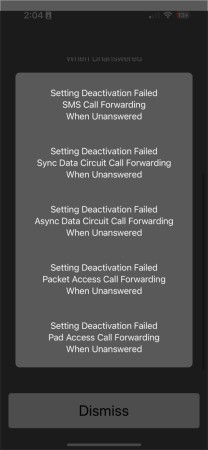
Sometimes you want to know the traffic status but aren’t connected to the internet to use traffic apps like Google Maps. In such cases, you may dial 511 to learn about your local traffic.
10. Check cellular data usage
If you’re on prepaid and rely on cellular data for your connection, you can easily check your cellular data usage by dialing the following codes below, depending on your carrier:
- AT&T: *3282#
- Verizon: #3282
- T-mobile: #932#
Meanwhile, if you’re on postpaid, you can check your data plan status by using the code *646#.
11. Check Call Line Presentation
Call Line Presentation enables the call recipient to see the telephone number of their caller. If the recipient of your call can’t see your number, you may want to check if Call Line Presentation is enabled on your phone by dialing *#30#.
12. Check the postpaid or prepaid account balance
- If you’re on postpaid, you can check your bill balance by entering *225#
- If you’re on prepaid, check your account balance by typing *777#
13. Check alert system
Test Emergency Alerts contain government test alerts from your local government. This is disabled by default.
If you’re running iOS 15.3 or earlier, tap *5005*25371# to enable your iPhone’s Alert System Status. To turn it off, just enter *5005*25370#.
Meanwhile, if your phone is running iOS 15.6 or later, just head to Settings → Notifications → toggle Test Alerts on or off. You can also check out our guide on how to turn off government alerts.
14. See your missed calls
If you’re wondering how many missed calls you have, just dial #61#.
15. Full Rate Mode
While the iPhone has numerous audio settings that let you adjust audio quality, you can also enable your iPhone’s Enhanced Full Rate (EFR) mode to improve your call sound quality. Just type *3370# to enable it.
The downside is that your iPhone will likely spend more power during calls.
Wrapping up…
I hope you learned about a few new shortcodes. Which one from the list above seems most helpful to you? Let me know in the comments below. Second, if you know other similar codes, share them with me as well. We would love to mention that in this post.
Finally, here are some more helpful posts you will love to check out:
Read more:

Written by
Ankur ThakurI have been an Apple user for over seven years now. At iGeeksBlog, I love creating how-tos and troubleshooting guides that help people do more with their iPhone, iPad, Mac, AirPods, and Apple Watch. In my free time, I like to watch stand up comedy videos, tech documentaries, news debates, and political speeches.
View all posts →More from iPhone

Snapchat Parental Controls: How to Set Up Family Center and Keep Your Teen Safe
Snapchat’s Family Center lets parents monitor their teen’s friend activity and screen time without reading private messages. Here’s how to set it up and what to expect.
 VikhyatMarch 3, 2026
Best iPhone 17e Screen Protectors You Can Buy Now
The iPhone 17e carries Apple’s signature premium DNA, even though it sits at the more accessible end of the lineup. However, its competitive price does not translate into a compromised display experience. The high-quality 6.1-inch panel delivers sharp resolution, accurate colors, and excellent brightness levels suitable for both indoor and outdoor use. To keep that […]
VikhyatMarch 3, 2026
How to Mirror Your Apple Watch on Your iPhone: A Simple Guide
Want to control your Apple Watch using your iPhone? This guide explains how to turn on Apple Watch Mirroring, use it easily, and fix common issues.
 Arshmeet KaurFebruary 27, 2026