

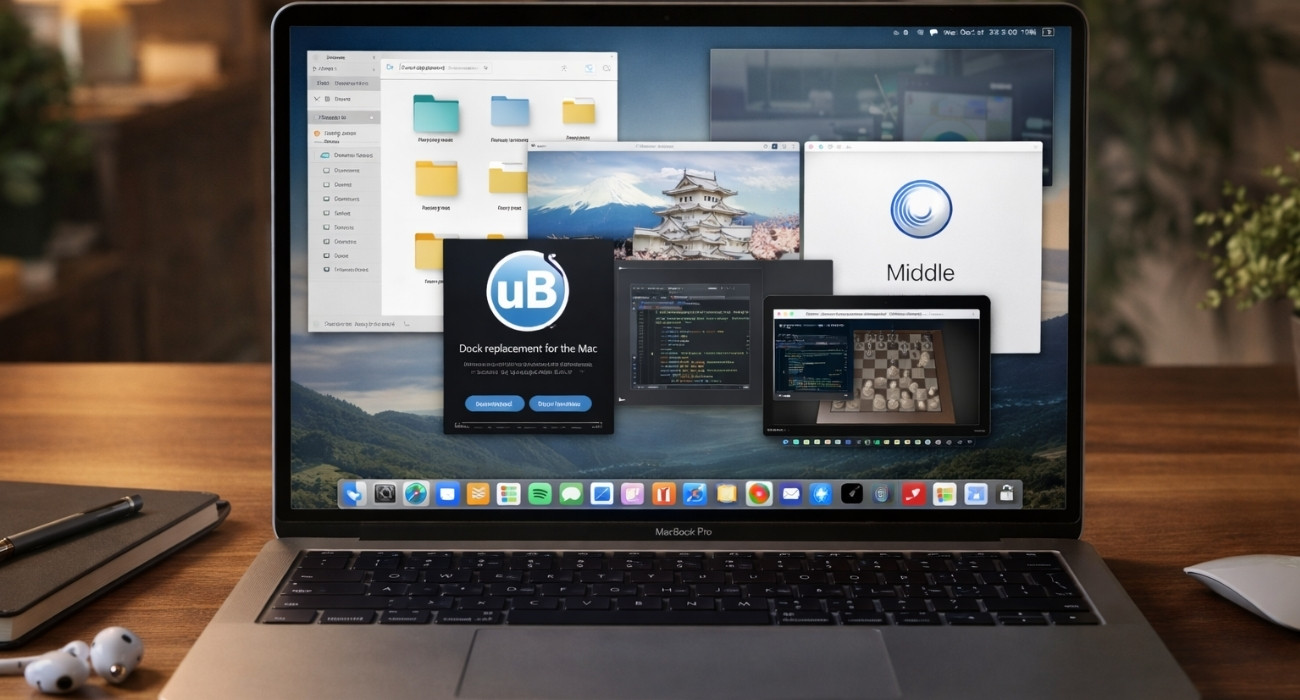
With all the crazy things happening on Windows right now, it makes complete sense to give Mac a try. However, if you’ve been using Windows for a long time, Mac will feel uncomfortable at first because of how differently it handles some basic things. Stuff like not having a shortcut to cut files, switching between windows, or supporting something as simple as a mouse MiddleClick stands out immediately.
It’s not just you, Mac is kind of weird like that. I ran into the same issues when I made the switch. These apps fixed those exact problems for me, and they are the reason my Mac now feels fast and natural instead of frustrating.
1. AltTab
On Windows, switching between windows is second nature with Alt + Tab.
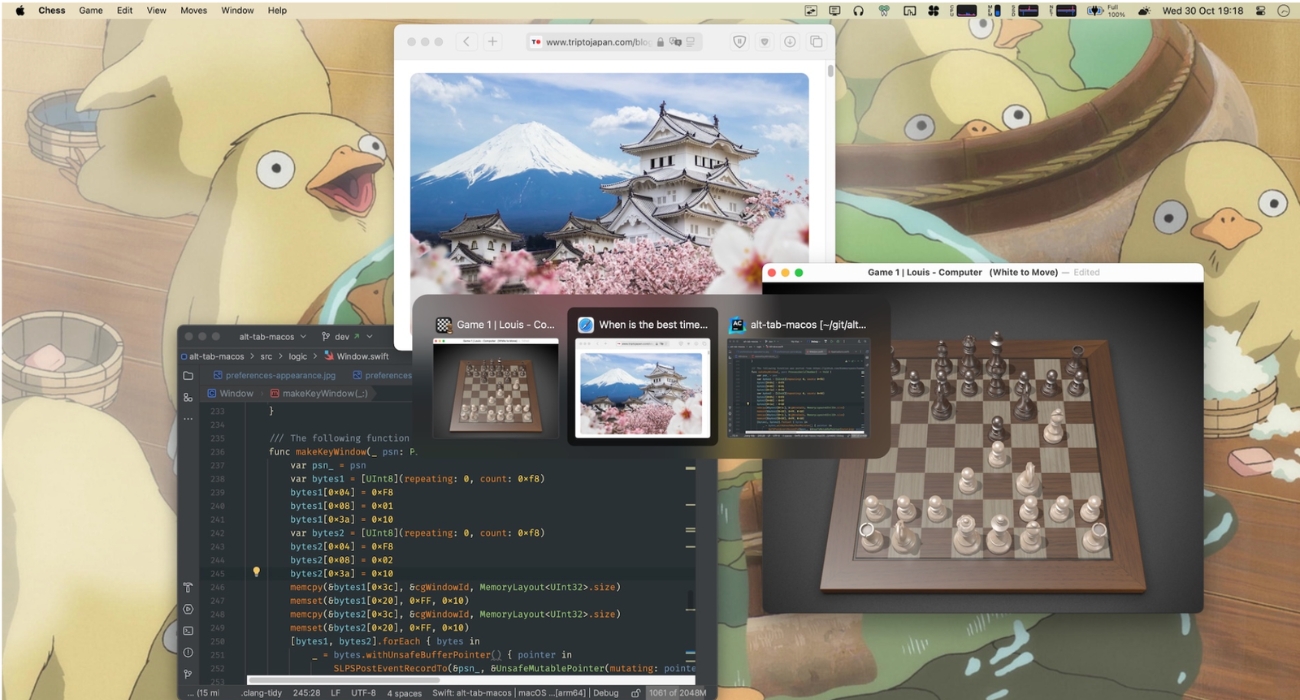
Mac has a similar shortcut with Command (⌘) + Tab. However, it only switches between apps, not individual windows. It also just shows icons with no preview. So if you have multiple Chrome windows open, which one you’ll land on is always a guess.
AltTab fixes this properly. It lets you switch between all open windows, shows live previews, and even lets you interact with them using your mouse. You can hover, close, or focus specific windows directly.
Once you start using it, the default Mac switcher feels incomplete.
2. MiddleClick

This is a small change that makes a big difference if you browse a lot.
On Windows, MiddleClick is part of how you use the web. Open links in new tabs, close tabs instantly and scroll differently. At least, I rely on the middle mouse button a lot.
On Mac, that behaviour is missing. Apple does not expose a proper MiddleClick setting. Some specific apps may support it, but there is no system-wide option.
MiddleClick maps that to a gesture, usually a three-finger tap. It takes a few minutes to get used to, but once it clicks, your browsing speed goes back to what you expect.
3. Command X
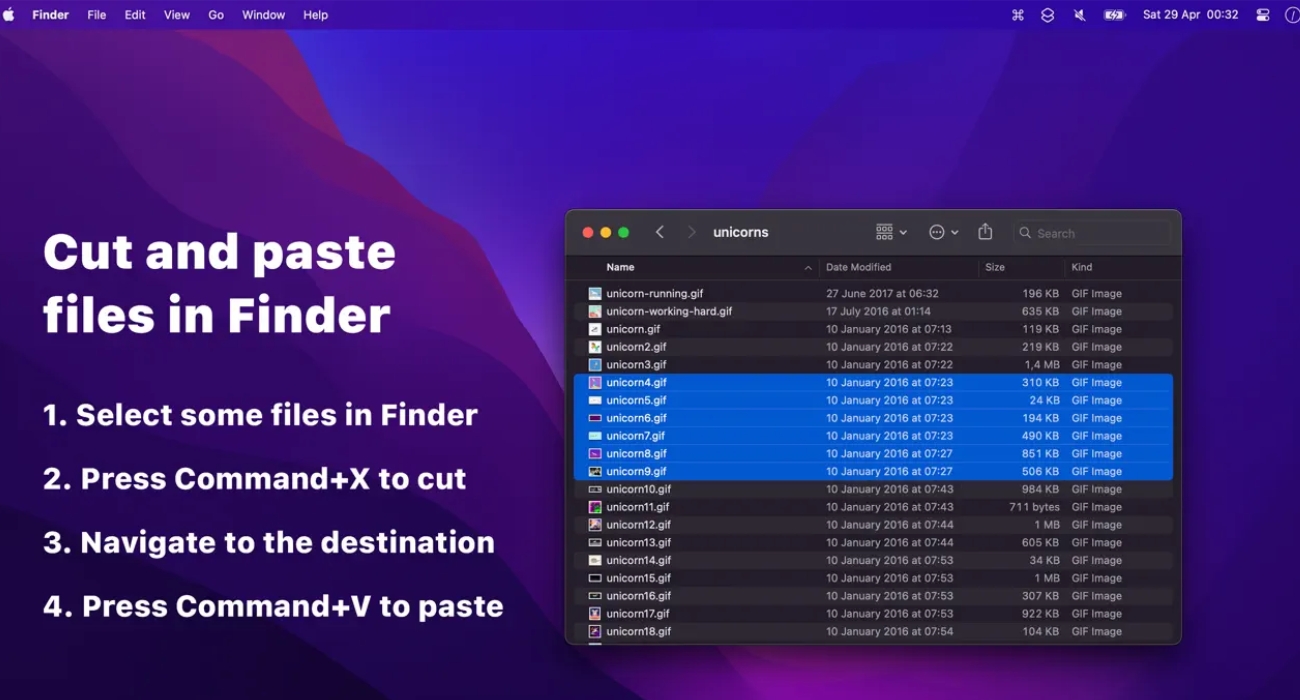
If you notice, Mac’s Finder app does not provide an easy option to cut a file and paste it elsewhere. You have to use Command (⌘) + C instead of X, and then paste the file using Command (⌘) + Option (⌥) + V. This will move the file instead of duplicating it.
The Command X app solves this issue gracefully. Once installed, you can just press Command + X and paste the file using the common Command + V. This is how things should work by default. However, we are lucky enough to solve this with a small app.
4. RedQuits

Macs do not treat the red button at the top as Quit like you normally expect. It just closes the window and keeps the app running in the background. While macOS is optimized to handle this workflow and does not cause any battery or performance issues, it still makes your Dock clumsy and is definitely something a Windows user will not be into.
RedQuits is a very old app that is designed to stop this behaviour. Now, when you press the red icon on the window, the app quits if it is the last window of that app. One thing to note is that it does not quit if there are multiple windows of that app, so you are not accidentally closing any windows that you are still working on.
Basically, it brings back the Windows way of handling running apps on Mac and keeps your Dock clean.
5. uBar

Speaking of the Dock, the Mac version is very different from the Windows taskbar. It works fine once you get used to it, but it does not show apps and windows the same way. Switching between minimized windows or tracking active apps feels less clear.
uBar replaces the Dock with a Windows-style taskbar. You get a Start-like menu, proper app grouping, visible active windows, and a system tray. It is paid, but if the Dock slows you down, this is worth it.
Also read: macOS Dock shortcuts: Tips to boost your productivity
6. BackgroundMusic

Audio control on macOS feels limited compared to Windows. If you are playing music, watching videos, and working at the same time, controlling each source is not easy. You mostly get a single volume control.
BackgroundMusic gives you per-app volume control. You can lower your browser, keep Spotify loud, and mute something else completely.
If you multitask with audio, this becomes something you rely on very quickly.
7. BetterTouchTool

BetterTouchTool is the most powerful app on this list. It lets you customize almost everything on your Mac. Window snapping, keyboard shortcuts, trackpad gestures, clipboard behavior, and more.
Find anything that looks off, missing any specific keyboard shortcut, or want a Windows-style gesture navigation? You can tune it with this app. You get a free trial to tweak and check the features provided by the app. However, it is a paid app that costs a one-time purchase of $22.
It does take time to learn. But once you understand what you want to fix, this gives you full control over how your Mac behaves.
Making macOS work the way you expect
You do not need to turn macOS into Windows. You only need to fix the parts that slow you down. After setting these up, the system starts to feel natural. You keep what macOS does well, but your workflows match what you are already used to.
You might also like: