
How to Make Your Old iPhone Feel Faster Without Buying a New One
Speed up your old iPhone without upgrading. Simple tweaks to free storage, reduce background activity, and improve battery performance.

If your iPhone feels slower than it used to, but you are not ready to spend money on a new one, you are not alone. Many people hold on to their devices for years, and with the right adjustments, an older iPhone can still run smoothly. It will not magically turn into the latest model, but it can absolutely feel faster, cleaner, and more responsive.
Before we begin, it is important to stay realistic. Software tweaks help, but they cannot overcome hardware limits. Older processors, smaller RAM, and aging batteries all play a role. Still, most slowdowns come from clutter, background activity, and poor optimization, and those can be fixed.
1. Update Your iPhone’s Software
Software updates are not just about new features. Apple often improves memory management, fixes bugs, and patches performance issues in each iOS release.
- Open Settings.
- Tap General.
- Tap Software Update.
- If an update is available, tap Update Now (plug in your iPhone if the battery is low).
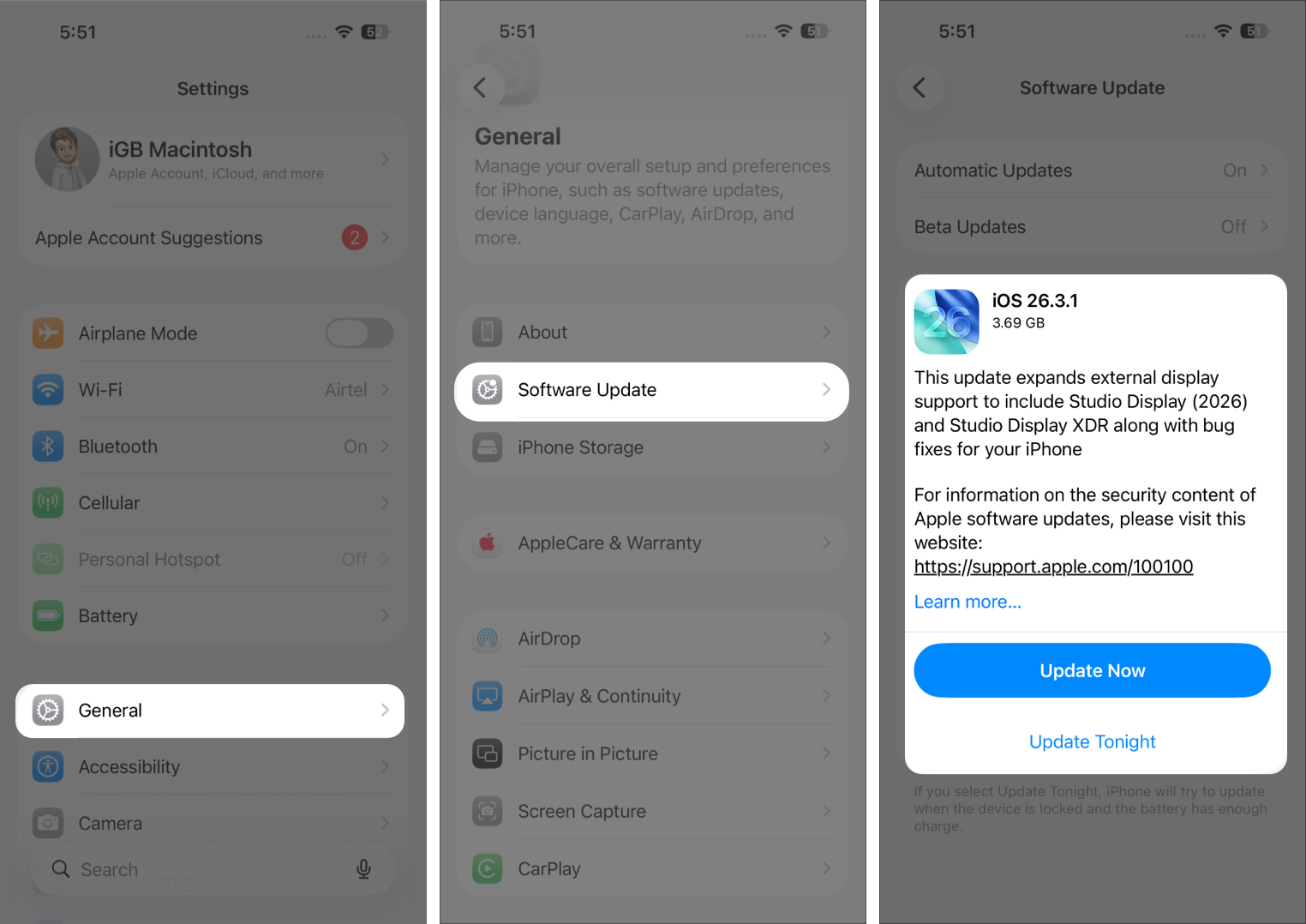
- Follow the on-screen prompts and let your iPhone restart.

However, do not update blindly. Some very old models struggle with feature-heavy releases. Before installing, check user feedback for your specific iPhone model on forums or Reddit. If users report lag, it may be wise to wait.
2. Free Up Storage Space
Storage plays a huge role in performance. When your iPhone is nearly full, it struggles to manage temporary files and background tasks. Try to keep at least 10 to 20 percent of storage free.
- Open Settings.
- Tap General.
- Tap iPhone Storage.
- Review what is taking up space and follow any recommendations shown at the top.
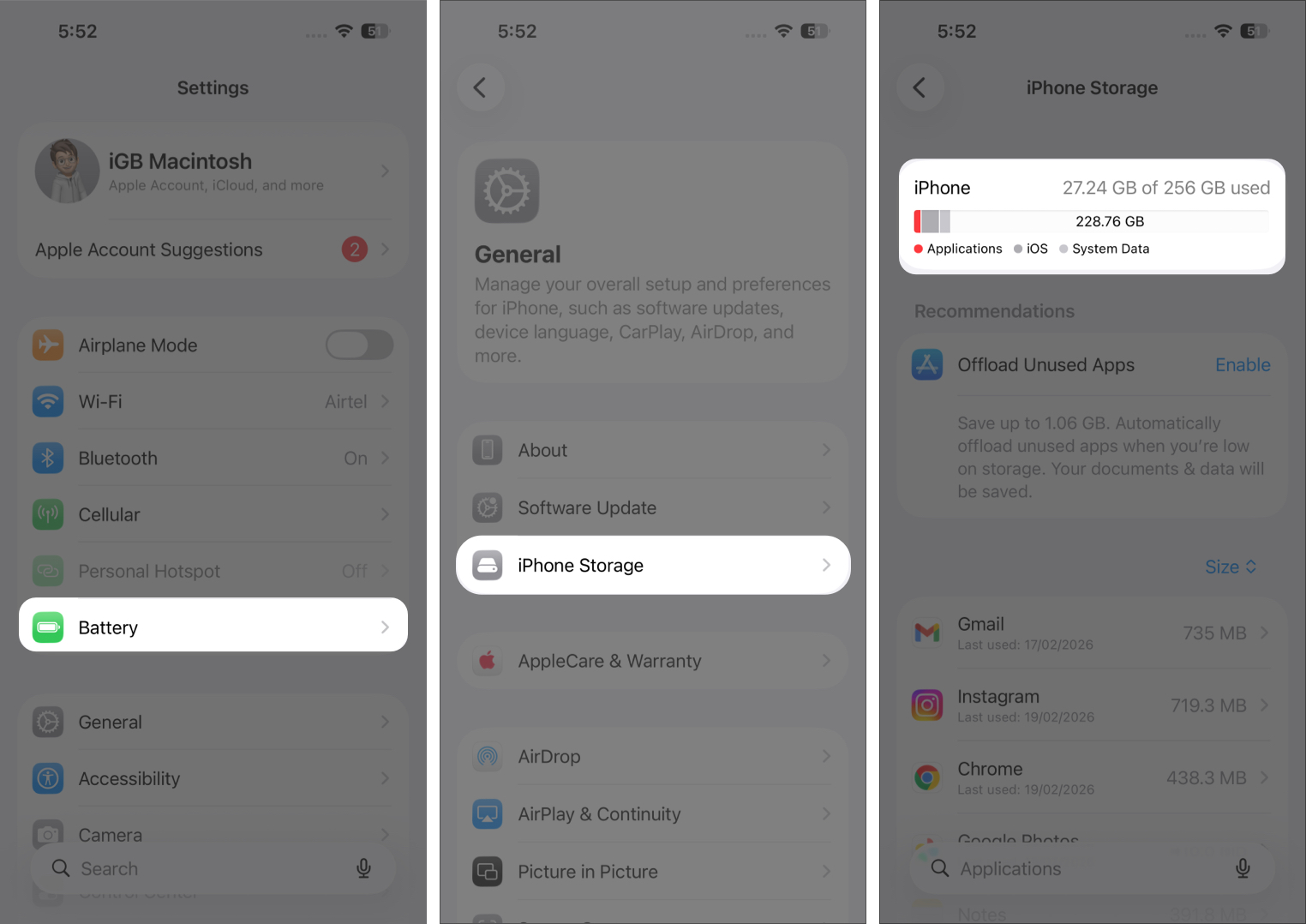

Photos and videos are usually the biggest problem. You can delete them manually, enable Optimize iPhone Storage in iCloud settings, or use a cleaning app to sort large files faster.
Many cleaning apps today use AI to detect similar images, screenshots, duplicate photos, and large videos. This makes cleanup much easier than scrolling through thousands of pictures manually. Always check the app’s privacy policy to ensure processing happens locally on your device.
After cleaning media, review apps. Delete unused ones or use the Offload App option to remove the app but keep its data.
3. Disable Background App Refresh
Background App Refresh allows apps to update content even when you are not using them. This consumes RAM, CPU power, and battery.
- Open Settings.
- Tap General.
- Tap Background App Refresh.
- Choose Off to disable it completely, or leave it on and toggle it off for non-essential apps.
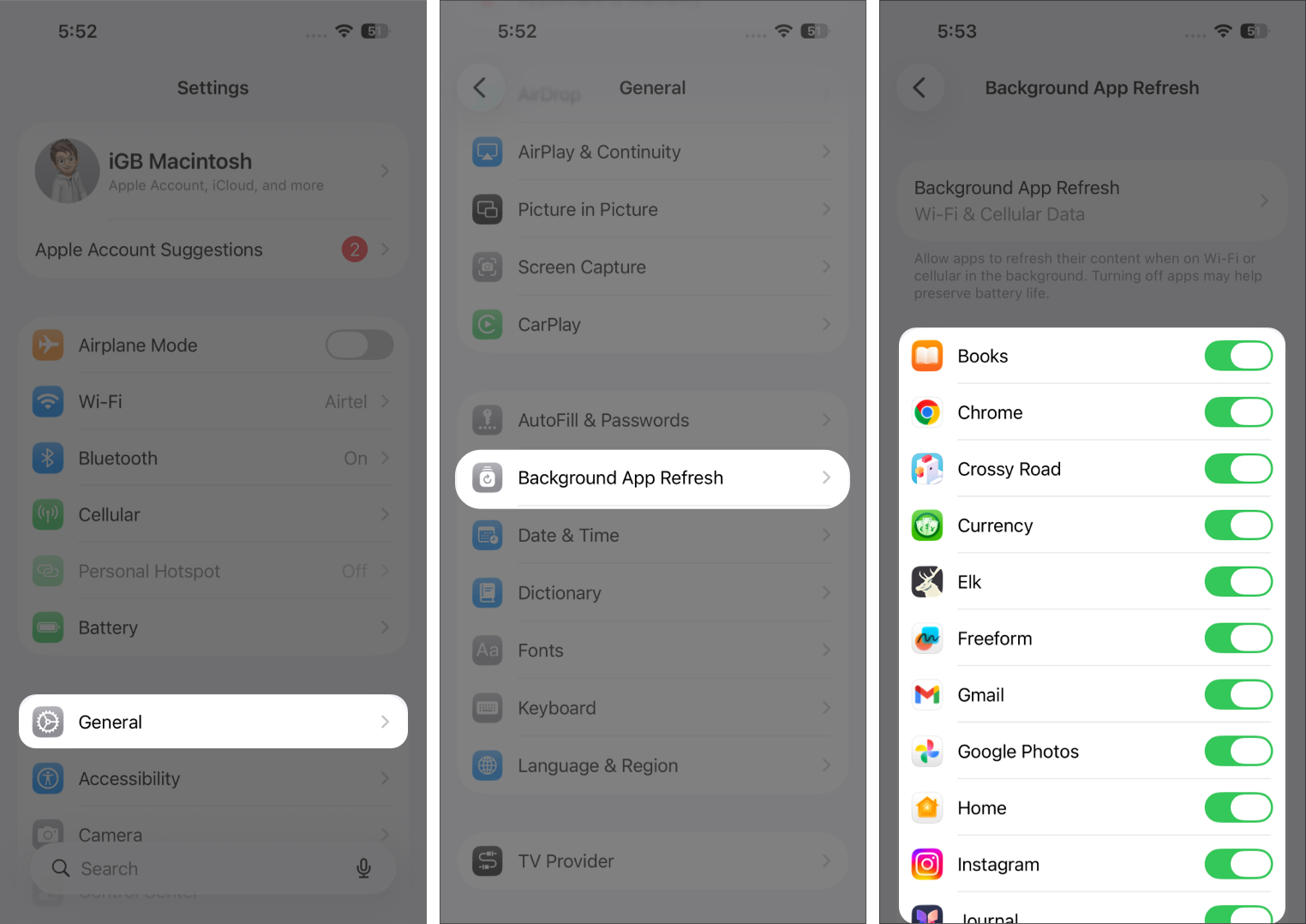

Keep it enabled only for apps that truly need constant updates, like messaging or email.
4. Reduce Motion and Transparency
Animations and visual effects look beautiful, but use system resources.
- Open Settings.
- Tap Accessibility.
- Tap Motion.
- Turn on Reduce Motion.
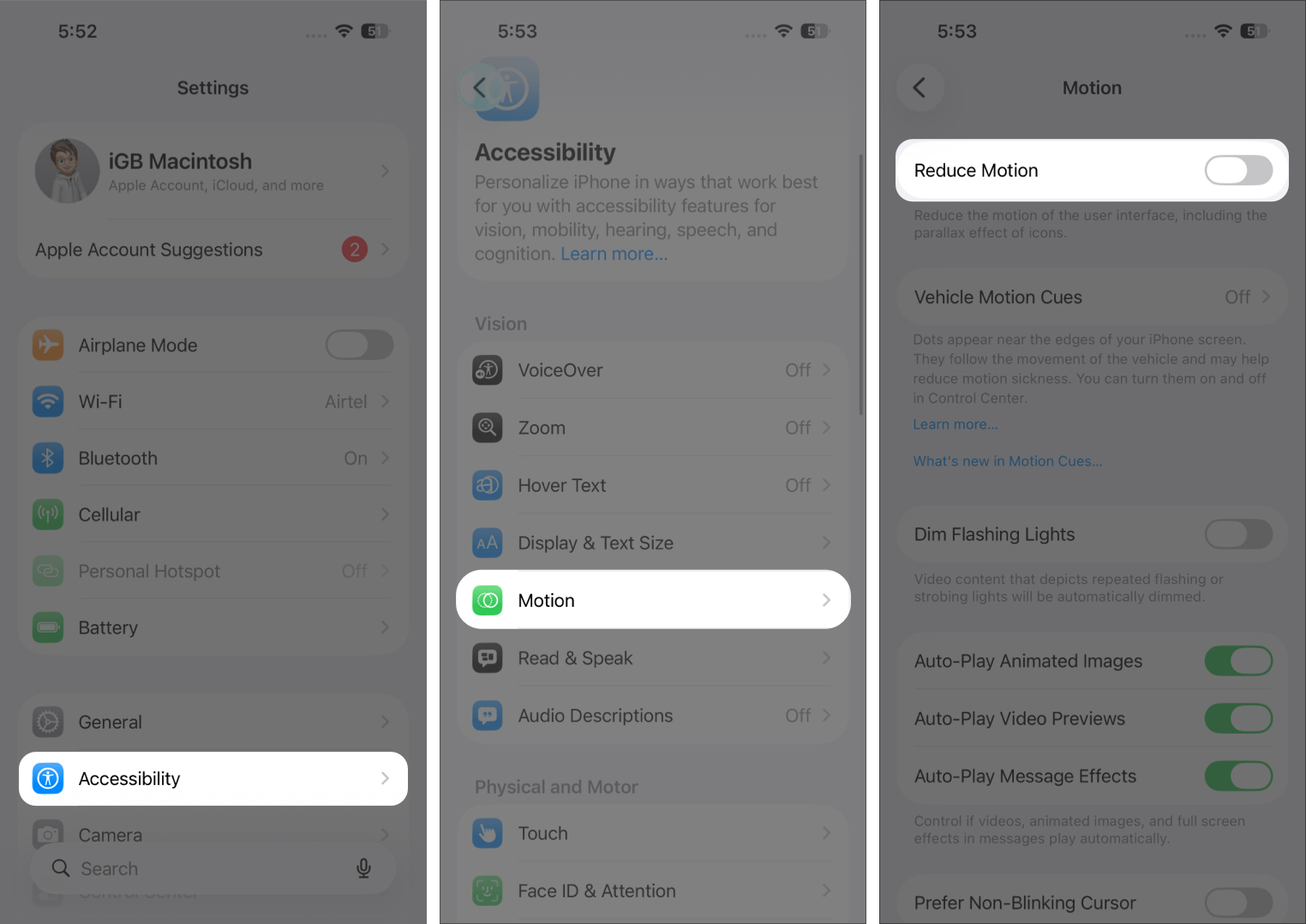
- Go back, tap Display & Text Size.
- Turn on Reduce Transparency.
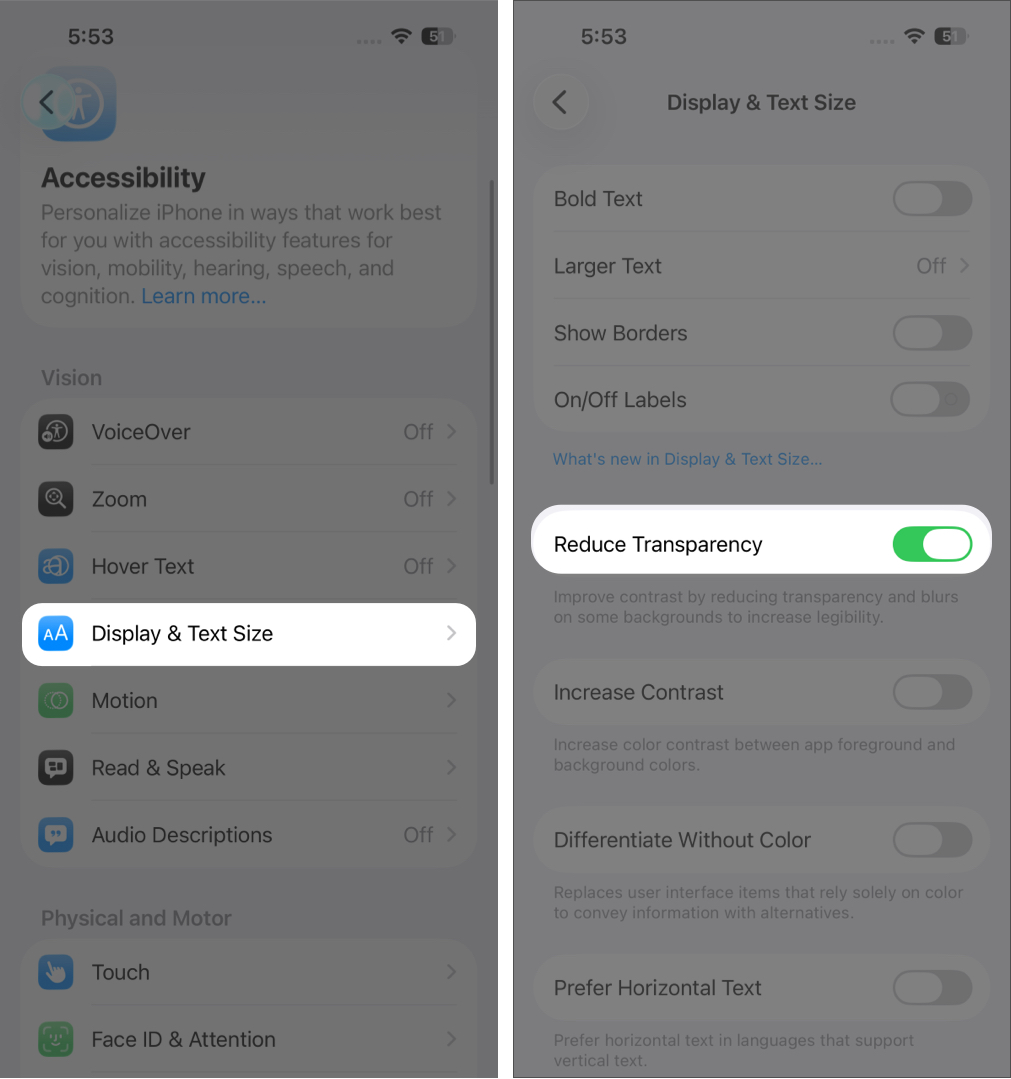


These changes reduce GPU workload and can make older iPhones feel noticeably snappier.
5. Optimize Location Services
Location tracking runs quietly in the background and drains resources.
- Open Settings.
- Tap Privacy & Security.
- Tap Location Services.
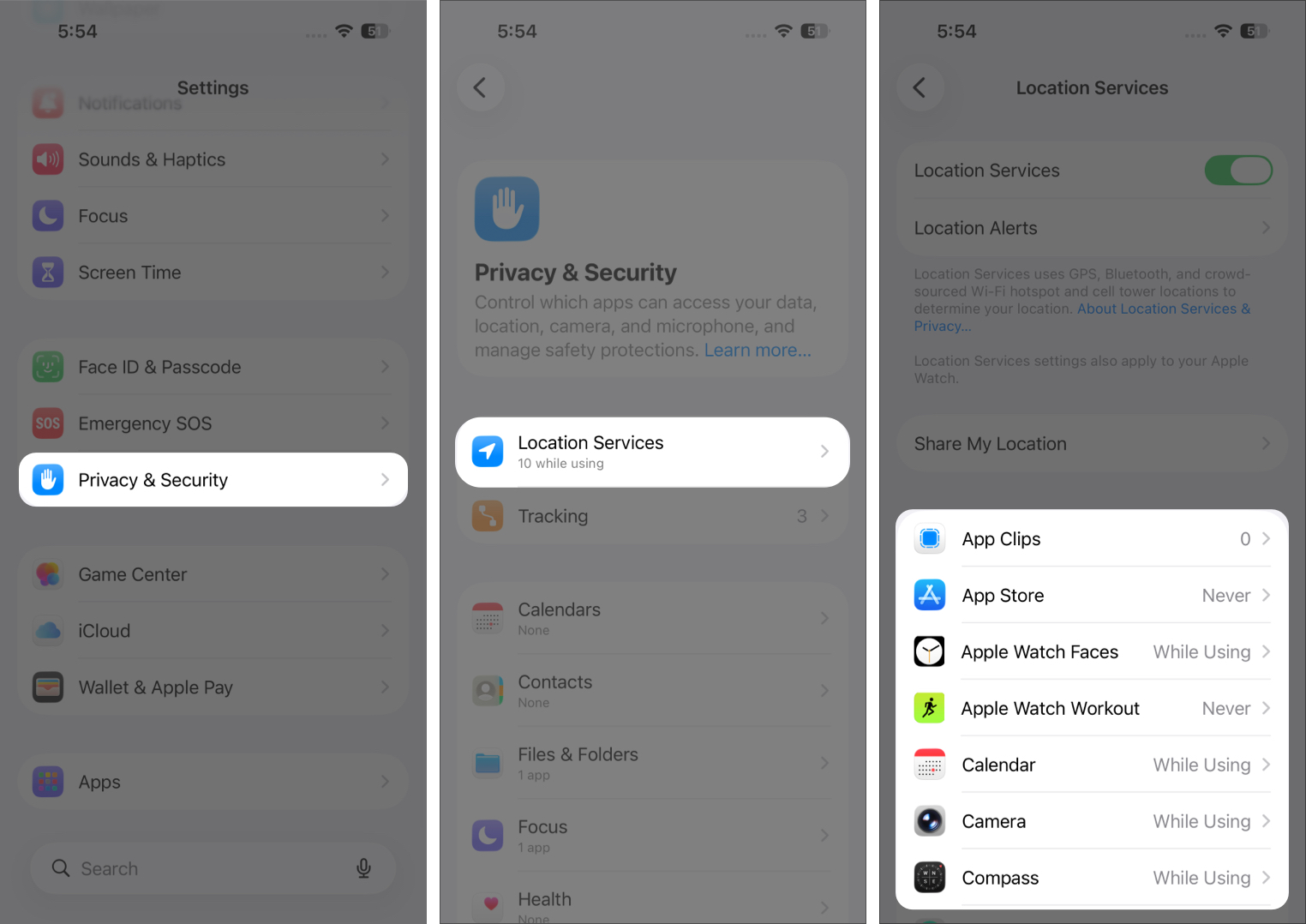
- For most apps, switch access to While Using the App or Never.
- Scroll down and tap System Services.
- Turn off non-essential items like location-based ads and suggestions.
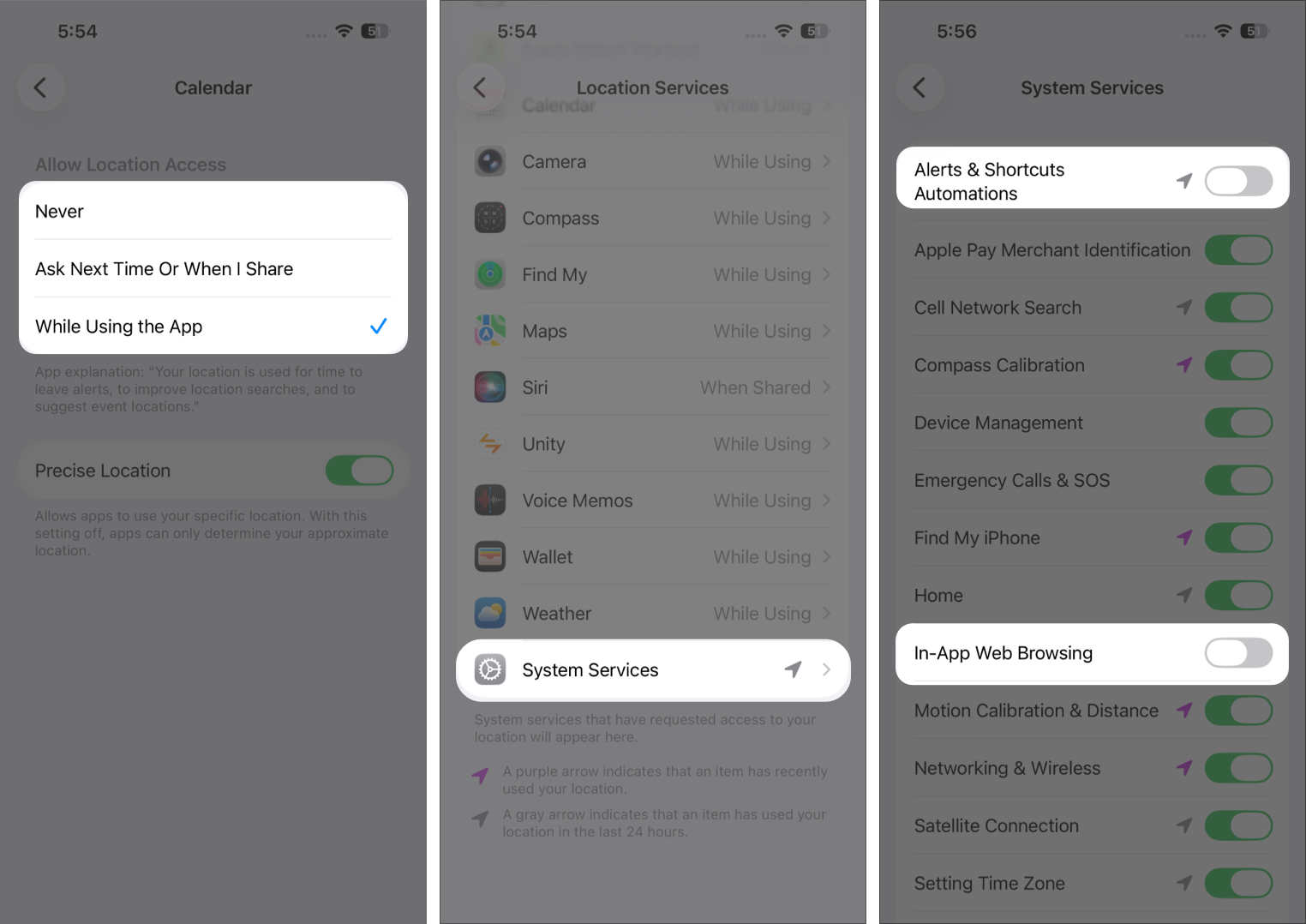


If an app stops working as expected, you can always return here and adjust its permissions.
Less background tracking equals better performance and battery life.
6. Restart Your iPhone Weekly
Restarting clears temporary files and refreshes memory. It is simple but surprisingly effective.
- Press and hold the Side button and either Volume button until the power slider appears. (On iPhones with a Home button, press and hold the Power button.)
- Drag the slider to power off.
- Wait 10–15 seconds.
- Press and hold the Side/Power button again until the Apple logo appears.
Doing this once a week helps prevent memory buildup from apps that do not close properly.
7. Limit Widgets and Home Screen Pages
Widgets constantly refresh data. Too many can slow down older devices.
- Press and hold an empty area on your Home Screen until icons start to jiggle.
- Tap the minus (–) on widgets you do not need, or drag them off the Home Screen.
- Drag apps into folders to reduce the number of pages.
- Tap Done to save.
A simpler layout reduces background workload and improves responsiveness.
8. Check Battery Health
A worn battery can cause performance throttling. iOS reduces processor speed to prevent unexpected shutdowns.
- Open Settings.
- Tap Battery.
- Tap Battery Health.
- Check Maximum Capacity.
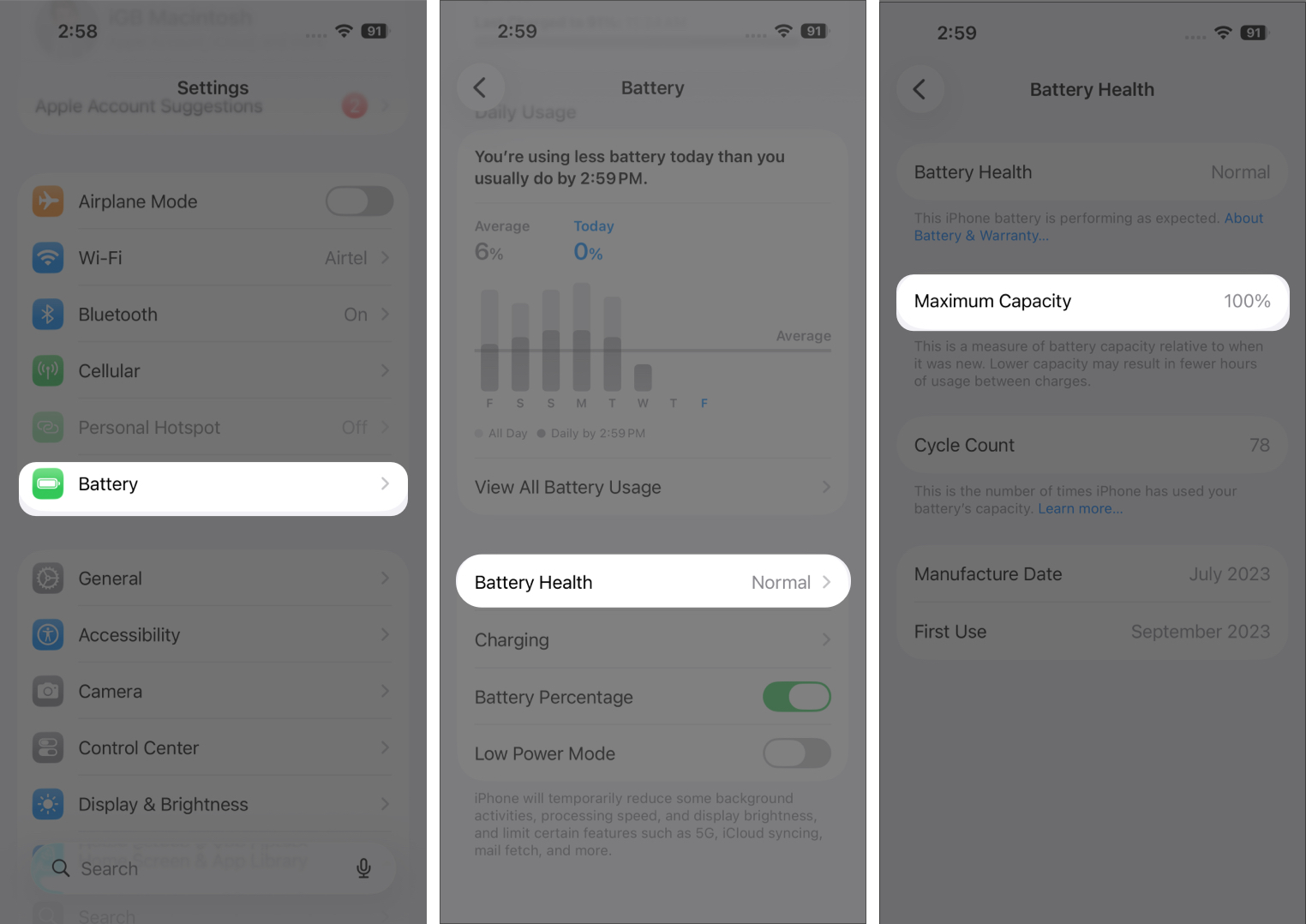
- Go back and tap Charging.
- Turn on Optimized Battery Charging to slow future battery wear.
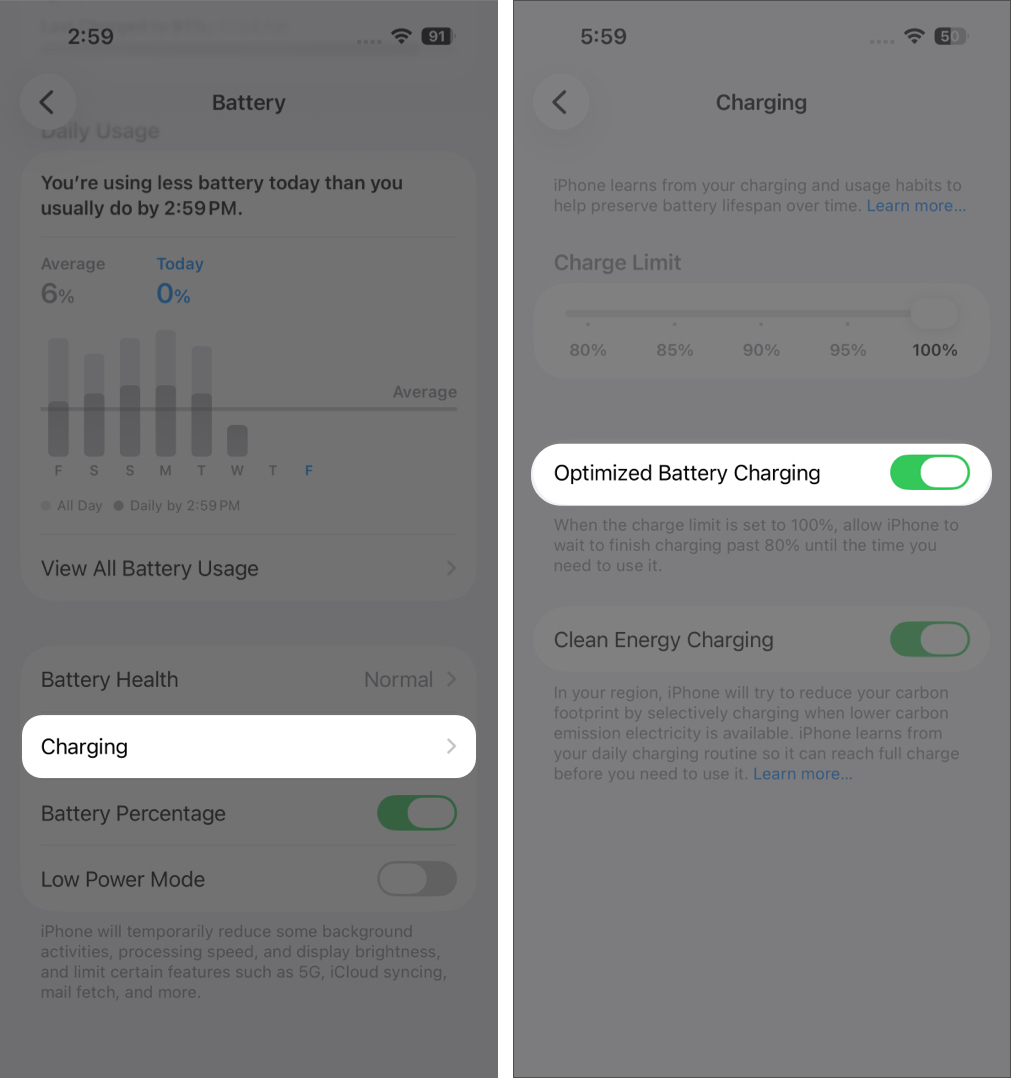


If the maximum capacity is significantly reduced and performance management is active, a battery replacement can restore full speed. This is often cheaper than buying a new phone and can make a dramatic difference.
9. Consider a Factory Reset
If your phone still feels slow after everything else, a factory reset can remove years of accumulated clutter.
- Back up your iPhone with iCloud or a computer first.
- Open Settings.
- Tap General.
- Tap Transfer or Reset iPhone.
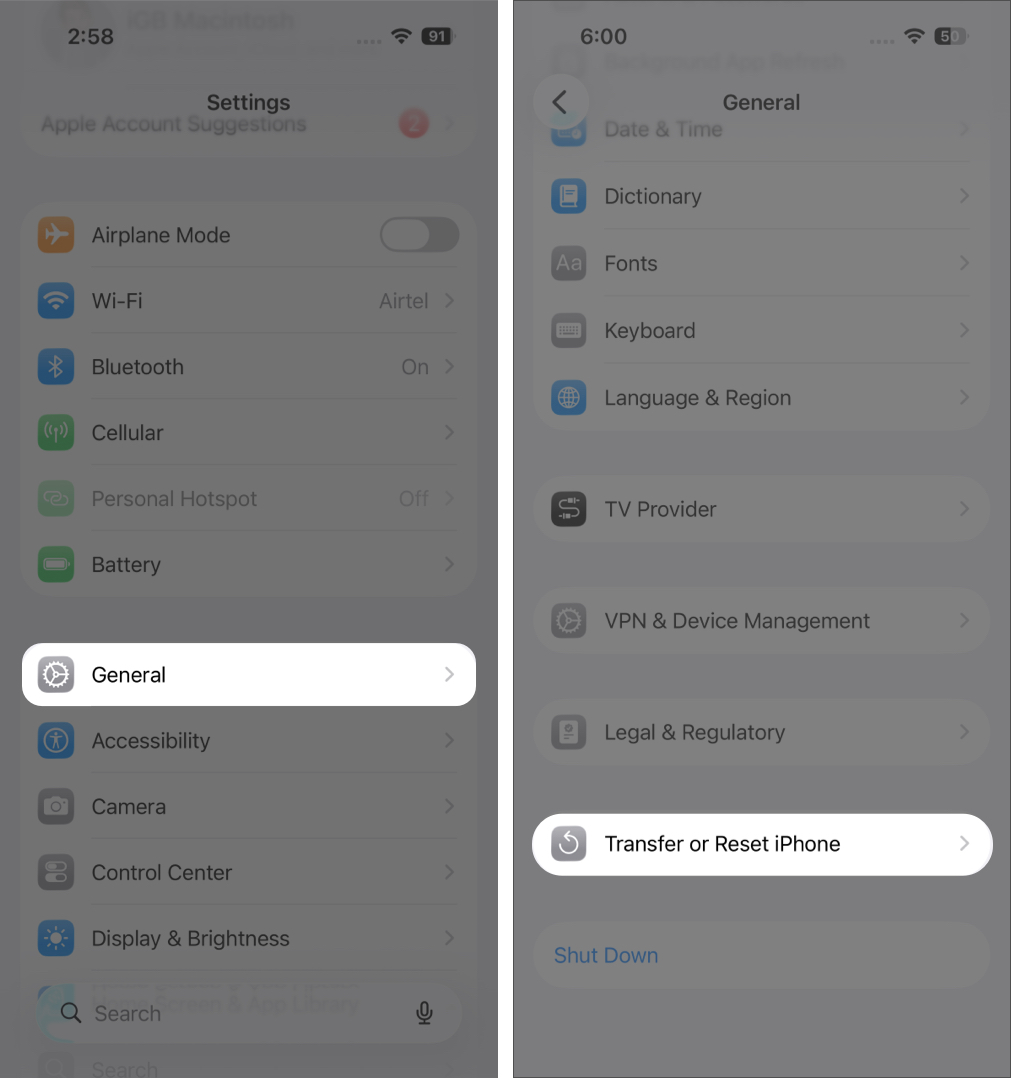
- Tap Erase All Content and Settings.
- Enter your passcode and Apple ID password if prompted.
- After the reset, set up as new or restore from your backup.
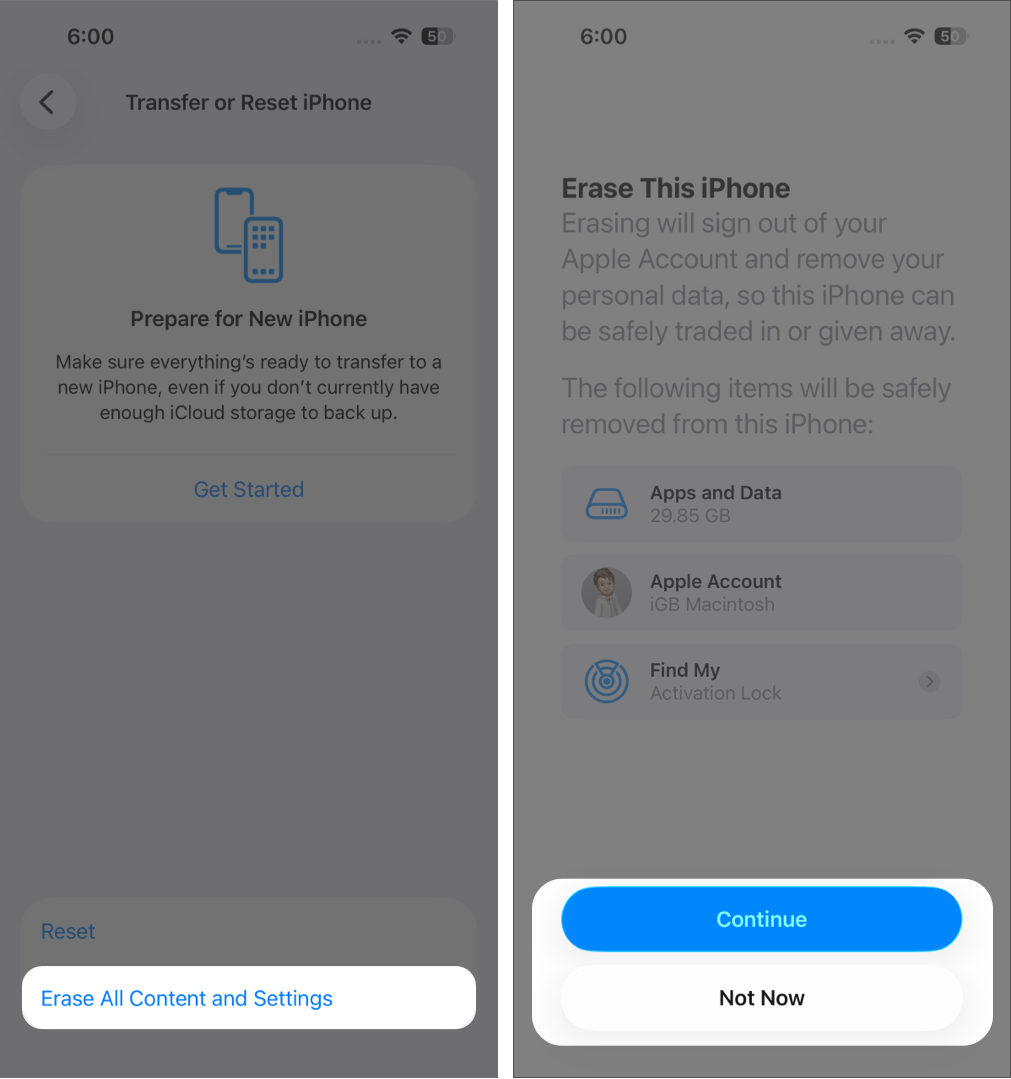


This will not downgrade iOS, but it removes hidden junk and software conflicts that build up over time.
Performance Is Mostly About Optimization
Most people assume slow phones mean weak hardware. In reality, performance is usually about efficiency. Apps that use too much memory, poor background management, and unnecessary visual effects create slowdowns.
This idea applies beyond smartphones. When companies experience performance bottlenecks in their applications, they often bring in experienced engineers to audit and optimize systems. Many businesses work with nearshore software development teams to modernize platforms and improve efficiency without rebuilding everything from scratch. Others rely on staff augmentation models to temporarily add specialized engineers who fix bottlenecks and improve architecture.
Whether it is an iPhone or a large software platform, speed depends on clean systems, efficient code, and smart resource management.
Final Thoughts
Start simple. Free storage. Disable unnecessary background features. Reduce visual effects. Check battery health.
You do not need to rush into buying a new phone. With a little cleanup and smart adjustments, your old iPhone can feel fast enough to serve you well for another year or two.
Small optimizations add up. And sometimes, that is all your device really needs.

Written by
sponsored postA sponsored post is a paid advertisement that promotes a brand or product.
View all posts →More from How-to

iPhone Stuck on Apple Logo? 5 Easy Ways to Fix It
iPhone stuck on the Apple logo and won’t start? Don’t panic. This step-by-step guide shows five simple methods to help you get your iPhone working again.
 Avadesh JoshiMarch 10, 2026
How to Use Photographic Styles on iPhone
This guide explains how to enable and use Photographic Styles on iPhone to give your photos a unique look.
 VikhyatMarch 9, 2026
How to Use Front and Back Cameras at the Same Time on iPhone
Want to record yourself and what’s in front of you at the same time? Here’s how to use both the front and rear cameras on your iPhone simultaneously.
 Anoop VargheseMarch 9, 2026