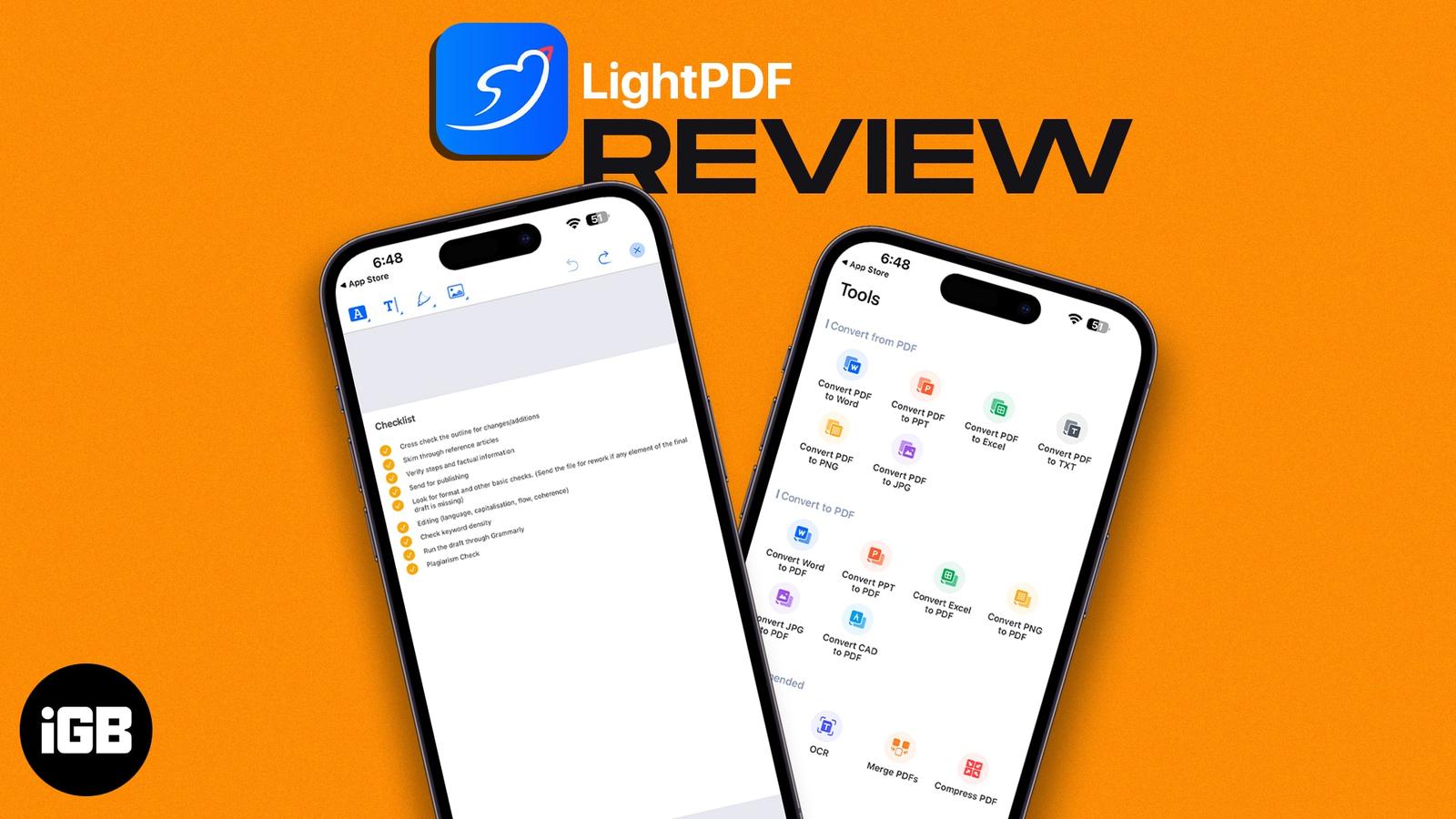
LightPDF is a minimal yet powerful tool to convert and edit PDFs. It’s a good PDF tool, but it still needs to work on many aspects. Once improved, it could be one of the best PDF tools.
Editor’s Rating: 3.5
Price: Free (VIP plans start at $19.90)
There are many PDF tools and websites available out there. So, when looking for such a tool for your iPhone, you’re bound to get confused with many options.
However, you can get the crucial PDF tools in the palm of your hand with LightPDF. LightPDF is a lightweight PDF app for making changes to your PDF. I’ve used this app on my iPhone 12 and MacBook Air M1, and here are my thoughts on this app.
Please note that the Mac version of LightPDF got renamed to Apowersoft PDF Editor recently. Notwithstanding, I’ll be referring to it as LightPDF throughout the article.
Features and user interface
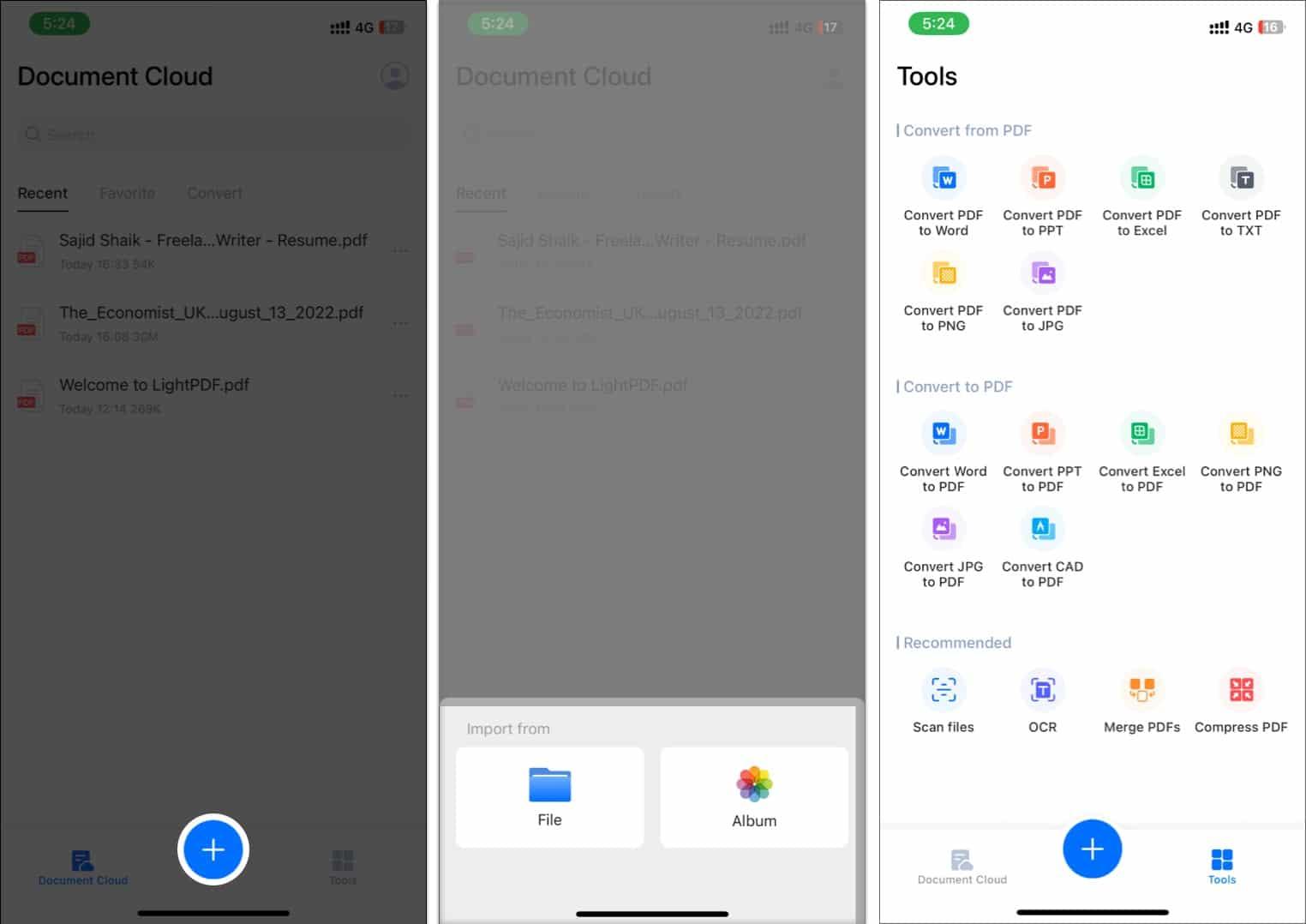
When you open the app, it’ll greet you with recently opened files. There are only two tabs on iOS and a Plus (+) button to import files and images.
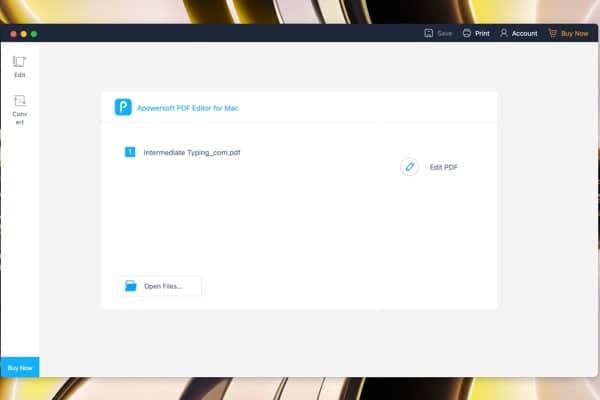
Regarding the app on macOS, you see recent files with an option to import new files and two tabs on the left sidebar.
The interface is minimal and straightforward when you open the app, bringing down the learning curve. Even if you’ve never used a PDF editor, you won’t struggle to navigate through LightPDF.
1. Edit PDFs
Editing PDFs is a fundamental task that any PDF tool should allow you to do. LightPDF does this task effortlessly with options that enable you to annotate, highlight, add text and signature, and add images to the PDF. 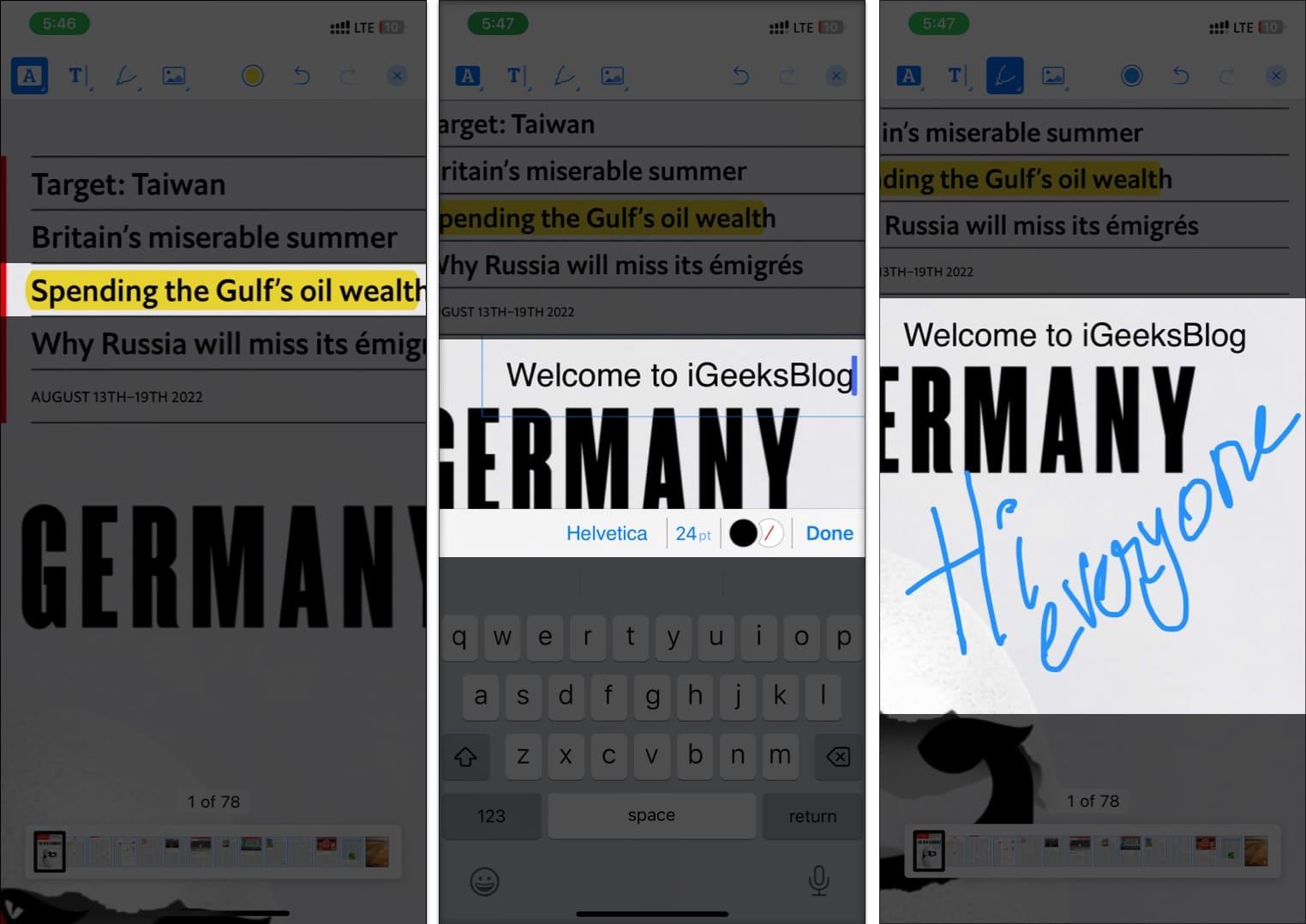
You’ll find the same features on the Mac version, except you’ll be missing out on highlight and annotation features here. Instead of those, you get the option to edit text and images in the PDF. LightPDF uses OCR to detect text and font, making the edits look seamless.
2. Scan Documents
LightPDF lets you scan documents on the go, but it’s limited to just iOS. Besides, you can also take multiple images and add them to a PDF file. However, the scan feature couldn’t convert the document into text format using OCR, which disappointed me a little.
3. Merge PDFs
LightPDF allows you to merge two or more PDFs into a single one. This feature is available on the iOS version and not Mac for some reason, which should support it.
Apart from that, there were times when I got errors when importing PDFs into the app when importing a few PDF files into the app. It may be a bug that could get fixed over the subsequent updates. Besides, it did the job within a few minutes of merging two PDFs.
4. Compress PDFs
If you have a PDF file, which shouldn’t have a big file size, you can use LightPDF to compress it. The app uses a compression algorithm to compress the PDF file but doesn’t let the quality deteriorate simultaneously. Again, this feature should have been available on the Mac too.
5. Convert PDF to Word, Excel, PPT, and more
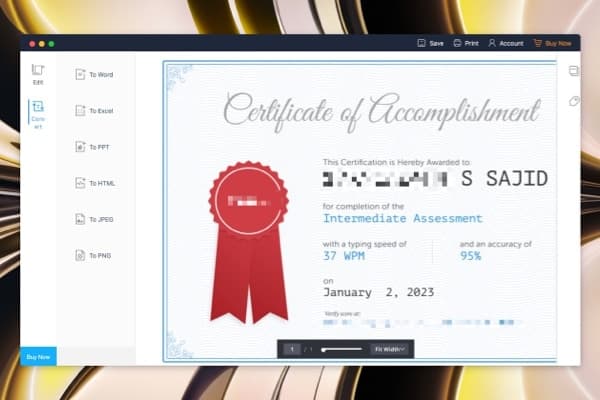
The best part about LightPDF is that it can convert your PDF files into various formats and vice versa. It supports formats like Word, PPT, Excel, TXT, PNG, and JPG for converting your PDF. You can also convert Word, PPT, Excel, PNG, JPG, and CAD files to PDFs.
You get the same feature on macOS, and you can convert PDF files to Word, PPT, Excel, HTML, PNG, and JPG. However, the conversion may take some time, depending on the PDF file size.
Should you get LightPDF?
LightPDF is a good PDF tool, and it’s available on Windows, macOS, iOS, and Android. You can use the Cloud Sync feature in the app to sync files between devices.
If your profession involves converting many PDF files or editing them, you can go for LightPDF. However, I think LightPDF has to work on many things before I can recommend this to anyone.
Otherwise, it’s okay to go for it now, but I wouldn’t consider it a solid recommendation. Again, this was my experience with macOS and iOS, and I haven’t used LightPDF on Windows and Android.
Pricing
LightPDF is available to download for free with limited features, but you can get access to all the features by upgrading to the VIP option. The VIP subscription costs $19.90 per month, $59.90 per year, and $99.90 for two years.