
iOS 27 makes the Camera app easier to customize and much more useful when you point it at something you don’t recognize. The update also gives iPhone 18 Pro owners the manual controls photographers have wanted for years.
The catch is that iOS 27 does not give every iPhone the same camera experience. Siri mode and AI editing need an Apple Intelligence-compatible model, while Pro controls and Reference mode are exclusive to the iPhone 18 Pro and iPhone 18 Pro Max.
Which iPhones get which camera feature?
Use this quick split before looking for a setting that may not exist on your iPhone.
| Feature | iPhone requirement |
|---|---|
| Customizable Camera controls | iPhone running iOS 27; available controls vary by model and camera mode |
| Siri mode in Camera | Apple Intelligence-enabled iPhone 15 Pro or 15 Pro Max, or iPhone 16 or later |
| Clean Up, Extend, and Reframe | Apple Intelligence-enabled iPhone; region and language limits apply |
| Pro controls, smart focus tracking, and texture/grain Styles | iPhone 18 Pro or iPhone 18 Pro Max |
| Reference mode | iPhone 18 Pro or iPhone 18 Pro Max, and only in supported regions |
Siri mode turns the Camera into a visual assistant
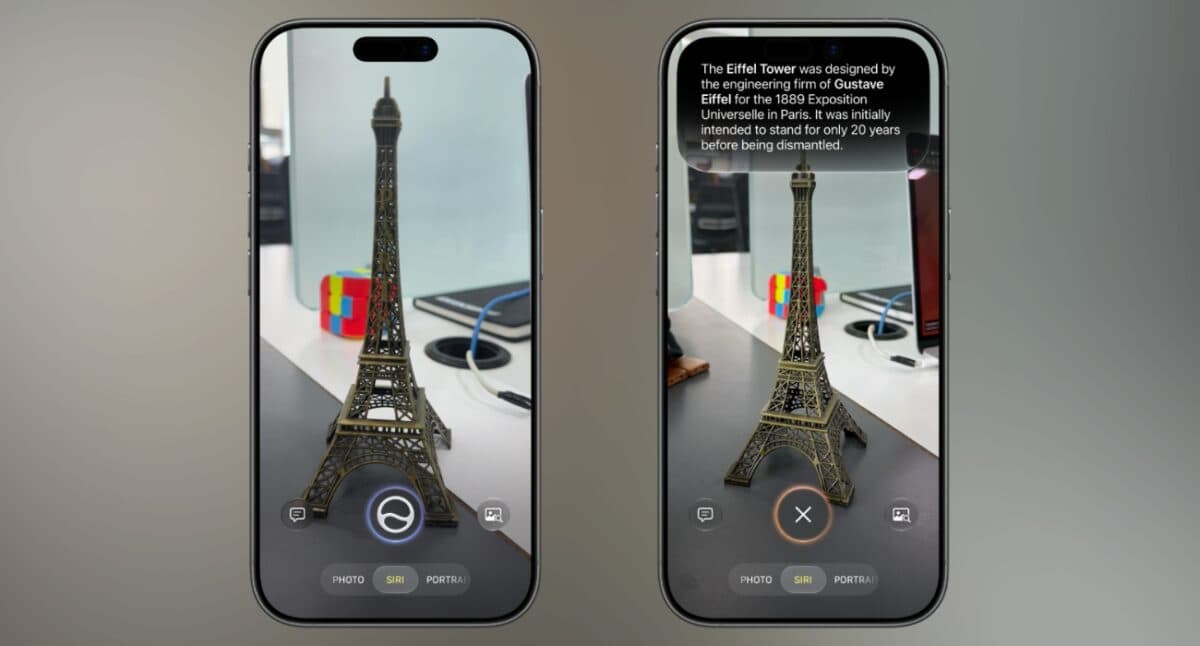
Siri mode joins Photo and Video in the Camera mode picker. Point your iPhone at a plant, a strange gadget, a menu, or a bill, and Siri can identify it, answer questions, search for similar images, or suggest an action.
For example, a restaurant bill can trigger a split-bill action, while a printed card can be turned into a Wallet pass. You can also ask a follow-up question without leaving the Camera interface.
To use it, open Camera and tap Siri, then point the viewfinder at something. Tap the Siri button for a quick answer, Ask to type a specific question, or Search to find similar images. If your iPhone has Camera Control, you can also click and hold it while the iPhone is locked to enter Siri mode. Apple’s instructions cover the available actions.
This is the camera feature most people will notice first, but it is limited to Apple Intelligence devices such as the iPhone 15 Pro and Pro Max, and iPhone 16 models or later. Siri AI is still in beta, starts in English, and is not initially available on iOS in the EU. For a deeper look at what it can recognize and do, see what’s new in Visual Intelligence in iOS 27.
Put your favorite camera controls above the viewfinder
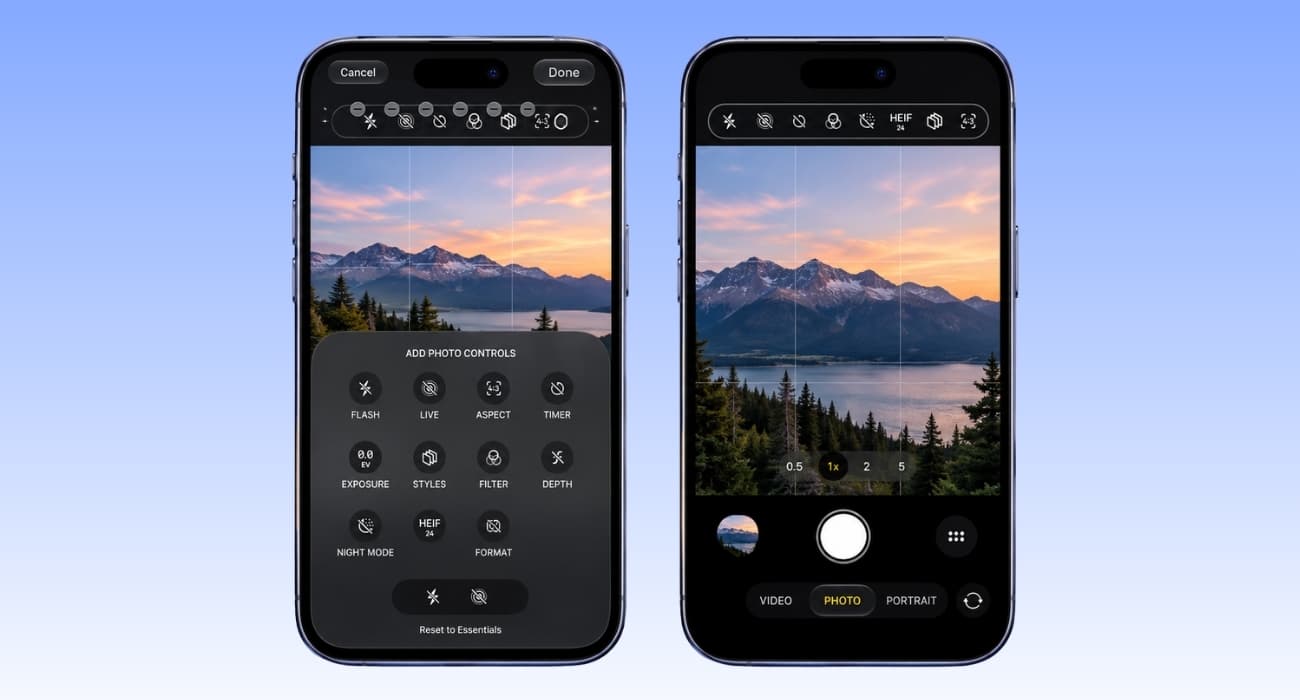
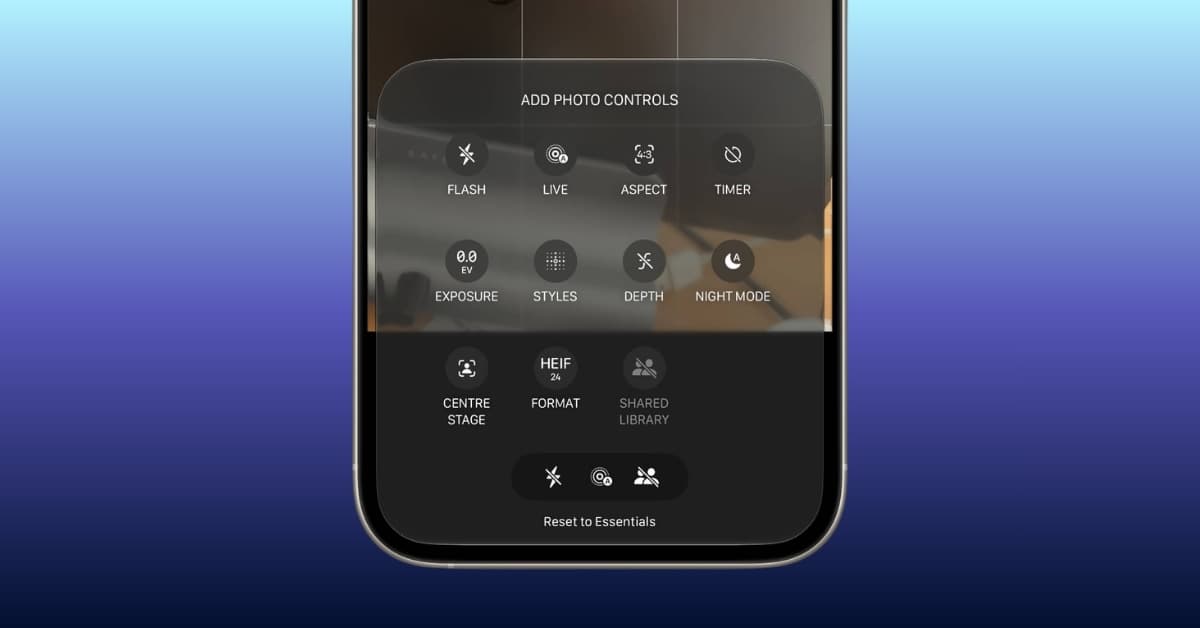
Apple has finally made the Camera controls less rigid. The Flash and Live Photo buttons can stay above the frame, and you can add or remove other tools so the settings you actually use are one tap away.
Open Camera, tap the Camera Controls button, and choose Edit. Add tools such as Timer, Exposure, Styles, Aspect, or Depth, then drag them into the order you want. You can also return to Apple’s default layout with Reset to Essentials.
This is a small change with a real payoff. If you often lower exposure, use a timer, or switch Photographic Styles, you no longer need to open the controls drawer every time. The available tools still depend on your iPhone and the mode you are using. If you use an iPhone 16, you can also adjust settings from the side button with Camera Control.
iPhone 18 Pro gets real manual camera controls
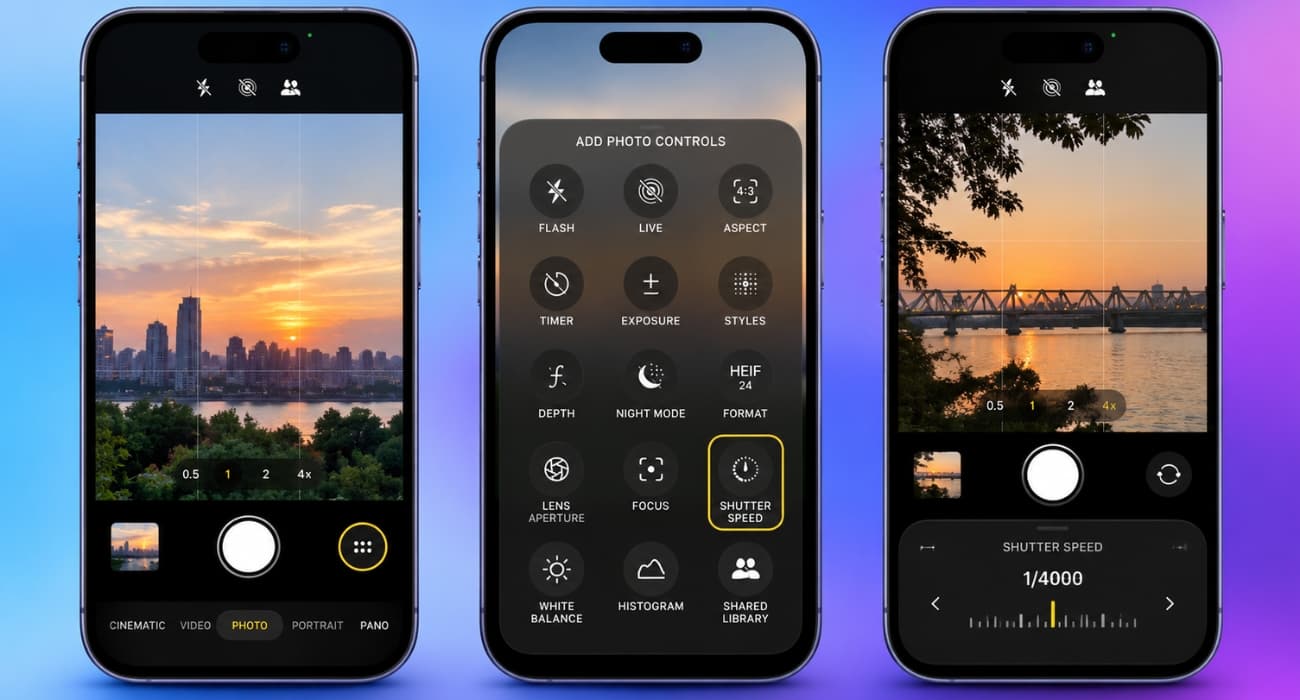
The iPhone 18 Pro is where the hardware changes the Camera app. In Photo, Video, Cinematic, Slo-mo, and Time-lapse modes, you can manually adjust the lens aperture, shutter speed, and white balance. A histogram lets you check whether the scene is too dark or too bright before you capture it.
The 48MP Main camera also has a variable aperture that moves between f/1.48 and f/4.0. Use a wider aperture for more light and stronger background blur. Use a narrower aperture when you want more of a group or landscape to stay sharp. Shutter speed is the more useful control for moving subjects, since it lets you freeze action or create intentional motion blur.
The iPhone 18 Pro camera system adds smart focus tracking, too. Tap a subject twice to track it as it moves closer, farther away, or briefly leaves the frame. Photographic Styles also gain texture and film grain controls, so you can soften skin or add a film-like finish before or after shooting.
If you do not have an iPhone 18 Pro, the built-in Camera app still handles most everyday shooting well. For manual shutter speed, white balance, and RAW controls on older models, these iPhone camera apps are the more practical route.
Reference mode helps verify an iPhone 18 Pro photo
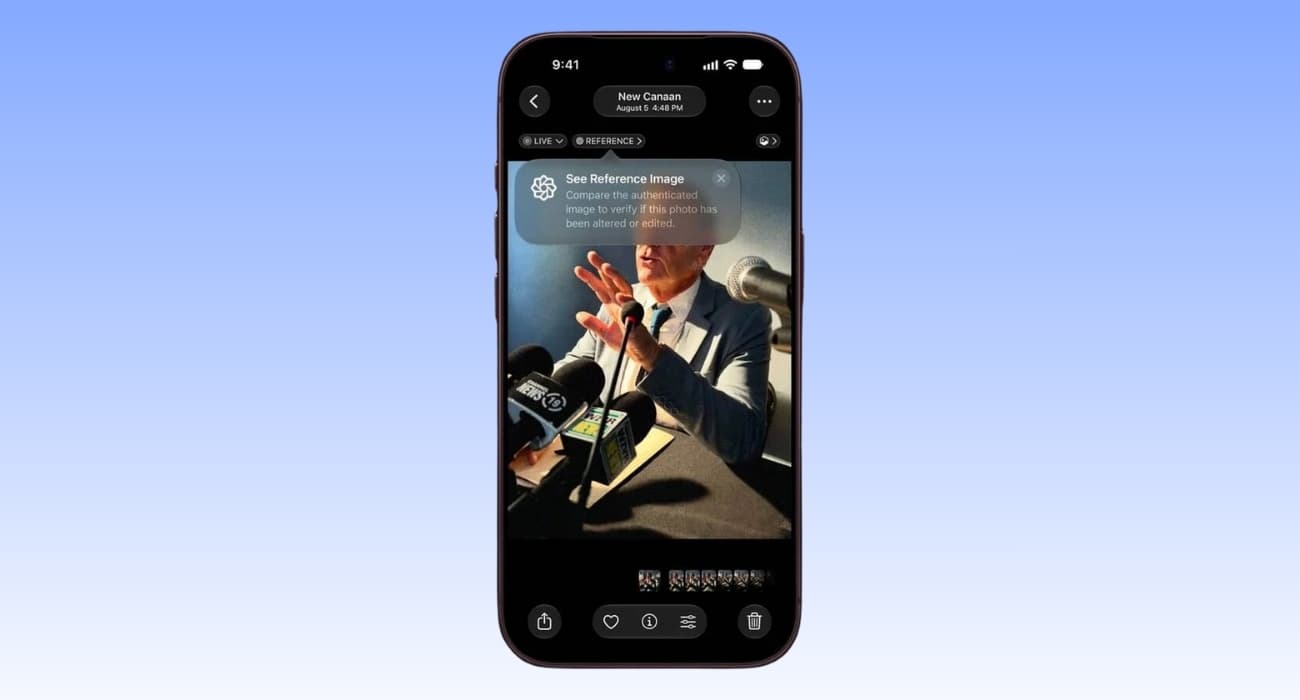
Reference mode is aimed at photographers, journalists, sellers, and anyone who needs to show that a photo came from an iPhone 18 Pro camera. The Main camera records signed sensor data alongside the photo. Photos can then develop and display a reference image that you can compare with the edited version.
It is opt-in. Go to Settings > Camera > Reference Image > Add Reference Mode, then swipe to Reference in Camera when you want to capture one. Apple’s Reference Image instructions cover the supported regions and capture process. It can help verify the capture and whether the photo was altered, but it cannot prove that the scene itself was unstaged or truthful.
Photos can rescue a weak frame after you shoot it
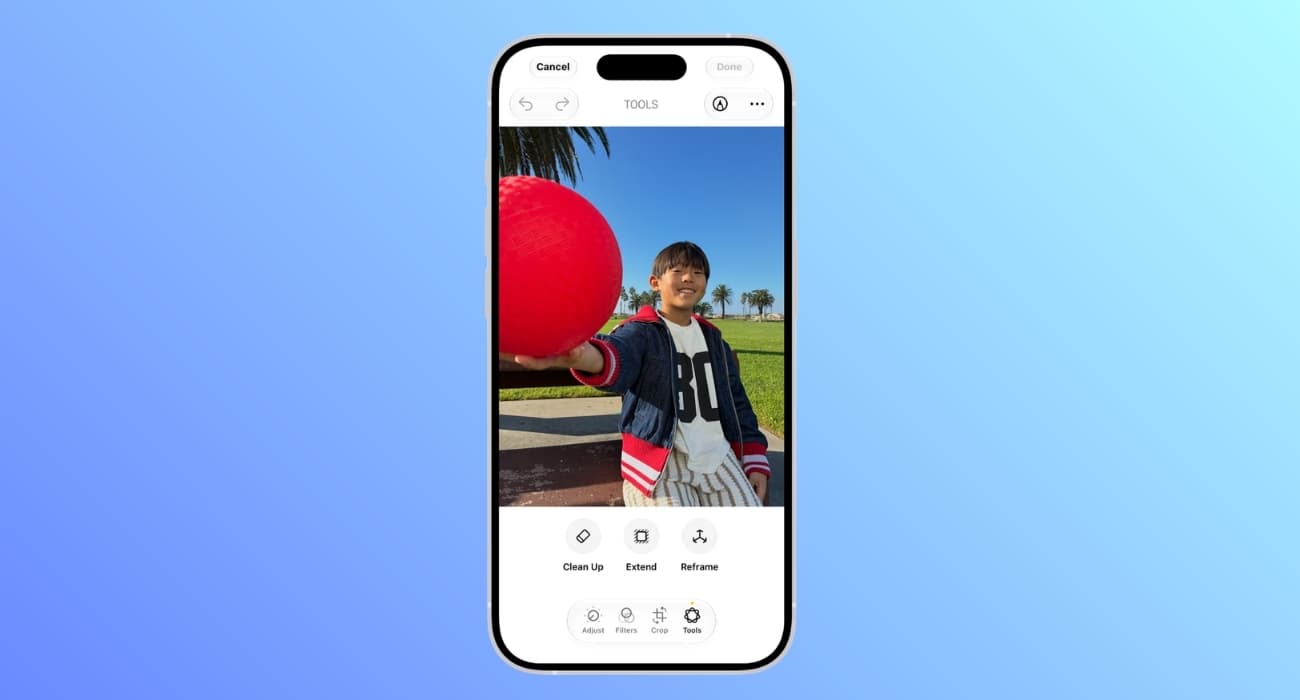
iOS 27 also gives the Photos app three useful AI editing tools. They are not camera modes, but they change what you can do with a photo after pressing the shutter:
- Clean Up: Remove larger or more complicated distractions with more natural-looking results.
- Extend: Add content beyond the original edges when a photo is too tightly cropped or needs a different aspect ratio.
- Reframe: Drag the image to adjust its perspective and improve the composition after capture.
Open a photo in Photos, tap Edit, and choose the tool you need. These features require Apple Intelligence, and Apple applies the same device, language, region, and usage-limit restrictions as its other AI tools. For the basic Clean Up workflow, see how to remove unwanted objects from iPhone photos. You can also read the full iOS 27 Photos breakdown for more examples.
The practical takeaway
For most people, the best iOS 27 camera upgrade is the customizable control row. Put Exposure, Timer, or Styles where you can reach them and the redesigned Camera app becomes quicker to use. If you have an Apple Intelligence iPhone, Siri mode is worth trying next.
The manual controls, smart tracking, texture and grain options, and Reference mode belong to the iPhone 18 Pro generation. They are hardware features delivered alongside iOS 27, not upgrades every compatible iPhone receives.