
Identify laundry tag and car dashboard symbols with your iPhone camera
Use your iPhone camera to understand laundry and car symbols.
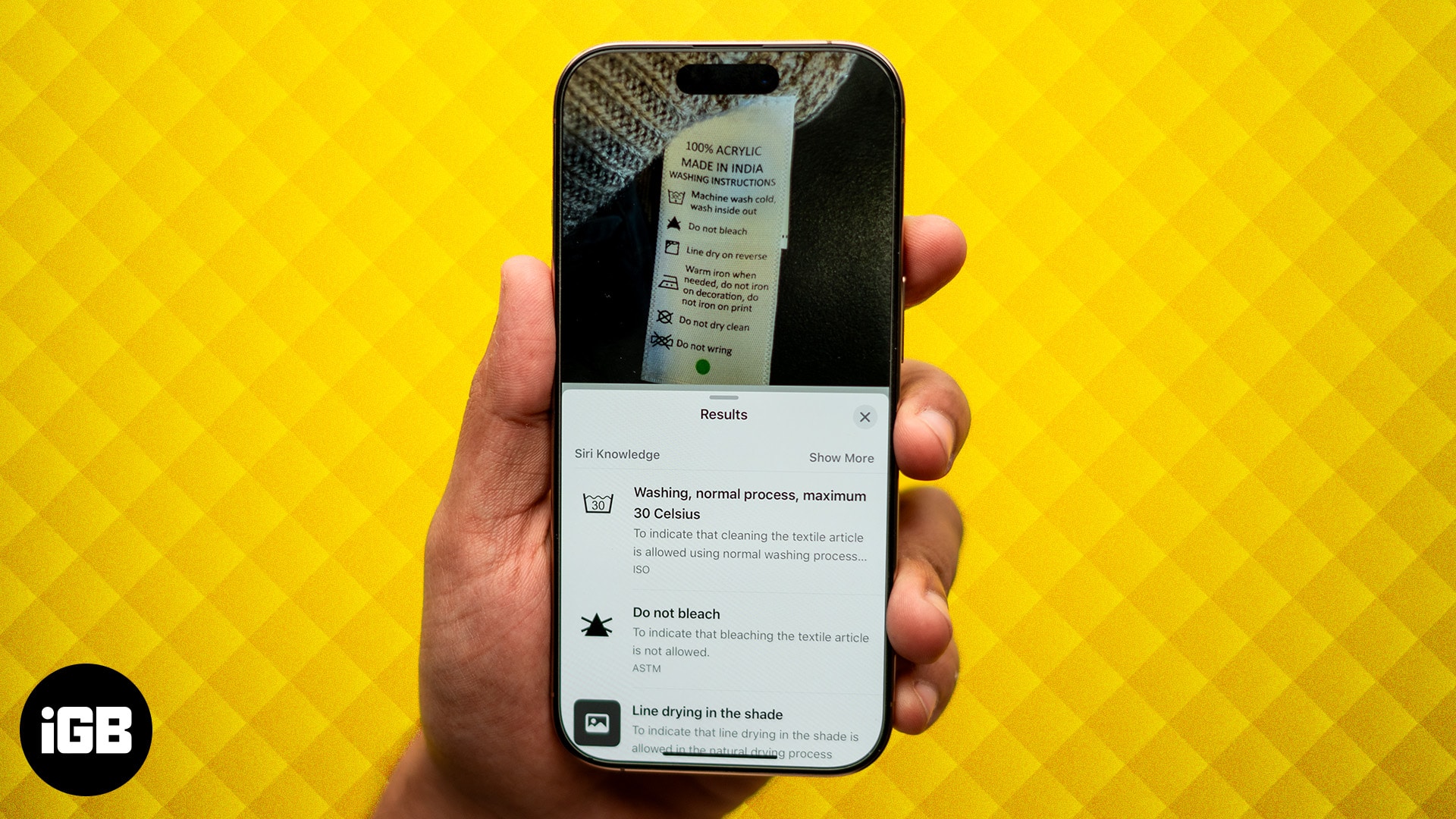
Deciphering laundry care labels or unfamiliar car dashboard symbols can feel like solving a riddle. But what if your iPhone could lend a helping hand? With Visual Look Up, you can quickly understand these symbols by simply clicking a photo. In this guide, I’ll show you how to look up the meanings of laundry tag and car dashboard symbols with your iPhone camera.
How to identify laundry care symbols with your iPhone camera
You may have seen the cloth tags on your garments. It includes instructions for bleaching, ironing, drying, and washing. Some laundry tags include written instructions, such as “Don’t bleach,” or “Dry-clean only,” etc. However, you may come across tags with symbols only.
Understanding such laundry instructions might be challenging as we need to manually search for their meanings. So, to help you out, Apple has created this wonderful feature. Let’s see how this works.
- Open the Camera app on your iPhone.
- Tap the shutter to capture a photo of a laundry tag with symbols.
- Select the square preview window at the bottom to view the photo.
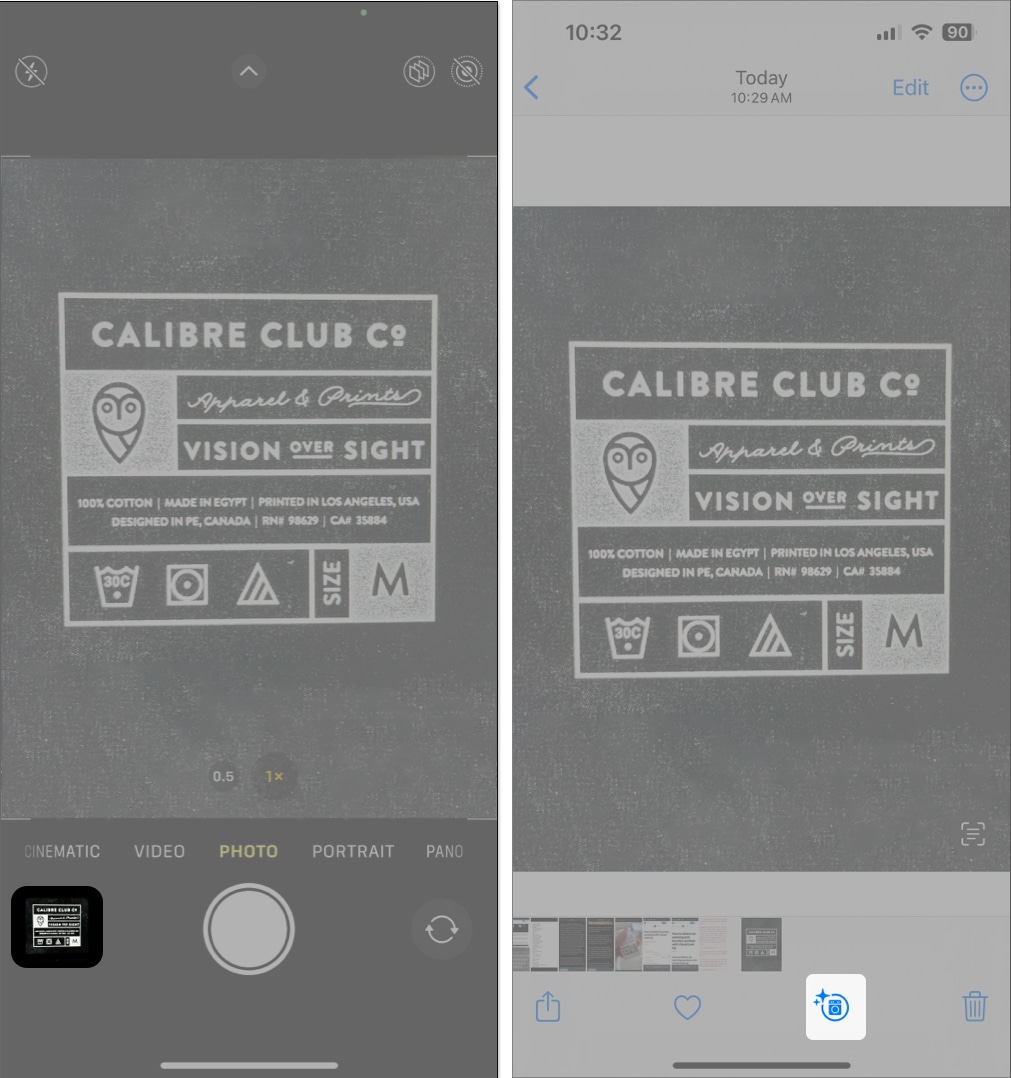
- Tap the blue washing machine icon (info icon) at the bottom.
If you don’t see the said icon, retake the photo after zooming in. - Select Look Up Laundry Care to see the detected laundry symbols.
- Tap any detected laundry care symbol to understand what it means.
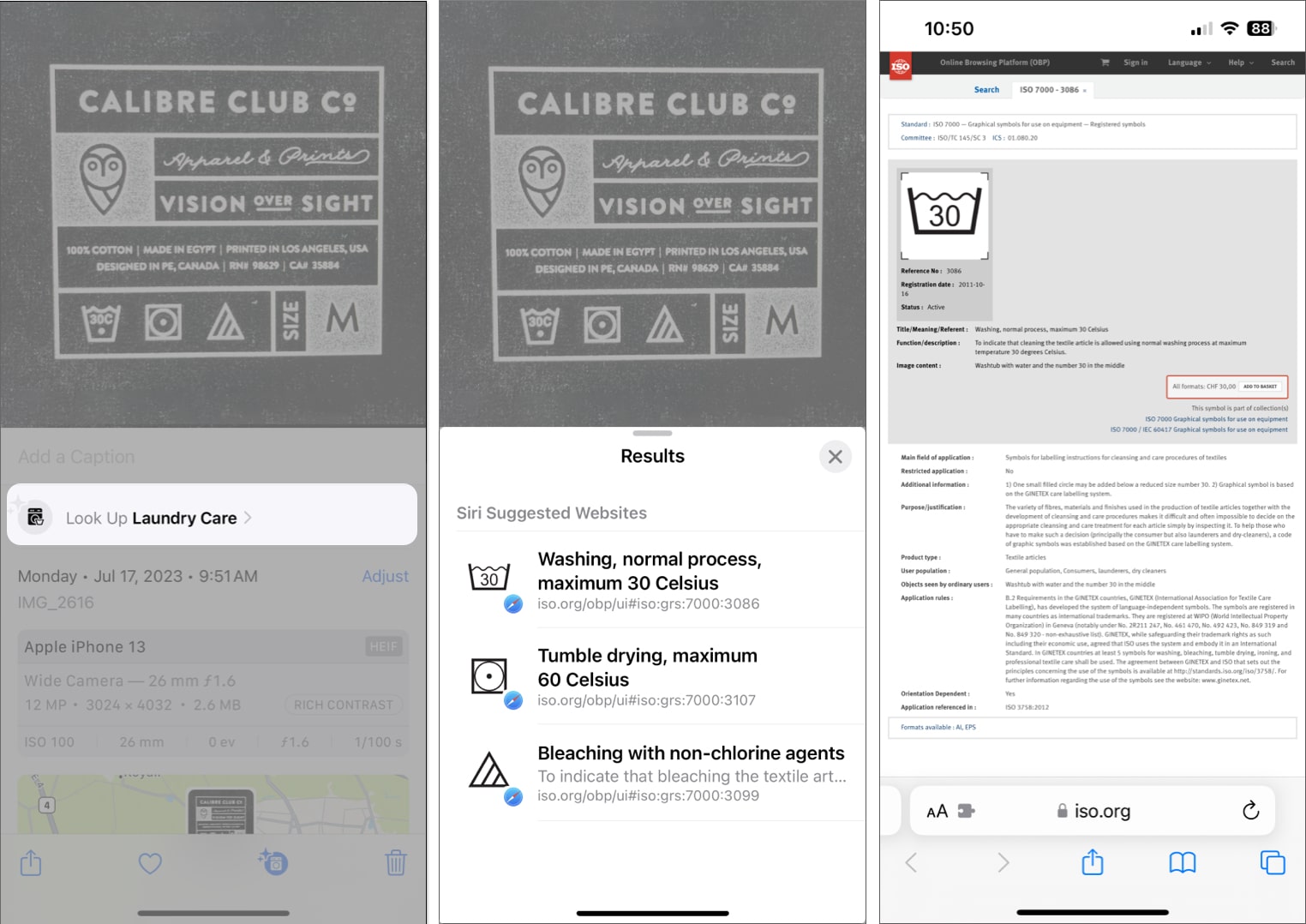
With almost 36 different laundry care symbols, it’s difficult to know what each one means. Thankfully, with Visual Look Up, identifying these symbols is a piece of cake.
Apple provides this information from the International Organization for Standardization. When you tap a detected symbol, you are redirected to their official site.
Note:
How to identify car dashboard symbols with your iPhone camera
- Open the Camera app on your iPhone.
- Tap the shutter to capture a photo of your car’s instrument cluster or any buttons or knobs on the center console.
- Select the square preview window at the bottom to view the photo.
- Tap the blue steering wheel icon (info icon) at the bottom.
If you don’t see the said icon, retake the photo after zooming in.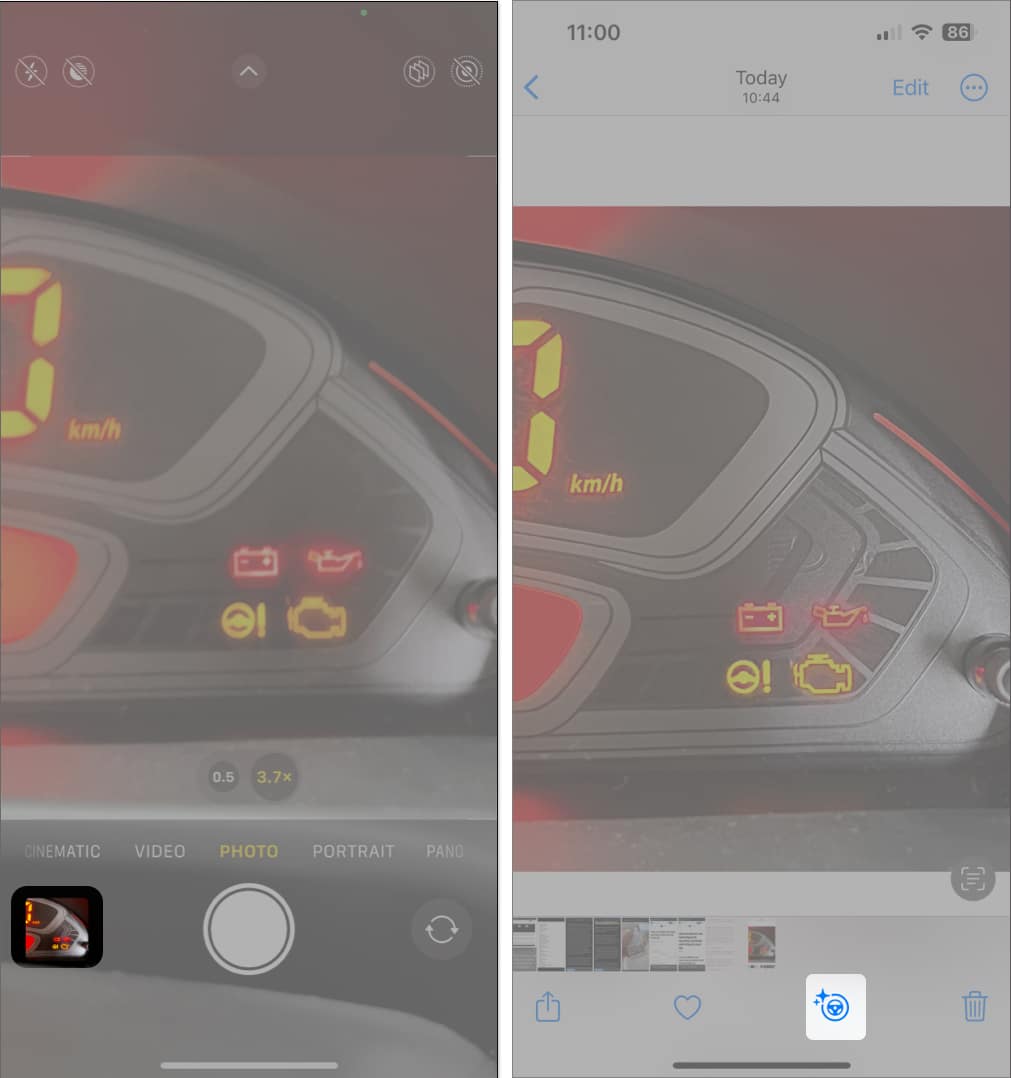
- Then tap Look Up Auto Symbol to see all the detected symbols.
- Select any detected auto symbol to understand what it means.
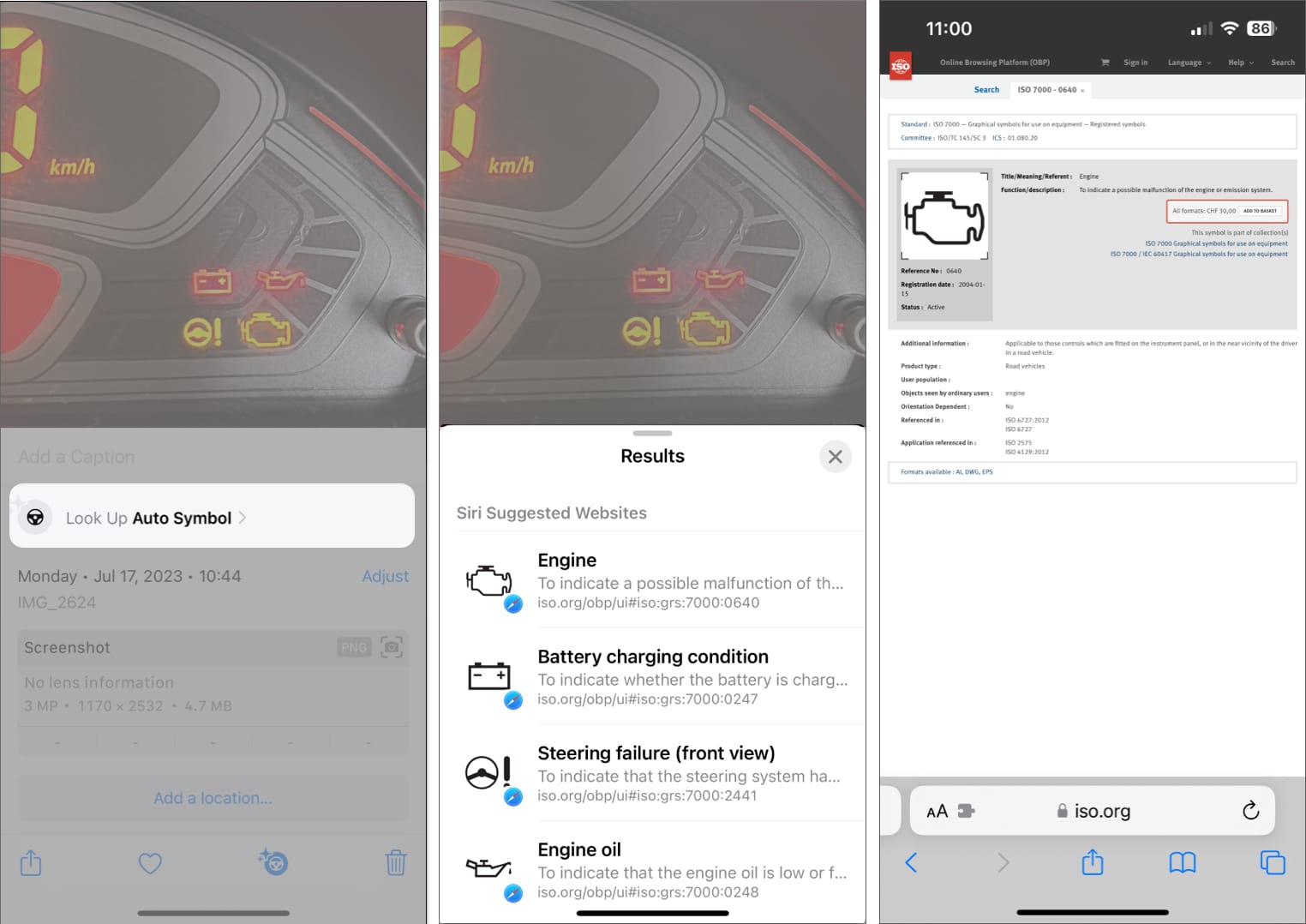
Identifying auto symbols can be quite useful if you want to understand what those bright warning signs on your car’s instrument cluster mean.
Do more with Visual Look Up!
Visual Look Up on iPhone is a great feature that can help you identify objects around you and add context to them. In the comments section below, let us know your thoughts on this new feature.
Frequently Asked Questions

Written by
Ayush PatelAyush is a writer with a keen interest in consumer technology and the Apple ecosystem. He has over three years of working experience at several big-name publications, including Guiding Tech, TechPP, and MobiGyaan. Here at iGeeksBlog, he specializes in crafting how-to guides, buying guides, and editorials related to all things Apple.
View all posts →More from How-to

Snapchat Parental Controls: How to Set Up Family Center and Keep Your Teen Safe
Snapchat’s Family Center lets parents monitor their teen’s friend activity and screen time without reading private messages. Here’s how to set it up and what to expect.
 VikhyatMarch 3, 2026
How to Block and Unblock Someone on Instagram
Instagram lets you block or unblock someone in seconds. Follow these simple steps to take full control of your privacy and online peace.
 Ava BiswasMarch 2, 2026
Apple Watch Not Responding? 8 Fixes That Actually Work
Is your Apple Watch unresponsive or stuck on a black screen? Here are 8 proven fixes to help you unfreeze it and get it working again quickly.
VikhyatMarch 3, 2026