

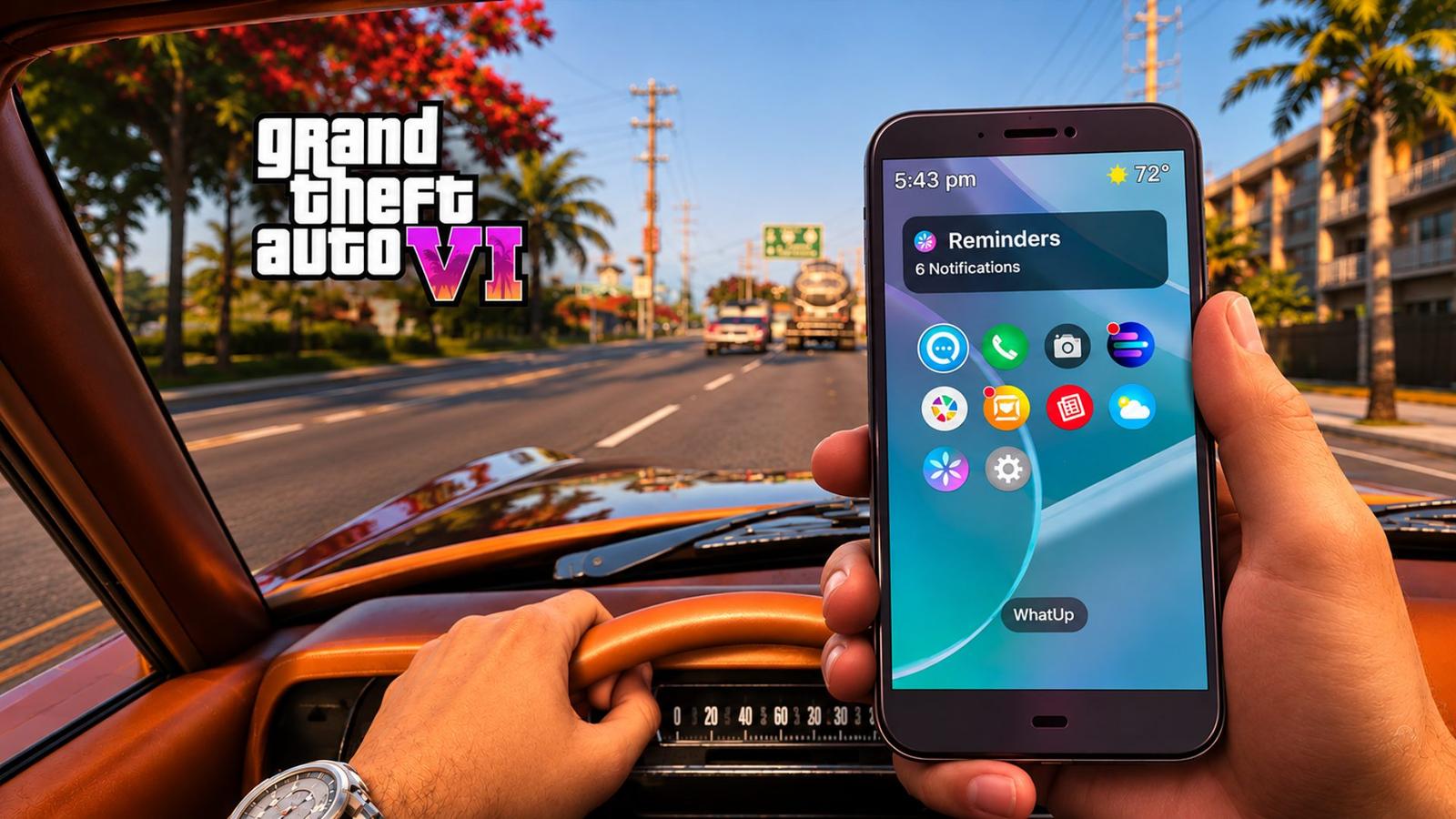
Your phone in GTA 6 isn’t just for checking social media. It lets you message contacts, manage your money, book rides, scan vehicles, take pictures, and access other useful features across Leonida. You can even use it while driving or enter cheat codes through it.
Opening your phone is simple: press Up on the D-pad on your PS5 or Xbox controller. However, there’s more to explore beyond the basics. Here’s how to use your phone in GTA 6, what each app does, and the features you should know about.
How to open the phone in GTA 6
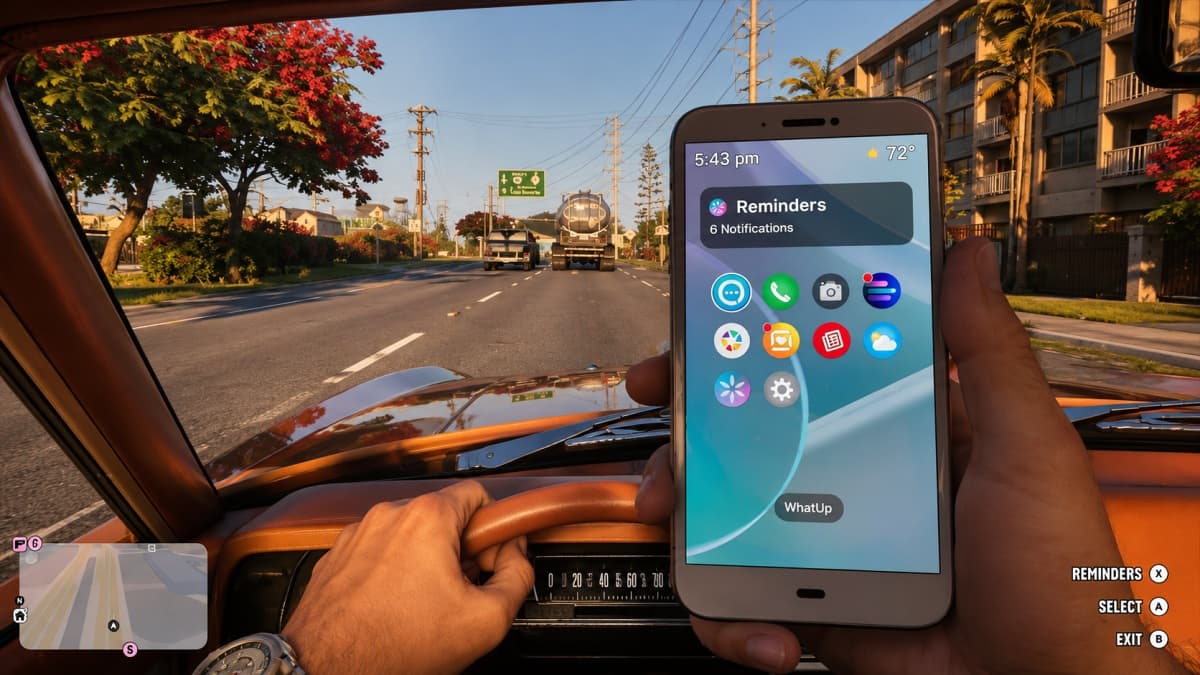
To pull out your phone in GTA 6, you need to press Up on the D-Pad of your Xbox or PS5 controller. This will switch you to a first-person view as Jason or Lucia takes out their phone. Make use of the D-Pad to navigate through the available apps, and once you have selected the one you want, press A on Xbox or X on PlayStation to open it.
You can also customise your phone in GTA 6 by changing its wallpaper and ringtone. Head to Settings, where you can choose from 25 wallpapers and 11 different ringtones to give it a personal touch. One of GTA 6’s exclusive features on PS5 allows players to hear their phone’s ringtone directly through the DualSense controller’s built-in speaker.
All phone apps in GTA 6
Now that you know how to use the phone in GTA 6, let’s take a look at all the applications you can use on it and what purpose they serve in the game:
| Phone App | What’s the use |
|---|---|
| WhatUp | You can use this app to send messages to your contacts. |
| RydeMe | Allows you to call cabs for fast travel across the map. |
| Contacts | Dial any contact from here. |
| Camera | Take pictures with both rear and front cameras. |
| BuckMe | Banking app that allows you to receive and send money. |
| Fitness | Tracks your in-game physical stats. |
| Snapmatic | Social media app to check images and videos online. |
| Gallery | You can view all your clicked pictures. |
| News | All the latest news in Leonida. |
| WAiNK | Scanner to tell you all the information about a vehicle. |
| Weather | Latest weather reports and forecasts. |
How to use the phone while driving in GTA 6
You can pull out your phone while driving in GTA 6 without automatically pausing the game. Press Up on the D-pad to open it and navigate through its apps.
The camera switches to a first-person view inside the vehicle, letting you see more of the car’s interior while using your phone. However, browsing while driving makes the vehicle harder to control, so be careful when using it on the road.
How to customize your phone in GTA 6
You don’t have to stick with the default phone appearance in GTA 6. You can change its wallpaper and ringtone to give it a more personal look and sound.
Follow these steps:
- Press Up on the D-Pad to open your phone.
- Navigate to the Settings app.
- Select the wallpaper option to change your phone’s background.
- Open the ringtone option to choose a different sound for incoming calls.
- Confirm your selection and return to the home screen.
You can revisit these settings whenever you want to change your phone’s appearance or ringtone.
Can you use the phone to enter cheat codes in GTA 6?
Yes. You can use your in-game phone to activate cheat codes in GTA 6. However, you need to enter a directional button combination rather than dial a traditional phone number.
Once you’ve unlocked a cheat, open your phone and follow these steps:
- Press Up on the D-pad to open your phone.
- On PS5, hold L1 and press R1. On Xbox Series X/S, hold LB and press RB.
- Enter the required directional sequence using the D-pad.
- Wait for the game to confirm that the cheat has been activated.
Remember that cheats become available after completing the main story, and individual cheats may have additional unlock requirements. Using cheats can also disable saving and trophy or achievement progress for the session, so create a save before experimenting.
For the complete list of codes and unlock requirements, check our GTA 6 cheats guide.
How to request your personal vehicle using Scooter Bros
If you’ve left your vehicle somewhere else, you don’t necessarily have to travel back to get it. The Scooter Bros app lets you request the delivery of your personal vehicle to your current location.
Open the app on your phone and follow the available prompts to request your car or bike. The service can charge a fee depending on factors such as the distance and condition of your vehicle.
It’s a useful option when you want to continue exploring Leonida with your preferred vehicle without making the journey back to where you left it.
Jason vs Lucia: does each character have a different phone?
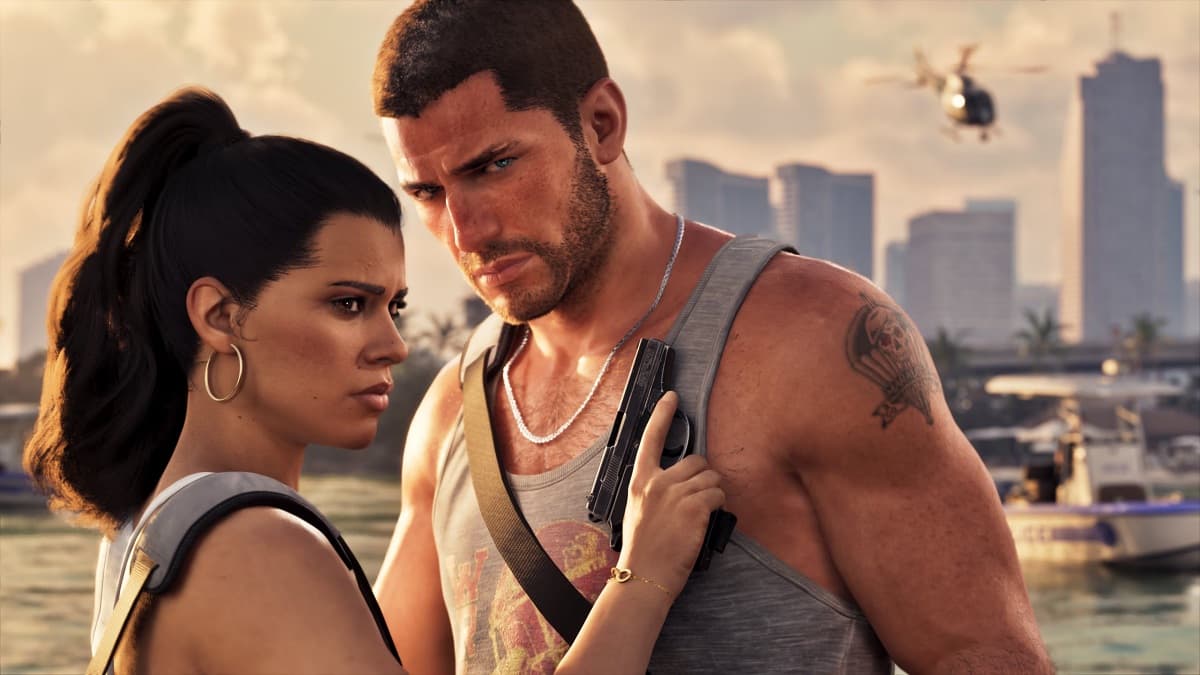
Jason and Lucia each have their own phone in GTA 6. You use the phone while playing as either character, and its apps provide access to messaging, banking, transportation, and other features.
You can also customise the phone’s appearance through its wallpaper and ringtone settings. This gives you a way to personalise the phone rather than treating it as just another menu.
Wrapping up!
The phone in GTA 6 is much more than a communication device. It gives Jason and Lucia access to 14 apps for messaging, banking, transportation, photography, vehicle scanning, and other activities.
To open it, simply press Up on your controller’s D-pad. You can browse its apps on foot or while driving, customise its appearance, and even use it to enter cheat codes after unlocking them.