
How to Unlink Your Facebook Account From Instagram
Want to unlink your Facebook account from Instagram? Here are multiple ways to unlink Facebook from Instagram on iPhone and Computer.
- Unlinking Facebook and Instagram keeps your data intact so posts, followers, and preferences stay the same while both apps work independently.
- On iPhone, unlink via the Instagram or Facebook app by opening Account Centre in settings and removing the connected Facebook account.
- On a computer, unlink through Facebook settings by going to Settings & privacy, opening Accounts Centre, and detaching Instagram from your profile.
- You can also limit interaction without unlinking by disabling automatic story or post sharing under Connected Experiences in the Accounts Centre.
- Unlinking stops cross-sharing and friend discovery but you can still manage visibility and sharing options individually on each app for better control.
Linking Facebook and Instagram accounts makes cross-platform sharing effortless. However, at times, you might want to portray two different sides to your personality or cater to different sets of audiences on either platform. To do that, you’ll have to unlink Facebook and Instagram from the Meta Accounts Centre.
Before I show you how it’s done, let me assure you that disconnecting Facebook and Instagram won’t delete the posts you have already shared. Apart from posts, your followers, preferences, likes, reels, and so on will remain independently intact on both platforms.
With basics out of the way, let’s quickly look at how to unlink your Facebook account from Instagram on your iPhone or Computer.
How to unlink Facebook and Instagram on iPhone
To unlink your Facebook and Instagram accounts, you need the login credentials to just one of the two accounts. Depending on the app you are logged in, choose one of these two methods:
How to unlink a Facebook account from Instagram on an iPhone
- Launch Instagram → Tap the profile icon at the bottom right.
- Tap the hamburger menu to enter Settings and privacy.
- Select Accounts Centre → Pick Accounts.
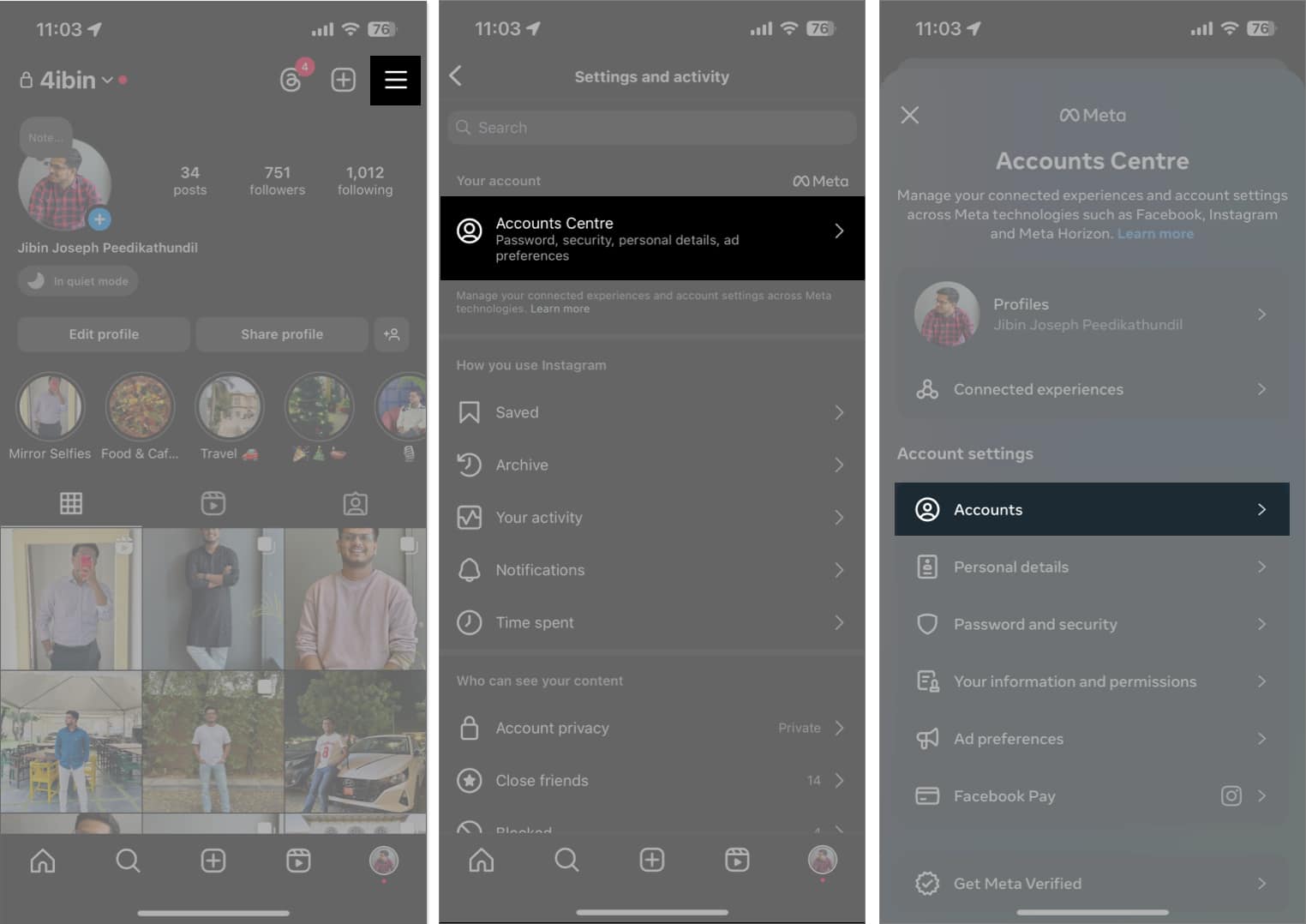
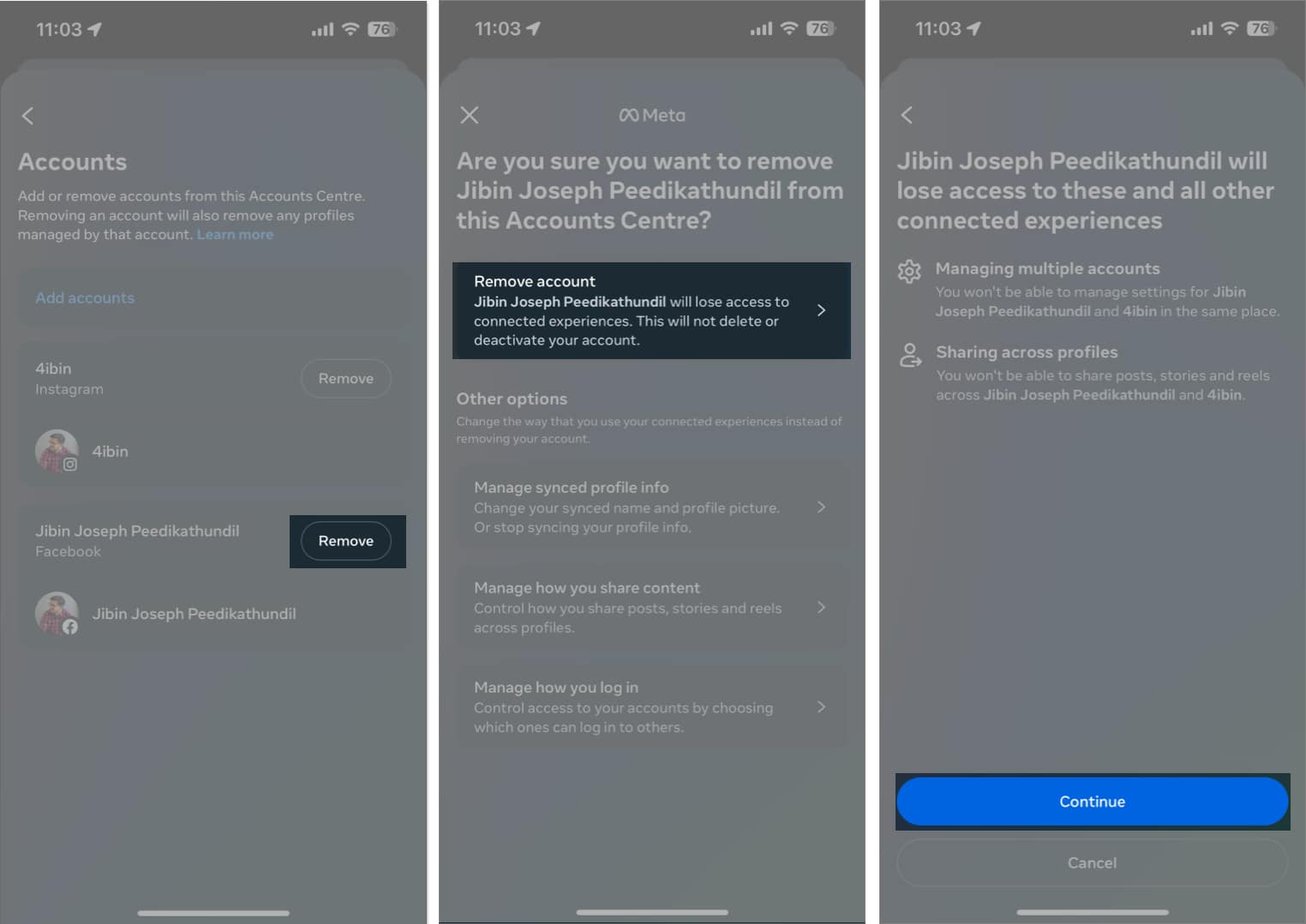
- Tap Remove next to your Facebook account.
- In the subsequent window, select Remove account.
- Read the instructions and tap Continue.
- Finish the process by tapping Yes, remove (account name).
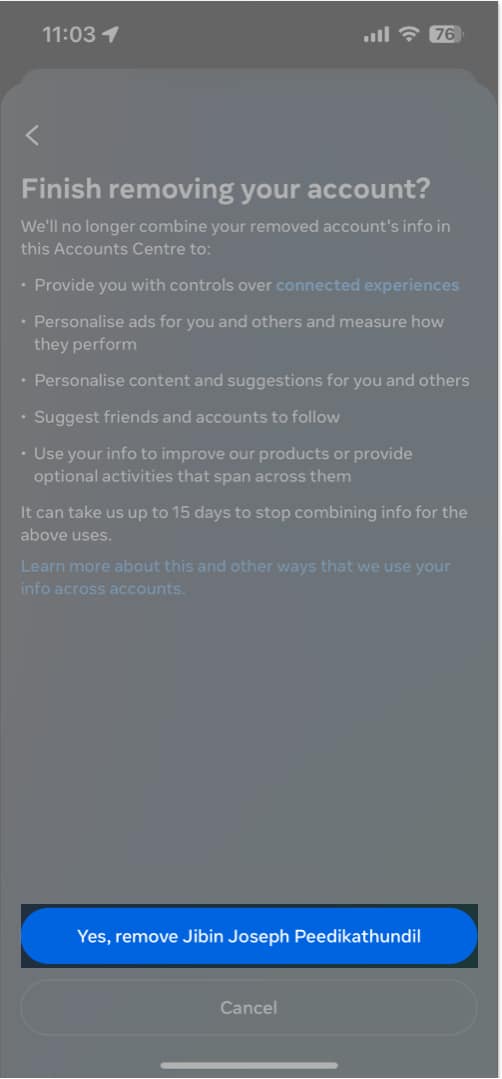
Remember, if you created your Instagram account using Facebook or were using Facebook credentials to log in, you might have to follow a few more on-screen instructions to complete the unlinking.
For instance, you’ll be asked to change your Instagram password if it matches your existing Facebook password.
Unlink using the Facebook app
- Launch the Facebook app.
- Tap the profile icon at the bottom right to enter Menu.
- Tap the gear icon to enter Settings & privacy.
- Select See more in Accounts Centre.
- Scroll down to the bottom and pick Accounts.
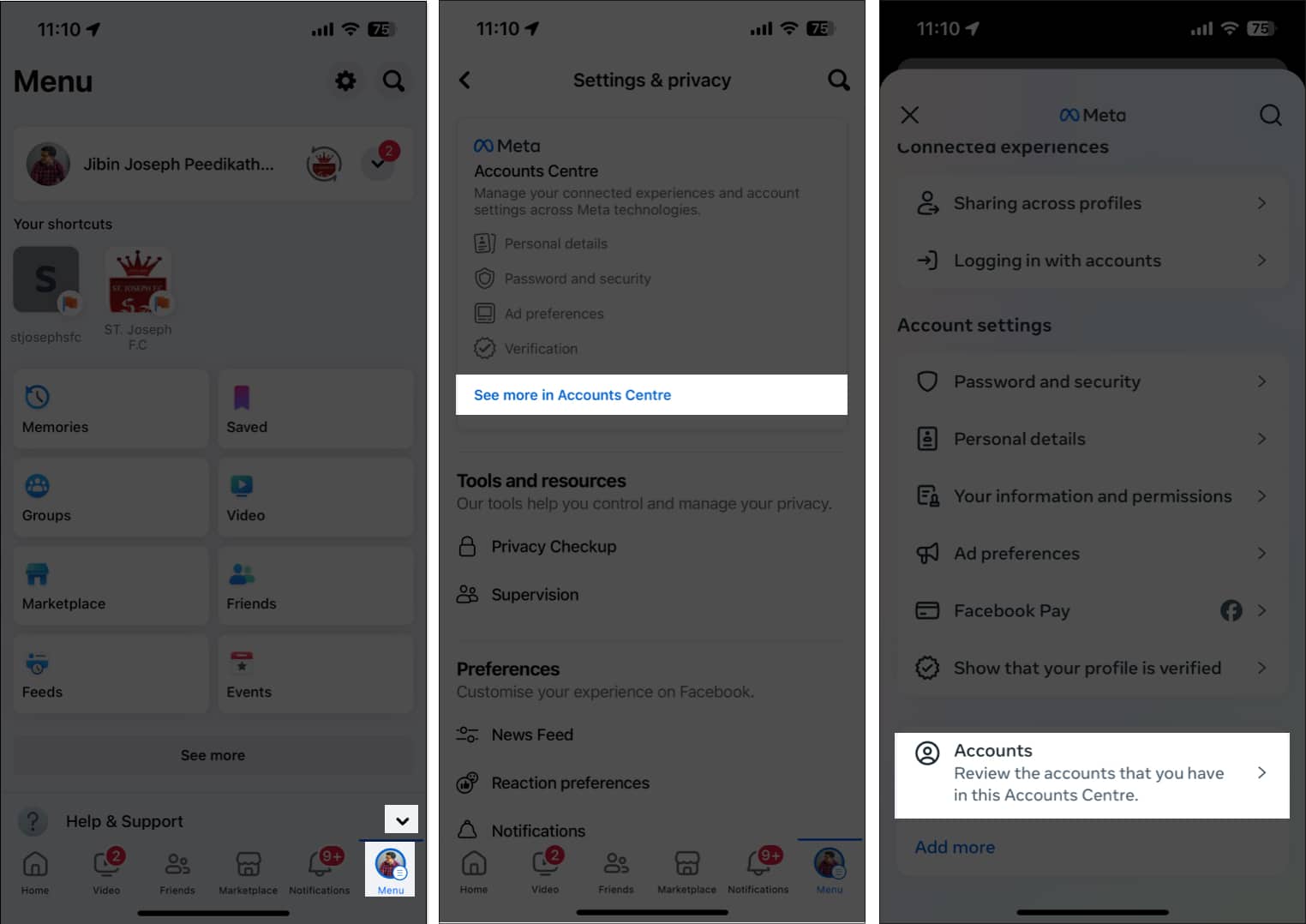
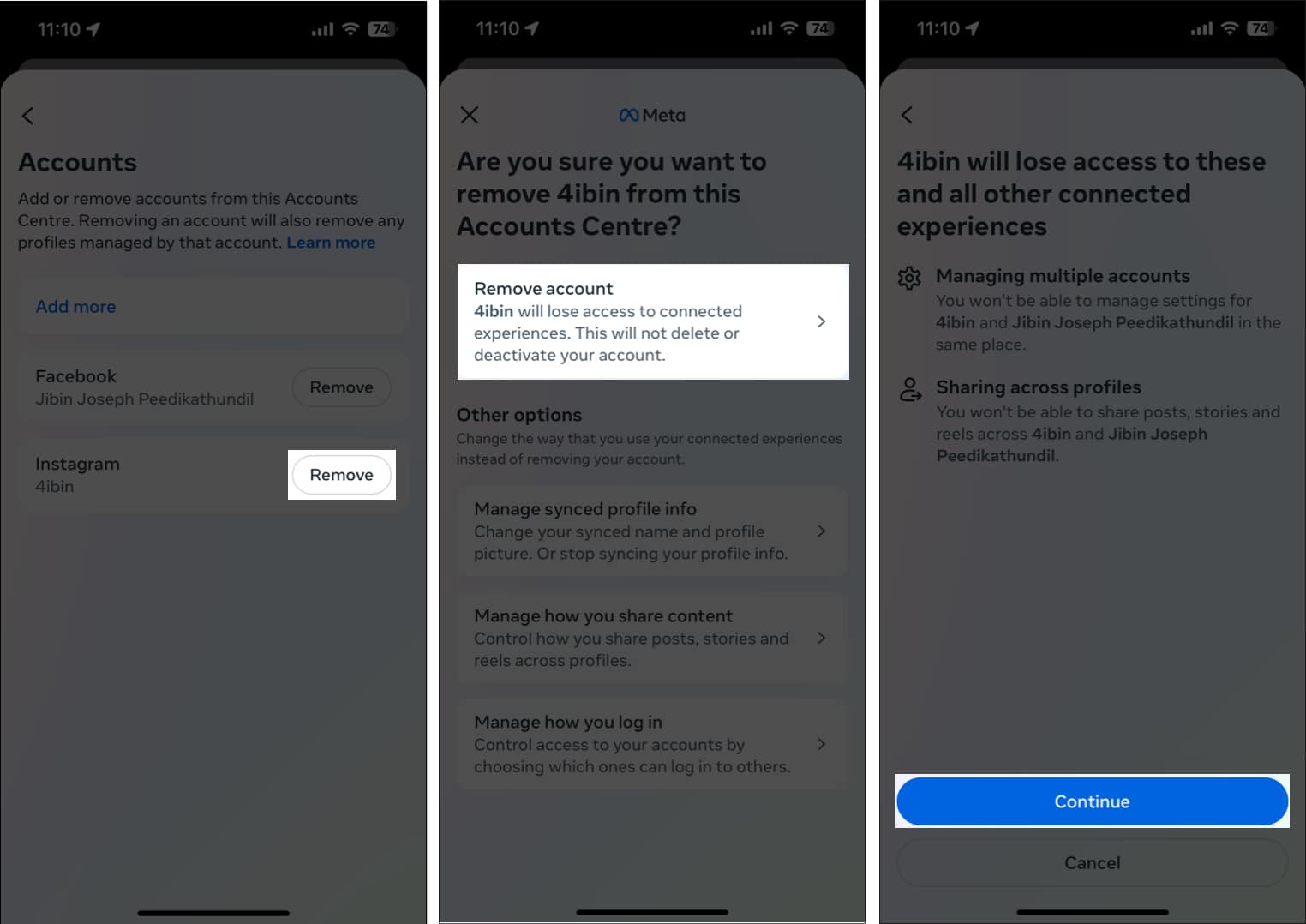
- Now, tap Remove next to your Instagram account.
- Tap Remove account → Continue → Yes, remove (account name) to finish the process.
How to unlink your Instagram account from Facebook on a Computer
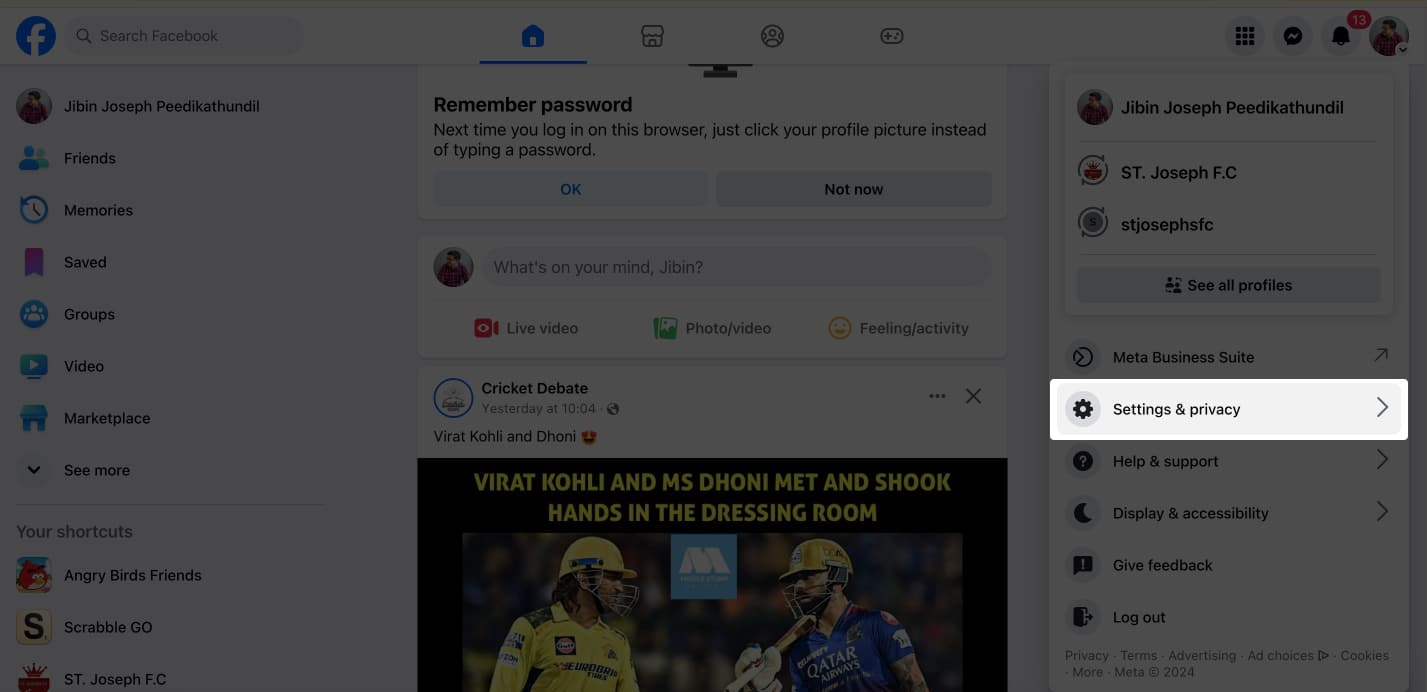
- Visit the official Facebook website and sign in to your account.
- Click your profile icon → Select Settings & privacy.
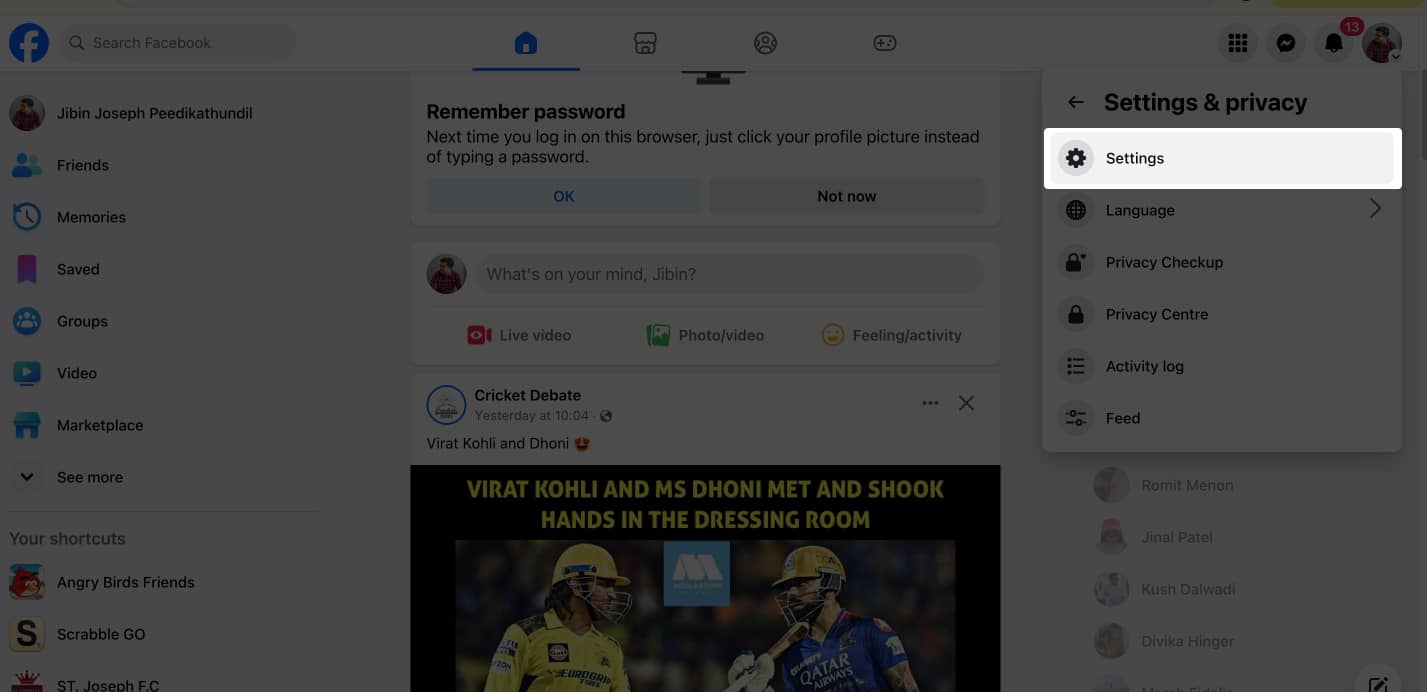
- Pick Settings.
- From the sidebar, select See more in Accounts Centre.
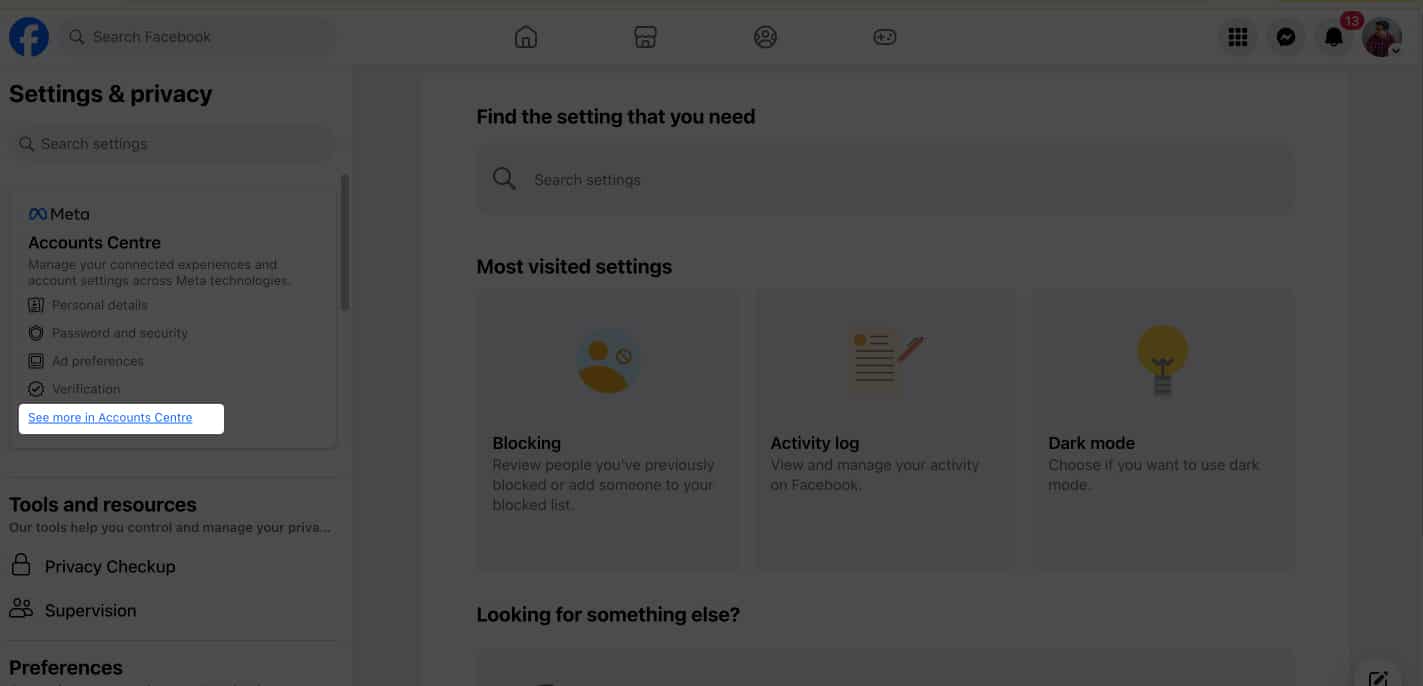
- Then go to Accounts.
- Click Remove next to the account you wish to unlink.
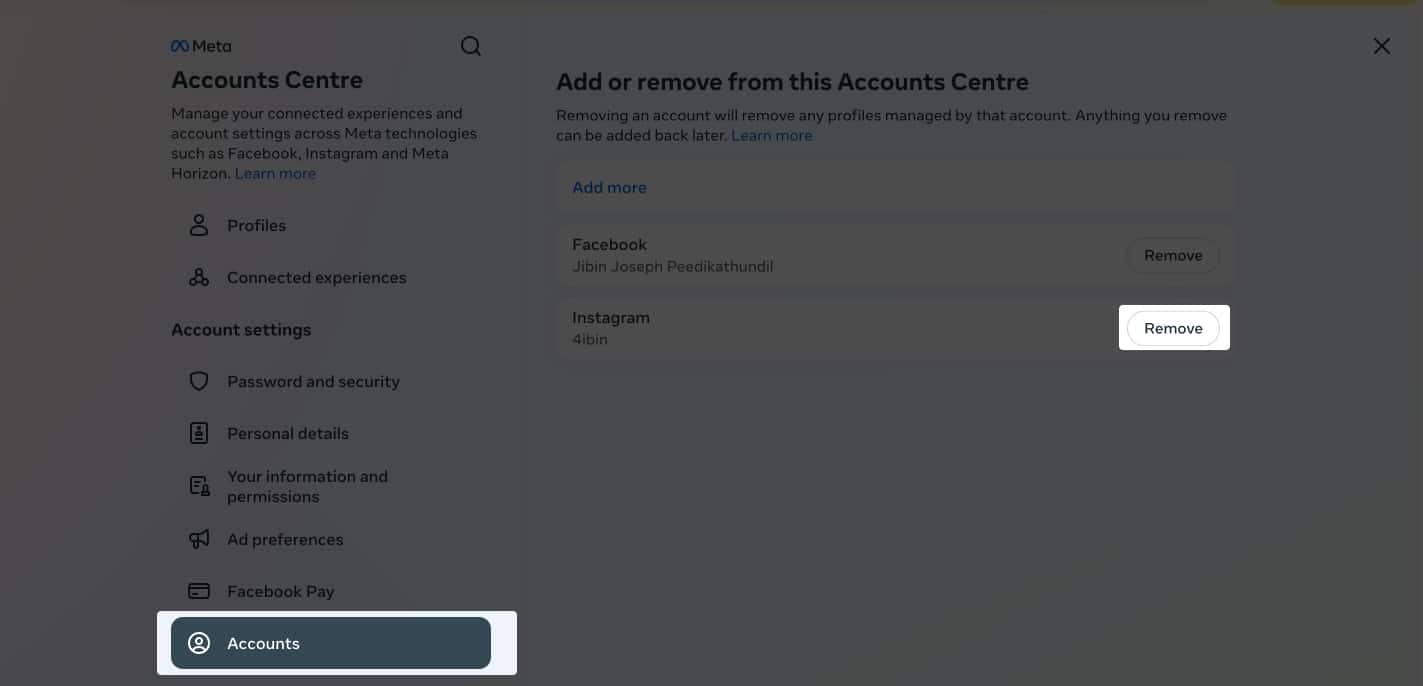
- Select Remove account → Continue → Yes, remove (account name) to finish the process.
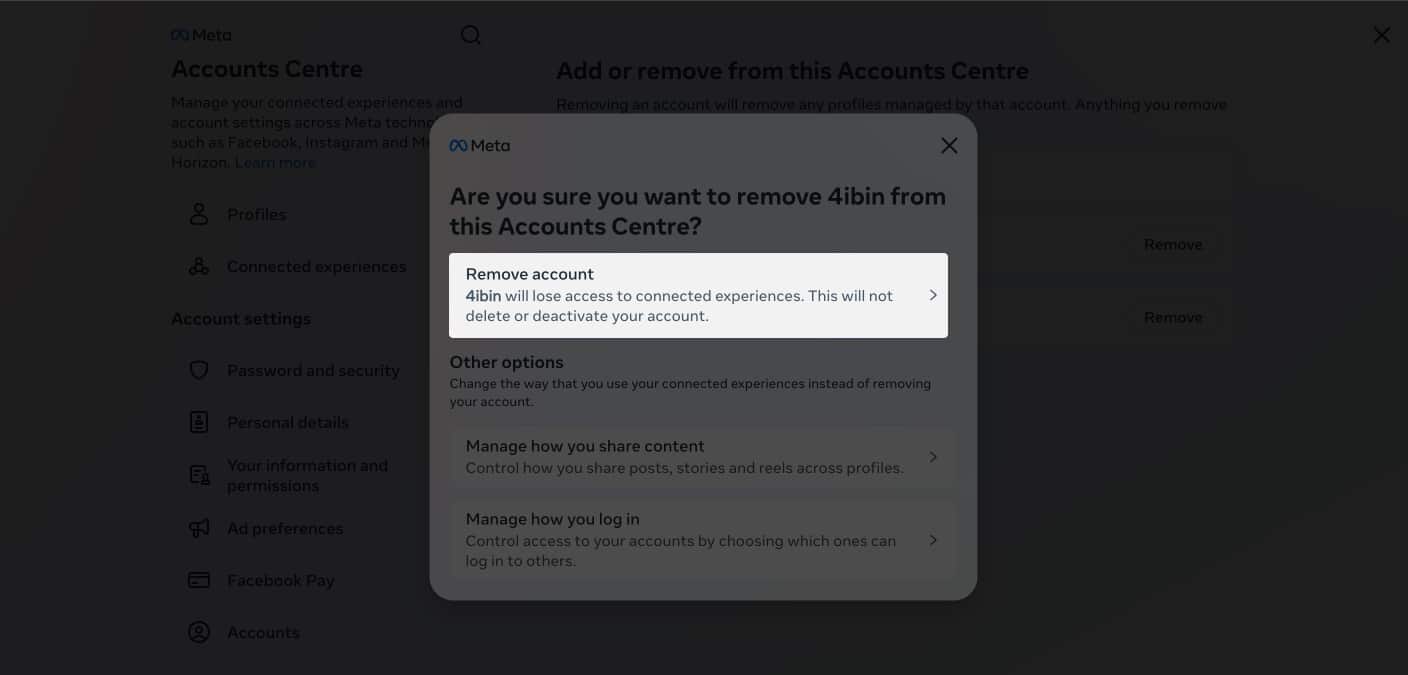
You can complete the process from the official Instagram site too. But as you know, its UI is quite dated and offers fewer features.
Still, if you have no other option, go to the Instagram website → More → Settings → See more in Accounts Centre and follow steps 5-8 from above to complete the unlinking.
How to limit your Instagram-Facebook interaction
While unlinking Facebook from Instagram is easy, it will leave you at a dead-end. I mean, the two accounts will not recognize each other or be in sync.
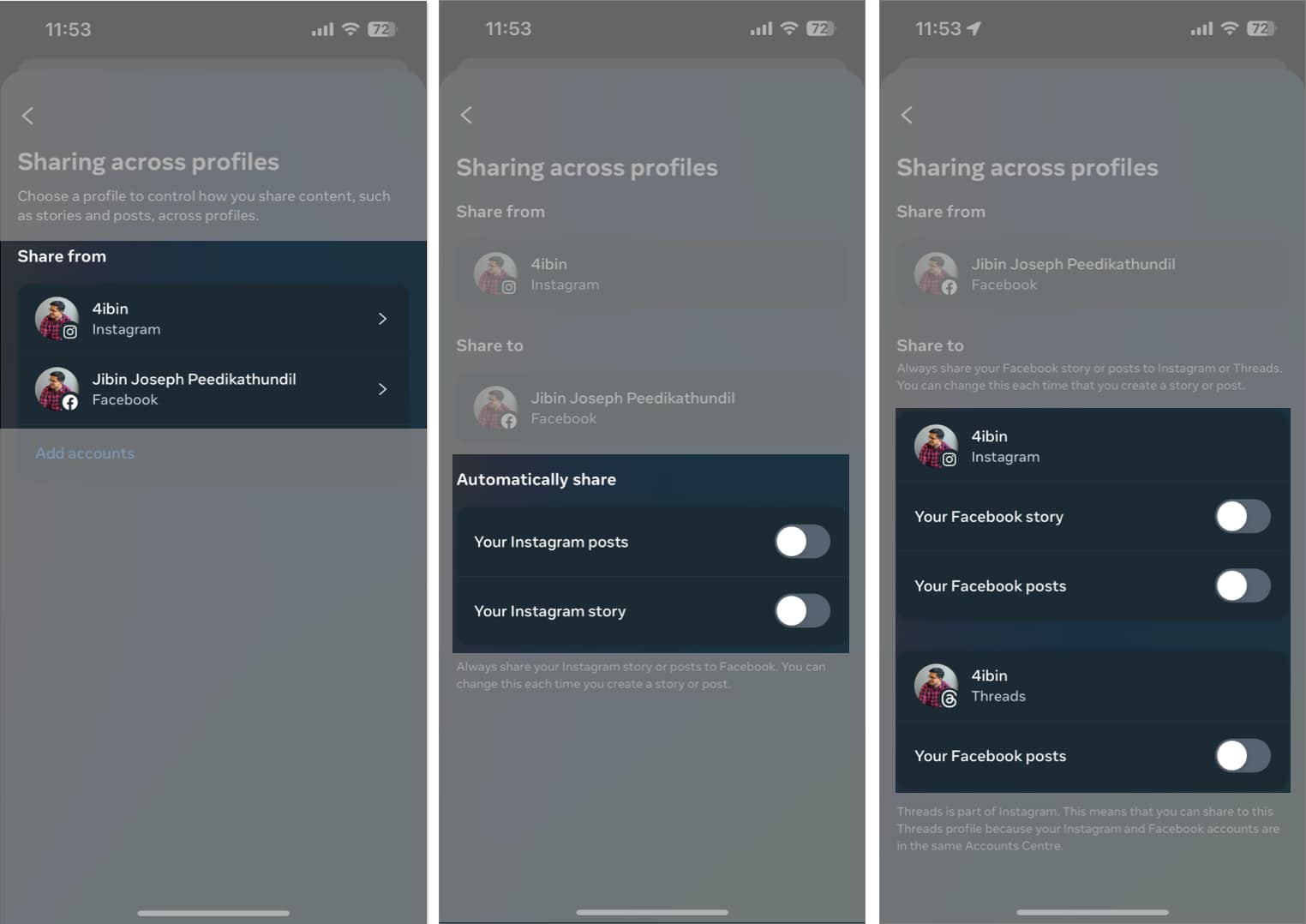
So, instead of completely unlinking the two, I’d suggest turning off the automatic share options. This action stops the default sharing of posts on both platforms.
In fact, while posting, you can choose whether you want to share it on both platforms. To achieve this control from your iPhone:
- Visit the Accounts Centre on either the Instagram or Facebook app.
- Go to Connected Experiences.
- Select Sharing across profiles.
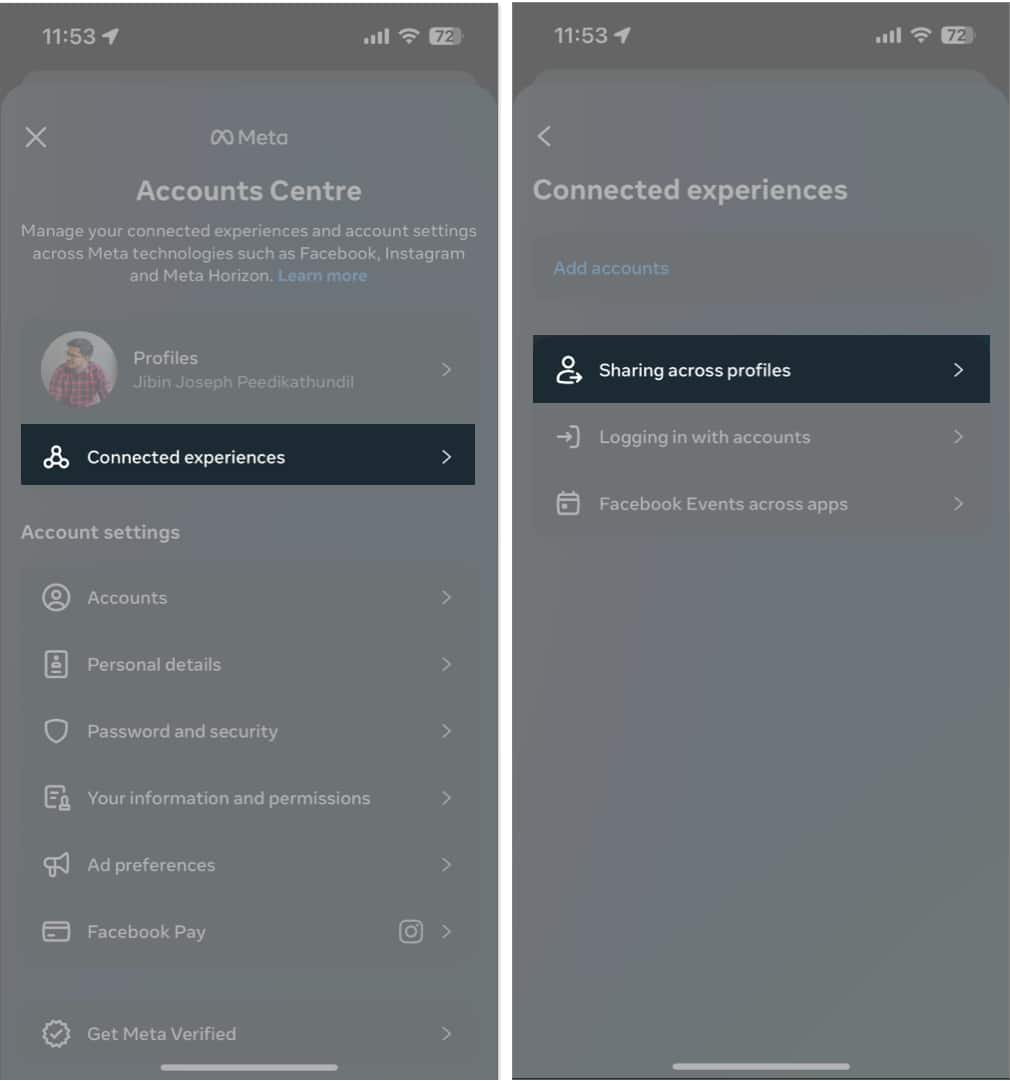
- From the Share from section, pick your Instagram or Facebook account.
- Toggle off the options under Automatically Share to stop sharing.
Conclusion
Instagram generally tends to have a younger audience than Facebook. So, for a lot of youngsters, sharing the same content on both might not be fun. (I won’t tell you why 😜)
As you just saw, Meta has made it quite easy for you to unlink the two using its Accounts Centre. If you get stuck in the process or have any other questions regarding these two platforms, you can reach out to me in the comments. I’d be happy to respond.
Frequently Asked Questions

Written by
Suraj PadmasaliSuraj is an operations head on the iGB team. He contributes to the social media section along with tips and tricks for iPhone, Apple Watch. Apart from blogging, he likes to work out as much as he can in his gym and love to listening to retro music.
View all posts →More from How-to

Snapchat Parental Controls: How to Set Up Family Center and Keep Your Teen Safe
Snapchat’s Family Center lets parents monitor their teen’s friend activity and screen time without reading private messages. Here’s how to set it up and what to expect.
 VikhyatMarch 3, 2026
How to Block and Unblock Someone on Instagram
Instagram lets you block or unblock someone in seconds. Follow these simple steps to take full control of your privacy and online peace.
 Ava BiswasMarch 2, 2026
Apple Watch Not Responding? 8 Fixes That Actually Work
Is your Apple Watch unresponsive or stuck on a black screen? Here are 8 proven fixes to help you unfreeze it and get it working again quickly.
VikhyatMarch 3, 2026