Live Photos are one of the most underrated features on the iPhone. These capture a few seconds of motion and sound around your shot. The problem is, its animation only works within the Apple ecosystem: if you send it to an Android friend or upload it to certain platforms, it often appears as a still image.
That’s why many users want to convert Live Photos into GIFs on iPhone. GIFs are easy to share and universally supported across apps. In this guide, you’ll learn all the ways to turn a Live Photo into a GIF. We’ll look at built-in tools, Shortcuts, and third-party apps, along with tips to get the best quality.
What Is a Live Photo on iPhone?
A Live Photo is a hybrid between a still image and a short video. When you take a Live Photo, your iPhone records 1.5 seconds before and after you press the shutter, capturing subtle movement and sound. It’s widely used to create Live Stickers.
Additionally, Live Photos make great GIFs as they are already short, motion-filled, and loop automatically with effects. They’re ideal for quick reactions, funny clips, and candid moments.
How to Turn a Live Photo into a GIF on iPhone Using the Photos App
If you want the quickest and simplest way to make a GIF from a Live Photo, the Photos app can do it in seconds; no downloads are required.
- Open the Photos app.
- Go to Collections, scroll down to Media Types, and tap Live Photos.
- Select the Live Photo you want to convert.
- Tap the LIVE icon at the top left corner.
- From the dropdown menu, choose:
- Loop: repeats the motion continuously
- Bounce: plays forward and backward like Instagram Boomerang.
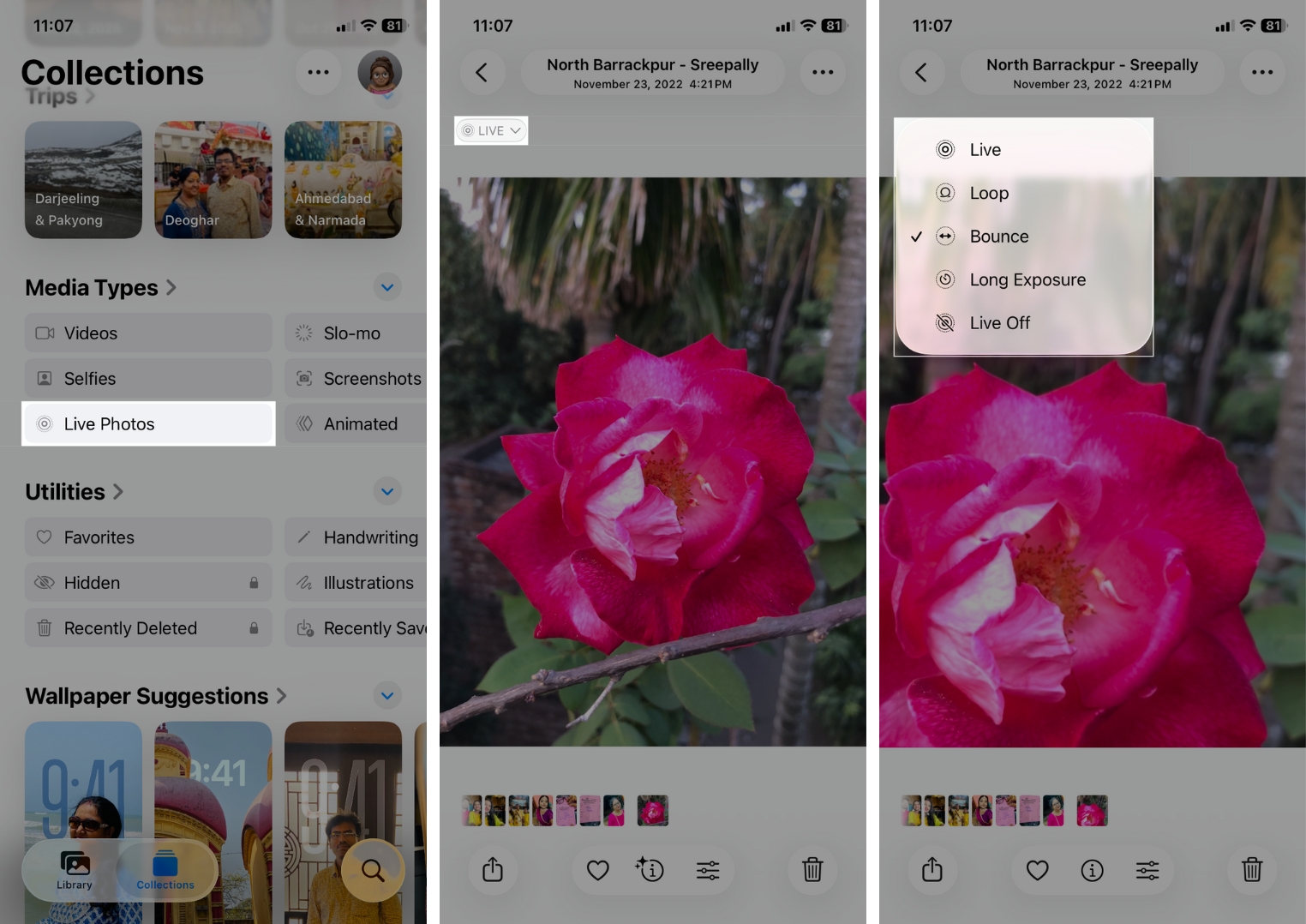
Your Live Photo instantly becomes an animated GIF when shared. You can also save the Live Photos as a video directly from the Photo app.
How to Make a GIF from a Live Photo with the Shortcuts App
To get a real .gif file you can email, upload, or reuse anywhere, the Shortcuts app is the best built-in, automatic option. If you often convert Live Photos to GIFs, it gives you a free, reusable workflow.
- Open the Shortcuts app.
- Go to the Gallery tab.
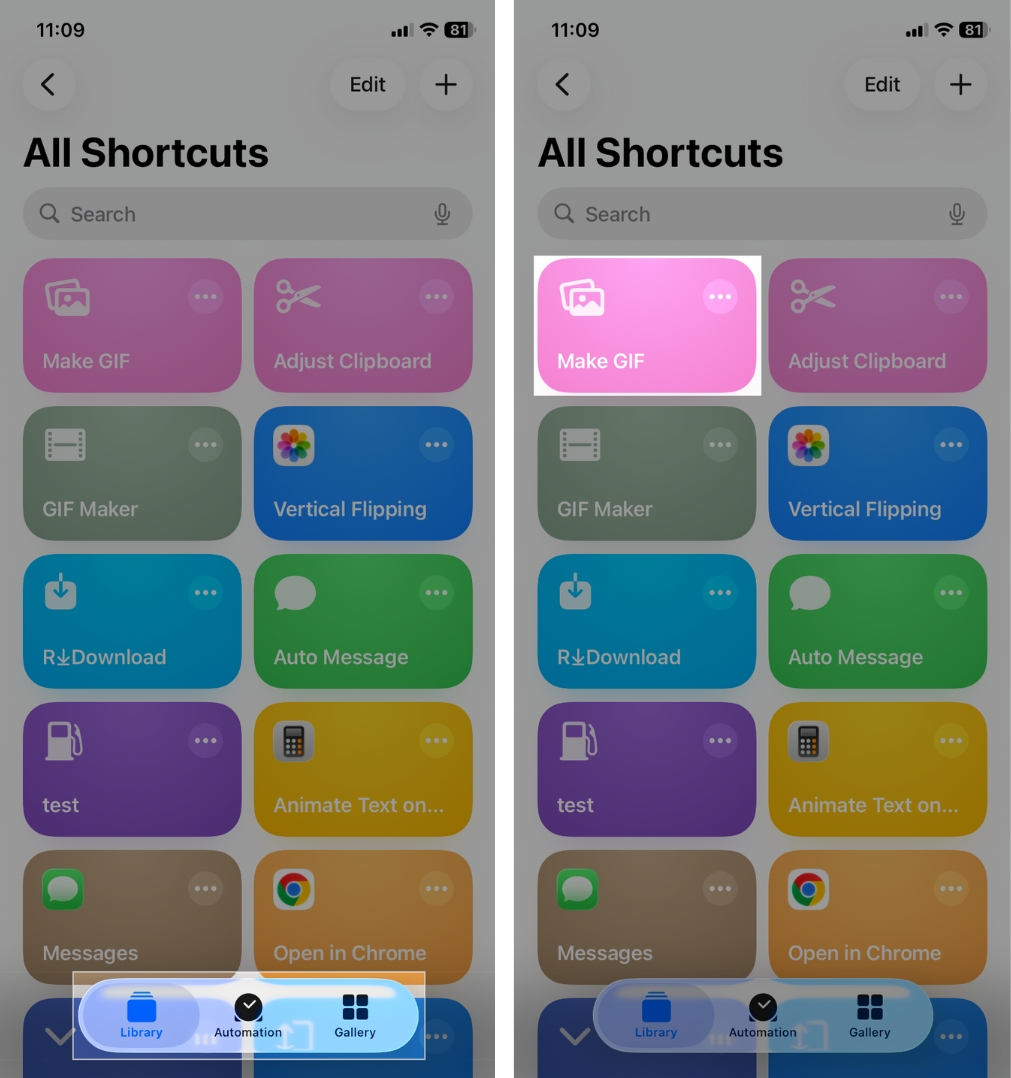
- Search for “Make GIF,” then tap the plus sign on the shortcut tile. It will add the Shortcut to your Library.
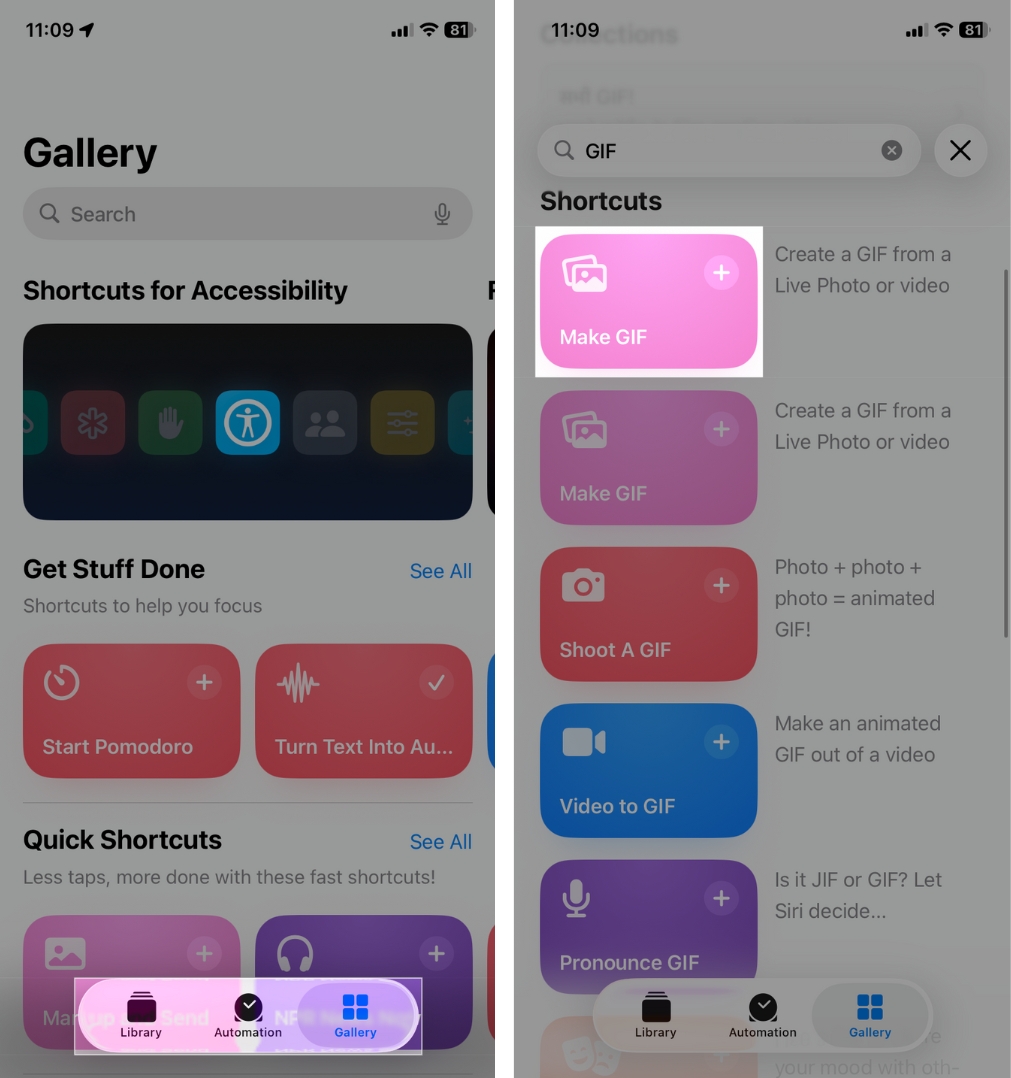
- Now, tap Library at the bottom and tap the Make GIF shortcut to run it. If a permission prompt pops up, allow it.
- It will open your camera roll. Go to the Collections and choose an image from the Live Photos album.
- Now, you will see the generated GIF. Tap Done to save it.
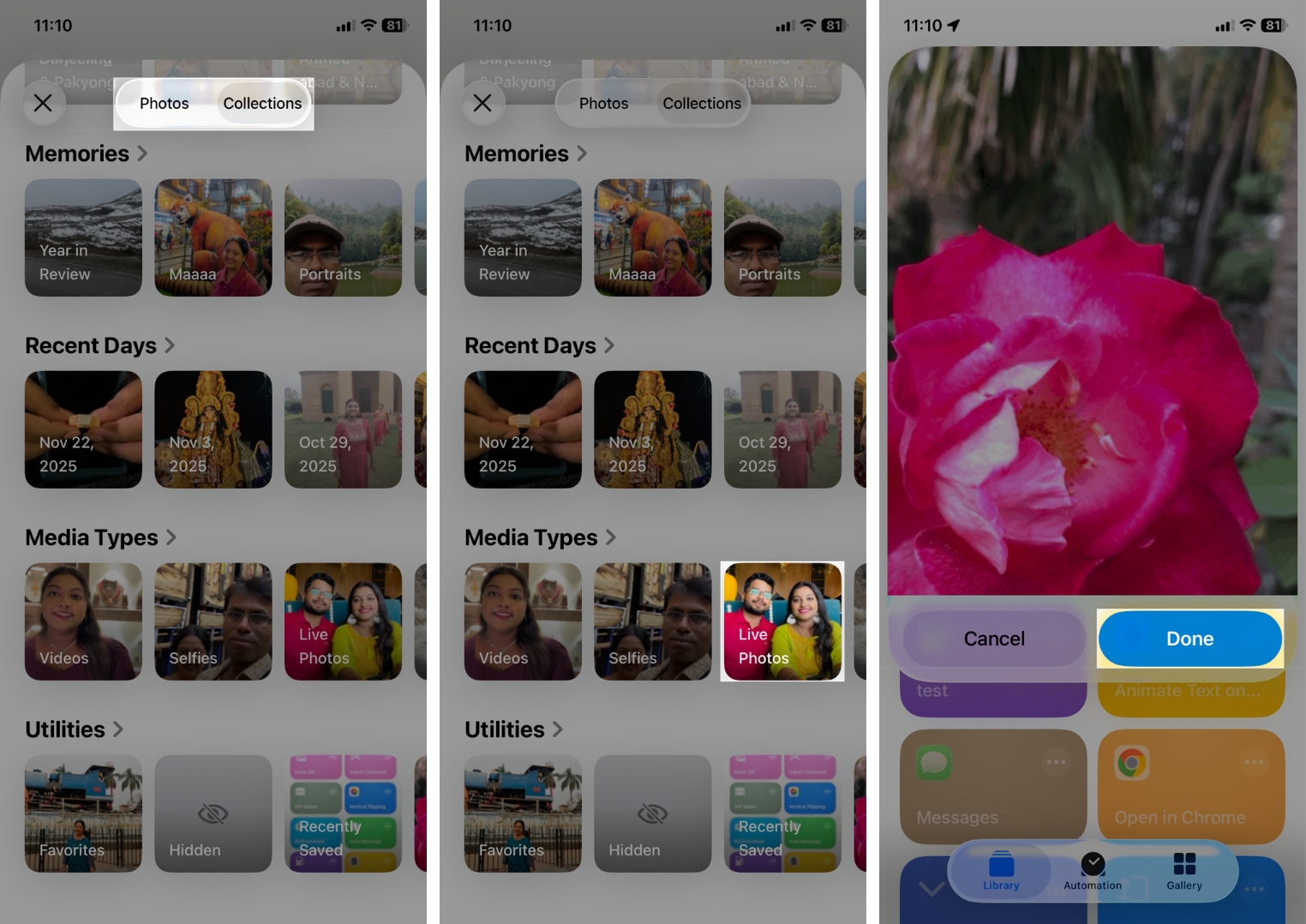
That’s it; your Live Photo becomes a proper GIF file you can export or share with one tap.
How to Convert Live Photos to GIFs with Third-Party Apps
Want more customization options? Third-party apps offer more control and editing features, such as trimming, filters, speed control, and combining multiple photos.
Here are the best options:
1. GIPHY
One of the most popular free GIF-sharing platforms. It offers fun stickers, text, and filters for creating fun GIFs. Once you create one, you can share it directly with social apps. However, you need to log in to use it to the full extent.
Best for: Creative edits and social sharing.
Here, I am showing the steps using GIPHY:
- Download GIPHY.
- Tap the + icon, then allow the prompts to grant permissions.
- Next, tap the photo icon, then go to Collections > Live Photos.
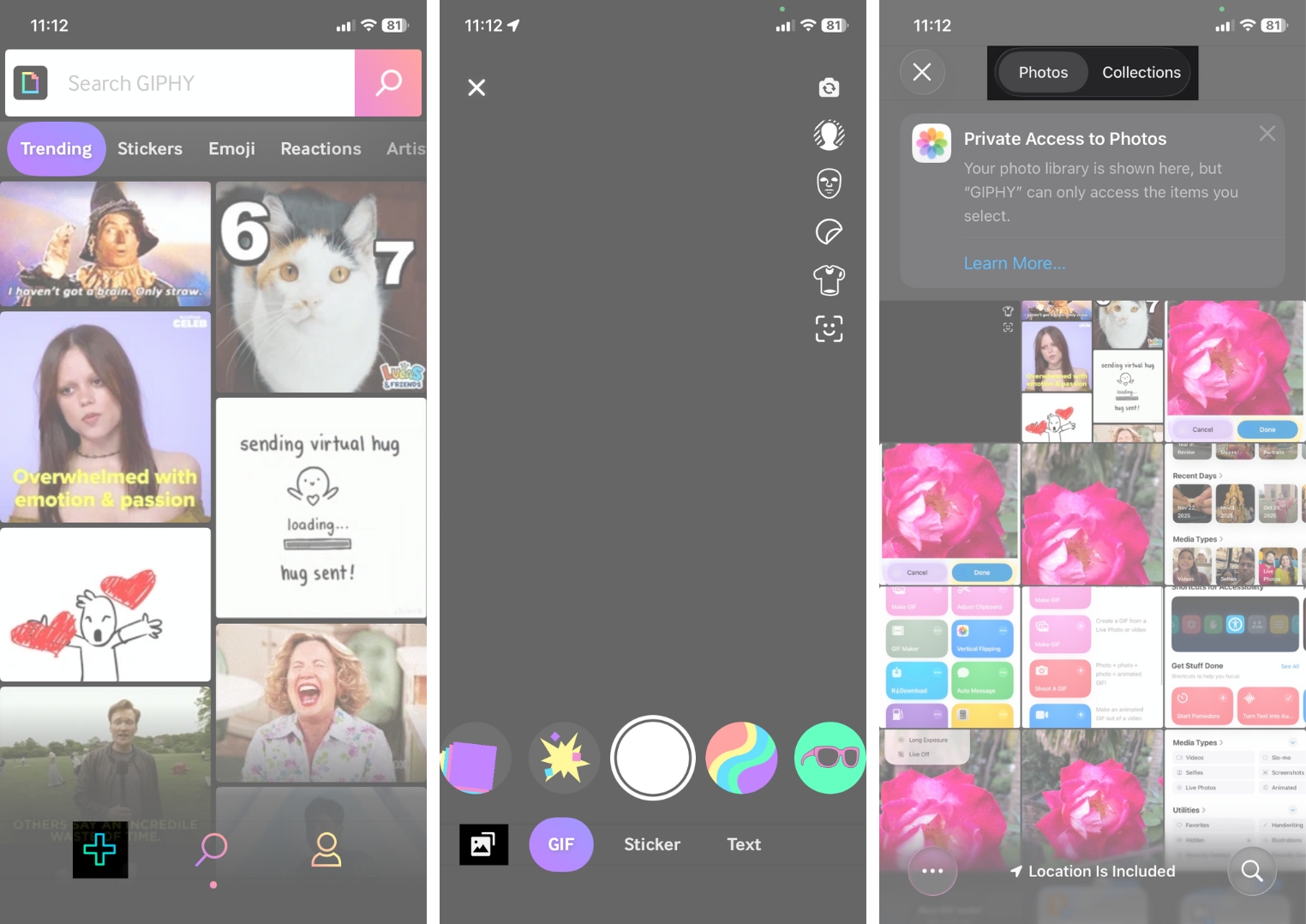
- Select a Live Photo you want to convert.
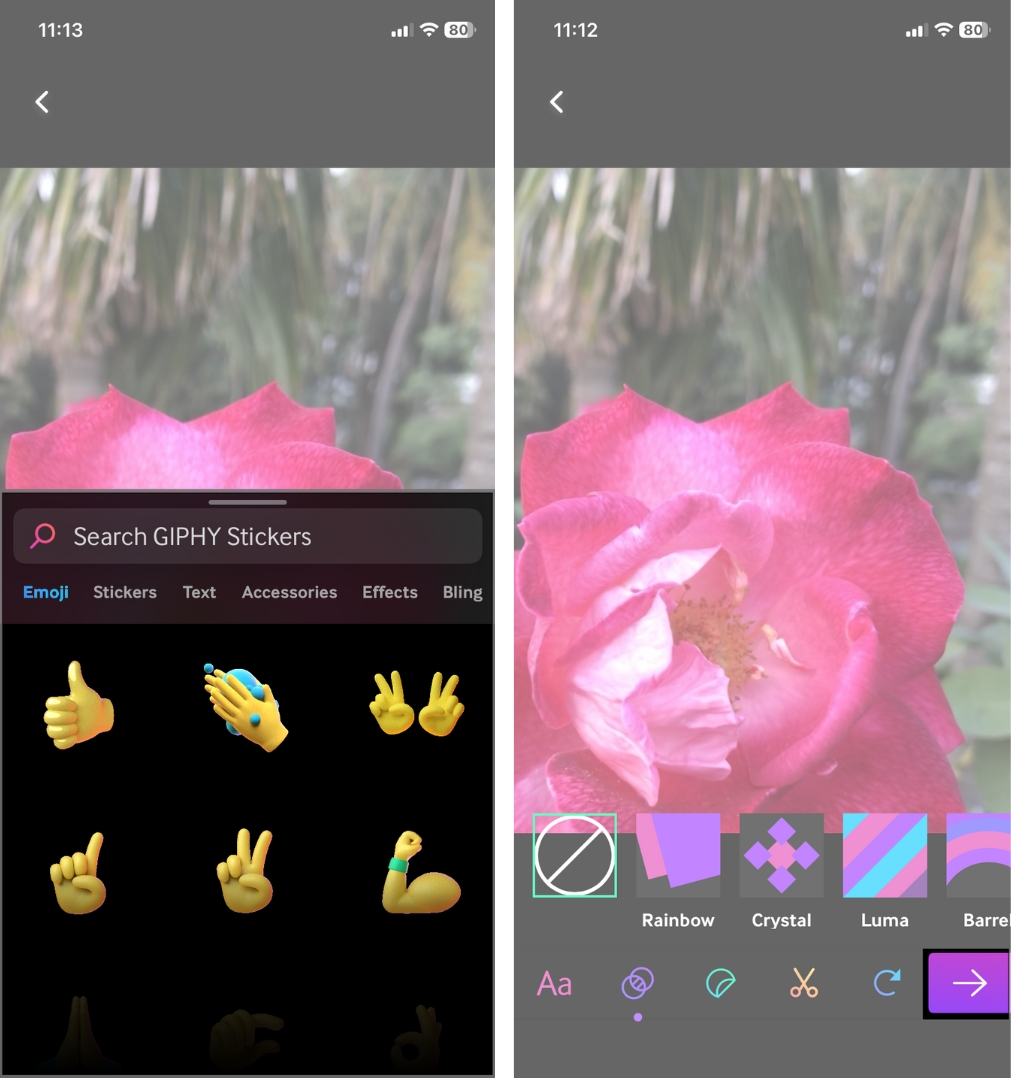
- Add text, animated stickers, and effects as you like. You can also crop the frame or trim the clip.
- Once satisfied, tap on the purple arrow icon to save it.


2. Lively
A clean, dedicated Live Photo-to-GIF converter. I liked its simple interface and high-quality exports. It supports trimming, cropping, and speed control. However, some features require a one-time upgrade.
Best for: Quick, high-quality GIF conversions without noise.
3. IntoLive
Great for users, especially content creators, who want advanced customization. It boasts tons of editing tools and the ability to mix multiple photos or videos. However, you will get multiple ads and need to purchase additional feature packages.
Best for: More complex GIF creation, aesthetic edits, multi-photo GIFs.
How to Share GIFs Without Losing Quality
Once your GIF is ready, you can share it almost anywhere.
- Ensure the GIF file is saved in your Photos app.
- Now, tap the share icon from the toolbar.
- It will open the Share Sheet. Select the app where you want to share the GIF.
If you send via the Messages app, the GIF plays automatically and remains in solid quality. In WhatsApp, slight compression may occur. However, Instagram doesn’t accept GIF uploads directly; they’re converted to static images.
Tips to Make Better GIFs from Live Photos
If you want your GIFs to look sharp and professional, keep these tips in mind:
- Ensure good lighting when capturing the original Live Photo.
- Limit fast motion – GIFs blur really easily.
- Avoid too many filters or overlays.
- Trim Dispensable Frames, which reduces file size
- Avoid extreme zooms, which reduce clarity.
- Use Shortcuts or Lively for higher-resolution outputs.
- Try third-party applications to have more control over speed and color.
Create GIFs in Seconds!
Converting Live Photos into GIFs on iPhone is simple once you know the right tools. The Photos app is perfect for quick, no-effort conversions, whereas Shortcuts gives you clean, reusable GIF files. And third-party apps unlock powerful editing options. Whatever method you use, you can create your next fun social media reaction!