

Tethering allows you to share the internet connection on your iPhone with another compatible device. While the Personal Hotspot from your iPhone makes the job easier, tethering comes in handy if the Wi-Fi on the Mac or PC isn’t working. Keep reading to learn how you can tether your iPhone to a Mac or PC using a USB-C Lightning cable.
Benefits of tethering iPhone to Mac and PC
- It enables you to connect both devices with ease.
- Transfer your photos, music, apps, and other items.
- Use your iPhone’s Internet connection directly on your computer.
Note:
Before starting the tethering process, ensure that your devices are updated with the latest software and patches.
How to share internet from iPhone to Mac via USB cable
- Connect iPhone to Mac using a Lightning cable.
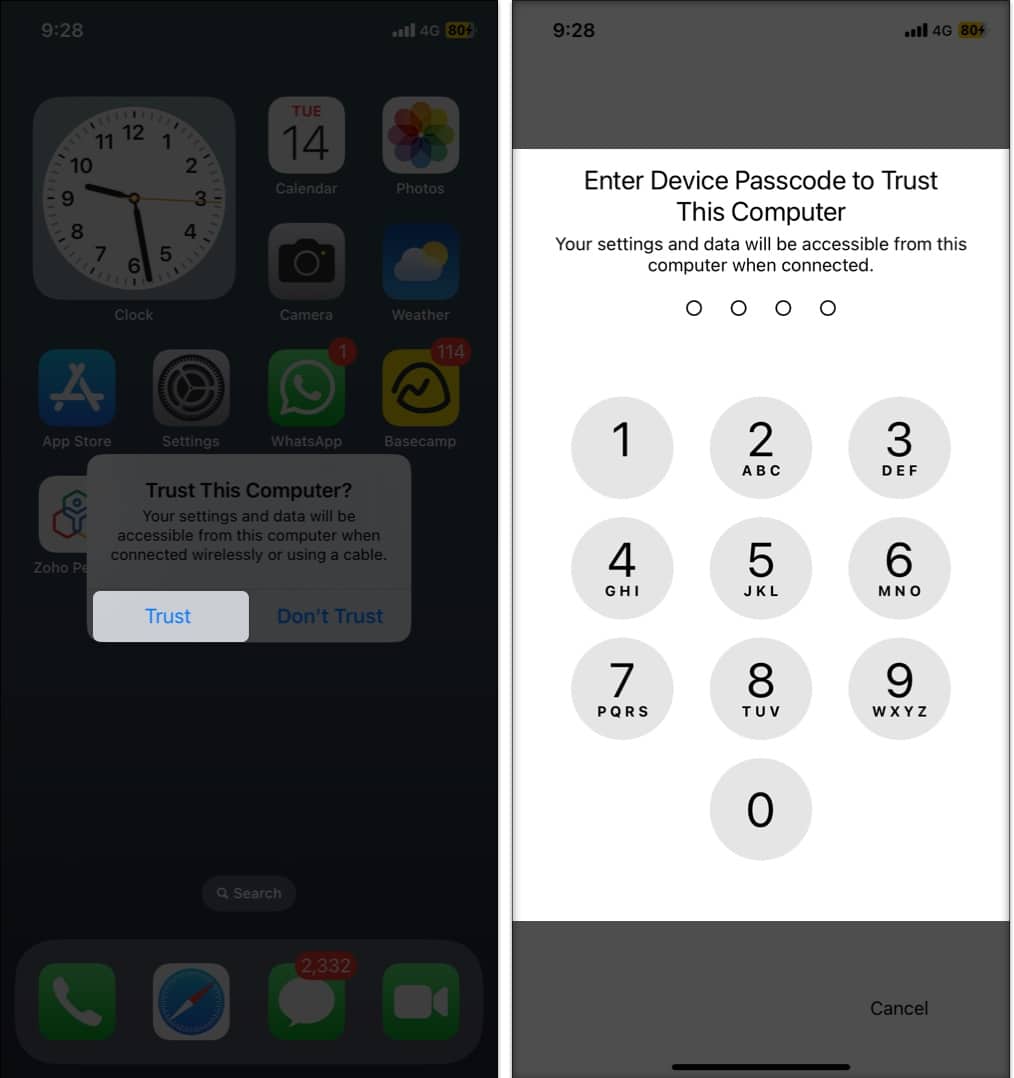
- On your iPhone, tap Trust when prompted on the Trust This Computer pop-up.
- If your device is passcode protected, then enter the passcode of your device.
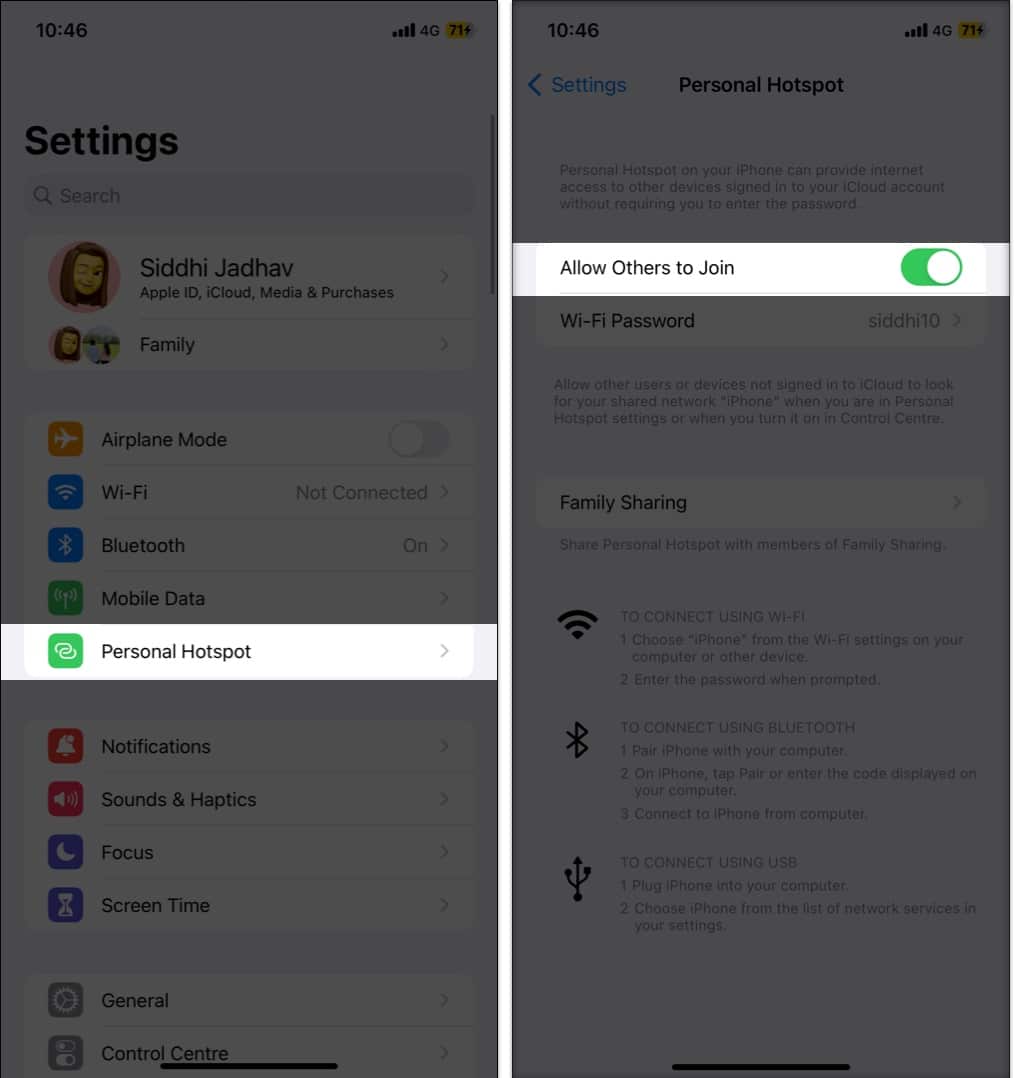
- Launch the Settings app on your iPhone → Select Personal Hotspot.
- Toggle on Allow Others to Join.
- On your Mac, click the Apple logo () → select System Settings.
On macOS Monterey or earlier, you’ll see System Preferences.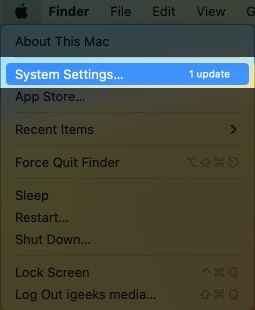
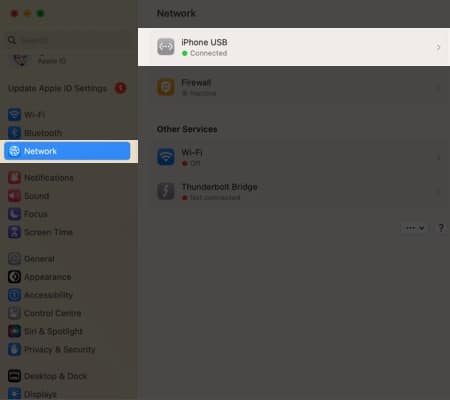
- Navigate to Network → Select your iPhone.
- If there is a yellow dot under your device, turn off your Wi-Fi.
- The status of the device should display Connected with a green dot.
How to tether iPhone to PC via USB
To tether your iPhone to a Windows PC, you need to have a USB-C to Lightning cable and an active internet connection. After that, just follow the steps below:
- Use the USB cable to connect your iPhone to a PC.
- On your iPhone, open Settings app → Personal Hotspot.
- Toggle on Personal Hotspot.
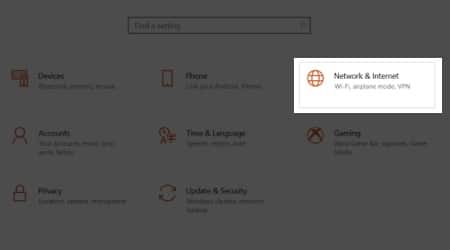
- On your PC, open the Control Panel → select Network and Internet.
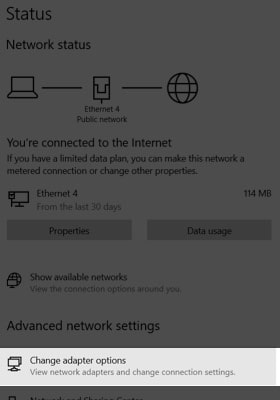
- Navigate to the Change adapters options menu → select your iPhone from the list.

You should then be connected to your iPhone’s internet connection, allowing you to surf the web, access data, and sync files between your PC and your iPhone.
Easy, isn’t it?
The technique of tethering your iPhone to your Mac is easy and uncomplicated. You can utilize your iPhone’s cellular plan to connect your Mac to the internet even when you don’t have a Wi-Fi connection, whether you opt to tether using USB or Personal Hotspot.
There are two different ways to tether your iPhone to your Mac, but the one that works best for you may vary. If you have any questions, comments, or suggestions about this guide, please don’t hesitate to leave them below.