
How to switch between users on Mac? 4 Quick ways explained!
If you wish to share your Mac with someone else, creating a new user account that works independently from your personal account can be helpful. However, on the downside, switching between different user accounts every now and then can be a time-consuming affair. Fortunately, I’ve created this guide explaining how you can quickly switch between users on Mac.
Once you add multiple users to your Mac, there are four ways to switch between them quickly. Read along as we explore all of them.
1. Switch between users using Touch ID
One of the quickest ways you can switch between users on a Mac is using Touch ID. If you have Touch ID enabled for all the user accounts, your Mac can smartly identify which user is using the Mac using their fingerprint and switch accounts automatically. Here’s how to configure this on your Mac:
- Click the Apple logo on the menu bar → Select System Settings.

- Select the Touch ID & Password option from the sidebar on the left.
- If you haven’t already set up Touch ID, click Add Fingerprint to set it up.
Do the same for all user accounts before moving to the next step.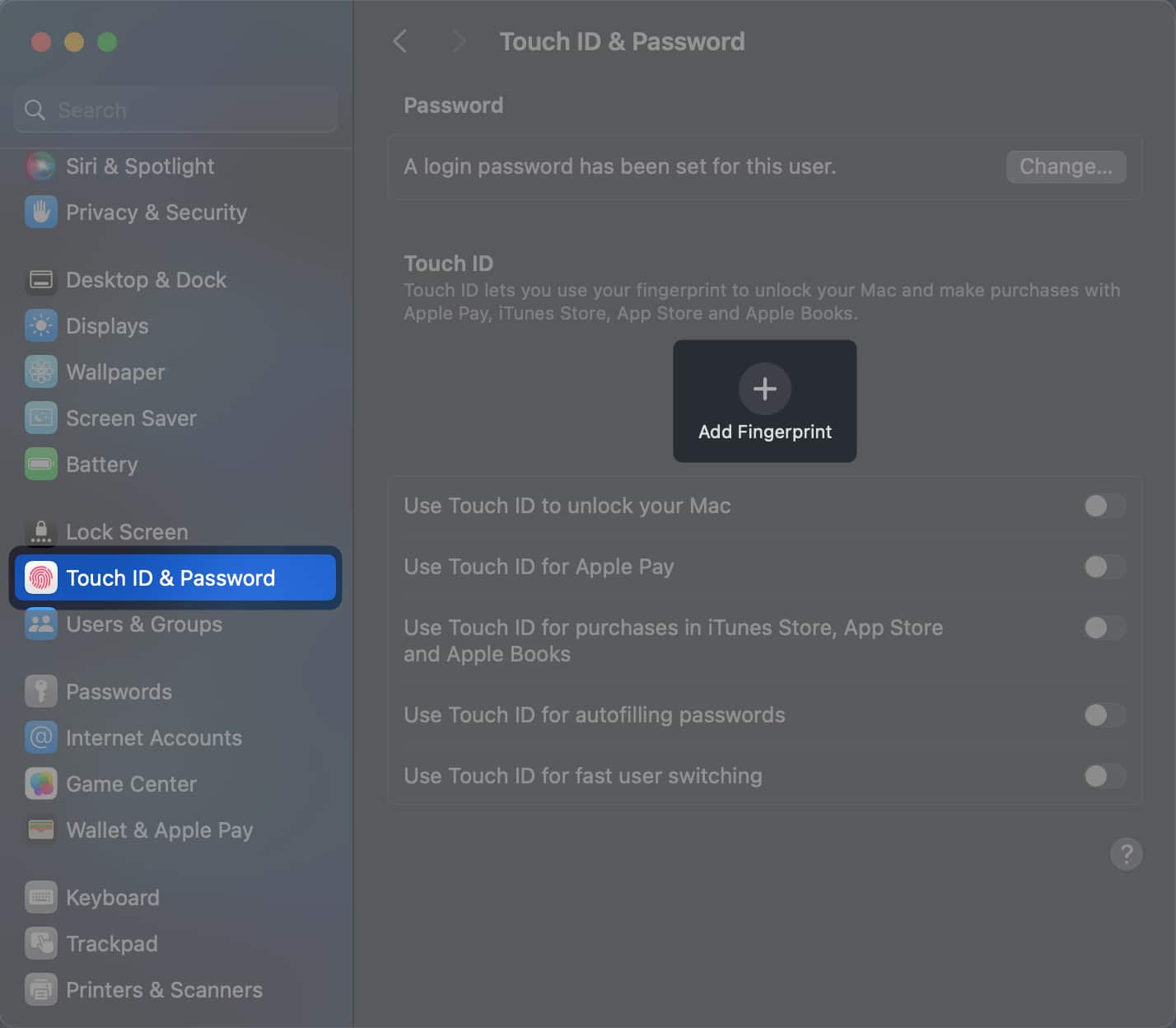
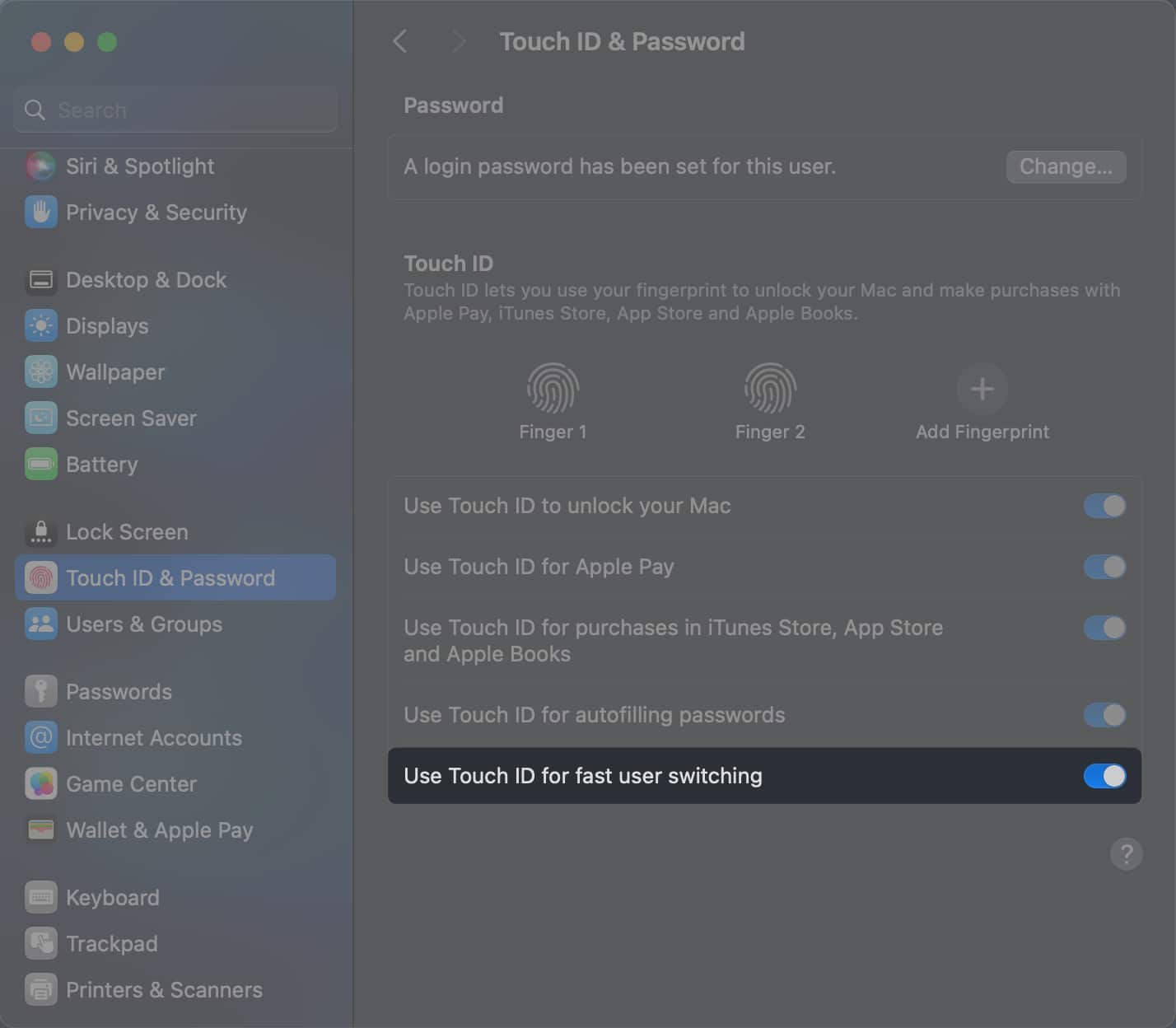
- Toggle on Use Touch ID for fast user Switching for all user accounts.
- Tap and press Touch ID whenever you want to switch users instantly.
Your Mac will automatically identify the user and switch accounts.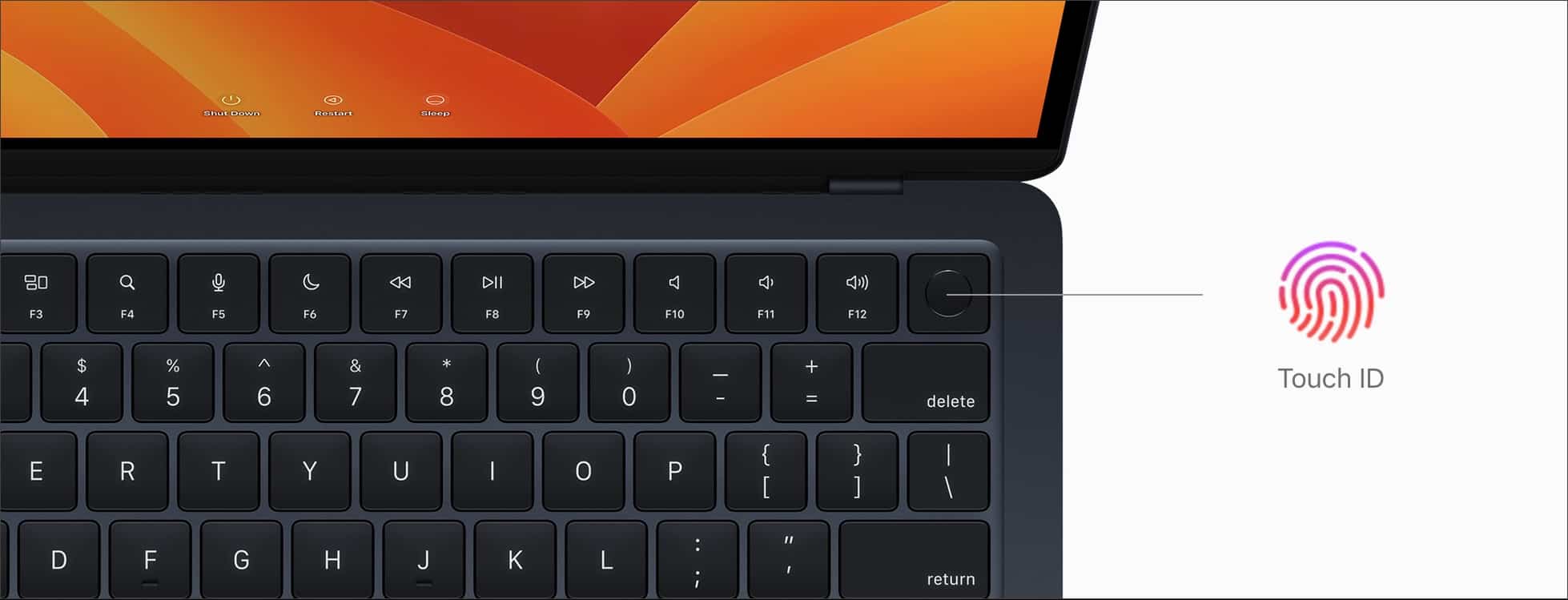
2. Switch between users from Menu Bar
Yet another quick way you can switch between users on a Mac is through the Fast User Switching option that can be added to the Menu Bar. With this feature, users can add a button or their name to the Menu Bar that can be used to switch users on the fly. Here’s how you can enable this on your Mac:
- Click the Apple logo on the menu bar → Select System Settings.
- Select Control Centre from the sidebar → Locate Fast User Switching.
- Click the list next to Show in Menu Bar under Fast User Switching.
- Choose to show the Icon, Account Name or Full Name in the Menu Bar.
You can also get Fast User Switching to show up in the Control Centre.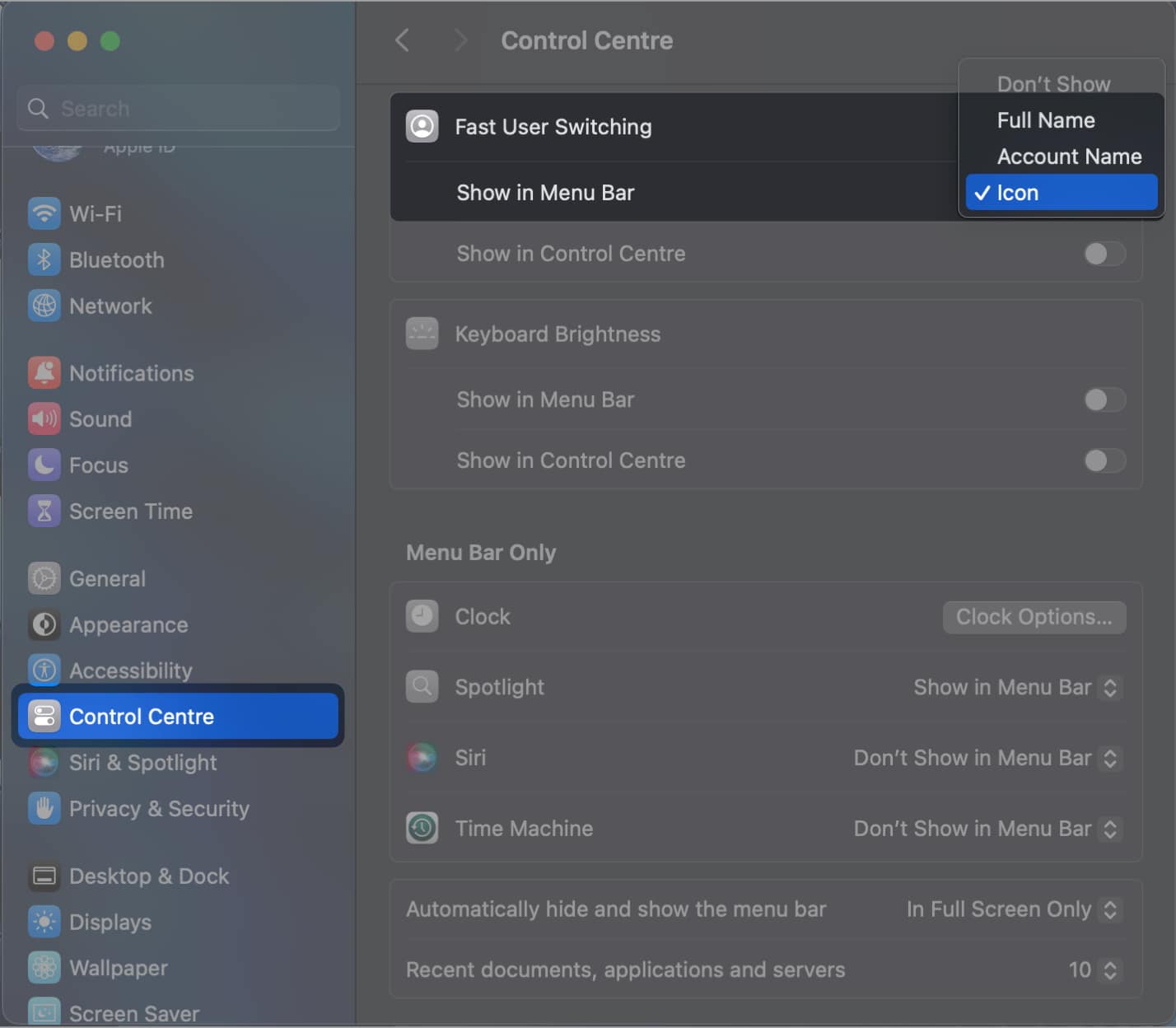
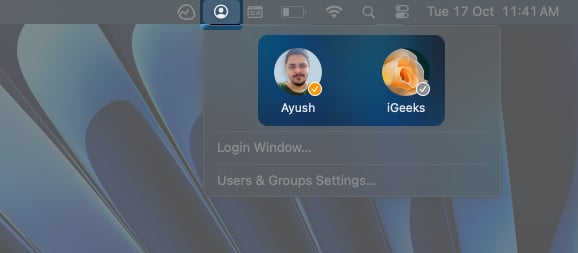
- Click the Icon or Name in the Menu bar when you want to switch users.
- Select the profile of the user you want to switch to.
3. Switch between users from Lock Screen
macOS also offers a way to switch users from the Lock screen when you manually lock your Mac or every time you wake it up. When you want to switch users from the Lock screen, you may follow these quick steps:
- Click the Apple logo located on the Menu Bar → Select Lock Screen.
You can also use the Option + Command + Q keyboard shortcut.
- Hover over the profile picture at the bottom to reveal all users.

- Select a user → Enter the password or use Touch ID to log in.

4. Switch between users using Terminal
Are you looking for a quick way to run administrative commands on your Mac without having to log out of an account with standard privileges? In that case, you can execute a simple Terminal command to switch to an admin account with elevated superuser privileges. Here’s how it works:
- Open Terminal on your Mac using the Launchpad or Spotlight search.
- Type su – <Username> in the Terminal window and hit Return/Enter.
Replace <Username> in the command with the name of the admin. - Type the password for the user and hit Return/Enter to log in.

Wrapping up…
Whether you’re a beginner or a seasoned macOS user looking for a way to conveniently switch between multiple user accounts on your Mac, the four quick methods that I’ve mentioned above should suffice. If this guide could assist you, don’t forget to let us know which method to switch users on Mac you found to be the most useful in the comments section below.
Frequently Asked Questions

Written by
Ayush PatelAyush is a writer with a keen interest in consumer technology and the Apple ecosystem. He has over three years of working experience at several big-name publications, including Guiding Tech, TechPP, and MobiGyaan. Here at iGeeksBlog, he specializes in crafting how-to guides, buying guides, and editorials related to all things Apple.
View all posts →More from How-to

Snapchat Parental Controls: How to Set Up Family Center and Keep Your Teen Safe
Snapchat’s Family Center lets parents monitor their teen’s friend activity and screen time without reading private messages. Here’s how to set it up and what to expect.
 VikhyatMarch 3, 2026
How to Block and Unblock Someone on Instagram
Instagram lets you block or unblock someone in seconds. Follow these simple steps to take full control of your privacy and online peace.
 Ava BiswasMarch 2, 2026
Apple Watch Not Responding? 8 Fixes That Actually Work
Is your Apple Watch unresponsive or stuck on a black screen? Here are 8 proven fixes to help you unfreeze it and get it working again quickly.
VikhyatMarch 3, 2026