
How to share photos with Messages and Mail on Apple Watch
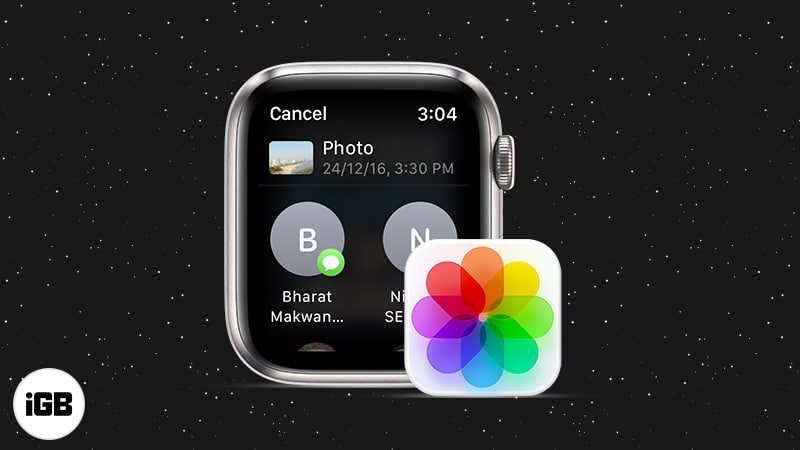
With watchOS 8, Apple Watch got some significant updates, including portrait mode photos support for watch faces, Mindfulness app, and more. But one of the underrated features was the photo-sharing ability. That’s right! You can now share photos via Messages and Mail from your Apple Watch with anyone and everyone. Let’s see you how to do it.
Note:
To use this feature, your Apple Watch must be updated to latest watchOS and have some photos. You can add photos by simply syncing your iPhone photos to the Apple watch.
Send photos using Messages or Mail directly on Apple Watch
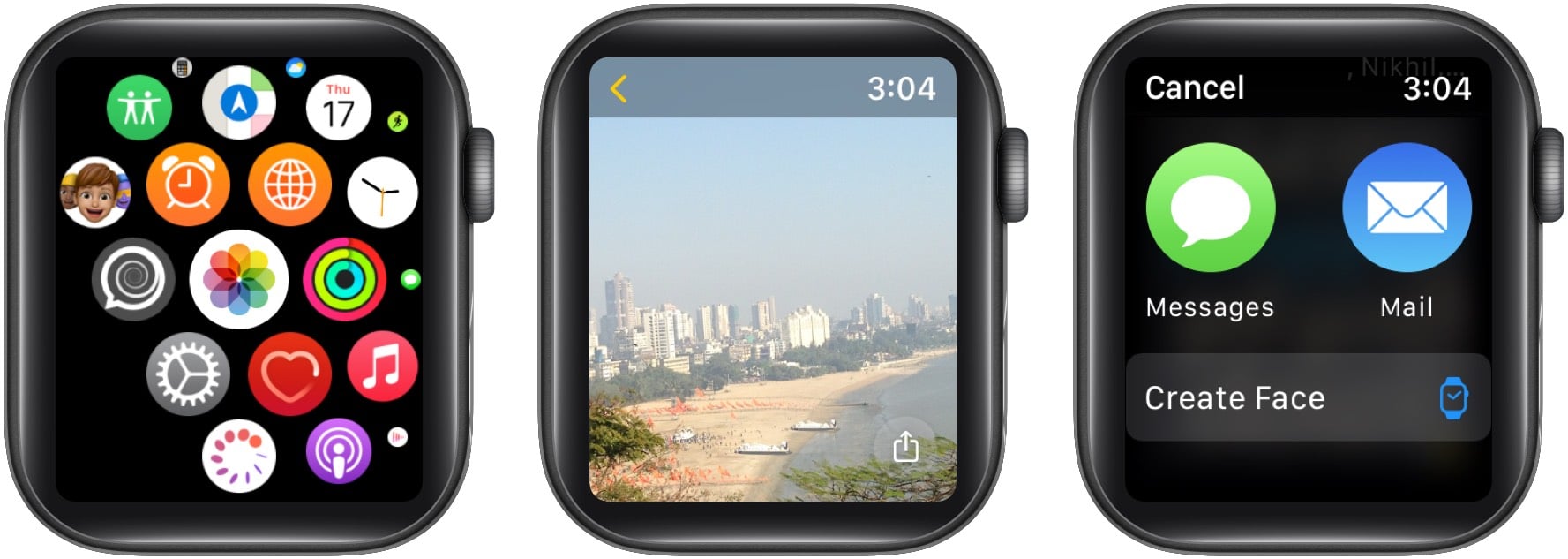
- Tap Digital Crown and launch the Photos app.
- Select the photo you want to share.
- Tap the Share icon at the bottom right.
- You can select a recent contact or choose either Messages or Mail.
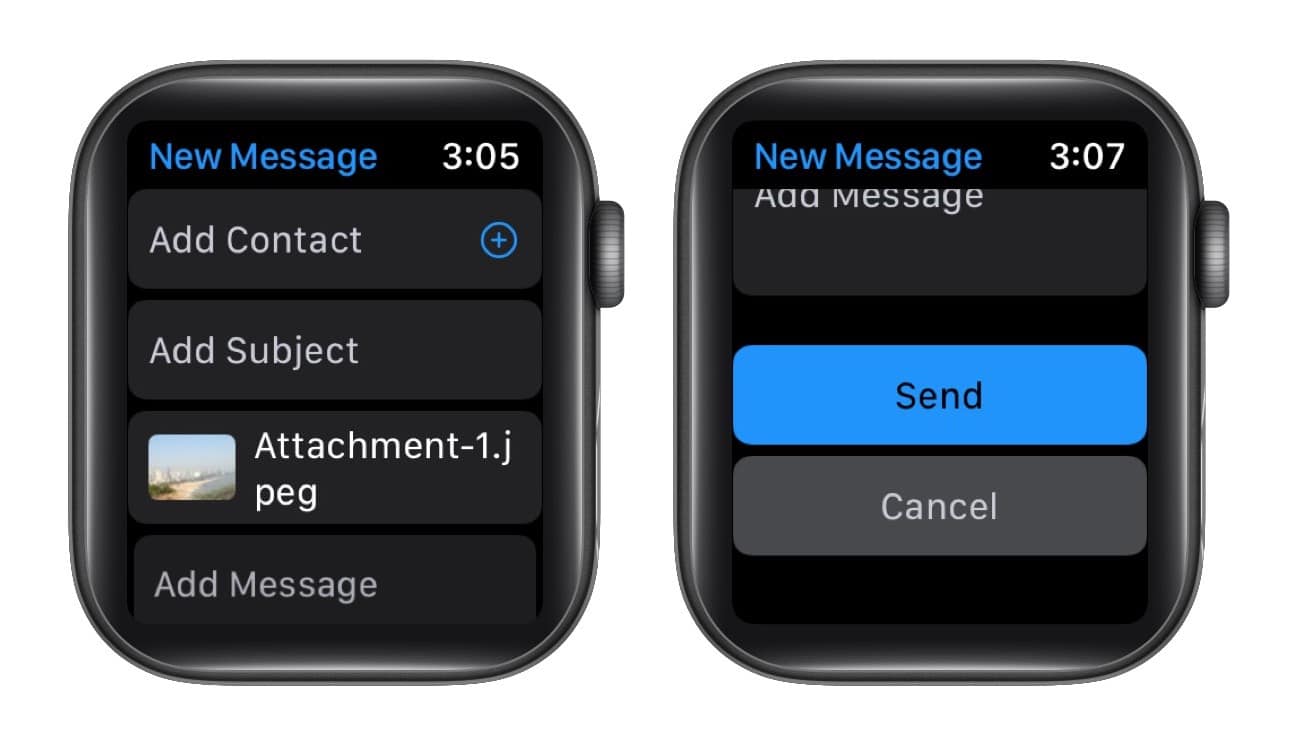
- Add Contact, write the accompanying message if needed, and scroll down to hit Send.
That’s it! While this may sound basic, it comes in handy many times. Imagine you just remembered that it’s your anniversary; a quick family photo with a lovely message might save the day.
Or your friend’s group has a photo off; you can be a worthy contender even when your iPhone is not nearby. However, currently, you can only access the feature via the Photos app.
Extra info: You can also share songs, albums, and playlists with the updated Music app in watchOS 8 through the Messages and Mail app.
I hope watchOS 8 incorporates an attachment-like feature to add photos directly from the Messages, Mail, or any third-party app in future updates.
Read more:

Written by
Arshmeet KaurA self-professed Geek who loves to explore all things Apple. I thoroughly enjoy discovering new hacks, troubleshooting issues, and finding and reviewing the best products and apps currently available. My expertise also includes curating opinionated and honest editorials. If not this, you might find me surfing the web or listening to audiobooks.
View all posts →More from Apple Watch

Apple Watch Not Responding? 8 Fixes That Actually Work
Is your Apple Watch unresponsive or stuck on a black screen? Here are 8 proven fixes to help you unfreeze it and get it working again quickly.
 VikhyatMarch 3, 2026
How to Mirror Your Apple Watch on Your iPhone: A Simple Guide
Want to control your Apple Watch using your iPhone? This guide explains how to turn on Apple Watch Mirroring, use it easily, and fix common issues.
Arshmeet KaurFebruary 27, 2026
How to Restore Apple Watch From a Backup
Need to reset or switch iPhones? Here’s how to restore your Apple Watch from a backup, what data comes back, and how to make sure everything syncs properly.
VikhyatFebruary 23, 2026