
How to share Apple Music playlist with friends on iPhone
Apple Music is among the best online music streaming apps that lets you create and share playlists with your friends and family. You can pick your desired melodies from various genres, create playlists, and share them with other Apple Music users. Just like you share songs on Instagram. If you’re new to Apple Music and would love to give it a try, let me show you how to create and share Apple Music Playlist on iPhone, iPad, and Mac.
How to create a playlist in Apple Music on iPhone and iPad
- Launch the Music app on your iPhone.
- In the Search bar, find the song you want to add to a playlist.
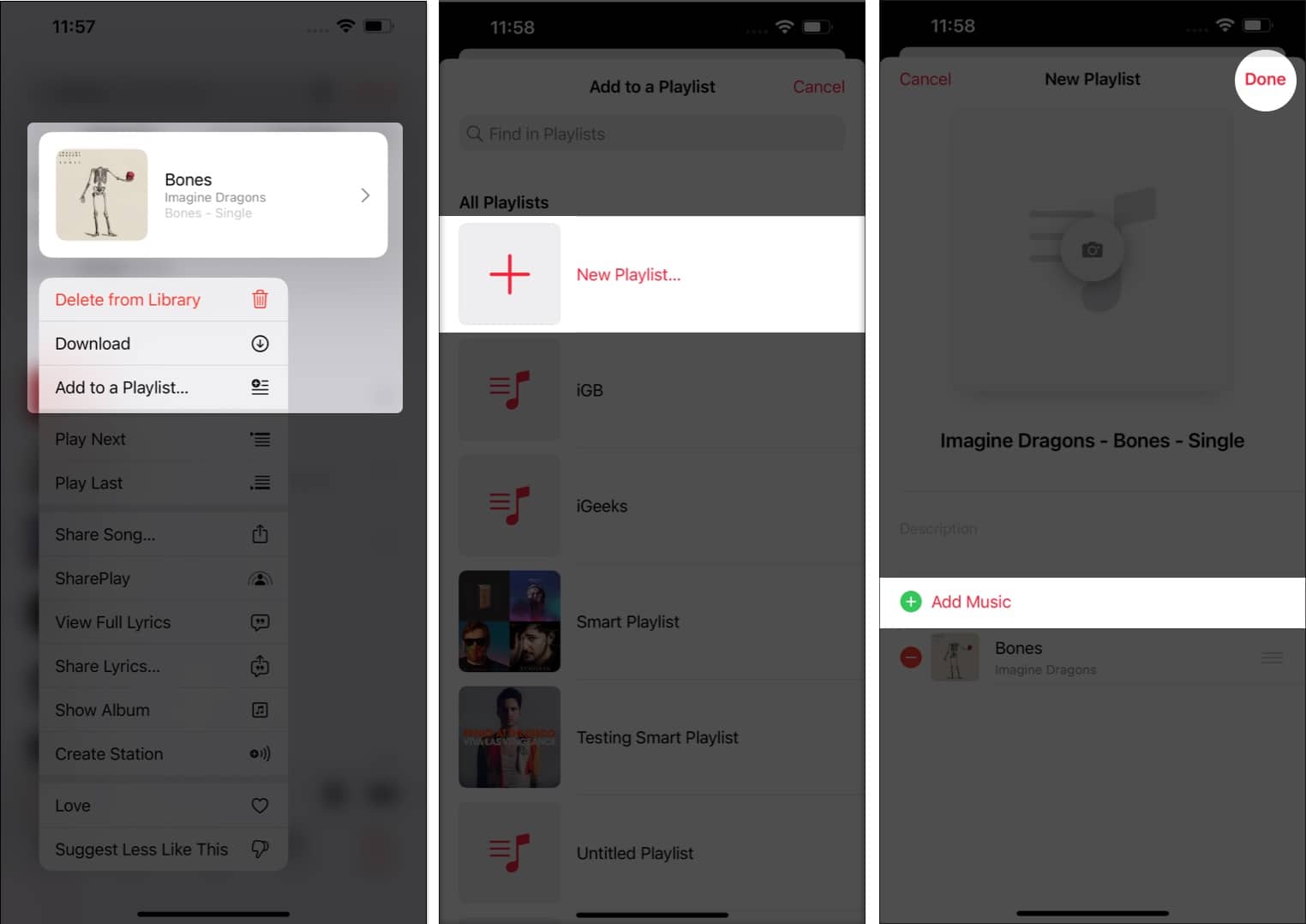
- Tap and hold the title of the song.
- Tap Add to a Playlist ➝ select New Playlist.
- You may add a playlist image, change the name, or add a description.
- You can further add songs to the playlist by hitting Add Music.
- Once done, tap Done.
Another way is:
- In the Music app, search and open the song you want to add.
- Tap the three dots in the top right corner.
- Select Add to a Playlist.
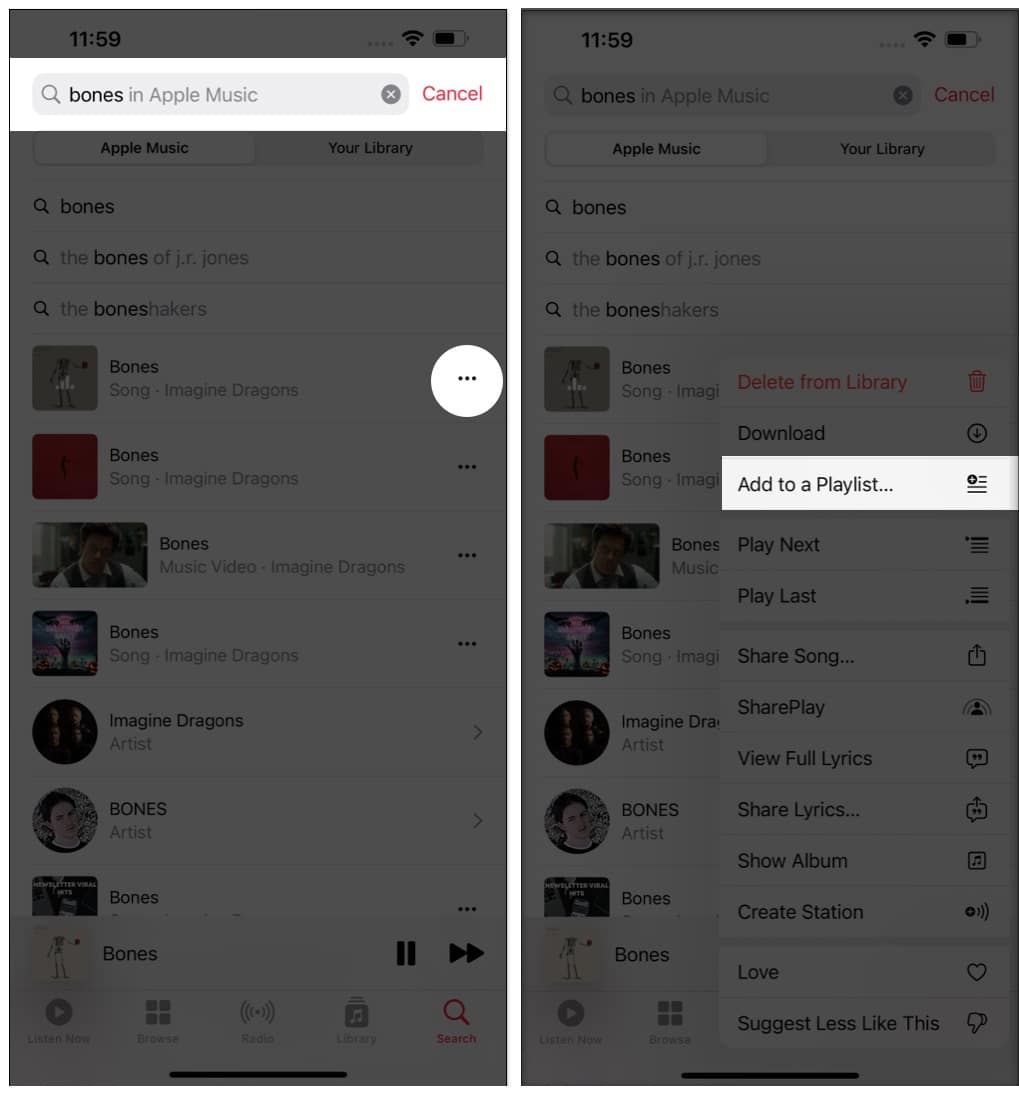
Continue with steps 4-7 mentioned above.
Note:
: For those wondering how to add music to a shared playlist on Apple Music, you can follow the same steps, and instead of choosing New Playlist, choose one from the existing ones.
How to share a playlist in Apple Music on iPhone and iPad
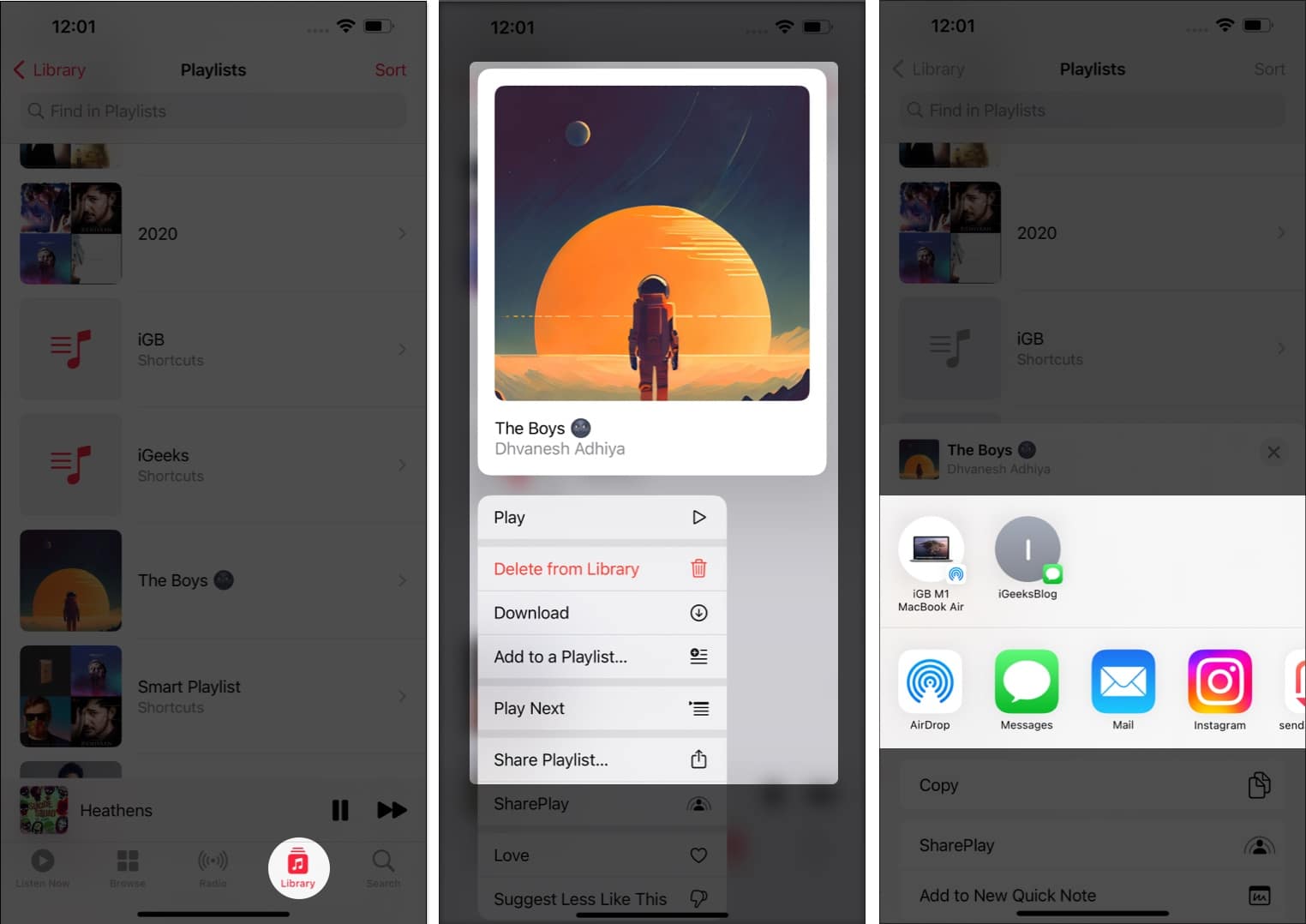
- Launch the Music app → tap Library at the bottom.
- Press and hold the playlist you want to share.
- Scroll down and tap Share Playlist.
- Choose how you want to share like AirDrop, Messages, Mail, etc.
Another method:
- Open the playlist you want to share.
- Hit the three dots at the top right corner.
- Tap Share Playlist…
- Choose how you want to share.
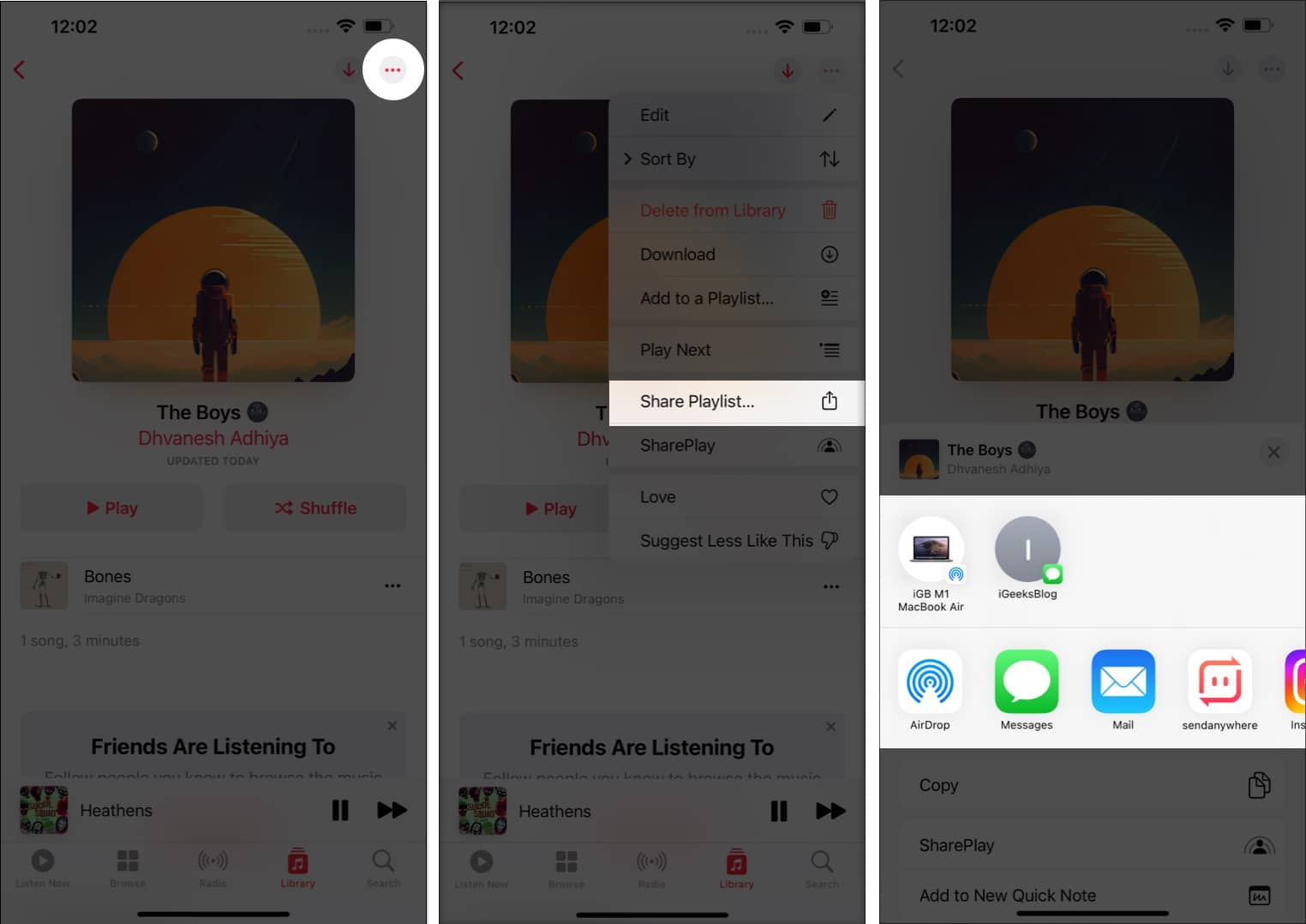
You can use these two methods even on playlists shared with you or the one created for you in the Apple Music app.
How to create a Playlist in Apple Music on Mac
- Launch the Music app on your Mac.
- Search and select the song you want to add.
- Click three dots next to the song.
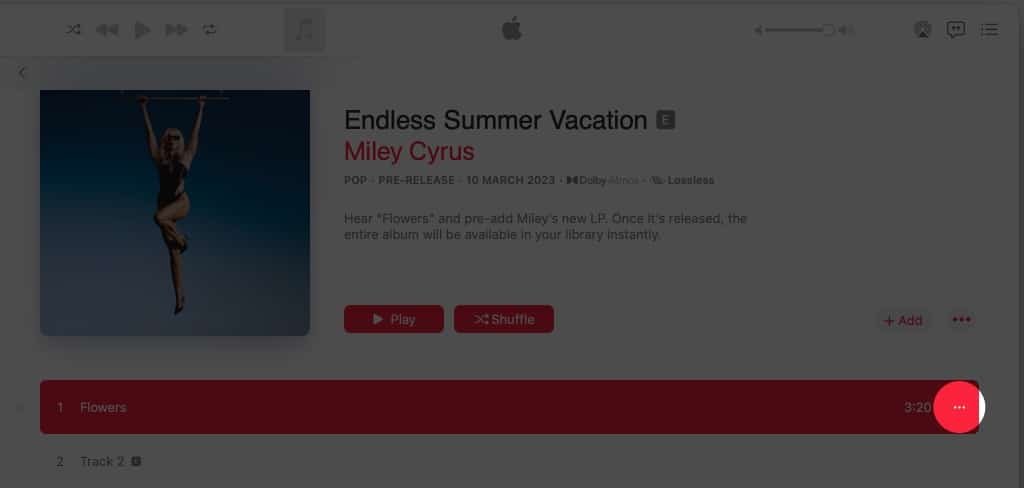
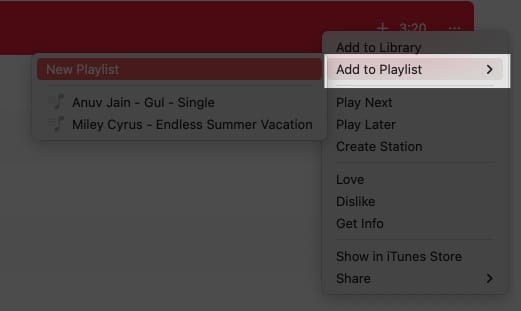
- Select Add to Playlist.
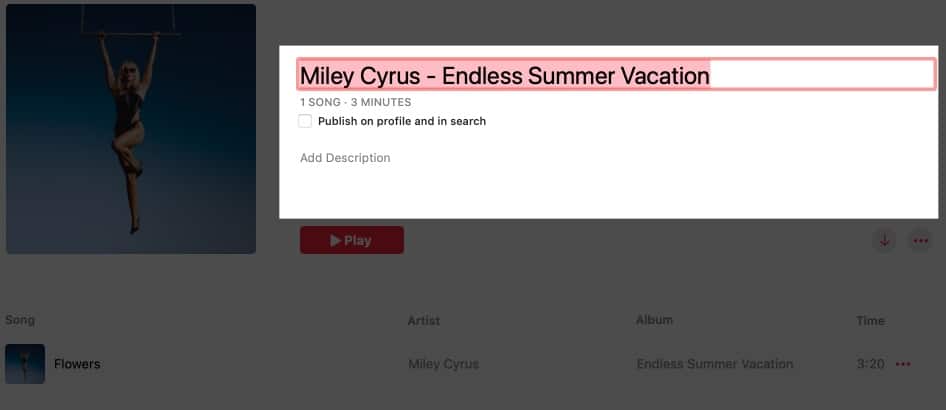
- Add relevant pieces of information where needed.
If you have the song on the home screen, just click the three dots next to it and select Add to Playlist.
How to share a playlist in Apple Music on Mac
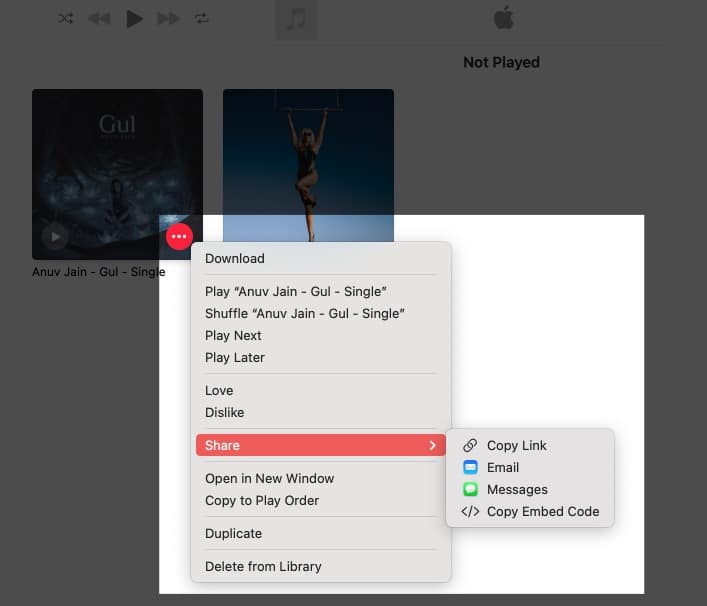
From the All Playlists page:
- Hover the mouse over the playlist.
- Click the three dots icon.
- Select Share.
- Now, choose how you want to share.
Method 2:
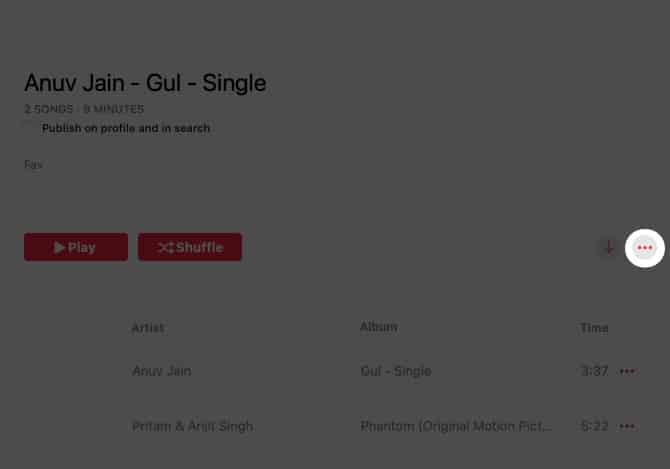
- Open the playlist you want to share.
- Click the three dots on the right side.
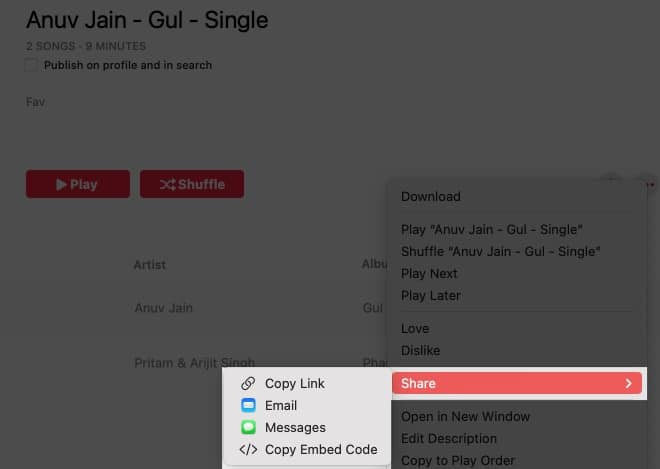
- Click Share and choose how you want to share.
Share Music and love ❤️
Apple Music has become a favorite for ecosystem fans with features like smart playlist and karaoke. Additionally, with functions to create and share playlists, you can now extend how you feel with your friends or discover new music together. That being said, if you have any doubts or queries, let me know in the comments.
Frequently Asked Questions
Topics

Written by
Jignesh PadhiyarJignesh Padhiyar is the co-founder of iGeeksBlog.com, who has a keen eye for news, rumors, and all the unusual stuff around Apple products. During his tight schedule, Jignesh finds some moments of respite to share side-splitting content on social media.
View all posts →More from How-to

Snapchat Parental Controls: How to Set Up Family Center and Keep Your Teen Safe
Snapchat’s Family Center lets parents monitor their teen’s friend activity and screen time without reading private messages. Here’s how to set it up and what to expect.
 VikhyatMarch 3, 2026
How to Block and Unblock Someone on Instagram
Instagram lets you block or unblock someone in seconds. Follow these simple steps to take full control of your privacy and online peace.
 Ava BiswasMarch 2, 2026
Apple Watch Not Responding? 8 Fixes That Actually Work
Is your Apple Watch unresponsive or stuck on a black screen? Here are 8 proven fixes to help you unfreeze it and get it working again quickly.
VikhyatMarch 3, 2026