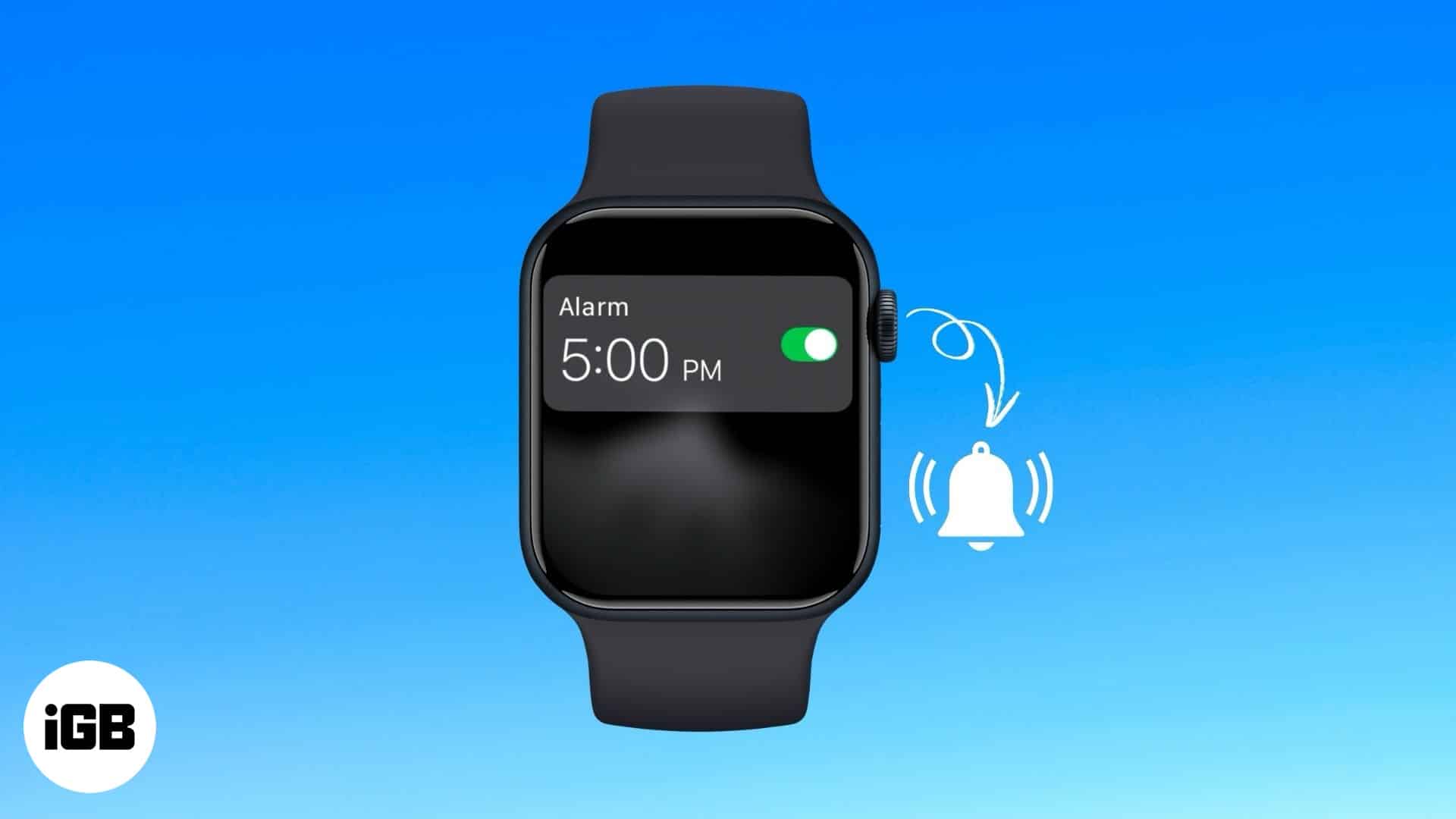
- Why It’s Effective: The Apple Watch is a great alarm because its haptic vibrations on your wrist provide a silent but effective alert that is less likely to be missed.
- The Easiest Method: Siri: The quickest way to set an alarm is with your voice. Simply activate Siri and say a command like, “Set an alarm for 6:30 AM.”
- The Manual Method: Alarms App: You can also set alarms manually by opening the Alarms app on your watch, tapping the plus icon, and using the Digital Crown to set the time.
- Managing Your Alarms: From the Alarms app, you can easily manage your alarms by tapping on one to change its time, toggle it on or off, or delete it.
- Customization Options: For more customization, you can disable the snooze function for any alarm or turn on Silent Mode on your watch to get a vibration-only alarm.
While you can use your iPhone for alarms, there is a chance you might miss certain alarms, maybe because sometimes your iPhone might be too far away, on Silent Mode, or out of charge. However, an Apple Watch is pretty much always on your wrist, which makes it a great alarm clock.
Keep reading, and I will show you two ways to set an alarm on your Apple Watch and manage it when needed.
2 ways to set an alarm on Apple Watch
There are two ways to set alarms on an Apple Watch in 2 ways. You can either ask Siri to do it or take matters into your own hands and set one up using the Alarms app on your Apple Watch.
Using Siri on Apple Watch
The best and most straightforward way to set an alarm on your Apple Watch is using Siri. Here’s what you need to do:
- Activate Siri on your Apple Watch by saying “Hey Siri” or holding the Digital Crown.
- Then, say, “Set an Alarm for X: XX AM (or PM).”
That’s all. Siri will now set the alarm for you. You can head to the Alarms app on your Apple Watch to verify it.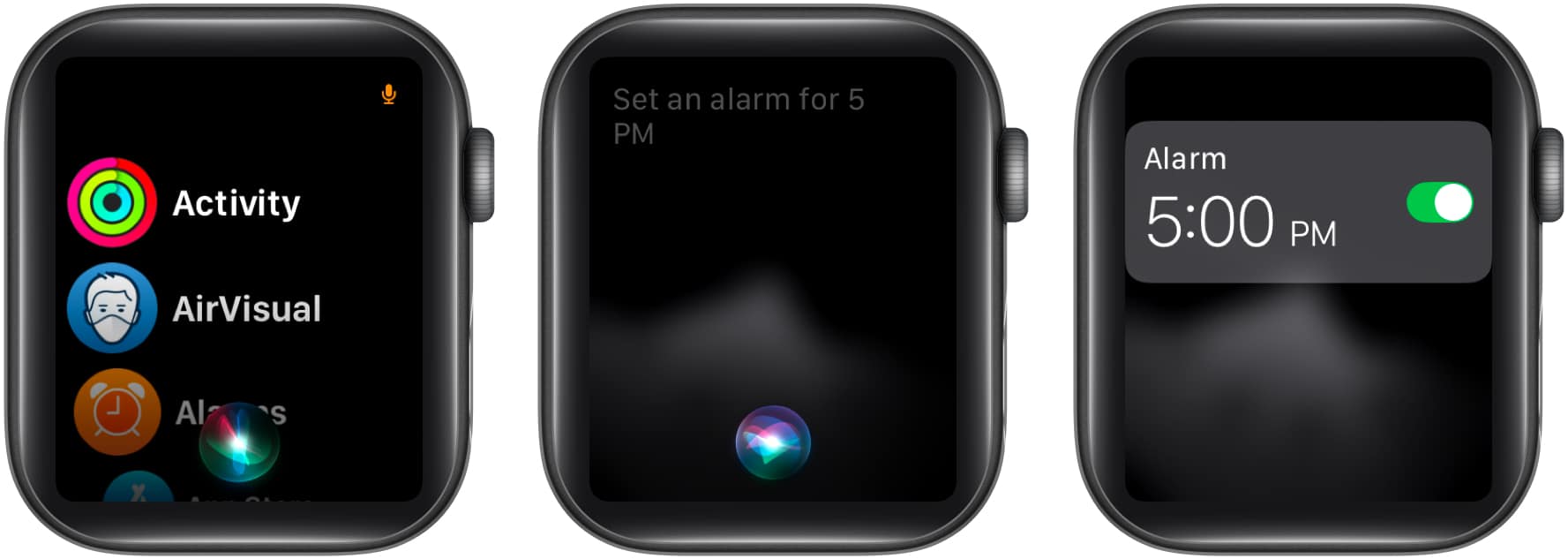
Using the Alarms App on Apple Watch
If you don’t prefer using Siri, you can use the Alarms app on your Apple Watch to set an alarm. Here’s how you do it:
- Open the Alarms app on your Apple Watch.
- Tap the + icon and set the time of your alarm. Rotate the Digital Crown to change the hours and minutes. Remember to choose AM and PM correctly if the watch is set to a 12-hour format.
- Once done, tap the green checkmark icon in the bottom-right corner to set the alarm.
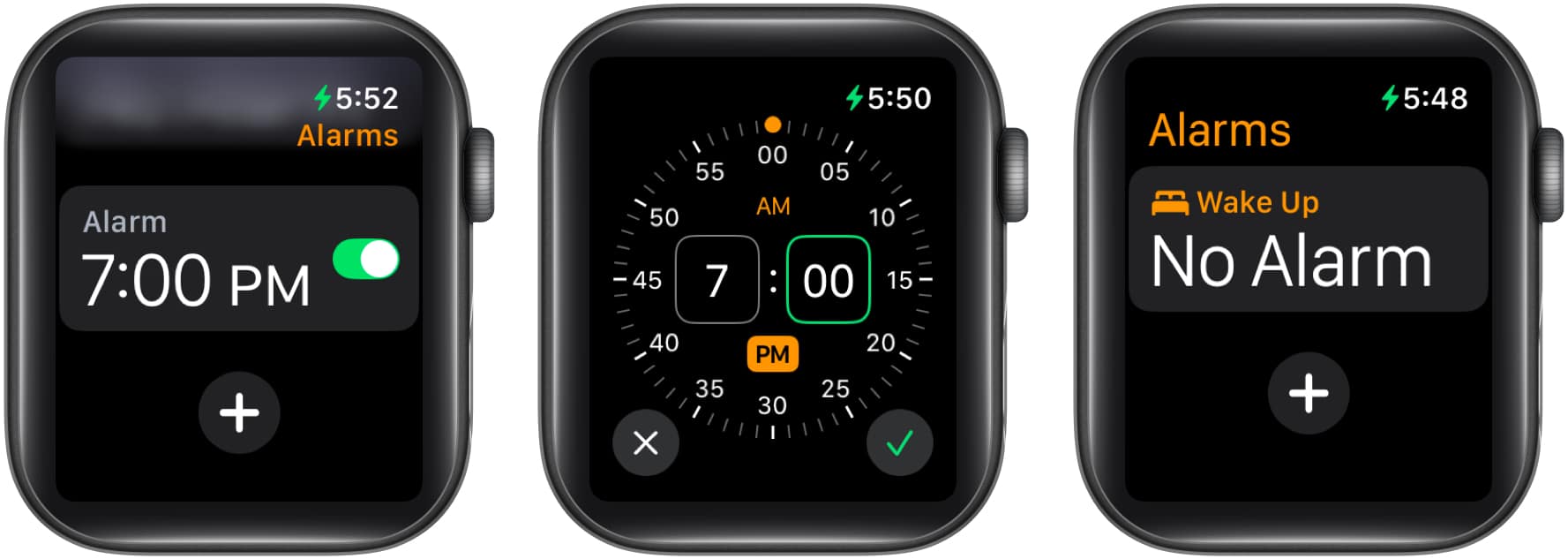
Repeat the steps above to add multiple alarms.
How to manage and edit alarms on Apple Watch
After you have set an alarm on your Apple Watch, you can edit it or make other changes to it if required. Let’s show you how.
Change alarm time on Apple Watch
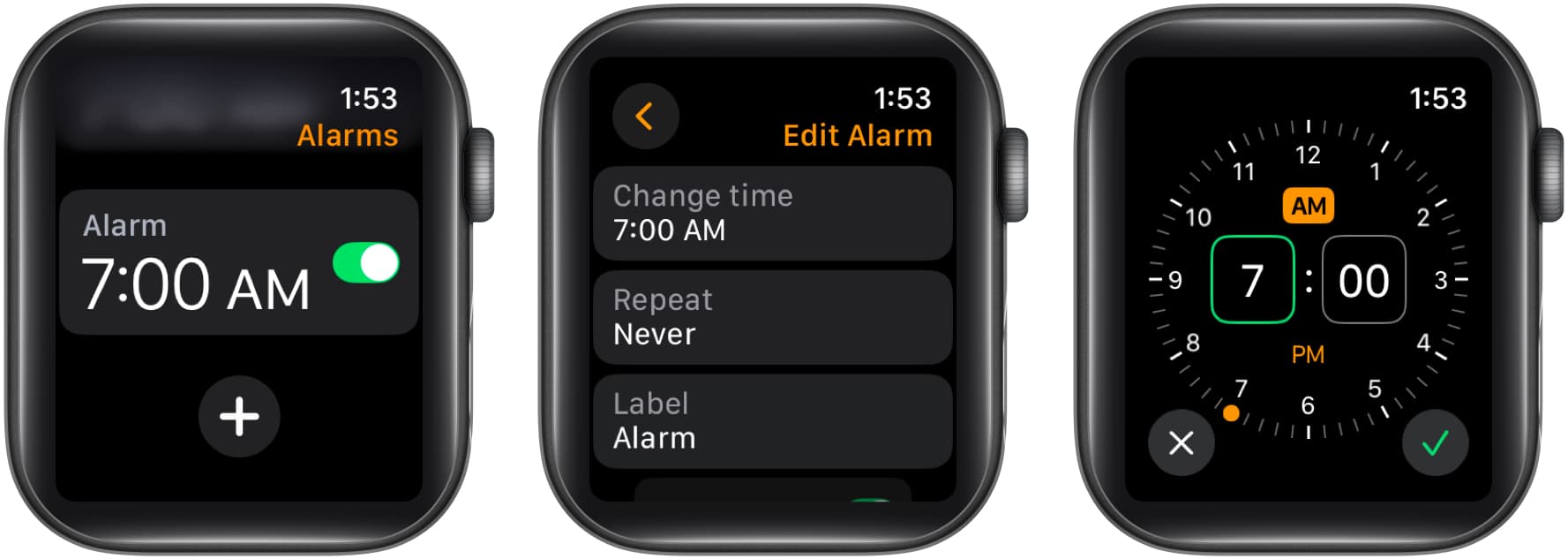
To change the alarm time for a set alarm, open the Alarms app and follow these steps:
- Tap the set alarm.
- Tap on Change Time.
- Now, reset the new time for the alarm. When done, hit the green checkmark in the bottom-right corner to save the alarm.
Turn off snooze in an alarm
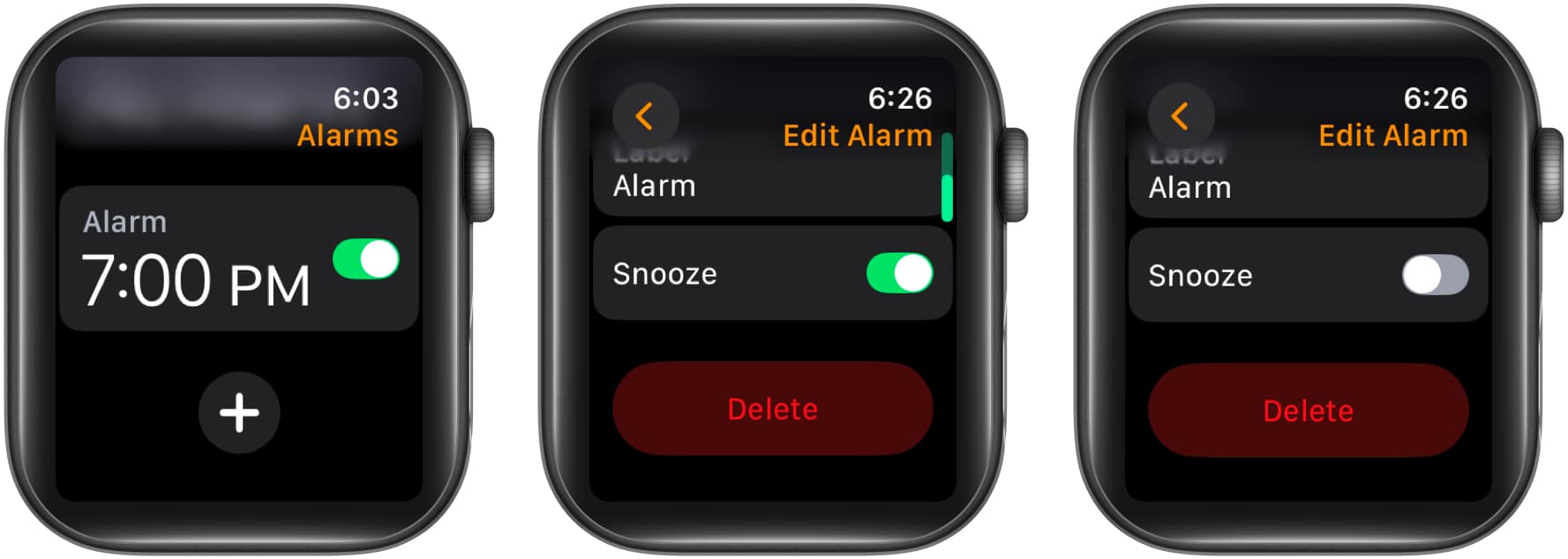
By default, your alarms have the Snooze option turned on. This means you get the ability to temporarily postpone your alarm when it goes off. However, if you do not prefer this, you can turn off the Snooze option for an alarm like this:
- In the Alarms app, tap the already set alarm.
- Scroll down and flip the Snooze toggle off.

Delete Apple Watch alarms
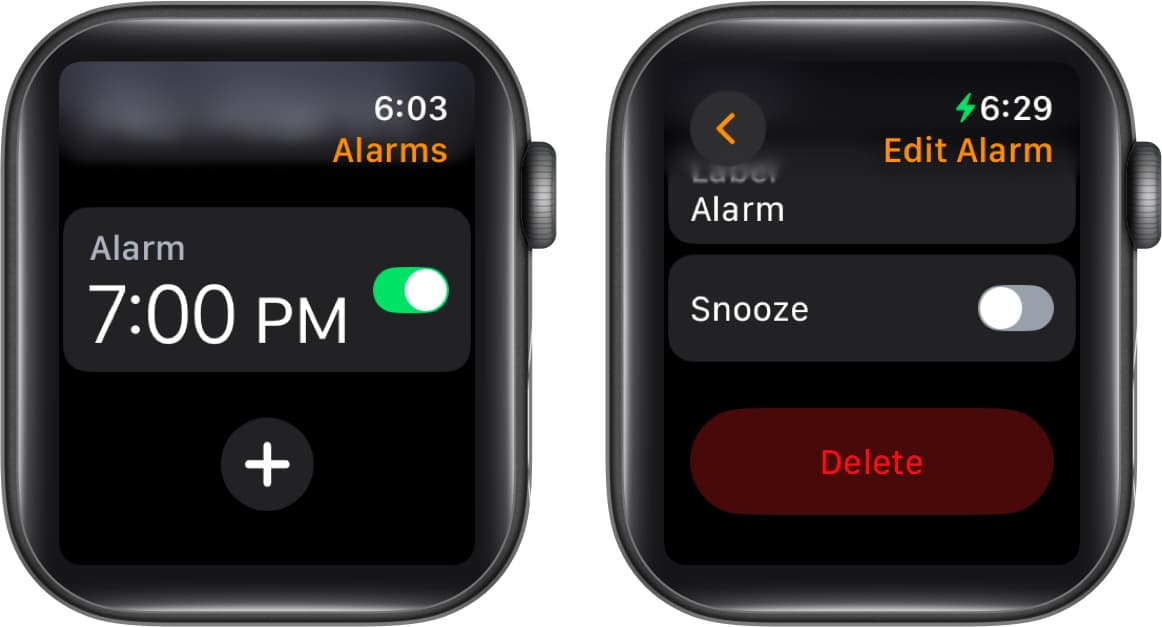
For times when you no longer need an alarm, you can simply delete it to avoid clutter. Here’s how:
- In the Alarms app, tap the already set alarm.
- Scroll down and tap the Delete button.

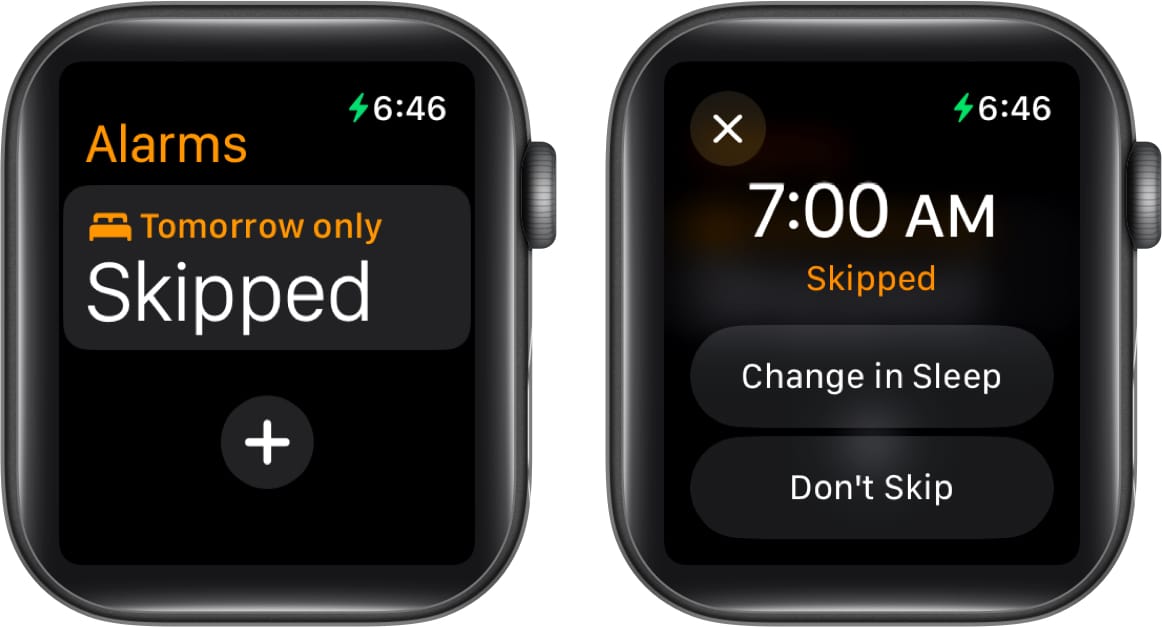
Skip a wake-up alarm
When you set up your sleep schedule and an alarm in the Apple Watch’s Sleep app, it will also appear in the Alarms app. You can skip this wake-up alarm by doing the following:
- Head to the Alarms app.
- Tap the Wake Up alarm.
- Tap the Skip for Tonight button.
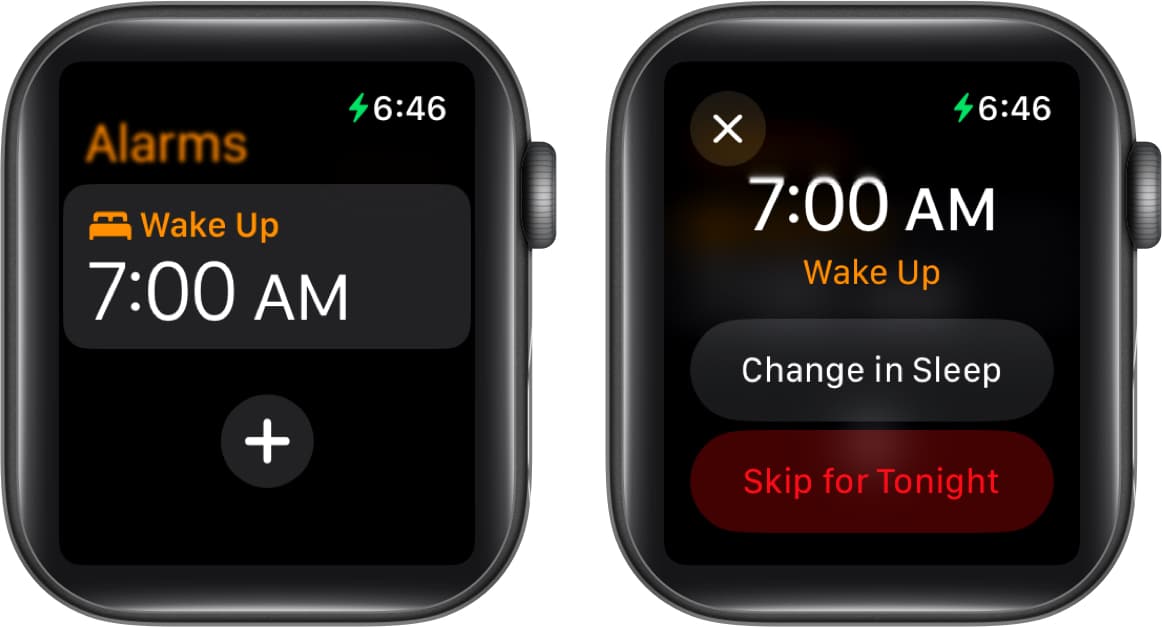
- If you change your mind, you can reverse the skip by following the same steps and tapping the Don’t Skip button.


Sync alarms on iPhone and Apple Watch
You can also make your Apple Watch alert you to the alarms set up on your iPhone. Follow these steps to do this:
- Open the Watch app on your iPhone and go to the My Watch tab.
- Find and tap the Clock app.
- Toggle on the Push Alerts from iPhone option on the following screen.
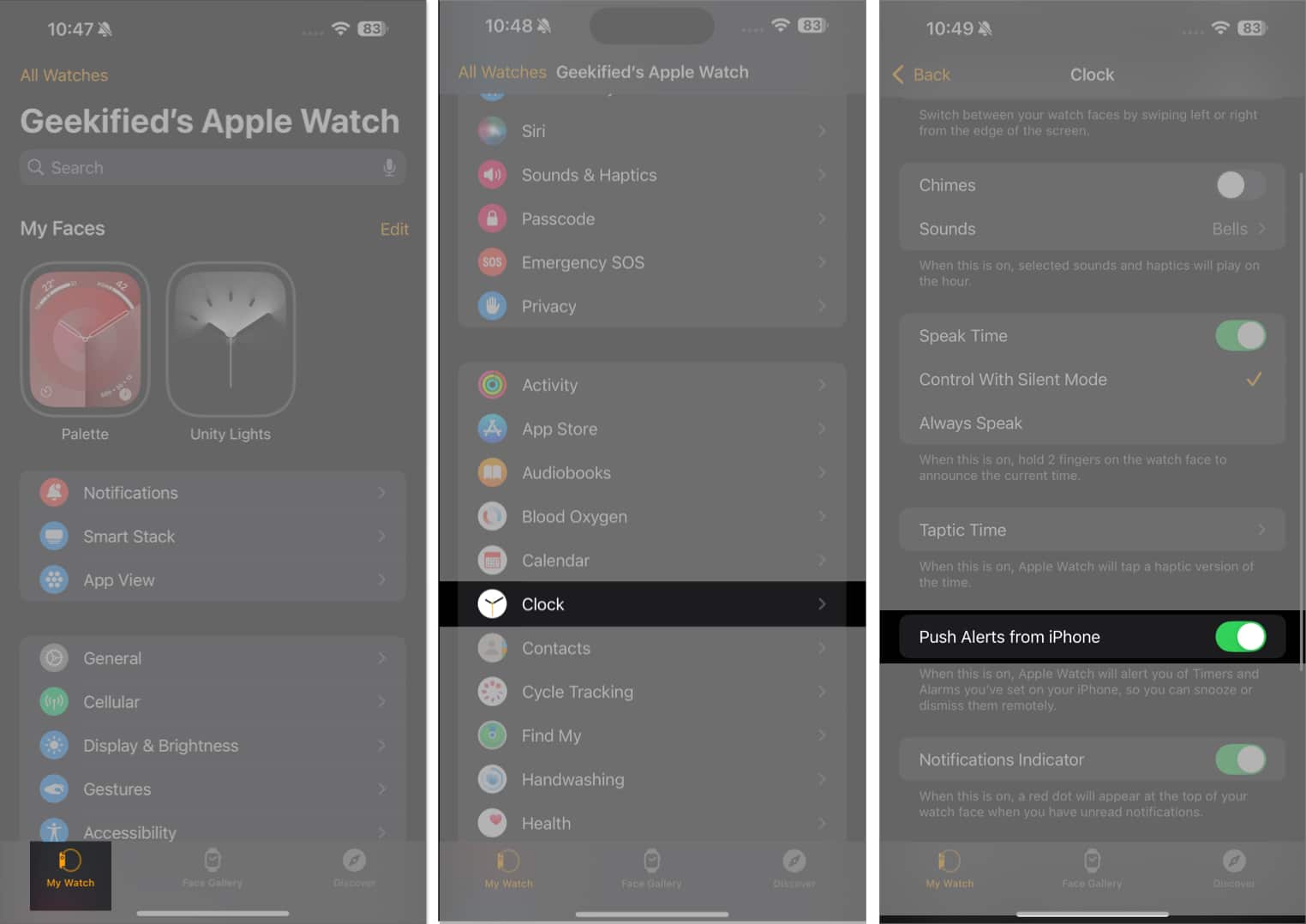

Now, your Apple Watch will also alert you for the alarms set on your iPhone.
Set the Apple Watch as a bedside clock with alarm
Since you can use an Apple Watch as your bedside clock, setting an alarm on your Apple Watch will also show it in the Nightstand Mode. To know how to turn on the Nightstand Mode and learn more about it, check out our guide on how to use Nightstand Mode on an Apple Watch.
How to add an alarm to watch face
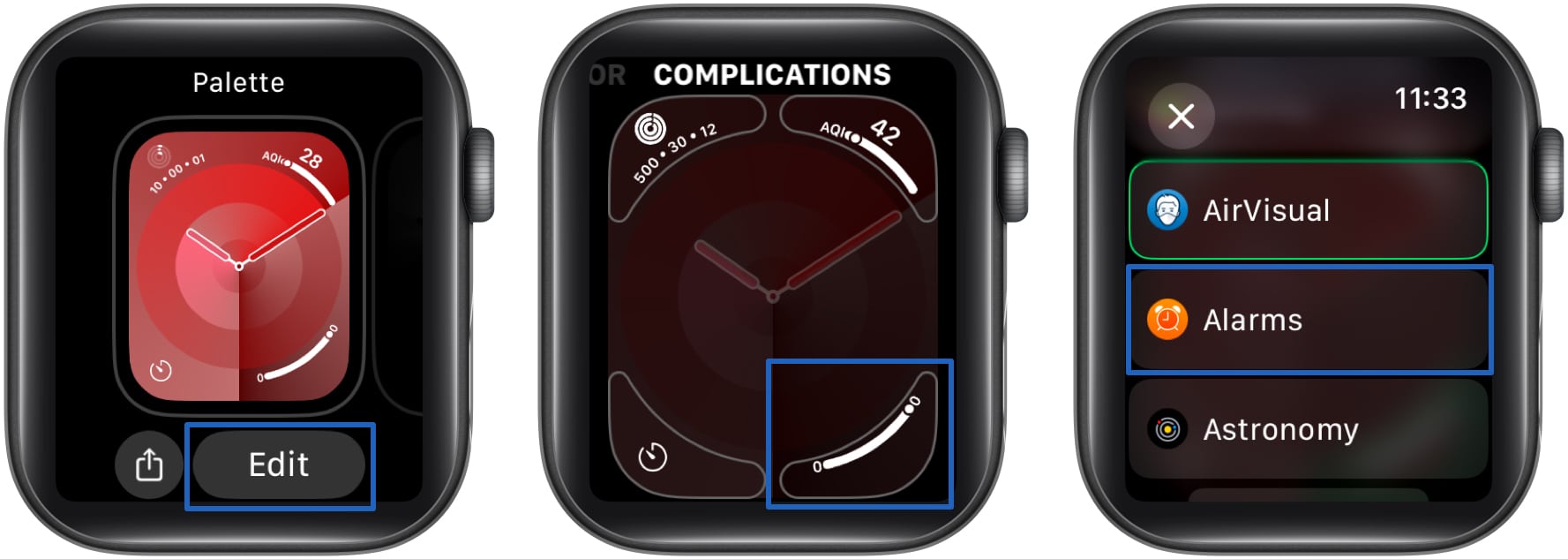
If you want convenient access to your upcoming alarms, you can add alarms to your watch face on your Apple Watch. These are the steps you need to follow:
- Tap and hold the watch face and tap Edit.
- Swipe right until you reach the Complications settings.
- Here, tap any of the four corners where you want your alarm to be displayed.
- Now select Alarms and tap the screen again to set.

Alternatively, you can also use the Watch app on your iPhone to do this. Follow the steps.
- Tap the watch face.
- Under Complications, select one of the four corners.
- Then, select Alarm.
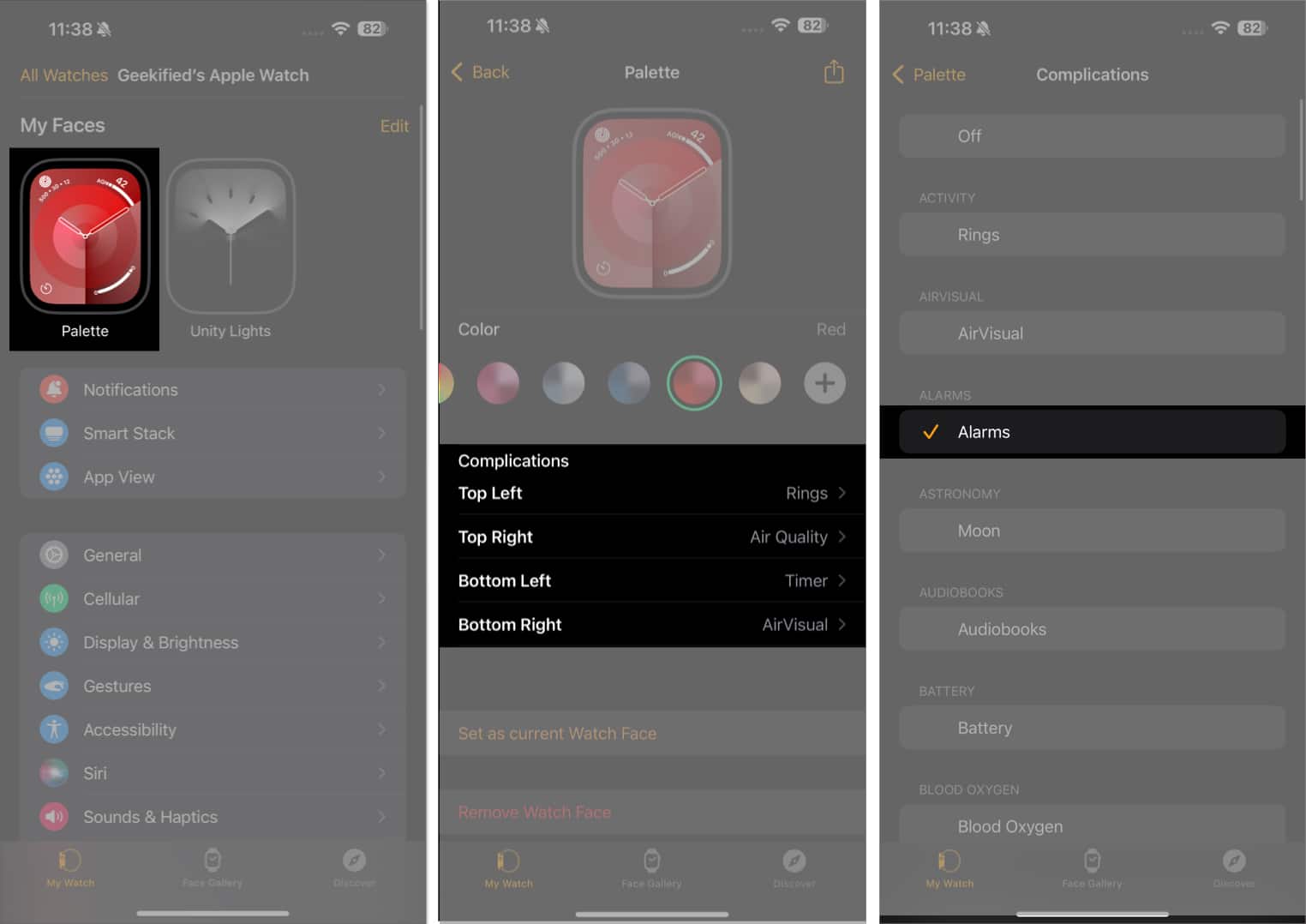

Your alarms will now be seen directly on the watch face.
How to set vibrate-only alarms on Apple Watch
At times, you may want your Apple Watch alarms to just vibrate instead of making a sound. You can easily set up a vibrate-only alarm for such instances using the following steps:
- Access the Control Center on your Apple Watch by pressing the Side button.
- Tap the Silent Mode button (with a bell icon) to put your watch into Silent Mode.
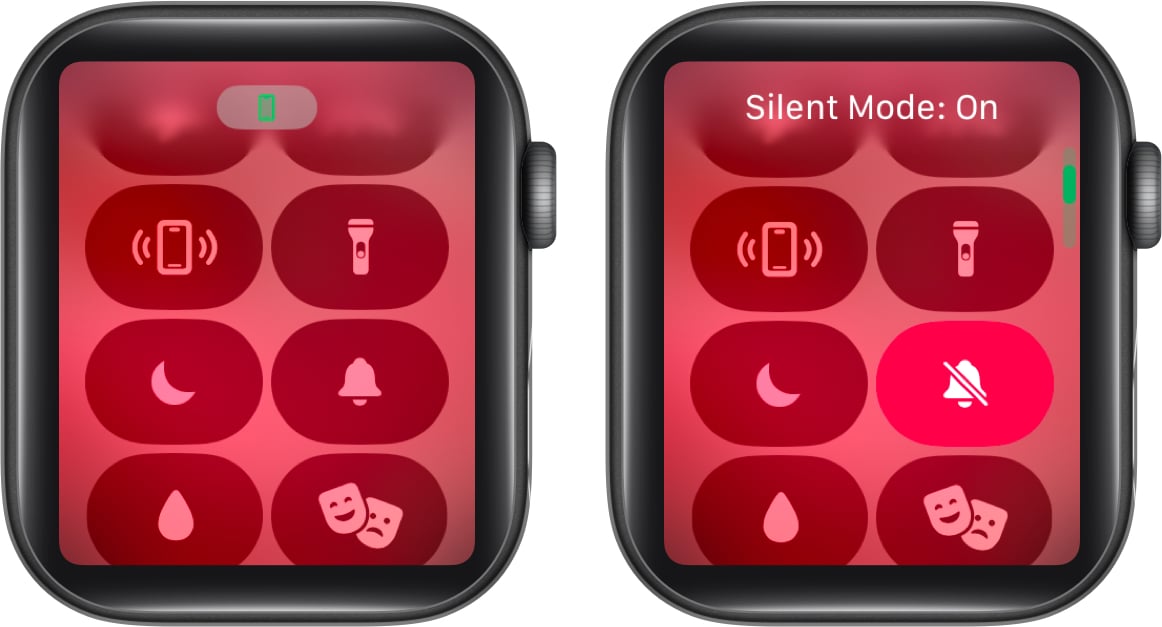

Now, your Apple Watch will only vibrate to alert you of your alarm.
Signing off…
If you own an Apple Watch, you must make the most of its capabilities. Setting up alarms on it is one way to do it, especially if you use your Apple Watch to track your sleep. So go ahead and set it up and eliminate the risks of missing your next alarm and oversleeping.